How to Recover Action Camera Videos
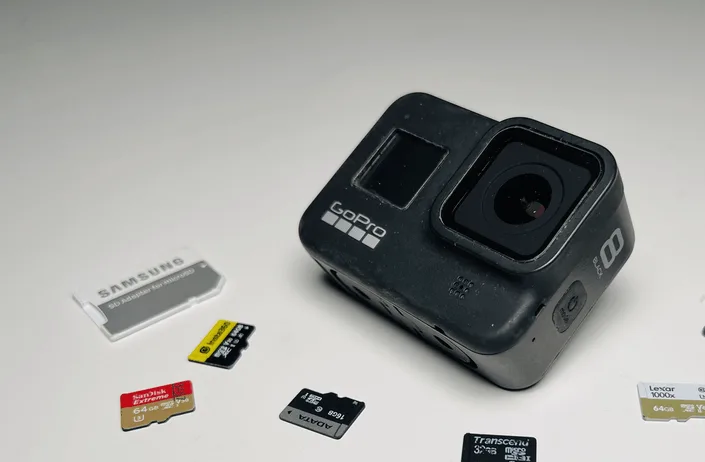
Nothing ruins a great day of filming like the sinking feeling that your footage is gone. Whether you're trying to figure out how to recover action camera videos after an accidental delete, a corrupted card, or a camera that suddenly stopped working, the good news is that most footage isn't truly lost. Recovery is often possible if you act fast and use the right approach.
As of 2026, modern action cameras like GoPro, DJI, and Insta360 models use microSD cards formatted to exFAT or FAT32. That file system structure matters because it determines how the camera writes and stores your clips. The specific recovery method you need depends entirely on what went wrong, so let's walk through the possibilities step by step.
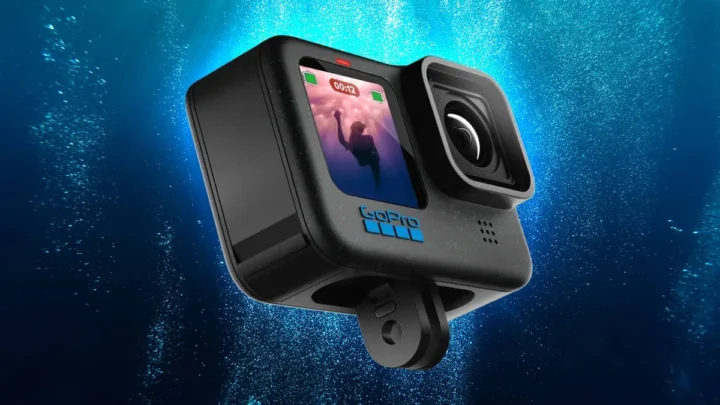
Image source: Bing (Web (fair-use with source credit))
Quick Answer
To recover action camera videos, stop using the card immediately and remove it from the camera. Insert it into a card reader and run recovery software. Do not format the card.
Scan as soon as possible for the best results.
The First Rule: Stop Using the Card
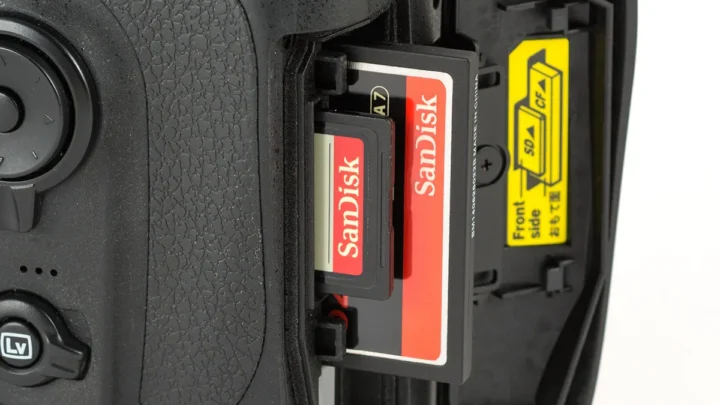
This is the single most important step in any recovery attempt. The moment you notice footage is missing, stop recording. Remove the battery or power off the camera.
Take the microSD card out and set it aside.
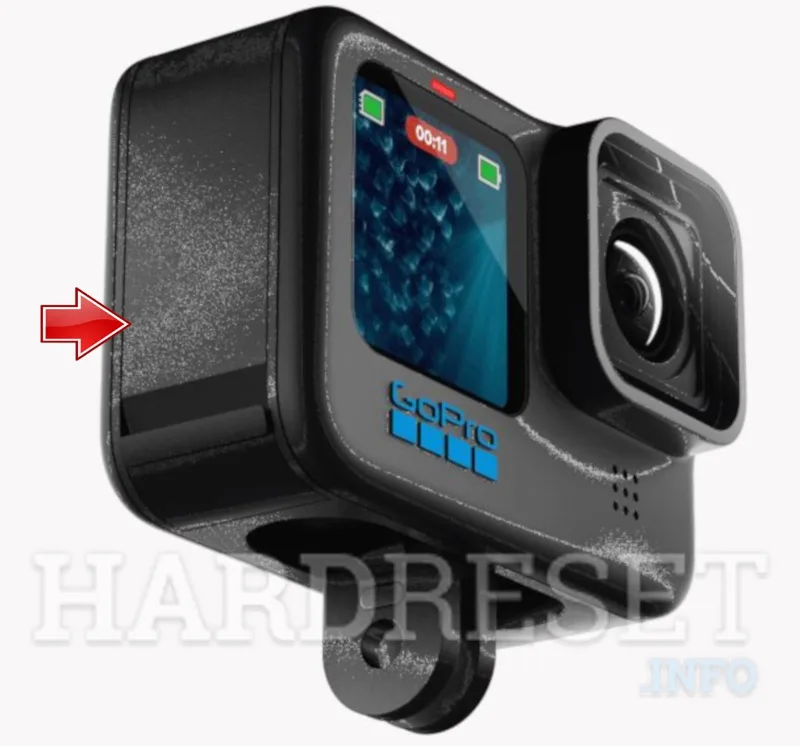
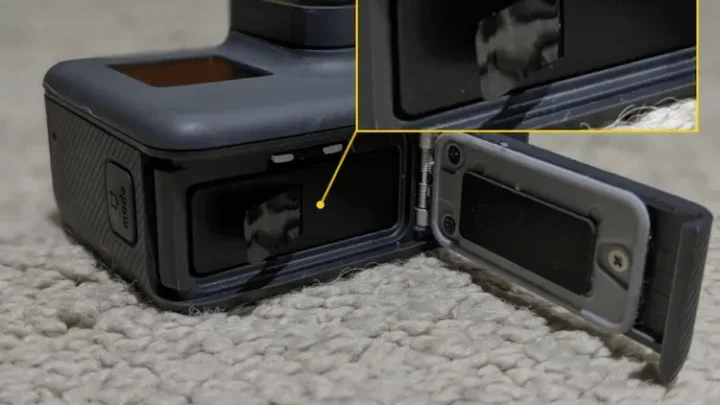
Image source: Web (Bing) / hardreset.info (Web image (fair-use with source credit))
Every second you keep filming, the camera writes new data. That new data can overwrite the exact space where your deleted video still exists. Even if the card appears empty, the old files are still there.
The camera just marked that space as available for new writes.
Think of it like a whiteboard. You erase a drawing, but the faint marks are still visible. Now imagine someone scribbles over that same spot.
The original drawing is gone for good. The same thing happens with digital files.
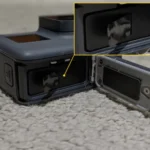
The safest move is to flip the lock switch on the side of an SD card if your card has one. That prevents any accidental writes. If your microSD card came with a full-size adapter, the lock switch is on the adapter.
Set the adapter to "Lock" before inserting it into a computer.
Never try to open the videos in the camera to check if they work. That process can generate thumbnail files, cache data, or even partial writes that corrupt the recovery window. Just leave the card alone.
For more on keeping your gear in good shape, properly storing your camera between trips helps prevent future issues.
The Recovery Playbook by Scenario
Not all data loss is the same. The right recovery method depends on exactly what happened. Here is how to handle each common situation.
Scenario 1: You Deleted a File on the Camera
This is the easiest scenario. The camera likely only removed the file entry from the table of contents. The actual video data is still on the card.
Use a recovery tool that supports the file system your card uses. Most action cameras use exFAT. Software like Recuva or PhotoRec can scan for recently deleted files.
Run a quick scan first. If that does not find it, run a deep scan.
Do not save the recovered file back to the same card. Save it to your computer's hard drive or an external drive. Rescuing it to the same card risks overwriting other deleted files still waiting to be found.
The same logic applies when recovering deleted photos from other camera types.
Scenario 2: The Card Shows as "Empty" or Unreadable
This is a classic sign of filesystem corruption. The camera might have lost power during a write. The card might have been removed while the camera was still saving.
The partition table is damaged, but the video data is still intact.
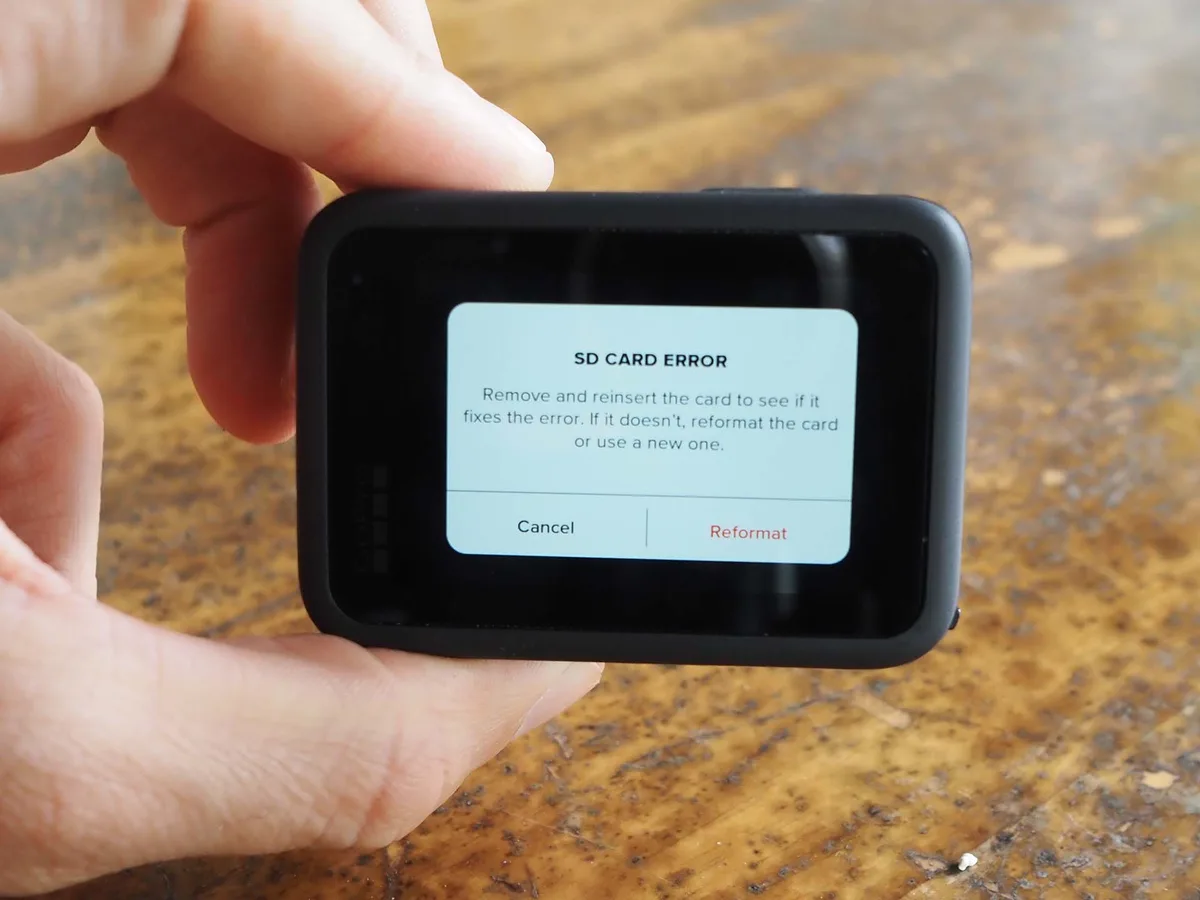
Image source: Bing (Web (fair-use with source credit))
Do not format the card. Formatting creates a new filesystem and writes fresh directory structures. That immediately overwrites the old file table, making recovery much harder.
Instead, use a tool that can read raw data. PhotoRec is excellent for this because it ignores the filesystem entirely and scans for file signatures. It looks for the specific byte patterns that mark the start of an MP4 or HEVC video file.
This method works even when your computer says the card needs to be formatted.
If the card is completely unreadable on Windows, try a different card reader. Some built-in readers are finicky with damaged cards. A dedicated USB 3.0 card reader often handles errors better.
Scenario 3: You Accidentally Formatted the Card
A quick format is not as destructive as it sounds. The camera or computer creates a new empty file table, but the actual video data stays on the card until something overwrites it.
Stop using the card immediately. Do not record anything new. Run a deep scan with recovery software.
Most tools can reconstruct the file table from the raw data.
The success rate here is high if you catch it quickly. The longer you wait, the more likely the camera writes new footage over your old videos. If you formatted the card inside the camera, check whether the camera has a "rebuild database" or "recover files" option in its menu.
Some GoPro models can rebuild the file structure automatically.
Scenario 4: The Camera Says "Card Error" or Won't Record
This is often a firmware or compatibility issue, not necessarily a dead card. The camera might have a corrupted database file that prevents it from reading the card properly.
First, try the card in a different device. Put it in a computer, a friend's action camera, or a card reader. If the card works elsewhere, the problem is likely in the camera's file database.
Some action cameras store a hidden database folder on the card. Corruption in that folder can cause a "card error" even when the video files are fine. You can try deleting that database folder (often named "MISC" or "DCIM") using a computer.
The camera will recreate it on the next boot.
If the card itself is failing, the camera will show an error because it cannot complete the write. That is a different problem. The card may be approaching the end of its write cycles.
Copy everything off the card as soon as you can.
Scenario 5: Physical Damage or Water Exposure
Action cameras get dunked, dropped, and frozen. If your card got wet, do not insert it into anything. Do not plug it into a computer.
Do not try to dry it with heat.
Rinse the card gently with distilled water to remove any salt or debris. Pat it dry with a lint-free cloth. Place it in a bowl of uncooked rice or silica gel packets for 48 hours.
Do not use a hair dryer or oven. Heat can warp the circuit board.
After drying, try the card in a computer. If it is detected, copy everything off immediately. If it is not detected, professional recovery services may be your only option.
Physical damage is the hardest scenario. Paying for a recovery lab is expensive, but it is sometimes the only way to get footage back from a genuinely broken card.
The Tools That Actually Work (Free vs. Paid)
You do not need to spend money to recover action camera videos. Many free tools are just as effective as paid ones for basic recovery. The difference comes down to features and convenience.
| Tool | Cost | Best For | Limitations |
|---|---|---|---|
| PhotoRec | Free | Deep scanning on corrupted cards | No graphical interface, command-line only |
| Recuva | Free / Paid | Quick file recovery on Windows | Free version has limited deep scan |
| Disk Drill | Free trial / Paid | User-friendly interface, macOS and Windows | Full recovery requires paid license |
| DMDE | Free / Paid | Partition recovery and raw scans | Free version recovers up to 4000 files |
PhotoRec is the most powerful free option. It ignores the filesystem and scans raw data. It works on Windows, macOS, and Linux.
The downside is that it is command-line only. It does not have a pretty interface. But it finds files that other tools miss.
You can download the official version from the PhotoRec project page.
Recuva is great for beginners. It has a wizard that walks you through the process. The free version handles most accidental deletion cases.
The paid version adds deep scanning and virtual hard drive support.
Disk Drill offers a clean interface and works well on both Windows and macOS. The free trial lets you scan and preview files. You pay only if you want to recover them.
DMDE is a lesser-known tool that excels at partition recovery. If your card appears as raw or unallocated in Windows, DMDE can often rebuild the partition table.
The best tool for you depends on your comfort level with technical tools. If you just deleted a file, start with Recuva. If the card is corrupted or formatted, go straight to PhotoRec.
If you need a visual interface, Disk Drill is worth the trial. If you film frequently for online content, recording for online platforms often means dealing with large file transfers that can trigger corruption.
The Biggest Mistakes That Kill Your Recovery
Most recovery failures are not the fault of the card or the camera. They are caused by human error in the minutes after the loss. Here are the mistakes that ruin your chances.
Recording new footage. This is the number one killer. Every new video file writes over the space where your deleted footage sits. The longer you keep recording, the less you can recover.
Formatting the card. A format writes a fresh filesystem. It might also write zeros to the entire card depending on the format type. A full format is unrecoverable.
A quick format still damages the file table.
Using the camera to check files. Browsing the card on the camera generates thumbnail caches, database entries, and other metadata files. Those writes can overwrite the deleted data.
Saving recovered files back to the same card. This is a common rookie mistake. You scan the card, find the files, and then save them right back to the same card. That overwrites other deleted files you might still need.
Trying every tool in sequence without a plan. Running multiple recovery tools one after another can compound the damage. Each tool writes temporary files or logs. Stick with one tool per attempt.
Ignoring the lock switch. The lock switch on an SD card adapter prevents writes. If you do not lock the card, your operating system might automatically write thumbnail database files or system restore points to it.
Shaking or tapping a stuck card reader. If the card is physically stuck, do not force it. Gently use tweezers or a thin plastic tool. Forcing the card can bend the pins inside the reader.
Using a cheap card reader. Some low-quality readers introduce electrical noise or voltage spikes that can damage a failing card further. Use a quality USB 3.0 reader from a reputable brand.
Learning to troubleshoot camera problems before they happen can save you from many of these mistakes in the first place.
Frequently Asked Questions
Can I recover videos from a formatted action camera card?
Yes, in most cases. A quick format only erases the file table. The actual video data stays on the card until it is overwritten.
Run a deep scan with recovery software like PhotoRec or Recuva immediately. Do not record anything new to the card.
How long do I have to recover deleted videos?
There is no fixed time limit. Recovery is possible as long as the deleted data is not overwritten. That could be minutes, days, or months.
The safest window is immediately after the loss. Every new write operation reduces your chances.
Do I need to send my card to a professional recovery service?
Only if the card has physical damage or the software cannot detect it. For most accidental deletion or corruption cases, recovery software works fine. Professional services cost hundreds of dollars and are only worth it for irreplaceable footage.
Will recovery software work on a GoPro or DJI camera card?
Yes. GoPro, DJI, and Insta360 cameras all use standard microSD cards formatted with exFAT or FAT32. The same recovery tools work across all brands.
The camera brand does not affect the recovery process. The file system is what matters.
Can I recover videos if the card is completely dead?
If the card is not detected by any device, the controller chip may have failed. Software cannot fix hardware failure. Professional recovery labs can sometimes extract data directly from the memory chips, but that service is expensive and not guaranteed.
Is it safe to use free recovery software?
Yes, as long as you download from the official website. PhotoRec is open source and widely trusted. Recuva has a free version that is safe.
Avoid downloading recovery tools from third-party sites. Those sites often bundle malware with the installer.
The Verdict: Your Decision Guide
Here is the plain truth. Most action camera video loss is recoverable if you act correctly in the first few minutes. The biggest variable is not the software you use.
It is whether you stop writing new data to the card.
If you deleted a file, start with Recuva. If the card is corrupted or shows as empty, use PhotoRec. If the card is physically damaged or waterlogged, dry it carefully and try a professional service.
If you formatted the card by accident, run a deep scan immediately and do not save anything to the card.
Aggregate user feedback across recovery forums confirms that the people who succeed are the ones who pause, assess the situation, and pick the correct tool for the job. Backing up your footage after every shoot is the simplest way to avoid needing this guide again. A cheap portable drive or cloud storage subscription removes the stress entirely.
The SD Association provides official guidelines on card handling and file system standards on their website. Following those recommendations reduces the risk of corruption in the first place. Recovery is a safety net, not a strategy.
If you are shopping for a new camera, checking budget-friendly action cameras can help you find reliable gear that matches your needs without overspending.

Similar Posts