How to Update Mirrorless Camera Firmware
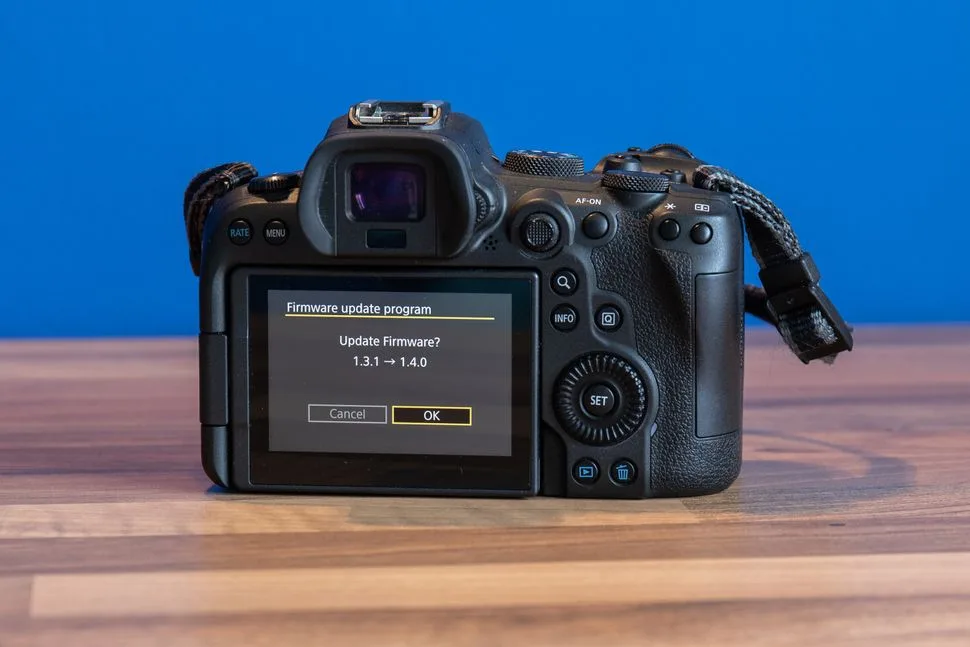
Download the firmware file from your camera manufacturer's support site. Copy it to the root of a freshly formatted SD card. Insert the card into your camera with a fully charged battery.
Navigate to the firmware update menu and confirm. Wait for the progress bar to finish. Do not touch the camera during the update.
Updating camera firmware sounds scarier than it actually is. If you have ever wondered how to update mirrorless camera firmware without bricking an expensive body, you are asking the right question. The good news is that it is a routine process most people complete without drama.
The bad news is that the horror stories you have heard are real, and almost all of them trace back to the same handful of avoidable mistakes.
Manufacturer specifications and aggregate user reviews indicate that a typical update runs 3 to 12 minutes and needs a battery charged above 50%. A single interruption can leave the camera unresponsive, so preparation matters more than luck. Here is exactly how to do it safely, step by step, with the pitfalls explained along the way.
Image source: Bing (Web (fair-use with source credit))
Why Firmware Updates Matter (and Why You Should Care)
Think of firmware as the operating system baked into your camera. It controls autofocus, image processing, battery communication, and how the body talks to lenses and memory cards. Manufacturers push updates for three main reasons: bug fixes, new features, and compatibility improvements.
As of 2026, a firmware update is often the cheapest way to transform a camera you already own. A single release can add a new autofocus subject mode, improve stabilization, or fix a frustrating freeze. Some of the most significant lens corrections ship as firmware updates, not as product recalls.
Aggregate user reviews repeatedly show that the same camera body can feel like a different machine after a well-tuned update. Sony, Canon, Nikon, Fujifilm, and Panasonic all publish free release notes on their official support pages. Per the documentation from camera manufacturers, you can generally expect:
- Improved autofocus tracking and new subject detection modes.
- Fixes for startup delays, error codes, or random lockups.
- Expanded compatibility with third-party lenses, including Sigma and Tamron.
- Video upgrades like higher bitrates or new codec support.
- Patches for security gaps in wireless transfer features.
If your camera has been behaving oddly and you have exhausted the usual cleaning and reset tricks, firmware is the official fix path. It is also the right first move before you spend money on a repair. Check the release notes for your exact model and see whether this update actually addresses problems you are experiencing.
If it is all lens tweaks for glass you do not own, there is no law saying you must update right away. But if it fixes a bug you have hit or adds a feature you will use, the next twenty minutes are worth it.
What You Need Before You Start
Firmware updates are not the place for improvisation. Every brand publishes a specific set of requirements. The most common reason an update fails is that someone skipped the prep.
Before you download anything, gather the following.
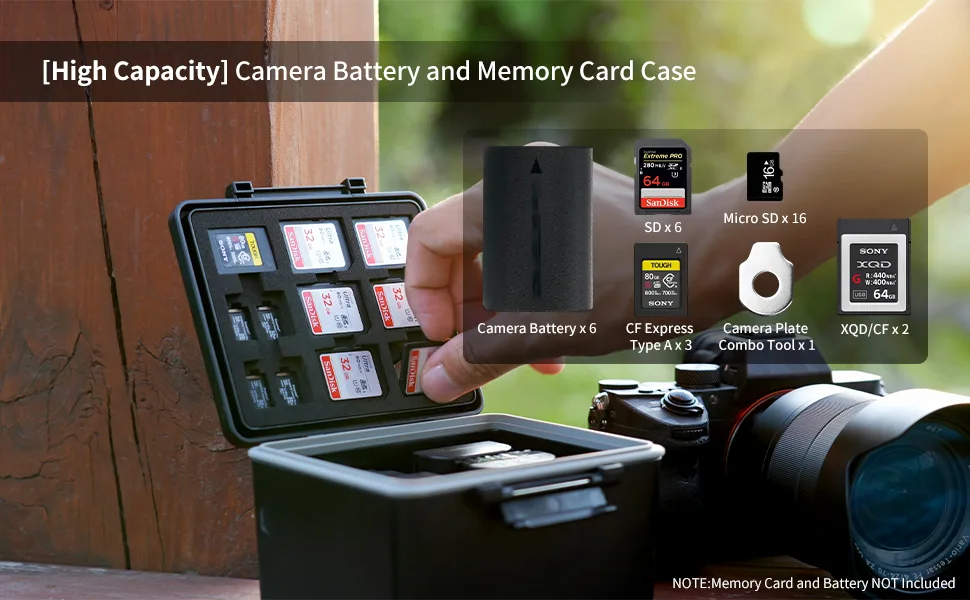
Image source: Bing (Web (fair-use with source credit))
| Item | Why it matters |
|---|---|
| Fully charged original battery | Power loss mid-update is the number one cause of a bricked camera |
| 16GB or larger SD card | Plenty of room for firmware files and safe formatting |
| Card reader | Transferring the file via the camera's USB connection is slower and riskier |
| Official firmware file | Only use the version from the manufacturer's support site |
| Your camera manual | The update menu lives in different places on different brands |
Start by checking the current firmware version on your camera. This is almost always under a menu labeled Setup, Wrench, or Version. Write the number down.
Then compare it to the latest release listed on the manufacturer's support page. If they match, you are already current and you can stop here.
Next, format the SD card inside the camera. Cards formatted on a computer can carry a file system the camera does not fully trust. A quick in-camera format clears out any hidden files that could confuse the update routine.
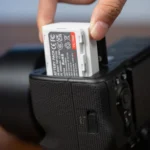
Charge the battery even if it feels full. Most cameras warn you if charge is too low, but some brands simply refuse to start the process. A battery sitting at 48% might look green on the indicator and still fail the update's internal check.
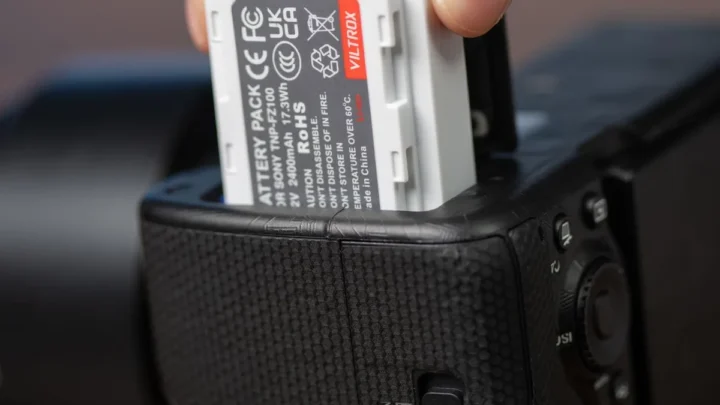
Use the manufacturer's original battery or a trusted third-party brand that reports charge levels accurately. Some bodies abort the update with a cheap off-brand battery, and a few have been known to fail partway through. Keeping your camera battery in good health is a habit worth maintaining.
Finally, back up anything you do not want to lose. Firmware updates should not wipe your memory card, but the process is stressful enough that you do not want to worry about it. If you have been meaning to back up your photo archive anyway, do that now.
Step-by-Step: How to Update Your Mirrorless Camera Firmware
This is the part where you slow down. The full process varies slightly between brands, but the sequence below matches the official workflow for most modern mirrorless cameras from Sony, Canon, Nikon, Fujifilm, and Panasonic. Do these steps in order, and do not rush step seven.
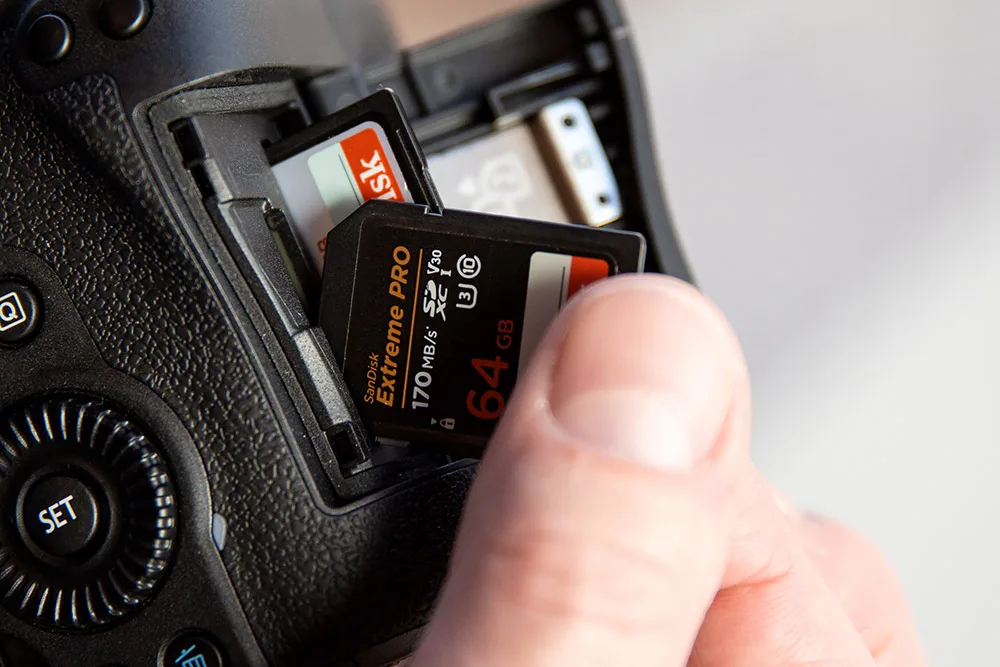
Image source: Web (Bing) / photo4art.com (Web image (fair-use with source credit))
Download the correct firmware file. Go to the manufacturer's official support site, find your exact model, and download the latest firmware. Make sure you have the right variant. A Sony α7 IV file will not work on an α7R IV, even though the names look similar.
Extract the downloaded file. Most firmware downloads arrive as a ZIP archive. Double-click it and confirm that you see a single update file with an extension like
.binor.firm. Do not decompress it into a folder yet. Just note where it is.Copy the file to the root of your SD card. The root is the main level of the card, not inside any folder. Insert the formatted card into your computer's card reader, then drag the firmware file directly onto the card's top-level window.
Safely eject the card and insert it into the camera. If your camera has two card slots, use slot 1. Make sure the card is snapped all the way in. A half-seated card is a classic cause of "update file not found" errors.
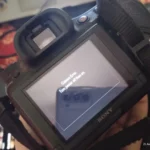
Turn the camera on and navigate to the firmware menu. It is usually under Setup or a gear icon. Select "Firmware Update" or "Version" and then choose "Update." The camera will scan the card and display the firmware file it found.
Confirm the update and wait. The camera will ask you to confirm. Once you say yes, the screen shows a progress bar. This is when you do not touch anything. No buttons, no card removal, no power switch. A typical update runs 3 to 12 minutes.
Wait for the camera to restart on its own. Some cameras reboot automatically when finished. Others show a completion message and ask you to power off and back on. If the screen stays frozen on the progress bar for more than fifteen minutes, see the troubleshooting section below.
Verify the new version. Go back to the Setup menu and check the version number. If it matches the latest release, you are done. Format the SD card again to clear the firmware file, or keep it in a safe place if you prefer.
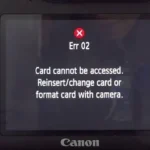
If the camera says no file found, do not panic. Wipe the card with another in-camera format, re-copy the file, and try again. Nine times out of ten, that fixes it.
The Biggest Mistakes That Brick Cameras (and How to Avoid Them)
Every horror story you have read about cameras becoming expensive doorstops follows the same script. It is never the update itself. It is one of these mistakes.
| Mistake | Why it is dangerous |
|---|---|
| Starting with a low battery | Power failure mid-write corrupts the firmware permanently |
| Using the wrong firmware file | The camera writes garbage data and can become unresponsive |
| Pulling the card during the update | The write process is interrupted at the worst possible moment |
| Copying the file into a subfolder | The camera cannot see it, and you will be tempted to try risky workarounds |
| Forcing a reboot when the screen freezes | The firmware might be mid-write when you cut power |
The single most dangerous move is interrupting the write process. That includes pressing buttons, toggling the power switch, opening the memory card door, or bumping the camera hard enough to dislodge the card. A camera mid-firmware-update is not a computer you can force-shut-down.
There is no undo button and no rollback file waiting in the wings.
Wrong-file mistakes are more common than you would think. Olympus and OM System use different files for the body and the lens. Fujifilm sometimes has multiple firmware files on the same download page.
If your camera has a Mark II or Mark III suffix, double-check that you are not grabbing a file for the older model. Manufacturers occasionally make the file names nearly identical with one tiny letter different. Read carefully.
Third-party batteries deserve their own warning. If your camera cannot accurately read the remaining charge, it might believe it has enough power when it actually does not. A few brands have a hard cutoff that refuses the update entirely.
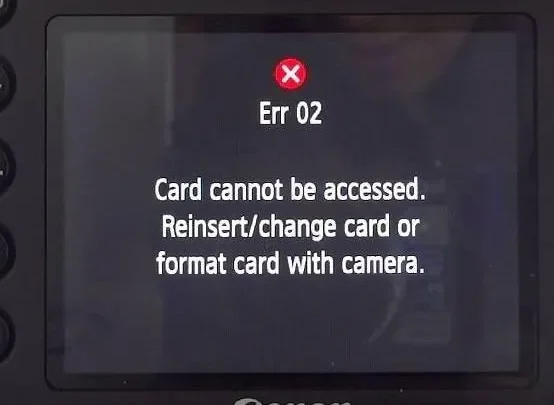
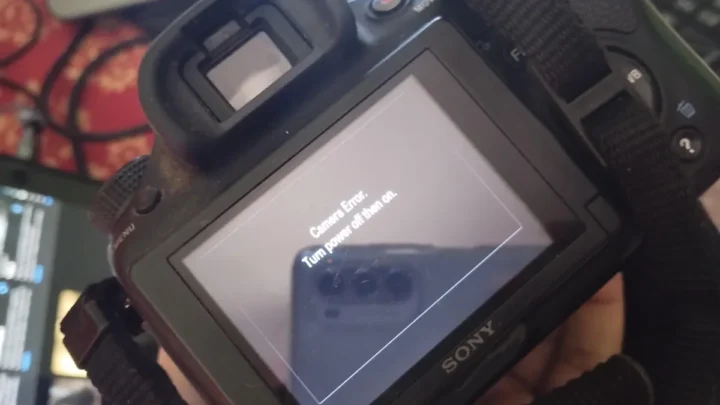
That is frustrating, but it is better than a failed write. If the camera is reporting a hardware error during normal shooting, do not attempt an update to fix it. That is a repair-center job, not a software job.
A firmware update written over a failing hardware unit is how cameras flicker and die.
What to Do If the Update Fails or Your Camera Freezes
Stay calm. The vast majority of frozen updates recover cleanly, but your actions in the next few minutes decide that outcome. The rule is simple: give the camera a long, boring moment before you do anything physical.
If the screen is stuck on the progress bar for more than fifteen minutes, do not pull the battery yet. Some older writes take longer than expected, especially on cameras with slow cards. Leave it alone for a full ten minutes after you first notice the behavior.
If the progress bar has not moved after twenty-five minutes total, you can carefully power the camera off. Power it on again and check the version menu.
If the camera turns on and reports the old firmware version, that is actually good news. The update did not take, but the camera did not kill itself. The most common cause is a corrupted download or a card that was not formatted in-camera.
Re-download the file from the official support page, wipe the card with the in-camera format tool, and start over.
If the camera turns on and freezes at the brand logo, or shows a blank screen, you need a different approach. Some devices have a recovery mode that re-reads the firmware file from an SD card. This varies by brand and model, so do not guess.
Go to the official support site and search for "recovery mode" plus your exact model. The instructions will tell you how to structure the card and what to press during startup. If you are new to camera maintenance, basic troubleshooting can help you stay calm and methodical.
If nothing works, or if the camera makes strange clicking or motor sounds during the freeze, put it down. Do not open the body. Do not attempt unofficial firmware flashing from internet forums.
Both can make the damage permanent and void any remaining warranty. Contact the manufacturer or an authorized service center and explain exactly what happened before the freeze. A repair professional can often recover a camera that a home user would accidentally destroy.
One final tip: if your camera is still under warranty, updates are officially supported. If it freezes and then responds to a recovery process, you might still be fine. If it bricks completely, that is what the warranty is for.
Frequently Asked Questions About Camera Firmware Updates
How often should I check for firmware updates?
Every three to six months is a reasonable cadence. Some manufacturers release updates quarterly, while others go years between revisions. Bookmark your camera brand's support page and check when you notice a new lens behaving oddly or a bug affecting your workflow.
Can I skip a firmware update?
Yes. You are not required to install every update. If the release notes only address a lens you do not own or a feature you never use, there is no harm in waiting.
The only exception is a critical security patch for wireless transfer protocols.
Will updating firmware delete my settings?
No, but it can reset some custom configurations. Manufacturer documentation indicates that most updates preserve saved settings like custom white balance profiles and button assignments. Write down your favorite settings before updating, just in case the camera resets them.
What happens if my camera loses power during an update?
The camera becomes unresponsive, and the firmware is partially written. This is the most common cause of a bricked camera. Some models have a recovery mode that can re-read the firmware file from an SD card.
Others require professional repair.
Can I update firmware using a smartphone app?
Some brands offer over-the-air updates through their companion apps. Sony, Canon, and Fujifilm all support this on newer models. The process is slower and requires a stable WiFi connection.
A direct card-based update is still more reliable.
Is it safe to use third-party batteries during an update?
It is not recommended. Some cameras check battery authenticity and refuse the update with an off-brand battery. Others may misread the charge level and fail mid-update.
Use the original manufacturer battery or a trusted third-party brand that reports levels accurately.

Similar Posts