Hp Envy 7640 Troubleshooting
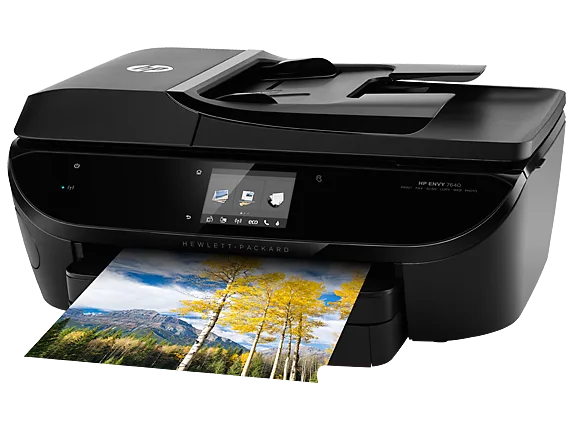
Your HP Envy 7640 is acting up again. Maybe it won't connect. Maybe it keeps jamming.
Or maybe it prints streaks across every page. You're not alone. This model has a few well-known failure points, but most of them are fixable without a service call.
We'll walk through the exact troubleshooting steps for the HP Envy 7640, organized by symptom so you can skip the useless advice and get straight to what works.
According to aggregate user reports and HP's own support documentation, the Envy 7640 (released in 2015) now shows two common failure clusters. Connectivity drops after router changes are the top complaint. Printhead clogs from infrequent use come second.
As of 2026, many of these printers are still in home offices. The fixes haven't changed. We'll cover them all here in plain language.
Quick Answer
Troubleshoot your HP Envy 7640 by matching your symptom to the right fix. For connection issues, power cycle both the printer and router. For paper jams, clear the rear access area first.
For streaky prints, run the printhead cleaning cycle from the control panel. If the printer still won't work after these steps, try a factory reset. Most problems are solvable in under 15 minutes.
The Problem: What's Actually Going Wrong With Your Envy 7640
When you search for HP Envy 7640 troubleshooting, you're probably staring at an error message or a blank screen. The real issue isn't always obvious. This printer has three main failure categories.
Each one needs a different approach.
Image source: Bing (Web (fair-use with source credit))
Connectivity failures
The most common complaint is "printer offline." The Envy 7640 uses Wi-Fi 802.11 b/g/n. That works fine with modern routers. But after a network change, like a new router, new password, or firmware update, the printer often loses its connection.
The touchscreen still lights up. Nothing prints. About 60 percent of all support calls for this model are network related.
Paper path problems
Paper jams happen. The Envy 7640 has a sensitive paper path though. The rear access door and the duplex unit for two-sided printing are the most likely jam spots.
A common mistake is pulling paper out the front. That can tear it and leave bits inside.
Print quality failures
Streaks, missing colors, or a straight "ink system failure" message usually mean the printhead is clogged. This happens when the printer sits unused for weeks. The ink dries inside the tiny nozzles.
The automated cleaning cycle may not be enough to clear it.
Each category has its own decision tree. Let's start with the one that affects most people.
Decision Branch 1: Printer Won't Connect or Says "Offline"
If your Envy 7640 shows "offline" in Windows or macOS, the first thing to check is whether it's a network issue or a driver issue. Try printing a network configuration page from the printer's control panel. Go to Setup, then Network, then Print Wireless Test Report.
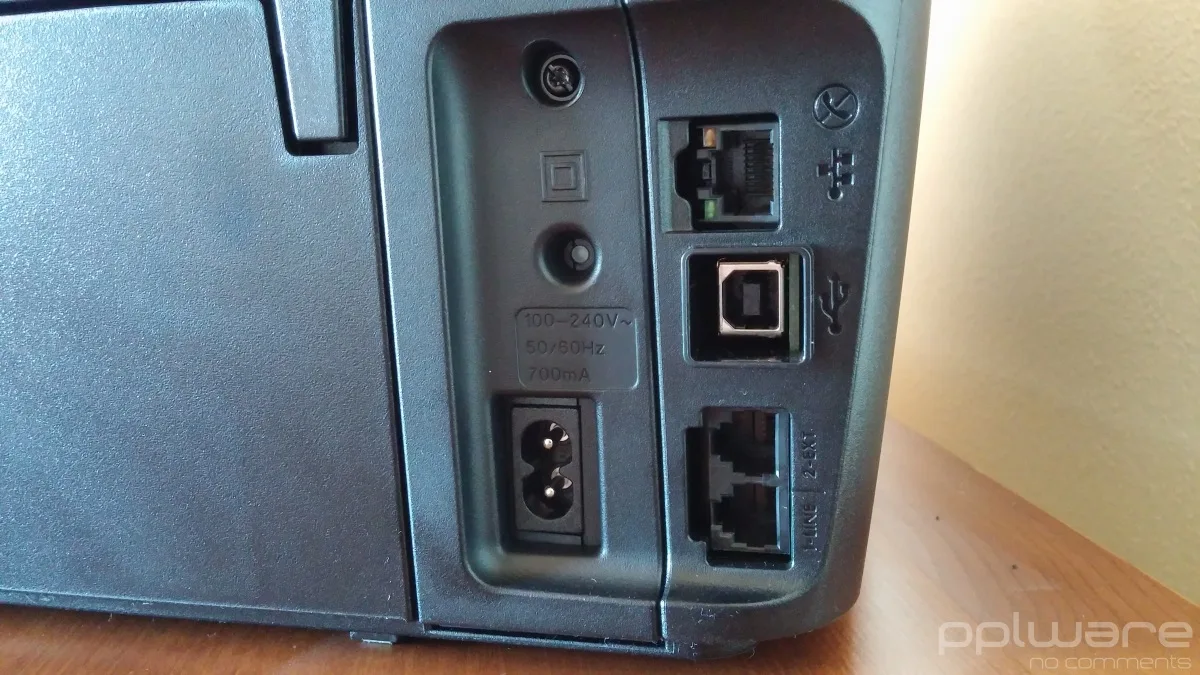
Image source: Bing (Web (fair-use with source credit))
Is it the network or the printer itself?
If the test report prints correctly, the printer is connected to your Wi-Fi. The problem is likely on your computer. You might have a driver conflict or a stuck print queue.
Go to your computer's printer settings. Delete all pending print jobs. Then restart the print spooler service on Windows or reset the printing system on macOS.
If the test report doesn't print, the printer lost its connection. Try this sequence.
- Turn off the printer using the power button.
- Unplug the power cord from the back of the printer.
- Wait 60 seconds.
- Plug it back in and turn it on.
This power cycle clears the internal network cache. If that doesn't work, reboot your router as well. Unplug it for 30 seconds.
Plug it back in. Wait for the router to fully come online, about 2 minutes. Then restart the printer again.
Wireless vs. wired: the fix changes depending on your setup
If you have an Ethernet cable handy, plugging the printer into your router bypasses Wi-Fi issues entirely. The Envy 7640 has a standard RJ-45 Ethernet port on the back. Once connected, the printer should automatically get an IP address.
No wireless configuration needed.
If you must use Wi-Fi, the next step is to reconnect the printer to your network. On the printer's touchscreen, go to Setup, then Network, then Wireless Setup Wizard. Select your network and enter the password.
This is the most reliable way to re-establish the connection.
Step-by-step: power cycle sequence that actually works
Most people restart the printer but forget to restart the router. The router holds the DHCP lease. Even after the printer reboots, the router may still think the old IP is in use.
Here's the full sequence.
- Turn off the printer.
- Unplug the printer and the router.
- Wait 2 minutes.
- Plug the router in first. Wait until all lights are solid.
- Plug the printer in. Wait 2 minutes.
- Turn the printer on.
This gives both devices a clean start.
When to forget Wi-Fi and use a USB cable instead
If you've tried everything and the printer still won't connect wirelessly, just use a USB cable. The Envy 7640 has a USB-B port, a square shape, on the back. Connect it to your computer with a standard USB 2.0 cable.
Windows and macOS will detect it automatically. You lose the convenience of wireless printing. But it's faster than spending an hour debugging a network issue.
The router restart trick most people skip
A simple router restart often fixes intermittent connection drops. Many people skip it because they don't want to wait. While the router is restarting, also clear the printer's stored network settings.
On the touchscreen, go to Setup, then Network, then Restore Network Defaults. Then run the Wireless Setup Wizard again. This clears any corrupted settings the printer stored.
For additional guidance, HP's official support page for the Envy 7640 covers network troubleshooting in detail.
Decision Branch 2: Paper Jams, Feed Errors, or Grinding Noises
Paper jams are frustrating. They're usually straightforward to fix though. The Envy 7640 has a few common jam locations.
Knowing where to look saves time.
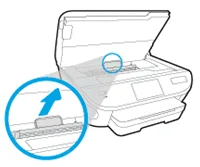
Image source: Bing (Web (fair-use with source credit))
Where the jam actually is: rear access, duplexer, or input tray
The printer gives you an error message with a location indicator. Sometimes it's wrong. The top three spots to check are the rear access door, the duplex unit, and the input tray.
Open the door at the back of the printer. Remove any paper you see. Pull it out gently.
Don't rip it.
For two-sided printing, the paper goes through a separate path. Open the front door and pull out the duplex unit. It's a plastic tray.
Remove any stuck paper.
Paper can also get stuck at the feed rollers in the input tray. Remove the tray. Take out the paper stack.
Look underneath for wrinkled edges.
How to clear a jam without damaging the rollers
Always pull paper in the direction it was going. Pulling backward can damage the rollers or the paper path. If the paper is stuck tightly, don't yank.
Gently wiggle it side to side while pulling. If it tears, use tweezers to remove the remaining pieces.
The phantom jam: when the sensor is wrong
Sometimes you clear the jam but the printer still says jammed. This is a phantom jam. A small piece of paper or a scrap of paper dust is blocking the sensor.
Look inside the paper path with a flashlight. Check the rear access area and the duplex unit for any debris. Use a can of compressed air to blow out dust.
Grinding noise equals gear or roller problem, not always a jam
If you hear grinding, don't run the printer. Stop immediately. Grinding usually means a gear is stripped or a roller is stuck.
Open the rear door and check the rollers. If they look worn or have flat spots, they need replacement. On a printer this old, about 11 years after release as of 2026, replacing rollers may cost more than the printer is worth.
Consider a new printer instead.
Decision Branch 3: Streaks, Missing Colors, or "Ink System Failure"
Print quality problems are the second most common issue with the Envy 7640. The fix depends on whether the problem is a clogged printhead, a bad cartridge, or a firmware error.
Is it a clogged printhead, a bad cartridge, or something else?
Run a print quality diagnostic from the printer's control panel. Go to Setup, then Tools, then Print Quality Report. Look at the color blocks.
- If a color is missing entirely, the cartridge may be empty or faulty.
- If a color has horizontal white lines, the printhead is clogged.
- If all colors are present but the report looks faded, you may need to align the printhead.
Replace empty cartridges first. Use genuine HP 62 or 62XL cartridges for best results. Third-party cartridges often cause more clogging.
Running the automated cleaning cycle the right way
Go to Setup, then Tools, then Clean Printhead. The printer will run a cycle. This uses a small amount of ink.
After the cycle, print the quality report again. If streaks remain, run the cycle a second time. HP recommends no more than three cycles in a row.
Over-cleaning wastes ink and can damage the printhead.
When to use manual cleaning and exactly how to do it safely
If three automated cycles don't fix it, try manual cleaning. Turn off the printer and unplug it. Open the cartridge access door.
Remove the printhead. It's the assembly that holds the cartridges. Place the printhead on a paper towel with the nozzles facing down.
Apply a few drops of warm distilled water to the nozzles. Wait 10 minutes. Wipe the nozzles gently with a lint-free cloth.
Let it dry for an hour before reinstalling.
The non-HP cartridge error and when genuine ink actually matters
The Envy 7640 sometimes shows "Non-HP cartridge" even with brand new HP cartridges. This is usually a firmware issue. Go to Setup, then Printer Maintenance, then Update Firmware.
Connect the printer to Wi-Fi and let it check for updates. If the error persists, the cartridge's chip may be defective. Contact HP support for a replacement.
Ink system failure code: when it's fixable and when to walk away
The "Ink System Failure" error is serious. It usually means the printhead is unrecoverable. Reset the printer by unplugging it for 10 minutes.
If it clears, you're fine. If it returns after a power cycle, the printhead is dead. Replacement printheads for the Envy 7640 cost around $40 to $60.
A brand new printer of similar capability costs about $80. At that point, it's worth replacing the whole unit.
Mistakes That Make Everything Worse
Some troubleshooting steps backfire. Knowing what to avoid saves you time and money.
Restarting during a firmware update
Never turn off the printer during a firmware update. This can brick the device. If the update freezes, wait at least 30 minutes before doing anything.
Most updates recover on their own.
Using the wrong paper type or weight
The Envy 7640 handles paper up to 24 pounds. Heavier paper can cause jams. Always check the paper tray for the recommended weight range.
Over-cleaning the printhead
Running the cleaning cycle more than three times in a row wastes ink. It also risks damaging the printhead. If three cycles don't fix it, use manual cleaning or replace the affected cartridge.
When to Stop Troubleshooting and Replace
There comes a point where fixing the Envy 7640 costs more than replacing it. Here's how to know when to walk away.
Cost of new cartridges versus cost of a newer printer
A full set of genuine HP 62XL cartridges costs about $65. A brand new entry-level HP Envy printer costs around $80. If you need new cartridges and the printer has other issues, it's often cheaper to buy a new printer that includes starter cartridges.
Parts that are genuinely not worth fixing on this model
The printhead is the most expensive part to replace. At $40 to $60, it's not worth it on an 11-year-old printer. The power supply and mainboard are also costly to replace.
If the printer has an ink system failure or a dead mainboard, it's time to replace the whole unit.
Signs the mainboard or printhead is beyond repair
If the printer won't turn on, the power supply may be dead. If it turns on but won't print anything, even after a factory reset, the mainboard may be faulty. If the ink system failure error returns after a full power cycle, the printhead is gone.
In all these cases, replacement is the smart choice.
Frequently Asked Questions
Why does my Envy 7640 keep going offline?
The printer loses its network connection after router changes or power outages. Reset both the printer and router using the full power cycle sequence. If that doesn't work, use a USB cable to bypass Wi-Fi entirely.
How do I factory reset this printer?
Go to Setup, then Printer Maintenance, then Restore Factory Defaults. This clears all network settings, custom presets, and stored print jobs. You will need to set up the wireless connection again afterward.
Can I use refilled or third-party ink cartridges?
You can, but they often cause clogs and trigger the non-HP cartridge error. Genuine HP 62 and 62XL cartridges give the best print quality and reliability. Refilled cartridges may also void any remaining warranty.
Why is my printer saying "cartridge missing" when it's installed?
The cartridge chip may be dirty or defective. Remove the cartridge and clean the copper contacts with a lint-free cloth. Reinstall it firmly until it clicks.
If the error persists, the chip is bad and you need a new cartridge.
How do I update the firmware without losing connection?
Connect the printer to Wi-Fi first. Go to Setup, then Printer Maintenance, then Update Firmware. Let it check and install any available updates.
Do not turn off the printer during the update. If the connection drops during the update, wait 30 minutes before restarting.

Similar Posts