Lg Cordzero Troubleshooting
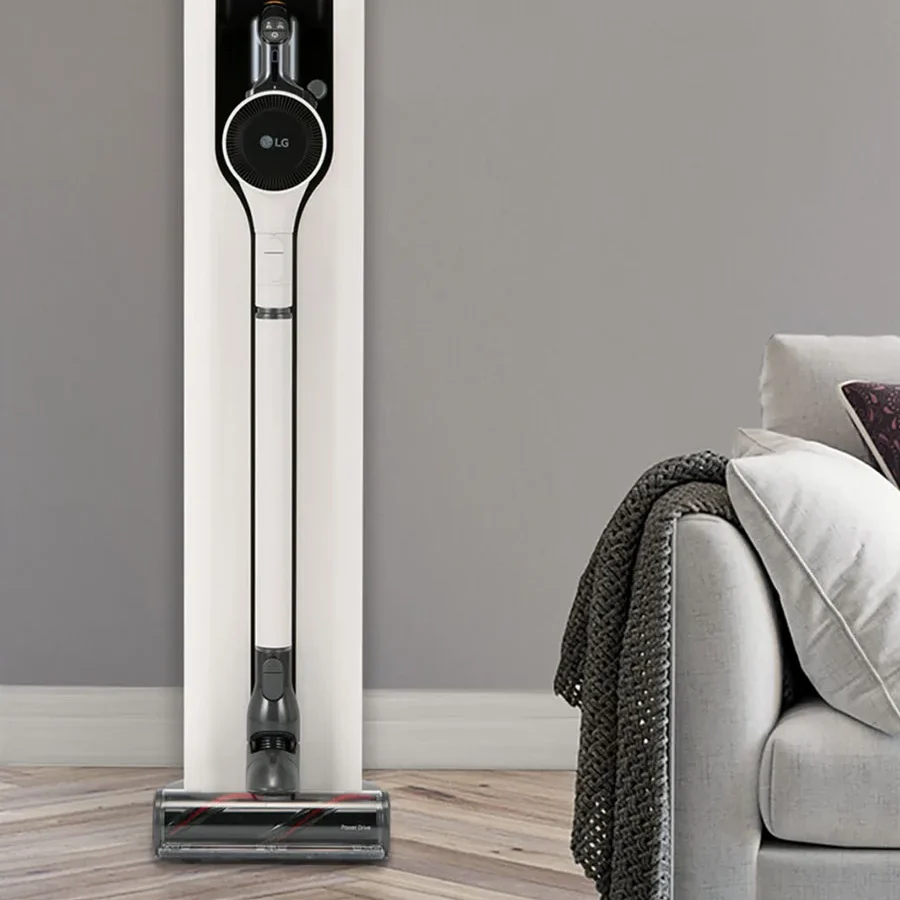
Your LG CordZero is a workhorse. It picks up pet hair, tackles daily crumbs, and keeps your floors looking sharp without you having to drag a canister around. But when it suddenly loses suction, won’t charge, or starts flashing a cryptic error code, it’s frustrating.
The good news? Most LG CordZero troubleshooting boils down to a handful of common issues you can fix at home in under fifteen minutes with zero special tools.
Most performance complaints trace back to three culprits: a clogged cyclone, a dirty filter, or hair wrapped around the brush roll. The motor itself rarely fails. That means most problems are maintenance-related, not mechanical.
Let’s walk through the most likely fixes first so you can get back to cleaning quickly.
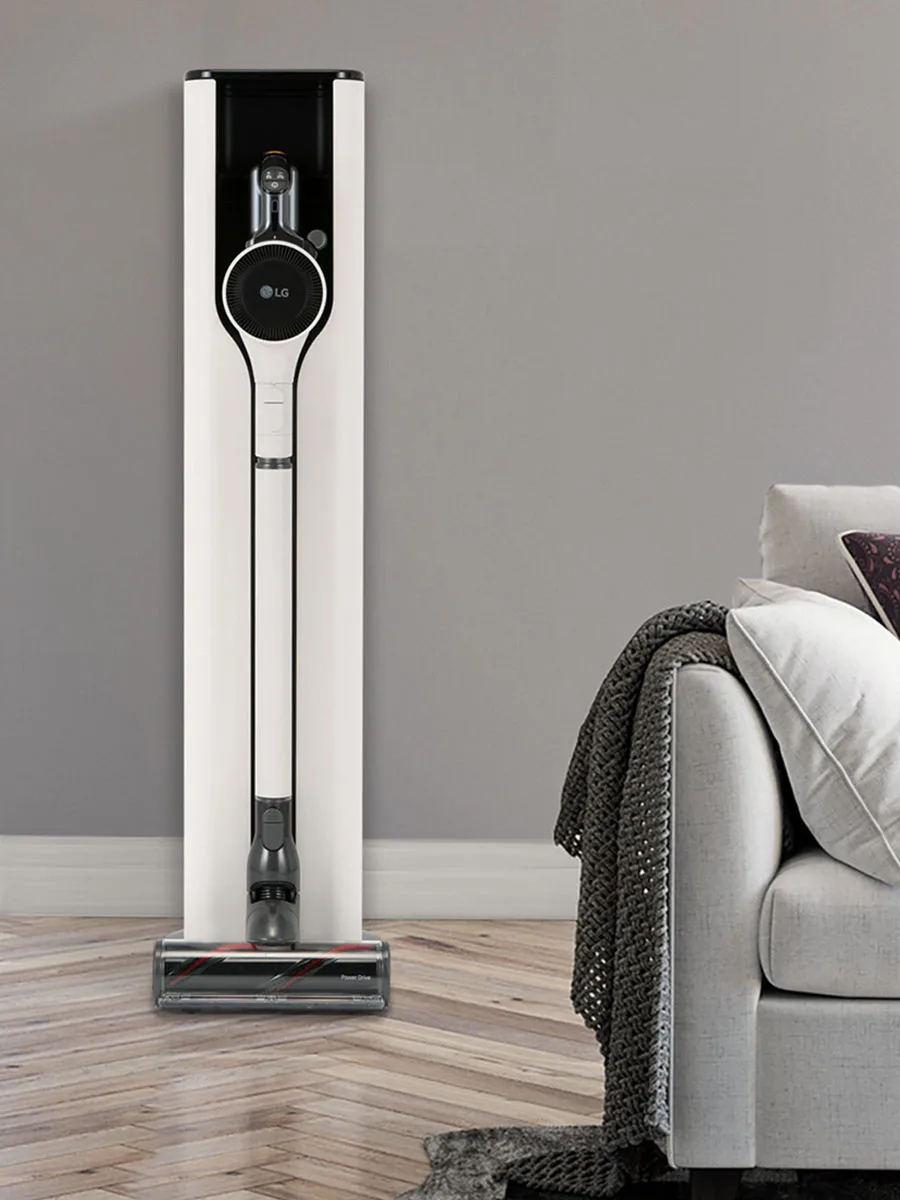
Image source: Bing (Web (fair-use with source credit))
Why Your LG CordZero Is Acting Up (And Why Most Fixes Are Cheaper Than You Think)
Before you panic about buying a new vacuum, let’s talk about what’s actually going on inside your machine. LG CordZero models, whether it’s the A9, A9K, or the newer Kompressor lines, all share the same core architecture. They rely on a cyclone system to separate debris from the air, a filter to catch fine dust, and a brush roll to agitate carpet fibers.
When one of those components gets blocked or dirty, the whole system starts underperforming.
If your vacuum is losing suction, the motor isn’t dying. It’s working harder because the airflow is restricted. You’ll hear the pitch change, sometimes sounding higher or more strained.
That’s your first clue. Many users mistake this normal straining sound for a broken motor, when in reality, the fix is just a thorough cleaning.
Replacement parts are another reason not to give up quickly. Genuine LG filters, batteries, and brush rolls are surprisingly affordable. Replacing a filter costs a fraction of a new vacuum.
Most maintenance parts are designed for user replacement without voiding the warranty. So before you start shopping, spend twenty minutes on the steps below. You might save yourself a few hundred dollars.
Quick Answer
Most LG CordZero problems trace back to clogged filters, blocked cyclones, or tangled brush rolls. Start by emptying the dust bin and cleaning the washable filter. Check the cyclone assembly and brush roll for hair or debris.
If the battery won’t charge, inspect the charging contacts for dirt. Reset the vacuum by unplugging it for ten minutes. Consult the manual for specific error codes before replacing parts.
Common Error Codes and What They Actually Mean
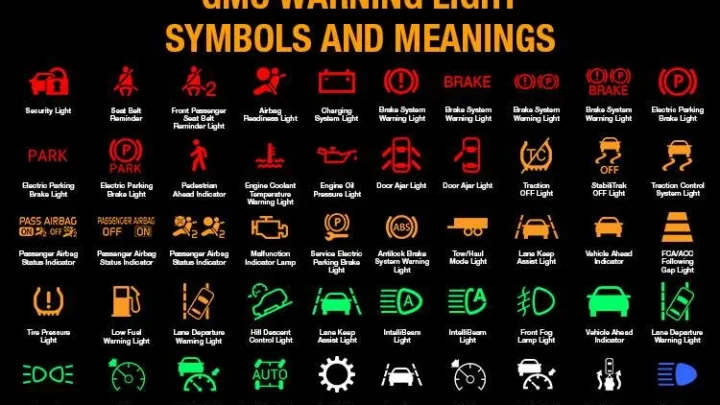
Your LG CordZero communicates with you through a small display panel. When something goes wrong, it often shows a code or a flashing icon. If you’re seeing a blinking red light or a specific error message, don’t assume the worst.
Most codes point to a simple obstruction or a temperature issue.
If you see an error code on the display, check the owner’s manual for the specific meaning. However, the most common codes across the A9 and A9K series are related to overheating, motor stall, or battery communication failure.
- Overheating code (often a flashing red ring): The motor is getting too hot. This usually happens when a filter is clogged and the motor is working overtime. Turn off the vacuum, let it cool for thirty minutes, and clean the filter before restarting.
- Motor stall / brush roll block: The brush roll can’t spin because something is stuck. Hair, string, or a piece of fabric is your prime suspect. Turn the vacuum over and clear the brush roll immediately.
- Battery communication error: The vacuum can’t talk to the battery pack. Reseat the battery by removing it and clicking it back into place. If the code persists, the battery may need replacement.
Many users misread a flashing battery indicator as a dead battery, when in fact the vacuum was just overheating. The display also shows a temperature warning icon, which looks like a thermometer. Always check for heat coming from the vent near the motor.
If it’s hot to the touch, let it cool down completely before trying again.
If the vacuum powers on but cuts out after a few seconds, that’s almost always an overheating or battery contact issue. Clean the metal contacts on both the battery and the vacuum body with a dry cloth. Corrosion or dust buildup interrupts the power flow.
In most cases, that simple step resolves the problem.
The #1 Culprit for Losing Suction: Clogged Cyclone Assembly
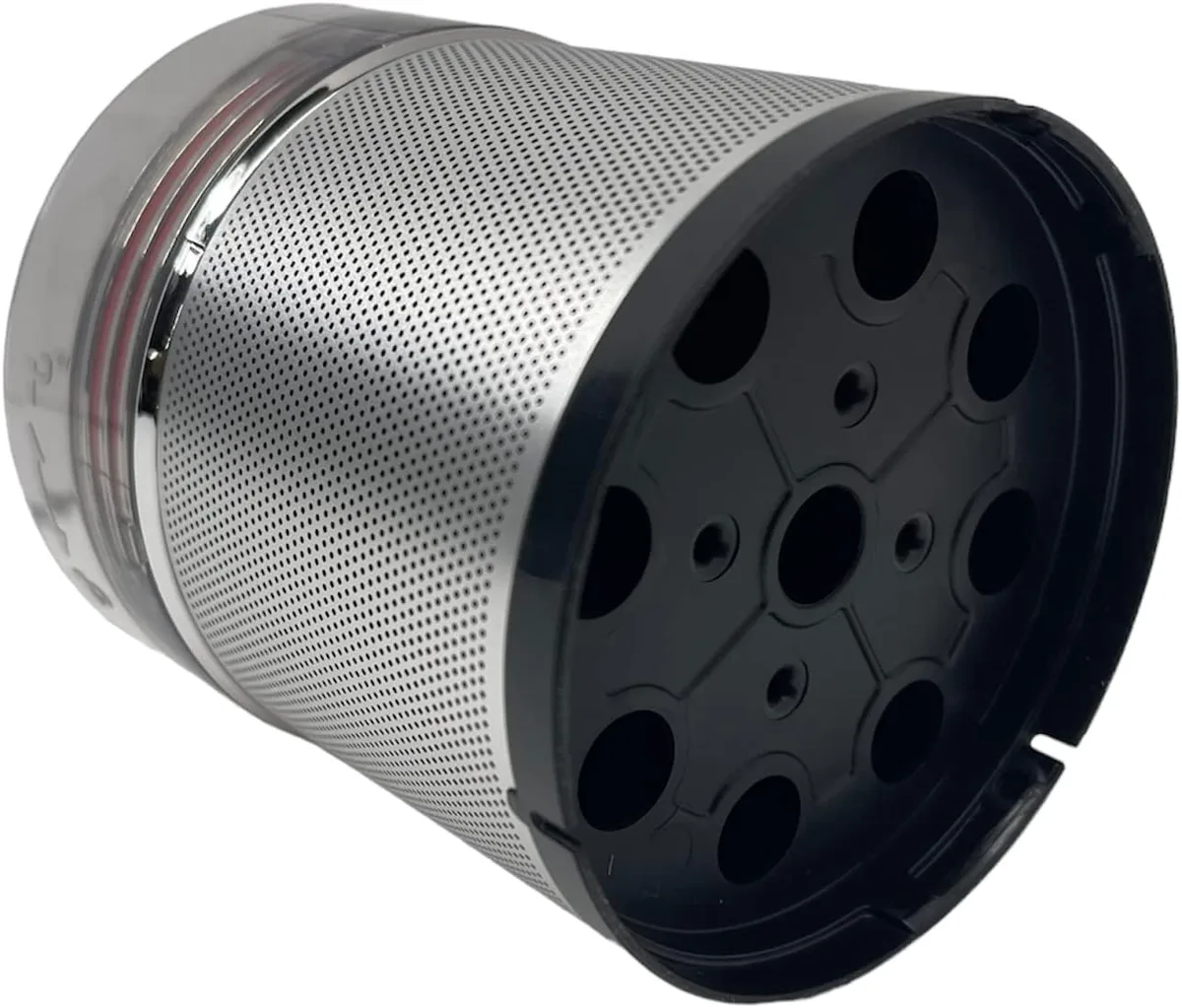
Image source: Bing (Web (fair-use with source credit))
If you’ve noticed your LG CordZero just isn’t picking up like it used to, the cyclone assembly is where you should start. This is the clear plastic chamber where the spinning air separates dirt and debris from the airflow. Over time, fine dust and pet hair can cake onto the inside of the cyclone fins.
When that happens, the air can’t spin fast enough, and suction drops dramatically.
The cyclone assembly is removable on most models. Look for the release button near the top of the dust bin. Press it and pull the assembly straight out.
You’ll see a mesh screen and a series of plastic fins. That’s where the gunk builds up.
Here’s the step-by-step process to clean it:
- Remove the cyclone assembly from the dust bin.
- Hold it under running warm water, fin-side down.
- Use a soft brush (an old toothbrush works great) to scrub the fins and the mesh screen.
- Rinse thoroughly until the water runs clear.
- Shake off excess water and set it aside to dry completely.
Do not put the cyclone assembly back together wet. Moisture in the cyclone can cause the dust to clump and stick to the fins again, which makes the problem worse. Let it air dry for at least 24 hours before reinstalling.
If you’re in a hurry, you can use a hair dryer on the cool setting to speed things up.
While you have the cyclone out, check the rubber gasket around the dust bin lid. A worn or cracked gasket breaks the seal, which lets air escape and kills suction. If you see any damage, order a replacement gasket from LG’s official parts store.
It’s a cheap fix that makes a huge difference.
Battery Problems: Why It Won’t Charge, Dies Fast, or Won’t Turn On
Battery issues are the second most common reason people reach out for LG CordZero troubleshooting. The symptoms range from the vacuum refusing to power on, to it dying mid-clean, to the charging indicator never turning green. Let’s break these down by root cause.
If the vacuum won’t charge at all, the first thing to check is the charging contacts. Look at the two metal pins on the vacuum body and the corresponding contacts on the charging dock. They collect dust, pet hair, and grime, which blocks the electrical connection.
Wipe them clean with a dry microfiber cloth. If you see any dark discoloration or corrosion, use a cotton swab dipped in isopropyl alcohol to clean them.
If the battery dies quickly, the first thing to examine is the battery’s health. Lithium-ion batteries degrade over time, typically losing capacity after 300 to 500 full charge cycles. If your vacuum is a few years old and you’re getting half the runtime you used to, the battery may need replacing.
The LG A9 series uses swappable battery packs, so you can easily snap in a fresh one.
If the vacuum powers on but immediately shuts off, check the battery reseating. Remove the battery pack, wait thirty seconds, and click it back in firmly. You should hear a distinct click.
If it still doesn’t work, the internal battery management system may have triggered a safety shutdown due to overheating. Let the battery cool down for an hour before trying again.
Charging in extreme temperatures can cause problems too. The optimal charging temperature range is between 50°F and 95°F. If you’re charging in a freezing garage or a hot closet, the battery’s built-in thermal protection will prevent it from charging.
Move the dock to a temperate spot indoors and try again.
Brush Roll Not Spinning? Here’s the 5-Minute Unclog
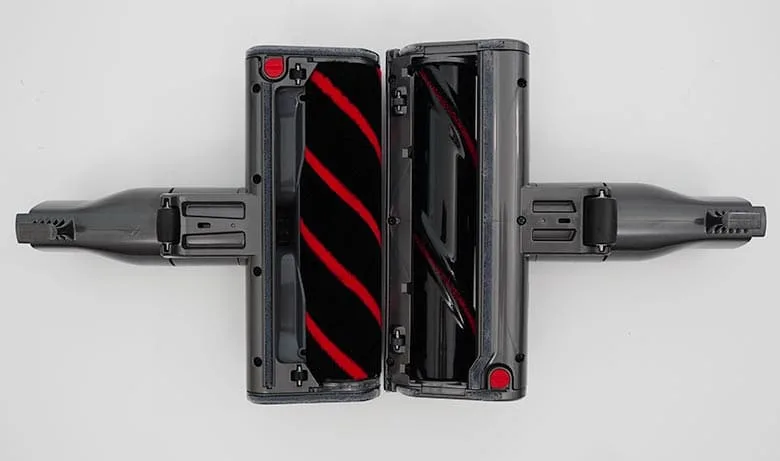
Image source: Bing (Web (fair-use with source credit))
A brush roll that won’t spin is a classic problem, especially if you have pets. Hair, long fibers, and string wrap around the bristles and the central axle. Eventually, the build-up creates enough friction that the motor can’t turn the roll anymore.
You’ll hear the motor humming but the vacuum won’t move forward, and the brush roll indicator light may flash.
This fix is simple, but you’ll need a pair of scissors or a seam ripper. First, make sure the vacuum is off and unplugged. Flip it over so the brush roll is facing up.
You’ll see a cover plate held in place by a few screws, typically T20 or Phillips head.
Here’s how to clear it out:
- Remove the screws and lift off the cover plate.
- Lift out the brush roll from the housing.
- Slide the scissors under the hair strands, close to the bristle base, and cut through them.
- Pull the freed hair and string away from the roll. Repeat until it’s clean.
- Check the two end caps of the brush roll where the bearing sits. Remove any hair wrapped tightly around those points.
- Reinstall the brush roll and replace the cover plate.
Check the brush roll’s bristles for wear while you have it out. If the bristles are bent, flattened, or missing in patches, the brush won’t agitate carpet fibers effectively. In that case, the brush roll itself needs replacing.
LG part numbers are printed on the roll, so match that when you order a replacement.
One more thing to check: the belt. Some LG CordZero models use a belt to drive the brush roll. If the belt snapped, the brush won’t spin no matter how clean it is.
You’ll see the belt connecting the brush axle to the motor gear. If it’s broken, cracked, or stretched, replace it. It’s a small part that costs very little and takes about five minutes to swap.

Similar Posts