Logitech C920 Troubleshooting
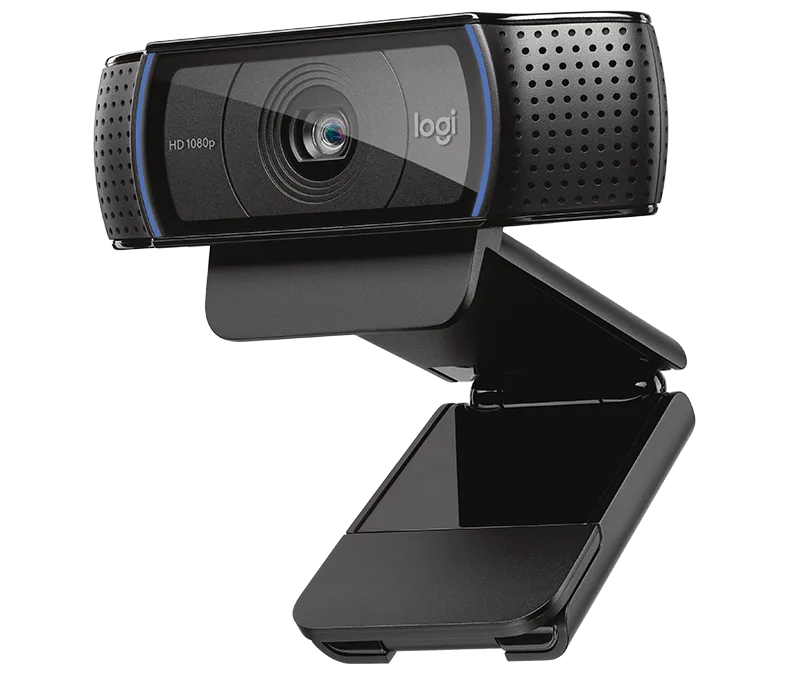
Your Logitech C920 is acting up. You're looking for Logitech C920 troubleshooting advice, and you've come to the right place. That's frustrating, especially when you've got a meeting starting in five minutes or a stream about to go live.
The C920 is the best-selling webcam of all time for good reason. Manufacturer specs confirm it delivers 1080p video at 30fps with a 78-degree field of view. But even the most reliable hardware has hiccups.
Let's walk through the exact fix for your specific problem.
Quick Answer
Start with the symptom. No video means check USB ports and privacy settings first. Blurry image means clean the lens and disable autofocus.
Bad audio means check mic permissions and select the correct input device. Flickering means adjust the anti-flicker setting to 50Hz or 60Hz. Disconnects mean try a different USB port or update the driver.
The C920 Is a Workhorse, But It Has Quirks
Image source: Web (Bing) / logitech.com (Web image (fair-use with source credit))
The Logitech C920 HD Pro Webcam has been on the market since 2012. It still delivers solid 1080p video at 30 frames per second. That's a remarkable run for any piece of tech.
But longevity doesn't mean perfection. Recurring issues surface again and again: black screens, blurry autofocus, missing microphones, and random disconnects. Nearly every problem has a straightforward fix.
The fix depends entirely on which symptom you're seeing.
That's why we're using a decision tree approach today. You'll identify your symptom, then jump straight to the solution that matches it. Manufacturer documentation from Logitech's official support site confirms that the C920 is a plug-and-play USB 2.0 device.
It doesn't require proprietary drivers on Windows 10, Windows 11, or macOS. When something goes wrong, the cause is usually something simple.
Step 1: Identify Your Specific Symptom
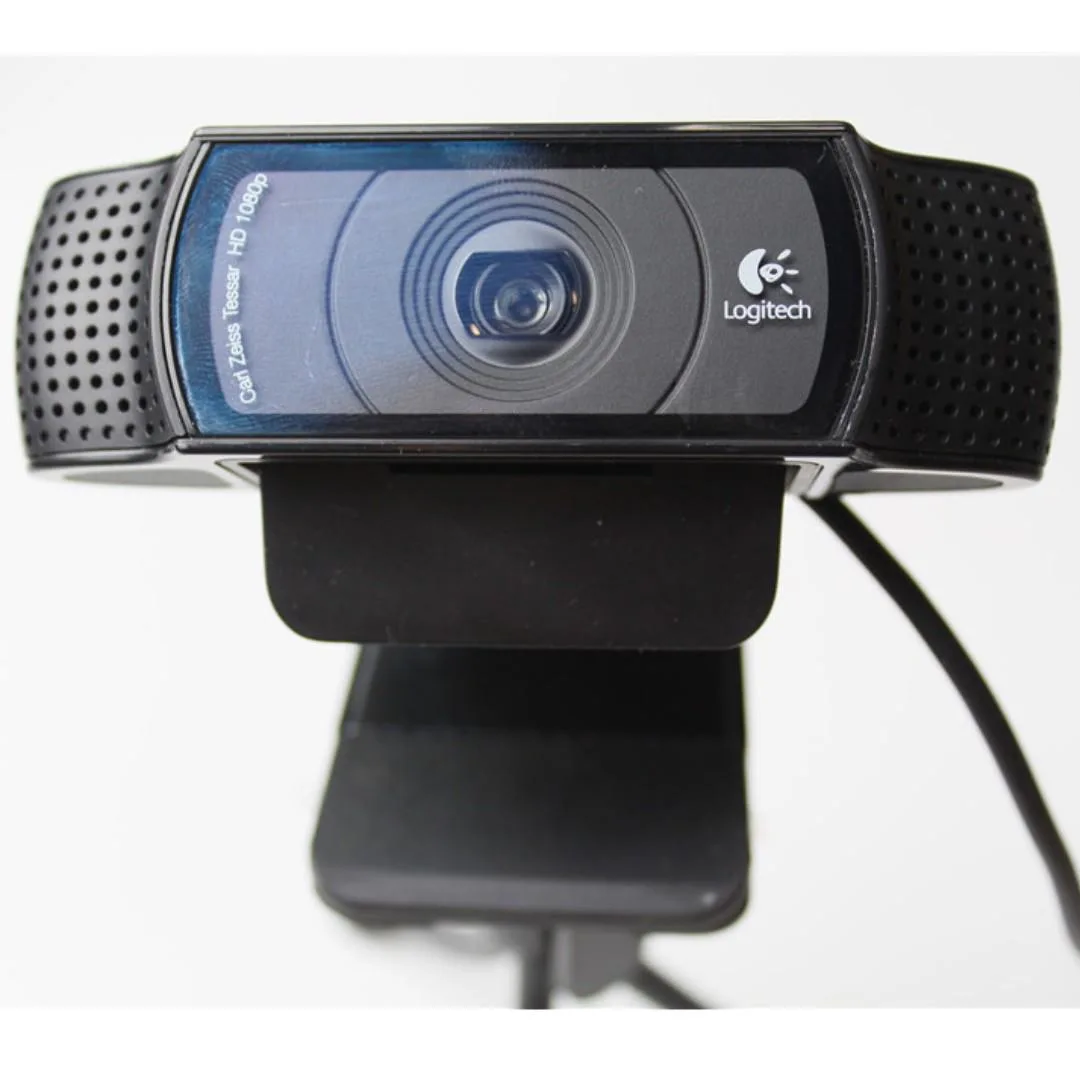
Image source: Web (Bing) / carousell.com.my (Web image (fair-use with source credit))
Before you try anything, stop and ask yourself: what exactly is the camera doing wrong? This is the most important step. The wrong fix wastes time and can make things worse.
Here's a quick reference table to match your symptom to the right branch:
| Symptom | Most Likely Cause | Jump To |
|---|---|---|
| No video / black screen | USB power issue, privacy settings, or driver conflict | Section 3 |
| Blurry image / grainy video | Dirty lens, autofocus hunting, or poor lighting | Section 4 |
| Microphone not working / low volume | Wrong input device selected, permissions blocked, or driver issue | Section 5 |
| Flickering video | Mismatched anti-flicker setting (50Hz vs 60Hz) | Section 6 |
| Random disconnects / stuttering | USB port power draw, cable damage, or driver corruption | Section 6 |
| Autofocus constantly refocusing | Low contrast scene, reflective surfaces, or firmware bug | Section 4 |
If your camera isn't detected by any app, start with the no-video section. If you can see video but it looks terrible, start with the blurry image section. If you get video but no audio, start with the microphone section.
You only do what's relevant to your situation. No need to reinstall drivers just to clean a smudge off the lens.
Quick Fixes: No Video, Black Screen, or "Camera Not Found"
This is the most common C920 complaint. You plug it in, open Zoom or OBS or Google Meet, and the camera field shows black. Or the app says "No camera detected." Here's the fix path.
First, check the physical connection. Unplug the C920 from its current USB port. Plug it directly into a USB 2.0 or USB 3.0 port on your computer.
Avoid USB hubs, extension cables, and front-panel ports. The C920 draws power through the USB cable. Hubs often don't deliver enough juice.
If you're using a desktop, use a port on the back of the case. Those connect directly to the motherboard. If you're on a laptop, try both sides.
Some laptops only provide full power to certain ports.
Still no video? Check your privacy settings. On Windows 11, go to Settings > Privacy & Security > Camera.
Make sure "Camera access" is turned on and that individual apps have permission. On macOS, go to System Settings > Privacy & Security > Camera. Verify that your apps are checked.
If permissions are fine, open Device Manager on Windows. Look under "Cameras" or "Imaging devices." If you see a yellow exclamation mark next to "Logitech C920," the driver is corrupted. Right-click it and select "Uninstall device." Then unplug the camera, restart your computer, and plug it back in.
Windows will reinstall the driver automatically.
On macOS, open System Information > Hardware > USB. If the C920 doesn't appear in the list, the cable or port is the issue. Try a different cable or a different computer to isolate the problem.
If you're dealing with similar issues on other cameras, our guide on troubleshooting connection problems covers the same USB troubleshooting steps.
Quick Fixes: Blurry Video, Grainy Image, or Autofocus Hunting
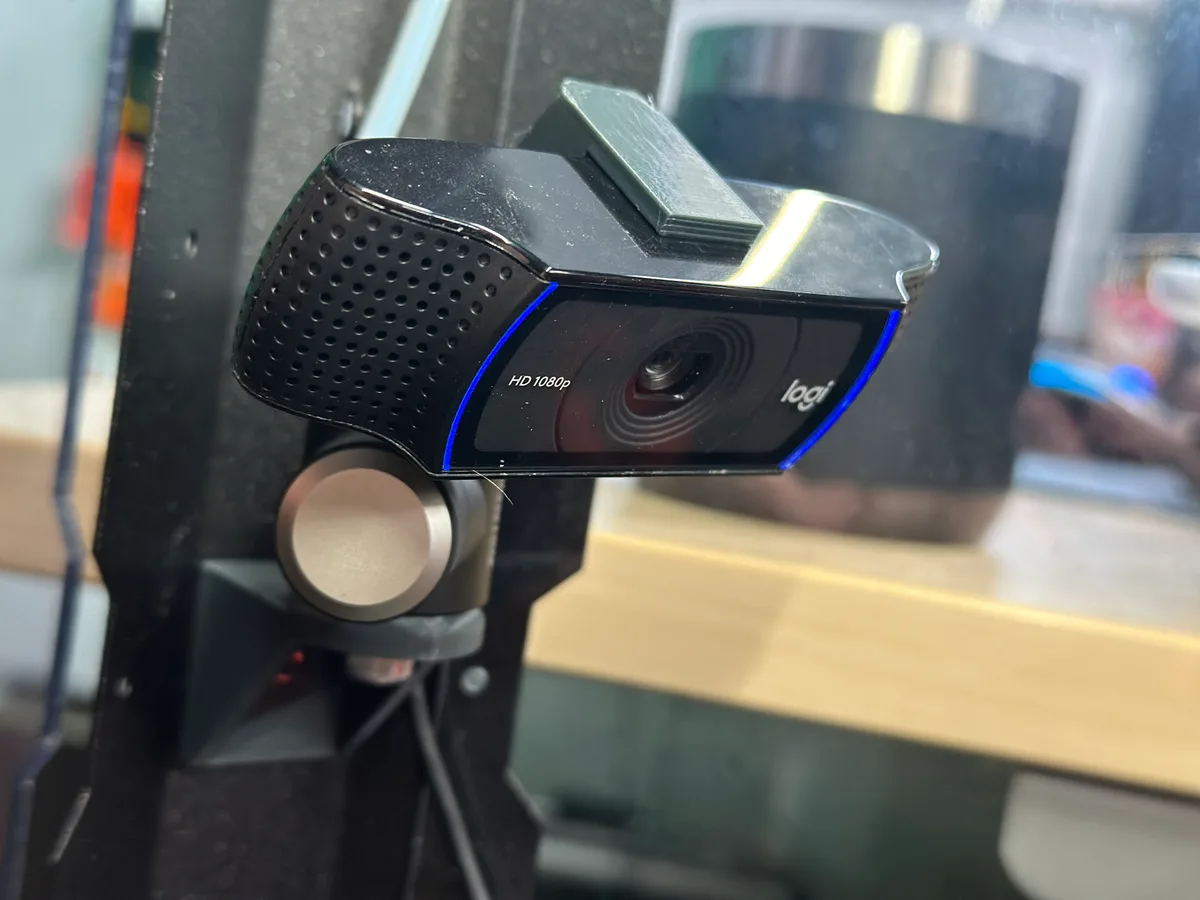
Image source: Bing (Web (fair-use with source credit))
A blurry C920 is almost always a simple fix. Start with the lens. Over time, dust, fingerprints, and microscopic particles build up on the glass.
The C920's autofocus system tries to compensate, but it can only do so much.
Clean the lens with a microfiber cloth. Use a gentle circular motion. Don't use paper towels, tissues, or your shirt.
Those fabrics can scratch the lens coating. If the smudge is stubborn, breathe on the lens to create a little condensation, then wipe again.
If the lens is clean and the video is still soft, the problem is likely autofocus hunting. The C920's autofocus system is aggressive. It constantly adjusts, searching for the sharpest image.
In low-contrast scenes, like a plain wall behind you or a dimly lit room, it never settles.
Open the Logitech Camera Settings app. If you don't have it installed, download it from Logitech's official support site. Look for the "Autofocus" toggle.
Turn it off. Then manually adjust the focus slider until the image is sharp. That's it.
You've just fixed the most common C920 quality issue.
Grainy video is a different problem. Grain is usually caused by low light. The camera's sensor compensates by boosting the ISO, which introduces noise.
The solution is better lighting. Position a desk lamp in front of you, not behind you. Ring lights work well, but any directed light source helps.
The C920 performs best in well-lit environments.
Low-light correction is a built-in feature, but it's a trade-off. It brightens the image at the cost of noise. You can adjust it in the Logitech Camera Settings app under "Low Light Compensation." If you're getting grainy video, try turning it off and adding more physical light instead.
For more on getting clear video in tricky conditions, our article on solving night vision issues covers similar lighting principles.
Quick Fixes: Microphone Not Working, Low Volume, or Echo
You get perfect video but nobody can hear you. Or your voice sounds like you're in a tin can. This is almost always a software setting, not a hardware failure.
Start with the simplest check. Right-click the speaker icon in your Windows taskbar and select "Open Sound settings." Under Input, make sure "Logitech C920 HD Pro Webcam" is selected as the default device. On macOS, go to System Settings > Sound > Input and select the C920 there.
If the correct device is selected but volume is low, check the input level slider. In Windows Sound settings, click "Device properties" under Input. Make sure the volume slider is at 100.
In the Logitech Camera Settings app, look for the microphone gain slider. Turn it up.
Echo is a different problem. It means the person on the other end hears themselves through your microphone. The fix is usually headphones.
When you use your laptop speakers, the C920's dual omnidirectional microphones pick up the audio coming out of your speakers. That creates a feedback loop. Plug in headphones or earbuds and the echo disappears.
If you're still getting no audio after checking all these settings, open Device Manager. Look under "Audio inputs and outputs." If you see a yellow exclamation mark next to the C920 microphone, right-click and uninstall it. Restart your computer and let Windows reinstall the driver.
For more on fixing audio issues with cameras, check our related guide.
Quick Fixes: Flickering, Disconnects, or Stuttering
Flickering video is almost always a frequency mismatch. In North America and Japan, the power grid runs at 60Hz. In Europe and most of Asia, it runs at 50Hz.
The C920's anti-flicker setting needs to match your local grid. If it doesn't, you'll see a rolling flicker across the screen.
Open the Logitech Camera Settings app. Look for the "Anti-flicker" setting. Select 50Hz or 60Hz based on your location.
If you're not sure, try both. The correct one eliminates the flicker instantly.
Random disconnects and stuttering are usually a USB power problem. The C920 needs a steady 5V power supply. USB hubs, especially unpowered ones, can't always deliver that.
Plug the camera directly into your computer. If you're using a desktop, use a port on the back. If you're using a laptop, try a different USB port.
If the cable is damaged, the camera may disconnect when you move it. Check the cable for kinks, fraying, or exposed wires. The C920's cable is about 5 feet long.
If it's damaged, you can't replace it separately. You'll need a new camera or a USB extension cable that doesn't introduce power loss.
Outdated drivers can also cause stuttering. Go to Device Manager, right-click the C920 under "Cameras," and select "Update driver." Choose "Search automatically for drivers." Windows will find and install the latest version. If that doesn't work, download the latest driver directly from Logitech's official support site.
Mistakes to Avoid and Maintenance
Some common mistakes make C920 problems worse. Avoid these at all costs.
Don't use a USB hub. The C920 needs direct power from the motherboard. Hubs split power across multiple devices.
The camera may connect but drop out randomly.
Don't install third-party "driver updater" software. These tools often install the wrong driver or bundle malware. Windows Update and Logitech's official site are the only safe sources.
Don't touch the lens with your fingers. Skin oils leave a residue that's hard to clean and can degrade image quality. Use a microfiber cloth every time.
Don't place the camera in front of a window. The autofocus will hunt constantly as it tries to adjust for changing light. Face a light source, not a window.
Don't ignore firmware updates. Logitech releases firmware updates for the C920 occasionally. These fix bugs and improve compatibility.
Check Logitech's support site every few months.
For maintenance, clean the lens once a month. Dust the camera body with a soft brush. Keep the cable organized to prevent kinking.
If you store the camera, wrap the cable loosely. Tight wrapping causes internal wire damage over time.
Decision Guide: When to Replace vs. Keep Trying
The C920 is a durable camera. Most problems are fixable with software or simple hardware changes. But some problems signal the end of its life.
Replace the camera if:
- The USB cable is physically damaged. The cable is integrated and cannot be replaced.
- The camera is physically damaged. Dropped or crushed cameras rarely work correctly.
- The lens is scratched. Scratches cannot be polished out.
- The microphone is dead after all software fixes. Hardware failure in the mic is not repairable.
- The camera is more than 5 years old and has multiple issues. The internal components degrade over time.
Keep trying to fix if:
- The problem is software related. Most black screens, audio issues, and flickering are software problems.
- The problem is lighting related. Better lighting fixes grainy video.
- The problem is USB related. Trying different ports or a different computer fixes most connection issues.
- The problem is permissions related. A quick settings check fixes these.
If you need to replace the camera, the C920s is the same hardware with a privacy shutter. The C922 offers 60fps at 720p for streaming. The Brio 4K offers higher resolution and Windows Hello support.
Consider your specific needs before buying.
Frequently Asked Questions
Why does my C920 show a black screen in Zoom?
The most common cause is a privacy setting. Check Windows or macOS camera permissions. Make sure Zoom has access.
Also check that no other app is using the camera. Only one app can use the C920 at a time.
How do I fix the autofocus on my C920?
Open the Logitech Camera Settings app. Turn off "Autofocus." Then use the manual focus slider to adjust the image until it's sharp. This prevents the camera from constantly refocusing during your calls.
Why is my C920 microphone so quiet?
Open Windows Sound settings and check the input volume. It should be at 100 percent. In the Logitech Camera Settings app, increase the microphone gain.
If the volume is still low, try a different USB port for better power.
Can I use the C920 with Windows 11?
Yes. The C920 is fully compatible with Windows 11. No special drivers are needed.
Windows 11 recognizes it as a plug-and-play device. If you have issues, check privacy settings and USB ports first.
How do I update the C920 firmware?
Go to Logitech's official support site. Search for "C920 firmware." Download the firmware update tool. Run the tool with the camera connected.
Follow the on-screen instructions. Do not unplug the camera during the update.
Why does my C920 keep disconnecting?
The most common cause is insufficient USB power. Unplug the camera from any hub or extension cable. Plug it directly into your computer.
If that doesn't fix it, try a different USB port or check the cable for damage.

Similar Posts
































