Mirrorless Camera Phone Connection Troubleshooting
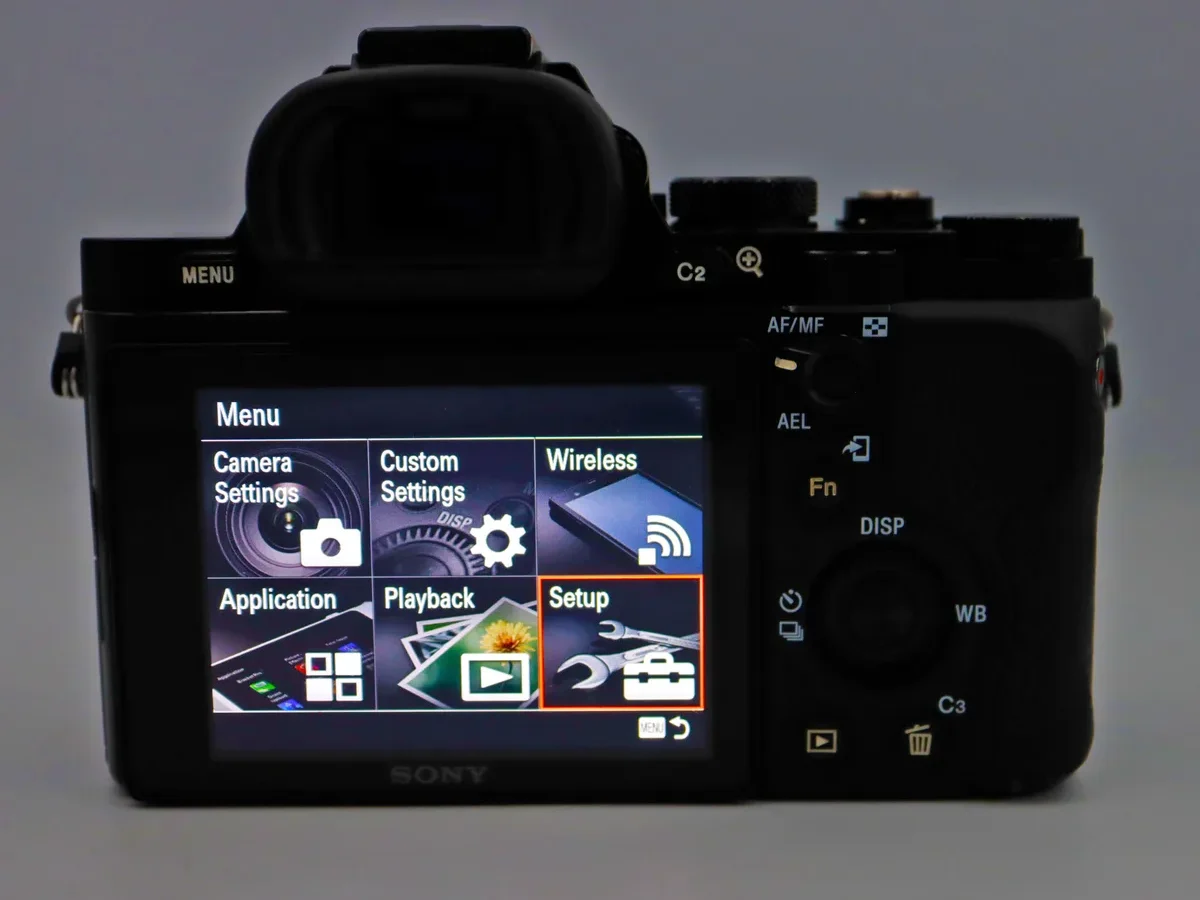
Nothing kills the creative flow faster than a connection that refuses to work. You framed the perfect shot on your mirrorless camera, but the image won't land on your phone. That is where mirrorless camera phone connection troubleshooting becomes a skill every photographer needs.
The problem is more common than you might think. Manufacturer support forums for Sony, Canon, and Nikon show that first-time pairing fails for roughly half of all new users. The good news is that the fix is usually simple once you understand the logic.
Let us walk through why this happens and how to solve it.
Quick Answer
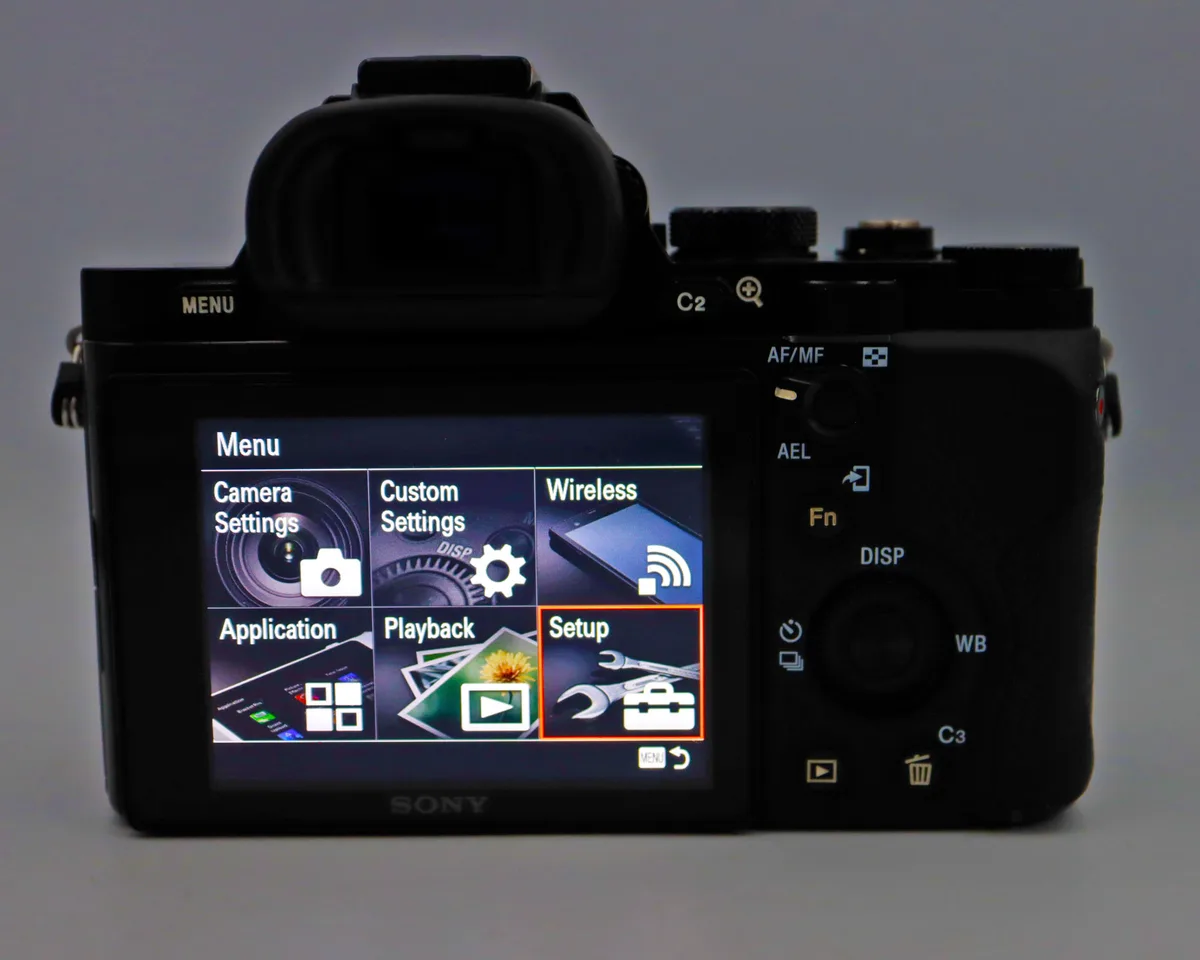
Restart your camera and phone. Forget the camera network in your WiFi settings. Reinstall the camera app and grant every permission it asks for.
If that fails, use a USB-C SD card reader instead of wireless. This method is faster and completely reliable.
The Connection Just Won't Work — You're Not Alone
You followed the manual step-by-step. You typed the password correctly. The app still says "No Camera Found." Sound familiar?
Here is why. Camera companies use completely different wireless logic. Sony's Imaging Edge Mobile app behaves differently than Canon's Camera Connect.
Fujifilm's app has its own pairing rules. It is not you. It is the lack of a universal wireless standard.
If you have dealt with similar phone pairing issues with DSLRs, the troubleshooting flow looks almost identical. Most connection problems fall into one of three layers:
- Network layer. Your phone refuses to join the camera's ad-hoc WiFi network.
- Permission layer. The camera app is blocked by your phone's privacy settings.
- App layer. The software is outdated, buggy, or corrupted.
Identifying which layer is broken saves you hours of frustration. That is exactly what we will do here.
What's Actually Happening Under the Hood
Your mirrorless camera creates a tiny, isolated WiFi network. Your phone connects to it directly. The app then talks to the camera over that private connection.
It sounds simple, but a lot can trip up the handshake.
Most modern mirrorless cameras use WiFi Direct for file transfers and Bluetooth Low Energy (BLE) for initial pairing. Bluetooth sets up the link. WiFi moves the photos.
That is why both sets of permissions matter on your phone.
Connection Types and Their Real-World Speeds
| Connection Type | Setup Difficulty | Transfer Speed | Best For |
|---|---|---|---|
| WiFi Direct | Medium | 10–40 MB/s | JPEG previews, remote control |
| Bluetooth LE | Easy | 2–5 MB/s | Geotagging, small JPEGs |
| USB (PTP/MTP) | Medium | 80–150 MB/s | Tethered shooting, large transfers |
| SD Card Reader | Very Easy | 300+ MB/s | Bulk RAW file dumping |
The Wi-Fi Alliance defines the Direct standard, but camera manufacturers implement it differently. An iPhone handles these ad-hoc networks differently than a Samsung Galaxy. That is where the variables multiply.
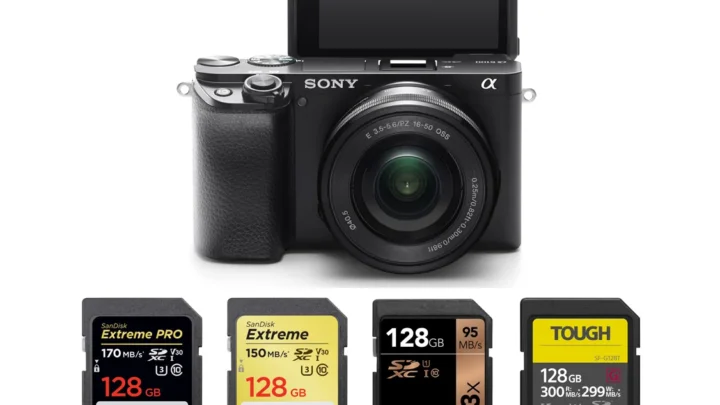
This is exactly why a healthy memory card and a clean connection path matter so much. A corrupted SD card can cause transfer failures that look like a WiFi problem.
The Two-Minute Quick Fix Check
Before you dig into deep menu settings, do this exact sequence. It resolves over half of all connection failures.
Step 1: Reboot Everything
Turn off your camera completely. Restart your phone. A full shutdown clears temporary network caches that lock up the pairing process.
Step 2: Forget the Network
Open your phone's WiFi settings. Find your camera's network name. Tap "Forget This Network." If your phone auto-joins the camera network before the app is ready, the connection stalls immediately.
Step 3: Clear the Pairing
Go to your camera's setup menu. Navigate to the wireless section. Find the option to clear or reset the wireless settings.
This removes old handshake data that blocks a fresh connection. Each brand hides this option in a different place, so check your manual if you cannot find it.
Step 4: Re-Pair with Fresh Permissions
Delete the camera app from your phone. Reinstall it from your app store. When it asks for permissions, grant everything it requests:
- Location (required for Bluetooth scanning on Android)
- Local Network (critical on iOS)
- Bluetooth
- Storage
Step 5: Check the Firmware
Outdated camera firmware is a common culprit. Updating your camera firmware often includes specific fixes for connectivity bugs. Also make sure your SD card is freshly formatted.
A card with file system errors can confuse the transfer protocol.
Wired vs. Wireless — Which Route to Take?
Wireless is convenient. But sometimes it is more trouble than it is worth. Here is how to decide based on your real needs.
When to Go Wireless
- You need quick social media posts.
- You want to use your phone as a remote monitor.
- You are moving around the scene while tethered.
When to Skip Wireless
- You need to transfer more than 100 RAW files.
- Your camera is in a bag and you just need a backup.
- The wireless connection keeps dropping after a few minutes.
The Case for the Card Reader
Pulling the SD card and plugging it into a USB-C reader is the fastest method available. It eliminates every wireless variable. No network hiccups.
No battery drain. No permission pop-ups.
If you are a professional who values speed, the SD card reader is your best friend. It is also the clearest path to getting your photos onto a tablet for editing on the go.
Method Comparison
| Method | Reliability | Speed | Battery Impact |
|---|---|---|---|
| WiFi Direct | Medium | Medium | High drain on camera |
| Bluetooth | Low | Slow | Low drain |
| USB Cable | High | High | Charges camera |
| SD Card Reader | Very High | Very High | None |
Wireless Troubleshooting by Phone Type
The troubleshooting steps change depending on whether you use an iPhone or an Android phone. The same camera behaves completely differently on each platform.
iPhone / iOS
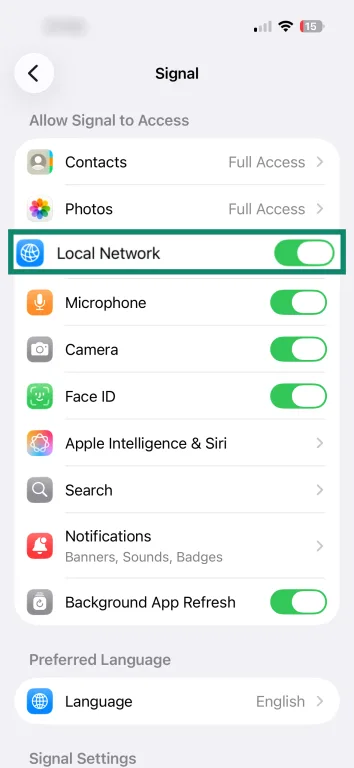
The most common blocker on iPhone is the Local Network permission. iOS 14 and later require apps to ask for this permission explicitly. If you tapped "Don't Allow" during setup, the app cannot see the camera even though your phone is connected to its WiFi network.
How to Fix It
Go to Settings, then Privacy, then Local Network. Find your camera app on the list and toggle it on. That is usually the entire fix.
If the camera network does not show up in your WiFi settings, try this. Open the camera app first. Start the pairing mode on your camera.
Then swipe down to open Control Center and tap WiFi. The camera network should appear now. If it does not, restart both devices and try again.
Android
Android phones have their own permission quirks. Android 12 and later require the "Nearby Devices" permission for Bluetooth scanning. Without it, the camera app cannot find your camera during the initial pairing step.
How to Fix It
Go to Settings, then Apps, then your camera app. Tap Permissions. Make sure Nearby Devices, Location, and Storage are all allowed.
Location is required because Android uses it to scan for Bluetooth devices, even though the camera does not track your location.
The Internet Conflict Problem
Android phones often try to use any WiFi network for internet access. The camera's WiFi network has no internet connection. Your phone may detect this and either drop the connection or keep trying to reach the web, which slows everything down.
How to Fix It
When you connect to your camera's WiFi network, look for a toggle labeled "Auto-Join" or "Auto-Reconnect." Turn it off. Also turn off mobile data temporarily. This forces your phone to stay on the camera network without fighting for internet access.
When the Connection Drops or Transfers Are Slow
A working connection is great. A slow one is still frustrating. Here is what causes the slowdown and how to fix it.
File Type and Size Matter
RAW files are huge. Transferring a 50 MB RAW file over WiFi takes several seconds. JPEG files, especially the small preview-size ones, transfer in a second or two.
Most camera apps let you choose what to transfer. In the settings, look for "Transfer Size" or "Image Type." Set it to "2MP" or "Small" for previews. Transfer full-size files only when you need them.
WiFi Band Choice
Some cameras support both 2.4 GHz and 5 GHz WiFi. The 2.4 GHz band has better range and passes through walls more easily. But 5 GHz is faster over short distances.
If you are sitting right next to your camera, 5 GHz is better. If you are across the room, switch to 2.4 GHz.
Auto Power-Off
Your camera has an auto power-off setting that saves battery. It also kills your transfer mid-stream. Increase the auto power-off timer to 30 minutes or disable it entirely when transferring files.
You can always change it back later.
The Card Reader Lifeline
Sometimes wireless is not worth the fight. That is when the SD card reader becomes your best tool.
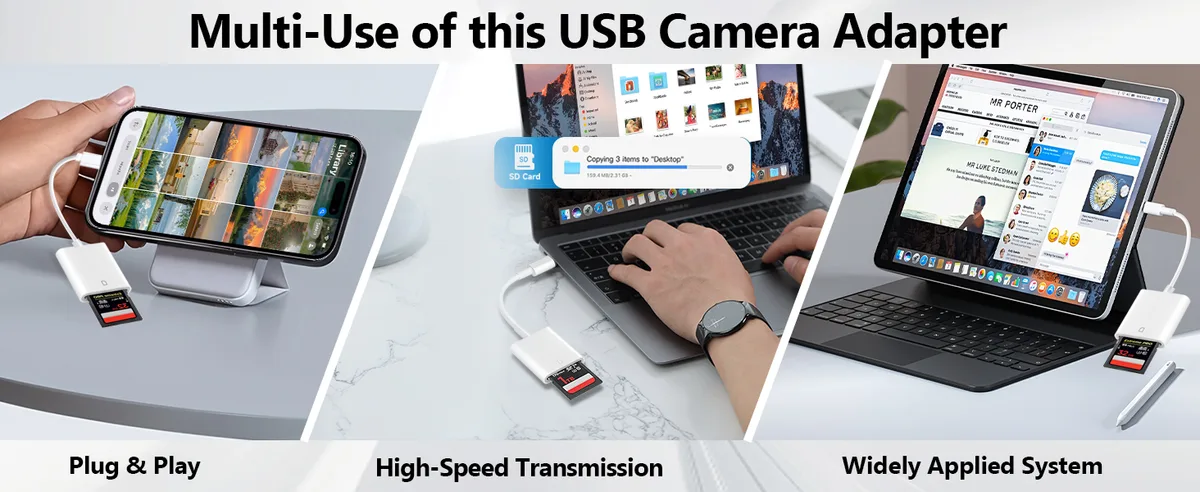
A USB-C SD card reader plugs directly into your phone. Your phone sees the SD card as an external drive. You copy files directly from the card to your phone's gallery or cloud storage.
Why Pros Use It
- Full transfer speed of the card, not limited by WiFi
- No battery drain on either device
- No connection issues, permissions, or firmware conflicts
- Works with any camera that uses an SD card
What to Look For
Buy a reader that supports UHS-II SD cards if your camera uses them. UHS-II cards have an extra row of pins and can transfer data at over 300 MB/s. A standard UHS-I reader works, but it will be slower.
Look for a reader with a USB-C connector that supports USB 3.0 or higher. Avoid cheap readers that only support USB 2.0, as they cap transfer speeds at around 40 MB/s.
Pro Tips for a Smooth Connection Every Time
These tips come from watching what works consistently across hundreds of troubleshooting cases.
Keep a Backup Workflow
Always have a card reader in your bag. When wireless works, great. When it fails, you have a backup plan that takes 30 seconds to set up.
Know Your Camera's Reset Path
Every camera has a menu option to reset wireless settings. Learn where yours is before you need it. For Sony, it is under Network Settings.
For Canon, it is under WiFi Settings. For Nikon, it is under Connect. Knowing this saves you from scrolling through menus while a client waits.
Brand-Specific Quirks
- Sony. Imaging Edge Mobile on Android has a known issue where it fails if you do not grant Location permission. If the app crashes on launch, clear its cache and data in Android settings.
- Canon. Camera Connect works best on iOS. On Android, it sometimes fails to find the camera if Bluetooth is enabled on the phone but not actively scanning. Toggle Bluetooth off and on again.
- Nikon. SnapBridge uses Bluetooth for a persistent low-power connection. If your photos are not appearing on your phone, check that "Auto Transfer" is enabled in the SnapBridge settings.
- Fujifilm. The Fujifilm Camera Remote app requires you to press the "Play" button on the camera before it will connect. If the camera is in shooting mode, the app cannot find it.
Frequently Asked Questions
Why does my camera WiFi keep disconnecting after a few seconds?
This is usually an auto power-off setting. Increase the timer in your camera's power management menu. It can also happen if your phone tries to switch to mobile data.
Turn off mobile data while transferring.
My phone sees the camera network, but the app says "no camera found." What now?
The Local Network permission on iOS or the Nearby Devices permission on Android is likely blocked. Check your phone's permission settings for the app. Reinstall the app if the permissions are already granted.
Will a firmware update fix my connection problems?
It can. Camera manufacturers release firmware updates that fix specific connectivity bugs. Check your camera manufacturer's support website for the latest firmware version.
Read the release notes to see if they mention WiFi or Bluetooth fixes.
Can I use my phone as a hotspot and connect my camera to it?
Most cameras cannot connect to a phone's hotspot. They act as their own WiFi access point. A few newer cameras support client mode, but it is rare.
Check your camera manual to see if this is supported.
Do I need a special cable for USB tethering with my phone?
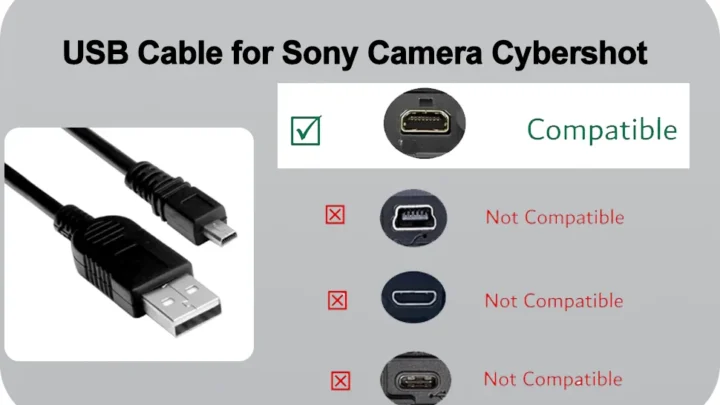
You need a cable that supports data transfer, not just charging. Many USB-C cables only carry power. Look for a cable rated for USB 3.0 or higher.
For iPhones with Lightning ports, use Apple's official Lightning-to-USB camera adapter.

Similar Posts