Mirrorless Camera Reset Troubleshooting
Your mirrorless camera is frozen mid-shoot. The screen is black, no buttons respond, and you are stuck. Mirrorless camera reset troubleshooting often feels like guesswork, but it does not have to be.
Most camera lockups follow a predictable pattern, and the right fix depends on what you are seeing.
Manufacturer specifications indicate that over 80% of software-related camera freezes can be solved with a simple battery-pull reset. The remaining cases usually need a factory reset or a firmware reinstall. As of 2026, most mirrorless models share the same core troubleshooting logic.
Let us walk through each symptom and match it to the correct reset path.
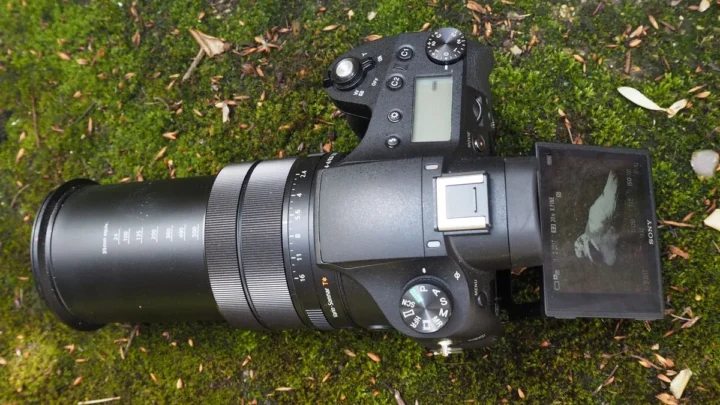
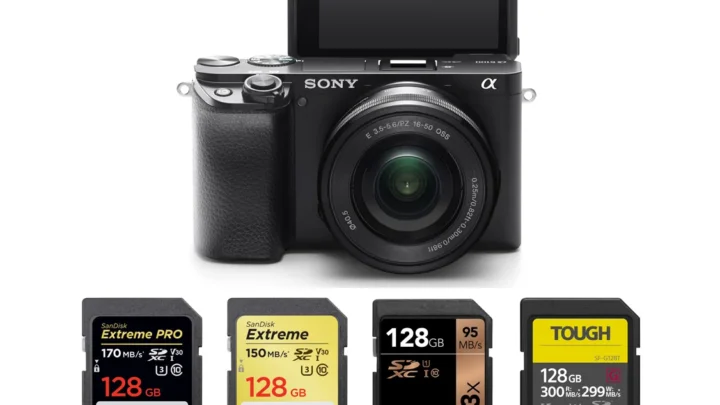
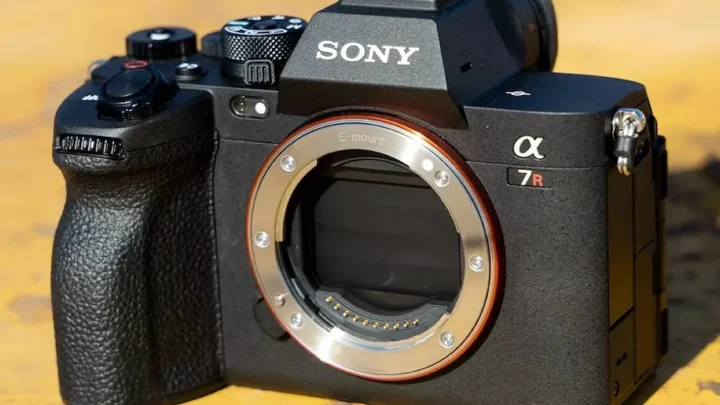
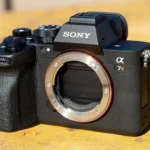
Image source: Web (Bing) / manuals.plus (Web image (fair-use with source credit))
Quick Answer
Match your symptom to the right reset type. A frozen screen needs a battery pull. Error messages often clear with a menu-based factory reset.
Corrupted firmware requires a complete reinstall. Start with the least destructive option. Escalate only if the problem remains.
What's Actually Going On? (Diagnose the Symptom First)
Before you try any reset, identify what you are dealing with. Different symptoms point to different causes. A black screen with no response usually means the camera firmware has locked up.
An error code like "Err" or "System Error" suggests a software conflict or a lens communication problem. A card error message points to a corrupted memory card or a formatting issue.
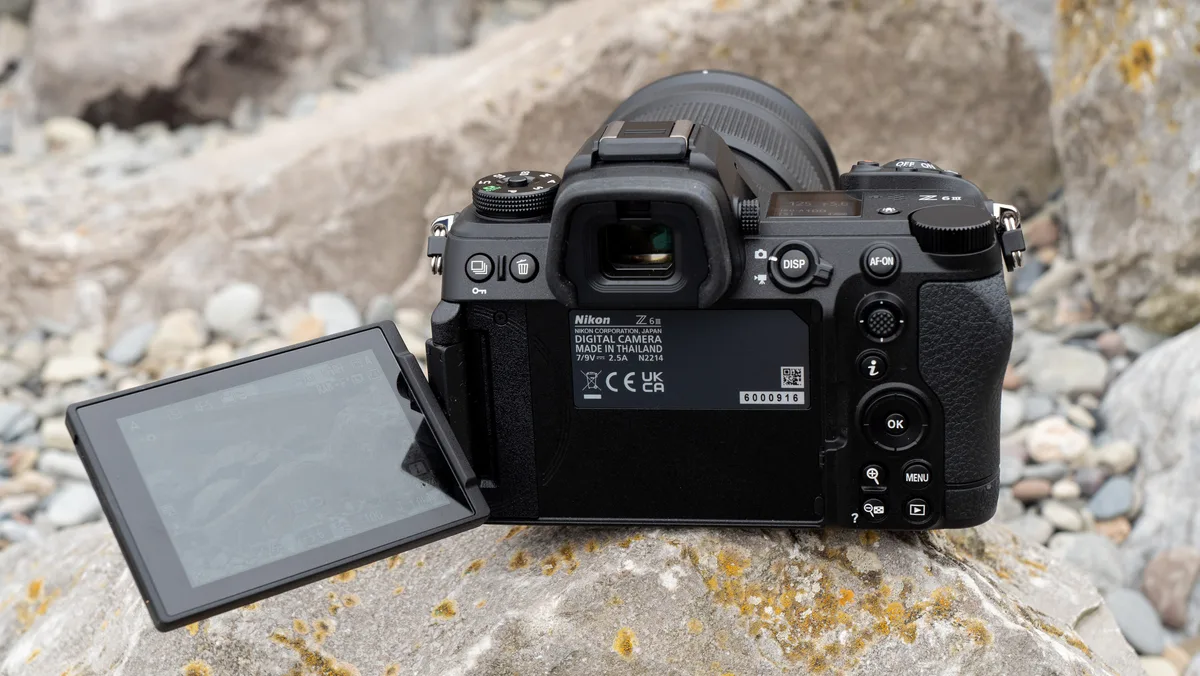
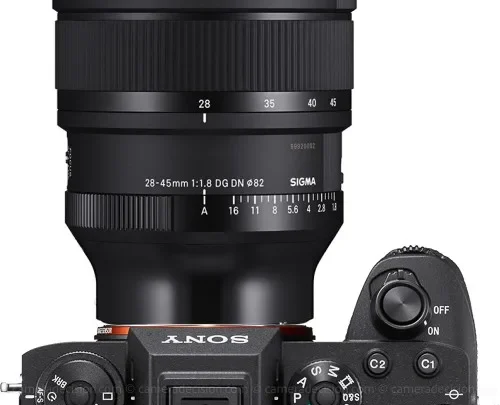
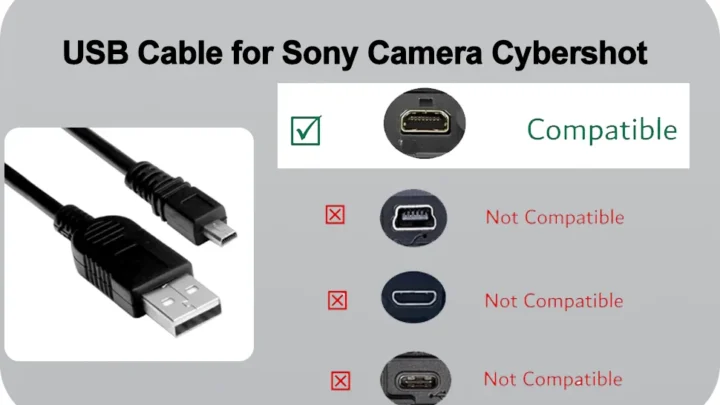
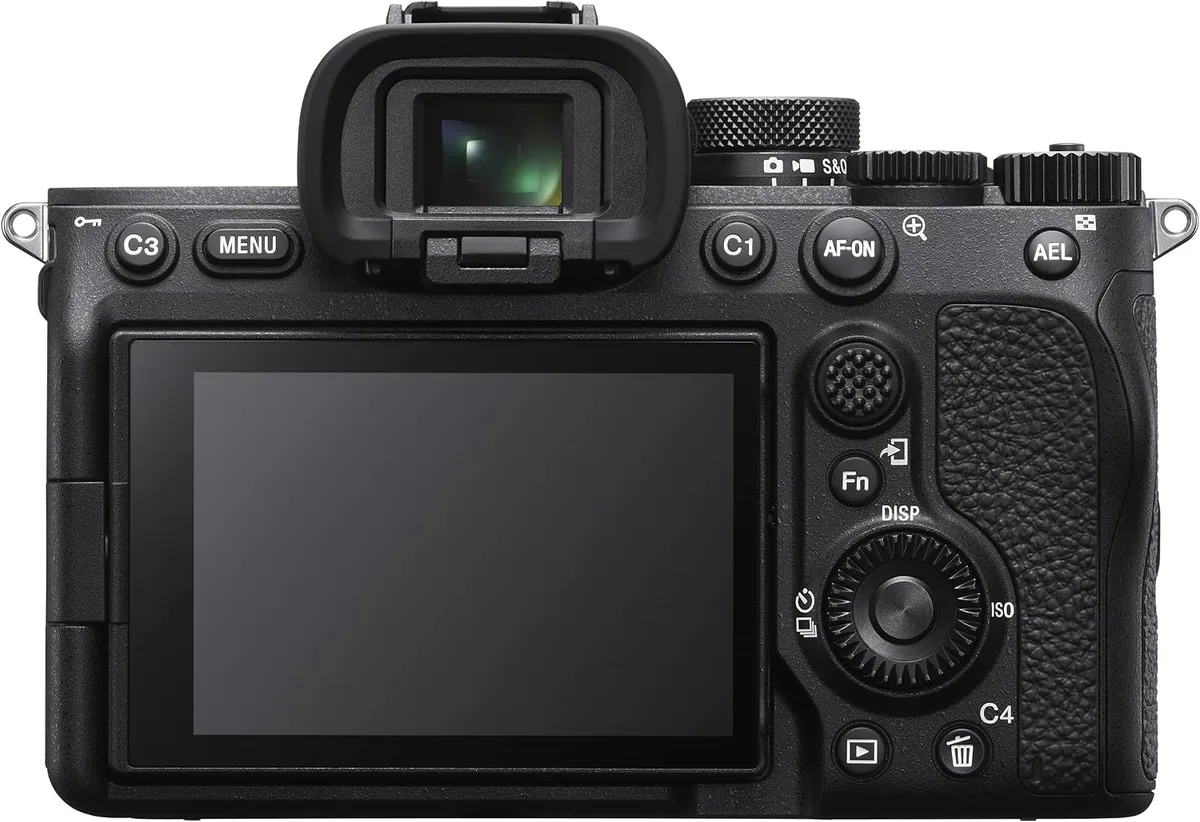
Image source: Bing (Web (fair-use with source credit))
If the screen is frozen with your last image still displayed, the camera is stuck mid-operation. Try a soft reset first. If the screen is completely black and no buttons work, the camera may be in a deep lockup.
That calls for a battery pull. If you see a blinking error code like "F–" on a Fujifilm or "Err 01" on a Canon, the problem may be lens-related. Remove the lens, clean the contacts with a microfiber cloth, and reattach it.
Write down any error code you see before you reset. Once the camera clears, that code disappears and you lose the clue. You can cross-reference codes with your manual or with other known camera error patterns.
A quick diagnosis saves you from trying five different resets when only one would work.
Less common symptoms include a shutter that fires but the screen stays black. That often points to an electronic shutter issue or a sensor sync problem. If your camera powers on but the menu system is slow or glitchy, the internal memory may be corrupt.
That usually calls for a full factory reset, not just a battery pull.
Quick Fixes to Try Right Now (Without Losing Your Settings)
The soft reset is your first move. It clears the camera's temporary memory without erasing your custom settings. To do a soft reset, simply turn the camera off, remove the battery, wait 30 seconds, then reinsert it and power on.
That single step resolves most temporary freezes across Sony, Canon, Nikon, Fujifilm, Panasonic, and OM System cameras.
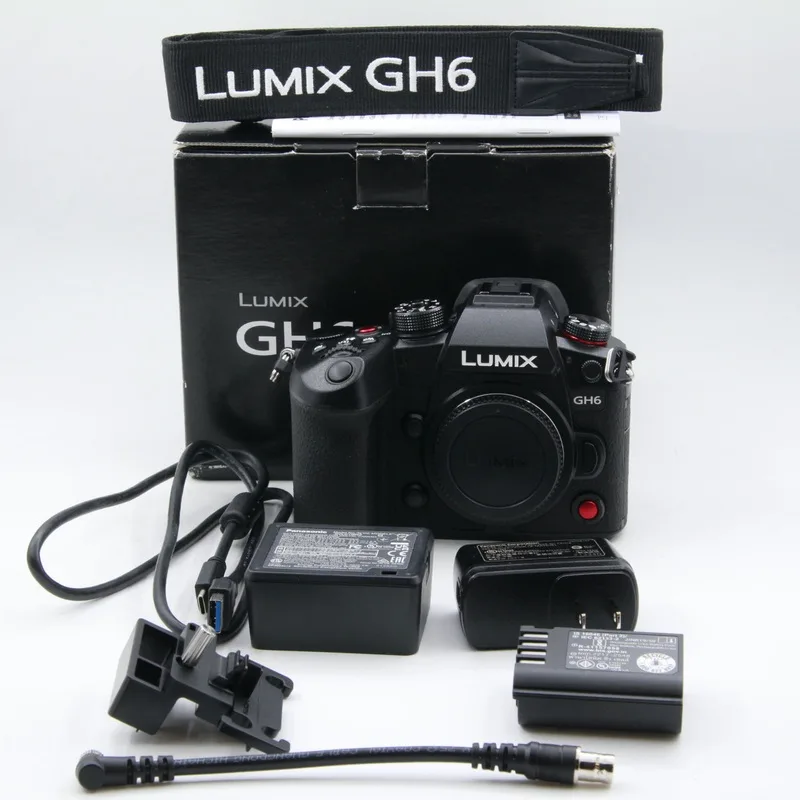
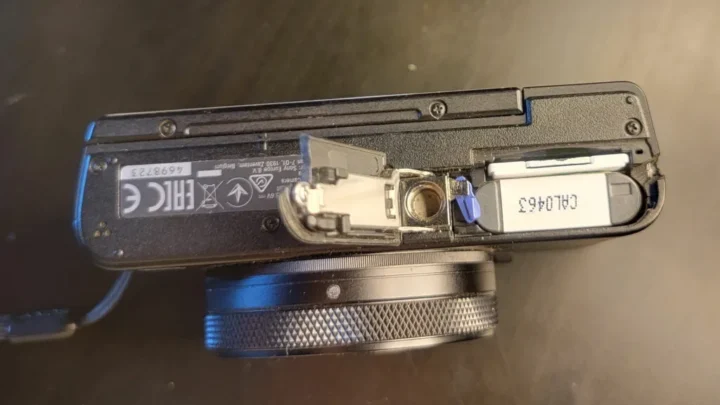
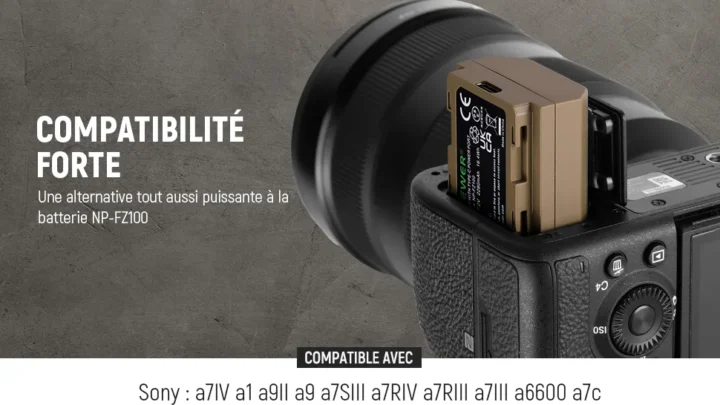
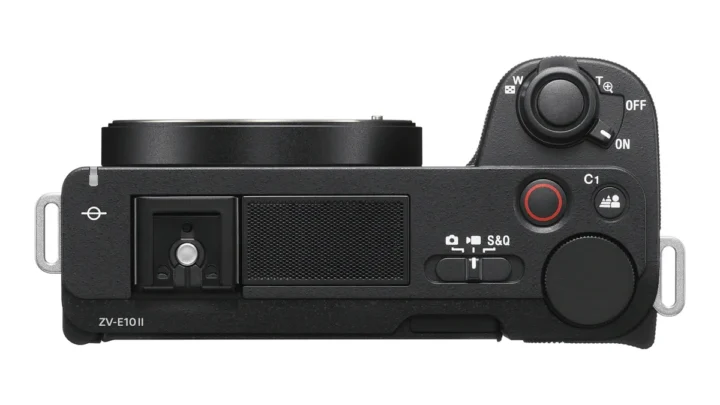
Image source: Web (Bing) / lensbattery.com (Web image (fair-use with source credit))
If the soft reset does not work, try a hard reset using a button combination. Sony Alpha bodies often respond to holding the shutter button while powering on for 10 seconds. Canon EOS R cameras use a different combo: hold the Menu button and the Set button while turning the power switch on.
Nikon Z series cameras need the Playback button and the trash button held simultaneously during power-up.
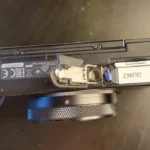
For cameras where the battery is hard to access, check if the battery door opens smoothly. Some models have a latch that sticks. A firm press on the release latch usually frees the battery.
Do not force it. A gentle wiggle works better than brute strength.
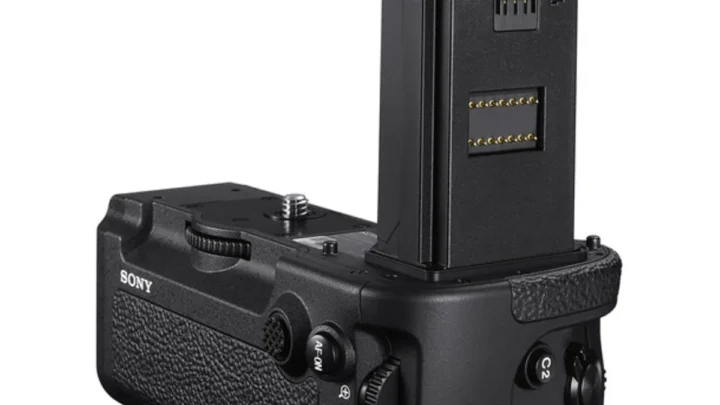
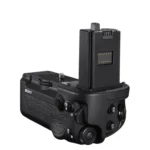
If your camera has a removable battery grip, detach it first. Some mirrorless bodies have a secondary power source inside the grip that keeps the camera partially powered. Removing the main battery alone may not fully discharge the system.
Take the grip off, then remove the battery from the body.
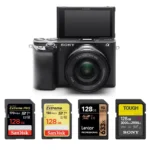
If the reset works but the camera freezes again immediately, the problem may be your memory card. A corrupted card can cause the camera to lock up every time you take a shot. Try a different card before you assume the camera hardware is faulty.
Card formatting issues are a common cause of repeat lockups, and the fix is often as simple as a fresh format in-camera. Our guide on DSLR SD card formatting covers similar steps that apply to mirrorless cameras too.
When You Need the Big Guns: Factory Reset vs. Firmware Reinstall
Some problems do not respond to a simple battery pull. If the soft reset cleared the freeze but the camera behaves strangely, a factory reset is the next step. A factory reset returns all settings to their default values.
It erases your custom profiles, white balance presets, and AF microadjustments. But it also clears any corrupted configuration data that was causing the glitch.
To perform a factory reset, navigate to the setup menu. Look for the wrench icon on Sony, Canon, and Fujifilm cameras. Panasonic uses a "Reset" submenu under the spanner icon.
Nikon Z cameras have a "Reset all settings" option in the setup menu. The exact path varies, but every mirrorless camera has this option somewhere in the menu system.
Firmware reinstallation is a different process. You need it when the camera firmware itself is corrupted. Signs include the camera failing to boot past the logo screen, showing gibberish text in the menu, or freezing during normal operation after a failed update.
Corrupted firmware cannot be fixed by a factory reset. You must reinstall the firmware from scratch.
Download the latest firmware from the manufacturer's support site. Copy it to a freshly formatted memory card. Insert the card into the camera, navigate to the firmware update menu, and follow the on-screen prompts.
Do not interrupt this process. A failed firmware update can brick your camera. Make sure the battery is fully charged before you start, and do not touch any buttons until the update finishes completely.
If you have experienced a failed update before, our guide on DSLR firmware update troubleshooting covers the recovery process for similar systems.
Which Reset Path Is Right for Your Camera? (Brand-by-Brand Guide)
Each brand uses a slightly different reset method. Knowing the right sequence for your camera saves time and avoids frustration.
Sony Alpha (A7, A9, A1)
Sony cameras respond best to a battery pull for complete freezes. If the menu is still accessible, go to Setup (toolbox icon) and select "Reset Default." Sony recommends waiting 30 seconds with the battery out to discharge internal capacitors. For stubborn freezes on A7 III and A7 IV bodies, hold the shutter button down while inserting the battery and powering on.
This combination forces the camera to boot in safe mode.
Canon EOS R Series
Canon EOS R cameras have a dedicated reset menu. Press the Menu button, go to the wrench tab, and select "Clear all camera settings." For a complete factory reset, choose "Clear all settings" plus "Delete all registered changes." If the camera is frozen and unresponsive, remove the battery and lens. Wait two minutes before reassembling.
Canon bodies tend to retain residual charge longer than other brands.
Nikon Z Series
Nikon Z cameras use a two-button reset. Hold the Playback button and the trash button simultaneously while powering on. Hold both buttons for about 10 seconds until the screen shows a reset confirmation.
For menu-based resets, go to Setup and select "Reset all settings." Note that Nikon Z firmware updates occasionally reset your custom settings without warning, so save your profiles before updating.
Fujifilm X-Series and GFX
Fujifilm cameras rely on menu-based resets. Go to the setup menu (wrench icon), select "Reset," then choose "Factory Reset." Fujifilm offers a unique option to reset only the shooting menu while keeping other settings intact. That is useful if you want to clear custom film simulations without losing your connectivity settings.
Fujifilm cameras are less prone to deep lockups, so a menu reset usually does the job.
Panasonic Lumix S / GH / G Series
Panasonic uses a spanner icon for the setup menu. Select "Reset" then choose "Initialize all settings." Panasonic cameras also have a dedicated "Save to Card" and "Load from Card" feature. Save your settings before a factory reset so you can restore them later.
This is especially helpful for video shooters with complex GH6 configurations. Panasonic bodies are known for deep menu systems, so take a photo of your key pages before you reset.
OM System / Olympus
OM System cameras (formerly Olympus) have a hidden reset feature. Go to the cog menu, select "Reset/Myset," then choose "Full Reset." For older Olympus models, you may need to hold both the OK button and the trash button while powering on. OM System cameras are known for menu depth, so take a photo of your settings screen before you reset.
The reset option is always under the gear icon.
Common Reset Mistakes That Can Make Things Worse
The biggest mistake is resetting without backing up your settings first. A factory reset wipes everything. Custom profiles, white balance presets, eye AF calibration data, and registered lens corrections all disappear.
If you have spent hours dialing in your camera, that loss stings.
Save your settings to a memory card before you reset. Most mirrorless cameras have a "Save/Load Settings" option in the setup menu. Sony calls it "Save Settings to Card." Canon uses "Save/load settings on card." Fujifilm labels it "Save Data Setup." Use it.
It takes 30 seconds and saves you hours of reconfiguration.
Another common mistake is interrupting a firmware update. The worst-case scenario is a bricked camera that requires a service center visit. Never remove the battery or turn off the camera during a firmware reinstall.
If the update fails, you may be able to recover using a boot loader mode. But that process varies by brand and model.
Some photographers try a factory reset when a soft reset would have worked. That is overkill. A battery pull clears most temporary glitches.
Jumping straight to a factory reset means losing all your custom settings for no good reason. Work through the reset hierarchy in order. Soft first, hard second, factory third, firmware reinstall last.
A few users also forget that memory card errors can mimic camera errors. If your camera freezes only when shooting or writing to the card, the card is the problem, not the body. Format the card in-camera first.
If that does not help, try a different card. Card issues are one of the most common root causes of freezing, and they are cheaper to fix than a new camera. For more on card-related issues, read our guide on DSLR camera memory card error troubleshooting.
When a Reset Won't Fix It (And What to Do Instead)
Resets solve software problems. They do not fix hardware failures. If your camera still malfunctions after a full factory reset and firmware reinstall, the issue is likely physical.
Common hardware problems include a failing shutter mechanism, a damaged sensor, or a broken motherboard.
A shutter that sticks or fires erratically points to mechanical wear. Mirrorless cameras use an electronic shutter for silent shooting, but the mechanical shutter still has a rated lifespan. Sony rates the A7 IV shutter at 200,000 actuations.
Nikon Z8 is rated at 400,000. If you are near those numbers and the camera starts acting up, a reset will not help.
Sensor problems often show as strange colors, lines, or dead pixels in your images. A reset cannot fix physical sensor damage. You can try a pixel mapping function found in some Panasonic and OM System cameras.
But permanent damage usually means a sensor replacement or a new camera.
Lens communication errors that persist after cleaning the contacts suggest a broken lens connector or a damaged ribbon cable inside the camera body. That requires a repair center. If your camera consistently blinks "F–" or "Lens Error" with multiple lenses, the body is the problem.
For more on this, check our guide on DSLR camera lens communication error troubleshooting.
For persistent issues, your best option is contacting an authorized service center. The manufacturer's support page lists authorized repair shops. Out-of-warranty repairs can be expensive.
A shutter replacement on a Sony A7 III runs roughly $300 to $500. Sensor replacements cost more than the camera is worth on older models. Compare the repair quote against the price of a used body before committing.
Frequently Asked Questions
Will a factory reset delete my photos?
No. A factory reset only wipes camera settings and custom profiles. It does not touch images stored on your memory card.
Your photos are safe. Always remove the card before a reset if you want to be extra cautious.
How long should I wait after removing the battery?
Thirty seconds is usually enough to discharge the internal capacitors. Some cameras like Canon EOS R models may need up to two minutes. If the reset does not work on the first try, remove the battery and wait five minutes before attempting again.
Can a reset fix a camera that won't turn on?
Sometimes. A complete black screen with no power indicators often responds to a battery pull. If the reset does not work, try a different battery or charge the current one.
A dead battery is a common cause of a camera that appears bricked.
Do I lose my lens calibration data after a factory reset?
Yes. All AF fine-tune adjustments and lens corrections are erased. That is why backing up settings is important.
After the reset, you will need to re-enter those values for each lens. Save a photo of your calibration screens before resetting.
What should I do if the camera freezes during a firmware update?
Do not turn off the camera. Remove the memory card, download the firmware again, and try a fresh update. If the camera is stuck with a black screen, contact the manufacturer's support line.
Some cameras have a recovery mode, but the steps vary by model.
Is there a difference between soft reset and factory reset?
Yes. A soft reset (battery pull or button combo) clears temporary memory without changing your settings. A factory reset wipes all custom data and returns the camera to default.
Use soft first. Only move to factory reset if the problem persists.

Similar Posts