Mirrorless Camera USB Connection Troubleshooting
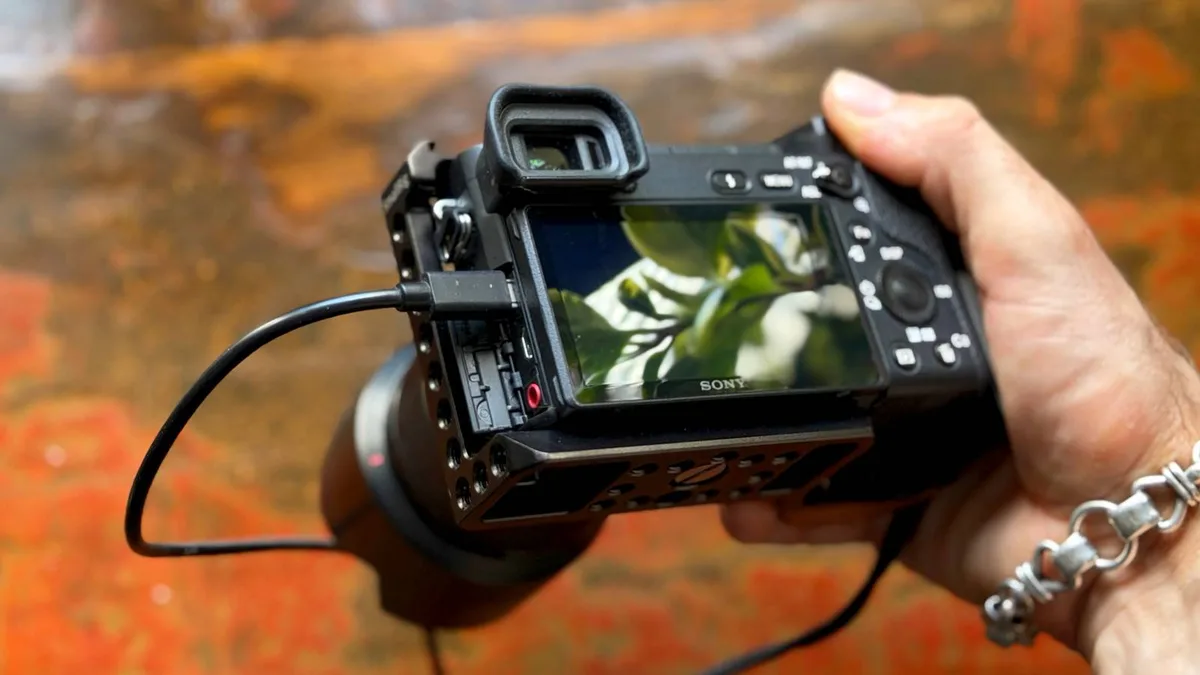
If your mirrorless camera won't connect via USB, change the camera's USB mode to "MTP" or "PC Remote." Swap your cable for one that definitely carries data. Restart both devices. Start there.
You plug your mirrorless camera into your laptop and nothing happens. No drive pops up. No charging indicator.
Maybe you see "device not recognized." For mirrorless camera USB connection troubleshooting, the fix is usually simpler than it seems.
The USB specification has been around for decades. Camera manufacturers still implement it in wildly different ways. Most connection failures trace back to one setting buried in the camera menu.
Another common cause is a cable that only charges and doesn't carry data. As of 2026, most modern mirrorless cameras use USB-C, but the underlying problems haven't changed much.
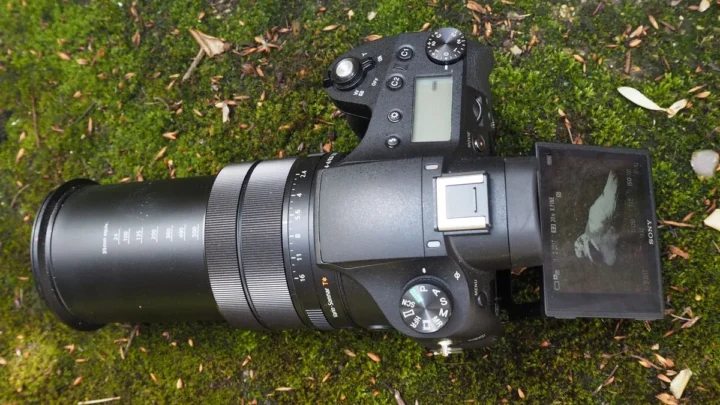
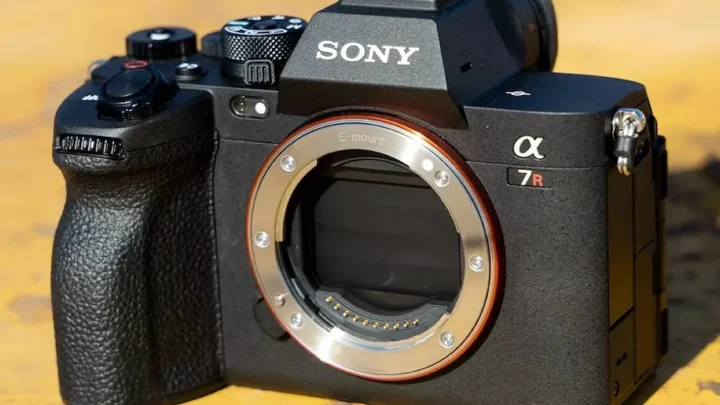
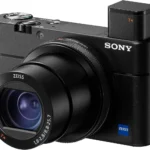
Image source: Web (Bing) / howtogeek.com (Web image (fair-use with source credit))
The Quick Answer: A Decision Tree for Camera-to-Computer Setup
Follow these branches in order.
If the camera charges but the computer does not see it, you have a charge-only cable. Swap it immediately.
If the computer sees an unknown device or "MTP USB Device" that fails, check your camera's USB mode setting.
If the camera does not charge and does not show up, test the cable with another device. Then test another USB port.
If tethered shooting keeps dropping mid-session, disable USB selective suspend in Windows power management.
If nothing works, update the camera firmware and the computer's USB chipset drivers.
This decision tree covers the most common outcomes. The same logic applies when troubleshooting USB issues with older cameras.
Cables Take a Backseat: The Real Issue
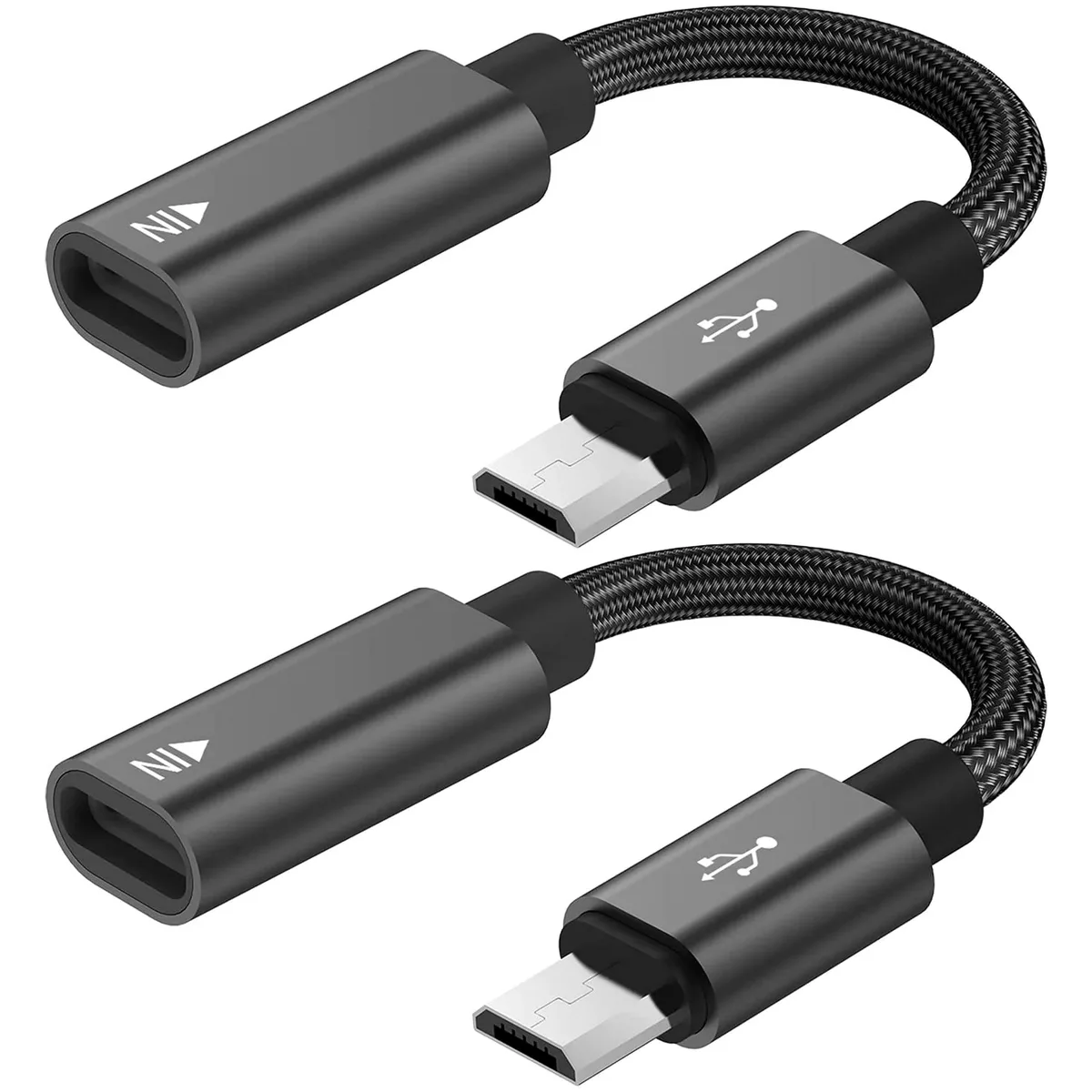
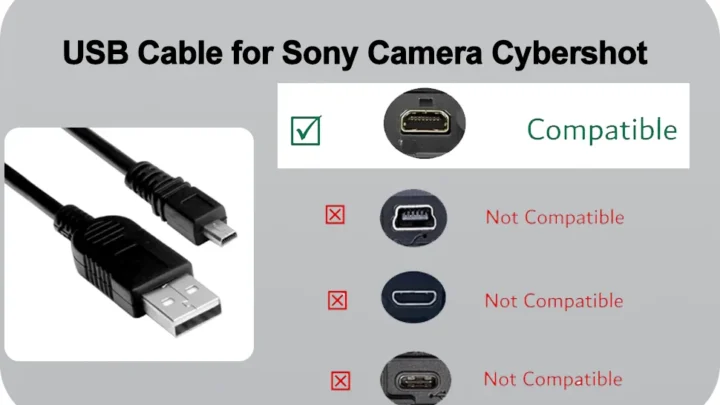
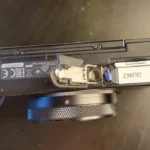
Image source: Bing (Web (fair-use with source credit))
Most people grab the nearest USB cable and assume it will work. That is the first mistake.
A charge-only cable has only power wires inside. It charges your camera battery just fine. But it has no data wires.
Your computer will never see the device. These cables are common with phone chargers and cheap power banks.
The cable you need must carry both power and data.
| Cable type | Charges camera | Transfers data | Typical use |
|---|---|---|---|
| Charge-only | Yes | No | Wall charger, power bank |
| Data-capable | Yes | Yes | Computer connection, tethering |
| Thunderbolt 3/4 | Yes | Yes (faster) | High-speed file transfer |
Look at the cable's USB plug. A data-capable Type-C cable usually has a SuperSpeed logo. If the cable came with a random gadget or an old phone charger, it is probably charge-only.
The cable that came in the camera box is always data-capable. Use that one first.
If the cable is not the issue, check the camera port. Dust, lint, or bent pins inside can block a connection. Use compressed air to clean it.
Shine a flashlight into the port and look for bent pins. Damage usually requires a service center visit.
USB protocol versions matter less than people think. USB 2.0 is fine for file transfer and tethering. USB 3.0 and USB-C are faster only when both the camera and cable support it.
Many mirrorless cameras use USB 2.0 internally regardless of the port shape. Per USB Implementers Forum specifications, cable labeling should indicate data transfer capability.
The Hidden Setting That Trips Everyone Up
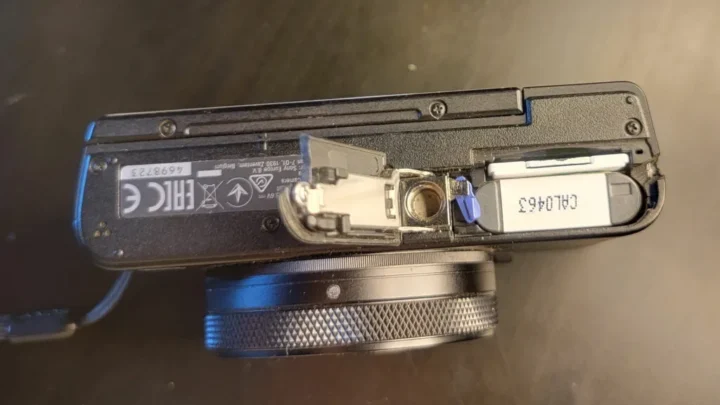
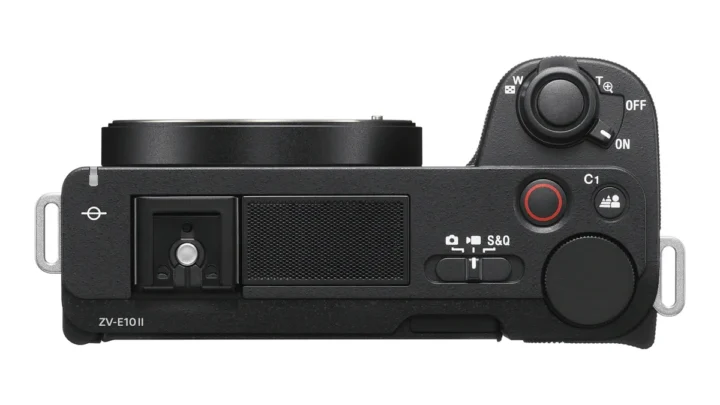
Image source: Web (Bing) / nikonusa.com (Web image (fair-use with source credit))
This is the single most common cause of mirrorless camera USB connection trouble. The wrong USB mode in the menu tells the camera how to talk to the computer. If it is set wrong, nothing works.
Camera manufacturers use different names for the same thing.
Sony calls it "USB Connection Mode" or "PC Remote". Set it to "MTP" for file transfer. Set it to "PC Remote" for tethered shooting.
Canon calls it "Communication Settings". Choose "MTP" or "PTP". For tethering, select "PC Connection".
Nikon calls it "USB Mode". Select "MTP" or "Mass Storage". For tethered control, choose "PC Remote".
Fujifilm calls it "USB Connection Setting". Pick "USB Tether Shooting Auto" for tethered capture. For file transfer, choose "MTP".
Panasonic calls it "USB Mode". Select "PC Connect (MTP)" or "PictBridge (PTP)".
OM System calls it "USB Mode". Choose "Storage" for file transfer or "Control" for tethering.
If you see "Auto" or "Auto Select", try that first. It lets the camera negotiate the correct mode with the computer.
One detail. Some cameras let you charge and transfer files at the same time. Others require a specific mode that disables charging during data transfer.
Check your camera manual.
If you have tried the right mode and it still fails, move to the workflow below. Resolving broader computer connectivity checks can help you rule out system-level issues.
The Step-by-Step Troubleshooting Workflow
Run through this checklist in order. Stop when the problem is fixed.
Condition check 1: Does the cable carry data?
Plug the cable into a different device. A phone, a tablet, an external hard drive. Does the computer see that device?
If yes, the cable is fine. If no, replace the cable.
Condition check 2: Is the camera in the right mode?
Check your camera's USB mode setting as described above. Write down the current setting. Change it to the recommended one.
Restart the camera.
Condition check 3: Is the computer seeing the device?
On Windows, open Device Manager. Look under "Portable Devices" or "Universal Serial Bus controllers". If you see "Unknown device" or a yellow exclamation mark, the computer detects something but the driver is wrong.
A firmware update often resolves driver conflicts.
On macOS, open System Information and click USB. You should see the camera listed under the USB bus. If not, try a different port.
On Linux, run lsusb in the terminal. If the camera shows up, the kernel sees it. Run dmesg | tail to check for errors.
Condition check 4: Is it a driver or power management issue?
Windows users: disable USB selective suspend. Go to Power Options. Click "Change plan settings".
Click "Change advanced power settings". Find "USB settings". Disable "USB selective suspend setting".
macOS users: reset the SMC and NVRAM. This clears USB port corruption.
Condition check 5: Is it a firmware or software problem?
Check the manufacturer's website for a firmware update for your exact camera model. Updating via memory card is safer than over USB. If the USB connection originally worked and then stopped, a firmware update may have changed the USB behavior.
Make sure you follow the steps for updating camera firmware properly to avoid bricking the device.
If you reach the end of this workflow and the camera still does not connect, try another computer. That rules out a motherboard port issue. Getting a phone and camera to sync follows a similar logic.
Mistakes to Avoid When Diagnosing USB Issues
Buying a new cable when the mode is wrong. This is the most common waste of money. A $30 Thunderbolt cable will not fix a camera set to "Print" mode instead of "MTP".
Using a USB hub that does not provide enough power. Many USB hubs split power between ports. Your camera needs a consistent power supply for tethering. Plug directly into the computer's motherboard port.
Assuming USB-C means high speed. USB-C is just a connector shape. The speed depends on the protocol. Many mirrorless cameras use USB 2.0 through a USB-C port.
Yanking the cable out instead of safely ejecting. On Windows, click "Safely Remove Hardware". On macOS, drag the camera volume to the trash. On Linux, unmount the filesystem.
Unplugging while writing can corrupt files on the memory card. Card corruption and formatting problems can cause similar symptoms.
Ignoring the difference between charging and data transfer. Just because the camera battery charges does not mean data flows. A charge-only cable will fill your battery but never let you copy a single photo. Always test with a known-good data cable.
Leaving Bluetooth and Wi-Fi on during wired connection. Some cameras disable USB when they detect an active wireless connection. Turn off Wi-Fi and Bluetooth on the camera before plugging in. This is especially common with Sony and Fujifilm cameras.

Similar Posts