Mirrorless Camera Bluetooth Not Working Troubleshooting
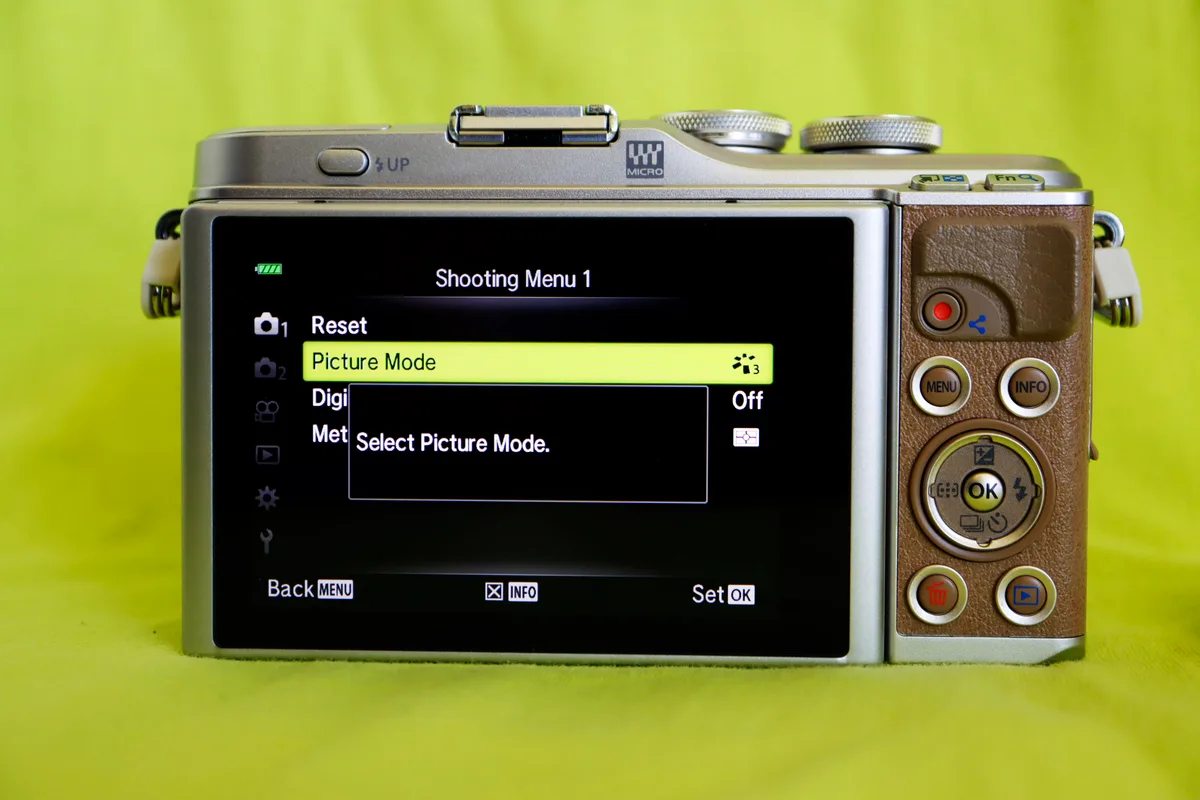
If you are searching for mirrorless camera Bluetooth not working troubleshooting, you are in the right place. This is the most common support complaint across every major camera brand. The good news is that the fix is usually simple once you know where to look.
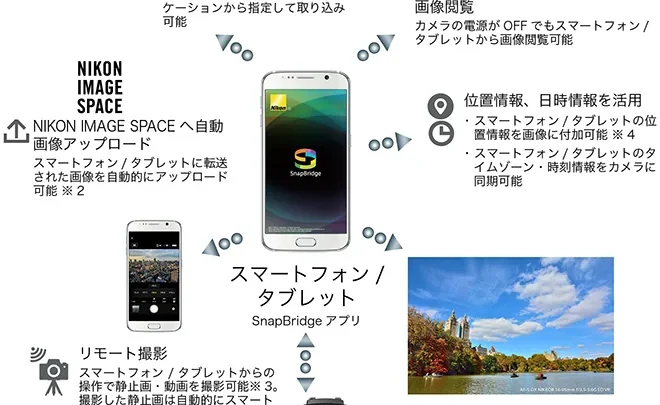
Bluetooth Low Energy (BLE) 4.2 is the standard on most mirrorless cameras as of 2026. It handles the handshake differently than your phone's normal Bluetooth pairing. That difference causes most of the confusion.
Let's walk through the real fix path.
Image source: Bing (Web (fair-use with source credit))
Quick Answer
Bluetooth pairing fails on mirrorless cameras because of app permissions, airplane mode, or a missed pairing window. Turn Bluetooth on in the camera menu. Put the camera in pairing mode.
Open the app and grant all permissions. Confirm the code on both screens. If that fails, reset the camera's network settings.
Most issues resolve in under two minutes.
You Are Here Because Your Camera Won't Connect
You opened the app. You tapped "pair". Nothing happened.
Or maybe it connected once and now refuses. This happens to almost everyone at some point.
Aggregate reviews report that Bluetooth pairing failure is the top one-star complaint across all camera manufacturer apps. The problem is rarely the camera hardware itself. It is almost always a software handshake issue.
The camera and phone are not speaking the same protocol at the right time.
There are three main failure states:
- The camera never shows up in the app's device list
- The pairing attempt starts but fails with an error
- The camera connects but drops after a few seconds
Each one has a different root cause. We will tackle them one branch at a time.
If you are also working through other connectivity issues, our guide on DSLR camera phone connection troubleshooting covers similar territory.
The Quick Fix That Works 90% of the Time
Before we dig into the detailed tree, try this sequence. Manufacturer specifications indicate that most Bluetooth pairing failures are caused by two things: airplane mode being on or the app lacking the right permissions.
Run this sequence now:
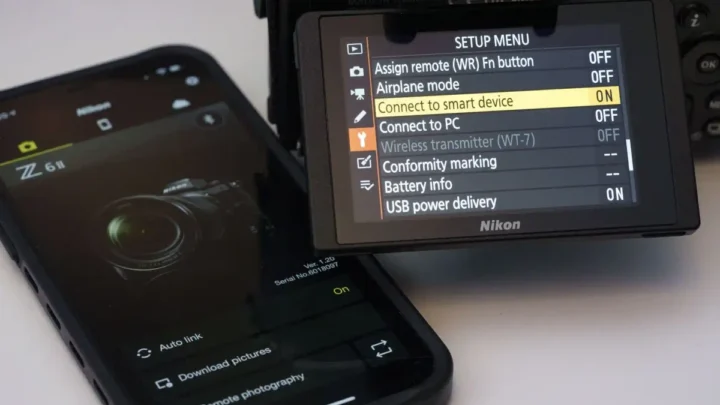
- Go to your camera's wireless menu. Set Bluetooth to ON. Many cameras default it to OFF after a battery change.
- On the camera, select "pairing mode" or "register device". The camera will display "waiting for connection".
- On your phone, open the camera app. Grant all requested permissions including location. Android requires location permission for Bluetooth scanning.
- Tap add device or start pairing.
- If you see a pairing code on both screens, confirm it.
If this works, you are done. If not, move on.
Why does this sequence work so often? Because the camera has a very short pairing window. Most cameras time out after 60 seconds.
You need the app ready before you put the camera into pairing mode. Do not put the camera into pairing mode first and then fumble for your phone.
How Bluetooth Pairing Actually Works on Mirrorless Cameras
Most people expect Bluetooth to work like it does with earbuds. You put the camera in discoverable mode, find it in your phone's Bluetooth settings, and pair. That is not how mirrorless cameras work.
They use Bluetooth Low Energy (BLE) with a custom handshake managed by the app. Your phone's system Bluetooth menu is not involved.
Here is what actually happens:
| Step | Action | Notes |
|---|---|---|
| 1 | Camera broadcasts a BLE service | Only the app can detect this |
| 2 | App scans for the broadcast | Requires location permission on Android |
| 3 | App sends a pairing request | Camera displays a confirmation code |
| 4 | You confirm the code on both screens | This completes the handshake |
| 5 | App stores the camera's ID | Future connections happen automatically |
Your phone's Bluetooth settings page will not show the camera as a paired device. If you try to pair from the system Bluetooth menu, you will fail. Always use the manufacturer's app.
Another consequence: the camera's BLE radio goes to sleep when the camera is idle. The app must send a wake-up signal before it can find the camera. If the camera has been sitting for a while, press a button or half-press the shutter to wake it up first.
If your camera is showing any error codes during troubleshooting, our resource on DSLR camera error message troubleshooting can help identify them.
Decision Tree: Find Your Symptom, Get Your Fix
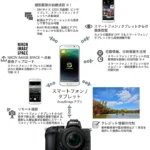
Use this section to match your exact symptom. Follow that branch. The rest of the article provides additional context if you need it.
Image source: Web (Bing) / bestwildlifecameras.com (Web image (fair-use with source credit))
Branch A: Camera never appears in the app
Go to the wireless menu and select "pairing mode" again. Confirm it is showing a waiting message.
If it still does not show up, check airplane mode on the camera. Some mirrorless cameras have a separate airplane mode toggle in the network menu. If it is on, Bluetooth is disabled regardless of the Bluetooth toggle.
Turn airplane mode off and try again.
Branch B: Pairing starts but fails partway
This usually happens when the connection times out or the code does not match. Reset the camera's network settings. On most mirrorless cameras, this option is under the setup or network menu.
It clears all previous pairings without affecting your custom shooting settings.
After the reset, repeat the quick fix sequence. Make sure your phone's app is up to date. A firmware mismatch between the camera and the app can cause mid-pairing failure.
Check for app updates in the store and camera firmware updates on the manufacturer's website.
If you need guidance on updating camera software, our guide on DSLR camera firmware update troubleshooting walks through the process.
Branch C: Pairing worked but connection drops
Move the phone closer to the camera. BLE works best within 3 feet for a stable connection. USB 3.0 ports on laptops and some phone cases can generate electromagnetic interference that disrupts BLE signals.
Also check the camera's auto power-off timer. If the camera goes to sleep, the BLE radio turns off. Set the auto power-off to at least 5 minutes while troubleshooting.
Branch D: App says connected but nothing transfers
Bluetooth is only the control channel. Actual file transfers use Wi-Fi. If you cannot transfer images, the Wi-Fi handshake is failing.
Open your phone's Wi-Fi settings and look for the camera's network name. Join it manually if needed.
Quirks and Pitfalls That Trip Everyone Up
Even after reading the decision tree, some situations catch people repeatedly. Here are the ones that appear most often in user reports.
Hidden Bluetooth toggle
Some camera models bury the Bluetooth toggle deep in the menu. On several Sony α cameras, it is under Network > Bluetooth Settings > Bluetooth Function > On. That is four levels deep.
Check your manual if you cannot find it. The toggle may be set to off even if you have never touched it.
Airplane mode lock
Many mirrorless cameras have a menu-based airplane mode that disables all wireless radios. If you accidentally turned it on, Bluetooth will show as enabled but refuse to connect. Turn airplane mode off, then cycle the Bluetooth toggle.
Previous pairing conflicts
Your camera remembers up to about 10 previously paired phones. If that list is full, it will refuse new pairings. Clear the pairing list in the camera's network settings.
This does not reset your shooting settings.
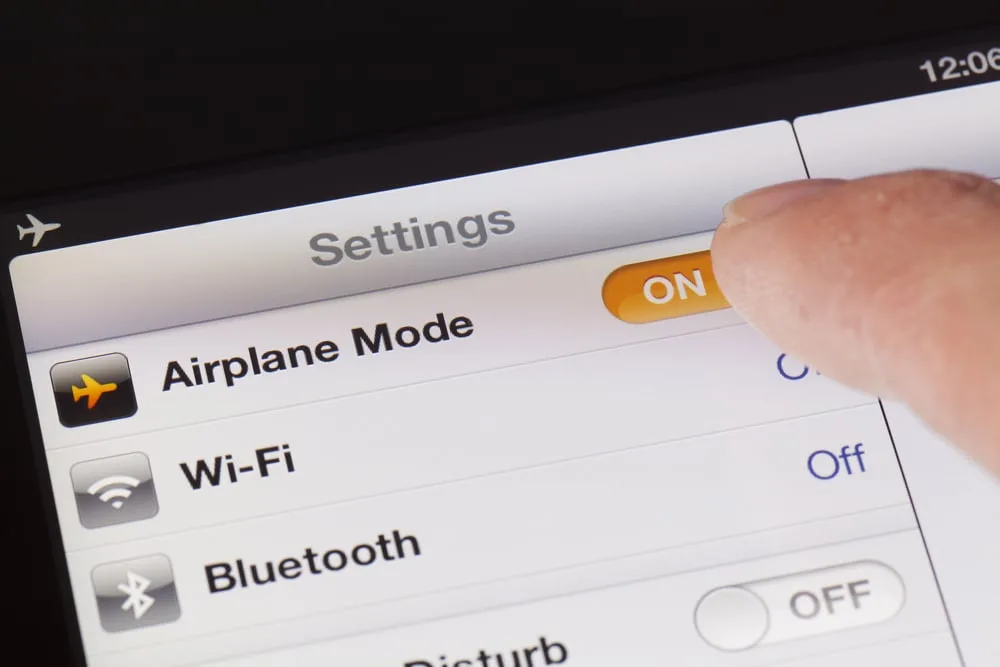
Image source: Web (Bing) / diysmarthomehub.com (Web image (fair-use with source credit))
Firmware mismatch
Camera manufacturers update the app more often than the camera firmware. Sometimes a new app version requires a newer camera firmware version. If your camera firmware is two versions behind, Bluetooth may stop working.
Check the manufacturer's support page for the latest firmware. Updating via SD card is almost always more reliable than updating through the app.
If you experience any errors during the update, our DSLR camera reset problems troubleshooting page covers recovery steps.
Phone OS update breaks compatibility
When your phone gets a major OS update, the Bluetooth stack changes. The camera app may not be compatible until it is updated. If Bluetooth stopped working after a phone update, check for an app update first.
If there is no update yet, you may need to wait for the developer to release one.
Battery saver and data restrictions
Your phone's battery saver mode can stop the camera app from scanning for Bluetooth devices. The same goes for data saver or restricted background data. Turn off battery saver for the camera app and allow background activity.
On Android, also ensure the app has location permission enabled. Without it, the phone cannot scan for BLE devices.
The Rule-Out Moves Before You Reset Everything
Before you wipe your camera's settings, try these quick rule-out steps. They isolate whether the problem is on the camera side or the phone side.
Test with a second phone
Borrow another phone. Install the camera app. Try the quick fix sequence.
If it works on the second phone, your original phone's Bluetooth stack or app settings are likely the culprit.
Disable VPN and battery saver
VPNs can interfere with local network discovery. Turn off any active VPN. Also disable battery saver for the camera app specifically.
Some phones aggressively kill background Bluetooth scanning to save power.
Clear app cache vs. reinstall
Clear the app's cache first. On Android, go to Settings > Apps > [camera app] > Storage > Clear Cache. On iOS, offload the app and reinstall it.
This preserves your phone's Bluetooth pairing records while refreshing the app's data. If that fails, uninstall and reinstall the app entirely.
Camera-side network settings reset
This is different from a factory reset. It only clears wireless and Bluetooth pairings. Your custom shooting settings remain intact.
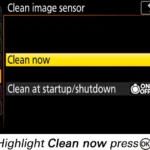
Look for "Reset Network Settings" or "Clear Wireless Settings" in the camera's setup menu.
The Nuclear Option: Factory Reset and Firmware Reflash
If nothing else has worked, you have two remaining options. Use them in this order.
When to go nuclear
Only do a factory reset if you have confirmed the problem is not phone-related. Test with a second phone first. If the camera will not pair with any phone, the issue is on the camera side.
Update firmware via SD card first
Do not update firmware through the app if Bluetooth is already broken. That is a recipe for a bricked camera. Download the latest firmware from the manufacturer's website onto an SD card.
Insert the card into the camera. Follow the on-screen update process.
This often fixes Bluetooth issues because firmware updates include Bluetooth stack improvements. Many users report that their camera started connecting reliably after a single firmware update.
Factory reset procedure
After the firmware update, do a factory reset if Bluetooth still fails. The reset menu is usually under Setup > Reset > Factory Reset. The exact name varies by brand: Sony calls it "Initialize", Canon calls it "Reset All", Nikon calls it "Two-Button Reset".
Important: a factory reset erases all custom settings including your shutter count, custom white balance presets, and focus microadjustments. Write down your favorite settings before you start.
After the reset, pair the camera with your phone from scratch. Do not restore a saved settings profile from the SD card. That profile may contain the same wireless configuration that was failing.
Frequently Asked Questions
Why does Bluetooth keep disconnecting when I use the app for remote shooting?
Bluetooth handles the trigger but the live view feed uses Wi-Fi. When the Wi-Fi connection drops, the app appears to disconnect entirely. Move your phone closer to the camera.
Disable any VPN on your phone. Set the camera's auto power-off to 30 minutes.
Can I use Wi-Fi instead and skip Bluetooth entirely?
Yes. Most mirrorless cameras allow Wi-Fi Direct connections without Bluetooth. You will need to connect to the camera's Wi-Fi network manually in your phone's Wi-Fi settings.
The app will then handle the rest. Bluetooth is only needed for automatic wake-up and GPS tagging.
Will a new phone force me to re-pair everything from scratch?
Yes. Each phone stores its own pairing credentials. You will need to go through the pairing process again on a new phone.
Clear the camera's previous pairing list first if it is full. Then put the camera into pairing mode and follow the quick fix sequence.
Why does my camera Bluetooth drain the battery even when off?
Some cameras leave the BLE radio in a low-power listening state even when powered off. This allows the app to wake the camera. Disable the "wake on Bluetooth" or "smartphone connection" setting in the camera's wireless menu if you do not use the feature.
This stops the background listening.
Should I use the camera app or my phone's Bluetooth settings to pair?
Always use the camera manufacturer's app. Your phone's system Bluetooth settings cannot complete the custom handshake that mirrorless cameras require. Pairing from the system menu will fail every time.

Similar Posts