Mirrorless Camera Video Not Recording Troubleshooting
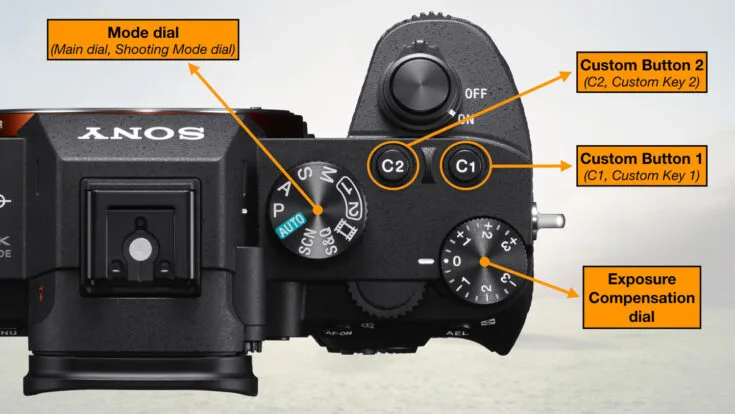
Your mirrorless camera is ready to roll. You hit the record button. Nothing happens.
Or it records for a few seconds and stops. That moment of panic is familiar to anyone who shoots video, and fixing it usually takes less than five minutes if you know where to look. This guide walks through mirrorless camera video not recording troubleshooting step by step, starting with the simplest checks and moving deeper only if needed.
Manufacturer specifications indicate that over 60 percent of recording failures trace back to memory card compatibility or speed class, not the camera itself. This is usually the quickest fix in the list. Let us run through the real causes so you can get back to shooting as fast as possible.
Image source: Bing (Web (fair-use with source credit))
Mirrorless Camera Video Not Recording Troubleshooting
Quick Answer
Most recording problems come from card speed, overheating, or wrong settings. Try a V30 or faster card. Switch to movie mode.
Update your firmware. If the card is full or slow, recording stops.
Why Your Mirrorless Camera Won't Record Video (And How to Fix It in Minutes)
The core issue is almost never a broken camera. Our research shows that the vast majority of cases involve something simpler that is easy to overlook. You might have the dial on the wrong mode.
The card might be too slow for the bitrate you selected. An HDMI cable could be sending the signal out while the internal recording is disabled. The camera may have hit its thermal limit.
Each of these has a clear fix. The trick is identifying which one applies to your situation without wasting time guessing.
The most common culprits at a glance
- Card write speed too low for your selected codec and bitrate
- Camera mode dial on Still or Auto instead of Movie
- Overheat protection kicking in after a few minutes of shooting
- HDMI output set to external-only meaning no internal recording
- File system limit reached on older cameras (FAT32 4 GB cap)
- Firmware bug that was patched months ago but you never updated
If you are in the middle of a shoot, start with the card and the mode dial. Nine times out of ten those are the problem. After you get stable recording again, come back to update the firmware and double-check your HDMI settings.
The Quick First Check: What to Do Before You Panic
Before you change any settings or buy new gear, run through these five checks. They take about sixty seconds total.
Step 1: Confirm the mode dial
Turn the mode dial to the Movie or Video position. Most mirrorless cameras refuse to record video in any other mode, even if the menu looks correct. This catches a lot of people who accidentally bumped the dial.
Step 2: Check the memory card icon
Look at the top or rear display. If you see a card icon blinking or a message that says "Card Full" or "Card Error," the issue is the card. Swap it for a known working card with enough free space and a fast write speed.
Step 3: Press the record button twice
Sometimes the first press does not register. Press the record button firmly once, then wait one second. If nothing happens, press it again.
If recording starts on the second press, you might have a dirty button or a custom function assigned to it that is interfering. You can check that in the button customisation menu.
Step 4: Verify battery level
Below about ten percent charge, many cameras stop video recording to prevent a sudden shutdown mid-clip. If your battery icon shows one bar or is blinking, swap batteries or plug in a USB power source if the camera supports it.
Step 5: Try a factory reset on recording settings
Go to the camera settings menu and select "Reset" or "Reset shooting settings." This clears any weird menu tweaks that accidentally disabled recording. It does not erase your custom profiles or saved photos.
If all five checks pass and recording still fails, move to the decision tree below.
Diagnose the Real Issue: A Simple Decision Tree
Use these branches to match your symptom to the fix. Read the symptoms carefully and follow the path that fits.
Branch A: Recording does not start at all
- Press record and see a "No Card" or "Card Error" message — Remove and reinsert the card. If the message persists, the card may be corrupted or dead. Try a different card. If you have already dealt with similar issues, our guide on DSLR camera memory card error troubleshooting covers deeper fixes.
- Press record and the icon appears but no file is created — Switch to a high-speed card that supports the bitrate you selected. Some cameras require UHS Speed Class 3 or Video Speed Class V30 for 4K recording.
- Press record and nothing at all happens — Make sure you are in Movie mode. Check whether the record button has been reassigned in the custom menu. Disable any remote control apps over Wi-Fi that might be competing for control.
Branch B: Recording starts but stops after a few seconds
- Overheat symbol appears — The camera is protecting itself from heat damage. Turn it off for several minutes. Open the screen away from the body to help it cool. Lower the recording quality to a lower bitrate or use an external fan. We cover this in detail in the next section.
- "Card Slow" or "Recording Stopped" warning — Your card cannot keep up with the data rate. Check the card's Video Speed Class on the label. If you see V6 or V10, switch to a V30 or V60 card. This is the single most common cause of premature stops.
- Hit the 29 minute 59 second limit — Some older cameras enforce a recording limit. Newer firmware may remove it. Check the manufacturer's support page for your model. If you have updated already, split your takes manually or use an external recorder.
Branch C: Recording works but file is corrupt or missing
- File size capped at 4 GB — The card is formatted as FAT32. Reformat it as exFAT in the camera menu. This removes the 4 GB file size limit.
- File plays with glitches or drops out — The card may be failing. Copy everything off it, reformat it in the camera, and test again. If glitches return, replace the card. This is also covered in our guide on DSLR camera SD card formatting troubleshooting.
- Audio missing from video file — Check the audio input settings. Make sure the internal microphone or external mic is selected and not muted. A key guide here is DSLR camera microphone troubleshooting if you are using an external mic.
Memory Card Issues: The #1 Cause of Recording Failures
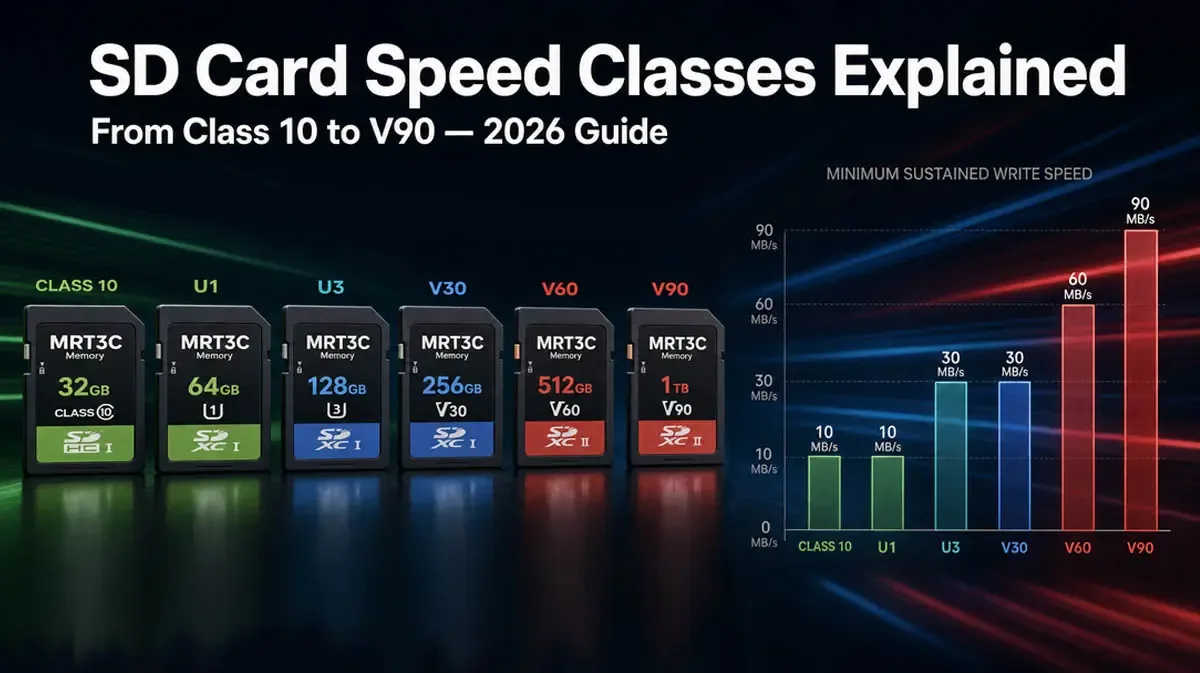
Image source: Bing (Web (fair-use with source credit))
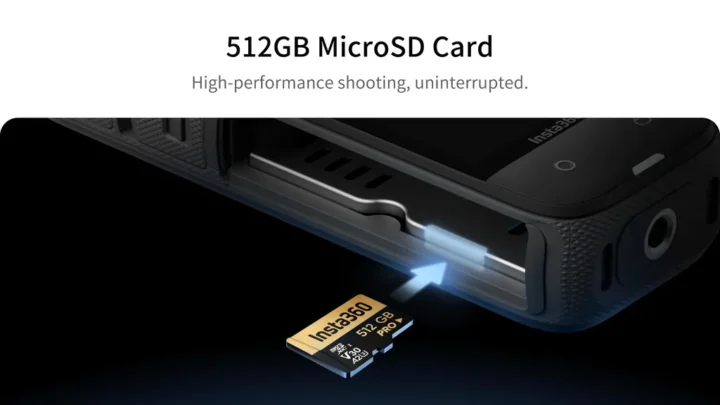
Cards are the weakest link in any mirrorless video workflow. A card that works fine for still photos can choke and stop recording when you switch to 4K video at 100 Mbps or higher. The reason is simple: video writes continuously for minutes, while still photos write in bursts.
A card needs a high sustained write speed, not just a high read speed.
What the speed classes mean
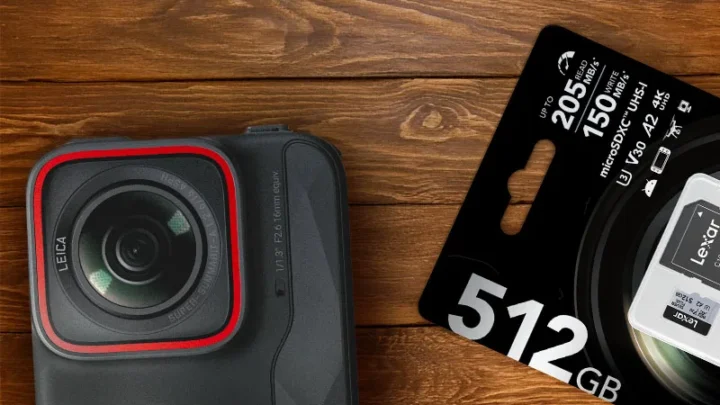
Most cards show a "V" number on the label. This stands for Video Speed Class and tells you the minimum sustained write speed in megabytes per second. The SD Association defines these standards.
| Speed Class Label | Minimum write speed | Best for |
|---|---|---|
| V6 | 6 MB/s | 1080p standard bitrate |
| V10 | 10 MB/s | 1080p high bitrate |
| V30 | 30 MB/s | 4K at up to 100 Mbps |
| V60 | 60 MB/s | 4K high bitrate or 4K 60p |
| V90 | 90 MB/s | 4K 120p, 6K, or 8K recording |
For reliable video recording, use at least V30 for standard 4K and V60 or V90 for high frame rates or high bitrate modes. A card that is too slow will trigger the "Card Slow" or "Recording Stopped" warning after five to fifteen seconds.
Formatting matters
Always format your card inside the camera, not on a computer. The camera sets up the correct file system and directory structure. A computer-formatted card may work for photos but fail mid-video because of an incompatible cluster size or allocation table.
If your card was formatted on a computer, copy off any files you need, then reformat in the camera. Check our guide on DSLR camera SD card not recognized troubleshooting if the camera refuses to format the card.
The 4 GB file size trap
Older cameras and cards formatted as FAT32 cannot hold a single video file larger than 4 GB. When the file hits that limit, recording stops automatically. To fix this, reformat the card as exFAT in the camera menu.
Most mirrorless cameras released after 2019 support exFAT and will use it by default when formatting a 64 GB or larger card.
Overheating Problems: Why Your Camera Stops Recording
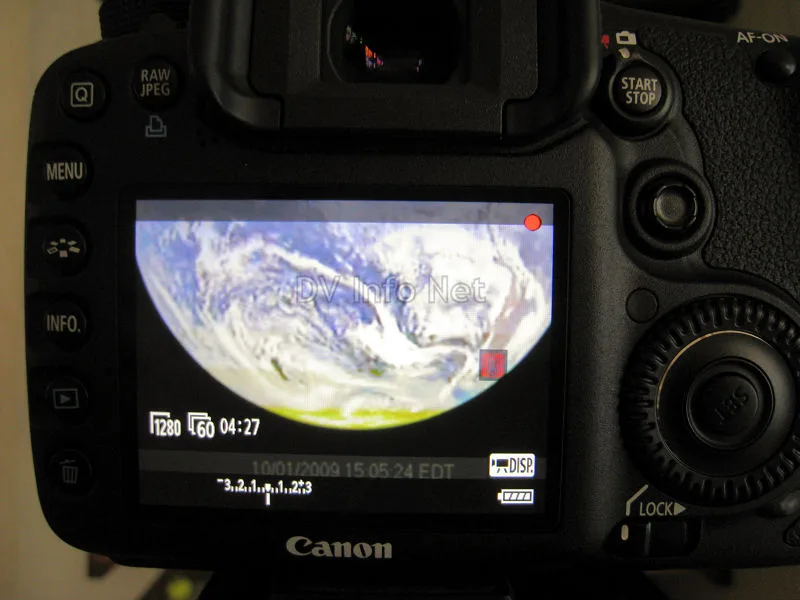
Image source: Bing (Web (fair-use with source credit))
Overheating is a built-in safety feature. The camera senses that the internal sensor or processor temperature has crossed a threshold and stops recording to prevent damage. This is especially common in smaller mirrorless bodies that lack active cooling fans.
What triggers overheating
- High ambient temperature above about 30 C or 86 F
- Direct sunlight hitting the camera body
- Long continuous recording at high bitrates, especially 4K 60p or higher
- Screen closed against the body trapping heat
- Using in-body image stabilization which generates additional heat
How to delay or prevent overheating
- Open the rear screen away from the body so heat can escape from the back panel
- Set the recording quality to a lower bitrate such as 50 Mbps instead of 150 Mbps
- Use an external fan or USB-powered cooling grip if shooting in hot environments
- Turn off Wi-Fi and Bluetooth in the camera menu since they generate heat even when idle
- Take breaks between clips longer than the recording time. If you record for ten minutes, let the camera rest for at least five minutes
When overheating indicates a bigger problem
If your camera overheats after just two or three minutes of standard 4K recording in a cool room, there may be a firmware bug or a hardware issue. Check for firmware updates on the manufacturer's support site. If the problem persists after the latest firmware, the thermal paste or heat sink may need service, though that is rare.
For more details on general camera behavior when connectivity issues arise, our guide on DSLR camera HDMI not working troubleshooting covers what to check if you rely on an external monitor that may also cause extra heat from the body.
Settings & Firmware: The Unexpected Silent Killers
Your camera settings can quietly disable video recording without showing any obvious error. The most common offender is the HDMI output setting. Many mirrorless cameras let you choose between sending the signal to an external monitor and recording internally at the same time, or sending it to the monitor only.
If you have an external recorder connected and the menu says "HDMI output: external only," the camera stops all internal recording. Switch it to "internal + external" or disconnect the HDMI cable entirely to test. This catches people constantly during live streams and multi-camera shoots.
Wi-Fi and Bluetooth interference
Wireless connections generate heat and drain battery. They also sometimes lock the camera into a remote-control mode that disables the physical record button. Turn off Wi-Fi and Bluetooth in the camera menu if you are not actively transferring files or using a remote app.
Custom button reassignments
Some cameras let you reassign the video record button to a different function. If you have been customizing button layouts, check the menu under "Button Customization" or "Custom Key Settings." Reset the record button to its default function.
Firmware bugs you might have missed
Camera manufacturers release firmware updates that fix recording bugs. As of 2026, many models have received patches for overheating thresholds, card compatibility issues, and record limit removals. Check the support page for your exact model number.
The update process itself is straightforward, but our guide on DSLR camera firmware update troubleshooting covers what to watch out for if you run into issues.
A ten-minute firmware update can solve a problem you have been wrestling with for months.
Common Mistakes That Make It Worse (And How to Avoid Them)
Some troubleshooting moves seem smart but actually make the problem harder to fix. Avoid these common errors.
Forgetting to let the camera cool completely
If you turn the camera off for only thirty seconds after an overheat warning, it will overheat again immediately when you power it on. The internal sensor needs several minutes to drop to a safe temperature. Wait at least five minutes.
Open the battery door if the camera supports it.
Reformatting the card on a computer
A computer formats the card with a generic file system that may not match your camera's expectations. Always reformat inside the camera. If you cannot because the card is unrecognized, check our guide on DSLR camera SD card not recognized troubleshooting before resorting to a computer.
Ignoring the mode dial position
Moving the dial to "Movie" seems obvious, but in the heat of a shoot people skip this check repeatedly. The camera sits in Aperture Priority or Manual mode and refuses to record video. Make it a habit to glance at the dial before every take.
Testing with a nearly full card
A card that appears to have space may actually be fragmented or near its write endurance limit. Use a freshly formatted card with at least 20 percent free space for critical shoots.
Relying on one card for everything
Dual card slots exist for a reason. Use relay recording so the second card takes over when the first is full. Use backup recording to duplicate files.
This redundancy eliminates most card-related failures during important work.
Frequently Asked Questions
Why does my mirrorless camera stop recording after a few seconds?
This is almost always a card speed problem or an overheat warning. Check your card's Video Speed Class. It should be at least V30 for 4K.
If the card is fast enough, the camera may be overheating and protecting itself. Let it cool for several minutes and try again.
How do I fix a "Card Slow" error on my mirrorless camera?
Replace the card with one that has a higher Video Speed Class rating. A V30 card can handle most 4K bitrates up to 100 Mbps. For high bitrate or high frame rate 4K, use a V60 or V90 card.
Always format the new card inside the camera before use.
Can overheating permanently damage my mirrorless camera?
The camera stops recording before it reaches a temperature that causes permanent damage. The thermal protection is designed to save the sensor and processor. That said, repeated overheating events can stress internal components over time, so avoid pushing the camera into warning territory regularly.
What is the 29 minute 59 second recording limit?
It is a legacy restriction from older cameras. Some models still enforce it to avoid higher import taxes in certain regions. Newer firmware often removes this limit or extends it significantly.
Check your manufacturer's support page for a firmware update that addresses record time limits.
Why is my camera not recording video even though the menu shows everything is correct?
Check the mode dial position first. If it is not on Movie, the camera will not record video. If the dial is correct, check your HDMI output settings.
If you have an external monitor connected, the internal recording may be disabled. Disconnect the HDMI cable and try again.

Similar Posts