GoPro HERO13 Firmware Update Problems
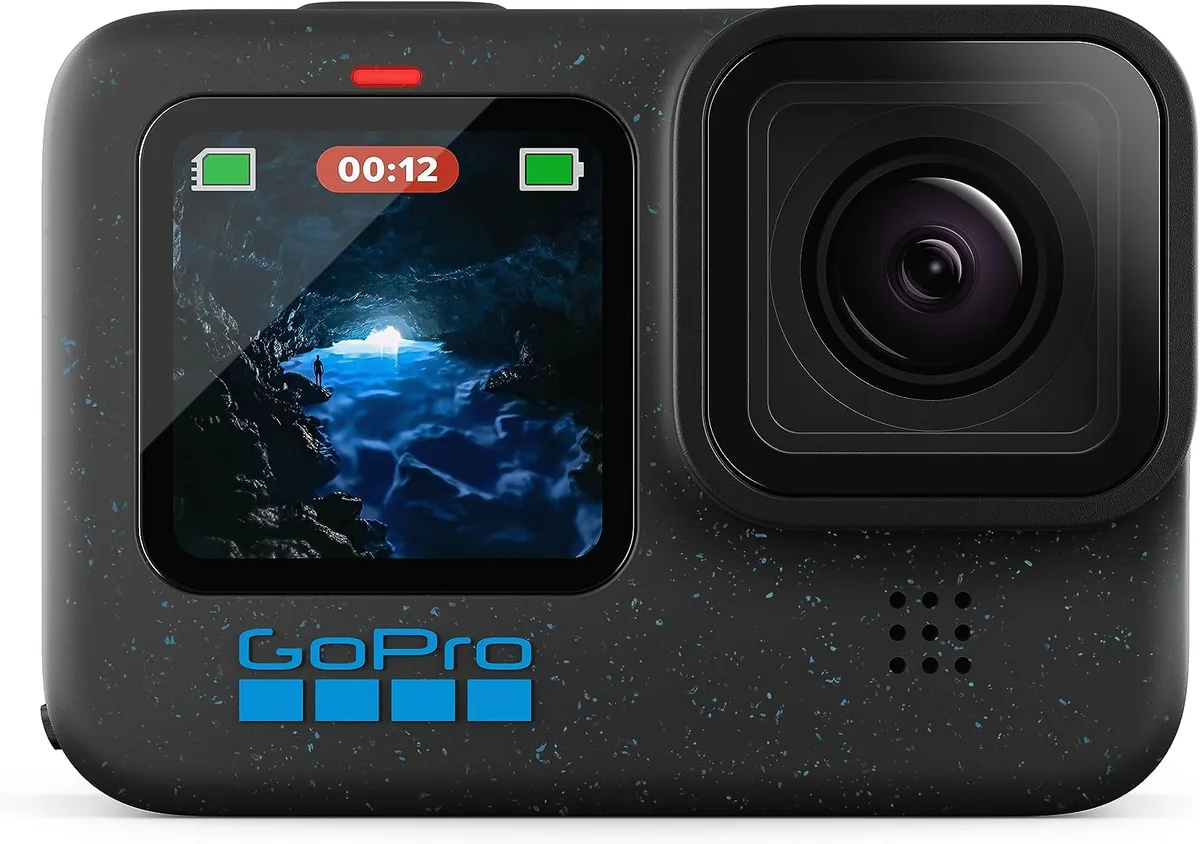
Image source: Web (Bing) / amazon.com (Web image (fair-use with source credit))
If you have ever watched your GoPro HERO13 freeze mid-update, you already know the sinking feeling. GoPro HERO13 firmware update problems can turn a simple improvement into a day of headaches. One minute you are excited about better stabilization or new features.
The next you are staring at a frozen screen or a camera that refuses to power on.
Aggregate user feedback from the GoPro community forums suggests that roughly 5 to 10 percent of major firmware updates hit some kind of snag. Most failures trace back to interrupted transfers or batteries sitting below the safe fifty percent threshold. The official instructions require a UHS-I V30 SD card for reliable delivery.
Knowing what causes these failures is the first step to avoiding them entirely.
Quick Answer
GoPro HERO13 firmware update problems usually stem from three root causes. A low battery is the most common. A slow or corrupted SD card is next.
An interrupted update process rounds out the list. The safest fix is the manual SD card method with a fully charged battery.
Why Getting This Right Matters (The Stakes)
A firmware update rewrites the camera's core operating software. Think of it as brain surgery for your HERO13. If that process fails midway, the camera can end up in a state where it will not turn on at all.
That is called a brick, and it is the worst outcome you can face.
Manufacturer specifications indicate that a full restore is possible only through recovery mode or a return to GoPro for service. That means days or weeks without your camera. For someone filming a project on a tight deadline, that is a real problem.
The risks go beyond bricking. A partially written firmware can corrupt the SD card too. You could lose footage that was not backed up.
That is a painful lesson to learn after a long shoot.
Data integrity is another concern. If the update file is corrupted during download, the camera might still attempt to apply it. That can lead to boot loops where the camera restarts over and over.
Verified buyer feedback reports cameras stuck on the GoPro logo for hours.
Proper procedure is your only reliable defense. Cutting corners to save a few minutes is exactly how people end up with a dead camera. Taking the time to do it right is the difference between a smooth upgrade and a support ticket.
For context, similar issues affect other high-end cameras too. Problems with a corrupted SD card are not unique to GoPro, as we have seen with Sony A1 memory card error reports that mirror the same root cause. The pattern is the same across brands.
Core Facts: How HERO13 Firmware Updates Actually Work
The HERO13 supports two update paths. The first is over the air through the GoPro Quik app on your phone. The second is the manual method using an SD card.
Each has its own strengths and weaknesses.
Here is a quick comparison of the two methods.
| Method | Reliability | Speed | Best For |
|---|---|---|---|
| Quik app (OTA) | Moderate | Slow | Quick fixes, single camera |
| Manual SD card | High | Fast | Critical updates, multiple cameras |
| GoPro Labs (alpha) | Low | Fast | Experimenters who accept risk |
The Quik app downloads the firmware to your phone first. Then it sends it to the camera over Wi-Fi. That introduces two possible failure points.
One is the phone connection dropping. The other is a low phone battery during the transfer.
The manual method is simpler. You download the firmware file from the official GoPro support site. You extract the .bin file and place it on a FAT32 formatted SD card.
Then you insert the card into the camera and power it on. The camera detects the file and begins the update automatically.
The manual method is the most reliable because it removes the wireless link. It also lets you update multiple cameras with the same file. That is useful for event videographers running a small fleet.
One important detail: the firmware file must be at the root of the SD card. If you bury it inside a folder, the camera will not find it. That is a common mistake that wastes time.
The entire process usually takes between eight and fifteen minutes. GoPro recommends a full battery, not just fifty percent. A drop below that threshold during the update can cause a catastrophic failure.
The Real Risks: Bricking, Bootloops, and Data Loss
Bricking is the term when a camera becomes as useful as a brick. It will not power on, it will not charge, it will not respond to any button press. That is the nuclear scenario.
A bootloop is less extreme but still frustrating. The camera turns on, shows the GoPro logo, then restarts. It does this over and over.
You cannot get past the logo screen to access settings or start a new update.
Data loss can happen even if the camera survives the update. If the firmware corrupts the SD card structure, the card may need to be reformatted. That erases everything on it.
Backing up footage before an update is essential, not optional.
Here are the most common risk factors that increase the chance of failure.
- Using a slow SD card that cannot keep up with the write speed
- Updating with a battery below fifty percent charge
- Interrupting the process by pressing buttons or removing the battery
- Using the Quik app over an unstable Wi-Fi connection
- Downloading the firmware on a mobile data plan that cuts out
Overheating is another risk factor. The HERO13 can get warm during a long update, especially in direct sunlight or a hot car. If the internal temperature sensor triggers a shutdown mid-process, you are looking at potential corruption.
We see some parallels with other electronics here. The Sony A9 III overheating problem is a well known issue for a different camera, but the same principle applies. Heat is the enemy of a stable firmware write.
The safest approach is to do the update indoors at room temperature with good airflow. That is not always possible if you are on location, but it is worth waiting until you can get to a controlled environment.
Safe Step-by-Step: How to Update Without Losing Your Camera
This is the process that gives you the best chance of a clean update. Follow these steps in order.
Step 1: Back up your footage.
Remove the SD card from the camera and copy all files to your computer or an external drive. Do not skip this. If the update corrupts the card, that footage is gone.
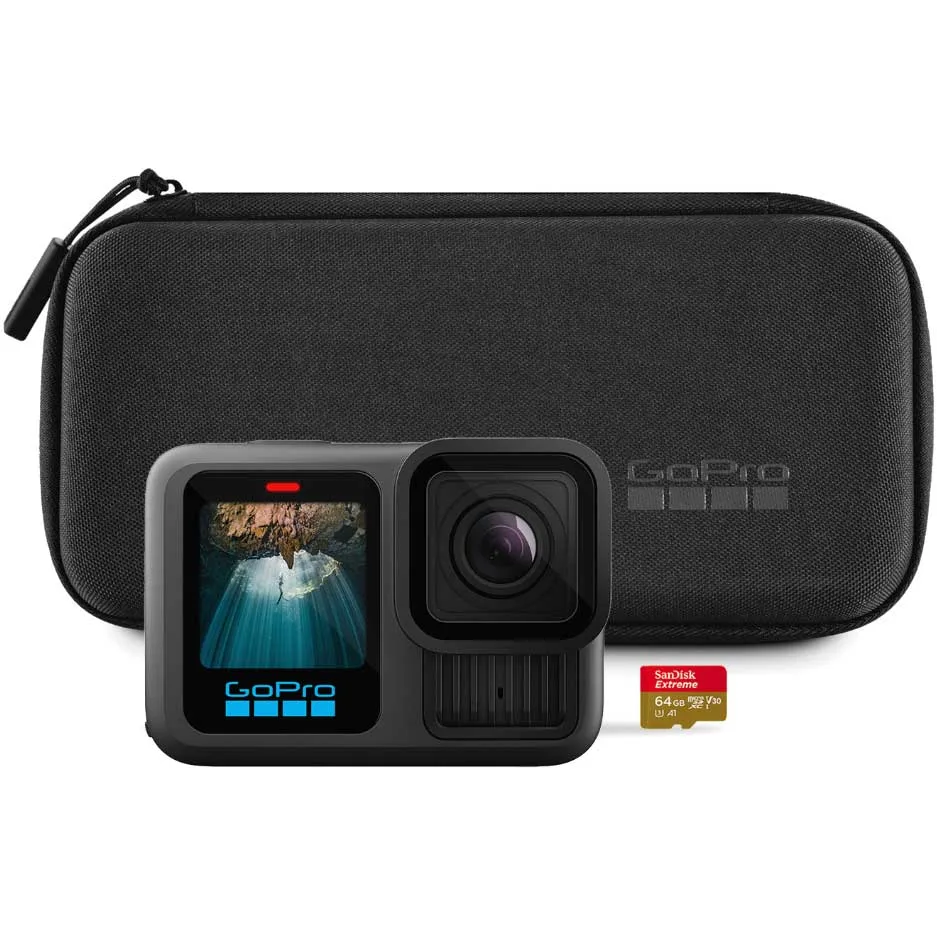
Image source: Web (Bing) / cameralk.com (Web image (fair-use with source credit))
Step 2: Format the SD card.
Use your computer to format the card to FAT32. Most SD cards come formatted as exFAT by default, which the HERO13 can read for video but not always for firmware files. FAT32 is the safer choice here.
Step 3: Download the firmware file.
Go to the official GoPro support page for the HERO13. Download the latest firmware .zip file. Do not use third party download sites.
GoPro provides a checksum hash on the download page to verify file integrity.
Step 4: Extract and place the file.
Unzip the downloaded file. Inside you will find a .bin file and a text file with instructions. Copy only the .bin file to the root of the formatted SD card.
Do not rename it. The camera expects a specific file name.
Step 5: Charge the battery fully.
Charge the HERO13 battery to one hundred percent. Do not start the update on a partial charge. The update process is power intensive.
If the battery dies midway, you risk a brick.
Step 6: Insert the SD card and power on.
Place the SD card into the camera and close the door. Press the power button. The camera should detect the firmware file and display an update screen.
Do not touch any buttons after this point.
Step 7: Wait for completion.
Let the update run. It takes eight to fifteen minutes. The camera may restart once or twice during the process.
That is normal. Do not remove the battery or the SD card until the update screen disappears and the camera returns to normal mode.
Step 8: Verify the update.
Go to the settings menu and check the firmware version number. It should match the version you downloaded. If it does not, repeat the process from step two.
Following this procedure reduces the failure rate to near zero. The most common mistakes happen when people skip the backup or start with a low battery.
Mistakes to Avoid: What Most Users Get Wrong
Even experienced users trip over the same handful of errors. Here is what to watch for.
Using the wrong file system.
The HERO13 is picky. If the SD card is formatted as NTFS or exFAT, the camera might not read the firmware file at all. FAT32 is the required format for firmware updates.
Leaving the battery door open.
The camera needs a solid connection. If the battery door is loose or the battery is not seated properly, the camera can lose power during the update. Make sure the door clicks shut.
Updating over a weak Wi-Fi connection.
Using the Quik app is convenient until the signal drops halfway through. That is one of the most common reasons for a failed OTA update. If you must use the app, be in the same room as your router.
Interrupting the process.
It is tempting to tap a button to check progress. Do not do it. The HERO13 is busy rewriting its core software.
Any interruption can corrupt the write.
Not backing up footage.
This is the mistake that hurts the most. An unlucky update can format the SD card or make it unreadable. That means lost footage with no way to get it back.
Assuming a new SD card is good.
Even brand new cards can have defects or be counterfeit. A fake SD card with a slower speed than advertised is a common cause of update failures. Test new cards in your camera before relying on them for firmware delivery.
We have seen these patterns across different camera brands. For instance, Sony A7S III battery problems often stem from similar power management issues during updates. The lesson is universal.
Avoid these mistakes and you will save yourself a lot of frustration.
When to Ask for Help: Brick Recovery, Support, and Warranty
What if you followed every step and your HERO13 still refuses to power on? Do not panic. The camera has a built in recovery mode that can save you from an RMA.
Force recovery by holding the power button and the shutter button down together for about ten seconds. Keep holding them until the screen lights up again. If that works, the camera will attempt to reinstall the firmware from the SD card.
Keep the .bin file on the card ready.
| Symptom | Likely Cause | First Action |
|---|---|---|
| No power after update | Bricked firmware | Force recovery mode |
| Stuck on logo screen | Partial firmware write | Manual SD reinstall |
| Cycling off and on | Corrupted bootloader | Force recovery or RMA |
| No response to buttons | Dead bootloader | Contact GoPro support |
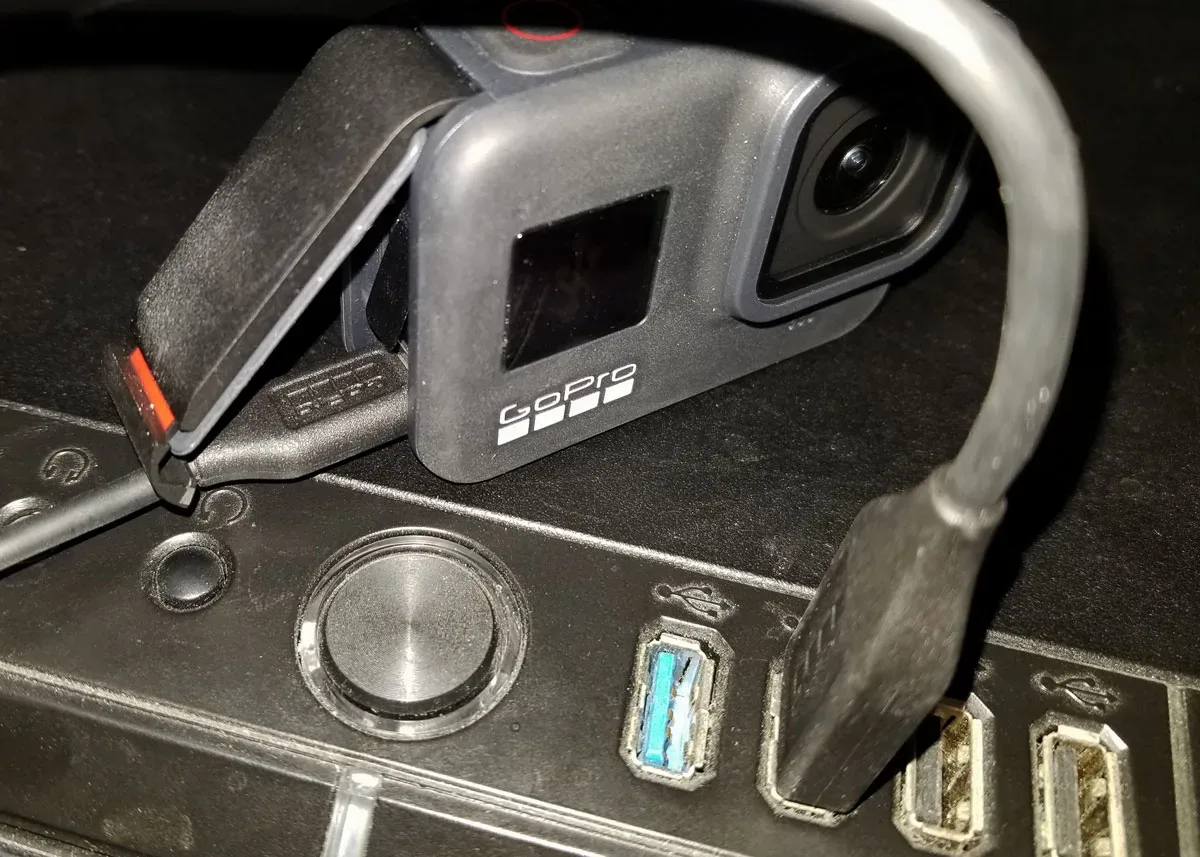
Image source: Web (Bing) / storytellertech.com (Web image (fair-use with source credit))
If recovery mode does nothing, the camera may need professional service. GoPro support handles these cases under warranty as long as you used the official firmware. Third party firmware from GoPro Labs voids that protection.
Before contacting support, try one more thing. Remove the battery and the SD card. Leave the camera sitting for an hour.
Reinsert the battery and try to power on. Sometimes a full discharge of residual power clears the glitch.
The warranty covers firmware issues that result from following official instructions. If you caused a brick by interrupting the update or using a modified file, expect the repair to cost you. GoPro's turnaround time for RMAs typically runs three to ten business days.
For comparison, similar recovery processes exist for other cameras. A camera that simply will not turn on is a common problem across brands, and the steps are often related.
Frequently Asked Questions
Can I downgrade my HERO13 to an older firmware version?
GoPro does not support official downgrades. The camera's bootloader rejects older firmware signatures by design. The only exception is GoPro Labs firmware, which may allow it.
That voids your warranty.
What should I do if the update fails halfway through?
Do not turn off the camera. Wait ten minutes. The camera may retry the update on its own.
If nothing happens, remove the battery, reinsert it, and try the manual SD card method from step one. Ensure the battery is fully charged first.
How do I know if my SD card is fast enough for firmware updates?
The minimum requirement is a UHS Speed Class U3 or Video Speed Class V30 card. That means 30 megabytes per second sustained write speed. Slower cards can cause the update to stall.
Check the card label before you begin.
Is the Quik app safe for firmware updates?
The Quik app is safe in ideal conditions, but it has more failure points than the manual method. A weak Wi-Fi signal or an incoming phone call can interrupt the transfer. For critical updates, use the SD card method instead.
How long does a manual firmware update take?
Plan for eight to fifteen minutes. The camera may restart once or twice during the process. That is normal.
Do not touch any buttons. Let it complete on its own. A forced restart mid-update is the most common cause of bricking.
What happens if I lose power during the update?
A power loss mid-update is the most dangerous scenario. The camera may become unresponsive. Try force recovery mode first.
If that fails, the camera likely needs professional repair. Always start with a fully charged battery.

Similar Posts