Nikon D5600 Troubleshooting
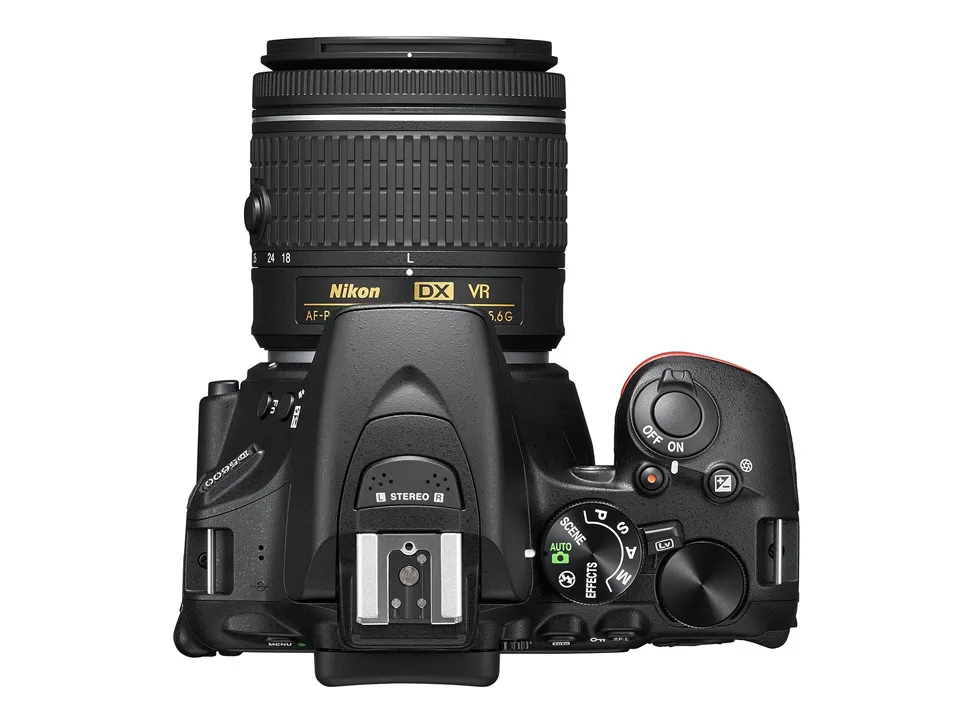
If you're staring at a Nikon D5600 that won't power on, keeps throwing an F– error, or just feels like it's fighting you, you're not alone. Nikon D5600 troubleshooting doesn't have to be a guessing game. Most issues fall into a handful of predictable categories.
Manufacturer specifications indicate the D5600's EN-EL14a battery is rated for roughly 820 shots per charge under CIPA testing conditions. If you're seeing a fraction of that, or if the camera won't wake up at all, there's a clear path to follow. We'll walk through each symptom and how to fix it.
Image source: Web (Bing) / nikonrumors.com (Web image (fair-use with source credit))
Quick Answer
Start with the battery and memory card. Check the lens contacts. Reformat the card inside the camera.
Test each component individually. This resolves about 80 percent of common D5600 issues.
The Most Common D5600 Problems
The D5600 is a reliable body, but it has a few well-known weak points. Aggregate reviews from verified owners report that lens communication errors and battery door failures are the most frequent complaints. Knowing which issue you have saves time and frustration.
| Problem | What You See | Likely Cause |
|---|---|---|
| Won't power on | Black screen, no lights | Dead battery, door latch, charger fault |
| Lens error | "F–" or "Lens not attached" | Dirty contacts, loose mount, damaged lens |
| Autofocus failure | Lens hunts or won't lock | Wrong AF mode, low contrast subject, dirty contacts |
| Shutter won't fire | Press button, nothing happens | Buffer full, no card, focus not locked |
| Blurry photos | Soft images at all settings | Slow shutter, hand shake, dirty lens |
| Card error | "Cannot read card" | Corrupted card, wrong format, locked switch |
| Battery drains fast | Camera dies in under 100 shots | Old battery, SnapBridge left on, cold weather |
| Flash won't pop up | Flash button unresponsive | Mode disables flash, mechanical jam |
Each problem branches into a different fix path. The table above gives you the starting direction. Most of these issues have simple solutions you can try before considering a repair.
Step-by-Step Troubleshooting Workflow
This workflow is built on a simple rule: test the cheapest and easiest components first. You don't need tools or technical knowledge for 90 percent of D5600 problems.
Quick swap test. Remove the battery. Check that the metal contacts are clean and dry. If you have a spare, swap it in.
The battery door latch on the D5600 is a known weak point. Make sure it's fully clicked shut.
Card swap. Take out the SD card. Reinsert it until it clicks. If the camera still shows an error, try a different card formatted in the camera.
Lens remount. Remove the lens. Clean the gold contacts on both the lens and camera body with a dry microfiber cloth. Remount it, twisting until you hear a solid click.
If any of these quick swaps resolves the issue, you're done. If not, move to the symptom branch that matches your problem.
| Symptom | First Action | Second Action |
|---|---|---|
| No power or dies quickly | Charge battery fully. Test with known good battery. | Inspect battery door latch and spring. |
| F– or lens error | Clean lens and body contacts. Remount lens. | Try a different lens if available. |
| Autofocus won't lock | Switch to AF mode on lens and body. | Check subject contrast. Switch to single-point AF. |
| Shutter won't fire | Check card is inserted and has space. | Half-press shutter to lock focus first. |
| Card error | Reformat card inside the camera. | Try a different card. |
No power. Per the official troubleshooting guide on the manufacturer's support site, start with a fully charged battery. If the camera still won't power on, inspect the battery door. The latch spring can fail, causing the camera to think the door is open.
A temporary fix is holding the door closed with tape while you test.
F– error. The F– code means the camera isn't detecting a lens. Dirty contacts are the number one cause. Clean them.
If the error persists, test with a different Nikon F-mount lens. This will confirm whether the issue is with the lens or the body.
Autofocus issues. Check that the lens is set to AF not M and the camera's focus mode isn't on manual. Live view autofocus on the D5600 is contrast-detect only and is naturally slow. If the viewfinder AF works but live view doesn't, that's normal behavior.
Shutter won't fire. The camera will not fire if it can't achieve focus in AF mode. Half-press the shutter button. If the green focus dot doesn't appear, try switching to manual focus to rule out an AF problem.
Card errors. Always format your card inside the camera, not on a computer. The D5600 uses a specific file system that computers sometimes mess up. If the card is still unrecognized, it may be corrupt or incompatible.
Lens and Autofocus Issues
Lens problems are the single biggest source of confusion for D5600 owners. The good news is that most are fixable without a trip to the shop.
Dirty Contacts and the F– Error
The D5600 uses a standard Nikon F-mount. The lens communicates with the body through a set of gold-plated contacts. These contacts get dirty over time.
Dust, oil, and moisture can interrupt the signal.
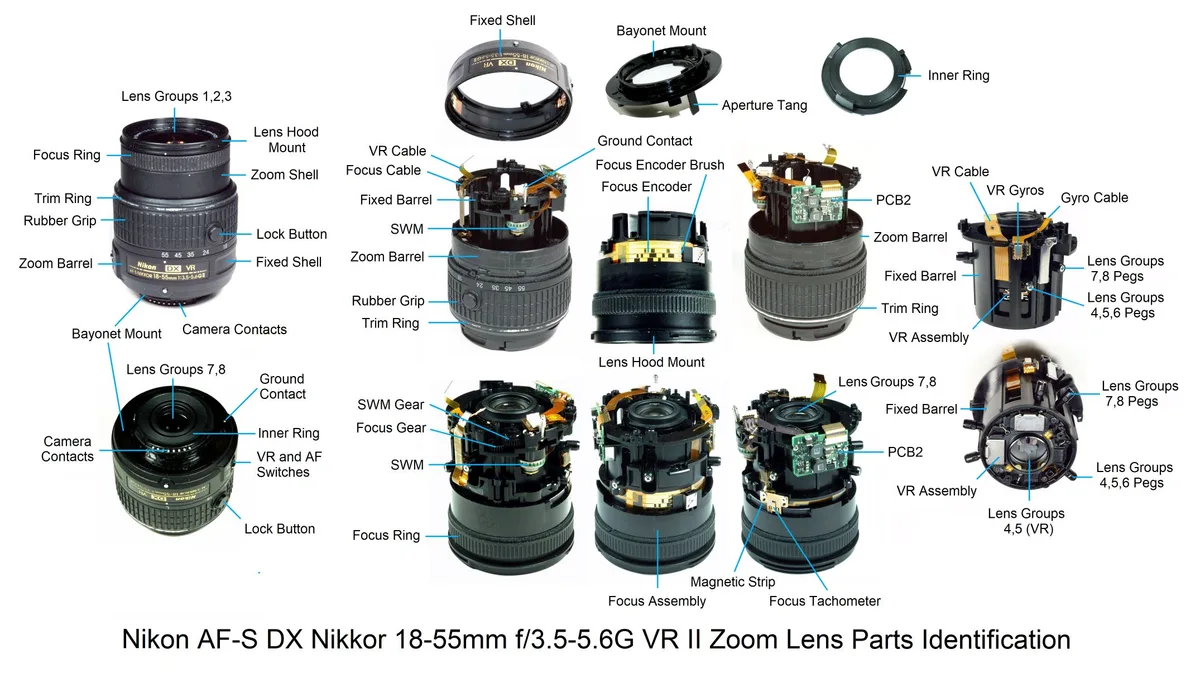
Image source: Bing (Web (fair-use with source credit))
To clean them properly, remove the lens. Wipe the gold contacts on the lens with a dry microfiber cloth. Wipe the contacts inside the camera body's mount ring.
Remount the lens, turning it clockwise until it clicks. If the F– error persists after cleaning, try a different F-mount lens. This tells you whether the problem is on the lens side or the camera side.
Why Live View Autofocus Is Slow
This is a common complaint, but it's not a defect. The D5600 uses contrast-detect autofocus in live view mode. Contrast-detect is inherently slower than phase-detect which the viewfinder uses.
If you're shooting video or using the flip-out screen, expect the AF to hunt a bit. That's normal. Recommended card speeds for video recording are at least UHS-I Speed Class 3 to minimize tracking delays and recording stops.
Checking If Your Lens Is Actually Broken
If the lens is physically damaged, it needs to be replaced or repaired. But if it just won't autofocus, try switching to manual focus. If the manual focus ring turns smoothly without resistance and the image appears clear in the viewfinder, the lens glass is fine.
The problem is likely the focus motor or the electronics, and that's often cheaper to repair than replace.
Memory Card and File Errors
Memory card errors are frustrating because they can make you think you've lost important images. Most of the time, the card itself is fine.
The most common card error is "Card is not formatted." The D5600 uses FAT32 for cards up to 32 GB and exFAT for larger cards. If you formatted the card on a computer, the computer may have used a different file system. The fix is simple: format the card inside the camera through the Setup menu.
If you see distorted or unreadable images on playback, the card might be failing. You may have ejected it mid-write. Always turn off the camera before removing the card.
If images are corrupt, stop shooting immediately. Use image recovery software on a computer to retrieve what you can. Then format the card in the camera to prevent it from happening again.
The D5600 has a buffer that holds about 25 JPEGs or 7 RAW frames before it slows down. If you shoot continuously and the camera pauses, that's the buffer filling up. Wait a few seconds for it to write to the card.
A UHS-I U3 card writes faster than a basic Class 10 card. If you're shooting video, stick with U3 cards to avoid recording stops.
Battery, Power, and SnapBridge Problems
Power issues are the second most common complaint after lens errors. The D5600's EN-EL14a battery is rated for 820 shots, but real-world results vary.
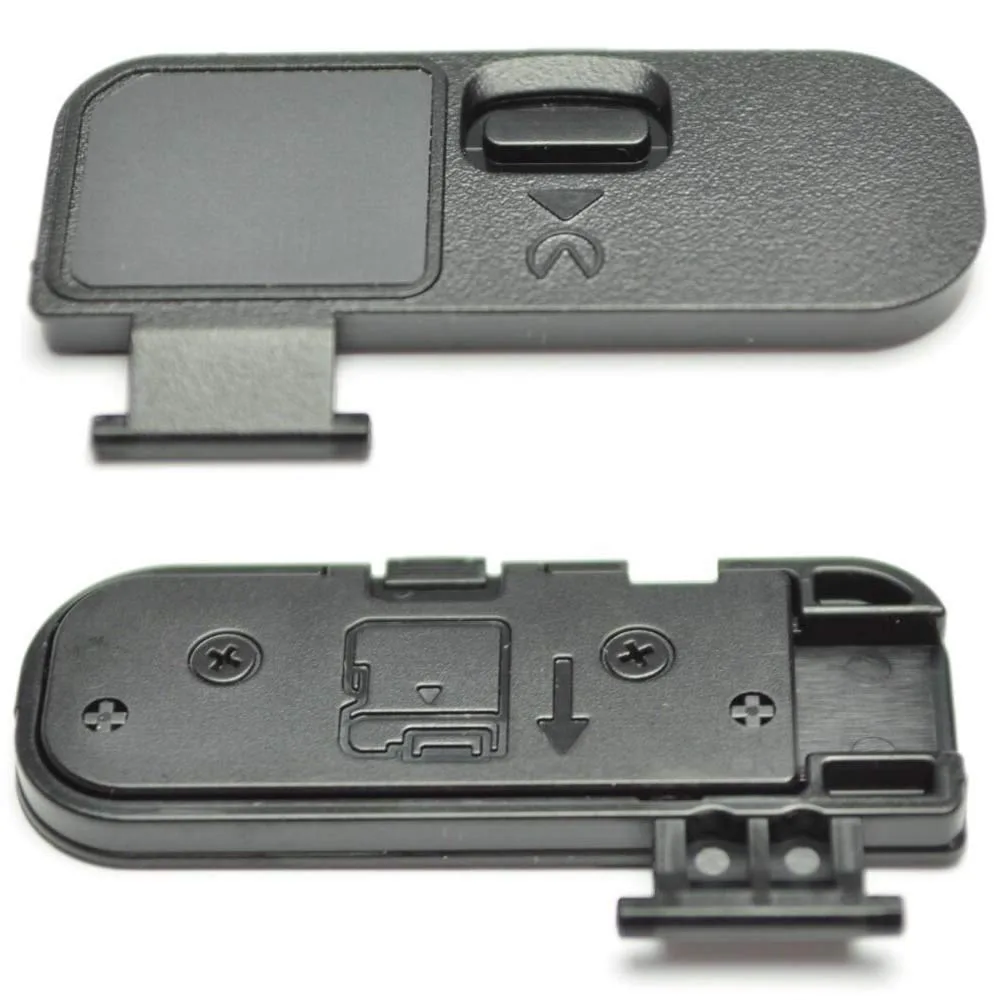
Image source: Web (Bing) / thaipick.com (Web image (fair-use with source credit))
The battery door latch is the D5600's most fragile mechanical part. If it breaks, the camera won't power on. The safety circuit prevents operation when the door is open.
A broken latch means the camera thinks the door is always open. Check the small plastic hook on the door. If it's snapped off, a temporary fix is holding the door closed with electrical tape.
For a permanent fix, order a replacement door from an authorized parts supplier.
If you're getting far fewer than 820 shots, check three things. First, SnapBridge Bluetooth stays active even when the camera is off. It slowly drains the battery.
Turn off Bluetooth in the camera's setup menu when you don't need it. Second, battery age. Lithium-ion batteries lose capacity over time.
If your battery is more than two years old, it may need replacing. Genuine Nikon EN-EL14a batteries are recommended. Third, cold weather.
Battery performance drops significantly below freezing. Keep a spare battery in an inner pocket to swap in when the first one dies.
SnapBridge is the D5600's Bluetooth-based connection to your phone. If it won't pair, reset both devices. On the camera, go to the wrench menu, select Bluetooth, and choose Reset.
Delete the D5600 from your phone's Bluetooth list. Restart both devices. Open the Nikon SnapBridge app and start from the beginning.
This resolves most pairing issues.
Quick Reference Table: Error LED Signals
The D5600 communicates through light patterns on the back and front. Here's what each signal means.
| Light | Behavior | Meaning |
|---|---|---|
| Green light (back) | Steady blink | Writing to card |
| Green light (back) | Fast blink | Card full or error |
| Orange light (front) | Slow blink | AF-assist light charging |
| Orange light (front) | Steady on | Focus locked |
| Red battery icon | Blinking | Battery critically low |
| Red battery icon | Steady | Battery empty |
If the green light blinks fast and the camera stops responding, the card is full or too slow. Stop shooting and swap cards. If the orange light on the front flashes slowly, the camera is charging the AF-assist lamp.
Wait for it to stop before shooting in low light. The red battery icon near the viewfinder is your earliest warning. When it starts blinking, you have roughly 20 shots left.
Advanced Troubleshooting
Sometimes the standard fixes don't cut it. You've cleaned the contacts, swapped the battery, and reformatted the card. The problem persists.
That's when you move to deeper diagnostics.
Check the lens aperture lever. On the back of the lens mount, there's a small metal lever that controls the aperture. If it's bent or stuck, the camera may show an error even with clean contacts.
Gently move it with a clean fingertip. It should spring back.
Test the shutter in manual mode. Set the camera to Manual on the mode dial. Set the shutter speed to Bulb.
Press and hold the shutter button. If the shutter stays open, the mechanism is working. If it fires and sticks, you have a mechanical issue that needs a service center.
Check for firmware corruption. If the camera behaves erratically but passes all hardware checks, try reinstalling the firmware. Download the latest version from the official support site.
Copy it to a freshly formatted SD card. Follow the update process again. A corrupted firmware can cause random lockups and error codes.
These steps are for experienced users only. If you're not comfortable inside the mirror box, skip them and send the camera in. Forcing anything can cause permanent damage.
Preventive Maintenance and Essential Tools
A few minutes of regular care keeps your D5600 running smoothly for years. Clean the lens contacts monthly with a dry microfiber cloth. Dust accumulates slowly.
Monthly cleaning prevents the F– error before it starts.
Store the camera in a dry, cool place. Humidity causes fungus on the sensor and lenses. A silica gel pack in your camera bag absorbs moisture.
Avoid leaving the camera in a car during summer. Heat can damage the battery and the LCD.
Stick with UHS-I U3 SD cards from reputable brands. Slow cards cause buffer issues and video recording stops. Cheap cards fail more often and can corrupt your images.
Turn off SnapBridge when not needed. The Bluetooth connection drains the battery even when the camera is off.
Here are the tools every D5600 owner should have on hand.
| Tool | Purpose |
|---|---|
| Microfiber cloth | Cleaning lens and body contacts |
| Rocket blower | Removing sensor dust safely |
| Spare EN-EL14a battery | Immediate swap when one dies |
| UHS-I U3 SD card | Faster writes, fewer buffer issues |
| Silica gel pack | Moisture control in the bag |
| Small flashlight | Inspecting mirror box and contacts |
A spare battery is the single most useful accessory. It solves power problems instantly. A rocket blower is essential for sensor cleaning.
Never use canned air. The propellant can leave residue on the sensor. These tools cost less than a single repair shop visit.
Decision Guide: When to Fix It Yourself vs Send It In
Most D5600 problems are fixable at home with basic steps. Some require professional service.
Fix it yourself if:
- The battery door latch is broken. Order a replacement door. It snaps on without tools.
- The lens contacts are dirty. Clean them with a microfiber cloth.
- The memory card needs formatting. Do it in-camera.
- The firmware needs updating. Download and install from the official site.
- SnapBridge won't pair. Reset both devices.
Send it in if:
- The camera won't power on after checking battery, door, and charger.
- The lens error persists after cleaning and testing a different lens.
- The shutter is stuck or makes grinding noises.
- The sensor has visible damage or scratches.
- The camera was dropped and the body is damaged.
The official Nikon service network handles D5600 repairs. Turnaround time is typically two to four weeks. For minor issues like a broken battery door, you can replace it yourself in under a minute.
For internal problems like a failed shutter mechanism or main board, professional service is the only option.
Frequently Asked Questions
How do I factory reset my D5600?
Go to the Setup menu. Select "Reset all settings." This clears custom settings but does not delete your images. It's a good first step for unexplained behavior.
My D5600 won't turn on even with a charged battery. What now?
Check the battery door latch first. If it's broken, the camera won't power on. Hold the door closed with tape as a test.
If that works, replace the door. If not, the battery or charger may be faulty.
Can I use a third-party battery safely?
You can, but it's a risk. Third-party batteries sometimes lack the communication chip the D5600 expects. This can cause false low-battery warnings or sudden shutdowns.
Stick with genuine Nikon EN-EL14a batteries for reliability.
Why does my D5600 show "F–" with a lens attached?
The F– error means the camera isn't detecting a lens. Clean the gold contacts on both the lens and the camera body. If the error persists, test with a different F-mount lens to isolate the issue.
How do I update the firmware?
Download the latest firmware from the official support site to a formatted SD card. Insert the card into the D5600. Go to the Setup menu and select Firmware version.
Follow the on-screen instructions. Keep the battery fully charged during the update.
My photos are blurry but the camera says it's in focus. What's wrong?
Check your shutter speed. If it's below 1/60th of a second, hand shake is the likely cause. Increase the ISO or use a tripod.
The touchscreen stopped working after a drop. Can I fix it?
A drop usually damages the LCD panel itself. The touchscreen is not field-repairable. You'll need to send the camera to an authorized service center.
In the meantime, all camera functions are accessible through the physical buttons.
How do I clean the sensor without damaging it?
Use the camera's built-in sensor cleaning function first. Go to the Setup menu and select "Clean image sensor." For stubborn dust, use a rocket blower. Never use canned air or touch the sensor with anything.
If the dust persists, have it professionally cleaned.

Similar Posts






























