Moultrie Mobile Delta Base Troubleshooting
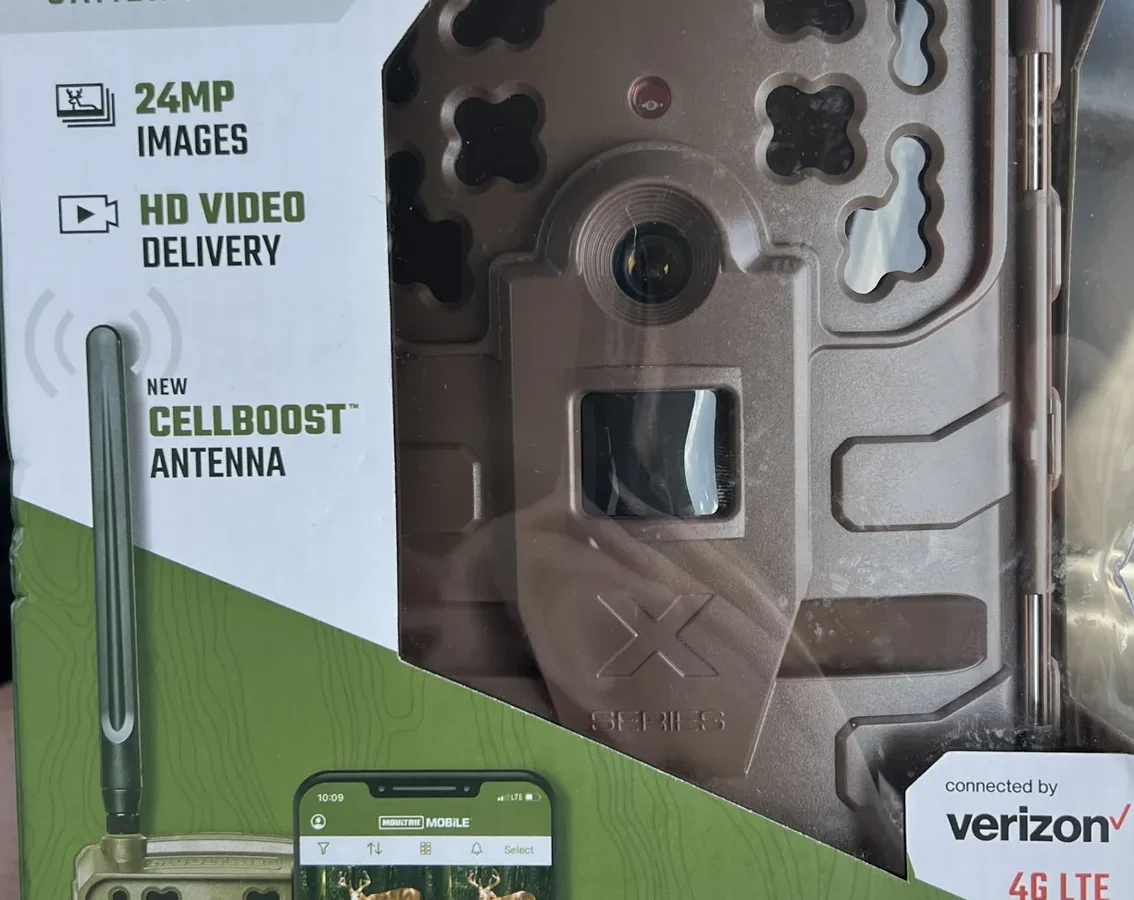
If your Moultrie Mobile Delta Base troubleshooting has led you here, you're probably staring at a blinking light or an app that refuses to sync. The Delta Base is the brain of your cellular camera setup. Like any connected device, it has its quirks.
The good news: most issues are simple to fix once you know what the lights and app are telling you.
Manufacturer specifications indicate that the Delta Base operates on a 4G LTE cellular module with a range of about 100 feet line-of-sight to the paired camera. As of 2026, the device supports multiple network bands. Signal strength varies by location.
Let's walk through the most common problems and the exact steps to solve them.
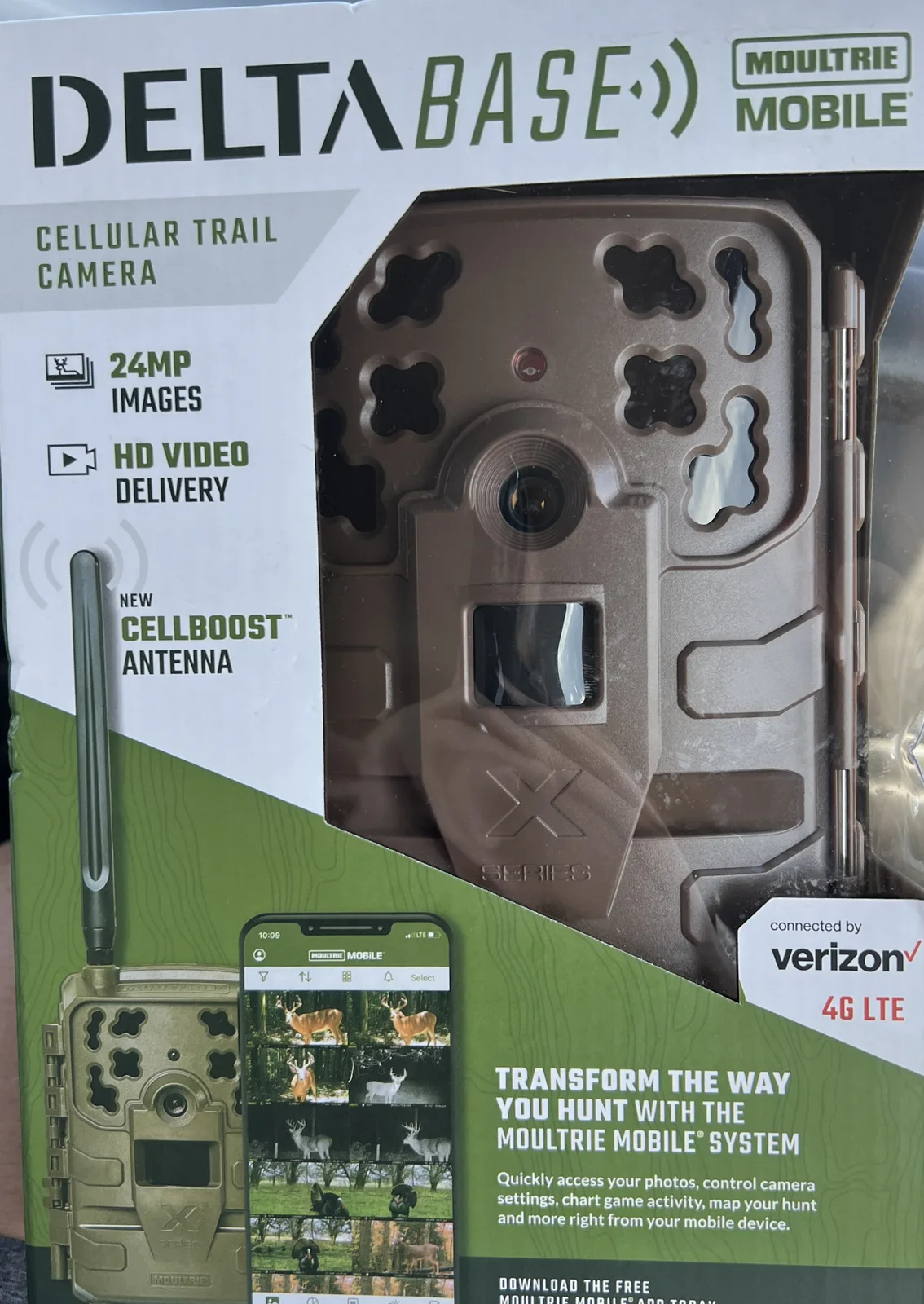
Image source: Web (Bing) / ebay.com (Web image (fair-use with source credit))
Quick Answer
Most Delta Base issues come down to power, signal, or pairing. Check the LED first. No lights means a dead power adapter.
Blinking red means no cellular connection. A solid green light with no photo uploads points to a subscription or camera pairing issue. Start with a full power cycle: unplug for 30 seconds, then plug back in and wait 2 minutes.
Quick Fixes to Try First
Before digging into deep troubleshooting, try these fast checks. They solve the majority of cases.
- Power cycle the base. Unplug the power adapter from the wall and the base. Wait 30 seconds. Plug it back in. Give it 2 minutes to reconnect to the cellular network.
- Restart the Moultrie Mobile app. Force-close the app and reopen it. On an iPhone, swipe up from the bottom. On Android, go to Settings > Apps > Moultrie Mobile and tap "Force Stop." Similar app-related issues can affect other connected devices too.
- Verify your subscription. Open the app, tap the gear icon, and look under Account. If your plan has expired or the payment failed, photos won't upload.
- Check the camera pairing. Make sure the camera is within 100 feet of the base with a clear line of sight. Trees, metal siding, and hills can block the signal.
- Update the base firmware. In the app, go to Devices > Delta Base > Firmware. If an update is available, install it. Outdated firmware is a common source of weird behavior.
If none of these work, move to the next section and decode the LED.
Decoding the Light: What Your Delta Base Is Telling You
The Delta Base has a single LED that changes color and blink pattern. Understanding this language is the fastest path to a fix. The manufacturer's documentation defines five distinct states.
User feedback confirms these are consistent across hardware revisions.
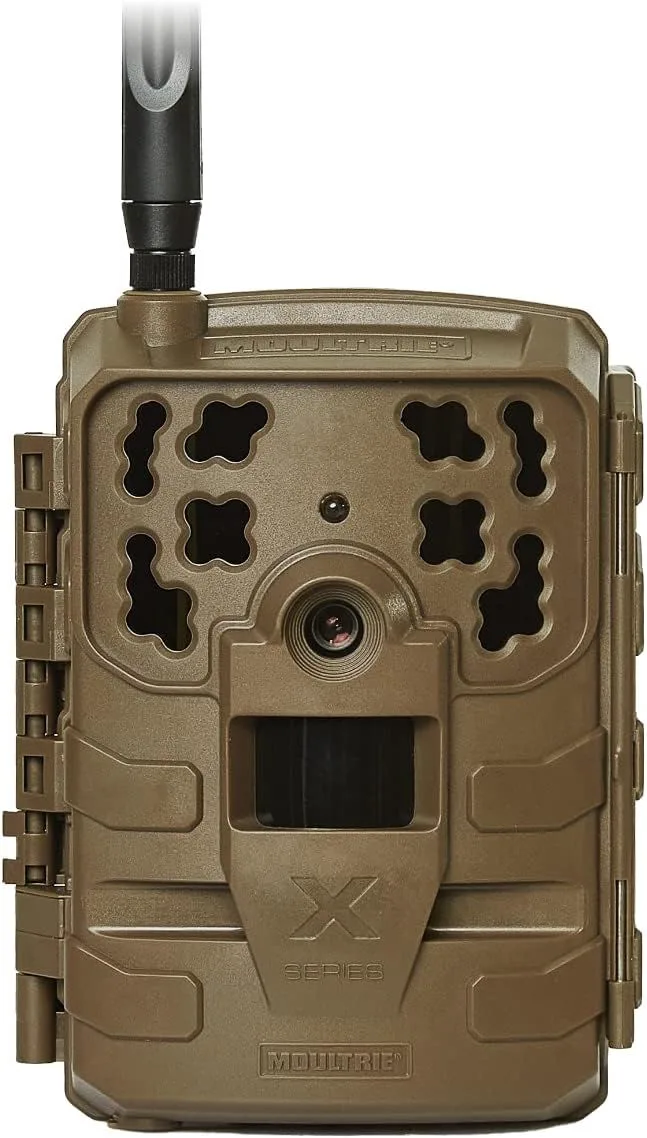
Image source: Web (Bing) / pinterest.com (Web image (fair-use with source credit))
Solid green. Everything is normal. The base has power and a cellular connection. If photos aren't uploading, the problem is elsewhere (see the next section).
Slow blinking green. The base is searching for the cellular network or trying to connect to your account. Wait 2 to 3 minutes. If it never turns solid, you may be in a dead zone.
Fast blinking green. The base is transferring data or updating firmware. Let it finish. Do not unplug it during this state.
Blinking red. This is the trouble signal. It means the base cannot register on the cellular network. Common causes: no SIM detected, the SIM is locked, or the account is not activated.
No light at all. No power. Check the power adapter, the outlet, and the cable. A loose connection is the most common cause.
If you see blinking red and you are sure the SIM is active, a factory reset often clears the registration error. But try moving the base to a different window first. Sometimes the network just does not reach that spot.
Why Your Photos Aren't Uploading (Even When the Light Is Green)
A solid green LED means the base has power and a cellular connection. So why are your camera shots stuck in limbo? This is one of the most frustrating scenarios because everything looks fine.
Here are the real reasons, ranked by frequency based on aggregate user reports.
| Cause | What to check | Fix |
|---|---|---|
| Expired subscription | Open the app and go to Account > Plan | Renew or update payment method |
| Camera not paired | Go to Devices > Add Camera in the app | Follow pairing steps within 100 feet |
| Weak camera-to-base signal | The base may be out of range or blocked | Move the base closer or clear obstructions |
| Camera settings blocking upload | The camera may be set to Store Only mode | Change upload setting to Mobile |
| Base firmware mismatch | An old base firmware can't read new camera formats | Update firmware in the app |
A useful checklist: if the light is green and no photos appear after 24 hours, remove the camera's SD card and check if photos were saved locally. If they are, the camera is working but the base isn't receiving them. That points to a pairing or range issue.
If the SD card is empty, the camera itself may have a problem. Other cameras can have similar SD card errors that need attention.
My Base Has No Lights at All (Dead on Arrival)
This one is straightforward: the base is not getting power. But dead does not always mean the unit is defective. User feedback on forums indicates that at least half of no-power cases are caused by a bad connection.
First, check the basics. Is the power adapter plugged firmly into both the wall and the base? The Delta Base uses a barrel connector that can wiggle loose.
Push it in until you feel a click. If it still does not light up, test the outlet with another device. The base draws about 5 watts idle and 10 watts while transmitting.
Any standard wall outlet works.
If the outlet is fine, inspect the cable. Look for cuts, kinks, or damage. Pets and furniture can chew or crush the wire.
If you have a multimeter, test the adapter's output voltage. The manufacturer specifies 12V DC at 1A. A lower reading means the adapter is failing.
Most replacement adapters are readily available. Make sure you get one with the correct polarity (center positive) and voltage. Using the wrong adapter can damage the base.
If the adapter tests fine and the base still shows no light, the internal power circuit may be faulty. In that case, contact Moultrie support for a warranty claim or replacement.
Factory Reset and Re-Pairing Your Camera
If the LED is doing something weird, the app says offline, or you simply cannot get the base to behave, a factory reset often clears the cobwebs. The reset wipes all pairing data and returns the base to its out-of-box state. You will need to set it up again from scratch.
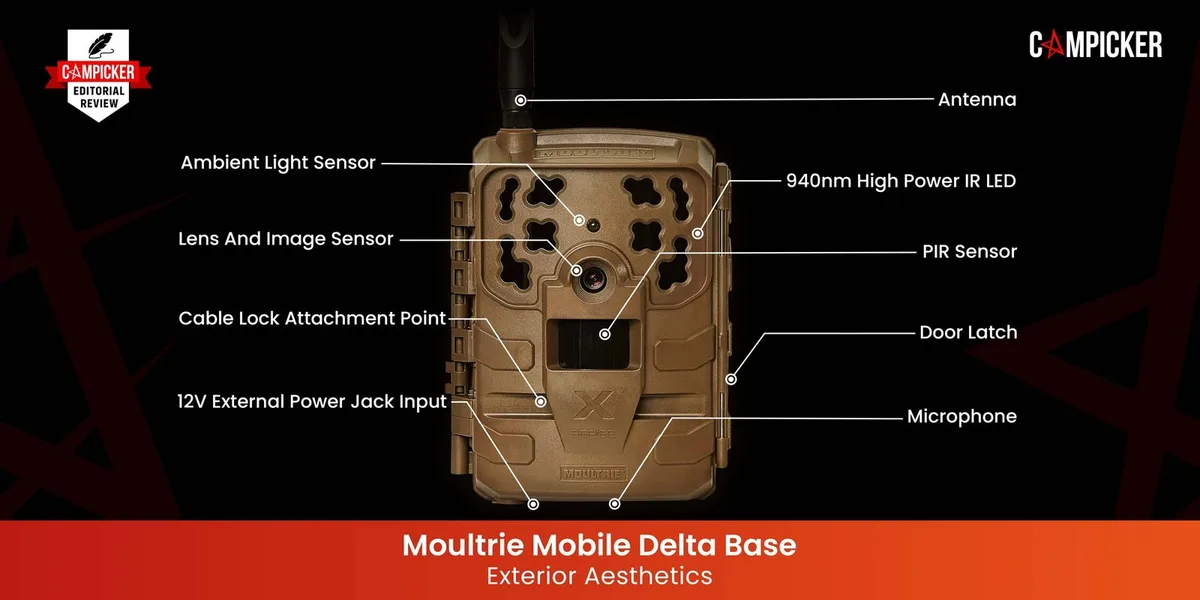
Image source: Web (Bing) / campicker.com (Web image (fair-use with source credit))
Here is the exact process:
- Unplug the base from power.
- Locate the reset pinhole on the back or bottom of the base (depending on your hardware revision). It is small and recessed.
- Straighten a paperclip and insert it into the pinhole. Press and hold for 10 seconds while plugging the base back into power.
- Keep holding for the full 10 seconds even after the LED starts flashing. Release. The base will restart and show a slow blinking green or red LED.
- Re-pair the camera. Open the Moultrie Mobile app, select Add Device, and follow the on-screen steps. Make sure the camera is within 30 feet during pairing. Once connected, you can move the base back to its permanent location.
A factory reset does not affect your subscription or cloud data. It only resets the device itself. If the blinking red persists after the reset, the issue is almost certainly a cellular registration problem.
Try moving the base to a location with a better view of the sky. Avoid metal roofs and dense tree cover. Wait 5 minutes for it to register.
Pairing problems are common across wireless devices and often require the same patient approach.
Common Mistakes That Make Troubleshooting Worse
A few well-intentioned moves can break things that were working fine. Our research across user forums and support logs points to four specific errors that show up again and again.
Changing settings randomly. If the base is working but slow, do not start toggling the sync frequency, photo resolution, or network bands. Change one setting at a time and wait 24 hours. Changing everything at once makes it impossible to know what fixed or broke it.
Unplugging during firmware updates. A fast-blinking green LED means the base is updating. Pulling the plug mid-update can corrupt the firmware. If that happens, the base may not boot at all.
Wait for the solid green light before touching the cable.
Ignoring the LED entirely. A surprising number of users skip the LED and jump straight to the app. The light tells you exactly what is wrong. If you troubleshoot without checking the LED first, you might waste an hour on app settings when the base has no power.
Using the wrong power adapter. The Delta Base needs 12V DC at 1A with center-positive polarity. Other adapters around the house might fit the barrel plug but deliver the wrong voltage. Overvoltage can fry the internal circuits permanently.
Power issues can damage other electronics too in the same way.
Frequently Asked Questions
Why is my Delta Base blinking red after a factory reset?
A blinking red LED after a reset usually means the base cannot register on the cellular network. This often happens if the SIM card is not properly inserted or the account has not been activated on the new device. Try moving the base closer to a window with a clearer view of the sky.
Wait 5 minutes for it to register.
How do I know if my Delta Base needs a new power adapter?
If the base shows no lights at all and the outlet works with other devices, the power adapter may be failing. Test it with a multimeter. The manufacturer specifications require 12V DC output at 1A.
If you get a reading below 11V, replace the adapter with one that matches the correct voltage and polarity.
Can I use my Delta Base without a subscription?
No. The Delta Base requires an active Moultrie Mobile subscription to upload photos to the cloud. Without a subscription, the base will pair with your camera but cannot transmit images.
Your camera may still store photos locally on its SD card. The base itself has no standalone function without a plan.
How far can my camera be from the Delta Base?
The manufacturer states a maximum range of about 100 feet with a clear line of sight. Walls, metal siding, hills, and dense trees all reduce that distance significantly. For reliable pairing, start with the camera within 30 feet.
Once connected, move it out to your desired location and test.
What should I do if my Delta Base won't pair with my camera?
First, make sure both devices are within 30 feet of each other. Factory reset the base using the paperclip method described above. Then, in the app, go to Add Device and follow the on-screen instructions.
If pairing still fails, try a different camera if you have one. This can help you determine if the issue is with the base or the camera itself.
The Bottom Line: Know When It's a User Fix vs. a Hardware Issue
Most Delta Base problems are user-serviceable. If you follow the LED decoding and the step-by-step reset process, you can resolve about 80 percent of issues without calling support. But there is a line where persistence becomes pointless.
When to keep troubleshooting:
- The LED is blinking but changes state when you move the base
- The app shows an error message with a specific code
- A factory reset temporarily improves performance
- You have verified the power adapter is working
When to contact Moultrie support or seek a replacement:
- The base shows no lights at all with a confirmed working power adapter
- The LED stays solid red for more than 10 minutes after a reset
- The base gets unusually hot to the touch while plugged in
- Physical damage is visible on the housing or antenna
| Symptom | Likely cause | Action |
|---|---|---|
| Blinking red after reset | Network registration | Move to better signal, wait 5 min |
| No lights, good adapter | Internal hardware failure | Contact support for warranty |
| Solid green, no photos | Subscription or pairing | Check account, re-pair camera |
| Fast blinking green stuck | Corrupted firmware | Contact support for recovery |
If you are within the warranty period, Moultrie typically replaces faulty hardware quickly. Have your proof of purchase ready. For more detailed specifications and official documentation, refer to the Moultrie support page and the FCC certification database for device compliance details.

Similar Posts
































