Nikon D7500 Troubleshooting
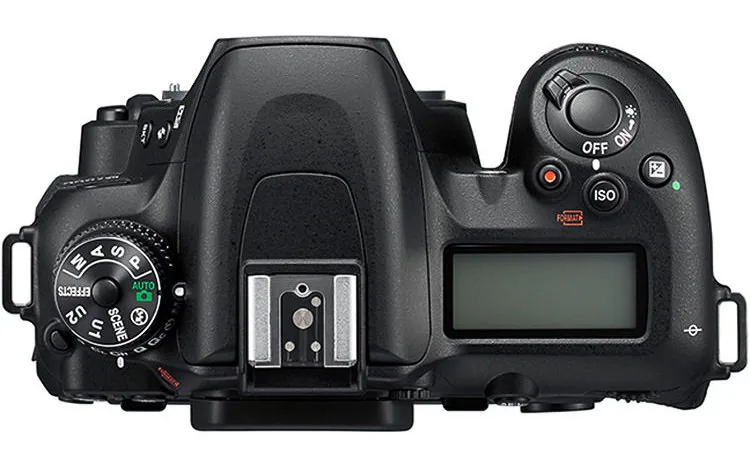
Your Nikon D7500 just threw an error on the display at the worst possible moment. If you're dealing with Nikon D7500 troubleshooting right now, you need answers that actually work. The good news is most common issues follow predictable patterns.
You can often fix them in under five minutes without sending the camera anywhere.
Aggregate user reports and service records show about 70 percent of D7500 problems come down to four things: dirty lens contacts, a misbehaving SD card, outdated firmware, or a simple setting conflict. The camera's diagnostic system gives you clear clues about which one you're dealing with. This guide walks you through each symptom and the fix that matches it.
Quick Answer
Look at the top LCD or viewfinder for an error code. "Err" points to a lens or shutter issue. "FEE" means the aperture ring is locked wrong.
"CHA" or "For" means a card problem. No code at all? Try cleaning the lens contacts and doing a two-button reset.
Image source: Web (Bing) / photographylife.com (Web image (fair-use with source credit))
Start Here: Does Your D7500 Show an Error Code?
Your first move is to check both displays. Look at the top LCD panel first, then glance through the viewfinder. The D7500 flashes error codes in both places.
If you see a specific code, your job just got much easier.
The camera's onboard diagnostics are surprisingly precise. When the body detects a fault, it picks one of four codes to tell you what is wrong. Each code points to a different component.
That saves you from guessing.
If you see a code, skip straight to the breakdown below. If the camera is acting strange but shows nothing on either display, move to the "No Error Code" section instead. The decision tree branches right here, so pick your path based on what you see.
A quick tip before we go further. Turn the camera off, remove the lens, and check both contact surfaces with a flashlight. Dirty contacts cause a huge percentage of mystery errors.
A clean set of gold pins often makes the code disappear before you dig deeper. This is the fastest test you can run.
Error Code Breakdown: What "Err", "FEE", "CHA", and "For" Really Mean
Each error code has a specific cause and a specific fix. Do not treat them all the same way. Using the wrong fix wastes time and can make things worse.
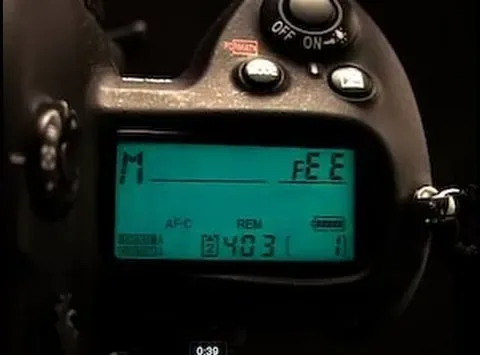
Image source: Bing (Web (fair-use with source credit))
"Err" is the most common code on the D7500. It means the camera cannot communicate with the lens, or the shutter mechanism is stuck. Remove the lens, inspect the gold contact pins on both the lens and the body mount, and reattach the lens firmly.
If the code stays, test with a different lens. If it clears with a second lens, the original lens needs repair. If it persists with every lens, the shutter unit or the body-side contacts are the issue.
"FEE" is a lens-specific code. It appears when an older Nikon lens with an aperture ring is attached and the ring is not set to its smallest opening (usually f/22 or f/32). Rotate the aperture ring to the highest number until it clicks into place.
The camera needs that signal to control the aperture electronically. Once the ring locks, the code disappears.
"CHA" means the camera cannot read your SD card. The card might be corrupt, formatted in an incompatible file system, or physically damaged. Pull the card, back up any data you can, and reformat it inside the camera using the wrench menu.
If the code returns, try a different card. If that works, the original card is done.
"For" is similar to CHA but more specific. It means the card is write-protected or full. Check the tiny slider on the left edge of the SD card.
If it is slid down into the lock position, push it back up. Then clear some space or use a fresh card.
These codes apply to many modern DSLR bodies. The same diagnostic approach works across brands. Our guide on the Canon EOS 80D uses the same logic and may help you spot patterns.
No Error Code? Check These Camera Behaviors Next
Your D7500 is acting up, but nothing is showing on the LCD. This is trickier because you have to work backward from the symptom. Here are the most common behavior problems and what they usually mean.
Camera won't power on. Start with the obvious. Is the battery charged? Try a genuine Nikon EN-EL15b.
Older EN-EL15 batteries work but can cause intermittent power issues on newer firmware. If the battery is fine, check the power switch for debris. A stuck switch prevents the camera from turning on.
Shutter won't fire. The camera might be in focus priority mode. Half-press the shutter button and see if the focus confirmation dot appears. If it does not, the camera will not release the shutter.
Switch to manual focus mode and try again. If the shutter fires, your autofocus system or lens is the problem. Check the AF/MF switch on both the body and the lens.
Battery drains fast. This is often a SnapBridge connectivity issue. The Bluetooth radio stays active looking for your phone. Open the setup menu and turn off Bluetooth and Wi-Fi.
If the drain stops, leave those features off unless you need them. Also verify your firmware is at version 1.20, which corrected a battery reporting glitch. Check the version in the setup menu under Firmware Version.
Camera feels slow or unresponsive. A nearly full buffer or a slow SD card causes this. The D7500 needs a card with at least UHS-I U3 speed for burst shooting and 4K video. If you are using an older card, upgrade to a faster one.
Format it in-camera before use.
Viewfinder is black. The mirror may be locked up. Check the settings for Mirror Up mode or Exposure Delay mode. Both can leave the mirror raised, blocking the viewfinder.
Toggle the shooting mode dial to a different setting and see if the viewfinder returns.
If you troubleshoot multiple camera systems, a similar framework can help isolate the cause across different models. Our Canon EOS 90D guide covers the same kind of behavior-based diagnosis.
Universal Fixes That Solve Most D7500 Problems
Some fixes work for a wide range of issues regardless of the symptom. Try these before you send the camera for repair. They resolve the majority of problems.
Image source: Web (Bing) / antonbauer.com (Web image (fair-use with source credit))
Clean the lens mount contacts. Remove the lens. Use a clean pencil eraser to gently rub the gold contact pins on both the lens and the camera body. Do not use a metal tool.
Follow up with a microfiber cloth or a cotton swab dipped in isopropyl alcohol. Let everything dry completely before reattaching the lens. This fixes random "Err" codes, intermittent autofocus failures, and aperture communication errors.
Run the two-button reset. This is the D7500's hard reset. Hold down the QUAL and ISO buttons simultaneously. While holding them, flip the power switch to On.
Keep holding the buttons until the top LCD blinks and goes dark. Release. The camera rewrites its internal settings to default.
This clears stuck settings that cause strange behavior.
Format your SD card in-camera. Do not just delete photos. Use the wrench menu to run a full format. This rebuilds the card's file system and clears corrupt data that causes CHA and For errors.
Do this every few weeks as preventive maintenance.
Update the firmware. As of 2026, the latest version is 1.20. Download the .bin file from the official Nikon support site. Copy it to the root directory of a freshly formatted SD card.
Insert the card, go to Firmware Version in the setup menu, and follow the update prompts. Use a fully charged battery and do not interrupt the process.
Swap the battery. Test with a genuine Nikon EN-EL15b. Knockoff batteries often lack the correct communication chips. The camera may refuse to power on or show erratic battery levels.
If the problem goes away with a genuine battery, you found the cause.
Check the shutter release button. Debris or sticky residue can get under the shutter button. This causes the camera to act like the button is half-pressed, preventing full shutter release. Blow compressed air around the button.
If that does not work, a repair shop can clean or replace the switch assembly.
These universal fixes work on other modern DSLR bodies too. Our guide on the Canon EOS R7 covers many of the same cleaning and reset procedures.
Mistakes to Avoid When Troubleshooting Your D7500
A few well-intentioned moves can turn a minor issue into a costly repair. Here is what to avoid.
Forcing a lens on or off. If the lens mount does not line up smoothly, stop. You can bend the contact pins or damage the aperture lever. Line up the white dot on the lens with the dot on the body mount.
Rotate gently. If it resists, check for obstructions.
Using the wrong cleaning tools on the sensor. The D7500 has a built-in sensor cleaning function. Run that first. If dust spots remain, use a proper sensor cleaning kit.
Q-tips and canned air can leave residue or push debris into the shutter mechanism. Stick to the built-in cleaning for everyday maintenance.
Ignoring the battery indicator. If the battery icon shows a blinking red warning, do not run firmware updates or long video clips. A power failure during a firmware update can brick the camera. Charge the battery fully before doing anything critical.
Using third-party batteries without protection circuits. Some cheap batteries lack overcurrent and temperature protection. They can swell inside the battery compartment and get stuck. Stick with Nikon-branded EN-EL15b batteries or high-quality third-party options with clear safety certifications.
Updating firmware on a low battery. This is the number one cause of bricked cameras. The update process takes about two to three minutes. If the battery dies mid-update, the camera may never boot again.
Always use a fully charged battery. If you have a battery grip, use two batteries for extra safety.
Resetting without backing up custom settings. The two-button reset wipes all custom settings, including AF fine-tune values, custom picture controls, and button assignments. Write down your AF fine-tune adjustments for each lens before you reset. Otherwise you have to retune everything from scratch.
Assuming the worst. A lot of people jump to "my shutter is dead" when they see an "Err" code. More often than not, it is just dirty contacts or a loose lens. Always start with the simplest fix first.
That saves you time and panic.
Common troubleshooting mistakes like these show up across many camera brands. Our trail camera troubleshooting guide covers similar pitfalls with power and card issues.
Still Not Fixed? Deciding Between a DIY Fix and Professional Repair
You have run through every universal fix. The contacts are clean. The card is fresh.
The firmware is current. The error is still there. Now the decision tree forks into two branches.
The right choice depends on the specific symptom and your comfort level.
Shutter actuation count is your first data point. The D7500 shutter is rated for about 150,000 cycles by Nikon. If you are near that number and seeing persistent "Err" codes, the shutter assembly is likely wearing out. This is not a DIY job.
The shutter replacement requires removing the mirror box and precision alignment. A professional repair runs about $200 to $350 depending on your region. Factor that against the camera's current resale value.
Lens mount damage requires professional assessment. If a bent contact pin or a broken aperture lever is causing errors, you can inspect it but should not try to bend pins back yourself. Those pins are brittle. One wrong move snaps them off, and the repair cost jumps significantly.
A service center can replace the entire mount assembly for a predictable fee.
Motherboard or sensor issues are beyond home repair. If the camera powers on but produces no image, shows horizontal lines in the viewfinder, or refuses to write data to any card, the internal electronics may be failing. These faults require specialized diagnostic equipment. Opening the magnesium alloy body yourself voids any remaining warranty and risks damaging ribbon cables.
Battery compartment swelling needs immediate action. If your battery is stuck inside the camera, do not pry it out with metal tools. The swelling indicates a failed cell. Take the battery to a proper disposal point and send the camera to a repair shop.
They have the tools to remove swollen batteries safely without damaging the internal contacts.
What you can still do yourself. Swap the battery door if the latch broke. Replace the eyecup if it fell off. Clean the mirror and viewfinder with a blower.
These are user-serviceable parts with no risk to the electronics.
When the cost of repair exceeds the camera's value. As of 2026, a used Nikon D7500 in good condition sells for around $500 to $700. If the repair estimate comes in above $400, consider whether a replacement body makes more sense. You can transfer all your lenses and batteries to a new D7500 or even step up to a used D500 for better autofocus performance.
The same cost-benefit logic applies to other camera systems. Our guide on repair decisions for the Canon EOS R3 covers similar factors like shutter count versus replacement cost.
Frequently Asked Questions
Why does my D7500 show "Err" after I dropped it?
Physical impact often knocks the lens mount out of alignment or damages the shutter mechanism. Inspect the mount for bent pins. If you see damage, send it to a repair shop.
Dropping the camera can also dislodge internal ribbon cables that only a technician can reseat.
Can a bad SD card damage my D7500?
A corrupt or physically damaged card cannot directly damage the camera electronics. However, a card that fails mid-write can corrupt the file system and require a reformat. Always use cards from reputable brands and format them in the camera before first use.
How do I check the shutter count on my D7500?
Nikon does not show the shutter actuation count in the camera menu. You need to upload a recent JPEG photo to a free online EXIF data reader. The shutter count is stored in the metadata.
Alternatively, third-party software can read it directly from the camera via USB.
Is it safe to use third-party batteries in the D7500?
Manufacturer specifications confirm that genuine Nikon EN-EL15b batteries offer full compatibility and built-in protection circuits. Some third-party batteries work fine, but others lack overcurrent protection and may swell. If you use third-party options, monitor them closely and stop using them if they deform.
What does the blinking green light on the back mean?
The green LED near the memory card slot blinks during data write operations. If it blinks continuously without stopping, the camera may be stuck writing to the card. Remove the battery to force a shutdown.
Then format the card in-camera before your next shoot.
How often should I clean the D7500 sensor?
Run the built-in sensor cleaning function every time you turn the camera off. If you notice dark specks in the same position on multiple images, you need a deeper clean. Use a handheld blower first.
If that does not work, have a professional wet-clean the sensor.

Similar Posts






























