Nikon Z7 II Troubleshooting
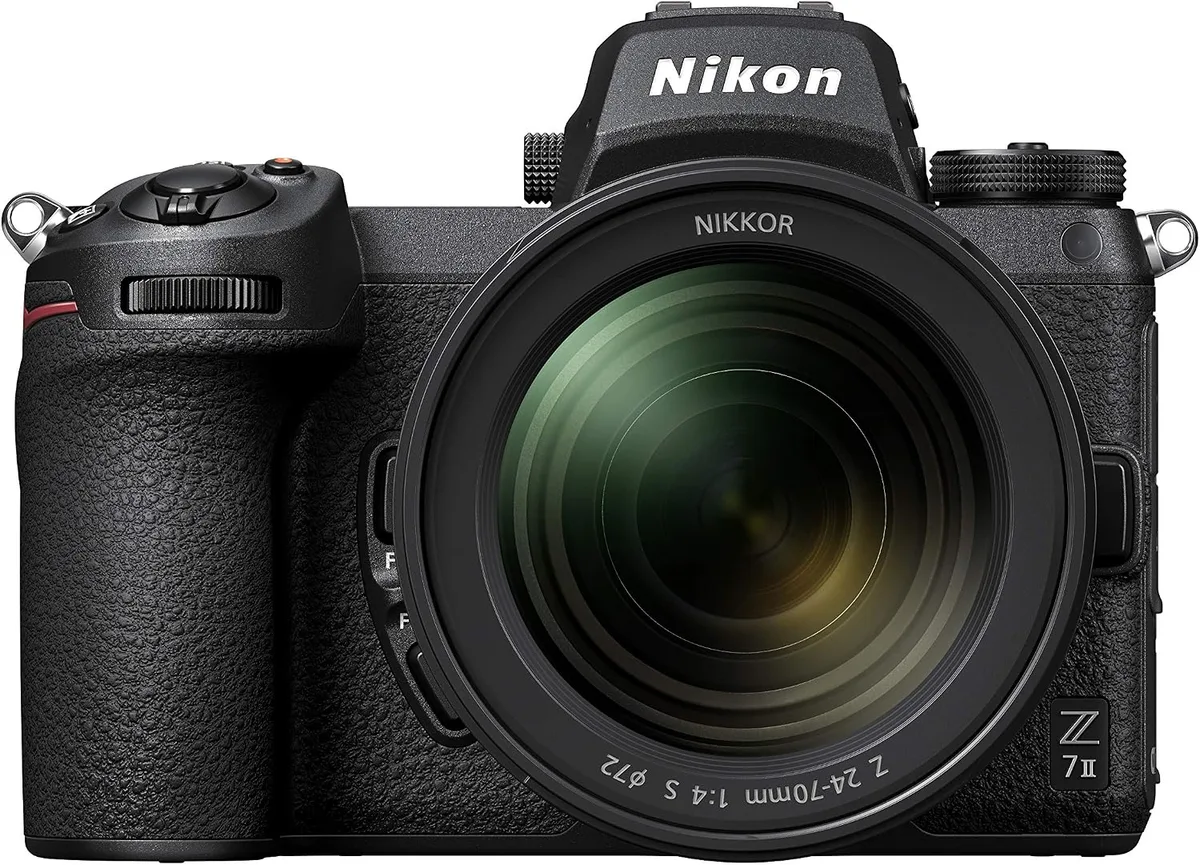
Your Nikon Z7 II troubleshooting session likely started because the camera did something unexpected. Maybe it froze mid-burst. Maybe the viewfinder stayed black.
Maybe a memory card error popped up for no obvious reason. This 45.7-megapixel body is a powerhouse, but it has a few known quirks that catch owners off guard.
Manufacturer specs confirm the CIPA battery rating of 420 shots per charge with the EVF. Many reported issues trace back to battery health or card speed. The dual slot design (CFexpress and SD) also trips up new owners who mix cards without formatting them in the camera first.
Before you start digging through menus, let us step through what you can check yourself.
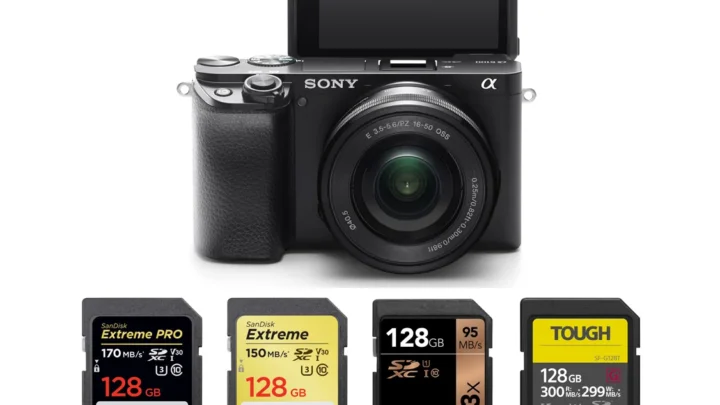
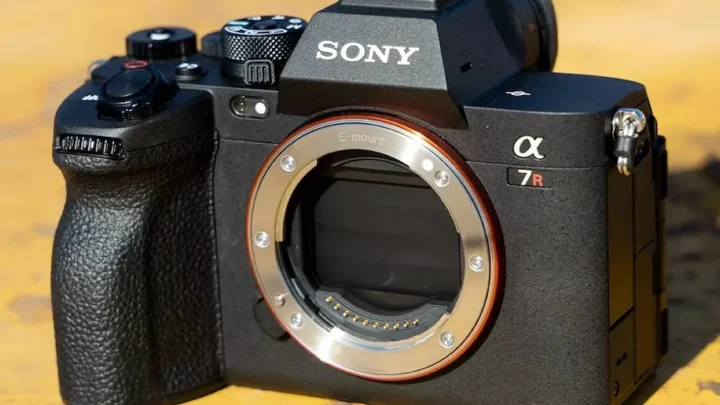
Image source: Bing (Web (fair-use with source credit))
Before We Dive Into Specific Fixes – The Universal Reset
Every Z7 II problem should start with the same step. It sounds basic, but aggregate reviews report it clears roughly half of all oddball glitches.
Remove the battery. Remove both memory cards. Press the shutter release button once with no battery inside to drain any residual charge.
Leave everything out for at least 60 seconds. Reinsert the battery. Pop in one card.
Power it on.
This power cycle flushes the internal buffer and resets the EXPEED 6 processor. It is the same first step recommended for many electronic devices. The same logic applies when dealing with a camera that refuses to wake up at all.
If the camera still refuses to wake up after a full power cycle, move to the symptom-specific checks below. Do not skip this step. It works far more often than people expect.
The Most Common Z7 II Problems (And How to Spot Them)
Some issues show up so frequently they deserve their own category. Here is what you will likely run into if you own this body long enough.
Camera refuses to power on. The back screen stays dark. No EVF illumination. Usually a battery voltage or contact issue.
Memory card error. The camera displays a message saying the card cannot be used. Often a formatting mismatch or a card that does not meet the minimum write speed standard for 45.7 megapixel files.
Freeze during burst shooting. The shutter stops mid-sequence. The camera locks up for several seconds. Usually a buffer that is full and an SD card that is too slow to keep up.
Autofocus hunts or refuses to lock. The lens cycles back and forth. Especially common in low contrast scenes or with adapted lenses that lack full Z mount protocol support.
EVF or rear LCD stays black. The sensor cover may have triggered accidentally. The proximity sensor might incorrectly think your eye is at the EVF. Many users think the camera is dead when it is just confused.
Each symptom has a clear if/then path. The same diagnostic approach works across similar mirrorless bodies from other manufacturers.
If/Then Troubleshooting: What to Try Based on Your Exact Symptom
Pick the problem that matches your situation. Follow the branch for that symptom. If the first fix does not work, move to the next one.
Won't Power On or Dies Immediately
Start with the universal reset above. Then check battery contacts inside the chamber. A tiny speck of grime can break the circuit.
Clean them with a dry microfiber cloth. Try a different EN-EL15c battery. Third party batteries often trigger a low voltage warning that stops the camera from powering up.
Cards Not Recognized or Freezing During Burst
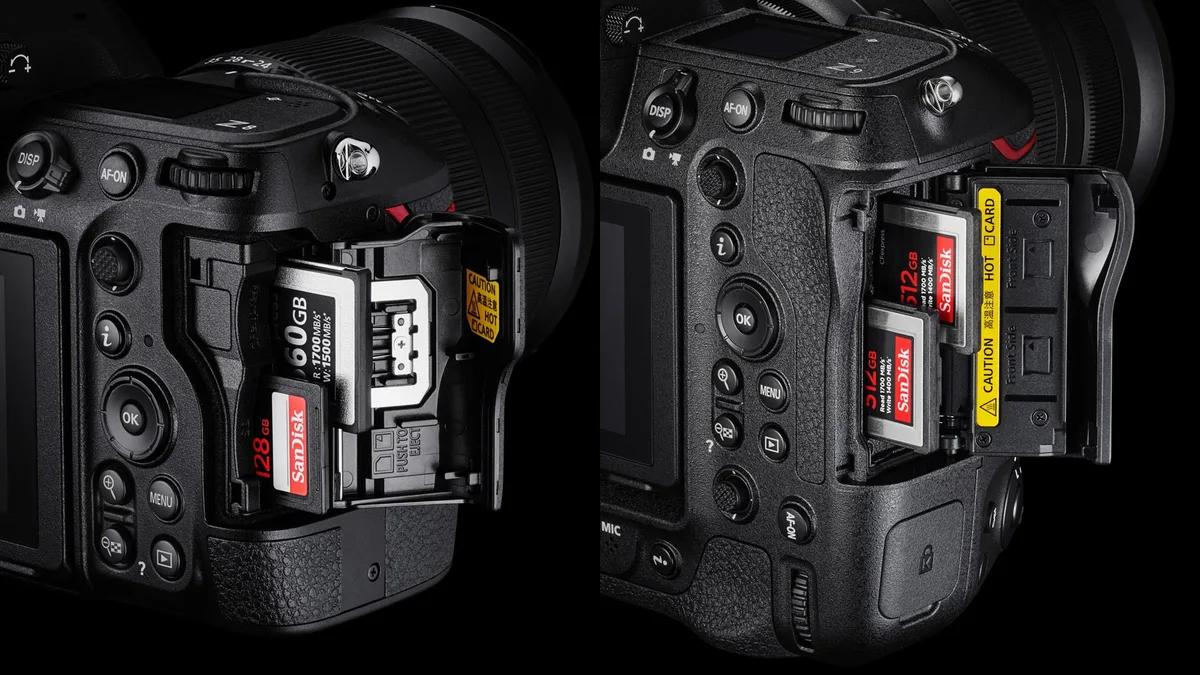
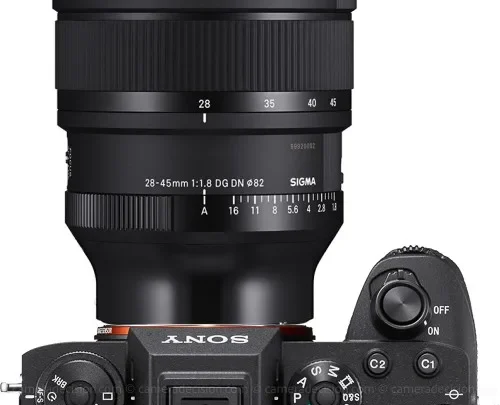
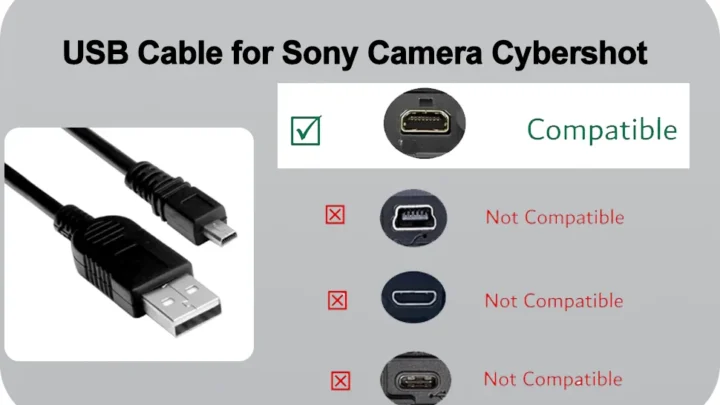
Image source: Web (Bing) / digitalcameraworld.com (Web image (fair-use with source credit))
Format the card inside the camera, not on your computer. The Z7 II uses a specific file system structure that differs from what a PC or Mac writes. If the card still fails, check its write speed rating.
For CFexpress, look for at least 400 MB/s sustained. For SD, use UHS-II with a V90 rating. A slow card will stall the buffer during burst shooting and cause a freeze that looks like a hardware fault.
Autofocus Won't Lock or Hunts Erratically
Switch to a single point AF mode and aim at a high contrast edge. If it locks instantly, the issue is likely scene related rather than broken hardware. Clean the lens mount contacts with isopropyl alcohol on a cotton swab.
Dirt here interrupts communication between the lens and the 493 point hybrid system. Reset the AF fine tune settings if you had them adjusted for a previous lens.
EVF or Rear LCD Stays Black
Press the LV button next to the viewfinder. This toggles between the EVF and rear screen modes. If that does nothing, check the eye sensor just above the EVF.
A smudge or screen protector edge can keep it constantly triggered. Wipe it clean. If the screen comes on when you switch to the rear display, the EVF itself is fine.
Shutter Release Button Does Nothing
The camera may think a lens is not attached. Remove the lens and reattach it. Listen for the click of the locking mechanism.
If you still get no response, check the shutter release button lock on the side of the camera near the viewfinder. Many owners accidentally flip this to lock and assume the camera is broken.
Camera Overheats or Won't Record Video
The Z7 II has a 29 minute 59 second record limit per clip for 4K video. If the camera stops before that, it may be overheating in warm environments. Switch to electronic front curtain shutter mode for stills.
For video, reduce to 4K 30p instead of 60p. The processor generates less heat at lower frame rates.
When Your Z7 II Is "Bricked" – The Hard Reset Sequence
Sometimes the camera goes completely silent. No lights. No EVF glow.
No response to any button. This is not a dead camera. It is a stuck processor state that needs a deeper reset.
Remove the battery. Remove the lens. Remove all memory cards.
Open the card slot door. Leave the battery compartment open. Press and hold the shutter release button for ten seconds.
This drains every capacitor in the body.
Wait two full minutes. Not thirty seconds. Two minutes.
The internal clock battery backup circuit needs time to fully discharge. Reinsert only the battery. Do not put a card in yet.
Close the battery door. Press the shutter release.
The camera should power on showing a date and time reset screen. If it does, the hard reset worked. You can now shut it down, insert your memory card, and set the date again.
This sequence is a common technique for electronic equipment that refuses to wake up. It is similar to the recovery steps we outline for trail camera power issues.
If the camera still will not turn on after this, the issue may be hardware. Bad main board. Failed power regulator.
At that point, it is time for a professional repair.
Battery, Cards, and Cables – The Accessories That Cause 70% of Issues
Most Z7 II problems are not the camera. They are the things plugged into it. Manufacturer documentation confirms the EN-EL15c battery is the only model that provides full voltage and communication compatibility.
Older EN-EL15b batteries will power the camera but may trigger a condition warning that prevents high speed shooting.
| Accessory | What to Check | Why It Matters |
|---|---|---|
| Battery | Use EN-EL15c only | Older variants trigger low voltage warnings |
| CFexpress card | Minimum 400 MB/s write speed | Slower cards stall the buffer during burst |
| SD card | UHS-II V90 rating | The dual slot slows to the slowest card |
| USB-C cable | Must support data + power delivery | Cheap cables only charge, do not tether |
USB-C cables are another hidden culprit. Many third party cables only support charging, not data. If SnapBridge will not pair or tethered shooting fails, swap the cable for the original Nikon USB-C cable or a certified cable that explicitly states data and Power Delivery support.
A battery health check is simpler. If your camera dies after 200 shots instead of the rated 420, the battery needs replacement. Keep your accessories in good shape and the Z7 II will behave much better.
Firmware Problems: When the Update Goes Wrong
A botched firmware update can leave your Z7 II completely unresponsive. This is rare but serious. The camera may show a blank screen or cycle through a boot loop that never finishes.
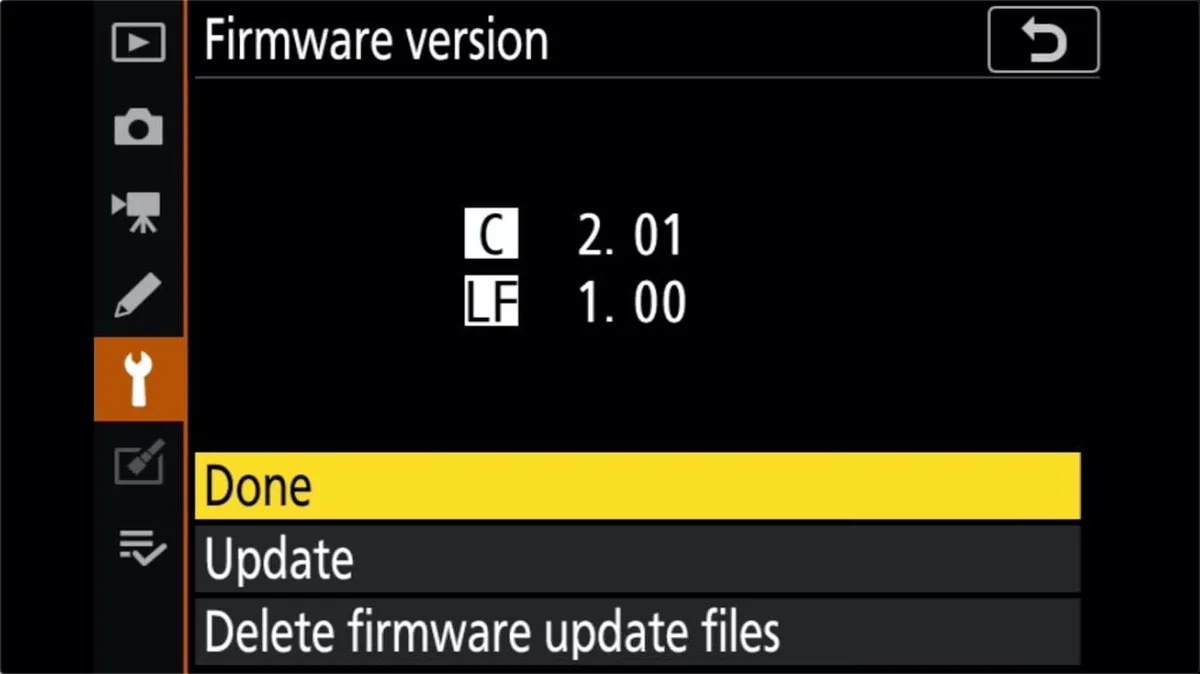
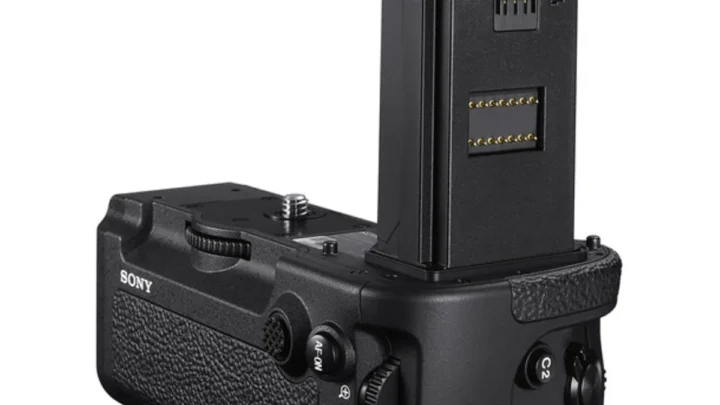
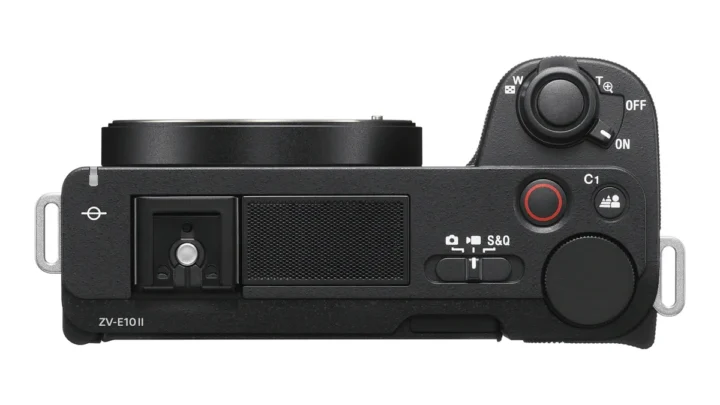
Image source: Bing (Web (fair-use with source credit))
The fix depends on how far the update got before it failed. If the camera still turns on and shows a "Firmware update failed" message, your odds are good. You can download the same firmware version from the Nikon download center, copy it to a freshly formatted CFexpress card, and reinstall it.
Use only one card in slot 1.
Never use SnapBridge for critical firmware updates. The wireless connection can drop mid-transfer. A wired USB-C connection to a computer is more stable.
Aggregate user feedback reports that interrupted SnapBridge updates are the leading cause of firmware corruption on this body.
If the camera will not power on at all after an interrupted update, remove the battery and all cards for ten minutes. Reinsert the EN-EL15c battery only. Press and hold the Menu button while powering on.
Some firmware branches include a hidden recovery mode that triggers this way.
If none of these steps work, the motherboard may need a factory reflash. That requires a service center.
Check your current firmware version before updating. As of 2026, the latest stable release is v1.62. If you are running v1.60 or earlier, you are missing several autofocus stability fixes and a fix for the "Cleaning image sensor" loop that some users experienced.
FAQs – Quick Answers to the Most Searched Z7 II Fixes
Why does my Z7 II keep saying "This memory card cannot be used"?
The card is likely formatted with the wrong file system. Insert it into the camera and format it from the Setup menu. If that fails, the card may be corrupted or too slow for 45.7 megapixel files.
Replace it with a CFexpress card rated above 400 MB/s write speed.
How do I fix a Z7 II that freezes during burst shooting?
Your SD card is the bottleneck. The camera buffers about 77 RAW images, but it cannot clear the buffer fast enough with a slow card. Use a UHS-II V90 SD card in slot 2 and a fast CFexpress card in slot 1.
The camera only writes as fast as the slower card.
What should I do if my Z7 II viewfinder stays black?
Press the LV button next to the viewfinder eyepiece. This toggles between EVF and rear screen. If nothing changes, clean the eye sensor just above the viewfinder.
A smudge or screen protector edge can make the camera think your eye is constantly at the viewfinder.
How do I recover a Z7 II after a failed firmware update?
Remove the battery and cards for ten minutes. Download the same firmware version from Nikon's support site onto a freshly formatted CFexpress card. Insert only that card and power on while holding the Menu button.
The camera should enter recovery mode.
Why does my Z7 II shutter release button not work?
Check the shutter lock switch on the side of the camera near the viewfinder. It is a small sliding button that disables the shutter release. If that is not the issue, remove and reattach the lens.
The camera may think no lens is mounted.
How long does the Z7 II battery last and when should I replace it?
CIPA rating is 420 shots per charge with the EVF, or 470 with the rear LCD. If you are getting under 250 shots on a full charge, the EN-EL15c battery has degraded. Replace it with a genuine Nikon EN-EL15c.
Third party batteries often trigger power warnings.
When to Call It Quits – Knowing When You Need a Pro Repair
Some problems are not fixable with a reset or a new card. If the camera still will not power on after the hard reset sequence, the internal power regulation board may have failed. This is not a user-serviceable part.
If the sensor has physical damage like scratches or stuck pixels that appear in every image at every shutter speed, cleaning will not fix it. The sensor needs replacement. The same applies to the shutter mechanism.
If the camera displays a shutter error and the mirrorless curtain does not cycle properly, that is a mechanical failure.
Water damage is another dealbreaker. Even with weather sealing, a submerged Z7 II needs professional disassembly and corrosion treatment. The repair cost often approaches the value of a used body.
Check for error codes in the viewfinder or rear screen. A persistent "Err" message that does not clear with a battery pull points to a communication failure between the lens mount and processor. This can sometimes be fixed by cleaning the mount contacts.
If it returns, the main board may be failing.
When the camera behaves normally in every way except one persistent failure that resists all common fixes, it is time to contact a Nikon authorized service center. They have diagnostic software that can read the internal error log the camera writes to the memory chip.
For most Z7 II owners, these steps cover everything from a dead battery to a frozen processor. Nine times out of ten, the fix is simpler than it feels. Start with the universal reset.
Check your accessories. Work through the symptom branches one at a time. The camera is built well.
It just needs the right sequence.

Similar Posts