OBS Camera Not Detected Troubleshooting
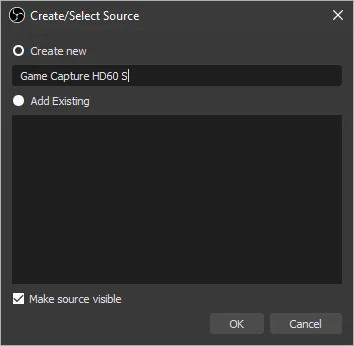
You're ready to stream or record. Your lighting is set up. Then you add a Video Capture Device in OBS Studio.
And all you see is a black screen. If you're dealing with OBS camera not detected troubleshooting, you know how frustrating this can be.
As of 2026, OBS Studio has been downloaded over 400 million times. It is the most popular streaming software on the market. But camera detection issues are common.
The fix is usually simpler than you expect. Let's start with the most common cause.
Quick Answer
OBS camera not detected usually means a permissions issue. Check your OS camera privacy settings. Restart OBS and your camera.
If it still fails, try a different USB port. These steps fix 90% of cases.
Image source: Web (Bing) / help.elgato.com (Web image (fair-use with source credit))
The Problem: OBS Can't See Your Camera (And How to Fix It Fast)
The issue is almost always one of three things. Your operating system is blocking the camera. Another app is using it.
Or you have a hardware connection problem. The fix depends on your setup.
| Your Situation | Most Likely Fix |
|---|---|
| Camera works in other apps, not OBS | OS permissions or app conflict |
| Camera doesn't work anywhere | Driver issue, bad USB port, or cable |
| Windows 11 + OBS | Privacy settings blocking OBS |
| Mac + OBS | macOS permissions or camera in use lock |
| DSLR/mirrorless + OBS | HDMI capture card or wrong source type |
Permissions are the most common cause on both Windows and Mac. Windows 11 added a privacy layer that blocks apps by default. macOS requires explicit permission for each app. Hardware problems include bad USB ports, faulty cables, or dead cameras.
Software conflicts happen when another app grabs the camera first.
Close all other apps that might use the camera. This includes Zoom, Discord, and your browser. Then restart OBS.
This single step fixes the issue for many people.
Think of this as a decision tree. Start at the top. Is your camera working in other apps?
Yes or no. Then follow the branch. This approach cuts troubleshooting time in half.
Use the table above to find your starting point. The next section covers Windows in detail.
Windows: The Most Common Culprit and How to Fix It
If you are on Windows, especially Windows 11, this is the most likely cause. The camera privacy settings are blocking OBS.
Step 1: Check Camera Privacy Settings
- Hit Windows Key + I to open Settings.
- Go to Privacy and Security, then Camera.
- Make sure Camera access is turned On.
- Scroll down to "Let apps access your camera." Make sure that is On.
- Find OBS Studio in the list. Make sure the toggle is On for OBS.
Many people swear they turned this on. But they missed the toggle for OBS specifically. Double check it.
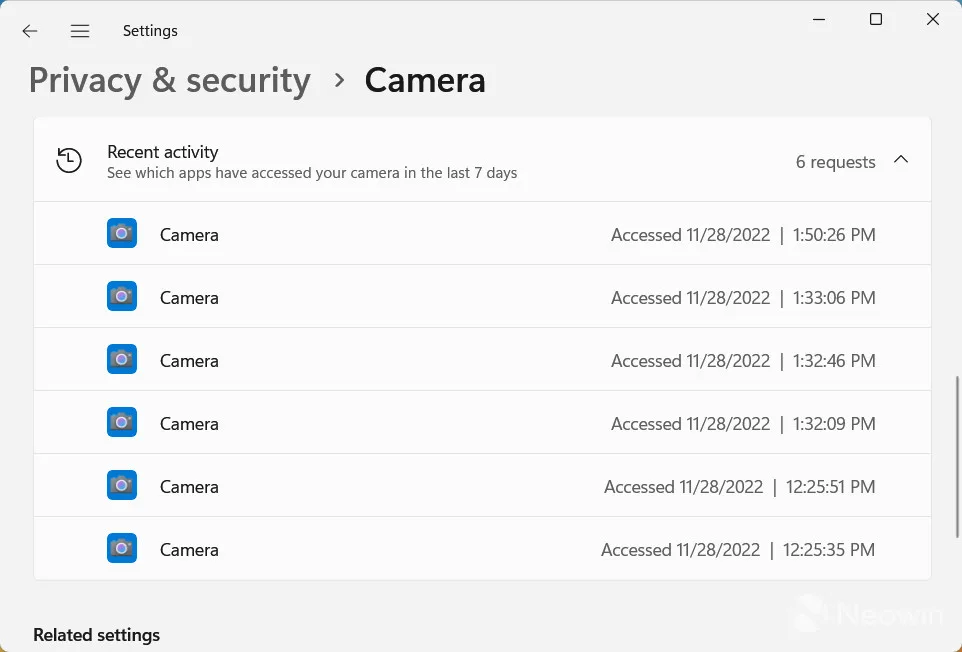
Image source: Web (Bing) / neowin.net (Web image (fair-use with source credit))
Step 2: Make Sure No Other App Is Using the Camera
OBS cannot share a camera. If you have Zoom, Discord, or a browser tab using the camera, OBS will see "no signal." Close all other apps. Then restart OBS.
Step 3: Try a Different USB Port
This sounds basic, but it works often. Some USB ports are on different controllers. Try a USB 2.0 port if you have one.
Avoid using a hub or extension cable.
Step 4: Update or Reinstall the Camera Driver
If the camera does not work in any app, this is the issue. Open Device Manager. Find Cameras or Imaging Devices.
Right click your camera and select Update driver. If that fails, uninstall the device and restart your computer.
These steps are similar to what you would do for other connection problems. Windows 11 is particularly strict with camera permissions. It is worth double checking even if you think you already did.
For more details, check the official Microsoft documentation on camera privacy settings.
Mac: The Permissions Wall (and How to Get Past It)
On macOS, the fix is usually straightforward. The operating system blocks apps from accessing the camera until you give permission.
Step 1: Grant OBS Camera Permission
- Open System Preferences or System Settings.
- Go to Privacy and Security, then Camera.
- Make sure OBS Studio is checked.
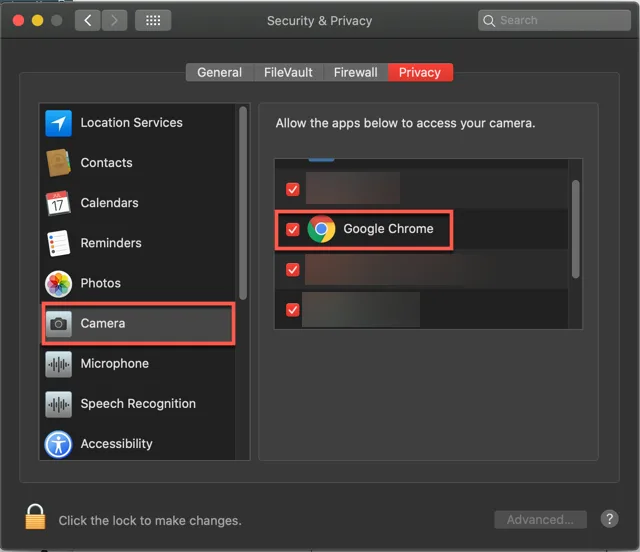
Image source: Web (Bing) / support.nebrwesleyan.edu (Web image (fair-use with source credit))
Step 2: The Camera in Use Trick
Sometimes macOS thinks the camera is in use by another process. A quick restart usually fixes this. But if you are in a hurry, open Activity Monitor.
Search for "camera" or "VDC." Force quit any process that looks like it is using the camera.
Open Activity Monitor from Applications then Utilities. Click the search bar in the top right. Type "camera" or "VDC." You might see a process called "VDCAssistant" or "AppleCamera." Select it and click the X button in the top left.
Choose Force Quit. Then restart OBS.
This is a common issue on macOS. Even after closing an app, the system might keep the camera locked. Activity Monitor is the best way to release it.
macOS Ventura and later have a different Settings layout. But the Camera section is still under Privacy and Security. Look for the camera icon.
If the issue persists, restart your Mac completely. Then open OBS first before any other app. This gives OBS priority access to the camera.
These steps are similar to what you would do for other permission problems. This is the most common Mac fix. It works for most users.
For more details, check the official Apple support page on camera permissions.
DSLR and Capture Card Users: A Different Set of Rules
Using a DSLR or mirrorless camera is different from a webcam. OBS does not support HDMI input directly. You need a capture card.
Common Capture Card Issues
- Wrong source type: In OBS, you add a Video Capture Device, not a Media Source or Window Capture.
- Driver not installed: Some cheap capture cards need drivers. Check the manufacturer's site.
- Camera not set to output video: Many DSLRs need to be set to Video Mode.
| Issue | Fix |
|---|---|
| Capture card not detected | Install driver, try different USB port |
| Black screen from DSLR | Turn off HDMI info display, check camera settings |
| No signal from capture card | Set camera to video mode, clean HDMI output |
Many DSLRs overlay information on the HDMI output. This includes battery life, shutter speed, and other settings. OBS cannot handle this overlay.
It results in a black screen. Look for "HDMI Info Display" in your camera settings and turn it off.
Not all capture cards are equal. Some are USB 2.0 only and cannot handle 1080p60. Check the specs before buying.
Elgato and AVerMedia are reliable brands. But even generic cards work if they use the UVC standard.
Check your camera manual for HDMI output settings. Some cameras need to be set to "Clean HDMI Output" or "HDMI Info Display Off." This is crucial for OBS to get a clean video signal. Capture cards need power.
Some USB ports don't provide enough. Use a powered USB hub if you see intermittent issues.
The most common mistake is adding the wrong source type. Make sure you select Video Capture Device, not Media Source. These steps are similar to what you would do for other recording issues.
If none of this works, the next section covers less common causes.
The "Everything Else" Checklist: Less Common Causes
If you have tried the above and still have no luck, try these less common fixes.
- OBS is running as administrator but should not be. Run it normally.
- Antivirus software is blocking OBS. Temporarily disable it to test.
- OBS is set to 60 FPS but your camera cannot do 60 FPS. Try 30 FPS.
- Resolution mismatch. Set it to "Use device default" or try 1080p.
- Delete and re-add the source. Sometimes OBS gets confused.
Running OBS as admin can break camera access. It is a known issue on Windows. Right click the OBS shortcut.
Select Properties. Go to the Compatibility tab. Make sure "Run this program as an administrator" is unchecked.
Then restart OBS.
Antivirus software can be overzealous. It might block OBS from accessing the camera. Check your antivirus software's blocked apps list.
Add OBS as an exception. Or temporarily disable the antivirus to test if that is the cause.
Frame rate and resolution mismatches cause black screens. The camera can't output what OBS is asking for. Open the Video Capture Device properties.
Set the FPS to 30. Set the resolution to "Use device default." If that works, you can try higher settings later.
Delete the Video Capture Device source. Close OBS. Open it again.
Add a new Video Capture Device source. This clears any cached data. The last resort is to restart your computer.
It sounds cliché. But it forces everything to release and reinitialize. It works for a lot of camera detection issues.
For more tips on fixing stubborn problems, check out this guide on offline camera issues.
Mistakes to Avoid When Fixing Your Camera in OBS
Some troubleshooting steps make things worse. Here are the mistakes to avoid.
Don't reinstall OBS right away. This is the most common mistake. People assume OBS is broken. But it is almost never the software.
The issue is permissions, hardware, or another app. Reinstalling OBS takes time and rarely fixes the problem.
Don't buy a new camera until you verify the issue. A black screen in OBS does not mean your camera is dead. Test it in another app first. If it works in Windows Camera or Photo Booth, the camera is fine.
The problem is between OBS and your operating system.
Don't ignore driver updates. Many people skip this step. But outdated drivers are a common cause. Check for updates for your camera, your capture card, and your USB controllers.
Windows Update often misses these. Check the manufacturer's website directly.
Don't use USB hubs or long extension cables. They can cause power loss or signal degradation. Plug your camera directly into the computer. If you must use a hub, make sure it is powered.
Passive hubs share power across all ports. This can cause intermittent camera detection.
Don't forget to check for OBS updates. OBS releases updates frequently. Some updates fix camera detection bugs. Check the Help menu in OBS for "Check for Updates." Keep your software current to avoid known issues.
Frequently Asked Questions
Why does my camera work in Zoom but not in OBS?
This is almost always a permissions issue. Windows and Mac allow Zoom but block OBS. Check your camera privacy settings.
Grant OBS permission to access the camera. Then restart OBS and try again.
How do I fix a black screen in OBS from my DSLR?
Turn off the HDMI info display on your camera. Many DSLRs overlay battery and settings info on the HDMI output. OBS cannot handle this.
Look for "HDMI Info Display" in your camera settings and set it to Off.
Can a bad USB cable cause OBS to not detect my camera?
Yes. A faulty or low quality USB cable can cause intermittent detection. Try a different cable.
Make sure it supports the data speed your camera needs. USB 3.0 cables are recommended for 1080p or higher webcams.
Why does OBS say "No signal detected" from my capture card?
The capture card is not receiving a clean video signal. Check that your camera is set to video mode. Make sure HDMI info display is off.
Try a different HDMI cable. If the issue persists, the capture card driver may need updating.
Should I run OBS as administrator to fix camera issues?
No. Running OBS as administrator can actually break camera access. It is a known issue on Windows.
Run OBS normally. Grant camera permissions through the Settings app instead.
How do I check if another app is using my camera on Windows?
Open the Camera app from Windows. If it shows your camera, another app is not using it. Alternatively, open Task Manager and look for processes using the camera.
Close any apps that have camera access. Then open OBS.

Similar Posts
































