Sony FDR-AX43A Troubleshooting
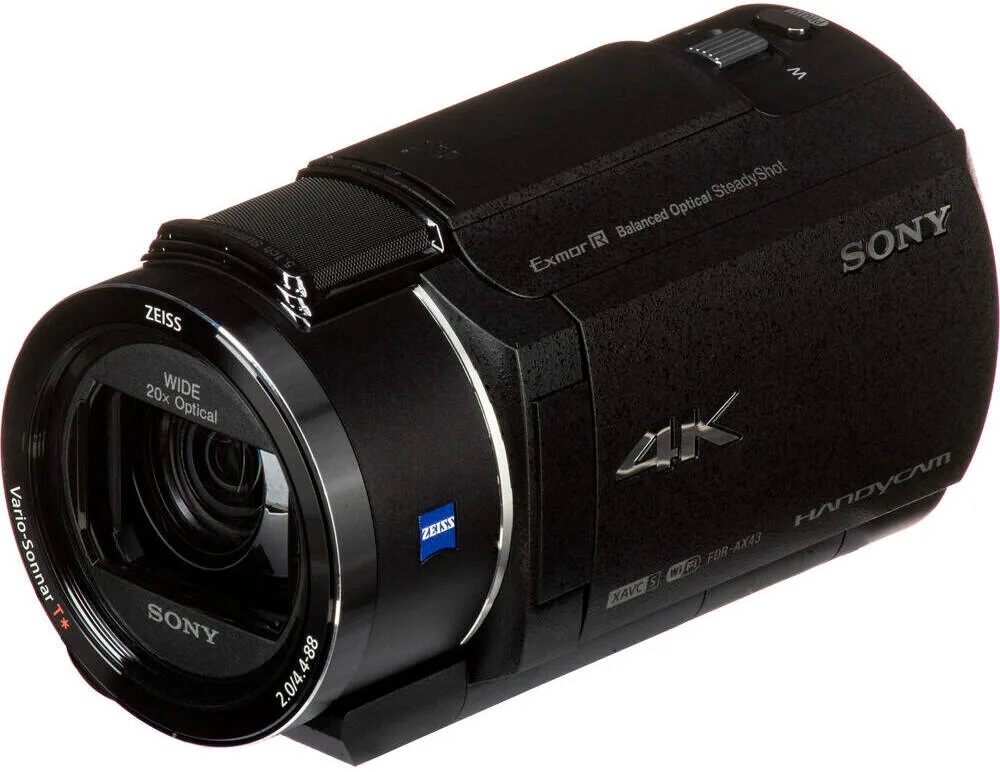
If your Sony FDR‑AX43A troubleshooting session has you staring at a black screen, a stuck lens, or a blinking battery light, you are not alone. This camcorder is a solid performer, but like any piece of electronics, it has a few known quirks. The good news is that most issues are easy to fix at home.
Per Sony's official specifications, the AX43A records 4K video at 30 frames per second using its Balanced Optical SteadyShot system. That is a lot of data and heat, which can trigger some of the problems we see. Here is how to diagnose what is happening and get back to recording.
Image source: Web (Bing) / oman.microless.com (Web image (fair-use with source credit))
Quick Answer
Sony FDR‑AX43A troubleshooting usually starts with the battery, the SD card, or the lens. Check the battery charge first. Try a different SD card if it won't record.
Do a hard reset by removing the battery and power. If the lens is stuck, do not force it. Visit Sony support for the latest firmware.
First, What Exactly Is Your Camcorder Doing (or Not Doing)?
Before you dig into fixes, identify the exact symptom. The approach changes depending on what you see.
If the camcorder won't turn on: The battery is likely dead or the charger is faulty. A stuck power button or a drained internal capacitor can also cause this. Check the battery charge indicator on the battery itself if it has one.
If the camcorder turns on but the lens is stuck, you have a lens error.
If the camcorder turns on but won't record: The SD card is probably full, locked, or incompatible. You might also have a corrupted file system. Try a different card formatted in the camcorder.
If the screen is black but the camcorder is on: The LCD might be set to the viewfinder or the screen brightness is turned all the way down. The lens cap could also be on. Check the display mode button.
If the camcorder overheats and shuts down: This is common in 4K mode, especially in hot weather. The thermal protection circuit kicks in to protect the sensor. Let it cool down for 30 minutes.
If you see an error code: Codes like C:13:01 mean a lens error. C:32:01 means a power supply issue. C:61:01 means an SD card problem.
Look up the exact code on Sony's support site.
The Most Common Fixes: A Quick Checklist for Power, Lens, and Card Issues
Most AX43A problems fall into one of three categories. Work through these steps in order.
Power and Battery
- Check the battery charge. The NP‑FV70 battery lasts about 2 hours in 4K. If it is dead, charge it with the official Sony AC‑L200C charger. A third-party charger may not work correctly.
- Do a hard reset. Remove the battery. Unplug the power adapter. Wait 30 seconds. Reinsert the battery and try again. This clears the internal capacitor.
- Check the charging LED. If the light is off when you plug the charger in, the battery may be worn out. Replace it with a new NP‑FV70 or the larger NP‑FV100A.
Lens Error
- Do not force the lens. If it is stuck, power off the camcorder, remove the battery, wait a minute, and try again. A gentle tap on the side can sometimes free a stuck gear.
- Clean the lens barrel. Dust or sand can jam the mechanism. Use a soft brush and compressed air.
- Try the reset button. Under the battery compartment, there is a small reset button. Press it with a paperclip. This often clears a lens error.
SD Card Not Recognized
- Use a compatible card. The AX43A accepts SD, SDHC, and SDXC cards. For 4K recording, use a UHS‑I U3 or V30 card. A slow card will cause recording errors.
- Format the card in the camcorder. Go to Menu > Setup > Format. Do not use a computer to format the card. The camcorder uses a specific file system.
- Check the lock switch. If the card has a lock switch on the side, make sure it is in the unlocked position.
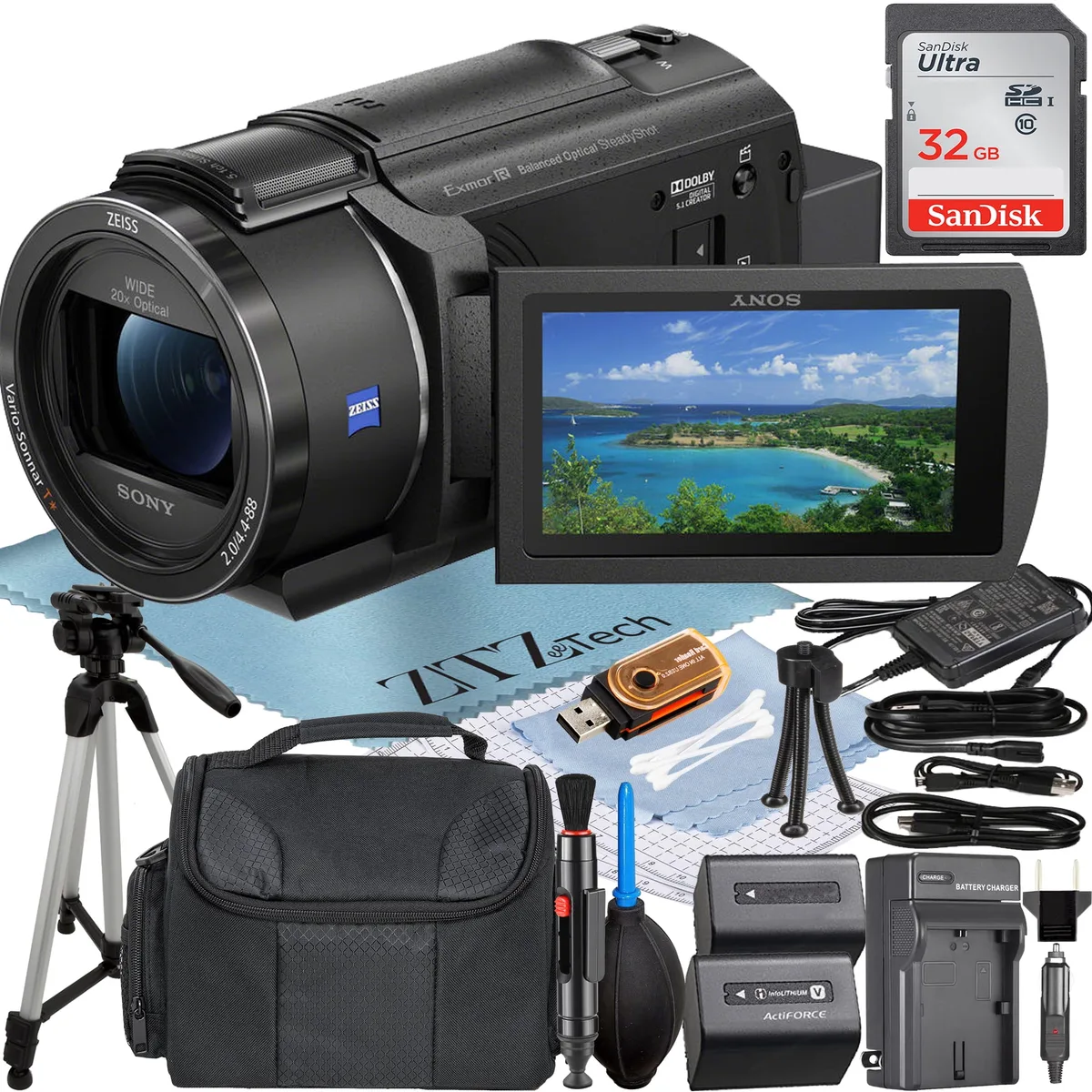
Image source: Bing (Web (fair-use with source credit))
Why Your Camcorder Overheats (and How to Stop It)
Overheating is the most common complaint with the AX43A, especially in 4K mode. The sensor and processor generate a lot of heat. The camcorder has a thermal sensor that shuts it down to prevent damage.
What triggers overheating:
- Recording 4K video for more than 20 minutes continuously.
- Using the camcorder in direct sunlight or temperatures above 35°C (95°F).
- Blocking the ventilation slots on the bottom and sides.
- Using the built‑in projector for extended periods.
How to prevent overheating:
- Record in 1080p mode. The camcorder runs much cooler at 1080p. If you do not need 4K, switch to 1080p.
- Use a lower bitrate. In the menu, select a lower video quality. This reduces processor load.
- Keep the camcorder out of direct sunlight. Use a shade or umbrella.
- Take breaks. Every 15 minutes, pause recording for a few minutes. Let the camcorder cool down.
- Remove the battery while charging. Charging while recording generates extra heat. Use an external power adapter instead.
If the camcorder shuts down, let it cool for at least 30 minutes. Do not put it in a refrigerator. Rapid cooling can cause condensation inside the lens.
Image source: Bing (Web (fair-use with source credit))
Other Frustrating Glitches: Wi-Fi, Sound, and the Projector
Wi-Fi Connection Issues
The AX43A has built‑in Wi‑Fi for remote control and file transfer. If it won't connect, try these steps:
- Reset the Wi‑Fi settings. Go to Menu > Wireless > Reset. Then set up the connection again.
- Update the Sony Imaging Edge Mobile app. The app must be up to date to work with the camcorder. Check your app store.
- Use the QR code. The camcorder generates a QR code on the screen. Scan it with the app. This is more reliable than manual entry.
- Check your router. The camcorder only works with 2.4 GHz networks. It does not support 5 GHz. Make sure your phone is on the same network.
No Sound or Distorted Audio
- Check the microphone input. If you have an external microphone plugged in, the camcorder uses that input. If the mic is faulty, you get no sound.
- Check the audio level settings. Go to Menu > Audio > Audio Level. Set it to manual and adjust the level. The auto setting can cause distortion.
- Clean the microphone port. Dust in the 3.5mm jack can cause crackling. Use a dry toothpick or compressed air.
- Check the internal microphone. Make sure the wind filter is not on. The wind filter reduces noise but can cut out voices.
Projector Not Working
The built‑in projector is a fun feature, but it can fail. If it won't turn on:
- Check the battery. The projector drains the battery quickly. Use a fully charged battery or plug into AC power.
- Check the lens cover. The projector has a small lens cover that must be removed.
- Check the input source. The projector only works in playback mode. It does not project a live image.
- Clean the projector lens. Dust can dim the output. Use a soft cloth.
The Biggest Mistakes People Make When Trying to Fix It
We see a few recurring errors in our research. Avoid these, and you will save yourself time and potential damage.
Forcing the lens. This is the number one mistake. If the lens is stuck, pushing it can strip the plastic gears. The repair cost is often more than the camcorder is worth.
Instead, do the hard reset and try the reset button. If that does not work, the lens assembly needs professional service.
Using the wrong charger. Third-party chargers can deliver the wrong voltage. This can damage the battery or the camcorder's power circuit. Stick with the Sony AC‑L200C or a certified equivalent.
Ignoring firmware updates. Sony releases firmware updates that fix bugs and improve stability. As of 2026, the latest version is 1.04. Check the Sony support site and update via SD card.
An outdated firmware can cause random shutdowns and Wi‑Fi issues.
Formatting the SD card on a computer. The camcorder uses a specific file system. Formatting on a PC or Mac can cause compatibility problems. Always format the card inside the camcorder.
When to give up and seek help. If the camcorder still does not turn on after a hard reset and a known good battery, the mainboard may be faulty. If the lens error persists after the reset button, the lens mechanism is likely damaged. If you see error code C:32:01, the power supply circuit is suspect.
In these cases, contact Sony support or an authorized repair center. Do not open the camcorder yourself. The internal components are delicate and hard to source.
How to Keep It Running Smoothly
A little regular care prevents most of the common issues. The AX43A is a precision tool, but it does not need much fuss.
Store it properly. Keep the camcorder in a cool, dry place. Heat and humidity cause the most damage. Use a camera bag with a silica gel pack to absorb moisture.
Remove the battery for long storage. Lithium‑ion batteries degrade faster when kept fully charged. Store the battery at about 50% charge. Check it every few months.
Clean the lens the right way. Use a microfiber cloth and a blower brush. Do not use cleaning solutions. They can strip the lens coating.
A dirty lens can cause autofocus issues.
Keep the firmware up to date. Sony releases updates that fix bugs and improve stability. As of 2026, the latest version is 1.04. Check the Sony support site every few months.
An outdated firmware can cause random shutdowns.
Use a high‑quality SD card. A slow or incompatible card causes recording errors. Stick with UHS‑I U3 or V30 cards. Format the card in the camcorder, not on a computer.
Keep the ventilation slots clear. Do not block the bottom or sides of the camcorder. This is especially important when using the projector. Overheating is often caused by blocked airflow.
Frequently Asked Questions
How do I reset my Sony FDR‑AX43A?
Remove the battery and the power adapter. Wait 30 seconds. Put the battery back in.
If that does not work, press the small reset button under the battery compartment with a paperclip.
Why does my camcorder show error C:13:01?
That is a lens error. The lens is stuck or the mechanism is jammed. Try a hard reset and the reset button first.
Do not force the lens. If it persists, the camcorder needs professional service.
What SD card should I use for 4K recording?
Use a UHS‑I U3 or V30 card. A 64GB or 128GB card is a good size. Cards slower than U3 cause recording errors and dropped frames.
My camcorder will not turn on. What should I do?
Check the battery charge first. If it is dead, charge it with the official Sony charger. If the battery is charged, do a hard reset by removing the battery for 30 seconds.
If it still does not turn on, the mainboard may be faulty.
How can I stop my camcorder from overheating?
Record in 1080p mode instead of 4K. Keep the camcorder out of direct sunlight. Take breaks every 15 minutes.
Use an external power adapter to avoid charging while recording.
Can I fix the lens myself?
No. The lens assembly is a precision part. Opening the camcorder voids the warranty and can cause more damage.
Contact Sony support or an authorized repair center.
Here's What to Do Next
Troubleshooting your AX43A is mostly about checking the basics first. Start with the battery. Try a different SD card.
Do the hard reset. If the lens is stuck, use the reset button and do not force it.
If you are still stuck, the issue is likely hardware related. Contact Sony support or take it to a local repair shop. For other common gadget problems, you might find our guide on fixing a camera that won't connect to Wi‑Fi helpful.
Or if you are dealing with a camcorder that stops recording, we have covered that too.
The AX43A is a reliable camcorder when it is working right. With the right care and a bit of patience, you can solve most issues yourself.

Similar Posts
































