Ring Floodlight Cam Motion Detection Problems
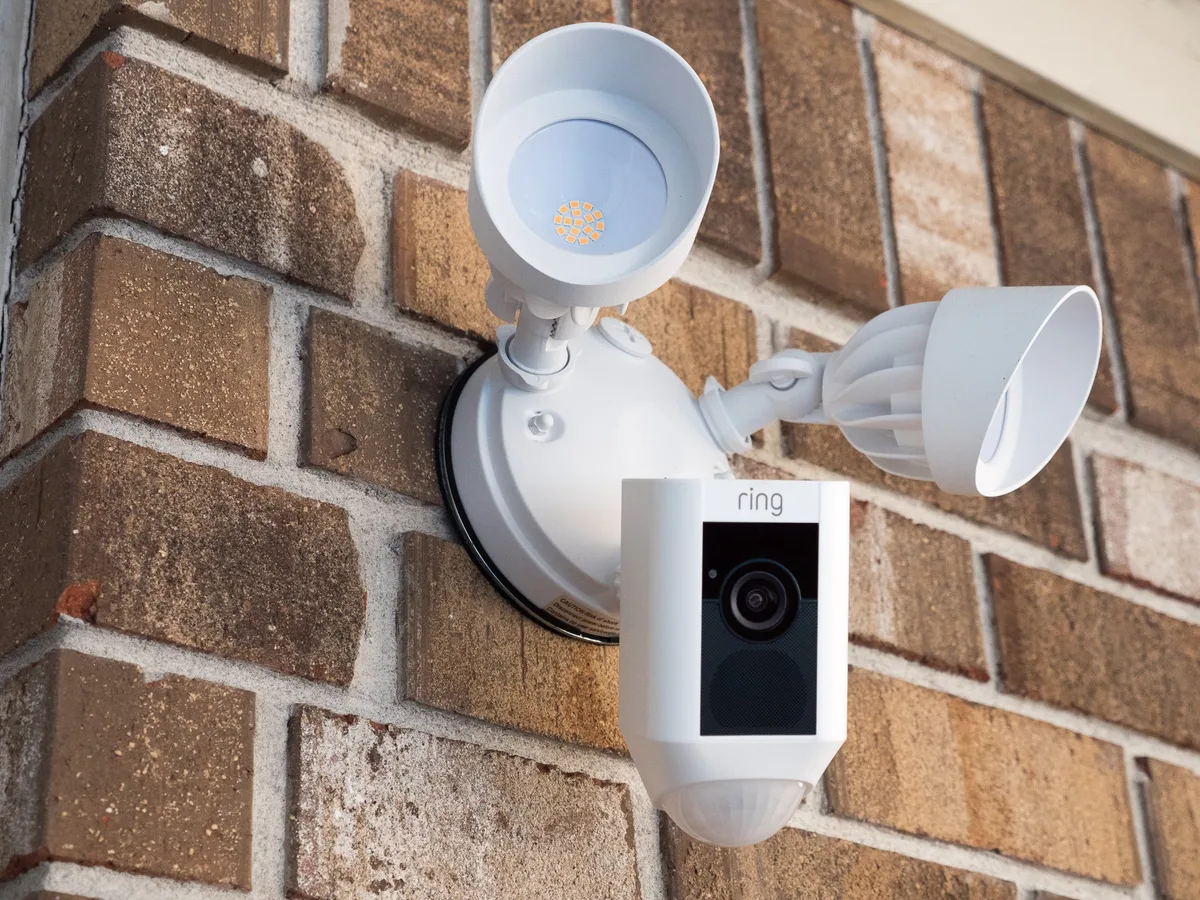
Ring Floodlight Cam motion detection problems can turn a smart security camera into a constant frustration. You get alerts for every passing car or swaying branch. Or worse, the camera misses actual intruders entirely.
These issues usually come from three root causes: placement, sensitivity settings, and Wi-Fi signal strength.
Per manufacturer specifications, the PIR sensor detects heat signatures up to 30 feet across a 140-degree horizontal field. Real-world conditions like wind, heat sources, and network interference change everything. Let's walk through what your camera is actually doing wrong and how to fix it.
Quick Answer
Ring Floodlight Cam motion detection problems fall into three types. Your camera triggers too often. It misses events.
Or alerts arrive late. Fix placement first. Then adjust sensitivity and motion zones.
Finally, check your Wi-Fi signal in the Ring app.
Image source: Bing (Web (fair-use with source credit))
Start Here: What's Your Camera Doing Wrong?
Identify your specific problem first. Ring Floodlight Cam issues fall into three categories. Your camera triggers on everything.
Wind, bugs, cars, shadows. Or your camera misses people and deliveries. You find out about visitors from their knock, not your phone.
Or your notifications arrive minutes too late.
Each category has different causes and different fixes. Guessing and tweaking random settings rarely works. You need to target the right root cause.
Try this quick test. Walk in front of your camera from 20 feet away. Did the light turn on before you reached the midpoint?
Did your phone buzz within five seconds? If the light triggered but the phone did not, your motion detection works but your network is slow. If neither triggered, your sensor placement or sensitivity is the issue.
The Ring app gives you tools to diagnose each problem. The Device Health section shows your RSSI signal strength. The Motion Wizard lets you test detection in real time.
If your camera catches every breeze and bug, go to Branch One. If it misses events you want to see, skip to Branch Two. If alerts are late or never come, Branch Three is for you.
If you want a complete step by step from start to finish, jump to the Pro Troubleshooting Walkthrough.
Branch One: Your Ring Floodlight Catches Every Breeze and Bug
False triggers are the most common issue. Your floodlight fires up for leaves, cars, bugs, or shadows. The PIR sensor detects heat and movement from sources you do not care about.
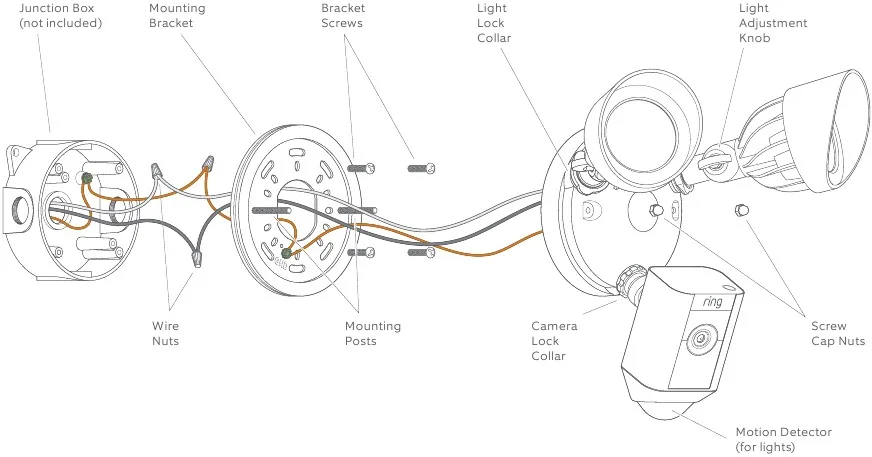
Image source: Bing (Web (fair-use with source credit))
Start with placement. Point your camera away from streets, trees, and bushes. A camera facing a road triggers on every car.
One pointing at a tree activates in the wind. The ideal angle is 45 degrees downward, focused on your walkway or porch.
Heat sources cause false triggers too. Sun hitting a metal surface creates heat bloom. Air conditioning units, car exhaust, and dark roofing do the same.
The PIR sensor reads these temperature changes as motion.
Custom motion zones solve most of these. Open the Ring app and tap your Floodlight Cam. Go to Motion Settings and select Motion Zones.
Draw zones that exclude the street, trees, and heat sources. Keep the zone tight around the area you want to watch.
Set sensitivity to medium to start. Lower it if false triggers continue. Test with a walk-by.
Repeat until you get reliable detection without the noise.
Branch Two: Your Camera Misses People, Cars, or Deliveries
Your camera should catch every visitor and delivery driver. When it does not, the problem is usually angle, sensitivity, or zone placement.
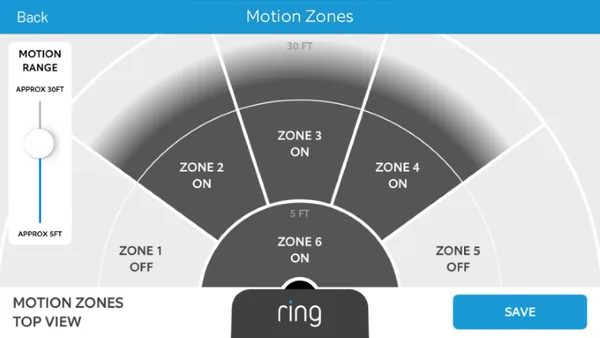
Image source: Bing (Web (fair-use with source credit))
Angle is the most common culprit. If your camera points too high, it misses people close to the door. The PIR sensor has a 140-degree horizontal field but a narrower vertical range.
Point it downward at about 45 degrees. The sensor should see a person from head to toe at the base of your steps.
Sensitivity might be too low. Open the Ring app and go to Motion Settings. Move the sensitivity slider up one notch at a time.
Test by walking across the detection area. The goal is reliable detection without constant false triggers.
Motion zones can block detection unintentionally. Check your custom zones in the Ring app. Make sure they cover the full area you want monitored.
A zone that ends five feet from your door means the sensor stops detecting there.
Firmware updates sometimes change behavior. As of 2026, Ring has released several firmware patches that improved motion detection. Check for updates in the Ring app under Device Settings.
Having the latest version matters.
Also check the sensor lens for dirt or spider webs. A dirty lens can reduce detection range. Clean it with a microfiber cloth and check again.
Branch Three: Your Notifications Are Late or Never Come
Delayed alerts are almost always a Wi-Fi problem. Your camera detects motion fine. The lights turn on.
But the notification arrives 30 seconds later or never shows up.
Open the Ring app and go to Device Health. Check your RSSI signal strength. RSSI between -40 and -60 dBm is excellent.
Between -60 and -70 dBm is okay but might cause delays. Below -70 dBm means weak signal and frequent delays.
Your upload speed matters. Ring recommends at least 2 Mbps upload speed for real time alerts. You can test your speed at the camera's location using the Ring app's test feature.
The 2.4 GHz band reaches farther than 5 GHz. If your camera connects to 5 GHz, switch it to 2.4 GHz in your router settings. The lower frequency penetrates walls better and maintains a more stable connection.
Device placement affects signal. If your router is in the basement and the camera is on the second floor, expect problems. A Ring Chime Pro acts as a Wi-Fi extender and can boost signal to the camera.
Power cycle your router and camera every few months. Unplug both for 30 seconds. Let them reboot fully.
This clears temporary network glitches.
For persistent issues, check your Ring app notification settings. Make sure alerts are enabled for the specific motion type you want. Disable snooze mode if it is active.
Pro Troubleshooting Walkthrough (Step-by-Step Workflow)
This workflow covers all three problem types in one go. Follow it in order. Each step eliminates one possible cause.
| Step | Action | Expected Result |
|---|---|---|
| 1 | Check RSSI in Device Health | -60 dBm or better |
| 2 | Clean sensor lens with microfiber cloth | No debris blocking view |
| 3 | Adjust camera to 45 degree downward angle | Full coverage of entry area |
| 4 | Set sensitivity to medium (50%) | Balanced detection |
| 5 | Create custom motion zones | Exclude street, trees, heat sources |
| 6 | Run Motion Wizard test | Confirms detection works |
| 7 | Check firmware update in app | Latest version installed |
| 8 | Power cycle camera and router | Clears network glitches |
| 9 | Test with walk-by at 20 feet | Alert within 5 seconds |
Start with step 1. A weak signal means nothing else will work reliably. The camera needs a solid network connection to send alerts.
Step 2 is often overlooked. A single spider web can block the PIR sensor completely. Clean the lens regularly, especially during warmer months when insects are active.
Steps 3 through 5 handle the most common causes. Angle, sensitivity, and zone placement fix 80 percent of motion detection problems. Take your time with the Motion Wizard test.
Step 8 is your reset. Power cycling clears temporary issues without losing your settings. Do this last after checking everything else.
If you finish step 9 and still have problems, contact Ring support through the app. Some hardware defects cause persistent issues that software cannot fix. For more details, check Ring's official support resources at help.ring.com.
Common Mistakes That Keep Your Motion Detection Broken
Even after following the right steps, some mistakes creep back in. Here are the ones we see most often.
Installing too high
Mounting the Floodlight Cam above eight feet seems like good security. It is not. The PIR sensor has a narrow vertical field.
At ten feet, it misses the top of a person's head until they are right under the camera. The sweet spot is seven to eight feet. That gives you full body detection from fifteen feet away.
Pointing the camera at reflective surfaces
Windows, metal doors, and glossy siding reflect heat. The PIR sensor interprets these reflections as motion. You get false triggers at certain times of day.
Reposition the camera so it does not face any reflective surface directly.
Forgetting seasonal changes
Leaves grow in spring and fall off in autumn. A branch that was harmless in March triggers alerts in July. Review your motion zones every season.
Trim back foliage that grows into the detection area.
Using the wrong Wi-Fi band
Many routers use the same SSID for 2.4 GHz and 5 GHz. Your camera might connect to 5 GHz by default. That band has shorter range and struggles through exterior walls.
Check which band your camera uses in the Ring app. If it shows 5 GHz, split your SSID or move the camera closer to the router.
Ignoring firmware updates
Ring releases firmware patches that fix motion detection bugs. Aggregate user reports show that some updates specifically improved false trigger filtering. Check for updates in the app every few months.
An outdated camera behaves unpredictably.
Quick-Reference Decision Guide
This table helps you pick the right fix for your specific symptom.
| What your camera does | Most likely cause | Try this first |
|---|---|---|
| Triggers on cars passing | Camera faces the street | Redraw motion zones to exclude the road |
| Triggers on trees or bushes | Wind moves foliage into view | Trim branches or lower sensitivity |
| Misses people at the door | Angle too high | Tilt camera down to 45 degrees |
| Misses deliveries at ground level | Sensor blind spot near base | Adjust angle to cover the full step area |
| Notifications arrive 30+ seconds late | Weak Wi-Fi signal | Check RSSI in Device Health |
| No notifications at all | App permission or snooze mode | Verify Ring app notifications are enabled |
| Triggers only at night | Heat sources like AC units | Reposition camera away from vents or metal |
| Triggers only in morning | Sun hits reflective surface | Move camera or block the reflection |
If your symptom is not in this table, run the full Pro Troubleshooting Walkthrough. That covers every common issue in order.
Frequently Asked Questions
How do I stop my Ring Floodlight Cam from triggering on every car?
Draw custom motion zones that exclude the street. Open the Ring app, tap Motion Settings, and select Motion Zones. Keep the zone tight around your walkway or driveway.
Lower sensitivity to 40 percent and test with a walk-by.
Why does my Ring Floodlight Cam miss people walking toward the door?
The camera is likely mounted too high or tilted too far upward. Adjust the angle to about 45 degrees downward. The PIR sensor needs to see a person from head to toe.
Test by walking from the street to your door.
Does temperature affect Ring Floodlight Cam motion detection?
Yes. Extreme heat and cold change how the PIR sensor reads temperature differences. False triggers increase on hot days when surfaces radiate heat.
Missed events happen in freezing weather when body heat contrasts less. These are normal limitations of passive infrared technology.
How often should I clean my Ring Floodlight Cam sensor?
Clean the sensor lens every two to four weeks during warm months. Spider webs, dust, and pollen build up quickly outdoors. Use a dry microfiber cloth.
Never use liquids or cleaners that could leave residue.
Can a weak Wi-Fi signal cause missed motion alerts?
Absolutely. The camera detects motion locally but needs Wi-Fi to send the alert. If your RSSI is below -70 dBm, notifications arrive late or not at all.
Improve signal by moving your router closer or adding a Ring Chime Pro as an extender.
Should I reset my Ring Floodlight Cam if motion detection stops working?
Try a power cycle first. Turn off the breaker for 30 seconds and turn it back on. If that does not help, check firmware and run the Motion Wizard.
A factory reset is the last resort. It erases all your motion zones and custom settings.

Similar Posts
































