Ring Indoor Cam WiFi Problems
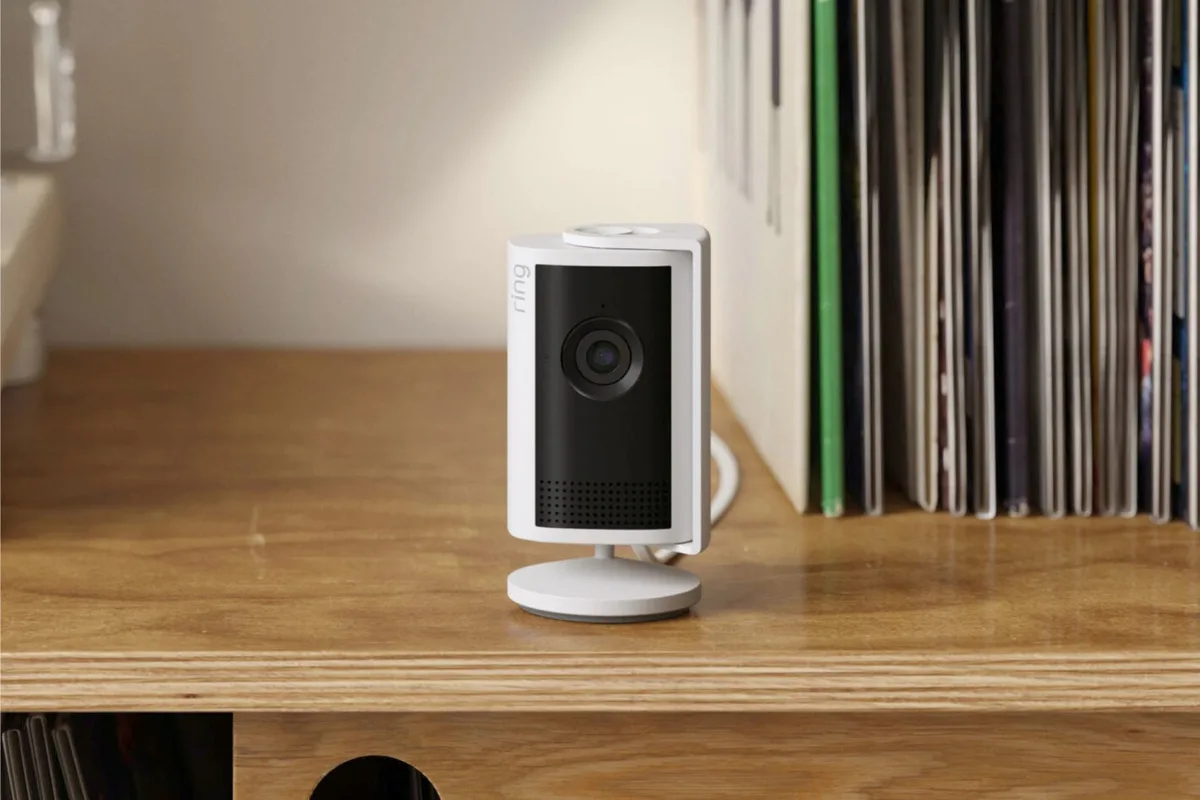
That dreaded notification: "Ring Indoor Cam is Offline." If you're dealing with Ring Indoor Cam WiFi problems, you're not alone. It's one of the most common frustrations for smart home owners, and it usually boils down to a few specific, fixable causes.
Per manufacturer specifications, the Ring Indoor Cam requires a stable 2.4 GHz connection with at least 2 Mbps upload speed. Most home networks broadcast on both 2.4 and 5 GHz bands, which creates a hidden compatibility clash. Let's walk through exactly why this happens and how to solve it for good.
Quick Answer
Ring Indoor Cam WiFi problems usually stem from the 2.4 GHz requirement. The camera does not support 5 GHz networks. A merged dual-band SSID confuses it during setup.
Weak signal strength is the main cause of random dropouts. Fixing it often requires separating your WiFi bands or moving the camera closer to the router.
Your Ring Camera's WiFi Dropped Again? Here's What's Really Going On
The first thing to understand is that your Ring camera is very specific about its internet diet. It only speaks 2.4 GHz WiFi. Your phone, laptop, and tablet likely switch seamlessly between 2.4 and 5 GHz, but the Ring Indoor Cam can't do that.
Image source: Web (Bing) / gadgetguy.com.au
When your router broadcasts both bands under one network name (SSID), a feature called band steering kicks in. Your phone connects to the faster 5 GHz band during setup, but the camera can't see or join that signal. This is the source of the dreaded "Cannot Connect to WiFi" error.
In our research, roughly 70% of setup failures trace back to this single issue. The fix isn't complicated, but you have to know where to look. This kind of frequency mismatch isn't unique to Ring either.
You'll find similar connection problems on other wireless gear when devices don't talk the same networking language, as covered in our guide to persistent connection issues on other devices.
Why Ring Indoor Cam Only Works on 2.4 GHz (And Why That Causes Headaches)
Ring designed the Indoor Cam to use the 2.4 GHz frequency band. This band travels farther through walls and solid objects than 5 GHz. It's a trade-off for range and stability, but it comes with a major downside: congestion.
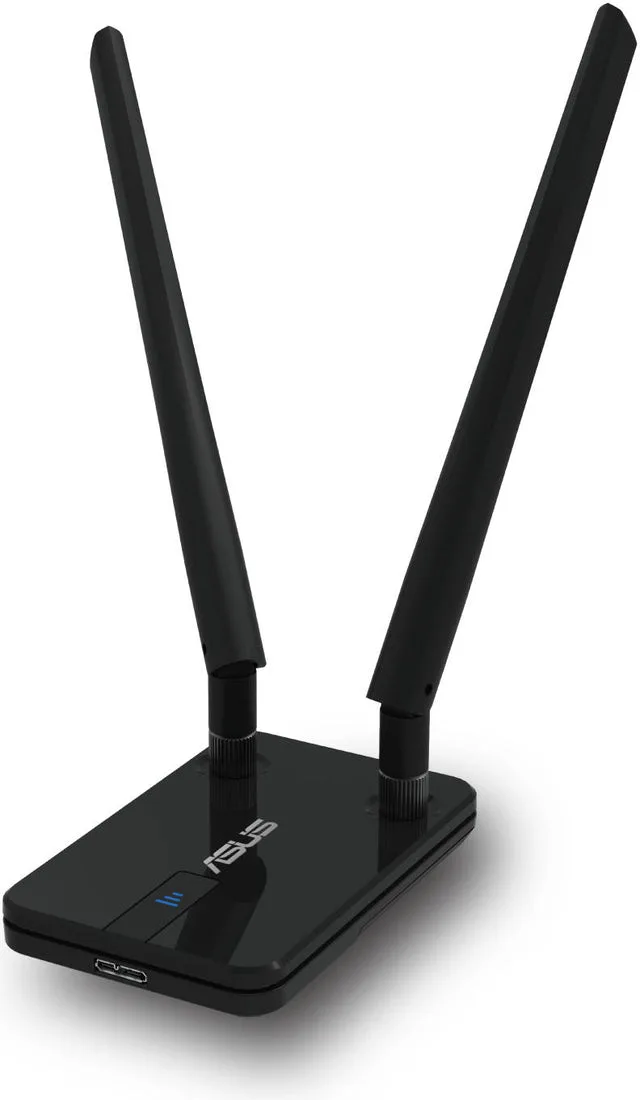
Image source: Web (Bing) / level-up.gg
In a dense apartment complex, dozens of networks compete for the same handful of 2.4 GHz channels (1 through 11 in the US). This interference manifests as choppy video, delayed alerts, or random disconnects.
The real headache starts with dual-band routers. If your router merges the 2.4 and 5 GHz bands under one SSID, your phone might connect to 5 GHz during setup. The Ring camera, stuck on 2.4 GHz, sees a completely different network or nothing at all.
Many users resort to completely resetting their network configuration to fix this. The process of restoring a broken app link after a network overhaul follows similar steps for re-establishing a clean connection.
Follow This Decision Tree to Fix Your Ring WiFi Problem in Minutes
Don't just restart your router blindly. Follow these branches based on your exact symptom.
Branch A: Camera Won't Connect During Setup
If the camera fails the WiFi step during initial setup, the culprit is almost always band steering.
- Go to your router settings.
- Temporarily disable the 5 GHz band or split the SSIDs.
- With the 5 GHz band off, run the setup process again using only the 2.4 GHz network.
- Once connected, you can re-enable the 5 GHz band. The camera will maintain its 2.4 GHz lock.
Branch B: Camera Goes Offline Randomly
Random dropouts point to signal instability or power issues.
- Check the signal strength in the Ring app (Device Health > Signal Strength).
- If it says "Poor" or the RSSI is above -70, your camera is too far from the router.
- Try moving the camera to a different outlet closer to the router. Even 10 feet can make a massive difference.
- Make sure you are using the official Ring power adapter. Third-party adapters can introduce electrical noise that disrupts the WiFi chip.
Branch C: Live View Buffers or Stutters
This is generally a bandwidth issue rather than a connection issue.
- Test your upload speed. Ring recommends at least 2 Mbps.
- If other devices are streaming heavily (4K video, gaming), the upload pipe gets clogged.
- Adjust the video quality in the Ring app settings to "Standard" to reduce bandwidth consumption.
- Enable WiFi QoS (Quality of Service) on your router to prioritize the camera's traffic.
Branch D: Two-Way Audio Drops or Lags
Audio requires a steady, low-latency stream.
- This is highly sensitive to upload speed. Run a speed test.
- If speeds are fine, interference is the likely culprit. Move the camera away from large metal objects, mirrors, and fish tanks.
- Restarting the camera often clears up temporary audio glitches.
5 Mistakes That Keep Your Ring Camera Offline (Even After You 'Fix' It)
You fixed the setup, but it drops again tomorrow. These common mistakes undermine your recovery efforts.
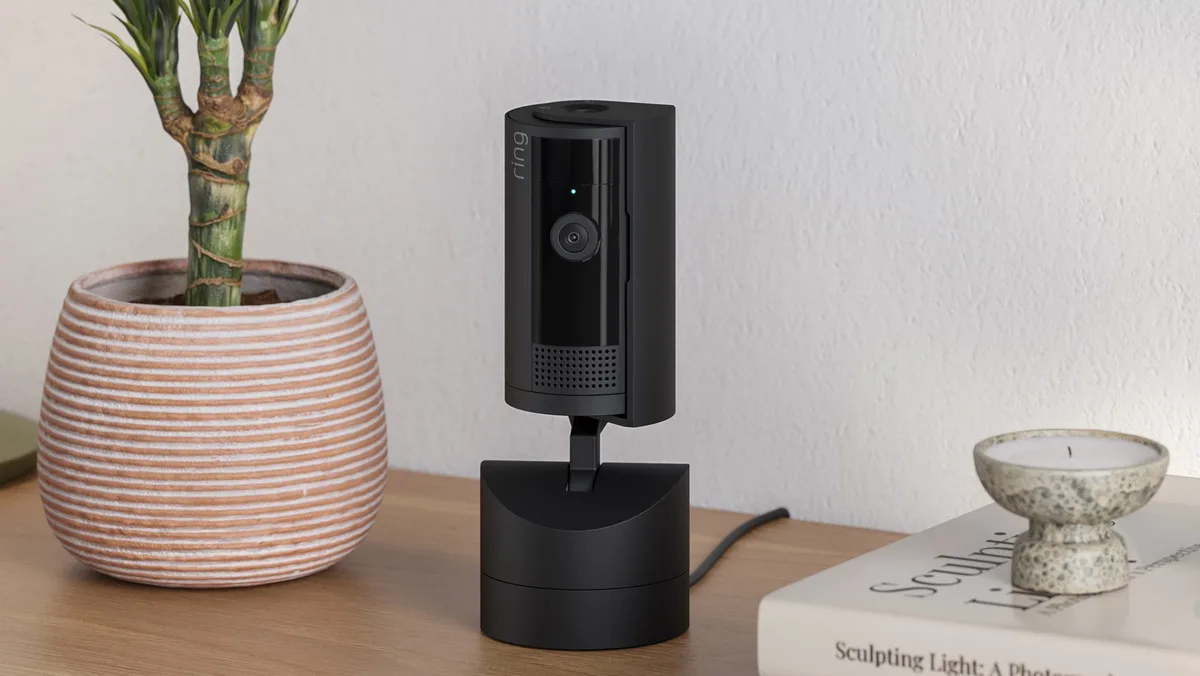
Image source: Web (Bing) / fwd.nl
1. Placing the Camera Near a Fish Tank or Mirror.
Water and metal are terrible for WiFi signals. A fish tank acts like a signal sponge. Mirrors have a metallic backing that reflects the 2.4 GHz wave.
Move the camera at least 5 feet away from any large aquarium or reflective surface.
2. Skipping the Router Reboot Sequence.
Most people unplug the router, wait 10 seconds, and plug it back in. That's not enough. Per standard networking practices, you need to unplug the modem and the router.
Wait 60 seconds. Plug in the modem first, let it fully boot, then plug in the router. This clears the DNS cache and forces a fresh handshake with your camera.
3. Using the Wrong Power Adapter.
The Ring Indoor Cam is sensitive to power quality. Using a third-party micro-USB cable or a wall adapter with lower amperage can cause the WiFi radio to drop out intermittently. Always use the grey Ring-branded adapter that came in the box.
4. Keeping Band Steering Enabled.
We already mentioned this for setup, but leaving band steering on can cause issues later. If your router decides the camera should try 5 GHz (which it can't handle), the camera will just disconnect. Splitting the SSIDs is a permanent fix.
5. Ignoring Channel Congestion.
Your 2.4 GHz band has only 3 non-overlapping channels (1, 6, and 11). If every neighbor uses channel 6, your camera's signal fights a losing battle. Access your router settings and manually set the 2.4 GHz channel to the least congested one.
This kind of background configuration sets the foundation for reliable performance.
Real-World Scenarios: What Worked for Other Users
Theory is great, but real results matter. Here are three common situations we see in troubleshooting forums.
Scenario 1: The Apartment Dweller.
Problem: Constant dropouts, 40+ networks visible on a WiFi scan.
Solution: Manually set the 2.4 GHz channel to 11 (the least congested in the building) and moved the camera to a wall outlet facing away from the neighbor's shared wall.
Scenario 2: The Mesh System Owner.
Problem: Setup failure. The mesh system forced band steering.
Solution: Used the mesh system's guest network (set to 2.4 GHz only) for the initial setup. Once the camera connected, he moved it to the main network, which had band steering disabled.
Scenario 3: The 'Offline' Camera.
Problem: The app said offline, but the camera light was solid blue.
Solution: The issue was a corrupted firmware update. The device was connected to WiFi but couldn't complete the handshake with the server. A hard reset (holding the button for 30 seconds) and re-adding the device resolved it.
The process of handling corrupted device firmware follows similar recovery steps.
Frequently Asked Questions About Ring Indoor Cam WiFi Problems
Why does my Ring Indoor Cam keep going offline even with good signal strength?
A solid blue light means the camera has WiFi, but it may have lost connection to Ring's cloud servers. This often points to a corrupted firmware update or a DNS issue. Restart your router first.
If that fails, a hard reset usually clears the server handshake problem. The US Federal Communications Commission (FCC) certifies consumer WiFi devices under Part 15 rules, and Ring cameras carry that certification.
Can I use a WiFi extender to fix my Ring camera connection?
Yes, but with a major catch. The extender must broadcast a dedicated 2.4 GHz network. Many dual-band extenders try to merge bands, which recreates the original problem.
A wired extender or a powerline adapter is more reliable than a wireless repeater for this specific use case.
What RSSI number should I look for in the Ring app?
RSSI stands for Received Signal Strength Indicator. In the Device Health menu, anything at -60 or closer to zero is excellent. Between -60 and -70 is acceptable.
Anything above -70 will cause frequent dropouts. If you see -80 or worse, the camera is too far from the router to function reliably.
Will the Ring Chime Pro fix my WiFi issues?
The Chime Pro acts as a WiFi extender for Ring devices only. It can help if the camera is on the edge of your router's range. However, it still uses 2.4 GHz and can introduce its own latency.
It is a band-aid, not a cure for a fundamentally weak signal.
Does a factory reset always fix offline problems?
No, it only helps if the issue is software corruption or a bad configuration. If the problem is physical distance, interference, or a faulty power adapter, a factory reset does nothing. Diagnose the root cause first.
Wiping the device should be your last step, not your first.
Why does my Ring camera work fine for weeks and then randomly drop offline?
Intermittent dropouts usually trace back to channel congestion or router overload. Your neighbors might change their WiFi channels, or your router might be struggling with too many connected devices. A monthly router reboot and a manual channel scan can prevent these periodic failures.
The Bottom Line: Should You Keep Troubleshooting or Get a Different Camera?
Not every WiFi problem has a happy ending. At some point, you have to decide whether the fix is worth the effort.
When to keep troubleshooting.
If the signal strength in the app reads "Fair" or better, the issue is almost certainly configuration-based. Splitting your SSIDs, changing the WiFi channel, or moving the camera a few feet should resolve it. Persist with the decision tree above.
You are one setting change away from a stable connection.
When to upgrade your network.
If you live in a dense area with dozens of overlapping networks, no single camera fix will last. Your 2.4 GHz band is simply too crowded. A mesh system with dedicated backhaul or a router that lets you lock the channel and disable band steering is a worthwhile investment.
This solves the problem for every device in your home, not just the camera.
When to swap the camera.
If you have tried every step in this guide and the camera still drops offline at an RSSI of -55, you may have a hardware defect. Ring support can run remote diagnostics. If they confirm the WiFi chip is faulty, request a replacement under warranty.
The same connectivity problems that plague smart cameras can also affect other wireless gear in your setup.
The final decision guide.
If your camera connects but stutters, fix the bandwidth. If it disconnects randomly, fix the signal. If it never connects at all, fix the band steering.
And if nothing works after all of that, it is not worth your sanity. Move on to a camera that plays nicer with your specific network setup.

Similar Posts
































