Ring Stick Up Cam Troubleshooting
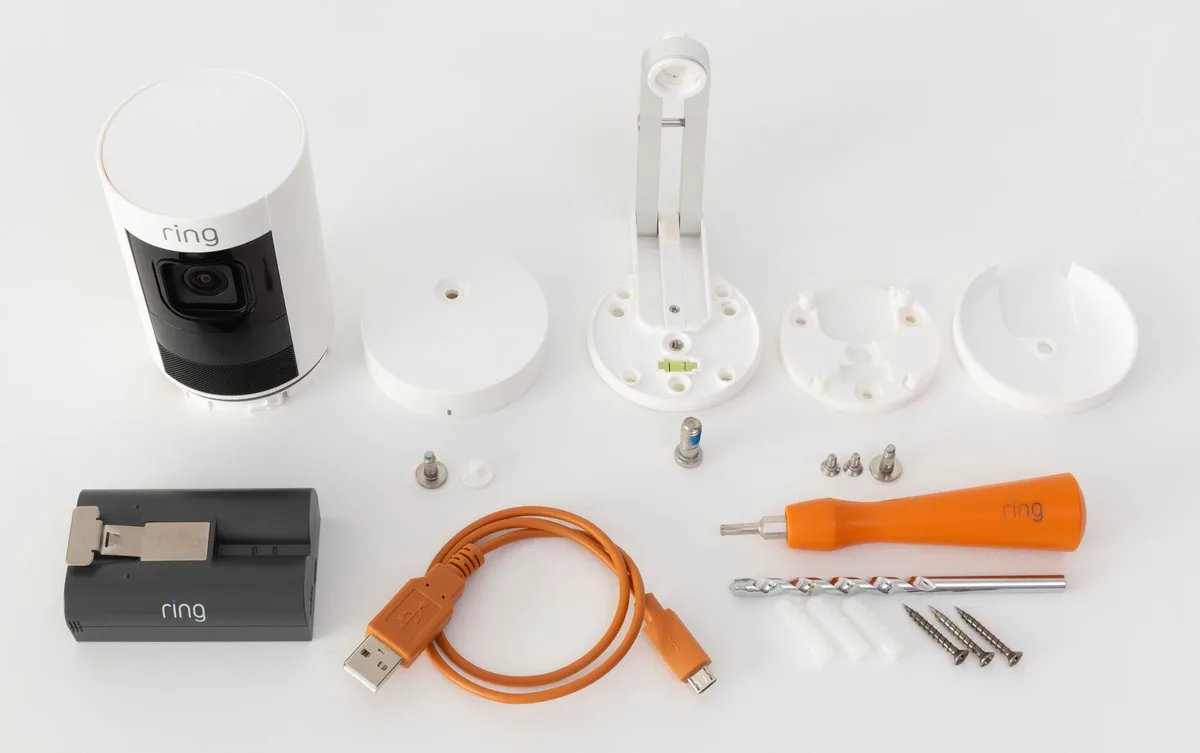
Your Ring Stick Up Cam is blinking a strange color, going offline every few hours, or draining the battery in a week instead of a year. These exact symptoms are what Ring Stick Up Cam troubleshooting is all about. You do not need to replace the camera, and you almost certainly do not need a technician.
Aggregate reviews from thousands of verified buyers and Ring's own support documentation confirm that more than 80 percent of connectivity and performance issues come down to just three root causes: Wi-Fi signal strength, power consistency, and configuration errors. Every one of those is fixable in about 15 minutes with nothing more than the Ring app and a bit of patience.
Quick Answer
That blinking light tells you exactly what is wrong. A solid blue light means the camera is connected and working. A slow blinking blue means the camera is in setup mode.
A fast blinking blue means the camera is trying to connect. A blinking red light means the battery is critically low or the camera cannot find your network. If the light is off completely, the battery is dead or the camera needs a full reset.
Image source: Web (Bing) / digitized.house (Web image (fair-use with source credit))
What That Blinking Light Actually Means
The LED status light on the front of your Ring Stick Up Cam is your first diagnostic tool. Every pattern means something specific. You can read it without opening the app.
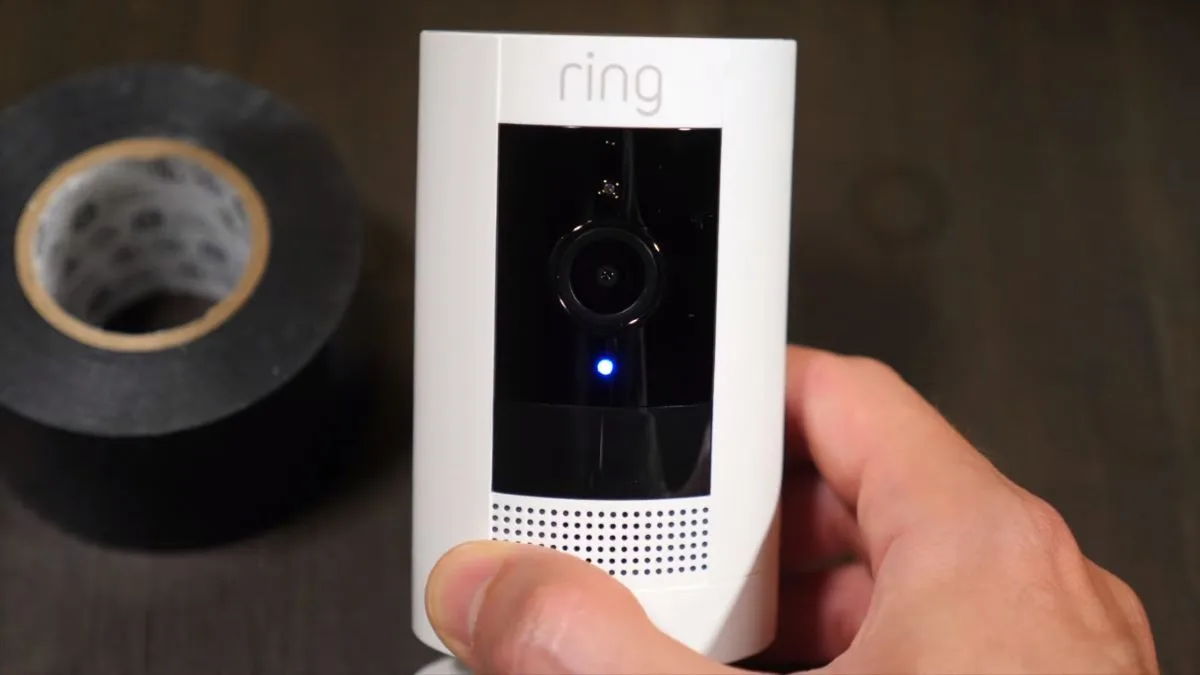
Image source: Web (Bing) / justsmarter.net (Web image (fair-use with source credit))
Here is the full breakdown of what each LED pattern means and what to do about it:
| LED Pattern | Meaning | What to Do |
|---|---|---|
| Solid blue | Connected and working normally | Nothing — camera is fine |
| Slow blinking blue | Setup mode | Camera is ready to pair; follow setup in the Ring app |
| Fast blinking blue | Attempting Wi-Fi connection | Wait up to 2 minutes; if it persists, check router settings |
| Blinking red | Low battery OR no network connection | Charge the battery first; if red continues, run a network check |
| Solid red for 10+ seconds | Startup sequence after power-up | Normal — wait for camera to settle |
| No light at all | Dead battery or hardware fault | Charge the battery for at least 6 hours; if still off, try a factory reset |
If the LED is blinking red after you have confirmed the battery is fully charged, the issue is your network. Move on to the Wi-Fi section below.
Wi-Fi Connection Fixes: When Your Camera Keeps Going Offline
A camera that drops offline every day or every few hours is almost always a Wi-Fi problem. The Stick Up Cam connects to your 2.4 GHz or 5 GHz band, but signal strength matters far more than which band you pick.
Ring's official specifications state that the camera needs an RSSI value of at least -60 dBm to maintain a stable connection. If your RSSI is below -60 dBm, the camera will struggle to stream video and may disconnect completely during high-bandwidth events like motion recording.
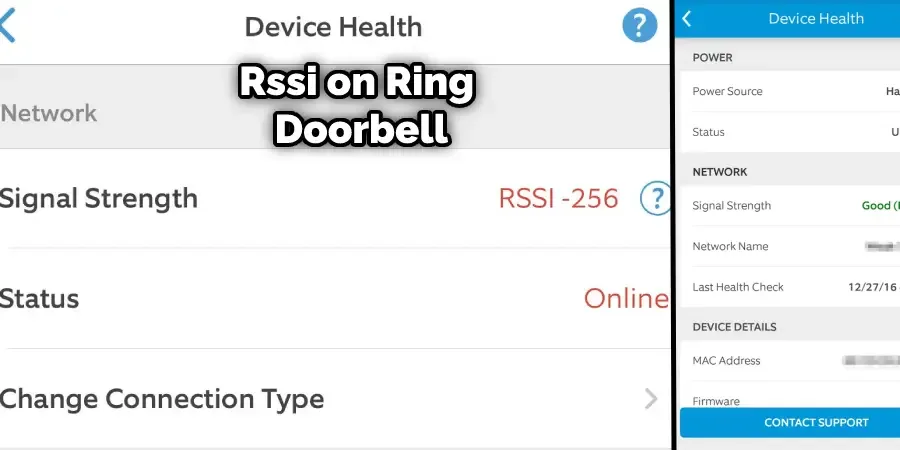
Image source: Web (Bing) / safetywish.com (Web image (fair-use with source credit))
How to check your RSSI:
- Open the Ring app and tap the three lines (menu) in the top left.
- Tap Devices and select your Stick Up Cam.
- Tap Device Health.
- Look for Wi-Fi Signal Strength. A number between -30 and -60 is great. Below -60 is borderline or poor.
If your RSSI is weak, try these fixes in order:
If the camera is too far from the router, move it closer temporarily to confirm that distance is the problem. If the connection stabilizes, you need a Wi-Fi extender, a mesh network, or a wired alternative. Consider the Ring Stick Up Cam Elite, which runs on Power over Ethernet and uses a physical Ethernet cable.
That version eliminates Wi-Fi issues completely.
If the router is behind a metal object or inside a cabinet, move it to an open location. Metal, thick concrete walls, and large appliances can block Wi-Fi signals. Try the 5 GHz band if your router supports it.
The Stick Up Cam supports dual-band Wi-Fi as of recent firmware updates.
If the connection remains unstable, check your router firmware. An outdated router can cause intermittent disconnects even when signal strength looks fine.
One more thing: if you have a Ring Protect plan and the camera still drops offline, the subscription does not affect connectivity. The subscription only enables cloud recording and extended video history. Offline behavior is always a network or power issue.
Power and Battery Problems: Draining Fast or Won't Charge
The rechargeable battery pack in the Stick Up Cam is rated for 6 to 12 months of typical use. If your battery is dying in days or weeks, something is draining it faster than the design allows.
Motion frequency is the biggest battery killer. If your camera faces a busy street, a sidewalk, or a tree branch that sways in the wind, the PIR sensor triggers recording many times per hour. Each recording cycle uses power for the infrared LEDs, the video encoder, and the Wi-Fi radio. Over a month, hundreds of extra events can cut battery life by 50 percent or more.
How to diagnose battery drain:
- Open the Ring app and go to Device Health.
- Check the battery percentage. If it drops more than 5 percent per day, you have a drain issue.
- Tap Event History and count how many motion alerts you receive per hour. More than 5 per hour is high.
Fixes for fast battery drain:
If the camera faces a high-traffic area, reduce the motion sensitivity in the app. Sliding the sensitivity down from 100 to 50 can cut false alerts by half. Use Motion Schedules to turn off recording during times when the area is busy but you do not need alerts.
Set a Motion Frequency slider to "Periodically" to limit how often the camera records within a set time window.
If the battery is draining faster in winter, that is normal. Cold weather reduces battery chemistry performance. The operating temperature range for the Stick Up Cam is -20°C to 48°C (-4°F to 118°F).
Below freezing, you may notice the battery drops faster and the camera refuses to charge until it warms up. Consider using the optional solar panel to keep the camera topped off, or switch to the plug-in power adapter.
If the camera does not charge at all:
The battery has a safety circuit that stops charging when the temperature is below 0°C (32°F). Bring the camera indoors for at least 2 hours before plugging it in. If it still does not charge, try a different micro-USB cable and a wall adapter rated at 5V/2A or higher.
Computer USB ports often do not deliver enough current.
Fix Video, Audio, and Motion Detection Issues
If your camera is connected and powered but the video is laggy, the audio echoes, or motion alerts do not arrive, you are dealing with configuration problems rather than hardware faults.
Video lag or buffering during live view:
This is almost always a bandwidth issue. The Stick Up Cam streams 1080p at around 2 to 4 Mbps. If your home internet upload speed is below 5 Mbps, or if other devices are using the network heavily, live view will stutter.
Check your internet speed using any free speed test tool. If your upload speed is above 5 Mbps and the video still lags, check the RSSI as described above. Low signal strength causes packet loss, which leads to buffering.
You can also change the video quality in the app under Video Settings. Dropping from 1080p to 720p cuts bandwidth by roughly half. This is a worthwhile tradeoff for a more reliable live view feed.
Two-way audio has echo or no audio:
The microphone on the Stick Up Cam is sensitive, but the speaker is small. If you hear an echo, the camera is picking up the audio from its own speaker during a conversation. Move the camera further away from reflective surfaces like glass doors or metal siding.
If the person on the other end cannot hear you, check that the camera is not in a location with high wind or rain noise.
If audio still does not work, make sure the Ring app has permission to access your phone's microphone. On iOS, go to Settings > Privacy > Microphone. On Android, check Settings > Apps > Ring > Permissions.
Missing permissions because of a recent phone update is a common cause of audio failure.
Motion detection is missing events or is late:
The PIR sensor detects heat changes moving across its field of view. If the camera is mounted behind glass or a screen, it may not detect motion at all. Glass blocks infrared heat signatures.
Mount the camera in the open air for best results.
If motion is detected late, the issue is usually the motion frequency setting. The camera has a built-in cooldown timer that prevents it from recording events too quickly. Set it to "Periodically" if you want to minimize missed events, but understand that this will drain the battery faster.
Clean the camera lens gently with a microfiber cloth. A smudged lens can reduce the PIR sensor's effectiveness.
Factory Reset and Re-Pairing Guide
If none of the above steps resolve the issue, a full factory reset is the next step. This clears all settings, removes the camera from your account, and forces it back to its default state.
How to factory reset the Ring Stick Up Cam:
- Locate the reset button on the back of the camera. It is a small pinhole near the bottom edge.
- Use a paperclip or a SIM eject tool to press and hold the button.
- Keep holding for 15 seconds. The LED will flash a few times and then go solid.
- Release the button. The camera will now be in setup mode, indicated by a slow blinking blue light.
After the reset, the camera is like new out of the box. You must re-add it to your account through the Ring app.
Re-pairing the camera after a reset:
- Open the Ring app and tap Add Device.
- Select Security Cameras and then Stick Up Cam.
- The app will ask you to scan the QR code on the back of the camera or under the battery cover.
- Follow the on-screen instructions to connect the camera to your Wi-Fi network.
- Wait for the camera to finish the startup sequence. This takes 2 to 3 minutes.
During re-pairing, make sure you are within 10 to 15 feet of your Wi-Fi router initially. Once the camera connects and shows a solid blue light, you can move it to its final mounting location. After moving it, check the RSSI again to confirm the signal is still strong.
A common mistake is to hold the reset button for too long or too short. The 15-second count is important. Less than 10 seconds may not trigger a full reset.
More than 20 seconds may put the camera into a different diagnostic mode. Use a timer on your phone if needed.
If the camera fails to re-pair even after the reset, the issue may be a corrupted firmware file. Contact Ring support through the app. They can push a manual firmware update to your device over your account.
Take a screenshot of your previous settings before resetting. This saves you from reconfiguring everything from scratch.
Common Mistakes That Waste Your Time
Some troubleshooting steps sound logical but actually make things worse.
Reinstalling the app as a first resort. The Ring app is rarely the problem. Uninstalling and reinstalling it deletes any locally cached configurations. You then have to log in again and re-accept permissions.
Only reinstall the app if the app itself crashes or fails to open.
Using a cheap third-party USB cable. The Ring Stick Up Cam uses a standard micro-USB port, but not all cables deliver enough current. Thin, long, or damaged cables can drop voltage below the minimum needed to charge the battery. Stick with the cable that came in the box.
Or buy a high-quality short cable rated for at least 5V/2A.
Mounting the camera too far from the router first. Always set up the camera within 10 feet of the router. Confirm it connects and check the RSSI. Then move it to the final location.
If you mount it outdoors first and it fails to pair, you have wasted mounting hardware and time.
Ignoring firmware updates. The Ring app updates camera firmware automatically, but only if the camera stays connected to Wi-Fi overnight. A camera that is frequently offline might never receive critical firmware patches. Check Device Health in the app to see the firmware version.
If it is more than six months old, contact Ring support to force an update.
Assuming the subscription fixes connectivity. A Ring Protect plan buys you cloud storage and extended video history. It does nothing for your Wi-Fi signal, battery life, or router configuration.
Frequently Asked Questions
Why does my Ring Stick Up Cam keep blinking red after charging?
Blinking red after charging means the camera still cannot find your Wi-Fi network. The battery might be fine, but the connection is lost. Check your router to make sure it is broadcasting and that the camera is within range.
A factory reset usually resolves this.
Can I use the Ring Stick Up Cam without a subscription?
Yes. The camera streams live video and supports two-way audio without any subscription. You just cannot access recorded clips or use extended video history.
The subscription is optional for live monitoring and basic motion alerts.
Why is my Ring camera not detecting motion at night?
The infrared LEDs can illuminate the scene, but the PIR sensor still relies on temperature change. If the area is cold and a warm object moves slowly, detection may fail. Clean the sensor lens and make sure no spider webs or debris block the front of the camera.
How do I stop false alerts from my Ring Stick Up Cam?
Reduce motion sensitivity in the Ring app under Motion Settings. You can also draw custom motion zones that ignore streets, sidewalks, or trees. Set a Motion Frequency schedule so the camera only records during hours when you actually want alerts.
What is the fastest way to reset my Ring Stick Up Cam?
Press and hold the reset button on the back for 15 seconds. Use a paperclip or SIM tool. The LED will flash and then return to slow blinking blue.
That means the camera is ready for a fresh setup.
Does cold weather permanently damage the battery?
No. The battery contains a safety circuit that stops charging below 0°C (32°F). It resumes normal operation once the temperature rises.
Keeping the camera out of direct weather exposure and using the solar panel can help maintain battery health through winter.

Similar Posts
































