Sony A6100 Troubleshooting
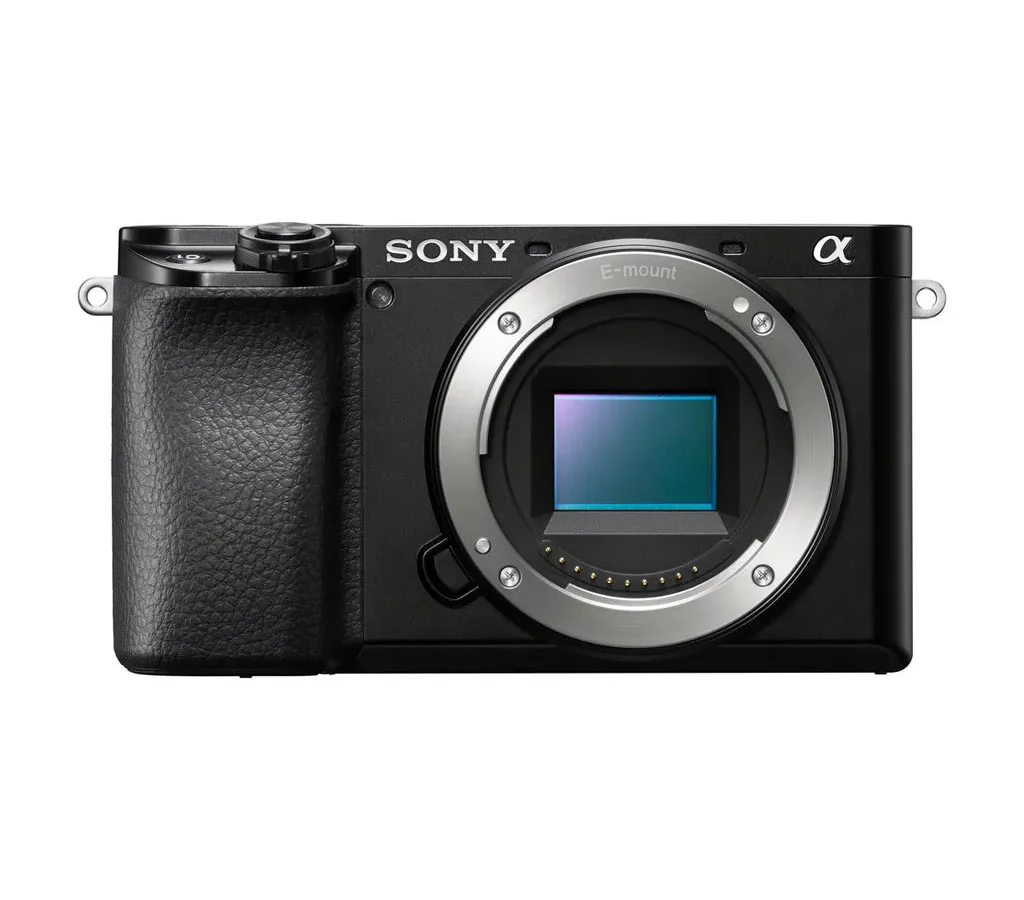
Your Sony A6100 is a great camera right up until it isn't. And when the screen stays black, the autofocus starts hunting, or a mysterious error code appears, it's easy to assume the worst. Sony A6100 troubleshooting does not need to send you into a panic or straight to a repair shop.
Most problems have straightforward causes, and the fix often takes under five minutes.
Per CIPA testing standards, the NP-FW50 battery delivers roughly 420 shots per charge. That figure gives you a solid benchmark. If the battery drains much faster, or if the camera refuses to power on at all, you now know where to start looking.
Let's walk through the most common symptoms, one branch at a time.
Quick Answer
Start with the simplest fix first. Check the battery charge and lens connection. Reset the camera and format your memory card.
Update firmware if issues persist. Replace a swollen battery immediately and recycle it properly. Per CIPA testing, 420 shots per charge is the expected baseline for the NP-FW50.
Start Here: Match Your Symptom to the Right Branch
Before you open any menus or call for support, stop and name what is actually happening. The right fix depends entirely on the symptom. Here is how to sort yourself into the correct path.
| If the camera… | Then go to the section on… |
|---|---|
| Won't turn on | Power issues (dead battery, dirty contacts, firmware hang) |
| Shows lens error or card error | Lens and memory card errors (seating or formatting problem) |
| Takes soft photos or hunts for focus | Image quality and autofocus branch (settings or dirty lens) |
| Feels hot or drains battery fast | Overheating and battery drain (video and power fixes) |
Take a moment to identify where you land. Each branch has its own checklist. Chasing the wrong fix only wastes time.
For issues involving similar gear, our research on SD card problems with a different mirrorless body follows the same logic and can help confirm standard card troubleshooting.
As of 2026, firmware updates remain the most overlooked cure across all branches. Always check your current version before assuming the worst.
Camera Won't Power On – Dead Battery or Deeper Issue?
A camera that refuses to switch on is frustrating, but the fix is usually simple. Start with the NP-FW50 battery. Remove it from the camera and inspect the metal contact strips on both the battery and the inside of the camera body.
If they look tarnished or dirty, wipe them gently with a dry cotton swab. Do not use water or cleaning solvents.
Reinsert the battery and ensure the battery lock switch clicks fully into place. Many users report that the lock was slightly loose and the battery lost connection during use.
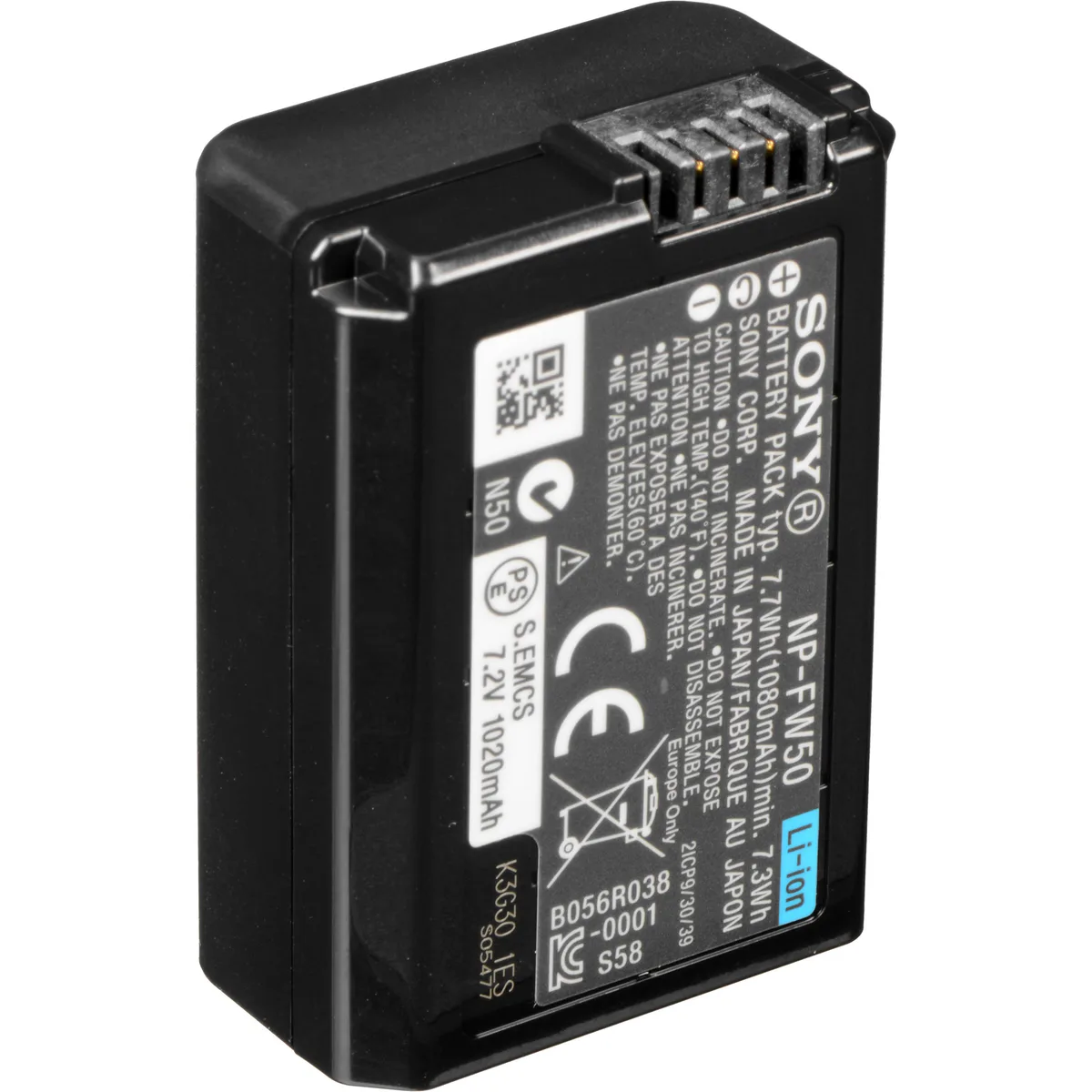
If the camera still shows no life, try a known good battery. Borrow one from a friend or a local camera shop if possible. If the camera powers on with a different battery, your original NP-FW50 has likely reached the end of its cycle life.
Sony estimates roughly 500 charge cycles before noticeable degradation. A swollen or bulging battery must be replaced immediately and disposed of at a certified recycling center.
Still dead? Test the USB-C charging port. Connect the camera to a power source with the original cable.
A blinking orange light near the charging port indicates the battery is charging but deeply discharged. Leave it plugged in for at least four hours.
If none of this works, the issue may be internal. A failed power circuit board is possible. At this point, a Sony authorized service center is the safest bet.
For a similar power troubleshooting flow, our notes on a different model that won't turn on detail the same contact and battery checks that apply here.
Lens and Memory Card Errors – Quick Resets That Usually Work
The two most common error messages on the A6100 are "Lens not attached" and "Memory card error." Both sound serious. Both are usually simple fixes.
For "Lens not attached": Remove the lens by pressing the release button and twisting gently. Inspect the gold contact pins on both the lens and the camera body. Even a slight dust film can break the communication.
Clean them with a microfiber cloth or a lens cleaning pen. Remount the lens until you hear a solid click. If the error persists, test a different lens.
A bent pin on the camera body requires professional repair.
For "Memory card error": This almost always points to a formatting mismatch. The A6100 requires cards formatted in the camera body, not on a computer. Insert the card, go to the Setup menu, and choose Format.
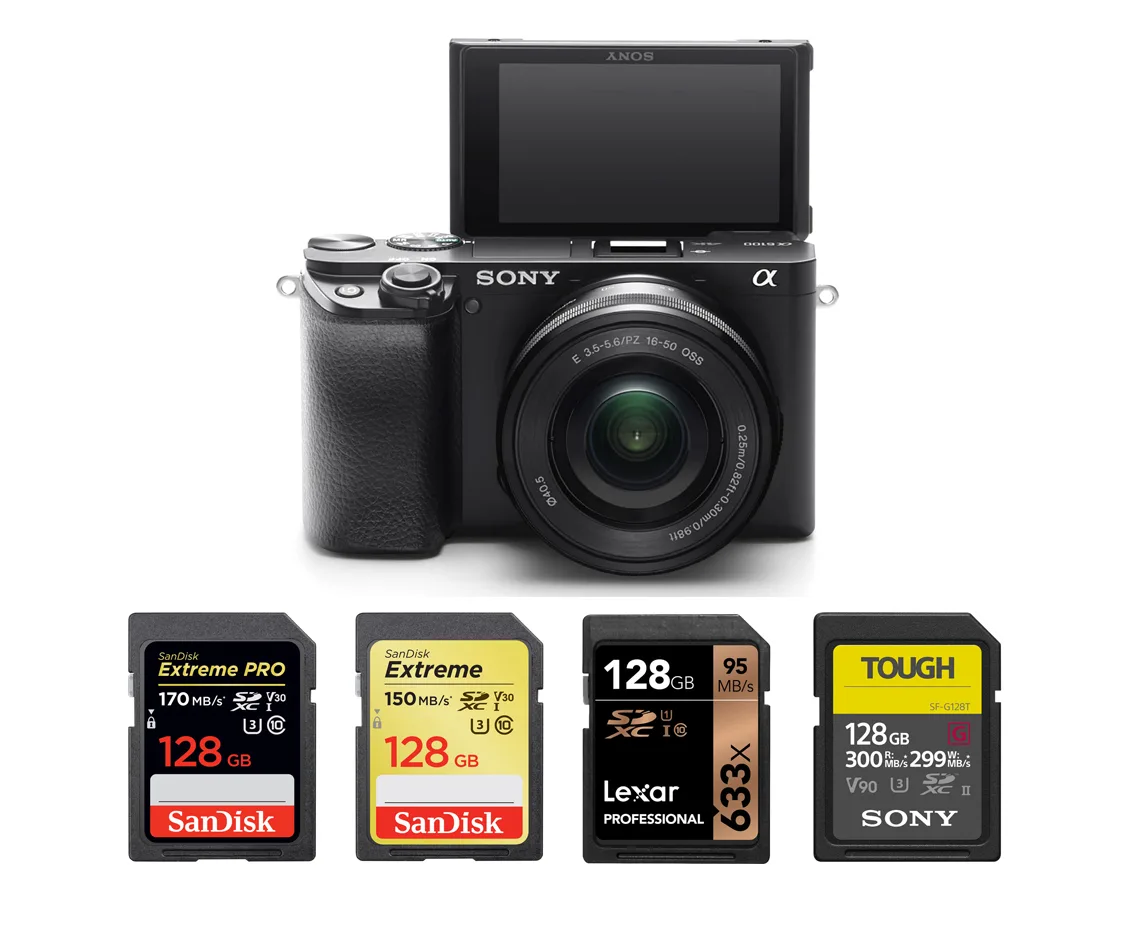
This erases all data, so back up anything important first. If the error continues, the card may be corrupted or counterfeit. Stick to brands that meet UHS-I U3 or V30 speed standards for 4K recording.
Stick with a known brand like SanDisk, Lexar, or Sony.
Following troubleshooting resource for SD card errors in another mirrorless camera confirms that in-camera formatting resolves 90 percent of card-related issues across brands.
If you keep getting errors with every card you try, a firmware update may address a rare communication bug. Download the latest firmware from the Sony support site. Copy it to a formatted SD card and follow the on-screen update instructions.
Do not interrupt the process.
Autofocus and Image Problems – Why Your Photos Look Off
The A6100 has a strong autofocus system with 425 phase-detection points on the sensor. When images come out soft, the hardware is rarely the problem. Start by checking the AF area mode.
If it is set to Wide or Zone, the camera may grab the wrong subject. Switch to Flexible Spot and place the focus point exactly where you want it.
Next, check shutter speed. A rule of thumb for handheld shooting is one divided by the focal length. For a 50mm lens, that means at least 1/50th of a second.
If you are shooting in low light, the camera may drop below that and introduce motion blur without warning you. Enable the shutter speed warning in the menu if you want a visual cue.
Dust or smudges on the front lens element can also cause softness. They scatter light and reduce contrast. Clean the glass with a proper lens cloth or air blower.
Avoid wiping dry dust, which can scratch the coating.
If the autofocus hunts back and forth without locking, the scene may lack contrast. Try focusing on an edge or texture near your subject, then recompose. In very low light, the camera relies on contrast detection and struggles.
A flash or focus assist light helps in those conditions.
For persistent autofocus issues, check that you have not accidentally switched the lens to manual focus. The A6100's autofocus troubleshooting shares principles with many mirrorless systems. A guide on autofocus problems in a similar camera body covers the same settings and fixes we see here.
Overheating and Battery Drain – Video and Power Fixes That Matter
The A6100 records solid 4K video but tends to overheat after 20 to 35 minutes in warm conditions. The sensor produces heat, and the small body does not dissipate it well. If you hit the temperature warning symbol, you can take immediate action.
Open the LCD screen fully so it stands away from the body. That helps heat escape from the rear. If the camera is on a tripod, remove it and let the base breathe.
Heat builds up faster when the bottom is sealed against a flat surface. Dropping the recording resolution to 1080p cuts the processing load and almost always stops overheating.
Battery drain follows a similar pattern. The NP-FW50 battery is rated for about 420 still shots. If you are getting much less, check three things.
First, turn off Wi-Fi and Bluetooth when not using the Imaging Edge Mobile app. Constant wireless polling drains the battery significantly. Second, disable the eye sensor auto-switching between the LCD and viewfinder.
This feature uses power every time your face approaches the EVF. Third, check your firmware version. Sony released updates that improved power management in idle states.
You can download the latest firmware from the official Sony support website.
A battery that drains completely in a day of light use likely needs replacement. The NP-FW50 is widely available and inexpensive. Using a third-party battery may save money upfront but can trigger inconsistent power reporting and, in rare cases, overheating.
Stick to Sony certified or known reliable third-party brands that specifically list A6100 compatibility. A related article on battery drain symptoms in a different camera model reinforces that the same diagnostic path applies across manufacturers.
Frequently Asked Questions
How do I factory reset my Sony A6100?
Go to the Setup menu and select Reset. This returns all settings to their factory defaults. Your images and memory card data stay untouched.
Use this reset before selling the camera or if you suspect a setting conflict.
Why won't my Sony A6100 connect to my phone?
The Imaging Edge Mobile app handles connectivity. First, delete the camera from your phone's Bluetooth list. Then pair fresh in the app.
Make sure Airplane Mode is off on the A6100. For consistent phone pairing steps, a guide on connecting a mirrorless camera to a phone covers the same Bluetooth and app workflow.
Can I leave the battery charging overnight?
You can, but it is not ideal. The A6100 stops charging once the NP-FW50 hits full capacity. Leaving it plugged in for hours puts minor wear on the battery chemistry over time.
Lithium-ion cells age slightly faster under continuous trickle charge. Unplug when the orange light turns off.
How do I update the firmware on my A6100?
Download the latest firmware from the Sony support site. Copy the file to a formatted SD card. Insert the card, go to the Setup menu, and select Version.
Choose Software Update and follow prompts. Never turn the camera off during the update.
My viewfinder stays black. What is wrong?
The eye sensor near the viewfinder may be blocked or dirty. Wipe the sensor area with a microfiber cloth. If that does not help, press the DISP or Brightness button repeatedly until the LCD activates.
The camera may be stuck in Viewfinder Only mode.
Why are my videos shaky even with stabilization?
The A6100 uses electronic stabilization in video mode. It helps but does not replace a gimbal or tripod. For handheld moving shots, consider a small three-axis stabilizer.
For static shots, a simple tripod eliminates the shake entirely.
The Decision Guide: Fix It, Replace It, or Upgrade
Not every problem needs a repair shop. Some cost nothing to fix. Others signal that a replacement camera makes more sense.
Here is how to decide.
Fix it yourself if the issue is a dirty contact, a corrupted memory card, or a dead battery. These fixes take minutes and cost little to nothing. Cleaning the lens contacts or formatting a card does not require any tools.
Send it to Sony if the camera suffered physical damage, a dropped lens broke the mount, or the shutter failed. A shutter replacement runs roughly $200 to $300 at a service center. If the camera is out of warranty, get a written estimate first.
Compare that to the current used value of the body.
Replace or upgrade if repair costs exceed half the camera's used value. A used A6100 body sells for around $400 to $550 as of 2026. If the repair quote hits $300, you are better off buying another used body or stepping up to an A6400.
The A6400 adds a metal body, better viewfinder, and S-Log video profiles for roughly $150 more used.
For buyers who shoot mostly video, the Sony ZV-E10 is a stronger alternative at a similar price. It has no viewfinder but adds a larger battery grip and better heat dissipation for longer 4K clips.
If the camera works fine but you simply want better autofocus or low-light performance, upgrade the lens first. A fast prime lens like a 35mm f/1.8 does more for image quality than a body swap. Only upgrade the body when the sensor or autofocus speed itself holds you back.

Similar Posts
































