Sony A7 IV Troubleshooting
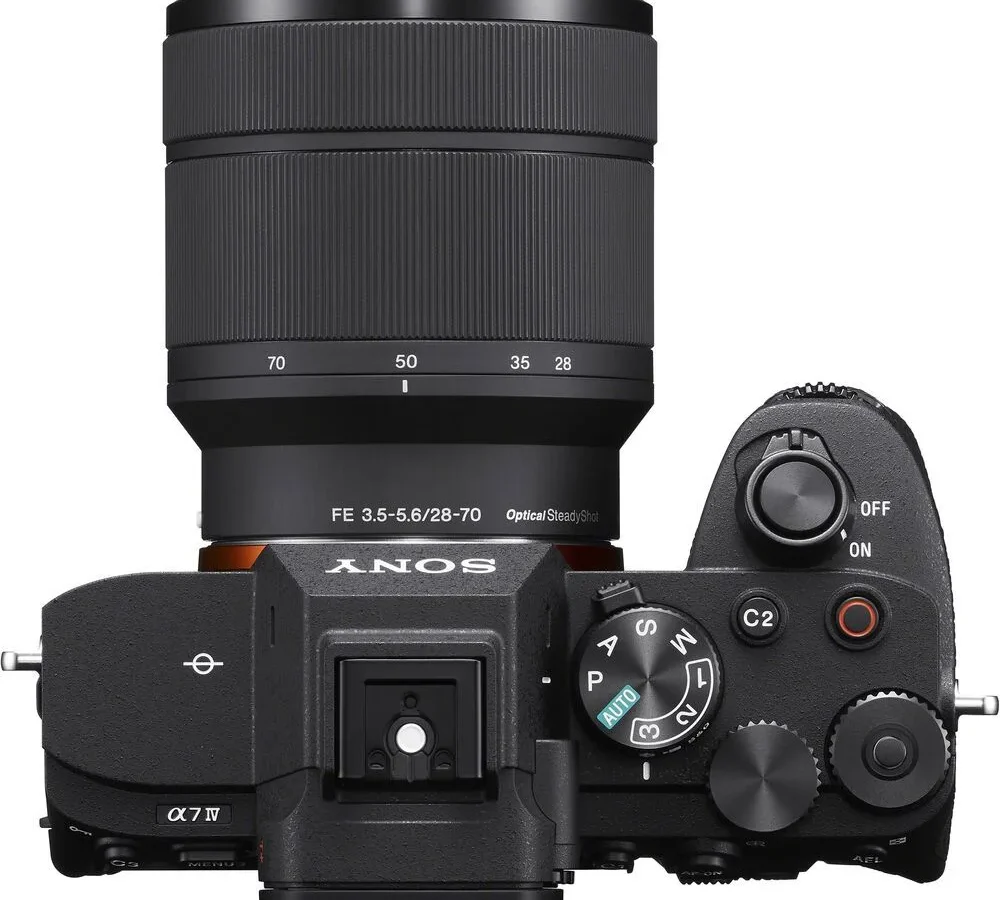
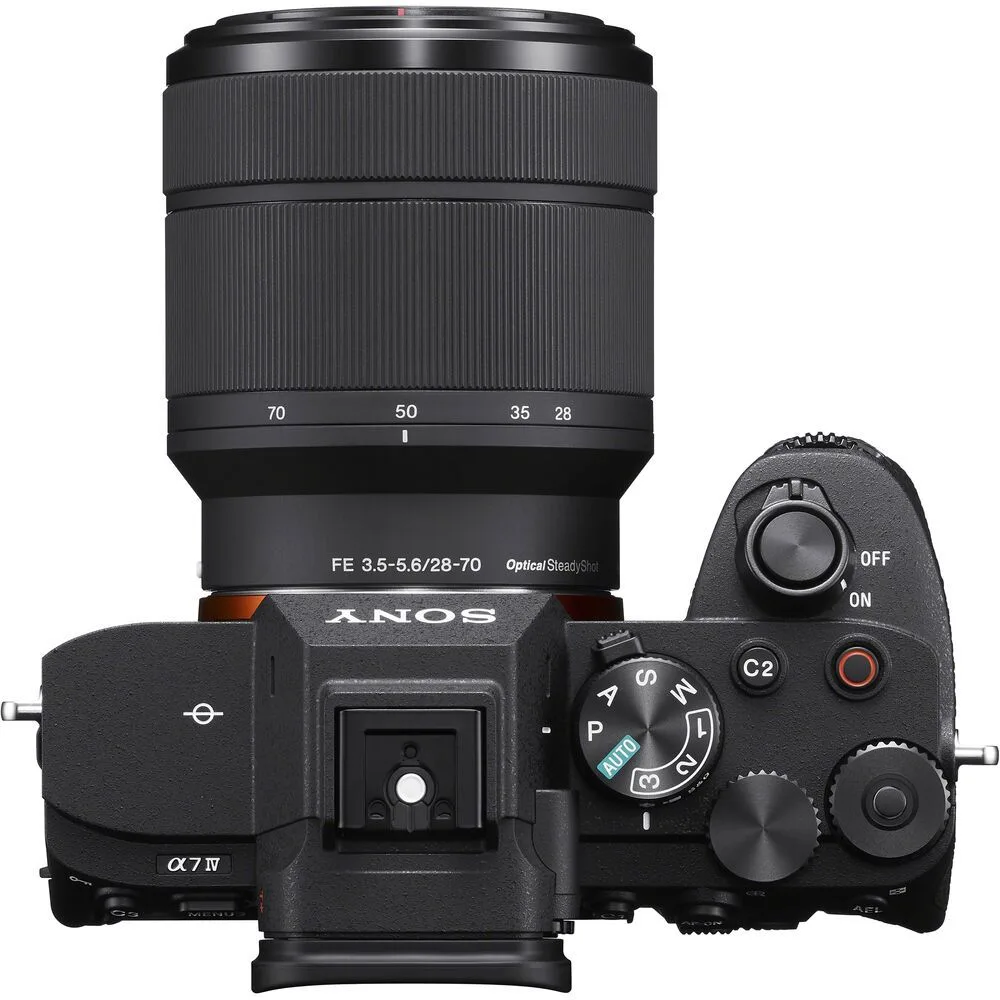
Image source: Web (Bing) / abesofmaine.com (Web image (fair-use with source credit))
When Your A7 IV Freezes or Shows "Camera Error" (The Most Urgent Fixes)
A frozen camera or a "Camera Error" message is unnerving, but it's rarely a hardware failure. The first thing to try is a proper power cycle. Turn the camera off, remove the battery, and leave it out for at least one full minute.
Then reinsert the battery and power on. This clears temporary processor hangs. Similar power cycling tricks work on other mirrorless bodies too.
If that doesn't work, remove the lens and check the electrical contacts. Dirty or slightly misaligned contacts can cause communication errors. Clean the contacts with a dry microfiber cloth.
Reattach the lens firmly.
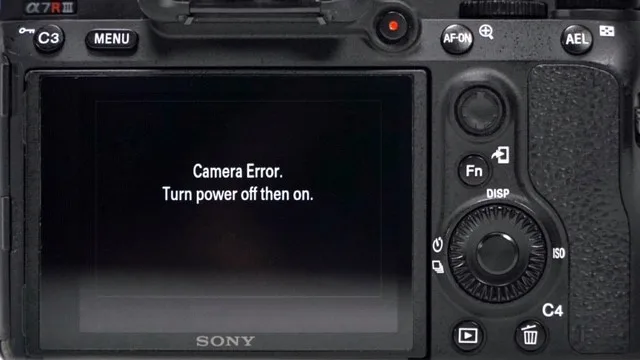
Still stuck? Try a different memory card. A corrupted card or one that's nearly full can trigger error messages.
Format the card inside the camera, not on your computer. If the error follows a specific lens, test with another lens to isolate the problem.
Firmware bugs are another culprit. Check Sony's official support page for the latest A7 IV firmware. Update via a freshly formatted SD card with the camera battery at full charge.
In our research, firmware updates resolve a significant number of reported freezes.
If the camera powers on but the screen stays black, check the viewfinder/LCD switch. The sensor beside the viewfinder can get stuck if something is covering it. Toggle the display with the DISP button on the back.
These steps fix the vast majority of freeze and error issues. If none work, you may be facing a hardware fault requiring a trip to an authorized service center. But try every option here first.
Overheating While Recording Video (A Step-by-Step Diagnosis)
Overheating is a known limitation of the A7 IV during long video recordings, especially in warm environments. The camera has a built-in thermal cutoff to protect the sensor. You can manage it.
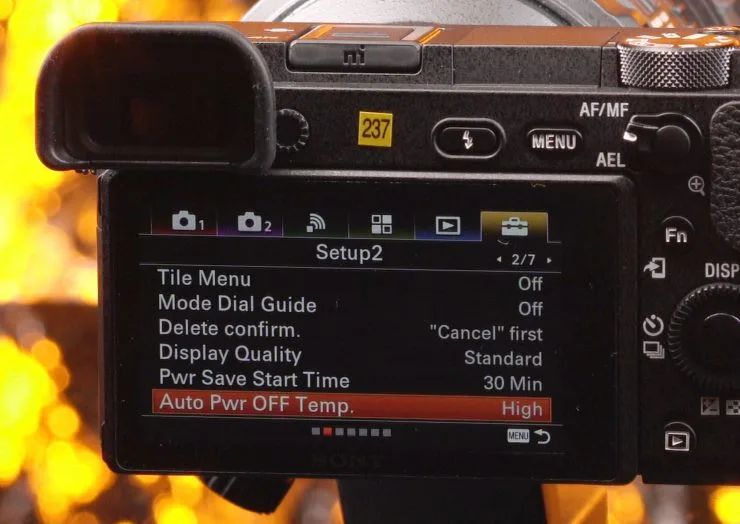
The single most effective setting change is in the menu. Go to Setup and set Auto Power Off Temperature to High. This raises the threshold before the camera shuts down.
It's safe for the camera and the standard recommendation from Sony. Heat management isn't unique to this model.
Next, check your recording format. 4K 60p in XAVC HS with 4:2:2 10-bit generates the most heat. If you're overheating regularly, drop to 4K 30p or XAVC S which processes less data. Consider using an external recorder via HDMI for demanding shoots.
Physical cooling helps. Keep the camera out of direct sunlight. Use a small fan pointed at the body between takes.
Open the tilting LCD away from the body to allow heat to escape from the back. Remove the rubber eyecup for better airflow around the viewfinder area.
If you record long interviews or events, a camera with a larger heat sink might suit you better. But these settings extend your recording time significantly.
Autofocus Not Keeping Up or Losing the Subject (Branching by Light, Lens, and Settings)
Autofocus problems on the A7 IV usually fall into three categories: low-light hunting, third-party lens glitches, or incorrect settings. Let's narrow it down.
In dim light, the A7 IV's 759 phase-detection points need adequate contrast to lock. If the subject is backlit or in deep shadow, the camera hunts. Try using an AF assist beam if your flash has one, or add a small light source.
Switch to a single central focus point instead of wide area for better accuracy.
Third-party lenses from Sigma, Tamron, and Samyang occasionally show compatibility quirks after firmware updates. If autofocus becomes unreliable, check the lens manufacturer for its own firmware update. Some lenses need a lens dock to update.
Similar autofocus behavior shows up across different camera brands.
Setting errors are common. Make sure you haven't accidentally switched to MF on the lens barrel or the camera body. Check that Face/Eye AF Priority is turned on in the menu under Focus.
For erratic tracking, try resetting focus settings to defaults.
If you're shooting fast action, use AF-C (Continuous) with Tracking. The Real-time Tracking works best when you assign it to a custom button for quick activation. For persistent issues, a full reset of the focus system often solves the problem.
The fix is almost always settings-based.
Memory Card Errors and Write Failures (Slot-by-Slot Troubleshooting)
The A7 IV has two slots. Slot 1 supports CFexpress Type A and UHS-II SD cards. Slot 2 is UHS-II SD only.
Mixing them up causes confusion. Always confirm which slot your card is in. Card-related problems often stem from simple slot mix-ups.
Write errors usually come from slow cards. For 4K 60p video or high-speed bursts, use a V90-rated SD card or a CFexpress Type A card. A V30 card may cause the write light to blink and the camera to stall.
The card speed matters more than the capacity.
Always format cards inside the camera, not on a computer. Computer formatting can change the file system to exFAT or NTFS in a way that confuses the camera. Cards used in other cameras may show formatting issues on the A7 IV.
Formatting clears these compatibility problems.
If one slot consistently shows an error, test the card in the other slot. If it works, the first slot may have bent pins or debris. Use a blower to clean the slot gently.
If the problem follows the card, replace the card. CFexpress cards are expensive but reliable.
Back up settings to an SD card after you've configured the camera. This saves time if you need to reset and reload. And always carry a spare formatted card in your bag.
Battery Draining Fast, Not Charging, or False Empty Readings
The NP-FZ100 battery in the A7 IV is solid, but it can act up. Fast drain usually comes from leaving the camera on with Wi-Fi or Bluetooth active. Turn off Wi-Fi and Bluetooth in the network menu when you don't need them.
The camera constantly searches for connections. Similar battery drain patterns affect other mirrorless cameras too.
USB-C charging is convenient but picky. Use a Power Delivery (PD) charger that delivers 9V/3A or 27W. A standard 5V phone charger charges very slowly or not at all.
The USB-C port is for data and power, but it won't charge via a computer USB port in many cases.
False empty readings happen when the battery calibration drifts. Fix it by fully draining the battery in the camera, then charging it to 100% without interruption. Do this once every few months to keep the gauge accurate.
If a battery drains instantly, test it in another Sony camera if you have one. If it fails there too, the battery has degraded. Genuine Sony batteries are worth the extra cost.
Third-party batteries often don't report remaining charge correctly.
For long shoots, use the vertical grip VG-C4EM with two batteries. The camera draws from both evenly. And carry a power bank that supports USB PD for charging between takes.
If your battery shows no signs of life, the contacts may be dirty. Wipe them with a dry cloth. A main board issue can prevent charging entirely, but that's rare.
Lens Communication and Compatibility Glitches (First-Party vs. Third-Party)
Lens errors on the A7 IV usually come down to one thing: electrical contacts. If you see "Lens Not Attached" or get erratic autofocus, start with the physical connection. Remove the lens and clean both sets of contacts with a dry microfiber cloth.
Reattach and twist until you hear a firm click.
Testing with a second lens tells you where the fault lies. No issues with a Sony lens means the camera body is fine. The problem is almost certainly in the third-party lens itself.
Many Sigma, Tamron, and Samyang lenses need their own firmware updates after Sony updates the A7 IV.
Check the lens manufacturer's website for a firmware update tool. Most require a USB dock or a specific adapter. The update process is straightforward but essential for maintaining compatibility.
Compatibility glitches happen across camera brands, not just Sony.
Third-party lenses also vary in how they handle Eye AF and Real-time Tracking. Some older third-party lenses don't support these features at all. If Eye AF works with your Sony 50mm f/1.2 but not with your Tamron zoom, check the Tamron's compatibility chart.
Certain third-party lenses are fully compatible, others only partially.
The autofocus motor in third-party lenses can sometimes lag. If the lens hunts in good light, try disabling OSS on the lens and using IBIS only. Match the camera's firmware version before assuming the lens is defective.
Wi-Fi, Bluetooth, and Tethering Connection Drops (App, Cable, and Settings Fixes)
Connectivity problems with the A7 IV are frustrating but almost always solvable. Start with the Bluetooth pairing. Go to Network in the menu and select Bluetooth Settings.
Delete the existing pairing, then re-pair your phone through the Imaging Edge Mobile app. This clears corrupted pairing data. Wireless pairing quirks affect many camera models.
If Wi-Fi drops during transfer, the issue is often the camera's power saving setting. The camera turns off Wi-Fi to save battery after a few seconds. Go to Setup and extend the Power Save Start Time.
Set it to 30 minutes or longer. This keeps the network connection alive during transfers.
For USB tethering, use a high-quality USB-C cable that supports data, not just charging. Some cables only pass power. The camera should show "USB Streaming" when connected to a computer.
If it doesn't, try a different cable and a different USB port. Check that the PC Remote app is installed on your computer.
Live streaming via the USB-C port can also suffer from dropouts. Lower the live stream resolution to 1080p if you experience frame drops. Wireless transfer issues on other models follow similar patterns, so the same troubleshooting applies.
Reset the network settings entirely if nothing else works. Go to Networking and select Reset Network. This deletes all saved connections.
Re-pair everything fresh. Most users find this solves persistent issues.
Quick Reference: Resets, Firmware Updates, and Sensor Care (FAQs)
How do I factory reset the Sony A7 IV?
Go to Setup and select Reset. Choose Reset to Factory Defaults. This clears all custom settings but leaves firmware intact.
For a deeper reset, remove the battery, hold the shutter button for 30 seconds, then reinsert the battery. This drains residual charge in the processor.
How do I update the firmware on the A7 IV?
Download the latest firmware from Sony's official firmware download page. Copy the .BIN file to a freshly formatted SD card. Insert the card, turn on the camera, and follow the on-screen prompts.
The battery must be at least 80 percent. Never interrupt the update process.
How do I clean the sensor safely?
Use the camera's built-in sensor cleaning mode. Go to Setup and select Cleaning Mode. This locks the shutter open.
Use a rocket blower to remove dust. For stubborn spots, use a sensor swab with a few drops of isopropyl alcohol. Follow careful sensor cleaning steps to avoid damage.
How do I check the shutter count?
The A7 IV does not display shutter count in the menu. You need to take a photo, upload the file to a shutter count checker website, and read the data from the EXIF. This works for JPEG files.
Some software reads it from RAW files too.
What does the "Camera Error" message mean?
It means the camera detected a communication fault between components. Follow the freeze troubleshooting steps earlier: power cycle, check contacts, try a different lens, and update firmware. If none works, contact Sony support.
The error rarely indicates permanent damage.
Why won't my camera charge via USB-C?
The A7 IV needs a USB Power Delivery (PD) charger that delivers 9V at 3A. Standard phone chargers often provide only 5V, which the camera rejects. Use a PD charger rated at 27W or higher.
The USB-C port also charges slowly from a computer's USB port.

Similar Posts
































