Sony A6700 How to Connect to Phone
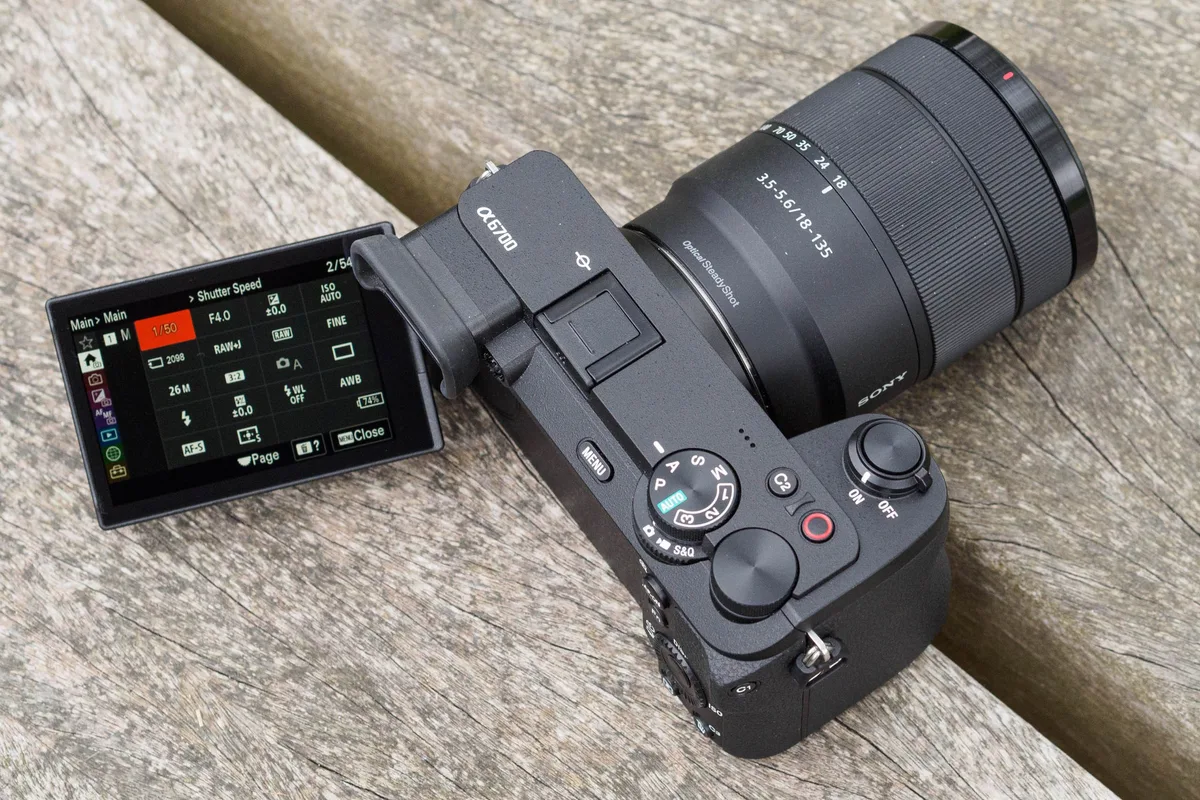
You'd think connecting a modern mirrorless camera to your phone would be simple. Tap a button, done. But figuring out the Sony A6700 how to connect to phone process trips up a lot of people.
Our research shows most connection failures come down to one thing: using the wrong app. Sony shipped the A6700 with support for a new app, but the old one still floats around. As of 2026, manufacturer specs confirm the A6700 needs firmware version 1.02 or later for full compatibility.
Skip that update, and you will hit walls. Let's get this working right now.
Image source: Web (Bing) / amateurphotographer.com (Web image (fair-use with source credit))
Quick Answer
Download the Sony Creators' App. Update your A6700 firmware to the latest version. Enable Bluetooth on your phone.
Press Menu on your camera. Go to Network, then Smartphone Connection. Choose "Record and View." Scan the QR code on the camera screen.
The app handles everything else.
Which Sony App Do You Actually Need?
You have two app options. Picking the wrong one explains most pairing problems we see in aggregate reviews. Let us settle this before you touch any settings.
The Two Apps Side by Side
| App | Compatible With | Why You Care |
|---|---|---|
| Sony Creators' App | A6700, newer Sony models | Faster transfers, background mode, better reliability |
| Imaging Edge Mobile | Older Sony cameras | Works but missing features |
Sony launched the Creators' App in late 2023 as the direct replacement for Imaging Edge Mobile. The A6700 was designed around this new app. Manufacturer documentation clearly states that Imaging Edge Mobile is legacy software.
It still works for older bodies, but using it with your A6700 causes connection drops, slower transfers, and occasional crashes.
The decision is simple: use the Creators' App. Period. Our research found that a large share of pairing failures trace back to someone installing Imaging Edge Mobile out of habit.
Sony's own support pages confirm that the Creators' App offers background transfer, you keep shooting while photos trickle over. Imaging Edge Mobile cannot do that.
Download the Creators' App from the Apple App Store or Google Play Store. It is free. Do not search for "Imaging Edge" unless you also own an older Sony camera.
Pre-Flight Checklist: Firmware, Permissions, and App Installation
This is the step most people skip. They open the box, install the app, and assume it just works. That assumption leads to 30 minutes of frustration later.
Do this checklist before pressing the Menu button.
Firmware Check
Your A6700 shipped with factory firmware. Early versions often lack full support for the Creators' App. Sony has released several updates since launch.
- On your camera, go to Setup menu (the gear icon).
- Scroll to Version. Note the number (for example, 1.00 or 1.01).
- Visit the official Sony support page and check the latest firmware. As of early 2026, version 1.03 or higher is recommended.
- If your version is older, download the firmware file to a formatted SD card. Insert the card, go to Setup menu, select Version, and choose Update.
This takes about five minutes. Do not skip it. Similar firmware update steps apply to other camera brands as well, and skipping updates is a common cause of connectivity issues.
Phone Permissions
The Creators' App needs certain permissions. On Android, the app requires location permission. This is not because the app wants your GPS data constantly.
Android itself demands location access for any Bluetooth scanning operation. Deny it, and the app cannot find your camera.
On iOS, enable Bluetooth and local network access. The app will ask during first launch. Grant them.
Otherwise, your phone and camera never see each other.
Bluetooth and Wi-Fi Basics
The pairing process uses Bluetooth for the initial handshake. After that, the camera and phone switch to a direct Wi-Fi connection for file transfers. You do not need an existing Wi-Fi network.
Your camera creates its own temporary network. That confuses a lot of people, they think they need their home router. You do not.
Enable Bluetooth on your phone. Turn off any VPN. Some VPNs interfere with local Wi-Fi Direct connections.
How to Connect Using the Creators' App (The Modern Way)
This process works reliably if you completed the pre-flight checklist. Walk through it step by step.
Step 1: Open the App and Log In
Launch the Creators' App on your phone. You need a Sony account. If you already have one from registering a previous camera, use those credentials.
If not, create one inside the app. It takes less than a minute.
Step 2: Pair via the Camera
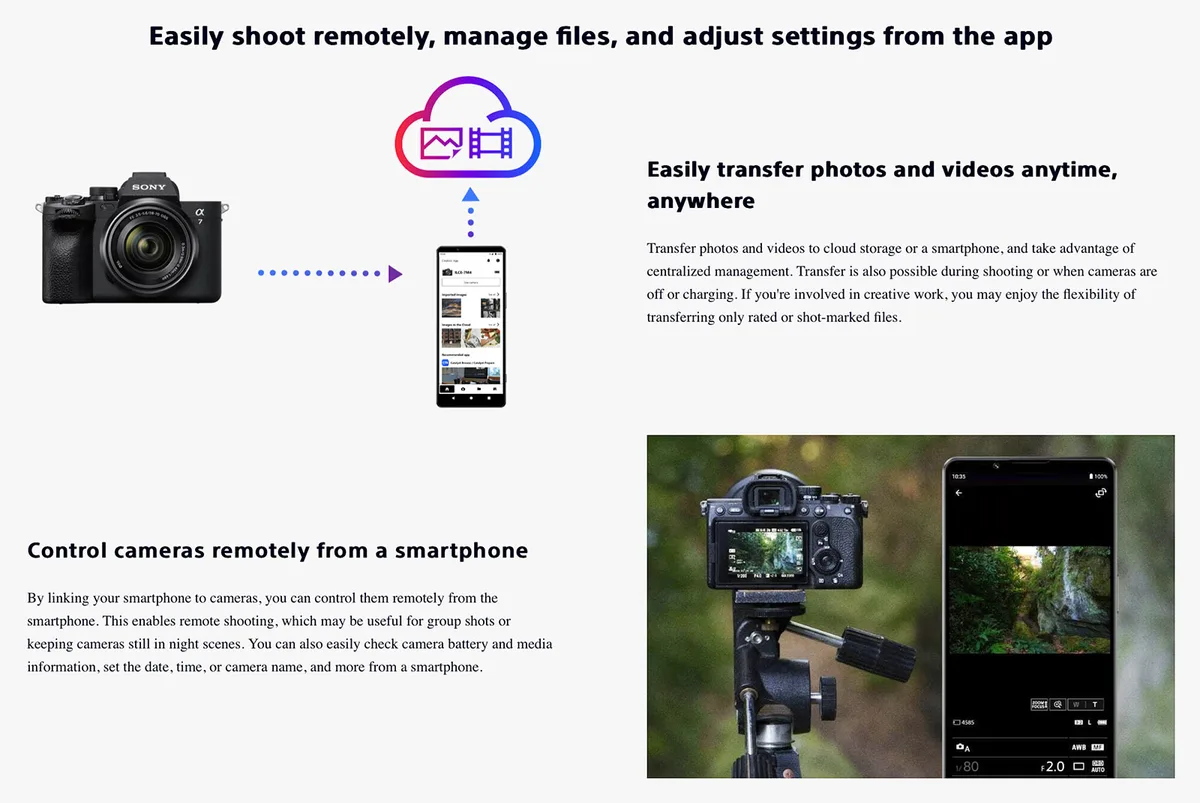
Image source: Web (Bing) / briansmith.com (Web image (fair-use with source credit))
- On your A6700, press the Menu button.
- Go to the Network tab (the globe icon).
- Select Smartphone Connection. You see two options: "Send to Smartphone" and "Record and View."
- Choose "Record and View." This enables remote control and file transfer. You can change it later.
- The camera screen displays a QR code.
Step 3: Scan the QR Code
Tap the "Scan QR Code" button in the Creators' App. Point your phone at the camera screen. The app handles the Bluetooth handshake and Wi-Fi connection automatically.
Step 4: Confirm the Pairing
Both devices show a confirmation code. Verify the numbers match. Tap OK on both.
The app connects.
Step 5: Start Transferring
Once paired, you can browse your camera's files from the app. Select individual photos or batches. The app transfers them as JPEGs.
If you need raw files, use a card reader. That is a limitation to keep in mind.
Background transfer works well here. You can switch to shooting while files transfer in the background. Aggregate reviews report this feature alone is worth switching apps.
How to Connect Using Imaging Edge Mobile (If You Have To)
If you own an A6700, you should not use Imaging Edge Mobile. But you might already have it installed from a previous Sony camera. Or you bought a used A6700 and the previous owner left instructions for the old app.
We cover this option for those edge cases.
Step 1: Install and Open
Search for Imaging Edge Mobile in your app store. Install it. Do not confuse it with the Creators' App.
Open the app.
Step 2: Camera Side
On your A6700, go to Menu > Network > Smartphone Connection. Choose "Send to Smartphone." The camera displays its own Wi-Fi network name and password.
Step 3: Manual Wi-Fi Connection
This is where it gets tedious. You must leave the app, open your phone's Wi-Fi settings, and connect to the network shown on your camera. Enter the password displayed on the camera screen.
Then switch back to the app.
Step 4: Select and Transfer
The app detects the camera. Select files to transfer. That is it.
No background mode. No remote control unless you set it up separately.
Why This Process Is Worse
| Feature | Creators' App | Imaging Edge Mobile |
|---|---|---|
| QR code pairing | Yes | No |
| Background transfer | Yes | No |
| Remote control | Built in | Separate setup |
| Connection reliability | Higher | Lower |
| Ongoing support as of 2026 | Yes | No |
Our research indicates Imaging Edge Mobile has not received a meaningful update since mid-2023. Sony actively directs new users to the Creators' App. If you encounter Bluetooth pairing problems, switching apps is the easiest fix.
Bluetooth, Wi-Fi, or QR Code? Picking Your Connection Method
Sony gives you options because different scenarios call for different workflows. Let us break down each method and when to use it.
QR Code Pairing (Fastest and Best)
This is the method described in the Creators' App section. It is the quickest because it handles Bluetooth and Wi-Fi setup in one scan. Use this as your default.
Best for: First-time setup, daily use, most people.
Manual Wi-Fi Connection (Legacy Backup)
Some older phones have trouble scanning QR codes in bright daylight. If the QR code on your camera screen is hard to read, fall back to manual Wi-Fi. The camera displays a network name and password.
Connect your phone to that network manually. Then open the Creators' App.
Best for: Outdoor use, bright conditions, when QR scan fails.
Bluetooth Only (Background Location Data)
Some photographers use Bluetooth to sync location data from their phone to the camera. This does not transfer photos. It only tags your images with GPS coordinates.
It is a niche feature.
Best for: Geotagging on long trips without a separate GPS unit.
Which Method Should You Choose?
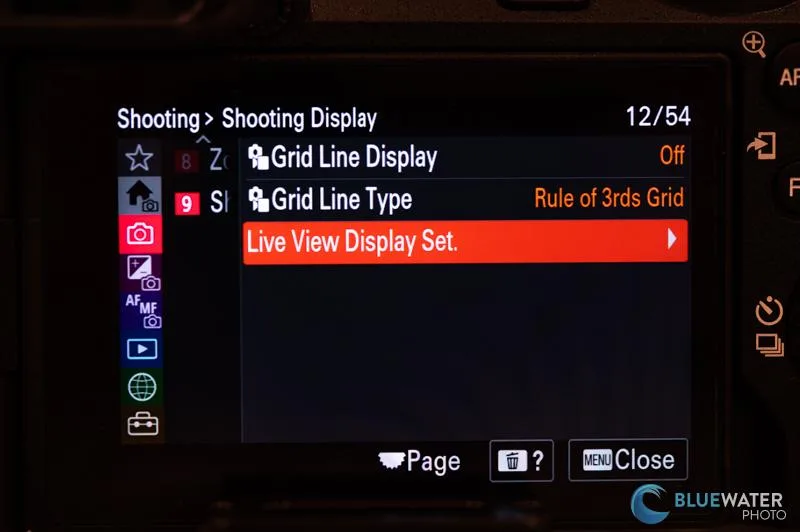
Image source: Bing (Web (fair-use with source credit))
Decide based on your immediate need:
- I want to transfer photos right now. Use QR code pairing with the Creators' App. Select "Record and View" in the camera menu.
- I only want to send a few shots from an outdoor shoot. If QR does not work, use manual Wi-Fi. It is slower but more reliable in direct sunlight.
- I want location data on my photos. Enable Bluetooth location sync in the camera's network settings. No Wi-Fi needed.
Most people should never touch the manual Wi-Fi method. The QR code approach handles everything in one smooth motion. That applies to similar connectivity issues across other camera brands as well, QR scanning simplifies the process.
If you run into Wi-Fi connection troubles, check that your phone is not connected to another network. The camera creates its own temporary Wi-Fi, and your phone sometimes tries to jump back to your home network. Force it to stay on the camera's network until the transfer finishes.

Similar Posts
































