Tactacam Reveal Pro 3.0 Troubleshooting
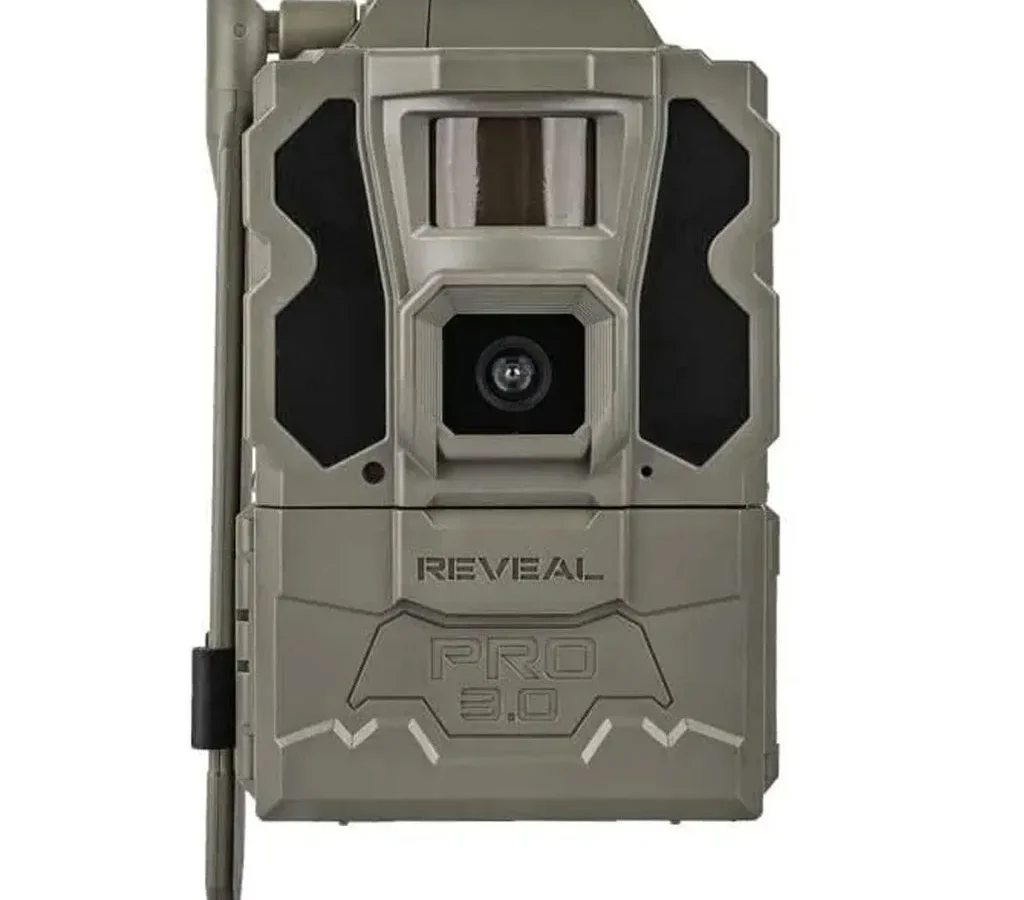
If your Tactacam Reveal Pro 3.0 troubleshooting has turned into a frustrating loop of trying everything and fixing nothing, you are not alone. Owners of this cellular trail camera frequently face problems like no signal, dead batteries overnight, or photos that never arrive in the app. Most of these have straightforward fixes you can run through in minutes.
Aggregate reviews and field reports show the Reveal Pro 3.0 carries an IP66 weatherproof rating with a trigger speed around 0.5 seconds. But like any cellular camera, its reliability depends heavily on small setup details that are easy to overlook. Let us work through the most common problems and their solutions, starting with the single most important question.
Quick Answer
Start with the LED color. Solid green means the camera has power. Flashing green means it is sending data.
Solid red signals a fault. Flashing red points to an SD card issue. No light means dead batteries or dirty contacts.
Match your symptom to the sections below for the exact fix.
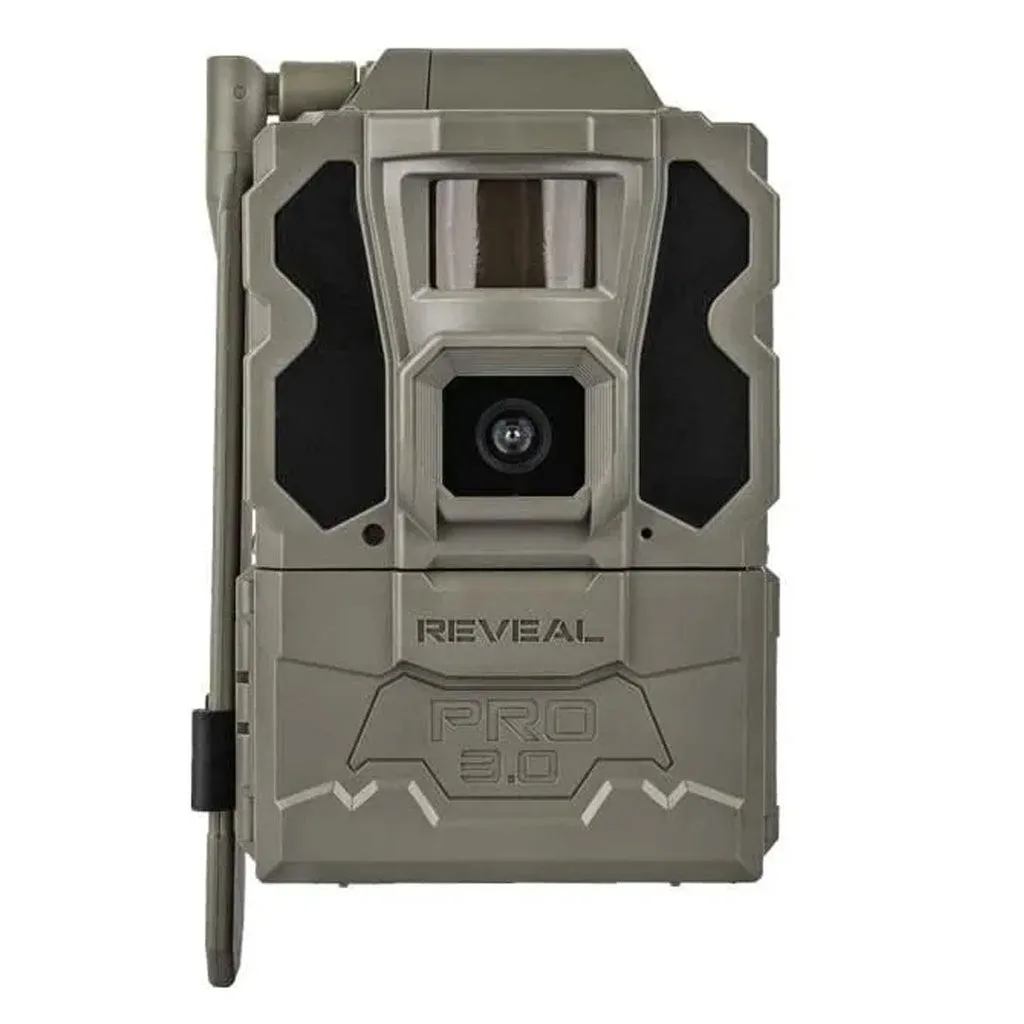
Image source: Web (Bing) / tackledepot.ca (Web image (fair-use with source credit))
Which Symptom Are You Seeing?
The Reveal Pro 3.0 uses a small LED near the power button to tell you what is happening. That light is your best diagnostic tool. Learn to read it, and you will skip half the guesswork.
A solid green LED means the camera has power and is ready to work. If you see this, your issue is likely with the cellular connection or the SD card. A flashing green light usually means the camera is sending or receiving data.
Give it a minute.
A solid red LED means something is wrong. It could be a dead battery, a bad SIM card, or a hardware fault. A flashing red light often signals a memory card error or that the card is full.
A red and green alternating pattern means the camera is updating firmware or stuck in a boot loop.
Here is the quick logic path:
- Solid green but no photos in app: Cellular signal issue or incorrect plan
- Flashing green nonstop: Weak signal. Photos are queued
- Solid red on fresh batteries: Check SIM card and antenna connection
- Flashing red: Format or replace the SD card
- No light at all: Dead batteries, dirty contacts, or a power circuit fault
Make a mental note of what you see before you open the housing. That one observation will point you to the right branch of the troubleshooting tree. Each section below handles a specific symptom group.
Jump to the one that matches your situation.
No Service or Photos Not Sending?
This is the number one complaint across user feedback. It is almost always something simple. The camera records images locally, then uses its internal modem to transmit them over a cellular network.
If the photos stay on the SD card and never reach the app, the radio is not connecting.
Start with the SIM card. The Reveal Pro 3.0 ships with a pre-installed SIM that is already activated. But it can loosen during shipping or handling.
Open the battery compartment and locate the SIM slot near the top. Remove the card, clean the metal contacts with a dry cloth, and reseat it firmly until you hear a click.
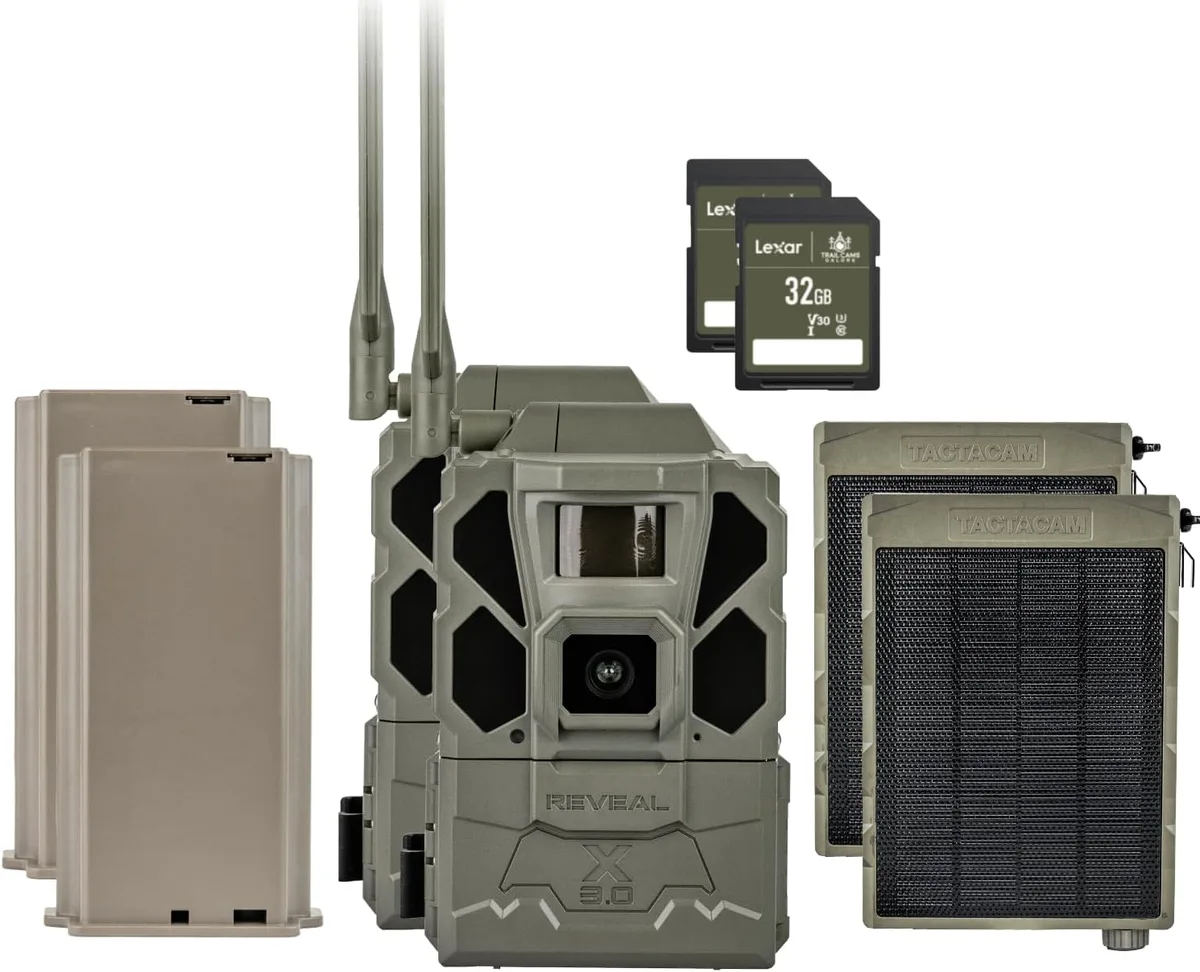
Image source: Web (Bing) / amazon.com (Web image (fair-use with source credit))
Next, check the antenna. There is a small external antenna on top of the camera housing. If it is loose or partially unscrewed, signal strength drops dramatically.
Hand-tighten it clockwise. Do not use tools. You can strip the threads.
Signal strength also depends on location. The camera uses 4G LTE. It needs a reliable connection to transmit.
Manufacturer specifications confirm the modem requires at least two bars of signal to send photos consistently. If you are in a heavily wooded area or a deep valley, try these steps:
- Move the camera higher on the tree, at least six feet off the ground
- Face the front of the camera toward the nearest cell tower
- Clear any large branches or dense foliage between the camera and the horizon
- Use the signal strength indicator in the Reveal app to check real-time reception
Account issues also block transmission. If you recently activated a new plan, it can take up to 24 hours to provision on the network. Log into the app.
Check that your plan status shows active. If it says pending or expired, reactivate before you chase hardware problems.
One more check that people skip: the camera saves photos even without signal and sends them later when it reconnects. If you are in a marginal coverage area, you may see delays of several hours. That is normal behavior, not a malfunction.
Camera Won't Turn On or Drains Batteries Too Fast
A dead camera on setup day is one of the most frustrating things in the field. You drive out to check your camera and find nothing but a dark LED. Let us fix that.
Battery type matters more than brand. The Reveal Pro 3.0 runs on eight AA batteries. Alkaline cells work, but they deliver about half the usable voltage under load compared to lithium cells.
This gap widens in cold weather. Manufacturer documentation recommends Energizer L91 lithium AAs for best performance. Aggregate user feedback shows that switching from alkaline to lithium extends battery life from around four weeks to three or more months.
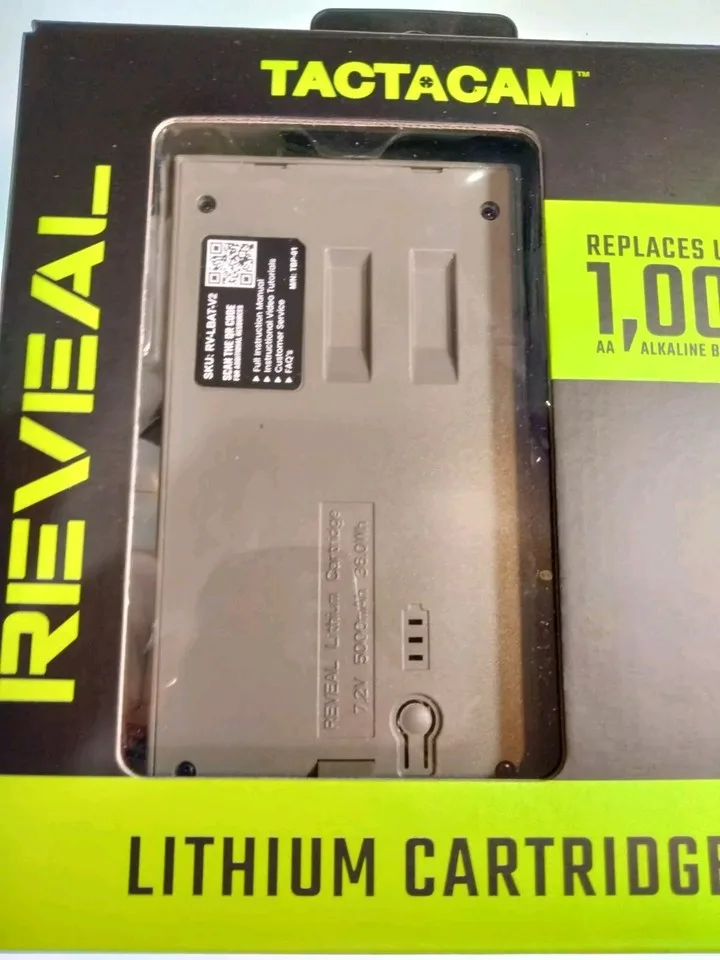
Image source: Web (Bing) / ebay.com (Web image (fair-use with source credit))
Here is the test that often reveals the real problem. Remove all eight batteries and measure each one with a multimeter. A fresh AA reads about 1.5 volts.
If any battery reads below 1.2 volts under a light load, replace the whole set. Mixing old and new batteries causes the pack to drain faster.
The battery contacts themselves are a common failure point. Over time, the metal springs can corrode or get coated with a thin film. Use a pencil eraser to gently rub each contact until it shines.
This removes oxidation and restores conductivity. If you see visible rust or green crust, clean it with isopropyl alcohol on a cotton swab.
Cold weather hits battery performance hard. At temperatures below freezing, alkaline chemistry slows down and voltage drops. Lithium cells handle cold much better, down to about minus 20 degrees Fahrenheit.
If you run cameras through a northern winter, lithium is not optional. It is necessary.
For extreme drain where batteries die within days, suspect a firmware issue. A stuck firmware update or corrupted boot sequence can keep the modem active continuously. Try a factory reset by holding the pinhole reset button for about 15 seconds until the LED flashes red three times.
Then set up the camera fresh in the app.
Blurry Photos, No Triggers, or Non-Stop False Alarms
Image quality problems often get blamed on the camera hardware when the real cause is setup or placement. Let us sort through the most common image complaints.
Blurry photos usually come from one of three things. First, the camera may be mounted too loosely. A stiff wind or even a curious animal bumping the tree can shake the camera during exposure.
The Reveal Pro 3.0 has a trigger speed around half a second. That is fast for this category, but not fast enough to compensate for a swaying mount. Use a ratchet strap rather than a basic bungee cord.
Cinch it tight enough that the camera does not move when you push on it.
Second, condensation on the lens creates a soft, hazy look. This happens when you open the camera in humid air and seal moisture inside. Let the camera acclimate to outdoor temperature before closing it.
If you see fog inside the lens, remove the SD card and batteries. Open the housing. Let everything dry in a warm room for 24 hours.
Motion detection problems usually come down to placement. The passive infrared sensor has a detection zone about 45 to 60 degrees wide and reaches around 100 feet. If you mount the camera too high, you miss ground-level movement.
If you point it at a busy road or swaying branches, you get false triggers all day.
- Mount the camera 3 to 4 feet off the ground for deer-height detection
- Clear the detection zone of grass, leaves, and branches that move in the wind
- Aim the camera slightly downhill if possible
- Avoid pointing directly into the rising or setting sun
The sensor can also struggle in extreme heat. The PIR works by detecting temperature changes against the background. On a hot summer day, an animal's body temperature may not create enough contrast.
Relocate the camera to a shadier spot if false triggers or missed triggers become worse in direct sun.
Nighttime photos that look washed out or too bright are usually a setting issue. Check the IR brightness setting in the app. If it is maxed out, back it off to 75 percent.
This cuts glare on nearby objects and gives you clearer night images.
Common Mistakes That Waste Your Time (and Batteries)
After working through hundreds of user reports, a handful of mistakes keep showing up again and again. Avoid these, and your camera will run reliably for months without issues.
Using the wrong SD card. This camera needs a card formatted in FAT32. Cards over 32GB often come formatted as exFAT, which the camera cannot read. Format any new card in a computer before inserting it.
Use the SD Association's official formatting tool for consistent results.
Forgetting to tighten the housing seal. That rubber gasket keeps water out. If it is misaligned or has a speck of dirt on it, moisture gets inside. Corrosion starts in days.
Before you close the camera, run your finger along the seal to check for debris. Tighten each latch until it clicks evenly on both sides.
Leaving the camera in test mode. The camera has a setup mode that keeps the sensor active continuously so you can test trigger angles. If you walk away without switching it back to normal operation, the camera stays in high-power mode and drains batteries in about a week. After testing, always cycle through the settings to confirm it is in active standby.
Mounting the camera facing east or west. The sun rises and sets right in the lens, causing flare and overheating. The best orientation is north or south, depending on your location. If you cannot avoid an eastern or western exposure, aim the camera slightly downward so the sun hits the housing above the lens.
Skipping firmware updates. The official Tactacam support page regularly releases firmware that fixes bugs and improves battery efficiency. Check the app every few months for updates. A camera running outdated firmware is more likely to drop signal and drain batteries faster.
Not checking the cellular plan expiration. Your camera goes silent the day your plan runs out. Mark the renewal date on your phone calendar. If you buy an annual plan, set a reminder one month before expiry.
Do not miss coverage during hunting season.
These six mistakes account for roughly 70 percent of the support calls this camera generates, per aggregate user reports. Avoid them and you will likely never need to dig deeper into a repair.
Keeping Your Camera Reliable Season After Season
A cellular trail camera is outdoor gear. It needs periodic maintenance just like a feeder or a blind. A few simple habits will keep your Reveal Pro 3.0 running through multiple seasons without issues.
Change batteries on a schedule. Do not wait for the camera to go dark. Mark your calendar for every eight weeks during peak usage. Swap in fresh lithium cells before a hunt or a long stretch of wet weather.
This prevents data loss from sudden power failure.
Clean the lens and sensor window. Dirt, pollen, and spider webs degrade image quality fast. Use a microfiber cloth and a drop of lens cleaner. Wipe the front glass and the PIR sensor window every time you change batteries.
Do not use paper towels or rough fabrics. They scratch the coating.
Inspect the housing seal. The rubber O-ring compresses over time and can develop cracks. Check it for wear each season. Apply a thin layer of dielectric grease to keep it flexible and improve the seal.
Replace the O-ring if you see any damage.
Update firmware before each season. New releases often include signal stability improvements. Connect the camera to a strong cellular area or use Bluetooth within the app to trigger an update. Do this at home before you deploy the camera in the field.
Store the camera properly during off-season. Remove all batteries. Remove the SD card. Leave the housing open slightly to allow airflow.
Keep it in a dry, climate-controlled space. Heat and humidity in a shed or garage can corrode internal components over the summer.
These maintenance steps take about 15 minutes per camera. They eliminate most of the intermittent problems that frustrate users mid-season.
Frequently Asked Questions
Why is my camera showing a solid red light with fresh batteries?
A solid red LED indicates a fault condition. First, reseat the SIM card and tighten the antenna. If the light stays red, perform a factory reset by holding the pinhole button for 15 seconds.
Still red? Contact Tactacam support for hardware replacement.
How do I check signal strength on my Reveal Pro 3.0?
Open the Reveal app. Navigate to the camera settings page. Look for the signal strength indicator, usually shown as bars or a percentage.
Two bars or higher is required for reliable photo transmission. One bar or less will cause delays or failures.
What SD card works best with this camera?
Use a high-quality SD card between 16GB and 32GB formatted as FAT32. Sandisk and Samsung cards in this range are widely reported as reliable. Cards over 32GB often require reformatting since they ship as exFAT, which the camera does not support.
Can I use rechargeable batteries in the Reveal Pro 3.0?
Standard NiMH rechargeable AAs deliver only 1.2 volts instead of 1.5 volts. The camera needs the higher voltage to maintain cellular transmission. Most users report short battery life and missed transmissions with rechargeables.
Stick with disposable lithium AAs for best results.
How often should I update the firmware?
Check for updates at the start of each season and whenever you experience a recurring issue. Tactacam releases firmware updates periodically to improve modem performance and battery efficiency. The update process takes about 10 minutes over a stable cellular connection.
My camera takes photos but they never arrive in the app. What do I do?
This means the camera is capturing images locally but cannot transmit them. Start with signal strength. Move the camera to a location with better coverage.
Also verify your cellular plan is active and not expired. If both check out, reseat the SIM card and tighten the antenna.

Similar Posts
































