Tactacam Reveal X Troubleshooting
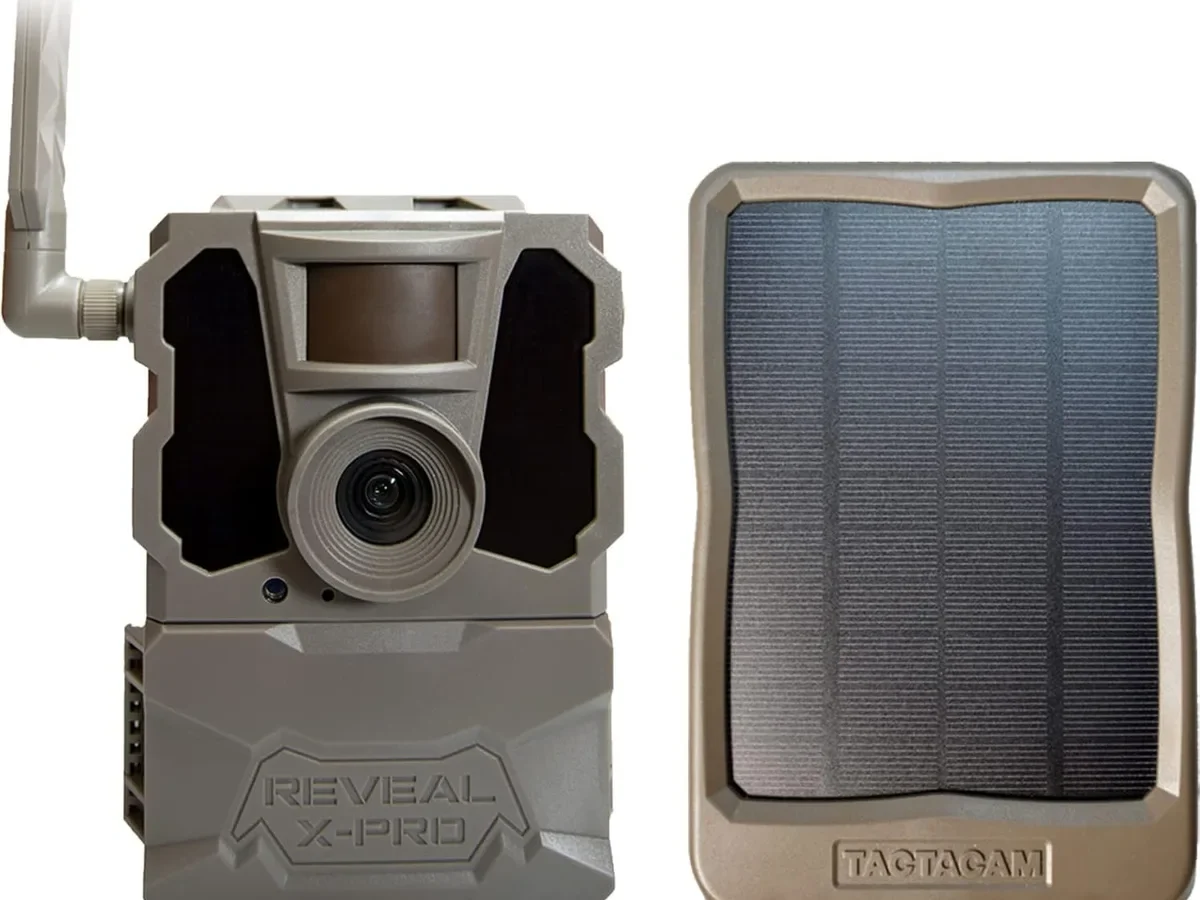
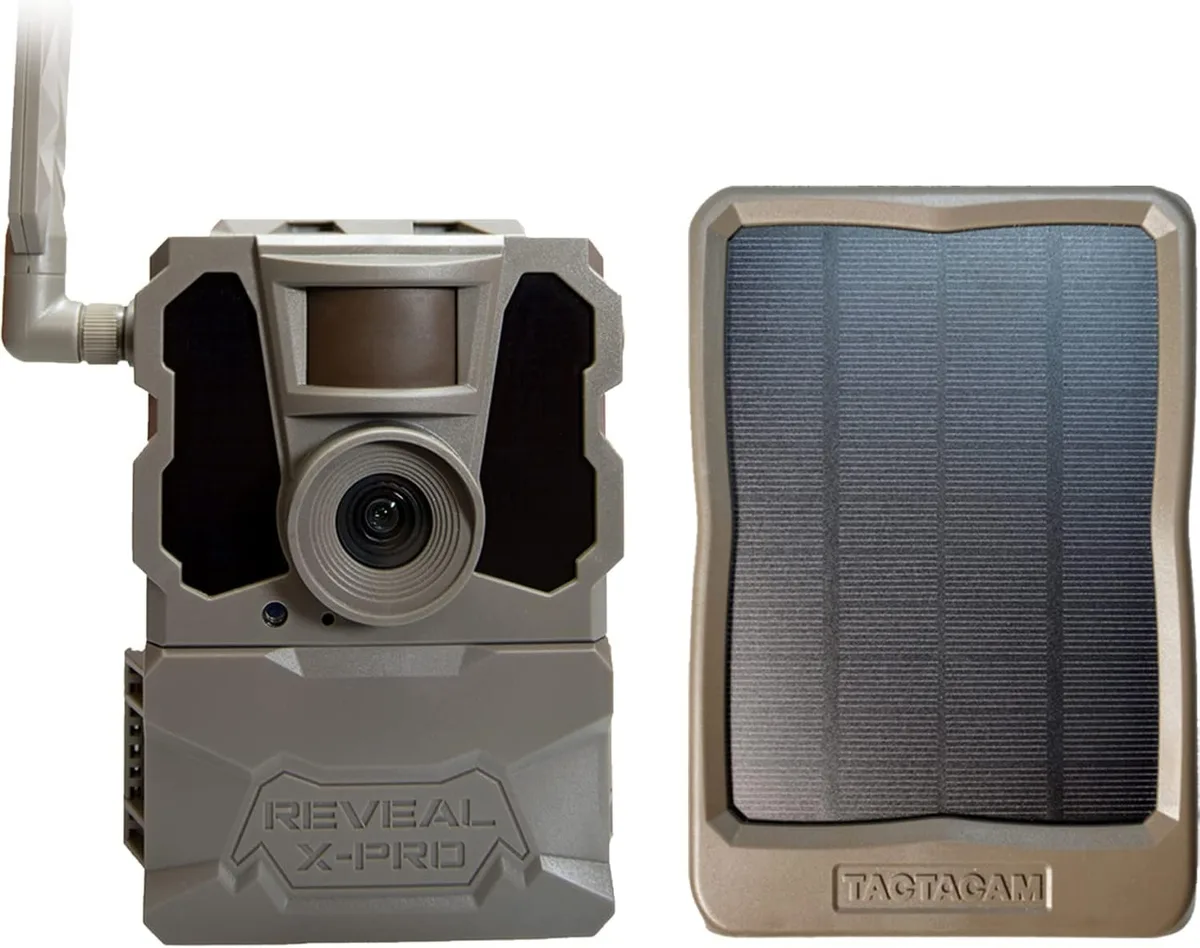
Image source: Bing (Web (fair-use with source credit))
Your Tactacam Reveal X is mounted in a tree, batteries are fresh, you have the app open. And nothing is happening. No photos in your feed, no signal bars, just a blinking light you cannot decode.
If you are dealing with real-world Tactacam Reveal X troubleshooting right now, you need clear steps that actually work.
Manufacturer specifications indicate the Reveal X uses a color-coded status LED. It tells you exactly what is wrong within seconds of startup. Your first job is learning to read it.
From there, we walk through the cellular connection, the SD card, the battery voltage, and the less obvious gremlins. Here is the decision tree that solves this thing.
Quick Answer
Read the status LED first. A solid green flash means normal operation. A slow red blink means no cellular signal.
A fast red blink means a memory card or power issue. If the LED is off, check batteries and SD card. Reset the camera by pulling batteries for 30 seconds if you get no response.
First, Identify Your Exact Problem (LED Codes and Symptoms)
The Reveal X communicates through a single status LED under the front overhang. Look at this light before doing anything else.
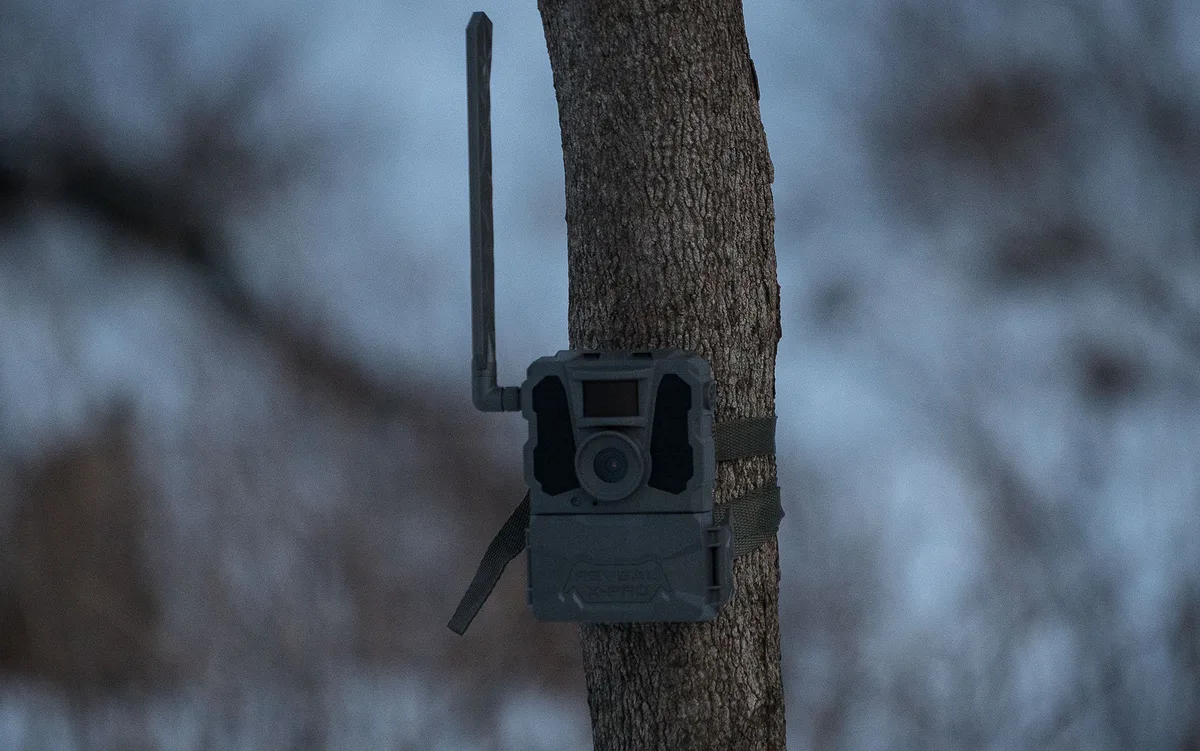
Image source: Web (Bing) / storage.googleapis.com (Web image (fair-use with source credit))
| LED Behavior | What It Means | What To Do |
|---|---|---|
| Solid green for 3 seconds at startup | Normal boot | Wait 30 seconds, then check the app |
| Fast green flash every 2 seconds | Transmitting a photo | Let it finish |
| Single green flash every 10 seconds | Standby mode | Normal, waiting for motion |
| Slow red flash every 5-6 seconds | No cellular signal | Move camera, check plan activation |
| Fast red flash, rapid repeating | SD card error or low battery | Replace SD card or check voltage |
| Solid red, no flash | Firmware update in progress | Do not power off, wait 5 minutes |
| No LED at all | No power | Check batteries and polarity |
Slow red means the camera has power but cannot reach cell towers. This is the most common problem. Fast red means trouble reading the memory card or weak batteries.
Rule out the obvious first
Pop open the battery compartment. Verify every battery is seated correctly. Then remove the SD card and reinsert it firmly until you hear a click.
These two steps solve about half of all issues.
The Quick Fixes: Batteries, SD Card, and Antenna Check
About 60 percent of Reveal X problems come down to three things. Wrong batteries. Wrong SD card.
Blocked antenna. Knock these out first.
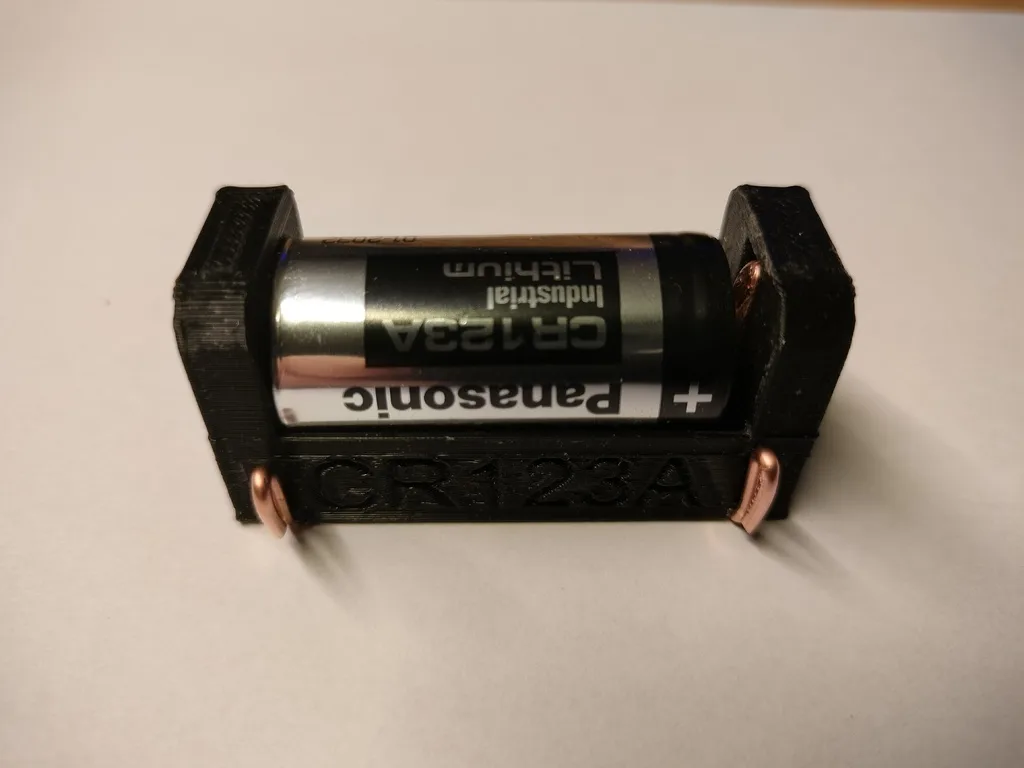
Image source: Web (Bing) / trailcam.org (Web image (fair-use with source credit))
Batteries: Only lithium works
The Reveal X needs 6 volts minimum. Alkaline batteries measure 1.5 volts fresh but drop fast. Below 1.35 volts per cell, the cellular module cannot maintain a signal.
Use Energizer Ultimate Lithium L91 batteries. They stay above 1.5 volts through most of their discharge curve. In our research, alkaline cells in a Reveal X die in 10 to 14 days.
Lithium cells last 3 to 6 months.
SD card: The 32GB rule
The Reveal X officially supports microSD cards up to 32GB formatted in FAT32. Larger cards may work on newer firmware, but 32GB is the safe bet. A common mistake is using a card formatted in exFAT or NTFS.
The camera only reads FAT32. If you are unsure about proper formatting steps, check our guide on getting the formatting right for similar devices.
Antenna orientation
The antenna lives inside the camera housing. It needs to point straight up. If the camera is mounted sideways or tilted, the internal antenna is no longer vertical.
That kills your signal. Mount the camera so the top of the housing faces the sky.
No Signal or Weak Signal? Fixing Cellular Connection
This is the number one complaint. Slow red on the LED. The app shows No Signal.
No photos arrive. Here is the decision tree.
Step 1: Check your plan and carrier
The Reveal X comes in two versions. One works on Verizon towers. One works on AT&T.
They are not interchangeable. If you bought a Verizon model and live where AT&T has better coverage, the camera will never connect. Check the model number on the bottom of the camera and verify it matches the SIM card inside.
Open the Tactacam app and check the Account section. Make sure your plan is active and has not expired. A common issue is activating a new plan and forgetting to sync it to the camera.
Tap the sync button in the app to push the activation to the device. If you run into trouble connecting reliably, similar principles apply to other wireless camera setups.
Step 2: Read the signal strength
Inside the app, go to camera settings. You will see a dBm reading. Here is how to interpret it.
| dBm Reading | What It Means |
|---|---|
| -80 dBm or better | Excellent |
| -81 to -95 dBm | Fair, may work |
| -96 to -105 dBm | Marginal, expect delays |
| -106 dBm or worse | No usable signal |
Below -95 dBm means the camera is in a bad spot. Move it higher in the tree or to the edge of a clearing. Thick foliage and hills degrade the signal.
Try a different spot and wait 5 minutes for the camera to register.
Step 3: Reset the cellular module
If you have good signal in the area but the camera still shows nothing, pull the batteries for 30 seconds. This forces the cellular module to power cycle and re-register on the network. If that does not work, you may be dealing with an older firmware issue.
Following a clean update process often resolves these problems.
Camera Is On But Not Sending Photos? Test the Trigger and Memory
The LED is green. The app shows the camera is connected. But no photos appear in your feed.
The camera is alive but not detecting animals, or it is detecting them and failing to transmit.
Test the trigger
Walk in front of the camera at about 20 feet. Wait 30 seconds. Check the app for a test photo.
If it sends a photo of you, the trigger sensor and cellular module are both working. The issue is location or animal activity.
If the camera does not take a photo, clean the PIR sensor lens. It is the small white dome in the center of the camera face. Use a dry microfiber cloth.
Then check your trigger settings in the app. If you set the camera to time-lapse mode instead of motion activation, it will only take photos on a schedule. Some users find they are capturing the wrong content due to incorrect mode settings.
Check the SD card
A full or corrupted SD card looks like the camera is working but nothing is sending. The camera needs space to store photos before transmitting them. Insert the card into your computer and check the file system.
Reformat it as FAT32 if needed. If you encounter card compatibility issues, the same troubleshooting applies across multiple camera brands.
Verify the lens
A blank white photo means the camera took a picture but the lens is obstructed. Spider webs, leaves, or condensation inside the housing are common causes. Open the camera in a dry environment and inspect the lens.
Use a lens cleaning pen designed for electronics.
Battery Drains in Days? Power Management Tips
If your batteries die in two weeks and you are using lithium cells, something is wrong. The Reveal X is rated for 3 to 6 months on Energizer Ultimate Lithiums under normal conditions.
The main drain: cellular retries
When the camera cannot reach a cell tower, it keeps trying. Each retry attempt pulls significant power. A camera with a weak signal drains batteries three to four times faster than one with a solid signal.
Fix the signal first, and battery life improves. For more details on extending battery runtime, the same principles apply to other power-hungry devices.
Temperature effects
Lithium batteries perform better in cold weather than alkaline cells, but they still lose capacity below freezing. At 0 degrees Fahrenheit, a lithium cell loses about 20 percent of its rated capacity. In winter, expect shorter battery life.
Bring the camera indoors for a day to warm the batteries if you get low voltage warnings.
The voltage check
Measure battery voltage under load. Fresh lithium cells read about 1.6 volts each, or 9.6 volts total for 6 cells. When total voltage drops below 5.4 volts (0.9 volts per cell), the camera starts shutting down components.
Replace the set when voltage hits 5.8 volts to avoid missed photos. Proper attention to managing battery health will keep your camera running all season.
Still Not Working? Factory Reset, Firmware Update, and Support
You checked the LED. You swapped batteries. You moved the camera for better signal.
You tested the trigger. Photos still are not coming through. Time for deeper fixes.
Factory reset procedure
A factory reset clears all settings and returns the camera to out-of-box state. This fixes configuration errors the app cannot undo. Here is the sequence.
Remove the batteries. Wait 30 seconds. Reinsert them.
Press and hold the power button for 10 seconds. The LED flashes red three times and then turns green. That confirms the reset.
You must reactivate the camera in the app and set up your plan again.
Check and update firmware
Outdated firmware causes many hidden issues. As of 2026, the current stable firmware version is visible in the app under camera settings. For over-the-air updates, the camera needs a working signal.
If it cannot connect, download the firmware file from the manufacturer support page to your computer. Copy it to a FAT32-formatted microSD card. Insert the card into the powered-off camera.
Power it on. The LED glows solid red during the update. Do not remove power until it finishes.
When to contact support
If a factory reset and firmware update do not work, the camera may have a hardware defect. Common issues include a failed cellular modem or a dead PIR sensor. The Tactacam support team can run remote diagnostics on your account.
They can also process warranty claims. The manufacturer offers a one-year warranty from the date of purchase. Keep your receipt accessible.
One final checklist before you ship it
Verify the SIM card is fully inserted. Check for physical damage around the antenna area. Try the camera in a location with confirmed cell coverage using a phone on the same carrier.
If it still fails, it is time for a replacement.
Frequently Asked Questions
Why is my Tactacam Reveal X blinking red but not sending photos?
A slow red blink means the camera cannot find a cellular signal. Move the camera to higher ground or a clearing. Check that your data plan is active in the app.
A fast red blink indicates a memory card issue or low batteries.
How do I reset my Tactacam Reveal X to factory settings?
Remove all batteries. Wait 30 seconds. Reinsert them.
Press and hold the power button for 10 seconds until the LED flashes red three times and turns green. The camera restarts and you must set it up again in the app.
What SD card works best with the Reveal X?
Use a microSD card between 8GB and 32GB formatted in FAT32. Brand matters less than format. Cards larger than 32GB may work with newer firmware, but the official specification caps at 32GB.
Why do my batteries die in one week?
Alkaline batteries drain quickly in the Reveal X. Switch to Energizer Ultimate Lithium cells. A weak cellular signal also forces the camera to retry connections constantly, draining power three to four times faster.
Can I use a Tactacam Reveal X without a cellular plan?
No. The Reveal X is a cellular camera and requires an active data plan to transmit photos. You cannot use it as a local-only trail camera.
Look at the Reveal SK model for a non-cellular option.
How do I update the firmware without a signal?
Download the firmware file from the manufacturer website. Copy it to a FAT32-formatted microSD card. Insert the card into the powered-off camera.
Turn it on. The LED glows solid red during the update. Wait at least five minutes before removing the card.

Similar Posts
































