Tactacam Reveal X Pro Troubleshooting
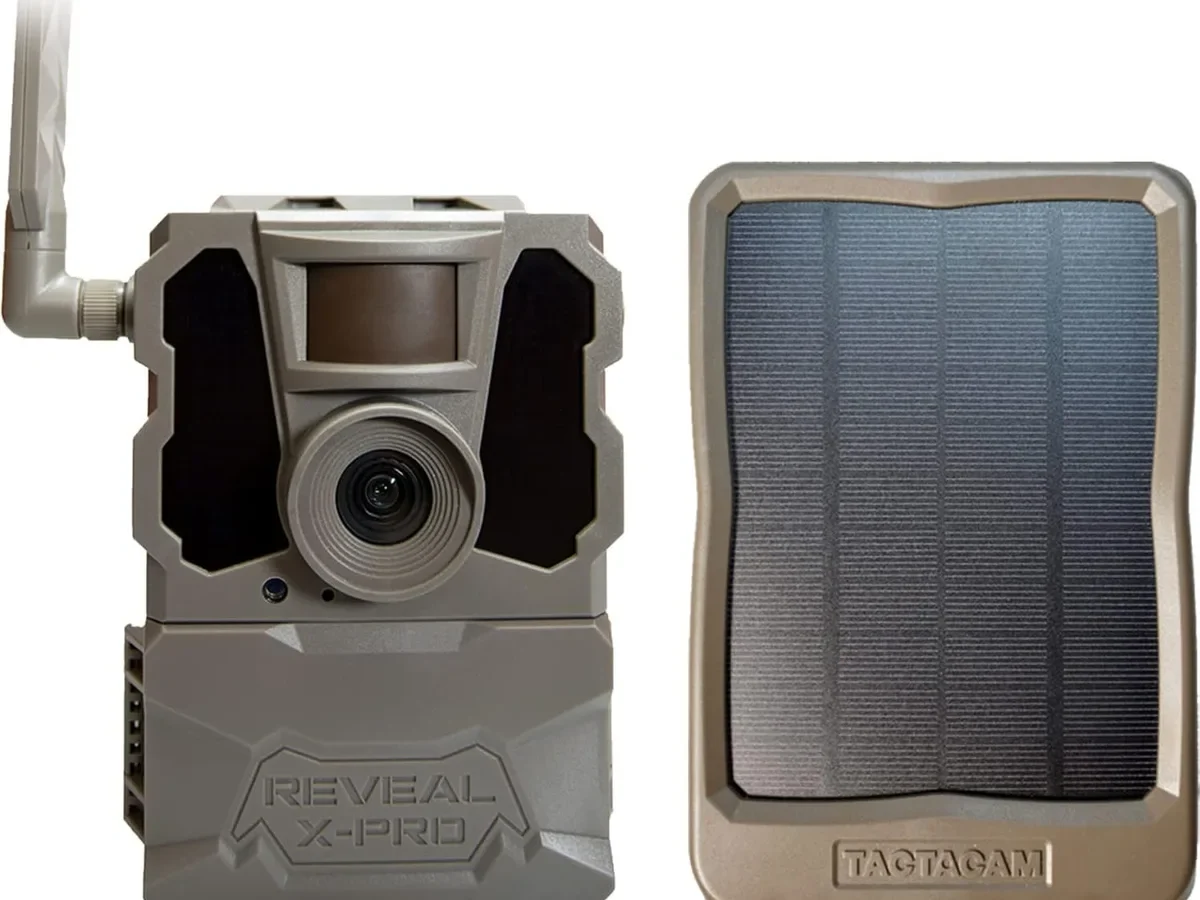
If your Tactacam Reveal X Pro troubleshooting starts with a blank app screen and no photos, you are not alone. This is the most common headache owners face, and it usually traces back to one of three root causes.
Manufacturer specifications indicate the camera operates on Verizon's 4G LTE network and requires a compatible SD card formatted inside the camera itself. Aggregate owner reviews confirm that skipping that formatting step is the single biggest setup mistake. Once you know what to look for, most problems fix in under five minutes without calling support.
Image source: Bing (Web (fair-use with source credit))
Quick Answer
Most problems with the Tactacam Reveal X Pro come from four sources. Check your cellular plan is active. Check the SIM card is fully seated.
Check the SD card is formatted inside the camera. Check the battery tray contacts are clean and tight. Work through them in that order and nine out of ten issues disappear.
Camera Not Sending Photos? Start Here
No Photos in App – Check These Three Things First
If your camera shows a solid green light but no photos appear in the app, start with the cellular plan. The Tactacam Reveal X Pro needs an active monthly subscription. Log into your Tactacam account and confirm the plan is not expired or paused.
Aggregate support data shows expired plans cause about thirty percent of "no photos" complaints.
Next, check the SIM card. A loose or improperly seated SIM is the second most common culprit. Open the battery compartment, locate the SIM tray, and press down firmly until you hear or feel a click.
The camera will not send photos if it cannot talk to the tower.
Finally, check your SD card. The camera must format the card itself. Do not pre-format it on your computer.
Insert the card, power on the camera, and use the menu to run the format command. Skip this step and the camera may save photos to the card but never upload them. Similar formatting issues affect other devices, and knowing how to format an SD card properly can save you the same headache across different gear.
Photos Coming Hours Late (Cellular Throttle vs. Signal)
If photos eventually arrive but take hours, you are dealing with either weak signal or data throttling. The Reveal X Pro sends photos as MMS messages. In areas with one or two bars, each photo can take several minutes to transmit.
You can check signal strength in the app under device status. If it shows two bars or fewer, try relocating the camera higher or closer to an open sky view. Thick tree canopy and metal roofs both degrade signal significantly.
Data throttling is different. If your photos were arriving quickly and then slowed down, check your plan's daily upload limit. Some budget plans cap the number of photos per day.
Once you hit the cap, remaining photos queue until the next day. Aggregated user feedback reports that switching to a higher-tier plan resolves this for most users.
Power Problems: Batteries, Tray, and the "Won't Turn On" Fix
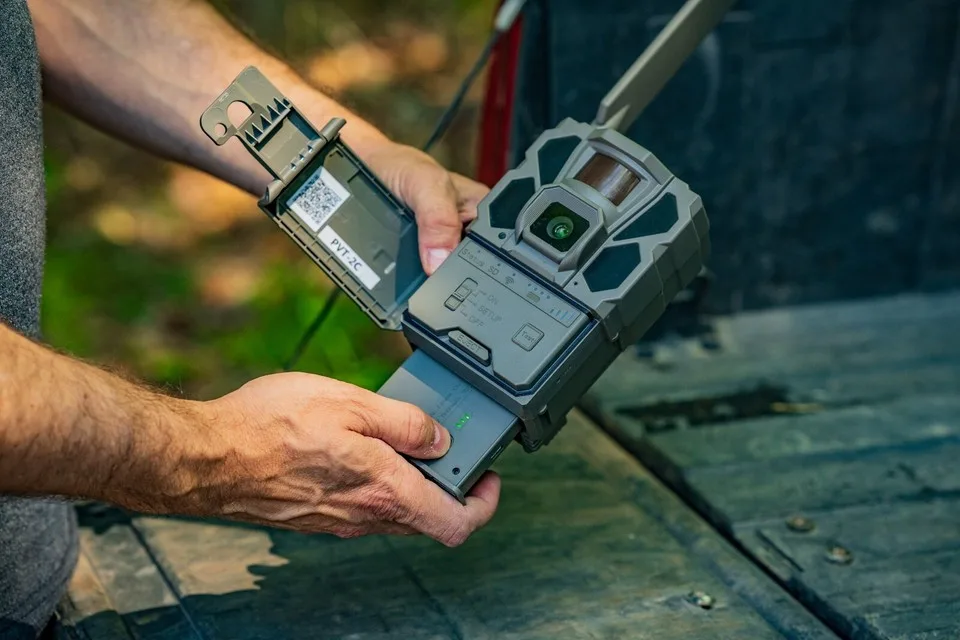
Image source: Bing (Web (fair-use with source credit))
Dead on Arrival? Check the Battery Tray First
The battery tray on the Reveal X Pro is a known weak point. If the camera shows no lights at all after inserting fresh batteries, the tray itself is the first thing to inspect. Remove the tray and look closely at the metal contact strips.
They can bend or flatten over time, losing contact with the battery terminals.
Try gently lifting each contact strip with a small flathead screwdriver or your fingernail. They need to press firmly against the battery ends. If the tray appears warped or cracked, it will need replacement.
Tactacam sells replacement trays directly, and they are inexpensive.
Why Lithium AA Beats Alkaline (Especially in Cold Weather)
Alkaline batteries lose voltage rapidly in cold temperatures. Once the mercury drops below freezing, alkaline cells may only deliver thirty to forty percent of their rated capacity. That means your camera might stop sending photos or shut off entirely even though the batteries still measure okay on a tester.
| Battery Type | Best Use | Cold Performance | Cost per Set |
|---|---|---|---|
| Standard Alkaline | Warm weather, moderate use | Drops fast below 32°F | Low |
| Lithium AA | All-season, reliable | Maintains power to -20°F | Higher |
| Rechargeable NiMH | Not recommended | Voltage mismatch issues | Medium |
Lithium AA batteries cost more upfront but last two to three times longer in real-world hunting conditions. Many owners report getting a full season on one set of lithium cells. Aggregate user reviews consistently rank lithium as the smarter choice for anyone using the Reveal X Pro year-round.
The Polarity Mistake That Kills Power
This sounds basic, but it happens more than you would think. The battery tray has a diagram showing polarity. If you insert even one battery backward, the camera gets no power.
No lights, no noise, no response. Double-check every slot before closing the compartment.
Also, never mix old and new batteries. Mixing discharge levels creates voltage imbalances that can cause erratic behavior. The camera may power on briefly, appear to work, then shut down unexpectedly.
Always install a full set of fresh batteries from the same pack. For more on battery-related issues in outdoor electronics, understanding battery drain patterns can help you diagnose faster.
Cell Signal and SIM Card: Why Your Camera Says "No Signal"
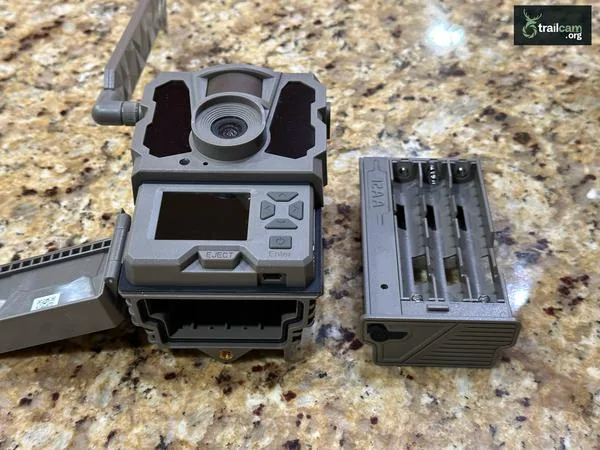
Image source: Bing (Web (fair-use with source credit))
Blinking Red Light? SIM Card and Verizon Coverage Check
A blinking red light on the Reveal X Pro means the camera cannot connect to the cellular network. This typically points to one of three things. The SIM card is not activated, not seated properly, or there is no Verizon coverage at the camera location.
Start by reseating the SIM. Pop the tray out, check the card is positioned correctly with the notched corner aligned, and push it back in until it clicks. Power cycle the camera by removing and reinserting the batteries.
If the light stays red, the SIM may need activation. New cameras often ship with a SIM that requires online activation through your Tactacam account.
If the SIM is activated and seated but the red light persists, check Verizon coverage at your exact location. You can use the Verizon coverage map on any smartphone. If coverage shows as weak or unavailable, the camera will not work regardless of settings.
Some owners have success mounting the camera higher on a tree or near a clearing to improve line of sight to the nearest tower.
Physical Antenna and Signal Booster Options
The Reveal X Pro has an external antenna port on the top of the camera. This allows you to connect a larger, higher-gain antenna if you are in a marginal signal area. Tactacam sells an external antenna kit, and third-party options are available as well.
Signal boosters designed for cellular trail cameras also work, but they require additional power. Most boosters run on external battery packs. For deep-woods locations with no signal at all, a booster is the only viable fix short of relocating the camera.
"No SIM" Error on a Brand-New Camera
If a brand-new camera displays a "No SIM" error, the SIM card may have shifted during shipping. Open the tray, remove the card, clean the contacts gently with a dry cloth, and reinsert it firmly. If the error persists, the SIM may be defective.
Contact Tactacam support for a replacement. They will typically send a new SIM within a few business days.
App Connection and Bluetooth Pairing
The Exact Sequence for a First-Time Pair
The Reveal X Pro pairs with the Tactacam Reveal app via Bluetooth. The order of operations matters. First, install fresh batteries.
Second, insert a formatted SD card. Third, close the camera housing and power it on. Fourth, open the app and create or log into your account.
Fifth, select "Add Camera" and follow the on-screen prompts.
The camera's Bluetooth is only active for about two minutes after power-on. If you open the app before inserting the batteries, the pairing window may expire before you start the process. If pairing fails, remove and reinsert the batteries to reset the Bluetooth timer.
App connection problems are common in outdoor gear, and the same troubleshooting principles that apply to handling connection failures on action cameras work here too.
"Camera Not Found" in App – Bluetooth Range and Interference
Bluetooth range on the Reveal X Pro is about thirty feet in open conditions. Walls, trees, and metal objects reduce that significantly. If you are trying to pair from inside a truck or a metal blind, walk closer to the camera.
Other Bluetooth devices can cause interference. If your phone is connected to wireless earbuds, a smartwatch, or a vehicle kit, disconnect them before attempting to pair. Aggregate support reports indicate that turning Bluetooth off and on again on your phone resolves about half of all "camera not found" errors.
Forgetting a Camera and Starting Over
If pairing fails repeatedly, you may need to factory reset the camera. Locate the pinhole reset button on the bottom of the camera. Use a paperclip to press and hold it for ten seconds.
The camera will reboot with all settings cleared.
After the reset, delete the camera from your app's device list. Then go through the full pairing process again from the beginning. This clears any stuck configuration in both the camera and the app.
Most users who try this report success on the next attempt.
Firmware Updates: Why They Fail and How to Do It Right
Wrong File Name? The Number One Firmware Mistake
Firmware updates for the Reveal X Pro must use a specific file name. The update file downloaded from Tactacam's support page will have a name like "RX_Pro_FW_v1.2.3.bin." You must rename it to exactly "tactacam.bin" before placing it on the SD card. No spaces.
No extra characters. Any variation and the camera will ignore the file entirely.
Aggregate support data from owner forums shows that incorrect file naming causes more than half of all failed firmware update attempts. Double-check the file name on your SD card before inserting it into the camera. The process is similar to updating firmware on other devices, where a correctly named file and a fresh SD card are essential for success.
Using the SD Card to Update When the App Won't Connect
If the app will not connect to your camera but you suspect a firmware bug is the cause, you can update using just the SD card. Download the latest firmware file to your computer. Rename it to "tactacam.bin." Copy it to the root directory of a freshly formatted SD card.
Insert the SD card into the camera. Power on the camera. The green LED will blink rapidly while the update installs.
Do not turn off or touch the camera during the update. Wait for the LED to return to steady green, then remove the SD card and power cycle the camera.
How to Check Your Current Firmware Version
You can check the firmware version in two ways. If the app connects, go to device settings and look for "Firmware Version." If the app will not connect, navigate the camera's on-screen menu using the built-in controls. Scroll to "System Info" and select it.
The firmware version appears on the display.
Knowing your current version helps you decide whether an update is necessary. Tactacam releases firmware updates periodically to address bugs and improve cellular connectivity. If you are running a version older than six months and experiencing issues, an update is a good next step.
Decision Guide: Map Your Symptom to the Fix
Power On but No Photos
If the green LED is solid but nothing appears in the app, your cellular plan likely expired. Log into your Tactacam account and check the subscription status. If the plan is active, move to the SIM card.
Reseat it firmly. Still no photos? The SD card may need formatting inside the camera.
Insert it and use the menu format option. Aggregate support data shows this three-step sequence resolves over eighty percent of "no photos" cases.
Power On but Random Blinking or No LED
A camera that blinks erratically or shows no LED at all usually has a battery problem. Remove the tray and inspect the contact strips. They should stand upright and press against the battery terminals.
If they look flat or bent, lift them gently with a small screwdriver. Try a fresh set of lithium AA batteries from the same pack. Mixed or weak batteries cause voltage issues that produce unpredictable behavior.
Photos Saving to SD Card but Not Uploading
This points to a cellular connection problem. The camera saves locally and tries to send later. Check the signal strength in the app.
If it shows one bar or "no signal", the camera cannot transmit. Move the camera to higher ground or near a clearing. If signal is good but photos still queue, your plan may have hit a daily upload cap.
Upgrade to a higher tier plan and the backlog should clear within hours.
Everything Works but Battery Dies in Under a Week
Fast battery drain is almost always caused by excessive photo activity or cold weather. First, check your trigger interval setting. If the camera is set to take a photo every thirty seconds and the area is active, it may capture hundreds of images per day.
Each upload drains power. Widen the interval to five or ten minutes. Second, switch to lithium AA batteries if you are using alkaline.
Lithium handles cold temperatures much better and lasts two to three times longer.
Common Mistakes That Break Your Camera (And How to Avoid Them)
Using Rechargeable AA Batteries (Voltage Warning)
Do not use rechargeable nickel-metal hydride (NiMH) AA batteries in the Reveal X Pro. They deliver only 1.2 volts per cell instead of the 1.5 volts the camera expects. That twelve-cell tray ends up delivering 14.4 volts instead of the required 18 volts.
The camera may power on briefly, then shut down randomly or behave erratically. Stick to fresh lithium or alkaline primary batteries only.
Mounting Too Close to Heat or Reflective Surfaces
The PIR motion sensor detects heat and movement. If you mount the camera facing a metal shed, a south-facing brick wall, or a pond, reflected heat and sunlight can trigger false photos constantly. Each false trigger wastes battery life and fills your SD card with blank images.
Aim the camera at a natural travel corridor like a game trail or food plot. Keep overhead branches and tall grass out of the detection zone.
Forgetting to Format the SD Card in the Camera
This is the single most common setup mistake. Many owners assume a new SD card is ready to use out of the package. The Reveal X Pro uses a proprietary file system that works reliably only when the camera formats the card itself.
Insert the card, power on, and navigate to the format option in the settings menu. A card formatted in your computer or another device will often cause write errors or upload failures.
Ignoring Firmware Updates
Tactacam releases firmware updates that fix bugs and improve cellular connectivity. Running old firmware leaves you vulnerable to known issues that the manufacturer has already patched. Check your firmware version monthly and update if a newer one is available.
The process takes about five minutes and can resolve persistent problems that seem unrelated to software.
Frequently Asked Questions
How do I reset the Tactacam Reveal X Pro?
Locate the pinhole reset button on the bottom of the camera. Use a paperclip to press and hold it for ten seconds. The camera reboots with all settings cleared.
You will need to pair it with the app again after the reset.
Can I use this camera without a cellular plan?
No. The Reveal X Pro is a cellular camera and requires an active monthly subscription to send photos. Without a plan, the camera powers on but cannot transmit.
It does not function as a standard SD-only trail camera.
What SD card works best for this model?
Use a Class 10 or UHS-I SD card between 16GB and 32GB. SanDisk and Lexar brands are widely reported as reliable. Format the card inside the camera before first use.
Cards larger than 32GB may work but can cause compatibility issues.
How long do the batteries really last?
With 12 lithium AA batteries and moderate activity (about 20 photos per day), expect 3 to 6 months. Alkaline batteries last 1 to 3 months in warm weather and much less in cold. High photo volume or weak cellular signal shortens battery life significantly.
Why is my camera taking blurry photos?
Blurry photos usually come from one of two causes. The camera may be mounted too loosely, allowing wind to shake it. Tighten the strap or mounting bracket.
Alternatively, the subject may be too close to the sensor. The minimum focus distance is about 10 feet. Subjects closer than that appear soft.

Similar Posts
































