VIOFO A139 Pro Troubleshooting
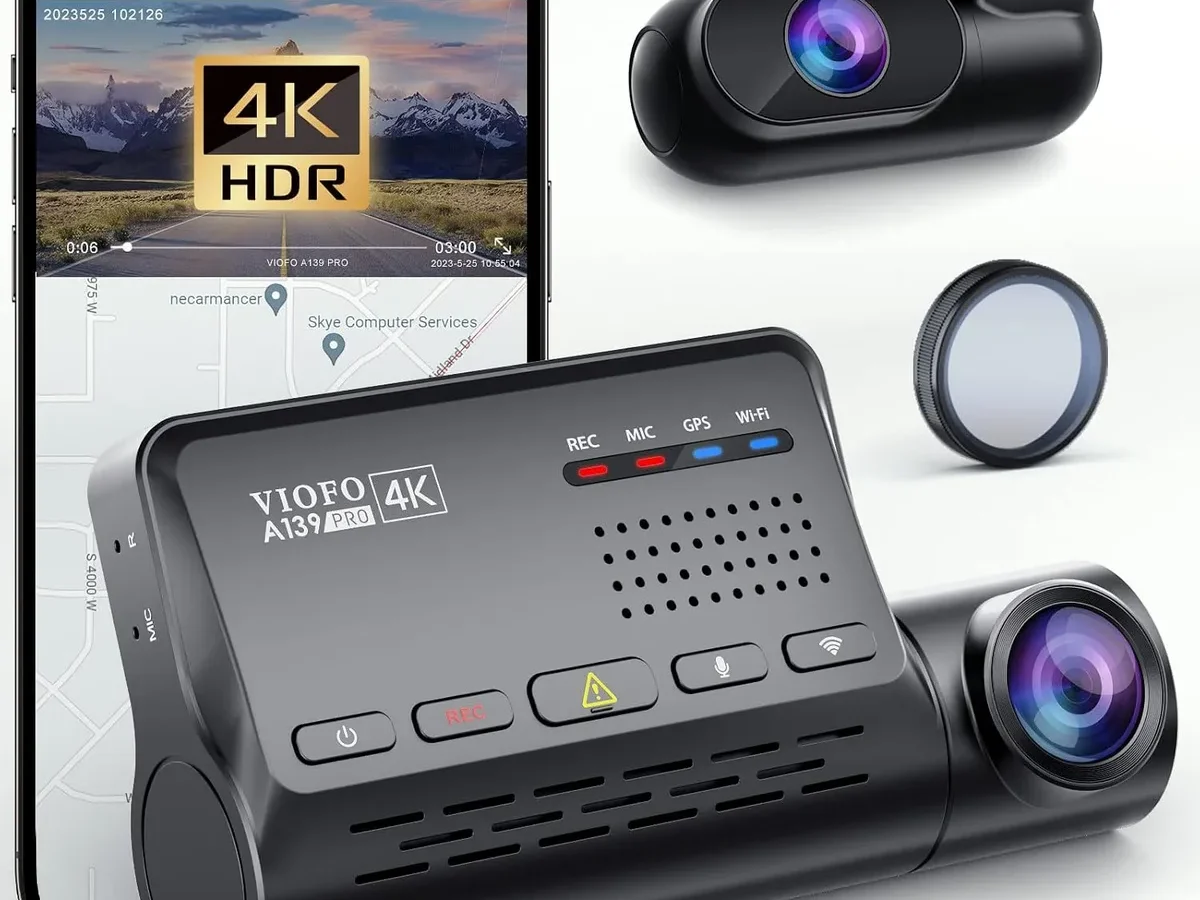
VIOFO A139 Pro troubleshooting doesn't have to be a headache. If you're staring at a black screen, hearing mysterious beeps, or getting a "card error" message, you're in the right place. We've worked through the most common complaints from owners and mapped out a clear fix for each symptom.
Manufacturer specs state the A139 Pro operates between -20°C and 65°C. That temperature range is a major factor in heat-related shutdowns, especially in summer. Understanding your exact symptom gets you to the right solution fast.
Quick Answer
The VIOFO A139 Pro troubleshooting process starts with your symptom. Check power, SD card, and firmware first. Most issues resolve with a reformat or a hard reset.
Use the decision tree below to find your exact fix. Always try the simplest step before moving on.
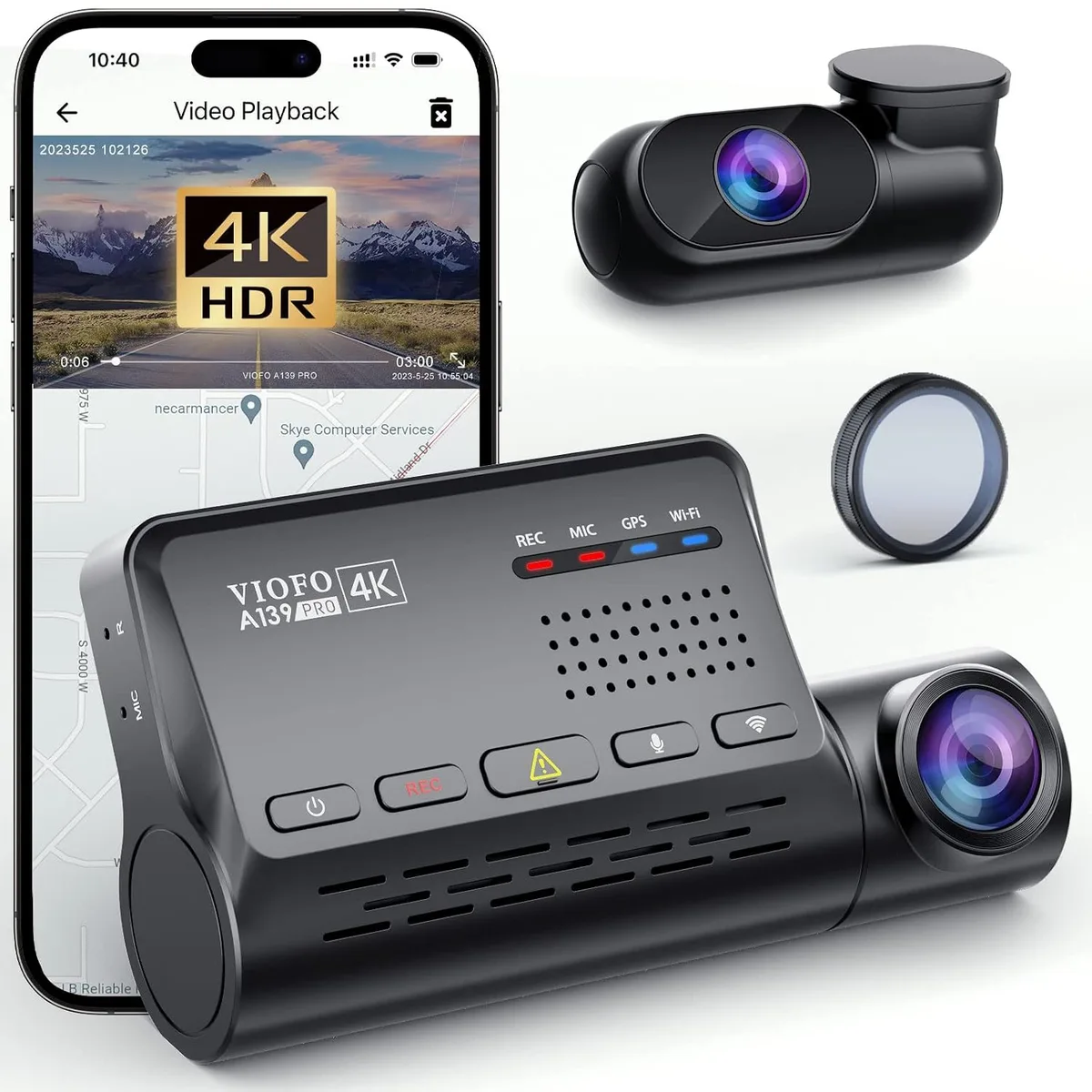
Image source: Web (Bing) / amazon.in (Web image (fair-use with source credit))
Start Here: What's Your VIOFO A139 Pro Symptom?
Your camera talks to you. It just doesn't use words. The A139 Pro uses beep patterns and LED colors to tell you what's wrong.
Learn to read them and you skip half the guesswork.
Beep patterns at a glance
- 1 beep at power on: normal start, all good.
- 3 beeps every few seconds: SD card error or card not detected.
- 5 beeps on repeat: card failure or formatting issue.
- Continuous beeping: GPS signal lost or module fault.
- No beep at all: no power, dead capacitor, or blown fuse.
LED status
- Solid red: recording.
- Flashing red: parking mode or standby.
- No light: no power or unit off.
If you hear 3 or 5 beeps, jump to the "Card Error" section. If you get no power or random reboots, go to the power section next. Matching your symptom to the right branch saves time.
Pro tip: listen for the beep pattern when you first turn the key. That's the camera's startup self-test. A single beep means everything passed.
Anything else means something needs attention.
No Power or Random Reboots: Diagnosing the Hardwire Kit, Adapter, and Supercapacitor
Nothing works if the camera won't turn on. This is the most common starting point for VIOFO A139 Pro troubleshooting. The fix is usually straightforward.
Check the power source first
Test the camera with the included 12V car adapter. Plug it into your cigarette lighter socket. If it powers up, the problem is your hardwire kit or fuse.
If it stays dead, the issue is inside the camera or the cable.
Hardwire kit checks
The A139 Pro works with the HK4 or HK3-C hardwire kit. These kits have a voltage cutoff dial. If the dial is set too high (12.4V), the camera shuts off to protect your car battery.
Turn it down to 12.0V or 11.8V and test again. Also check the fuse in the add-a-circuit. A blown fuse kills power completely.
Battery drain and capacitor issues
The A139 Pro uses a supercapacitor, not a lithium battery. Capacitors hold less charge and degrade over time. If your camera loses time and date settings after a few hours off, the capacitor is failing.
Manufacturer support confirms this is a known wear item. Replacement is the only fix.
Random reboots
Random reboots point to three culprits: loose power connection, overheating, or firmware glitch. Tighten the USB-C plug at the camera. Check the hardwire kit connections.
If the camera reboots in hot weather, see the overheating section. If it reboots randomly in mild weather, update the firmware.
Step-by-step power fix
- Test with the 12V adapter. If it works, your hardwire kit needs attention.
- Check the voltage cutoff dial on the hardwire kit. Lower it if needed.
- Inspect the fuse. Replace if blown.
- Tighten all connections. A loose plug causes intermittent power loss.
- If nothing works, the capacitor may need replacement. Contact VIOFO support.
"Card Error" and Recording Gaps: SD Card Compatibility, Formatting, and File Recovery
The "card error" or "no SD card" message is the second most reported issue in VIOFO A139 Pro troubleshooting. The good news is it's almost always fixable without buying a new card.
SD card compatibility matters
The A139 Pro needs a high-endurance card. Regular cards fail under the constant write load of loop recording. Manufacturer specs list the following requirements:
- Class 10, U3 or V30 speed rating.
- Maximum capacity: 512GB officially supported.
- Brand: Samsung Pro Endurance, SanDisk High Endurance, or Kingston Industrial.
- Avoid cards labelled "Ultra" or "Standard". They lack the sustained write speed.
How to format correctly
Formatting inside the camera is the safest method. Go to Menu > Format. If the camera won't boot, format on a PC using the SDFormatter tool.
Set the cluster size to 32KB. Use FAT32 for cards up to 32GB, exFAT for 64GB and above.
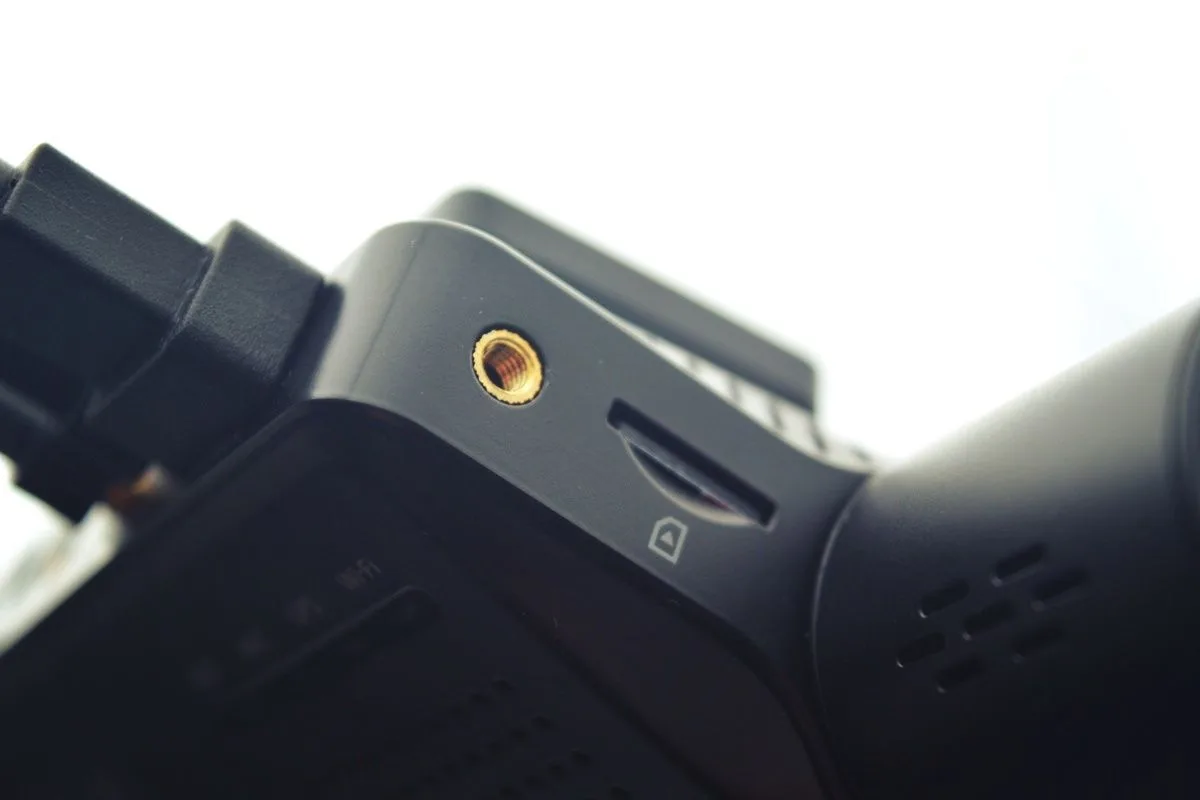
Image source: Web (Bing) / makeuseof.com (Web image (fair-use with source credit))
Fixing recording gaps
Recording gaps happen when the camera takes too long to write the previous file. This is often caused by a slow card or a full card that hasn't overwritten old files properly. Run a full format (not quick) in the camera.
If gaps persist, replace the card with a high-endurance model.
File recovery when things go wrong
If your card shows corrupted files, stop using it immediately. Use a card reader and a recovery tool like Recuva to pull footage off. Then format the card properly.
If the card keeps failing, it's nearing the end of its life. Replace it.
Quick card error checklist
- Remove and reinsert the card.
- Format in the camera.
- If that fails, format on PC with SDFormatter.
- Check the card's speed rating. Upgrade if needed.
- If the error persists, try a different brand of card.
Wi-Fi Won't Connect or GPS Not Found: App and Antenna Troubleshooting
Wi-Fi and GPS issues are frustrating. They don't stop recording, but they do stop you from changing settings or viewing footage on the go. Let's sort them out.
Wi-Fi pairing steps
The A139 Pro creates its own Wi-Fi network. To connect, press the Wi-Fi button on the camera. The LED turns blue.
Open your phone's Wi-Fi settings and find the network that starts with "VIOFO_A139Pro". The default password is 1234567890. Once connected, open the VIOFO app.
App won't discover the camera
This is the most common Wi-Fi complaint. Aggregate reviews report the app often fails to connect on the first try. Here's the fix:
- Forget the camera's network on your phone.
- Turn off mobile data. Some phones switch data between Wi-Fi and cellular, breaking the connection to the camera.
- Reconnect to the camera's network.
- Open the app. It should discover the camera now.
If that fails, reinstall the app. On Android, also check that the app has permission to access local networks.
Wi-Fi keeps dropping
The A139 Pro uses 2.4GHz Wi-Fi. This band is crowded and prone to interference. Keep your phone within 10 feet of the camera.
Avoid using Wi-Fi for file downloads while driving. The camera's processor can't handle recording and streaming at the same time.
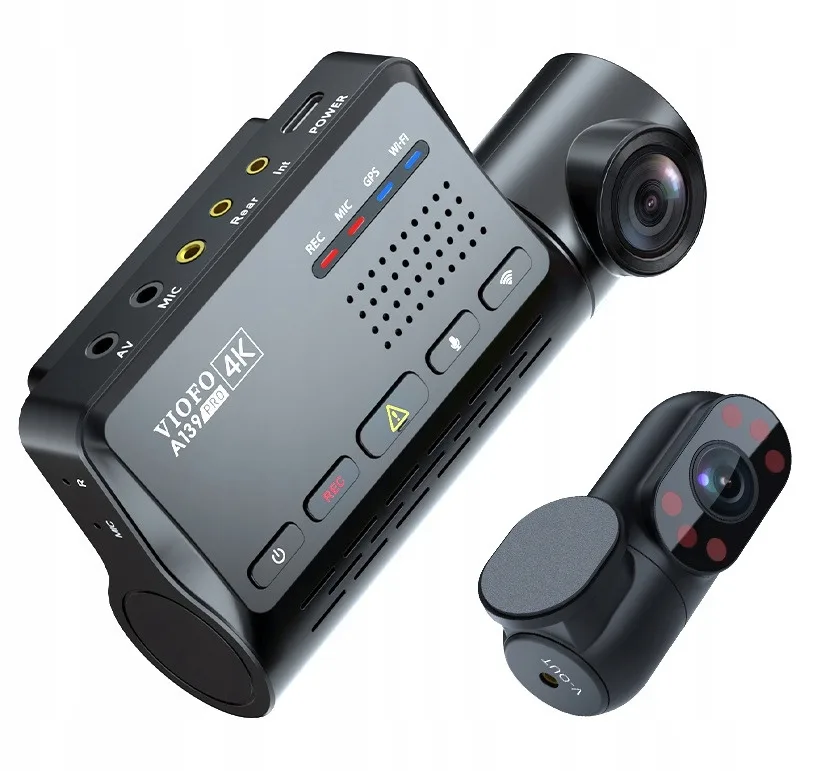
Image source: Bing (Web (fair-use with source credit))
GPS not found
The A139 Pro has a built-in GPS module. If the GPS icon on the screen shows a cross or doesn't appear, check these things:
- The camera needs a clear view of the sky. Metalized window tints block GPS signals.
- Move the camera away from the rearview mirror. Some mirror electronics interfere.
- Firmware updates can improve GPS lock. Check the VIOFO firmware page for the latest version.
GPS test procedure
- Park the car in an open area away from tall buildings.
- Wait 5 minutes. Cold start GPS lock can take time.
- If the GPS icon stays off, reset the camera to factory defaults.
- If it still fails, the GPS module may be defective. Contact VIOFO support for a replacement.
Pro tip: use the app to check GPS status. It shows the number of satellites and the signal strength. Three or more satellites means a solid lock.
Overheating, Parking Mode, and Capacitor Drain: Summer Heat Fixes
Summer heat is the A139 Pro's biggest enemy. The camera's operating range tops out at 65°C. A windshield in direct sun can hit 80°C or more.
When the internal temperature sensor hits the limit, the camera shuts down to protect itself. This is a safety feature, not a defect.
Where to mount for cooler operation
Mount the camera behind the rearview mirror. This spot gets shade from the mirror housing and the windshield's dot matrix. Avoid mounting directly in the sun's path.
Use a sunshade on your windshield when parked. It drops interior temperatures by 10 to 15°C.
Parking mode settings that reduce heat
Parking mode keeps the camera on while the car is off. This generates heat. To reduce thermal load, use low bitrate mode instead of time lapse.
Low bitrate uses less processing power. Set the parking mode timer to 12 or 24 hours. This prevents the camera from running all weekend.
Voltage cutoff for battery protection
Set the voltage cutoff to 12.0V or 12.2V on the hardwire kit. This ensures your car battery still has enough charge to start the engine. A dead battery is a common side effect of running parking mode without a cutoff.
Capacitor drain in extreme heat
Supercapacitors handle heat better than lithium batteries. They still degrade over time. If your camera loses date and time settings after a hot day, the capacitor is aging.
Operating in extreme heat accelerates this. Replace the capacitor or the unit. VIOFO support can guide you through the process.
Pro tip: crack your windows slightly when parked in summer. This vents hot air and keeps the camera below its shutdown threshold. A small gap makes a big difference.
The "I Tried Everything" Mistakes: Firmware Updates, Resets, and RMA
Some problems don't resolve with basic fixes. Before you send the camera back, check these common oversights.
Firmware update errors
The most common firmware update mistake is using the wrong file. The A139 Pro has different firmware for different hardware revisions. Download the correct file from the VIOFO firmware page.
Copy it to the root of a freshly formatted SD card. Insert the card and power on the camera. It updates automatically.
If the update fails, the camera may appear bricked. Hold the power button for 10 seconds to force a reset. If that doesn't work, remove the SD card, format it on a PC, download the firmware again, and try once more.
The camera is rarely truly bricked.
Factory reset vs. manual reset
A factory reset clears all settings. Go to Menu, then Reset, then Yes. A manual reset is different.
Hold the power button for 10 seconds while the camera is on. This restarts the system without erasing settings. Try the manual reset first.
If the problem persists, do a factory reset.
Common "I tried everything" mistake
Many users blame the camera when the real issue is a bad SD card. Test with a different high-endurance card before contacting support. Also check the hardwire kit voltage cutoff.
A setting that's too high mimics a power failure.
When to contact VIOFO support
If you've tried all the steps in this guide and the problem persists, contact VIOFO support. Be ready with your proof of purchase, firmware version, and a description of the symptom. The warranty is 18 months standard, 2 years with registration.
RMA turnaround is typically 2 to 3 weeks.
Pro tip: search the VIOFO forum before emailing support. Other users have likely solved your exact issue. The forum has active community members and VIOFO staff who monitor it.
Frequently Asked Questions
Why is my VIOFO A139 Pro beeping 5 times?
Five beeps means a card error. Remove the SD card. Format it on a PC using the SDFormatter tool with FAT32 or exFAT and 32KB cluster size.
Reinsert the card. If the beeping continues, replace the card with a high-endurance model.
How do I fix a card error without losing footage?
Stop using the card immediately. Remove it and use a card reader to copy any footage to your computer. Then format the card in the camera.
If the footage is corrupted, use a recovery tool like Recuva on a PC before formatting.
Why does my A139 Pro keep rebooting?
Random reboots are usually caused by a loose power connection, overheating, or a firmware glitch. Check the USB-C plug at the camera. Lower the voltage cutoff on the hardwire kit.
Update the firmware. In summer, use a sunshade to reduce heat.
How do I connect my A139 Pro to Wi-Fi?
Press the Wi-Fi button on the camera. The LED turns blue. Go to your phone's Wi-Fi settings and connect to the network starting with "VIOFO_A139Pro".
The password is 1234567890. Open the VIOFO app. If it doesn't connect, forget the network, turn off mobile data, and try again.
Why is my GPS not working on the A139 Pro?
The camera needs a clear view of the sky. Metalized window tints block GPS signals. Move the camera away from the rearview mirror.
Wait 5 minutes for a cold start lock. If the GPS icon stays off, update the firmware. If it still fails, the GPS module may be defective.
How do I reset my VIOFO A139 Pro to factory defaults?
Go to the menu and select Reset. Confirm with Yes. This erases all settings and returns the camera to its out-of-box state.
You'll need to reconfigure date, time, resolution, and parking mode settings afterward.
That covers the main issues. Most VIOFO A139 Pro troubleshooting comes down to three things: the power supply, the SD card, and the firmware. Check those first and you solve nine out of ten problems.
If you're still stuck, the VIOFO forum and support team are good resources.

Similar Posts