VIOFO A229 Pro Not Recording
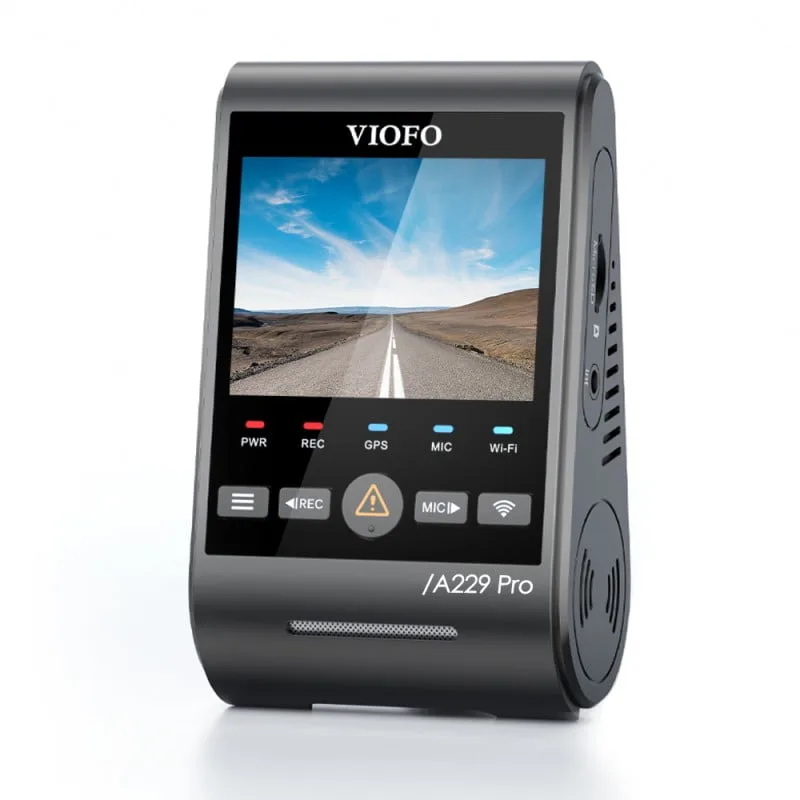
Your VIOFO A229 Pro not recording is a frustrating problem, especially when you need that footage most. You check the camera, see the LED glowing, but find empty folders or a "no files" message. The evidence you counted on simply isn't there.
The A229 Pro records at a bitrate up to 60 Mbps, which demands a U3 or V30 rated SD card with a sustained write speed of at least 30 MB/s. Per VIOFO's official troubleshooting guide, a card that can't keep up is the single most common cause of recording failure. Let's walk through the likely culprits step by step.
Image source: Web (Bing) / walmart.com (Web image (fair-use with source credit))
Quick Answer
Your VIOFO A229 Pro stops recording due to a bad SD card, a power issue, or a setting conflict. Check the card first. It must be U3 or V30 rated.
Format it inside the camera. If the LED is off, test the power cable with a 5V/2A phone charger. Most problems have a simple fix.
Why Your VIOFO A229 Pro Might Stop Recording
The A229 Pro is a solid dashcam, but it has a few known weak points. The most common culprit is the SD card. The camera writes data at a high bitrate, up to 60 Mbps in 4K.
A card rated below U3 or V30 can't keep up. The camera detects the slow write speed and stops recording to protect the card from corruption. Even a quality card can fail if it's been used for years without reformatting.
Cards wear out, especially in hot cars.
The second most common cause is power. The A229 Pro needs a steady 5 volt, 2 amp supply. A loose cable, a weak 12V adapter, or a hardwire kit set to the wrong voltage cutoff can all stop recording.
The camera's supercapacitor buffers power for safe shutdown. If the power is unstable, the camera may boot but never start recording.
The third cause is settings. Parking mode, motion detection, and G-sensor sensitivity can all interfere with normal recording. The G-sensor is particularly tricky.
If it's set to high sensitivity, every bump locks the current file. A full card of locked files stops loop recording. The camera thinks it's out of space and simply stops.
The good news is that all three are fixable. You don't need to send the camera back. You don't need to be a tech expert.
You just need to work through the checklist in order. Many of the same principles apply when dealing with other cameras that have stopped capturing footage. You can find similar troubleshooting steps in our guide on fixing Google Nest Cam recording issues.
How the A229 Pro Decides to Record
The A229 Pro follows a simple decision chain every time you start the car. Power hits the camera. The supercapacitor charges.
The processor checks the SD card. If the card passes, recording begins. If anything breaks in that chain, recording never starts.
The first check is the SD card. The camera tests the card's file system and write speed. If the card is corrupted, formatted wrong, or too slow, the camera logs an error and refuses to record.
This is why format errors are so common with older cards.
The second check is the power supply. The camera monitors voltage constantly. If the voltage drops below the threshold set in parking mode, the camera cuts recording to save the car battery.
This is designed behavior, but it can look like a failure.
The third check happens at the settings level. The camera checks for parking mode, motion detection, and G-sensor sensitivity at boot. If parking mode is active and the car is off, the camera waits for motion before recording.
It looks dead, but it's waiting. The G-sensor also plays a role. A bump locks the current file.
Too many locked files fill the card, and the camera stops recording because it can't overwrite protected files.
The system is designed to protect itself. It stops recording rather than corrupting files. Understanding this chain helps you isolate the problem faster.
Step-by-Step: Diagnosing Why Your A229 Pro Won't Record
Check the LED
The LED tells you the camera's state. A solid blue LED means the camera is powered on and recording. A blinking red LED means the camera is on but not recording.
No LED at all means no power. Check the LED first. It's the fastest way to narrow the problem.
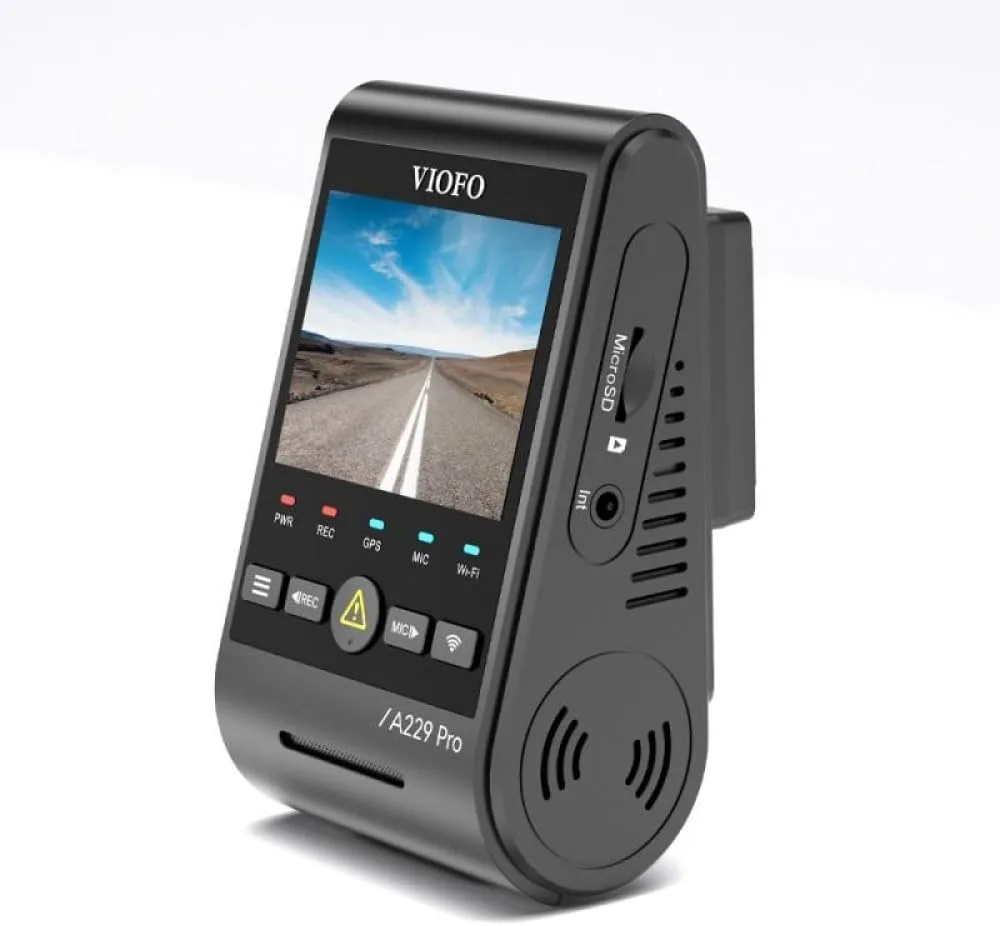
Image source: Bing (Web (fair-use with source credit))
If the LED Is Off: Power Supply Issues
If the LED is off, the camera isn't getting power. Test the cable with a known good 5V/2A phone charger. If it works, the problem is in your car's power.
Check the cigarette lighter adapter or hardwire kit. If the camera still won't power on, the cable or supercapacitor may be faulty.
If the LED Is On but No Recording: SD Card Check
If the LED is on but no files appear, the SD card is the likely culprit. The card must be U3 or V30 rated. Format it inside the camera using the menu option.
If the camera still won't record, test the card's speed with a computer. A slow card will cause recording failures. The SD Association maintains the official speed class standards for cards, so check their specifications if you're unsure about your card's rating.

Image source: Bing (Web (fair-use with source credit))
If the Card Is Good: Firmware and Settings
If the card passes, check the settings. Reset the G-sensor to low sensitivity. Turn off parking mode temporarily.
Disable motion detection. Test each change. If the camera starts recording, the settings were the problem.
Also check for a firmware update on VIOFO's support site. A similar approach works for other cameras that won't record, as we've covered in our troubleshooting guide for the TP-Link Tapo C120.
If Nothing Works: Hardware or Supercapacitor Failure
If you've tried everything and the camera still won't record, the hardware may be faulty. A failing supercapacitor can cause the camera to lose settings or fail to boot properly. Contact VIOFO support for warranty service.
The camera may need a replacement.
Common Mistakes That Make the Problem Worse
People make the same mistakes over and over. Here are the most common ones and how to avoid them.
Using a cheap SD card. The A229 Pro needs a high-endurance card rated U3 or V30. A bargain card will fail, often within weeks. High heat damages cards.
A card that works in winter may fail in summer. Spend the extra few dollars on a quality card.
Formatting with a computer instead of the camera. The camera's internal format tool sets the correct cluster size and file system. It also checks the card's health. A computer format may miss problems.
Always format the card inside the camera.
Setting the G-sensor too high. High sensitivity locks files on every bump. Locked files fill the card and stop recording. Set the G-sensor to low or medium.
This prevents the card from filling with protected files.
Setting the voltage cutoff too low in parking mode. A low cutoff drains the car battery. The camera stops recording to save power, but the car may not start. A 12.0V cutoff works in mild weather, but cold weather drops battery voltage faster.
Set the cutoff to 12.4V for most cars.
Skipping firmware updates. VIOFO releases firmware updates that fix bugs and improve stability. Check the support site every few months. A simple update can fix persistent issues.
This is a common step in many camera troubleshooting workflows, similar to what we recommend for the Wyze Cam Pan V3.
Pro Tips for Keeping Your A229 Pro Recording Reliably
Once you've fixed the problem, keep it from coming back. A few simple habits will save you headaches.
Format the card every month. This clears old files and refreshes the file system. The camera's menu has a format option. Use it regularly.
It's the single best way to prevent card-related failures.
Check the firmware every three months. VIOFO releases updates that fix bugs and add features. A quick check of the support site takes two minutes. An update may solve problems you didn't know you had.
Clean the lens and vents. Dust and smudges affect video quality. The vents need to be clear for cooling. A camera that runs hot is more likely to shut down.
A quick wipe every few weeks helps.
Use a quality hardwire kit. If you use parking mode, invest in a good hardwire kit. The VIOFO HK4 kit is designed for this camera. It includes a voltage cutoff that protects your car battery.
Cheap kits can cause power issues.
Test the camera monthly. Open the app or check the files on the card. Make sure the camera is recording. A quick test takes 30 seconds.
It's better to find a problem now than to discover it after an accident. The same habit applies to other security cameras, like the EufyCam 3, which can also stop recording without obvious warning.
Frequently Asked Questions
Why does my A229 Pro say "SD Card Error" when the card is new?
A new card can still be incompatible. The A229 Pro requires a U3 or V30 rated card. A card that's too slow or formatted incorrectly will trigger the error.
Format the card inside the camera using the menu option. If the error persists, the card may be a counterfeit or defective.
What does a blinking red LED mean on my A229 Pro?
A blinking red LED means the camera is powered on but not recording. This usually points to a card issue, a settings conflict, or a full card with too many locked files. Check the G-sensor sensitivity first.
Lower it to low or medium. Then format the card.
Can a firmware update fix my recording problem?
Yes, firmware updates often fix known bugs. VIOFO releases updates periodically. Check the official support site for your model.
Download the latest firmware, copy it to a formatted card, and update the camera. Many users report that an update resolved intermittent recording issues.
How often should I format the SD card in my A229 Pro?
Format the card at least once a month. This clears old files and refreshes the file system. It prevents corruption and keeps the card writing quickly.
Use the camera's built-in format option. A computer format may not set the correct cluster size.
Will parking mode drain my car battery?
Parking mode can drain the battery if the voltage cutoff is set too low. The A229 Pro allows you to set the cutoff at 12.4V, 12.0V, or 11.8V. A 12.4V cutoff leaves enough reserve to start the car.
In cold weather, battery voltage drops faster. Set the cutoff higher in winter.
What should I do if my A229 Pro still won't record after trying everything?
If you've tested the card, checked the power, and reset the settings, the hardware may be faulty. Contact VIOFO support. The camera is under warranty for most users.
A failing supercapacitor or a loose internal connection can stop recording. Professional repair or replacement is the next step.
Final Decision Guide: Fix It Yourself or Contact Support
Most recording problems with the A229 Pro are fixable at home. You don't need special tools or technical skills. You just need to work through the checklist in order.
Here's a quick guide to help you decide.
Fix it yourself if: the LED is on but no files appear. This is almost always a card issue. Format the card.
Test with a different card. Lower the G-sensor sensitivity. Check the parking mode settings.
These steps solve 90 percent of cases.
Fix it yourself if: the camera isn't getting power. Test the cable with a phone charger. Check the cigarette lighter adapter.
If the camera works with a different power source, the problem is in your car's wiring or adapter. Replace the adapter or cable.
Contact VIOFO support if: the camera won't power on with any power source. A dead supercapacitor or a faulty main board requires professional repair. The camera is under warranty for most users.
Contact support for a return authorization.
Contact VIOFO support if: you've tried every fix and the camera still won't record. There may be a hardware defect that isn't visible. VIOFO's support team can walk you through advanced diagnostics.
They can also replace the unit if needed.
Contact VIOFO support if: the camera loses settings every time you turn it off. This is a classic sign of a failing supercapacitor. The supercapacitor stores power to save settings.
When it fails, the camera resets to defaults. This problem requires a hardware replacement.
The decision tree is simple. If the problem is the card, fix it yourself. If the problem is the power, test and replace.
If the problem is the hardware, contact support. Don't waste time on a dead supercapacitor. Don't send back a camera with a bad card.
Know the difference and you'll save yourself a lot of frustration.

Similar Posts