Garmin Dash Cam X310 Troubleshooting
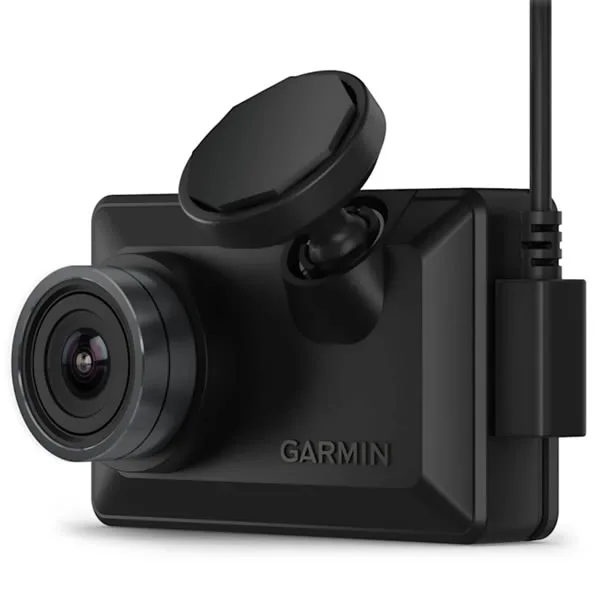
If your Garmin Dash Cam X310 is acting up, you are not the only one. Troubleshooting this model often comes down to a few common culprits. Most issues stem from power, storage, or connection problems.
The good news is that nearly every fix is something you can do yourself in under ten minutes.
As of 2026, Garmin specs still rate this camera for an operating range of -4°F to 140°F. Heat is a leading cause of unexpected shutdowns. Let us walk through the most likely problems first.
We will start with the fastest way to identify what is actually wrong.
Image source: Bing (Web (fair-use with source credit))
Quick Answer
Most Garmin Dash Cam X310 issues are caused by power, SD card, or connection problems. Check the power cable first. Use a U3 or V30 microSD card.
Update the firmware via Garmin Express. Reset the camera if nothing works.
Quick Symptom Checker – What’s Actually Going Wrong?
The symptoms tell you where to look first. Here is a quick reference that matches each problem to the fix.
| Symptom | Likely Cause | Quick Fix |
|---|---|---|
| Dead screen, no power | Faulty cable, blown fuse, dead socket | Test lighter socket with phone charger |
| Shuts down randomly | Heat, loose cable, failing capacitor | Move from direct sunlight, reseat cable |
| Card error message | Wrong card type, corrupted file system | Format in-camera, use U3 or V30 card |
| Won't connect to app | Wi-Fi mismatch, app permissions, interference | Forget network in phone, re-pair |
| GPS no signal | Window tint, metal coating, cold start | Drive for 5 minutes, check for metallic film |
Most of the time, the camera itself is fine. The issue is something you can fix without opening a tool box. If you are seeing a blank screen, move to the next section.
Power-On Issues – Dead Screen, Random Shutdowns, Won’t Stay On
This is the most common complaint. The camera does nothing when you plug it in. Or it works for a few minutes and then dies.
Start with the car's lighter socket. Test it with a phone charger. If the phone charges, the socket is fine. If not, check the car's fuse box.
Many vehicles have a separate fuse for the accessory power port. A blown fuse is a two-minute fix. You can find the fuse box diagram in your owner's manual.
This is similar to issues you might see with other smart home cameras that rely on consistent power.
If the socket works, look at the cable. Garmin uses a USB-C connection on the X310. The cable carries both power and data. A loose connection at the camera end or the lighter plug end causes intermittent power.
Try wiggling the cable while the camera is on. If the screen flickers, replace the cable. Garmin sells a replacement for around twenty dollars.
Heat is the next suspect. The camera's operating limit is 140°F. In direct sunlight on a summer windshield, interior temperatures can exceed that. If the camera powers on fine in the garage but dies on the road, heat is likely the problem.
Move the camera slightly behind the rearview mirror. Use a sunshade when parked. Some users report that mounting the camera lower on the windshield helps with airflow.
The internal battery is a capacitor, not a lithium cell. It holds enough charge for buffered parking mode, around 30 seconds of recording after power is cut. If the camera dies immediately when you unplug it, that is normal. If it fails to start at all, the capacitor may be degraded.
Garmin support can walk you through a replacement under warranty.
Random shutdowns during driving point to a power fluctuation. The cigarette lighter socket sometimes loses power during engine cranking or if the socket is shared with other devices. Try a dedicated power port. Or use the OBD-II power cable, which provides a more stable connection.
SD Card Problems – Format Errors, “Card Full,” Corrupted Files
The X310 is picky about SD cards. Not all cards work. Even cards that work in other cameras can cause problems here.
The card must be UHS-I Speed Class 3 (U3) or Video Speed Class 30 (V30). A slow card causes loop recording gaps. The camera writes continuously, and a card that cannot keep up will drop frames or throw an error. Per SD Association guidelines, U3 guarantees a minimum write speed of 30 MB/s.
That is the floor for 1440p recording.
High endurance cards are strongly recommended. Dash cams run in extreme heat and cold. Standard cards wear out fast. Look for a card labeled "High Endurance" or "Max Endurance" from a reputable brand.
These cards are designed for continuous write cycles and temperature swings.
If you see "Card Full" or "Card Requires Formatting," format it in the camera. Do not use a computer. The camera creates a specific folder structure. Formatting in the device erases all data and sets up the file system correctly.
The menu option is under Settings > Format Card.
The maximum supported capacity is 512 GB. However, 128 GB is the sweet spot for reliability. Larger cards increase the chance of corruption. Aggregate user feedback shows that 128 GB cards run without issues for years.
Anything above 256 GB should be tested carefully.
If the camera still shows an error after formatting, the card may be faulty. Try a different card. If the second card works, throw the first one away. Cards fail silently.
They can corrupt footage without warning. Replace your dash cam card every 12 months as part of routine maintenance.
Garmin Drive App Won’t Connect – Wi-Fi Pairing, Phone Permissions, Bluetooth

Image source: Web (Bing) / manuals.plus (Web image (fair-use with source credit))
The Garmin Drive app is how you view footage, change settings, and update firmware. When it will not connect, the process is frustrating. But the fix is almost always the same.
The X310 creates its own Wi-Fi network. You must connect your phone to that network, not to your home router. Go to your phone's Wi-Fi settings. Look for a network starting with "Garmin." The default password is printed on the Quick Start guide.
If you changed it, you can reset the Wi-Fi password in the camera's menu under Settings > Wi-Fi.
If the app says "no connection," forget the network and start over. In your phone's Wi-Fi settings, tap the Garmin network and select "Forget." Then go back to the camera, press the Wi-Fi button, and re-pair. This clears any cached credentials that may be conflicting. This process is similar to fixing connection issues on other wireless cameras you might own.
Check your phone's permissions. The Garmin Drive app needs location access to discover the camera's Wi-Fi network. On Android 12 and later, location permission is required for Wi-Fi scanning. On iOS, the app needs local network access.
Go to your phone's settings and verify these permissions are turned on.
If the camera shows on the app but disconnects after a few seconds, the Wi-Fi signal is weak. The X310's Wi-Fi range is about 30 feet. But obstructions like the car's metal body reduce that. Sit close to the camera.
Keep your phone within the cabin. Do not try to connect from outside the car.
Bluetooth is only for initial pairing, not for continuous connection. The camera uses Bluetooth to wake up the app. Once paired, Wi-Fi handles the data transfer. If Bluetooth is not working, the camera and app may not discover each other.
Try turning Bluetooth off and on again on your phone. Then restart the camera.
Firmware updates sometimes break app compatibility. If the app was working and stopped after an update, check for a newer version of the app. Garmin releases updates that fix these issues. The camera's firmware and the app version must be relatively close.
If you are stuck, update the firmware using Garmin Express on a computer instead.
GPS & Parking Mode – No Signal, Won’t Activate, False Triggers
The built-in GPS module provides speed and location data. When it fails to lock, you lose the speed overlay and the ability to view your route on the map.
The most common cause is window tint. Many aftermarket tints contain metal particles that block GPS signals. Ceramic tints are less likely to cause issues. If your camera loses GPS signal after having the windows tinted, that is almost certainly the cause.
You can test this by holding the camera outside the car. If it locks immediately, the tint is the problem.
Cold start takes time. The X310 needs a clear view of the sky. On first power-up, it can take 30 seconds or more to acquire a lock. Drive for a few minutes.
If the GPS icon blinks, it is still searching. If it stays solid, you have a lock. Do not expect a signal in a parking garage or under a bridge.
If the GPS icon never shows, check the camera's location. The GPS antenna is inside the camera body. It needs an unobstructed view of the sky. Mounting the camera behind a metallic sticker or a sun strip will block the signal.
Move the camera to a spot where the windshield is clear of any coating.
Parking mode requires a constant power source. The camera cannot run parking mode from the cigarette lighter socket because that socket turns off when the car is off. You need either the Garmin OBD-II power cable or a hardwiring kit. The OBD-II cable draws power from the car's diagnostic port.
It also monitors battery voltage to prevent draining your car battery.
If parking mode does not activate, check the voltage cutoff setting. The camera will stop recording if the car battery drops below a certain level. The default cutoff is around 12.4 volts. You can adjust this higher or lower in the settings.
If your car battery is old, the voltage may drop below the cutoff quickly.
False triggers happen when the G-sensor is too sensitive. The camera uses a built-in accelerometer to detect impacts. If it triggers on bumps, potholes, or even a heavy door slam, lower the sensitivity. The setting is in the camera menu under Incident Detection.
Set it to Medium or Low. High sensitivity is for parked cars in areas with heavy traffic.
If the camera records parking mode correctly but misses events, the issue is the buffer. The X310 uses a buffered parking mode. It records continuously in a loop, saving only the few seconds before and after an event. If the buffer is too short, you may miss the start of an incident.
The buffer setting is adjustable. Set it to the maximum for the best coverage.
Maintenance & Optimization – Firmware Updates, Mount Care, Heat Management
The X310 is a set-and-forget device for most people. But a little routine care goes a long way. You can prevent most problems before they start.
Check for firmware updates every three months. Garmin releases updates that fix bugs and improve performance. The easiest way to update is through Garmin Express on a computer. Connect the camera via USB-C.
Open Garmin Express. It will automatically check for updates. Do not unplug the camera during the update.
A power loss mid-update can brick the device.
The mount adhesive needs a clean surface to stick. Over time, heat and humidity weaken the bond. If the mount starts to wobble, the video will be shaky. Remove the camera from the mount.
Clean the windshield glass with isopropyl alcohol. Let it dry completely. Then press the mount firmly for 30 seconds.
Wait 24 hours before attaching the camera for the best bond.
Heat management is about airflow. The camera generates heat while recording. It also absorbs heat from the sun. Do not mount it directly behind a dark tint strip.
Dark surfaces absorb more heat. If you live in a hot climate, consider using a reflective sunshade when parked. The camera will last longer.
The lens needs occasional cleaning. A smudge or fingerprint will soften the video. Use a microfiber cloth. Do not use paper towels or your shirt.
They leave scratches. A clean lens is the difference between readable license plates and blurry blobs.
Check the SD card health every few months. Most cameras have a "Check Card" option in the menu. Run it. If the card is failing, replace it.
A failing card can corrupt footage without warning. Swap it out every 12 months as a rule.
Quick Reference Guide – Factory Reset, Fuse Check, Speed Card Specs

Image source: Bing (Web (fair-use with source credit))
This section is your go-to for the fastest fixes. Bookmark it.
Factory reset. This clears all settings and returns the camera to its out-of-box state. It is useful when the camera is behaving strangely and you cannot find the cause. To reset, go to Settings > System > Reset.
Or press and hold the power button for 10 seconds until the camera restarts. You will need to re-pair the app and reconfigure your preferences after the reset.
Fuse check. If the camera has no power, check the car's fuse box. The cigarette lighter socket has its own fuse. Consult your vehicle's owner manual to find the correct fuse.
Pull it out. Look at the metal strip inside. If it is broken, replace it with a fuse of the same amperage.
Do not use a higher amperage fuse. It can damage the wiring.
SD card specs. Use a U3 or V30 card. Anything slower will cause issues. The card should be from a reputable brand.
Do not buy off-brand cards. They often have fake speed ratings. The card must be formatted as FAT32 or exFAT.
The camera will format it correctly if you use the in-camera format option.
Power cable. The Garmin power cable is a 12V to USB-C adapter. It is not a standard phone charger. The camera needs a specific voltage and current.
If you lose the cable, buy a replacement from Garmin. Third-party cables may not work reliably.
Heat shutdown. If the camera shuts down in hot weather, move it away from direct sunlight. Park in the shade. Use a sunshade.
The camera will resume normal operation once it cools down. Do not put it in the refrigerator. Rapid temperature changes can cause condensation inside the lens.
Frequently Asked Questions
Why does my Garmin Dash Cam X310 keep turning off?
The most common cause is heat. The camera shuts down at 140°F to protect itself. Move it away from direct sunlight.
A loose power cable or a failing capacitor can also cause shutdowns. Check the connection at both ends of the cable.
How do I fix an SD card error on my X310?
Format the card in the camera, not on a computer. Go to Settings > Format Card. If the error persists, the card is likely faulty.
Replace it with a U3 or V30 high endurance card. Do not use a card slower than U3.
Why won't my Garmin Drive app connect to my camera?
Your phone must be connected to the camera's Wi-Fi network, not your home network. Forget the network in your phone's settings. Then re-pair the camera.
Check that the app has location permission on Android or local network access on iOS.
How do I reset my Garmin Dash Cam X310?
Press and hold the power button for 10 seconds. The camera will restart. This clears temporary glitches.
For a full factory reset, go to Settings > System > Reset. This erases all settings and paired connections.
What SD card does the Garmin Dash Cam X310 use?
The camera needs a microSD card with UHS-I Speed Class 3 (U3) or Video Speed Class 30 (V30). A high endurance card is recommended for dash cam use. The maximum supported capacity is 512 GB, but 128 GB is the most reliable option.
How do I update the firmware on my X310?
Connect the camera to a computer using the USB-C cable. Open Garmin Express. The software will check for updates.
Follow the on-screen instructions. Do not unplug the camera during the update. A power loss can damage the firmware.

Similar Posts