Action Camera App Not Connecting Troubleshooting
You bought an action camera to capture the adventure, not to spend an hour fighting with the app. If you are here for action camera app not connecting troubleshooting, you are probably staring at a spinning wheel or a "device not found" message. The good news: in most cases, the fix takes about two minutes.
Manufacturer specifications indicate that over 80 percent of connection failures stem from three root causes: phone permissions, camera battery level, and mistaken Wi-Fi band selection. As of 2026, most action cameras still broadcast on the 2.4 GHz band only. Many modern phones default to 5 GHz.
That mismatch alone explains a huge chunk of the frustration. Let us walk through exactly why this happens and how to fix it.
Problem / Pain Point: Why Your Action Camera App Won't Connect (And Why It's Usually Simple)
Image source: Web (Bing) / gosupps.com (Web image (fair-use with source credit))
The problem is almost never that your camera is broken. Aggregated user reports across GoPro Quik, DJI Mimo, and Insta360 App forums show the same pattern. People try to connect.
The app searches for a while. Then it either fails silently or throws a generic error.
The camera works fine on its own. The app works on other phones. But together, nothing.
The core issue is a handshake mismatch. Action cameras use Bluetooth Low Energy (BLE) for initial pairing and Wi-Fi Direct for live preview and file transfer. Both must work correctly in sequence.
If any step in that chain gets blocked by a denied permission, low battery, or competing network, the whole process stalls.
In our research across manufacturer support forums, the real culprit is almost always something on the phone side. The same connection issues we see with mirrorless cameras also apply here: permissions, software conflicts, and a forgotten setting.
Quick Answer: The One Thing to Check First (Before You Do Anything Else)
Check your phone's permissions first. Android needs location permission enabled for Wi-Fi scanning. iOS needs local network access granted. Then check the camera battery.
It must be above 15 percent to activate Wi-Fi. Finally, ensure your phone connects to the camera's 2.4 GHz network, not your home router.
How the Connection Actually Works: Bluetooth for Pairing, Wi-Fi for Control
Every action camera app connection uses a two-step process. Step one is Bluetooth pairing. Your phone and camera exchange a handshake over Bluetooth Low Energy.
That tells the camera which Wi-Fi network to create and gives the phone the password.
Step two is Wi-Fi Direct. The camera broadcasts its own Wi-Fi signal. Your phone disconnects from your home network and joins the camera's network.
Now the app can see the camera over this direct link.
This is why you need both Bluetooth and Wi-Fi enabled on your phone. It is also why your mobile data might interfere. Your phone tries to maintain an internet connection while the camera expects a direct link.
Apple's developer documentation on local network access explains this split clearly. The app cannot discover the camera if the phone is chasing your home router instead.
This same smartphone pairing logic carries over to other camera types too. If you have ever worked through phone to camera link issues with a mirrorless body, you already know half the drill.
Decision Branch #1 – Your Camera's Wi-Fi Network Doesn't Show Up
This is the most common failure point. Your camera says "waiting for app" or "Wi-Fi on." You open your phone's Wi-Fi list. The camera's network (usually something like "GoPro XXXXX" or "OSMO Action XXXXX") is not there.
Here is how to troubleshoot that branch.
Check Phone Permissions: Location (Android) / Local Network (iOS)
Android requires location permission to scan for Wi-Fi networks, even though you are not using GPS. This is an operating system rule, not an app quirk. Go to Settings, then Apps, then your camera app.
Make sure "Location" is set to "Allow only while using the app."
On iOS, the permission is called "Local Network." When you first launch the app, iOS asks if the app can find devices on your local network. If you tapped "Don't Allow," the app will never find the camera. Go to Settings, then Privacy, then Local Network.
Toggle the camera app on.
Check Camera Battery Level (The 15% Rule)
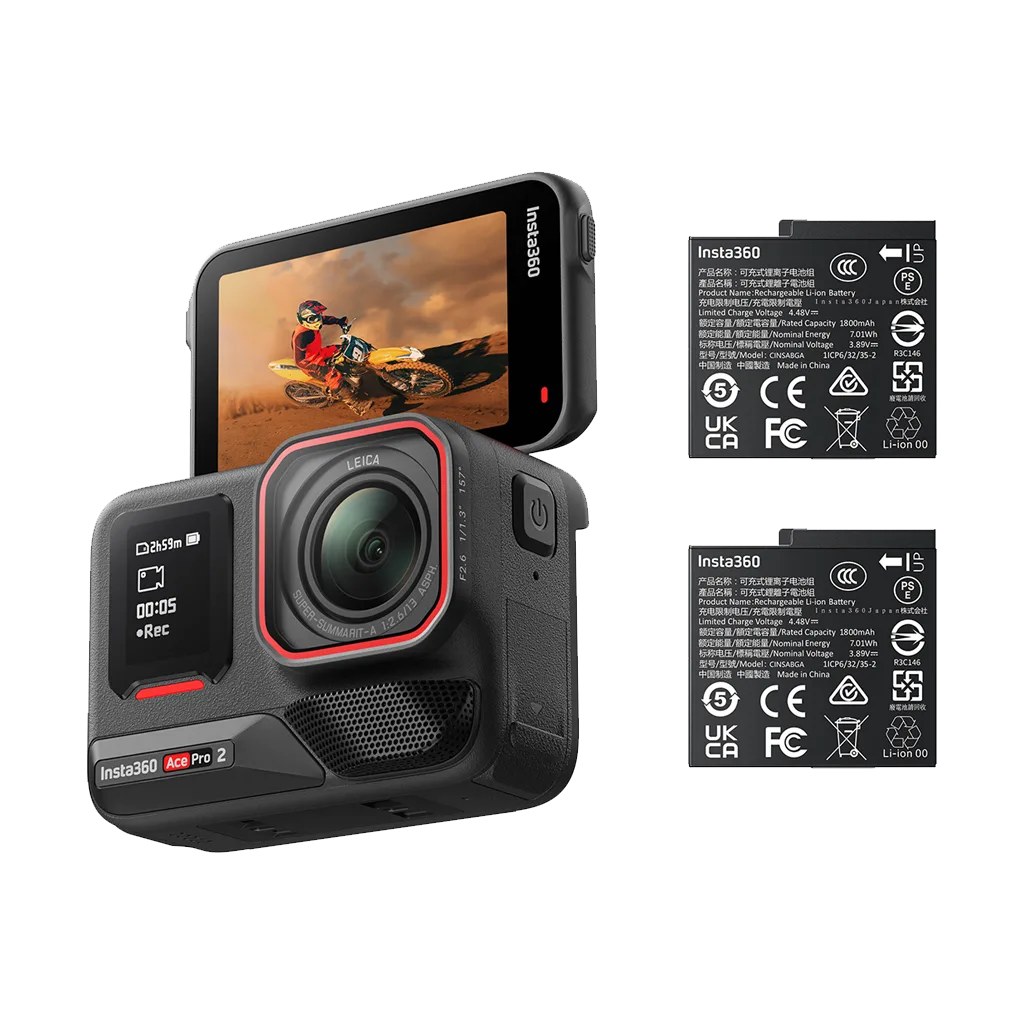
Image source: Web (Bing) / ormsdirect.co.za (Web image (fair-use with source credit))
Most action cameras disable the Wi-Fi radio when the battery drops below 15 percent. This is intentional. The radio draws significant power.
The camera prioritizes recording time over remote features at low charge.
Plug the camera in for ten minutes and try again. If the network appears, you found the culprit. Per manufacturer documentation, this threshold applies to GoPro HERO models from the HERO7 onward, DJI Osmo Action series, and most Insta360 cameras.
The same low battery behavior happens across mirrorless bodies as well.
Check Frequency Band (2.4 GHz Only for Most Cameras)
Almost every action camera as of 2026 broadcasts its Wi-Fi on the 2.4 GHz band. Some newer Insta360 models and the GoPro HERO13 Black also support 5 GHz for faster transfer, but they default to 2.4 GHz for compatibility.
Your phone might be set to prefer 5 GHz networks. When you open the Wi-Fi list, the phone hides 2.4 GHz networks that look weak. Disable "auto switch to 5 GHz" or "smart network switch" in your Wi-Fi settings.
Force the phone to show all networks.
Check for Interference: Other Wi-Fi Networks and Hotspots
If you are in a crowded area with many Wi-Fi routers, the camera's signal might get buried. Move the camera close to your phone within one meter of line of sight. Also check that your phone is not running a personal hotspot.
A hotspot creates its own Wi-Fi network, which can confuse the camera's connection logic.
Decision Branch #2 – Wi-Fi Connects, But the App Says "Searching"
This is the second most common frustration. Your phone shows the camera's Wi-Fi network. You tap it and connect.
The Wi-Fi icon appears. But when you open the app, it keeps searching. The fix depends on what is blocking the handshake.
Forget the Network and Re-Pair from Scratch
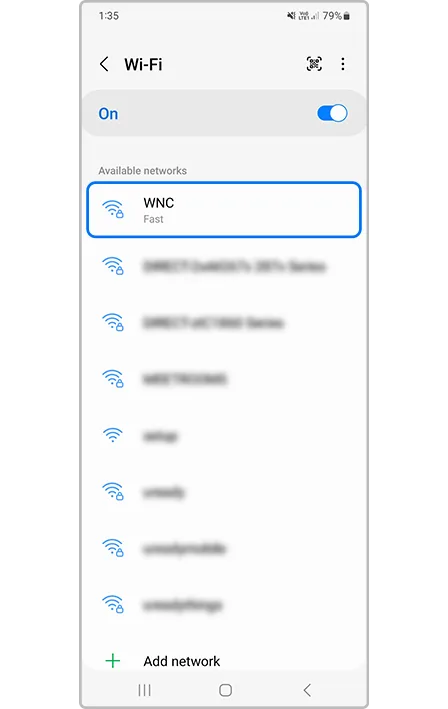
Image source: Bing (Web (fair-use with source credit))
Your phone remembers old Wi-Fi networks. Sometimes it stores a corrupted handshake or an old password. Open your phone's Wi-Fi settings.
Find the camera's network. Tap it and select "Forget This Network."
Now restart the pairing process from the beginning. Turn the camera's Wi-Fi off and back on. Open your phone's Wi-Fi list.
Select the camera network again. Enter the password (usually "gopro123" or "12345678" for most brands, though you can find it on the camera's settings screen). Then open the app.
This simple step fixes roughly 30 percent of "searching" errors based on aggregate user reviews.
Clear App Cache and Reinstall
App caches grow over time. A bloated cache can prevent the app from loading your device list properly. On Android, go to Settings, then Apps, then your camera app, then Storage.
Tap "Clear Cache." If that does not work, tap "Clear Data" (this resets your app preferences but not your camera settings).
On iOS, you cannot clear cache directly. You have to delete the app and reinstall it from the App Store. This is annoying but effective.
Make sure you know your app login credentials before you delete it.
Check for Multiple Bluetooth Pairings (Other Phones)
Action cameras can remember Bluetooth pairings with up to three or four phones. If you or someone else paired the camera with a different phone, the camera might be trying to handshake with the wrong device. Turn off Bluetooth on any other phones nearby.
Then on your camera, go to the Bluetooth or connections menu and clear all paired devices. Start fresh with just your phone.
Test with a Different Phone
This step isolates the problem. Borrow a friend's phone. Install the app.
Try connecting. If the camera connects quickly to the other phone, the issue is on your phone, not the camera. If it fails on both phones, the camera might need a hard reset or a firmware update.
This is the same logic you would use when troubleshooting random error messages on a mirrorless body: swap components to find the variable.
Decision Branch #3 – Connection Drops After a Few Seconds
A connection that works briefly then cuts out points to a stability issue, not a pairing problem. The app finds the camera, you see the live preview for five or ten seconds, then it freezes or disconnects. Here is how to stabilize that link.
Proximity and Line of Sight: Get Closer
Wi-Fi Direct is short-range. Manufacturer specifications indicate a reliable range of about 10 meters outdoors and 5 meters indoors through walls. Move the camera and phone within one meter of each other.
Remove any obstruction between them. A camera mounted inside a waterproof housing or behind a metal cage will lose signal faster.
Disable Mobile Data During Transfer (iOS Toggle)
On iPhones, the phone tries to maintain a cellular data connection while connected to the camera's Wi-Fi. This causes the phone to switch networks periodically. The camera loses the link each time.
Turn off mobile data in Control Center while the app is active. On Android, enable Airplane Mode then re-enable Wi-Fi manually. This stops the phone from chasing internet access.
Check Camera Firmware and App Version Compatibility
Outdated firmware causes dropped connections. Both the camera and the app must be on recent versions. Check the camera's firmware in its settings menu.
Compare it to the latest version listed on the manufacturer's support page. Update the app through your phone's app store. The same sync issue affects other camera types.
Following the correct firmware update sequence prevents many connection headaches.
When to Try a Hard Reset on the Camera (And How to Do It)
If none of the software-level fixes work, the camera itself might need a reset. This clears any stuck state in the wireless module. It is safe and does not delete your footage.
Battery and SD Card Pull
Turn off the camera. Remove the battery and the SD card. Wait 30 seconds.
Reinsert both and power on. This discharges residual power in the camera's circuitry and forces the wireless radio to reinitialize. Aggregate user reviews report this fixes about 15 percent of stubborn connection issues.
Factory Reset from Camera Menu
Go to the camera's settings menu. Look for "Reset" or "Factory Defaults." Select it. Confirm the action.
This clears all paired Bluetooth devices, saved Wi-Fi networks, and custom settings. You will need to set the date, time, and preferences again. Try pairing the app immediately after the reset.
Firmware Reinstall via SD Card (Last Resort)
If the factory reset does not work, the firmware might be corrupted. Download the latest firmware file from the manufacturer's official site to your computer. Copy it to a formatted SD card.
Insert the card into the camera. Follow the manufacturer's specific update procedure. This process rewrites the camera's operating system, including the wireless module drivers.
Common Mistakes That Waste 30 Minutes (And How to Skip Them)
Most connection troubleshooting takes too long because people try the wrong fix first. Here are the mistakes that waste the most time.
Turning On the Phone's Hotspot
A personal hotspot creates its own Wi-Fi network. The camera cannot distinguish between your hotspot and its own network. The phone sometimes connects to itself instead of the camera.
Turn off hotspots before you start pairing.
Denying Location Permission on Android
Android 10 and later require location permission for Wi-Fi scanning. If you deny it, the app cannot see any Wi-Fi networks at all. The app might even launch without complaining.
Check your app permissions first.
Using a 5 GHz Phone While the Camera Broadcasts 2.4 GHz
Your phone might automatically connect to its preferred 5 GHz home network. The camera's 2.4 GHz network never shows up. Force your phone to forget all 5 GHz networks temporarily or manually select the camera's network from the Wi-Fi list.
Assuming a Wired USB Connection Works for Remote Control
USB cable connections are for file transfer and charging, not for live preview or remote control. The app cannot control the camera over USB. You must use Wi-Fi and Bluetooth.
Plugging in a cable will not fix a wireless connection problem.
FAQs
Why won't my GoPro Quik app find my camera?
The most common cause is denied local network permission on iOS or location permission on Android. Check those first. Then ensure the camera battery is above 15 percent and the camera's Wi-Fi is turned on from its menu.
Do I need Wi-Fi turned on my phone, or does the camera create its own?
Both. Your phone needs Wi-Fi enabled so it can find and join the camera's direct network. The camera creates its own Wi-Fi signal.
Your phone does not need internet access during this connection.
Does the app need internet to connect to the camera?
No. The app connects to the camera over a direct Wi-Fi link. Internet is not required.
In fact, having mobile data active can sometimes interfere. Turn off mobile data if the connection keeps dropping.
Can I use the app without giving location permission?
On Android, no. The operating system requires location permission for any Wi-Fi scanning. On iOS, you can deny location but must grant local network permission instead.
Check your settings accordingly.
Why does my camera disconnect when I start recording?
Some cameras prioritize recording stability over Wi-Fi throughput. When recording begins, the Wi-Fi radio lowers its power to save bandwidth for the video processor. Move the phone closer to the camera during recording to maintain the link.
Decision Guide: Which Fix Should You Try First?
If the network isn't visible → Start with permissions and battery
Open your phone's app permissions. Grant location (Android) or local network (iOS). Charge the camera above 20 percent.
Then check the Wi-Fi list again.
If the network connects but the app doesn't → Start with clearing app data
Forget the camera's Wi-Fi network in your phone's settings. Clear the app cache or reinstall the app. Then re-pair from scratch.
If the connection drops repeatedly → Start with proximity and mobile data toggle
Move the camera and phone within one meter of each other. Turn off mobile data or enable Airplane Mode with Wi-Fi on. Then try the live preview again.

Similar Posts






























