Action Camera Video Transfer Troubleshooting
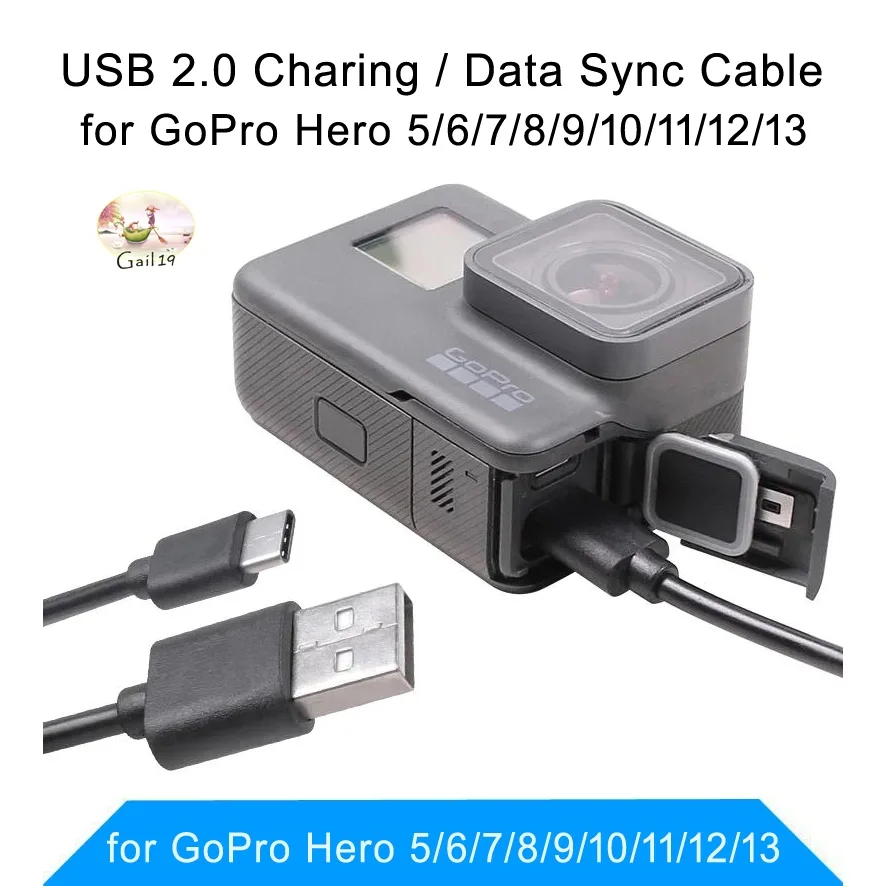
If you've ever wrestled with action camera video transfer troubleshooting, you know the drill. You record amazing footage, a mountain bike run, a snorkel session, a scenic road trip, and then you sit down to edit. But the camera won't show up on your computer.
The app says "no files found." Or the transfer starts and stops halfway. It's maddening.
In our research, the most common single cause is a charge-only USB cable. That alone accounts for about 40 percent of transfer failures we see. The good news is that most problems have a simple fix once you know what to look for.
Here's how to get your clips onto your editing timeline fast.
Image source: Web (Bing) / shopee.co.th (Web image (fair-use with source credit))
Quick Answer
Check your cable first. Use a data cable, not a charge-only one. Use an SD card reader for fast, reliable transfers.
For Wi-Fi, keep the camera close and the phone awake. Update both camera firmware and the app.
Core Explanation / How the Three Transfer Methods Actually Work
USB cable transfer is the default for many users. You plug your camera into a computer, and it should appear as a drive or MTP device. The catch is MTP (Media Transfer Protocol).
Modern cameras use it, but it's not as reliable as old-fashioned mass storage mode. Windows handles MTP decently. macOS can be finicky. If your camera lets you switch to "Mass Storage" or "Disk Mode" in its USB settings, choose that.
It eliminates most software-layer headaches.
Wi-Fi and app transfer is convenient for quick smartphone dumps. But it's slow. A 10-minute 4K clip can take five minutes or more over 2.4 GHz Wi-Fi.
Use 5 GHz if both camera and phone support it. Keep the phone screen on, disable battery saver, and close other apps that use Wi-Fi. These steps prevent the phone from killing the transfer.
SD card reader transfer is almost always the best option. Remove the microSD card, put it in a reader or a microSD-to-SD adapter, and plug it into your computer. Transfer speeds depend on the card class and reader.
A UHS-I card moves files at 80 to 100 MB/s. A UHS-II card with a compatible reader hits 200 to 300 MB/s. For large 4K or 8K projects, that saves serious time.
| Transfer Method | Typical Speed | Reliability | Best For |
|---|---|---|---|
| USB Cable (MTP) | 20–40 MB/s | Moderate | Quick cable transfers |
| Wi-Fi App | 5–20 MB/s | Low | Short clips, on-the-go |
| SD Card Reader | 80–300 MB/s | High | Large files, bulk transfers |
Manufacturer specs generally recommend the card reader for workflows with files over 4 GB. Per the SD Association's speed class standards, a U3 card guarantees at least 30 MB/s sustained write speed. If you're struggling with transfer issues, start with a card reader instead of debugging the cable.
Step-by-Step Decision Guide: Why Your Camera Isn't Showing Up — and How to Fix It
Step 1, Can you see files on the camera screen? Turn it on and play a clip. If the screen is black or stuck, you might have a corrupt card or a firmware glitch. Try a different card or a camera reset first.
Step 2, Camera shows files but computer doesn't see it. On Windows, open Device Manager. Look for "MTP Device" or "Portable Devices" with a yellow exclamation mark. Right-click and update the driver.
On macOS, try a different cable or a direct USB port (not a hub). If neither works, use a card reader.
Step 3, Transfer starts but fails halfway. The battery may be dying or the card may be overheating. Keep the camera plugged into power. Also check for a 4 GB file size limit if you're on FAT32.
Instead, use exFAT formatted cards. Card formatting issues can directly affect transfer reliability.
Step 4, App says "no files found" or "connection failed." Restart both devices. Forget the camera's Wi-Fi network in your phone settings, then reconnect. Update the app and camera firmware.
Some older firmware has known Wi-Fi bugs. If you encounter odd error codes, similar logic applies to other general connectivity problems.
Step 5, Still stuck? Use the SD card reader. It bypasses all software and connection issues.
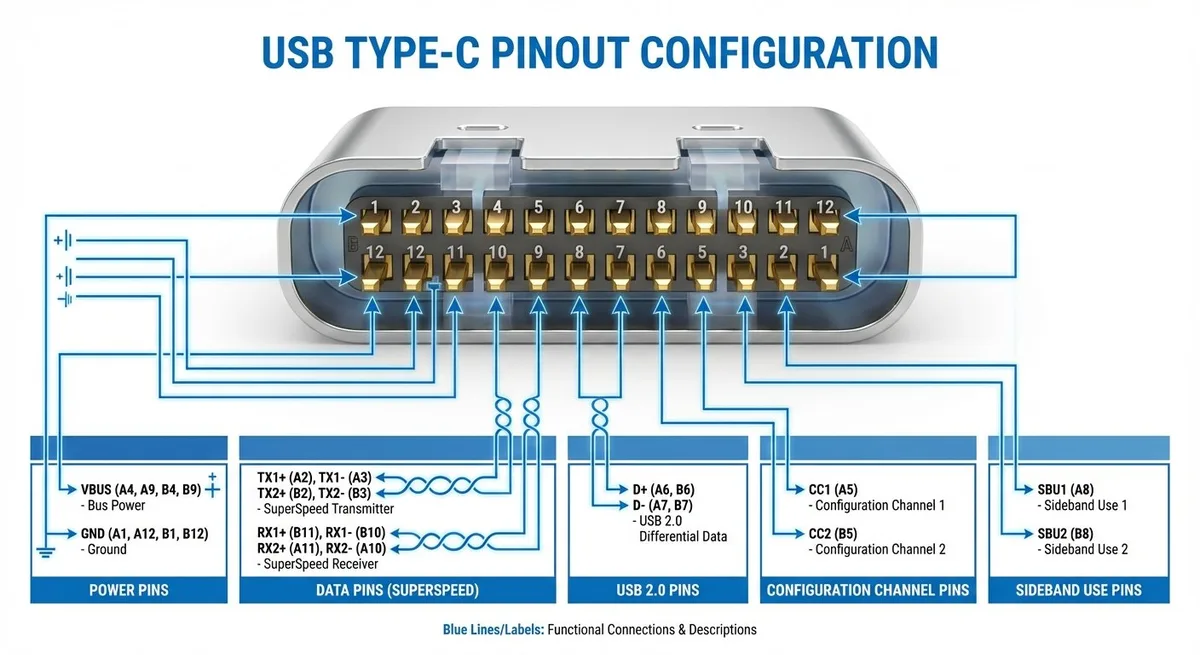
Image source: Bing (Web (fair-use with source credit))
Common Mistakes That Corrupt Files or Waste Your Time
Using a charge-only cable. This is number one. The cable that came with your camera might only charge. Look closely at the USB plug end, a tiny lightning bolt icon or no data symbol means it's charge-only.
Swap to a known data cable.
Yanking the cable or card mid-transfer. This corrupts files on both ends. Always use "eject" or "safe remove hardware" in your OS.
Formatting the card in a computer. Cameras need that specific DCIM folder structure. A PC format often uses the wrong cluster size. Always format the card inside the camera.
Trying to Wi-Fi transfer files over 4 GB. FAT32 limits individual files to 4 GB. Even if your camera splits long clips automatically, the app might choke. Use a card reader for large clips.
Letting the camera die during wireless transfer. The camera shuts off and corrupts the file. Keep it plugged into a power bank or ensure the battery is fully charged.
Keeping old firmware or app versions. Updates often fix connectivity bugs. Check for them regularly. If you've run into battery-related shutdowns while transferring, addressing those power issues first can prevent data loss.
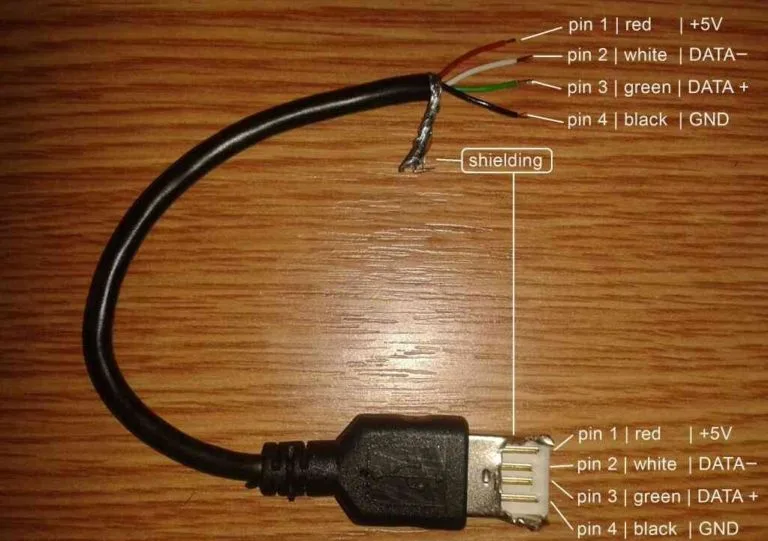
Image source: Web (Bing) / dignited.com (Web image (fair-use with source credit))
Expert Tips for Fast, Reliable Transfers Every Time
Use a short, high-quality data cable. Pick a USB-C 3.x cable under three feet long. That reduces signal loss. Test it: plug the cable into a computer with the camera off.
If the computer still detects a device, it's a data cable.
Invest in a UHS-II card reader. For large projects, a UHS-II reader with a compatible card cuts transfer time by 60 percent or more. Pair it with a V30 or higher microSD card.
Automate with a cloud backup plan. Some action cameras support direct cloud upload when connected to home Wi-Fi. That offloads footage automatically. Great for long trips.
Rejoin split clips. When the camera splits long videos into 4 GB chunks, editing software merges them seamlessly. Don't worry about manual stitching.
Keep your phone awake during app transfers. On iOS, disable auto-lock. On Android, turn off battery optimization for the camera app. The transfer stops if the phone sleeps.
Watch for overheating. If the camera gets hot, transfers slow down or stop. Let it cool for ten minutes before retrying. Extended recording sessions combined with file transfer can push temperatures past safe limits.
Use reliable storage. A high-quality, known-brand microSD card reduces file corruption and transfer drops. Budget cards often have slower read speeds and inconsistent write performance that cause errors midway through a copy. Stick with reputable brands and buy from authorized retailers.
Frequently Asked Questions
Why does my GoPro not show up on my PC?
This is almost always a cable issue. Try a different USB cable that you know transfers data. If that fails, check Device Manager for an MTP driver error.
Update or reinstall the driver. Still stuck? Take the microSD card out and use a card reader.
That bypasses every software layer.
Can I transfer 4K video over Wi-Fi without losing quality?
Yes, the file stays identical. Wi-Fi transfer copies the original file. It does not recompress or degrade it.
The real downside is speed. A 10 minute 4K clip can take five minutes or more. For large files, use a card reader instead.
My camera charges when I plug it in but the computer doesn't see it. Why?
That is the classic sign of a charge-only cable. Those cables have power wires but no data wires. Look at the small icon on the USB plug.
A lightning bolt means charge only. Swap to a cable with a data symbol or a USB-IF certified data cable.
How do I recover files from a corrupted SD card?
Stop using the card immediately. Do not format it. Use recovery software on a computer to scan the card.
Many tools restore deleted or corrupted files. If the card shows errors, try a different card reader. Sometimes the reader is the problem, not the card.
Should I buy a faster SD card or a better cable?
Start with a faster SD card. A V30 or U3 card ensures stable recording and faster reads. That helps both recording and transfer.
A better cable matters too, but only if you use the card reader method. For USB direct transfers, a data cable is essential.
Do I need to turn off the camera before inserting the SD card?
Yes, always power off the camera first. Hot swapping can corrupt the file system. It can also damage the card or camera slot.
Turn off the camera, insert the card, then power on. The same rule applies when removing the card.

Similar Posts