Canon PowerShot G7 X Mark III Problems
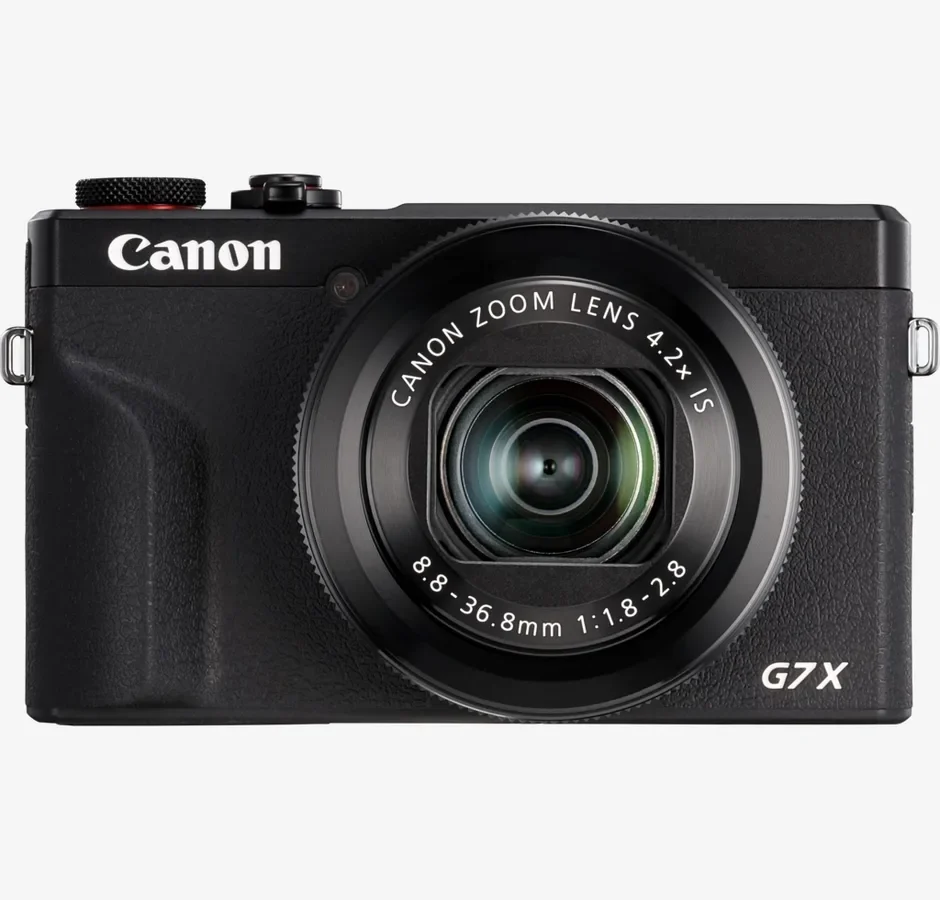
So you've had your Canon PowerShot G7 X Mark III for a while now and things aren't quite clicking anymore. Maybe the screen went blank mid-shot, or that dreaded lens error popped up right before an important clip. You're not alone.
Dealing with Canon PowerShot G7 X Mark III problems is a rite of passage for owners of this otherwise excellent compact camera.
Manufacturer specifications indicate the NB-13L battery is rated for roughly 235 shots per CIPA testing. In real-world use especially with 4K video, that number drops fast. Aggregate reviews report that overheating during extended recording is the single most common complaint.
Let's walk through what's actually going wrong and what you can do about it.
Quick Answer
The most common Canon PowerShot G7 X Mark III problems are overheating during video, lens errors, and battery drain. Overheating occurs after 5 to 20 minutes of 4K recording. Lens errors usually follow a drop or impact.
Battery life falls well below the rated 235 shots. Most issues have practical workarounds or simple fixes.
Why the G7 X Mark III Has Those Annoying Issues
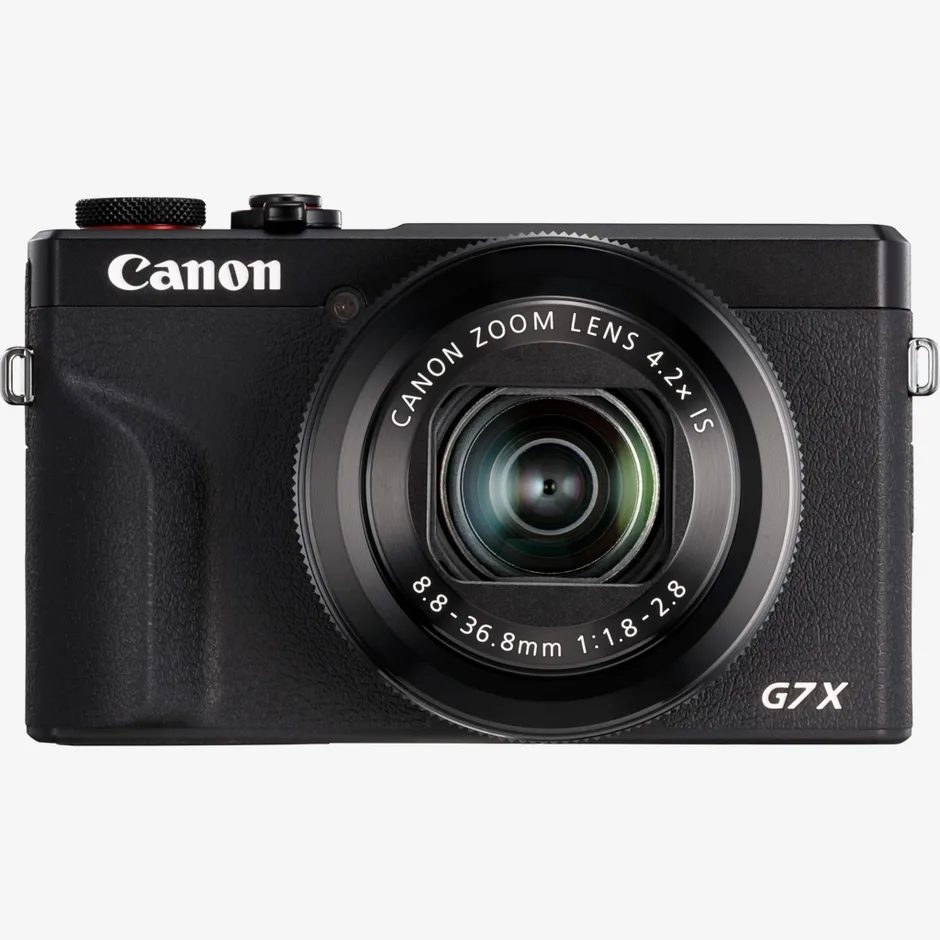
Image source: Web (Bing) / fr.canon.ch (Web image (fair-use with source credit))
This camera packs a lot into a small body. A 1.0 inch stacked CMOS sensor, DIGIC 8 processor, and a fast f/1.8 2.8 lens all share a space about the size of a deck of cards. There's no active cooling inside.
No fan. No heat sink vents. When you shoot 4K video or stream live, that processor works hard and heat builds up fast.
The retracting lens mechanism is another weak point. It extends and retracts every time you power on or off. That's thousands of cycles over the camera's life.
A single drop or bump can knock the barrel out of alignment. Then you get an error code and a stuck lens.
Battery life suffers because the camera draws significant power for its sensor and screen. Touchscreen operation. Wi-Fi and Bluetooth radios.
The NB-13L battery simply wasn't designed for heavy video use.
These are design trade-offs, not necessarily defects. The camera prioritizes portability over durability. Knowing that helps you work around the limits instead of fighting them.
The Shortcut: What Most People Try First (and Why It Often Backfires)
When something goes wrong, our first instinct is to panic and try anything. That usually makes things worse.
Factory resetting everything. Many users immediately dive into settings and perform a full reset. That can erase custom picture profiles and Wi-Fi credentials. For lens errors or overheating, it does nothing.
You just lose your setup for no reason.
Blowing into the lens barrel. Dust and debris can get stuck in the retracting mechanism. Blowing air into it might dislodge something. It might also push particles deeper inside.
Compressed air cans are especially risky. They can introduce moisture or freeze the mechanism.
Updating firmware hoping for a miracle. Firmware updates fix known bugs. They do not fix a physically damaged lens or a battery that won't hold charge. If the camera has a hardware problem, a firmware update won't help.
It can actually introduce new issues if the update process fails mid way.
Using any USB cable to charge. The G7 X Mark III uses USB C. But not all cables and chargers work well. Cheap cables lack the data pins needed for proper communication.
Low wattage chargers trickle charge slowly or not at all. You think the battery is faulty when the real problem is the charging setup.
Instead of guessing, follow a logical workflow. Start with the symptom. Work through the likely causes in order.
You'll save time and avoid making small problems worse.
If you are already comfortable with general device troubleshooting, the same structured approach applies here. You can apply similar logic to other gadgets, like checking for similar power issues on other devices.
The Real Fixes: A Step-by-Step Troubleshooting Workflow
This is where we match your specific symptom to the right fix. Go down the list in order.
Screen Is Blank or Camera Won't Turn On
First, check the battery charge level. Remove the battery and hold the power button for 10 seconds to drain residual power. Then reinsert the battery.
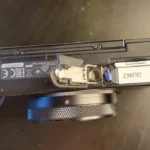
Check the battery contacts for dirt or corrosion. A clean with a dry cloth often helps.
Try a different charged battery if you have one.
If the camera still won't power on, inspect the battery door latch. This is a known weak point. If the latch is broken, the camera may not detect the battery correctly.
You can sometimes hold the door closed manually to test.
If nothing works, the camera likely needs internal repair.
Lens Error (E18, E32, E70)
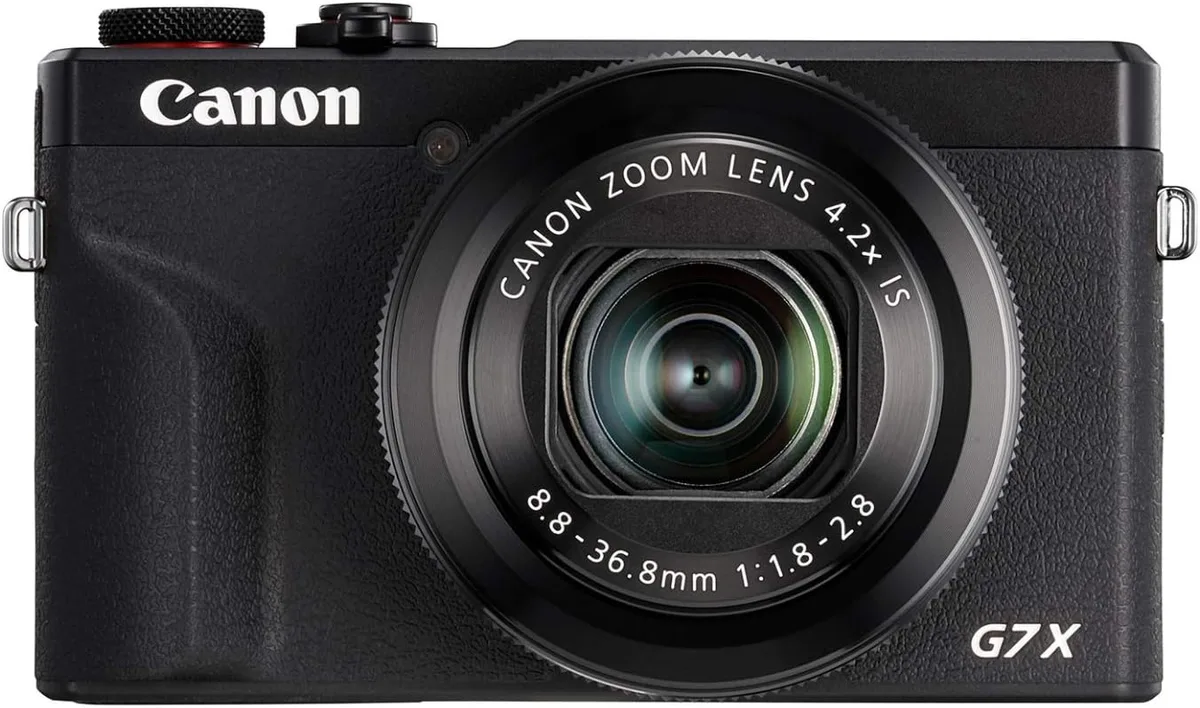
Image source: Bing (Web (fair-use with source credit))
These error codes mean the lens mechanism is stuck or misaligned.
E18 usually means the lens is jammed and can't extend or retract fully.
E32 indicates a communication error between the lens and the camera body.
E70 suggests a mechanical fault within the zoom assembly.
Try this safe recovery sequence. Remove the battery and memory card. Wait 30 seconds.
Reinsert the battery only. Power the camera on while gently supporting the lens barrel with your fingers. Do not force it.
If the lens extends partway and stops, power off immediately.
You can also try tapping the camera gently against your palm with the lens facing downward. That can dislodge small debris.
If the lens won't move at all or you hear grinding, stop. Further manual attempts can cause permanent damage. Send it to a repair centre.
Overheating during video is a different beast entirely, as we cover in the next section.
For cameras with mechanical components that move frequently, such as trail cameras, similar lens and focus errors can occur. Our guides on dealing with camera firmware bugs can be useful for other devices too.
Overheating During Video or Live Streaming
If you see an overheating warning icon or the camera shuts down during recording, heat is the usual culprit.
The G7 X Mark III has no active cooling. Internal temperature rises quickly during high resolution video. Ambient temperature plays a big role.
In hot weather or direct sunlight, overheating happens faster.
Lower the video quality to 1080p instead of 4K. That reduces processor load significantly.
Keep recording clips under 10 minutes. Let the camera cool for a few minutes between takes.
Use a tripod instead of holding the camera. Your hand adds insulation and traps heat.
Point a small USB fan at the camera during stationary recording. It sounds silly but it works.
If overheating happens within the first minute at room temperature, the camera may have a hardware defect. That would be covered under warranty if it's still valid.
Battery Drains Fast or Won't Charge
Real world battery life is often lower than the 235 shot CIPA rating. CIPA testing uses a specific cycle of shots, flash, and power off times. Real shooting with video and screen use drains faster.
Check your USB C cable and charger first. Use the original Canon charger or a quality 2 amp or higher power brick. Cheap cables can prevent charging entirely.
Let the battery drain completely once a month. Then charge it fully. That helps calibrate the battery gauge.
Inspect the battery for swelling. A swollen battery has a bulging or warped case. Stop using it immediately.
Replace it with an official Canon NB-13L battery or a reputable third party equivalent.
Overheating: The Single Biggest Complaint (and How to Live With It)
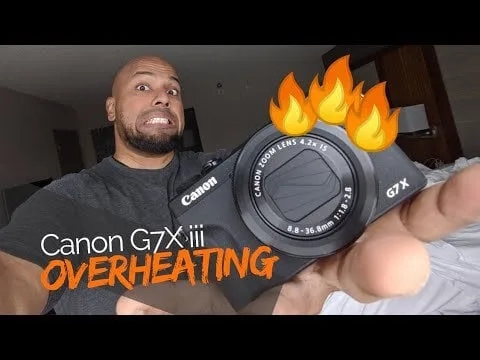
Image source: Bing (Web (fair-use with source credit))
Let's be honest about the overheating problem. It's not a defect on every unit. But it is a known limitation of the design.
The camera's small size means heat has nowhere to go. The DIGIC 8 processor and 4K recording generate significant heat. The camera's internal temperature sensor triggers a shutdown to protect the components.
Aggregate user reports indicate that at a comfortable 70 degree Fahrenheit room temperature, you can expect roughly 15 to 20 minutes of continuous 4K recording before you see the warning. In warmer conditions or direct sunlight, that drops to 5 to 10 minutes. Live streaming via USB generates even more heat because the camera is processing video output simultaneously.
Canon never released a firmware update to fix overheating. It's a hardware limitation, not a software bug. That means you have to manage it yourself.
Some practical workarounds that help:
- Record in 1080p for longer sessions. The processor works less hard.
- Use a small external fan pointed at the camera body. Even a desk fan reduces temperature buildup.
- Lower the screen brightness to reduce internal heat from the display.
- Remove the battery while charging via USB C if you're using it as a webcam. The battery itself generates heat during charging.
- Avoid direct sunlight and hot car interiors.
If overheating happens within two minutes of starting a recording at normal room temperature, that is not normal. Contact Canon support for a service evaluation. The thermal paste or sensor contact may be defective.
You can also look at our guide on camera video quality troubleshooting for other performance adjustments.
What About the Battery Life? And Other Minor Annoyances?
Beyond overheating and lens errors, a few other frustrations pop up regularly.
Wi Fi and Bluetooth dropouts. The camera uses Wi Fi for transferring files and Bluetooth for a constant connection to the Canon Camera Connect app. If the connection drops frequently, try resetting the camera's network settings. Go to the Wi Fi menu and choose "Reset Settings." Then set up the connection fresh.
Also make sure your phone's Bluetooth is on and the app is updated.
Autofocus hunting in low light. The G7 X Mark III uses contrast detect autofocus in many situations. In dim conditions, it can struggle to find focus. Switch to manual focus or use the touch screen to select a high contrast area.
The camera's built in focus assist lamp can help too.
Touchscreen lag after long use. The tilting touchscreen can become sluggish during extended shooting sessions. This is often heat related. Let the camera cool down and the responsiveness usually returns.
If it stays laggy even when cool, a service check is wise.
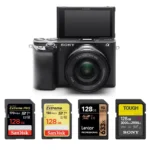
Card error messages. If your camera says "Card Error" or "Card Not Initialized," first format the card in the camera. Do not format on your computer. Use a high speed U3 rated SD card.
Slow cards can cause write errors, especially with 4K video or burst shooting. If errors persist, the card may be failing. Replace it.
For other connection related issues, such as pairing problems, our troubleshooting guide for connection problems can help.
If you are dealing with corrupted files from a card error, photo recovery tools can sometimes retrieve lost images.
When to Send It In vs. When to Just Upgrade
At some point you have to decide whether fixing the camera makes sense or if it's time for a replacement. The G7 X Mark III is discontinued but still widely available used. As of 2026, a working unit sells for roughly $400 to $600 depending on condition.
Canon's flat rate repair for out of warranty cameras typically runs $150 to $250. That covers lens replacement, main board repair, or sensor cleaning. Shipping adds another $20 to $30.
Turnaround time from Canon service centers is usually two to four weeks.
Here is the decision framework.
Send it in for repair if the camera is otherwise in good condition and the repair cost is under $200. Lens errors, stuck buttons, and USB C port failures are worth fixing. The camera's image quality and video features still hold up well.
A $200 repair is cheaper than a $600 replacement.
Just upgrade if the repair quote exceeds $250 or the camera has multiple issues. Paying $300 to fix a camera worth $400 is a bad investment. Also upgrade if overheating severely limits your work.
The G7 X Mark III will never be a reliable long session video camera. That is a hardware limit, not a fixable defect.
Skip repair entirely if the camera has water damage or a cracked screen. Those repairs often cost more than the camera's value. The internal damage from liquid is hard to fully diagnose.
You might pay $250 and still have intermittent problems.
The natural upgrade path leads to cameras with active cooling. The Sony ZV-1 has better thermal management. The Sony RX100 VII offers superior autofocus and longer recording times.
Both fix the G7 X Mark III's biggest frustrations.
FAQs
Can I fix a lens error myself?
Sometimes, with the gentle tapping method described earlier. If the lens is physically misaligned from a drop, you cannot fix it at home. Opening the lens assembly yourself voids any remaining warranty and risks permanent damage.
Send it to a repair centre if gentle methods fail.
Does Canon still support the G7 X Mark III with firmware updates?
Canon has not released a firmware update since 2020. The camera is discontinued and no longer receives feature updates. The final firmware version is 1.2.0.
Canon still provides the manual and software downloads on their support page.
Is overheating covered under warranty?
Only if it happens within the first year of ownership and under normal use. Overheating from heavy use or hot environments is not a defect. If your camera overheats within two minutes at room temperature, that may qualify.
Contact Canon support to check.
Can I use this camera for long streaming sessions?
Not reliably. The G7 X Mark III can stream via USB C to a computer, but overheating often shuts it down within 30 minutes. Lowering the output to 720p helps but does not guarantee stability.
A dedicated webcam or a camera with active cooling is better for long streams.
How do I tell if my battery is swelling?
A swollen battery will not sit flat on a table. It may wobble. The battery door may be hard to close or pop open.
Stop using it immediately. Dispose of it at a battery recycling centre. Do not charge or puncture a swollen lithium ion battery.
Pro Tips to Keep Your G7 X Mark III Running Smoothly
A few habits go a long way toward preventing problems before they start.
Shoot habits that reduce heat. Keep recording clips under 10 minutes. Let the camera rest between takes. Use a tripod so your hand does not add insulation.
Point a small USB fan at the camera for stationary work. These steps alone solve most overheating complaints.
Storage and handling to prevent lens errors. Store the camera in a padded case. Never carry it loose in a bag with keys or coins. Gently support the lens barrel when powering on.
A single hard knock is the most common cause of lens error codes.
Use the right SD cards. Buy U3 rated cards with write speeds of at least 90MB per second. Sandisk Extreme Pro or Lexar Professional cards work well. Slow cards cause write errors and buffer lag during burst shooting or 4K recording.
Format every new card inside the camera before first use.
Regular maintenance checks. Clean the lens with a microfiber cloth monthly. Check the battery contacts for dirt. Run a firmware check every six months even though updates are unlikely.
Store the camera with the lens retracted in a dry place. Trapped moisture can corrode the lens mechanism over time.
Keep spare batteries. The NB-13L battery degrades after about 300 charge cycles. Carry two or three spares for a full day of shooting. Label them so you cycle through all of them evenly.
A battery that no longer holds 80 percent of its original capacity is ready for replacement.

Similar Posts