Action Camera Computer Connection Troubleshooting
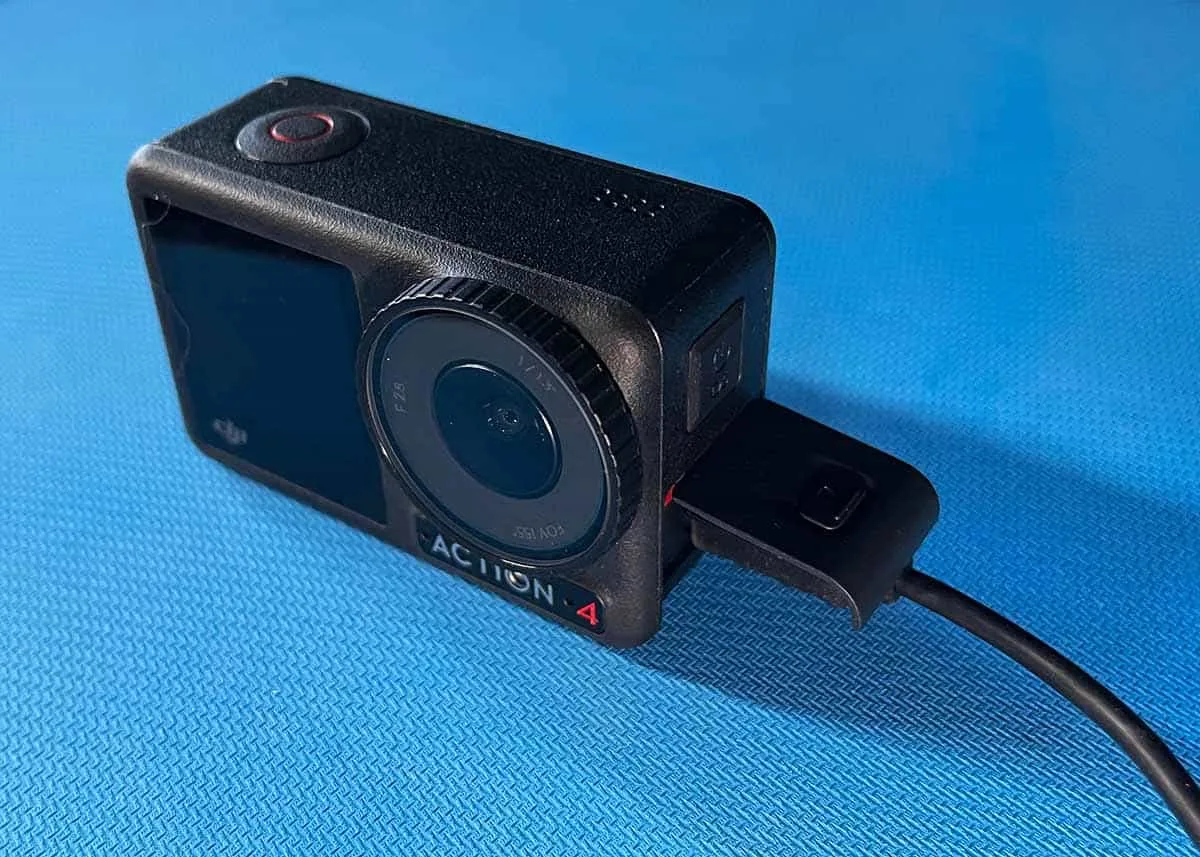
You plug your action camera into your laptop. The screen lights up. The battery starts charging.
But your computer acts like nothing happened. No drive icon, no import window, just silence. That moment is where action camera computer connection troubleshooting begins.
USB cables are not all the same. Per USB-IF standards, a cable rated for USB 3.0 can move data at up to 5 Gbps. A charge-only cable won't transfer a single file.
Before you dive into menus or drivers, let us walk through the most common failure points in order.
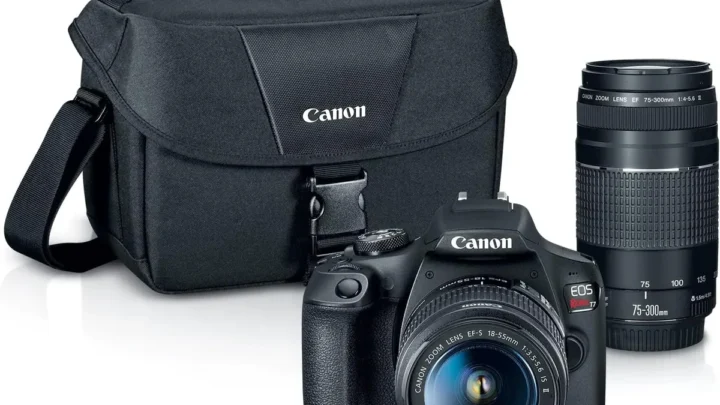
Image source: Web (Bing) / robots.net (Web image (fair-use with source credit))
Quick Answer
Check your cable first. Most connection issues come from a charge-only cable. Then try a different USB port.
Next, check your camera's USB mode setting. If that fails, use a dedicated card reader. These steps fix 90 percent of cases.
Is It the Cable, the Camera, or the Computer? (First Diagnostic Checks)
Most connection failures trace back to one of three things. The cable, the computer port, or the camera itself. Here is a quick decision tree.
- If the camera charges but does not show up, the cable is charge-only. Swap it for a known data cable.
- If no power reaches the camera, the cable or port is dead. Test a different cable and a different port.
- If the camera shows up briefly then disappears, you may have a driver conflict. Restart both devices.
Check your device manager on Windows or system report on Mac. A yellow warning triangle means a missing driver. For deeper hardware-level faults, our guide on general camera troubleshooting covers the edge cases.
A damaged USB-C port on the camera is another possibility. Look for bent pins or debris inside. A simple toothpick cleaning sometimes fixes it.
If the port is loose, you need professional repair. Try a rear port on a desktop tower. Front panel USB ports sometimes lack enough power for data transfer.
Laptop ports are generally fine but can fail after years of use.
The Cable vs. Card Reader Decision (Pick Your Hardware Path)
You have two hardware paths to get files off your action camera. Direct USB cable connection, or a dedicated SD card reader. Each has strengths and weaknesses.
Direct USB cable connection:
- Convenient and requires no extra hardware
- Relies on your camera's firmware and USB mode setting
- Slower than a card reader on USB 2.0 cables
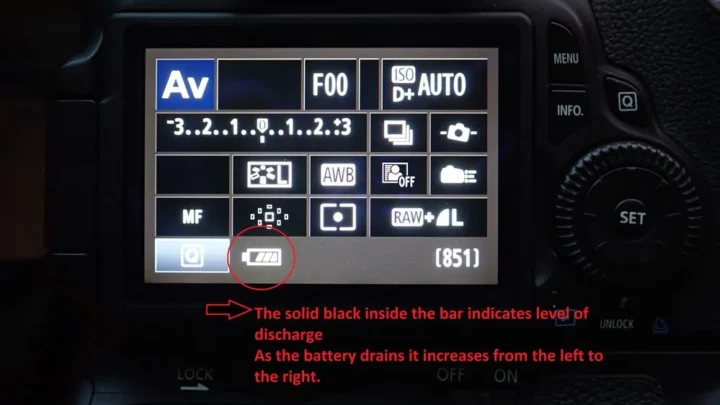
- Battery must have enough charge to power the data circuit
SD card reader:
- Bypasses the camera entirely, eliminating firmware bugs
- Faster transfer speeds, especially with UHS-II readers
- Requires removing the card from the camera each time
- Card slot on the camera can wear out over time
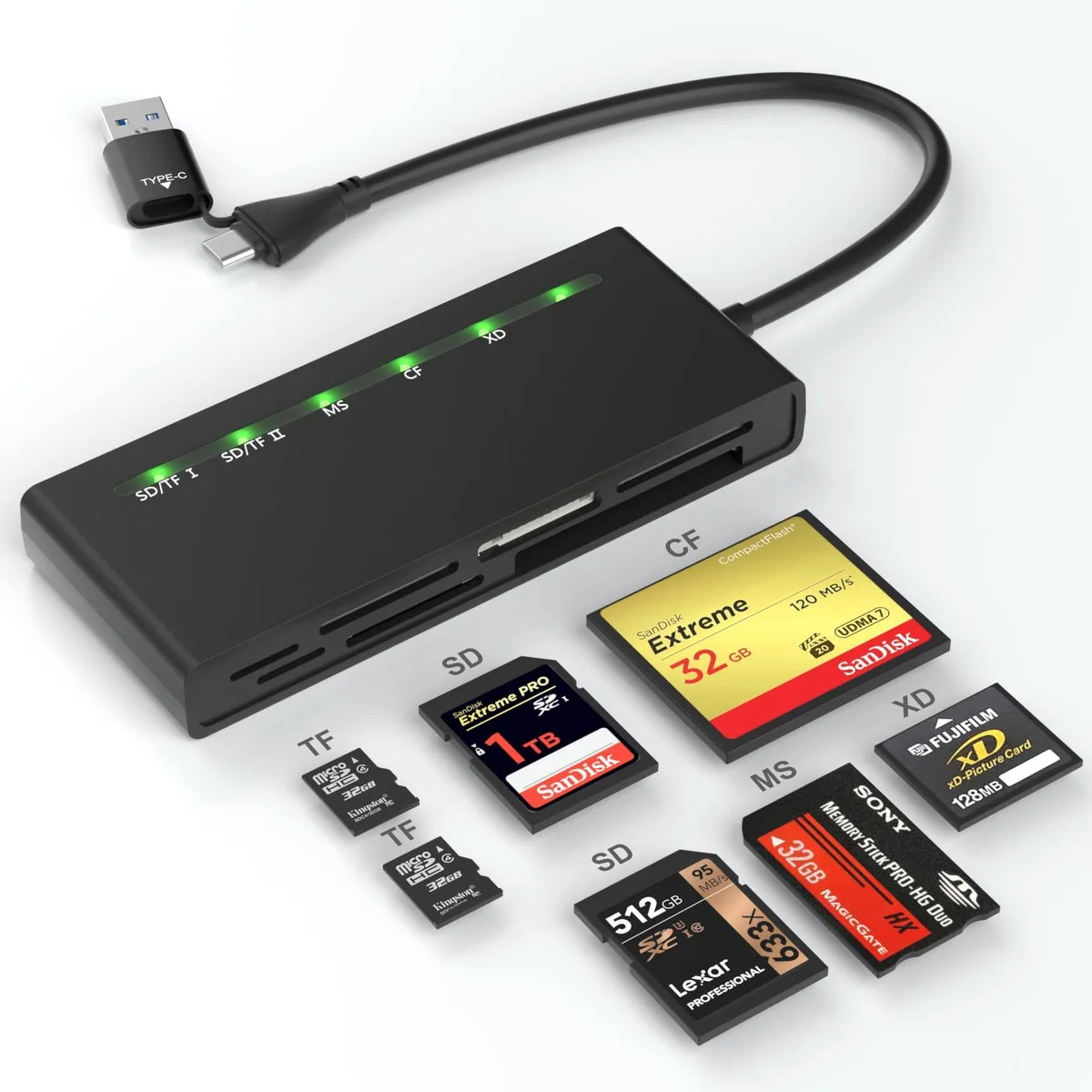
Image source: Web (Bing) / amazon.ca (Web image (fair-use with source credit))
If you use a card reader, make sure your card is formatted correctly. Corrupted cards can cause errors at the reader level. The SD Association publishes compatibility standards that most modern readers follow.
When should you choose one over the other? Use the cable when you only need a few clips and the camera is already on. Use the card reader when you are transferring a full day of footage.
It is faster and more reliable.
Windows vs. Mac: The OS-Specific Blockers You'll Hit
Your operating system matters more than you think. Windows and Mac handle USB storage differently. If the camera works on one computer but not the other, the OS is the culprit.
Windows:
- Most action cameras connect via Media Transfer Protocol (MTP)
- Windows needs the MTP driver installed automatically
- If you see "Device not recognized" in Device Manager, a driver update may help
- Right-click the device and choose "Update driver" to let Windows search
Mac:
- macOS supports USB mass storage natively for most cameras
- Some cameras use MTP, which macOS does not support without extra software
- Check System Information for unrecognized USB devices
A common issue on Mac involves the "Disk not ejected properly" message. This often means the camera was disconnected while writing files. Reconnect and use the eject button before unplugging.
If your camera connects to a phone but not a computer, the problem is likely the USB protocol. Try switching the camera to mass storage mode. Hidden menu settings can sometimes override the default connection behavior.
The Camera Setting That's Blocking Your Connection (MTP, Mass Storage, Webcam)
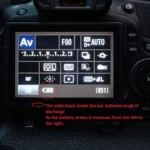
Your action camera has a hidden setting that controls how it talks to a computer. It is called USB mode. It is often set to charge-only or webcam mode by default.
You need to switch it to mass storage or file transfer.
Where to find it on major brands:
- GoPro: Go to Preferences > Connections > USB Connection. Select "MTP" or "GoPro Connect."
- DJI Action: Go to Settings > Connection. Choose "Mass Storage" or "File Transfer."
- Insta360: Go to Settings > USB Mode. Pick "Mass Storage" or "File Transfer."
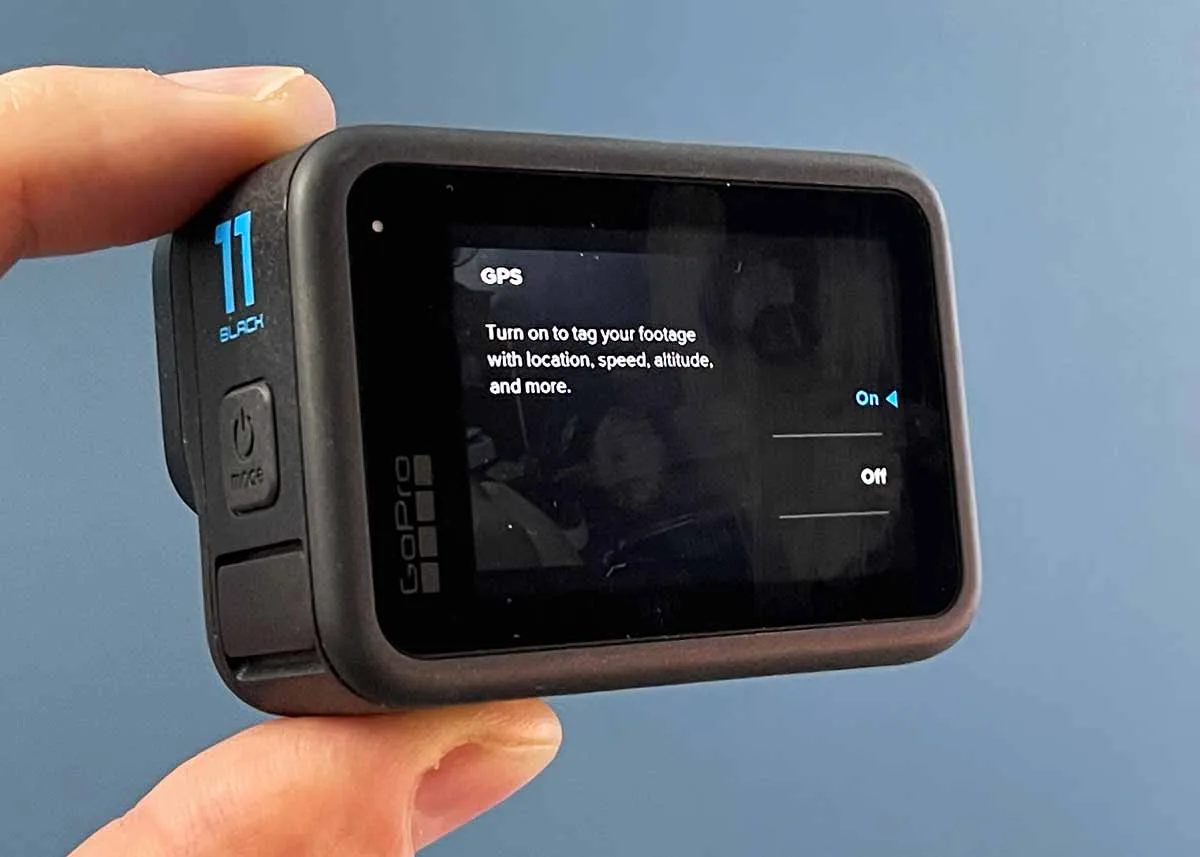
Image source: Web (Bing) / storytellertech.com (Web image (fair-use with source credit))
If your camera shows up as a webcam instead of a drive, you have the wrong mode selected. Webcam mode streams video but does not expose the file system. Switch it to mass storage mode.
Some cameras require you to confirm the connection on the camera screen after plugging in. Look for a prompt that says "Connect to PC" or "File Transfer." Tap it.
Menu-based issues are the most common frustration we see in user reports. Many people never realize their camera has this setting. A quick toggle in the menu can fix a problem that seems like a driver or cable issue.
If you are still stuck, our guide on custom menu configurations provides brand-specific walkthroughs.
When the SD Card Is the Real Problem (Corruption, Format, Lock, and Repair)
Sometimes your camera connects fine but the SD card itself is the bottleneck. The computer sees a drive but the folder is empty or the files are corrupted. That is a card issue, not a cable or driver problem.
Common SD card symptoms:
- Card shows up as an empty folder even though you filmed for hours
- Transfer starts then freezes halfway through
- Windows asks you to format the card before you can open it
- macOS says "The disk you inserted was not readable"
The first fix is always the physical lock slider on the side of the card. If it is pushed down to the "Lock" position, your computer can read the card but cannot write to it. That can cause confusing behavior.
Slide it back up. If the card is not locked, test it in a different device. A dedicated card reader bypasses the camera entirely and tells you whether the camera's internal reader is the problem.
Card formatting and repair steps:
- Use your camera to format the card, not your computer. Cameras create the exact folder structure they expect.
- If your computer still cannot read the card after formatting, run a repair tool. On Windows, use
chkdsk /fon the drive letter. On Mac, use Disk Utility First Aid. - Cards that fail consistently are often counterfeit or past their write cycle limit. Replace them.
Many transfer errors trace back to SD card formatting rather than the camera itself. Our guide on card-specific errors goes deeper into repair commands and recovery software. If the card contains footage you cannot lose, stop trying to repair it.
Use data recovery software to pull the files off first, then reformat. Writing new data to a damaged card can overwrite your original clips. Buggy firmware versions can also interfere with how the camera writes to the card.
Mistakes People Keep Making (and What to Do Instead)
Some errors show up again and again in user reports. Knowing them saves you twenty minutes of frustration.
Pulling the cable during a transfer. This corrupts the file you were moving and sometimes damages the card's file allocation table. Always use the "Safely Remove Hardware" option on Windows or the eject button on Mac before unplugging.
Using the USB cable that came with a phone charger. Most phone cables are charge-only. They lack the data wires entirely. The cable looks identical but your camera will never appear as a drive.
Leaving the camera in webcam mode. If you used your action camera as a webcam recently, the USB mode is still set to webcam. Switch it back to mass storage or file transfer.
Connecting through a USB hub. Hubs share bandwidth and often cannot supply enough power for reliable data transfer. Plug directly into the computer.
Forgetting to unlock the camera screen. Some action cameras require you to unlock the display before the computer can access the storage. A locked screen can make the camera appear invisible.
Trying to read a corrupted card without backup first. When a card fails, the first instinct is to run a repair tool. That can make recovery harder. Pull what you can with recovery software first.
For alternative connection methods, our guide on mobile device syncing covers wireless transfer options if your USB port is damaged.
Your Quick Decision Flow (A Step-by-Step Guide)
Here is a simple decision map for the next time your action camera refuses to connect. Start at the top and work down. Each step takes about a minute.
Step 1: Confirm the cable. Plug the cable into your camera and computer. Does the camera show a charging icon? If yes, the cable delivers power.
Does a drive icon appear in File Explorer or Finder? If not, swap the cable for one you know transfers data. The original camera cable is your safest bet.
Step 2: Check the USB port. Move the cable to a different port. On a desktop, use a rear port. On a laptop, try the opposite side.
Some ports deliver power only. Others have failed over time.
Step 3: Toggle the camera's USB mode. Go into your camera settings menu. Look for "USB Connection" or "USB Mode." Switch it from "Charge Only" or "Webcam" to "Mass Storage" or "File Transfer." Restart the camera and reconnect.
Step 4: Bypass the camera. Remove the SD card. Insert it into a card reader. Plug the reader into your computer.
If the files appear, the camera's internal hardware or firmware is the bottleneck. Use the card reader for future transfers. Firmware update problems can sometimes cause this behavior.
Step 5: Repair or reformat the card. If the card reader shows an empty drive or prompts you to format, run a repair tool first. On Windows, use chkdsk /f on the card's drive letter. On Mac, open Disk Utility and run First Aid.
If repair fails, format the card inside your camera.
Most connection problems, per manufacturer documentation and user reports, fall into one of those five buckets. Work through them in order. You will find the fix long before you reach the bottom.
Frequently Asked Questions
Why does my computer charge the camera but not detect it?
The cable is almost certainly charge-only. Charge-only cables have power wires but lack data wires. Swap to a cable that specifically supports data transfer, ideally the one that came with your camera.
Do I need special software to connect my action camera to a computer?
No. Most action cameras appear as a standard USB drive. You can drag and drop files in File Explorer or Finder.
Some brands offer desktop apps for auto-import, but they are optional.
My camera showed up once and now it does not. What changed?
A recent OS update likely changed how USB devices are handled. Check your USB mode setting in the camera menu. On Windows, try reinstalling the MTP driver through Device Manager.
Can I use a USB-C to Lightning cable for an iPhone connection?
That cable transfers files to an iPhone or iPad, not a computer. For a PC or Mac connection, use USB-C to USB-A or USB-C to USB-C with a data-rated cable.
My card reader sees the card but the folder is empty. What now?
The card may be formatted in a file system your computer does not read natively. ExFAT works on both Windows and Mac. If the card uses a GoPro-specific format, check the manufacturer's desktop software to access the files.

Similar Posts