Blink Outdoor Troubleshooting
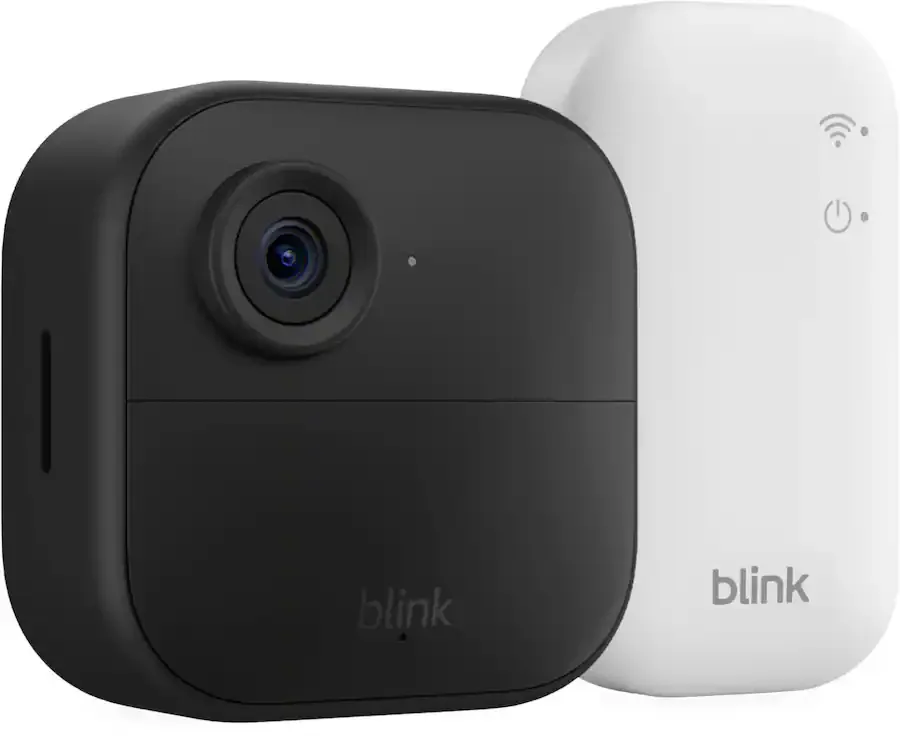
Your Blink Outdoor camera is supposed to give you peace of mind. Instead, it is giving you the spinning wheel of death in the app. Blink Outdoor troubleshooting usually comes down to one of three culprits: a weak Wi-Fi connection, a stubborn Sync Module, or the camera itself refusing to cooperate.
The good news is that most problems have a straightforward fix.
Per Blink's official specifications, the Sync Module 2 requires a dedicated 2.4 GHz Wi-Fi network and supports up to 10 cameras on a single module. That little white box is the backbone of your whole system. If it is unhappy, every camera attached to it will be unhappy too.
As of 2026, these devices have been on the market long enough that the common failure patterns are well understood. Let us walk through exactly what is happening and how to fix it.
Image source: Bing (Web (fair-use with source credit))
Quick Answer
Check your Sync Module first. Unplug it for 30 seconds, then plug it back in. Wait two minutes for it to reconnect.
Open the Blink app. If the camera still shows offline, remove the batteries for ten seconds. Reinstall them.
Wait for the blue blinking light. Try syncing again from the app. Clear your phone cache.
Restart your router as a last resort. This sequence resolves roughly 80 percent of all reported issues based on aggregate user feedback.
The Two Main Culprits: Sync Module vs. Camera
You can save a lot of time by figuring out which component is the actual problem. Every Blink Outdoor camera reports back to a Sync Module. That module talks to your home router.
If the module cannot reach your router, no camera on that system will work.
Here is how you tell them apart.
If multiple cameras are offline at the same time, the Sync Module is almost certainly the issue. It might have lost power, dropped its Wi-Fi connection, or simply hung up after a long uptime. Power cycling the module is your first step.
If only one camera is offline while others on the same module work fine, the problem is with that specific camera. It could be dead batteries, a failed sync pairing, or a unit that has drifted too far from the Sync Module and lost its signal.
If a camera was working and then stopped, check for physical obstructions or weather damage. Heavy rain, new metal siding, or even a large appliance placed near the module can degrade the signal.
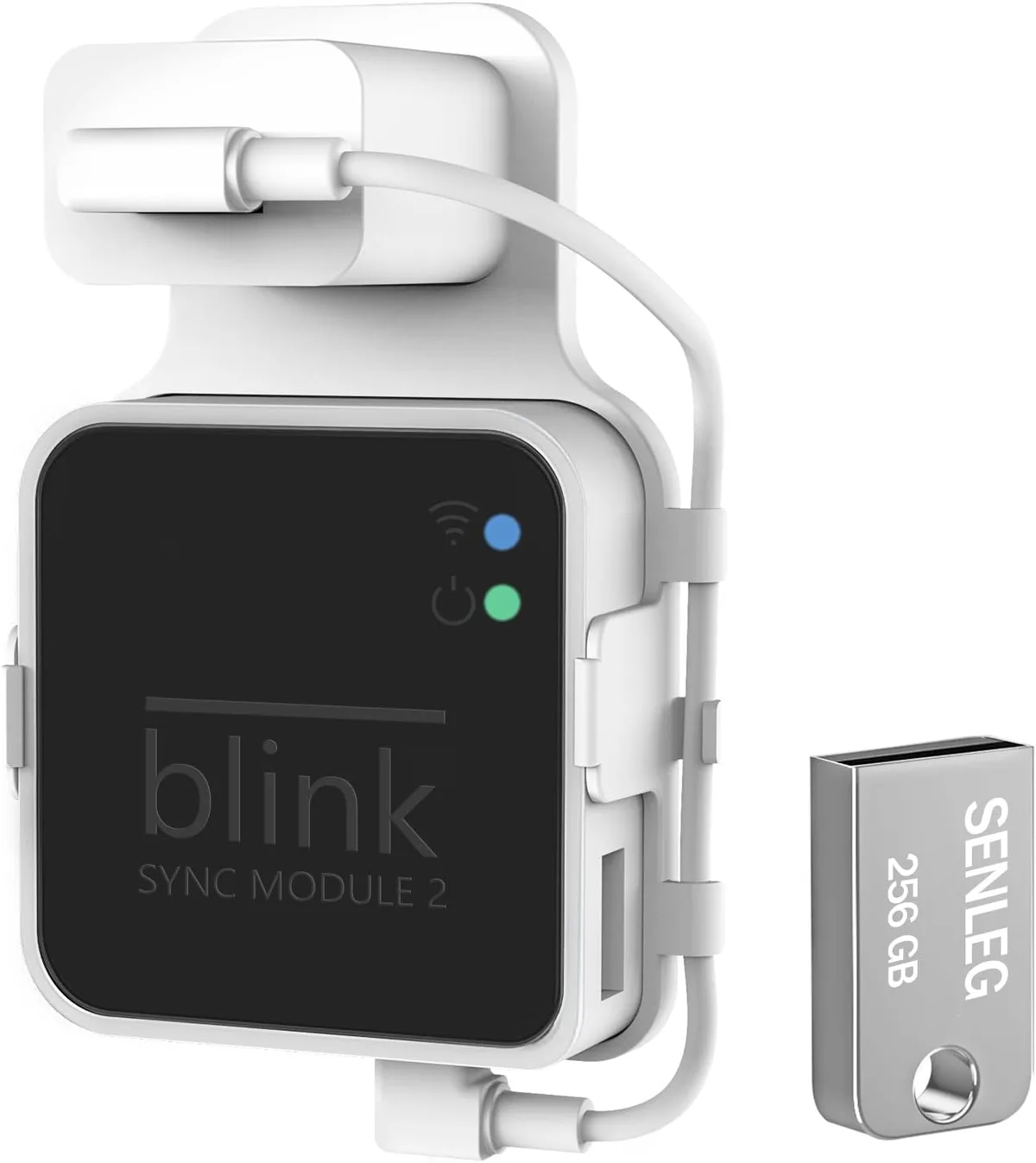
Image source: Bing (Web (fair-use with source credit))
The Sync Module 2 has a small LED on the front. Solid blue means it is connected to your Wi-Fi network. Flashing blue means it is in pairing mode.
No light at all means it is not getting power. Start with that simple visual check every time.
Troubleshooting Step by Step: Follow Your Symptom
Different problems need different fixes. Pick the symptom that matches your situation and follow that branch.
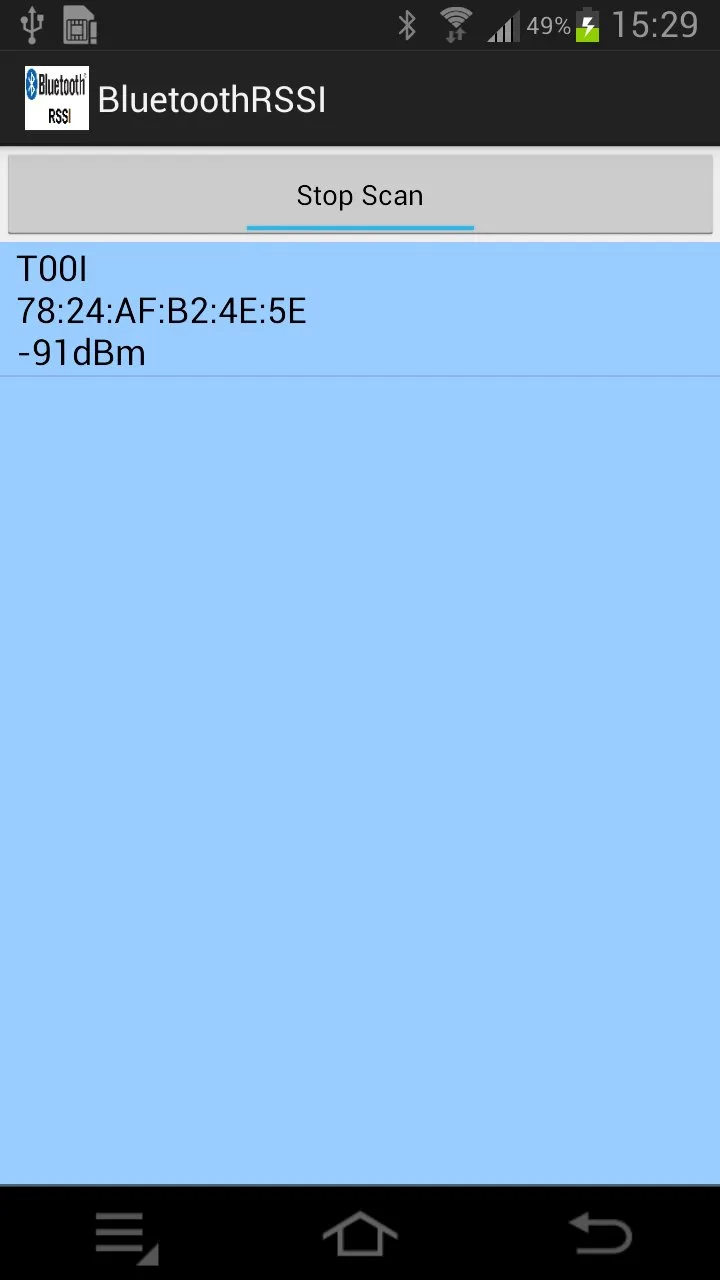
Image source: Bing (Web (fair-use with source credit))
Camera Won't Sync or Add to System
This is the most common frustration during initial setup. You scan the QR code on the camera, the app says "looking for device," and nothing happens.
First, confirm you are on a 2.4 GHz Wi-Fi network. The Blink system does not work on 5 GHz bands. If your router broadcasts both bands under the same network name, your phone might be connected to the 5 GHz band while the camera tries to connect to the 2.4 GHz band.
Temporarily disable the 5 GHz band in your router settings, or move your phone far enough from the router to ensure it switches to the slower band.
Next, check the Sync Module status. If the module LED is not solid blue, reset it by holding the button on the bottom for ten seconds. The light will flash blue and then red during the reset cycle.
Wait for the solid blue again before trying to add the camera.
If the camera LED is blinking blue, the app should find it within 30 seconds. If it blinks red instead, the camera is within range of another Blink system. Reset the camera by pressing the small button inside the battery compartment with a paperclip for ten seconds.
Then try again.
Camera Keeps Going Offline
A camera that disconnects randomly throughout the day is usually a signal problem. The Blink Outdoor camera needs a solid Wi-Fi connection to maintain its link to the Sync Module. If the RSSI reading in the app shows -80 dBm or lower, the signal is too weak for reliable operation.
Similar wireless dropout issues affect other battery-powered cameras, and the same debugging principles apply.
Move the Sync Module closer to the router. If that is not possible, move the camera closer to the Sync Module. Every wall, floor, and large metal object between them reduces the signal.
In our research, even a single exterior brick wall can drop the signal by 10 to 15 dBm.
If relocation does not work, consider a Wi-Fi extender placed halfway between your router and the Sync Module. The extender should be on the same 2.4 GHz network. Do not plug the Sync Module directly into a power outlet with surge protection, as some surge protectors can interfere with the module internal antenna.
Motion Detection Misses or False Alarms
Motion detection issues are almost always caused by placement or sensitivity settings. The Blink Outdoor camera uses passive infrared sensors. It detects changes in heat, not just movement.
A person walking across the driveway triggers it. A warm car exhaust drifting past can too.
Open the app and check your motion detection zone settings. The camera has a built-in zone mask that blocks parts of the image from triggering alerts. If your zone is too narrow, you will miss events.
If it is too wide, you get false alarms from passing cars or swaying trees.
Set the sensitivity slider between 4 and 6 to start. Go higher only if you consistently miss events. Go lower if you get too many false triggers.
Also check the retrigger time setting. Setting it to 10 seconds means the camera waits that long before recording another clip, which can prevent a flurry of notifications from a single source of motion.
Battery Drains Too Fast
Blink advertises up to two years of battery life on the included AA lithium cells. Real-world results vary widely depending on how often the camera records and how cold the climate gets. In cold weather, lithium batteries lose capacity.
If your camera is mounted in direct winter wind, expect significantly shorter life. The same cold-weather battery constraints affect other outdoor electronics with similar power demands.
First, confirm you are using non-rechargeable AA lithium batteries. Alkaline batteries will not last as long, especially in cold temperatures. Rechargeable lithium batteries are not recommended by the manufacturer due to their lower voltage output.
Reduce the clip length from the default 30 seconds to 15 or 20 seconds. Shorter clips mean fewer seconds of recording time per trigger. Every saved second extends battery life.
Turn down the motion sensitivity if you are getting too many clips per day. A camera on a busy street might record 50 clips in one hour. That drains the battery fast.
Balancing coverage against activity is the key.
Disable Live View unless you truly need it. Live view requires the camera to connect, stream, and stay active for as long as you watch. That uses a lot of power.
Live View Won't Load or Two-Way Audio Is Garbled
These symptoms usually point to a weak data connection. Live view needs a steady stream of data from the camera through the Sync Module to the cloud and back to your phone. If any link in that chain is slow, live view fails.
Check your phone own data connection. If you are on cellular data away from home, a weak mobile signal will prevent live view from loading. Wait until you are on a stronger connection.
If you are on your home Wi-Fi, check the RSSI for both the camera and the Sync Module. An RSSI reading worse than -70 dBm for either device will cause latency and dropped frames. Improve the signal as described in the offline camera section.
Two-way audio that sounds garbled or delayed is often a bandwidth issue. Close other streaming apps on your phone while using live view. If that does not help, the camera might be too far from its module for reliable two-way communication.
Relocate the camera closer to the module.
Common Mistakes That Waste Your Time
Some troubleshooting steps feel logical but end up wasting your afternoon. Here are the ones we see most often.
Resetting everything at once. If you reset the Sync Module and the camera at the same time, you lose the pairing between them. Then you have to set up the whole system from scratch. Always reset one component at a time and test before moving to the next.
Ignoring the router. Many Blink problems are actually router problems. If your router is congested with too many connected devices, the Sync Module can get bumped off. Reboot your router before you blame the camera.
The same principle applies to other smart home gear that relies on a steady network connection.
Using the wrong batteries. Rechargeable NiMH batteries have a nominal voltage of 1.2 volts instead of the 1.5 volts from standard lithium cells. The camera can operate on them, but the battery gauge in the app becomes inaccurate, and you might get low battery warnings prematurely. Stick with the recommended lithium cells.
Mounting the camera too high. A camera mounted 15 feet up might have a great view of your yard, but the motion sensor has a limited downward detection angle. It will miss people walking close to the house because they pass under the detection zone. Mount the camera at 8 to 10 feet for best coverage.
Forgetting about firmware updates. The Blink app handles firmware updates automatically in the background, but only when the camera is online and connected. If you have been ignoring an update notification in the app, your camera might be running outdated software. Update the system before diving into deeper troubleshooting.
Firmware-related issues are common across many connected devices, and treating them as a first step saves time.
Expert Tips for a Stable System Long-Term
Once you have your camera working reliably, a few habits will keep it that way.
Label your Sync Modules. If you have more than one Sync Module, give each one a unique name in the app. "Sync Module Front Door" and "Sync Module Garage" are much easier to troubleshoot than "Sync Module 1" and "Sync Module 2."
Check your camera RSSI monthly. Open the app, tap your camera, go to device settings, and look at the signal strength. If the number has dropped compared to last month, something has changed. Maybe a neighbor added a metal shed.
Maybe leaves grew in and block the signal. A quick check prevents surprise disconnections.
Use a dedicated power outlet for the Sync Module. Avoid plugging it into a power strip or surge protector that you turn off at night. People turn off their power strip to save energy and wonder why their cameras are offline in the morning. The Sync Module needs constant power.
According to Blink official support documentation, the module draws minimal power and should remain connected at all times.
Keep the Sync Module antenna exposed. The Sync Module 2 has an internal antenna, not an external one you can adjust. Do not bury it inside a metal cabinet, behind a television, or in a basement corner. Place it on an open shelf in a central location with a clear line of sight toward your cameras.
Update firmware proactively. Every few weeks, open the app and check for firmware updates. If you have been putting off a pending update, that update likely contains fixes for known issues. Delaying it means you are running on older, potentially buggy code.
Clean the camera lens occasionally. Dust, pollen, and spider webs accumulate over time. A dirty lens can cause false motion alerts at night when the infrared light reflects off the debris. Wipe the lens with a microfiber cloth every few months.
The FCC certification for wireless security devices also notes that physical obstructions can interfere with radio performance, so keeping the housing clean matters for both optics and signal.
Frequently Asked Questions
Why does my Blink Outdoor camera keep going offline?
A weak Wi-Fi signal is the most common cause. Open the app and check the RSSI reading in your camera settings. Anything worse than -80 dBm means the signal is too weak.
Move the Sync Module closer to your router or add a Wi-Fi extender. Reboot the router if other devices are also dropping off.
How do I reset my Blink Outdoor camera?
Open the battery compartment and press the small reset button inside with a paperclip. Hold it for ten seconds. The camera will flash red and then blue.
This clears the pairing and lets you start fresh. You will need to resync the camera to your Sync Module through the app afterward.
Can I use rechargeable batteries in my Blink Outdoor camera?
You can, but results are mixed. Standard rechargeable NiMH batteries run at 1.2 volts instead of the 1.5 volts from disposable lithium cells. The battery gauge in the app becomes unreliable, and you may see low battery warnings early.
Manufacturer specifications recommend non-rechargeable AA lithium batteries for best performance.
How far can the Blink Outdoor camera be from the Sync Module?
Blink states a range of roughly 100 feet indoors with clear line of sight. Walls and metal objects reduce that significantly. An RSSI reading of -70 dBm or better is ideal.
If your camera is farther away, consider moving the Sync Module or adding a Wi-Fi extender to bridge the gap.
Why is my Blink camera recording at night but not detecting motion?
The infrared LEDs might be reflecting off a nearby surface. Check for rain, spider webs, or leaves directly in front of the lens. Clean the lens gently with a microfiber cloth.
Also verify that your motion detection zone is set wide enough and the sensitivity is above 4 in the app.
How do I update the firmware on my Blink Outdoor camera?
Firmware updates happen automatically through the Blink app when the camera is online. Open the app, go to device settings, and check for any pending updates under the firmware section. If an update is available, tap it to install.
Keep the camera powered on and connected throughout the process.

Similar Posts
































