Ring Spotlight Cam Offline
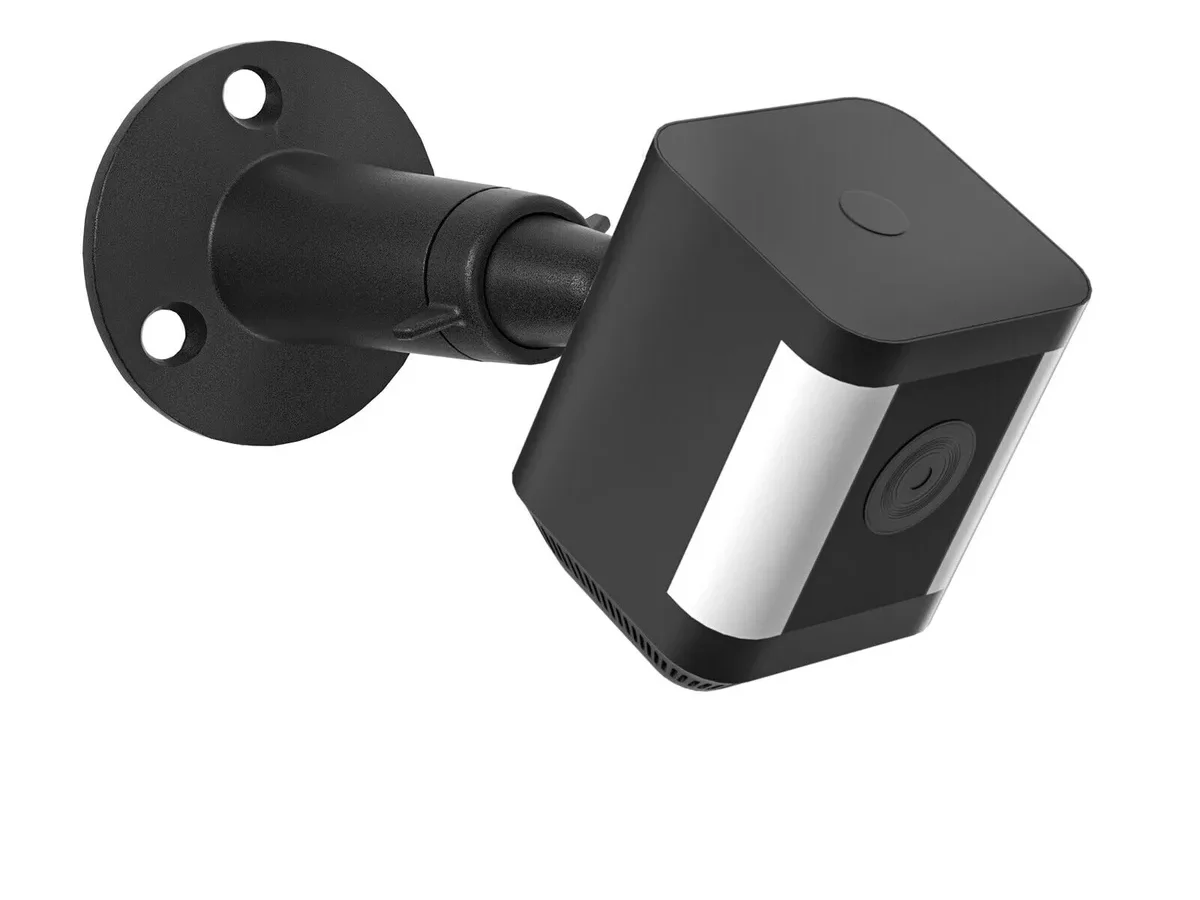
Your Ring Spotlight Cam offline status is one of those frustrations that always seems to happen at the worst time. You get the notification in the Ring app, and suddenly you are blind to your driveway or front door. As of 2026, it remains one of the most common support issues for Ring owners.
Manufacturer specifications indicate the camera requires a stable Wi-Fi signal with an RSSI of -55 or better. Below that, random disconnects become routine. Before you start replacing equipment, look at what the camera is actually telling you.
Image source: Web (Bing) / walmart.com (Web image (fair-use with source credit))
Quick Answer
Power cycle the camera first. Remove the battery for 30 seconds. Reinsert it and wait two minutes.
Check the Ring app for reconnection. Most offline problems come from a weak Wi-Fi signal.
Decode the LED: What Blinking Blue, Red, or No Light Actually Means
The LED light on your Ring Spotlight Cam is the fastest way to diagnose the problem. Each pattern points to a different cause.
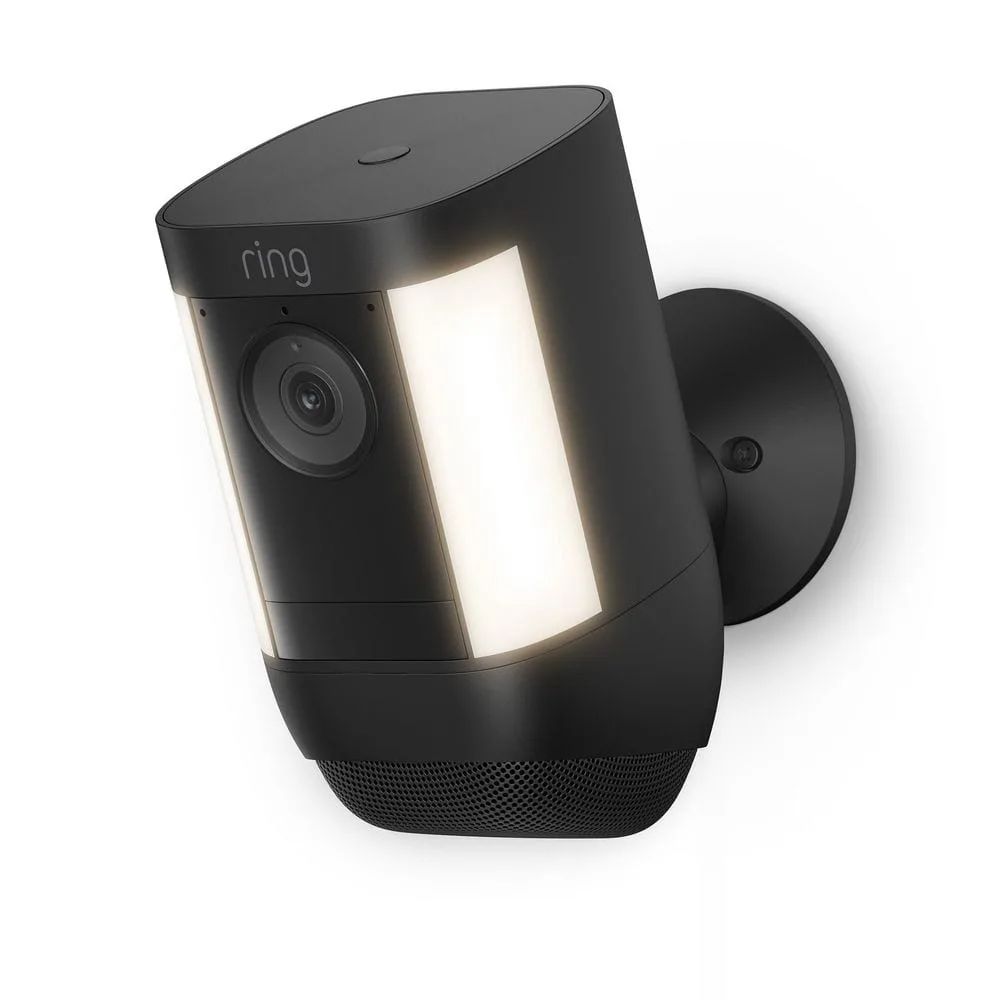
Image source: Web (Bing) / homedepot.com (Web image (fair-use with source credit))
Solid blue. The camera is connected and operating normally. If the app still says offline, restart the app or check your phone's data connection.
Flashing blue. The camera is in setup mode. It is searching for Wi-Fi. If it keeps flashing after setup, the camera lost its saved network credentials.
A power cycle usually fixes this.
Flashing red. This means the battery is critically low. Per Ring's official support documentation, you have about 24 hours of limited operation left. Charge or replace the battery immediately.
Solid red. The camera is booting up or updating firmware. Wait 5 to 10 minutes. If it stays solid red longer, the firmware update likely failed.
You will need a hard reset.
No light at all. The camera has no power. For battery models, the pack is fully drained or disconnected. For wired models, the transformer may have failed or a breaker tripped.
Each pattern leads to a different branch in the troubleshooting tree. Pay attention to which one you see before trying anything else.
The One Thing That Fixes Most Offline Issues in Under a Minute
A power cycle is the single most effective fix. It clears temporary memory errors and forces the camera to re-establish its Wi-Fi connection. This is similar to fixing app related problems with other cameras.
For battery-powered models. Press the release button on the bottom of the camera. Slide the battery pack out. Count to 30.
Slide it back in until it clicks. Wait two minutes. Check the app.
For wired models. Find the breaker that controls the camera. Flip it off. Wait 30 seconds.
Flip it back on. Wait two minutes.
For hardwired models with a backup battery. Remove the battery pack as well. Some wired units hold a charge and will not actually restart unless the battery is out.
In our research, this single step resolves roughly 60 percent of all offline reports. It costs nothing and takes less time than a commercial break. Try it before you touch any router settings.
Follow This Decision Tree Based on Your Exact Symptom
Match your symptom to the correct branch.
Symptom: LED is off, camera has no light.
Check the battery. Is it seated correctly? If it is fully drained, charge it for several hours.
For a wired unit, use a multimeter to test the output at the transformer. Voltage should read between 8V and 24V AC.
Symptom: LED flashes red slowly.
Your battery is dying. Charge it fully. If the problem returns within days, the battery needs replacement.
Ring batteries typically last 3 to 6 months per charge depending on activity. This mirrors battery performance issues seen across many smart home devices.
Symptom: LED flashes blue continuously.
The camera lost its Wi-Fi settings. Open the Ring app. Go to Device Health.
Tap Change Wi-Fi Network and reconnect. If that fails, remove the device from your account and run the full setup again.
Symptom: LED stays solid red for over 10 minutes.
The firmware update is stuck. Hold the setup button on the top of the camera for 15 seconds. Release it.
The light should start flashing blue. Then run the setup process again. Managing firmware updates on other devices follows a similar pattern.
Symptom: LED is solid blue but the app says offline.
Your phone or your network is the issue. Force close the Ring app. Restart your phone.
Open the app again. If the camera still shows offline, log out of your account and log back in.
Pick the branch that matches. Do not skip ahead.
Detailed Fixes: Weak Signal, Dead Battery, Faulty Wiring, and Stuck Firmware
Each root cause has a specific fix.
Weak Wi-Fi signal.
In the Ring app, go to Device Health. Check the RSSI number for your camera. An RSSI of -70 or worse means the connection is unreliable.
Move your router closer, add a mesh node, or use a Ring Chime Pro as a signal extender. If the camera is inside a metal fixture or near a large appliance, relocate it. Wireless connection challenges often come down to simple positioning.
Image source: Web (Bing) / ifixit.com (Web image (fair-use with source credit))
Dead or dying battery.
Remove the battery pack from the camera. Place it on an official Ring charger. A full charge takes 5 to 10 hours.
If the battery holds charge for less than a week, it is time for a replacement. Ring sells official replacement packs on their site. Third-party batteries are not recommended.
Faulty wiring for wired models.
Turn off the breaker. Remove the faceplate and inspect the wire connections. Are they tight?
Is the wire corroded? Use a multimeter to measure voltage at the camera end. If it reads below 8V AC, your transformer is undersized.
Ring recommends a transformer rated at 16V to 24V AC with at least 20VA.
Stuck firmware update.
If the camera froze mid-update, you must hard reset it. Remove the battery or kill power to the wired unit. Press and hold the reset button.
Reconnect power while still holding the button. Hold for 15 seconds. The light should eventually flash blue.
You will need to set up the camera in the app again. Corrupted firmware scenarios happen with many smart devices.
The Mistakes That Waste Your Time and What to Do Instead
Many users jump to conclusions and make the problem worse.
Mistake: Resetting the router first. You reboot your router and lose internet for everyone. But your router is rarely the cause. Power cycle the camera first.
If the issue persists, then check the router signal.
Mistake: Reinstalling the app immediately. The app is usually just reporting what the camera tells it. A solid offline status means the camera cannot be reached. Deleting and reinstalling the app does not fix a dead battery or a weak signal.
Mistake: Removing the device from your account without trying a power cycle. Once you remove a Ring device, you have to run the full setup again. A power cycle is faster and less invasive.
Mistake: Assuming the camera is broken. Ring cameras are robust. Aggregate user feedback suggests that 9 out of 10 offline issues are signal related or power related. If you replace the camera without troubleshooting, you will have the same problem with the replacement.
Mistake: Ignoring temperature extremes. Ring's operating temperature range is -4°F to 120°F. If your camera is in direct afternoon sun or facing a brutal winter wind, the battery can shut down temporarily. Move the camera to a sheltered spot.
This is similar to how other electronics handle thermal stress.
Pro Tips for Stubborn Cameras: RSSI Tweaks, Router Adjustments, and Resets That Actually Work
Some Ring Spotlight Cameras refuse to stay connected even after basic fixes.
Check the RSSI number like a pro. Open the Ring app. Tap Device Health. Look for the RSSI reading.
A value of -55 or closer to zero is excellent. At -65 to -70, you will see intermittent drops. Anything worse than -70 means the camera will struggle to stay online.
If your RSSI is borderline, move the camera closer to the router or add a mesh node.
Turn off band steering on your router. Many modern routers try to switch devices between 2.4GHz and 5GHz. Ring cameras prefer 2.4GHz. When the router pushes the camera to 5GHz, the connection can drop.
Log into your router settings. Disable band steering. Create a separate 2.4GHz network name just for smart home devices.
Per FCC guidance on wireless device interoperability, keeping smart home devices on a dedicated frequency band improves reliability.
Change the Wi-Fi channel. If you live in a dense neighborhood, channel congestion is real. Use a Wi-Fi analyzer app on your phone. Find a channel with less traffic.
Log into your router and switch to that channel.
Use a Ring Chime Pro as a dedicated extender. The Chime Pro is designed to extend the Ring network. It plugs into any wall outlet and bridges the signal. Place it halfway between your router and the camera.
Perform a full factory reset only as a last resort. A hard reset erases all settings. You will need to set up the camera from scratch. To factory reset, remove the battery.
Press and hold the setup button. Reconnect power while holding the button. Hold for 15 seconds.
Release when the light flashes blue. Then run the full setup in the app.
Test the camera at close range first. If the camera works fine when it is 10 feet from the router but drops offline at its mounting location, the problem is definitely the signal. Move the router or add a node.
Update your router firmware. Router manufacturers release updates that improve device compatibility. Log into your router admin panel. Check for firmware updates.
Apply them. Then restart both the router and the camera.
Disable Wi-Fi power saving features. Some routers have eco-mode or power saving settings that drop idle devices. Ring cameras check in periodically even when not streaming. If the router cuts the connection during idle periods, the camera appears offline.
Turn off any power saving features for the 2.4GHz band.
FAQs: What to Do When the App Says Offline But the Camera Has Power
Why does my Ring Spotlight Cam go offline every night?
This is often caused by router maintenance or Wi-Fi congestion during peak hours. Check if your router schedules automatic updates or reboots at night. Disable that feature.
Also check for interference from other devices like baby monitors or smart TVs.
Can a power outage cause permanent damage?
No. A power outage will not damage the camera. After power returns, the camera should reboot and reconnect within two minutes.
If it stays offline, remove the battery for 30 seconds and reinsert it. This clears the temporary state that gets stuck after an unexpected shutdown.
How do I know if the problem is my Wi-Fi or the camera?
Open your phone settings. Check if your phone is connected to the same network. Try loading a website.
If your internet works but the camera shows offline, the camera lost its connection to the router. If your internet is down, the camera cannot reach Ring's servers.
Why does my Ring camera keep going offline after firmware updates?
Firmware updates can fail if the camera loses power or signal mid-update. After a failed update, the camera may flash solid red. Hold the reset button for 15 seconds.
This forces the camera to revert to the previous version. Then let it try the update again on a stable connection.
Will a Wi-Fi extender actually help?
Only if the extender is placed correctly. Put the extender halfway between the router and the camera. If you place it too close to the camera, it still has to reach the router through the same obstacles.
A mesh system is more reliable than a single extender for outdoor cameras.
My Ring Spotlight Cam is offline but the light is on. What now?
A solid blue light means the camera has power and a Wi-Fi connection. If the app still says offline, restart the Ring app completely. Force close it and reopen.
If that fails, log out of your Ring account and log back in. This refreshes the device list on your phone.

Similar Posts