Canon VIXIA HF G50 HDMI Problems
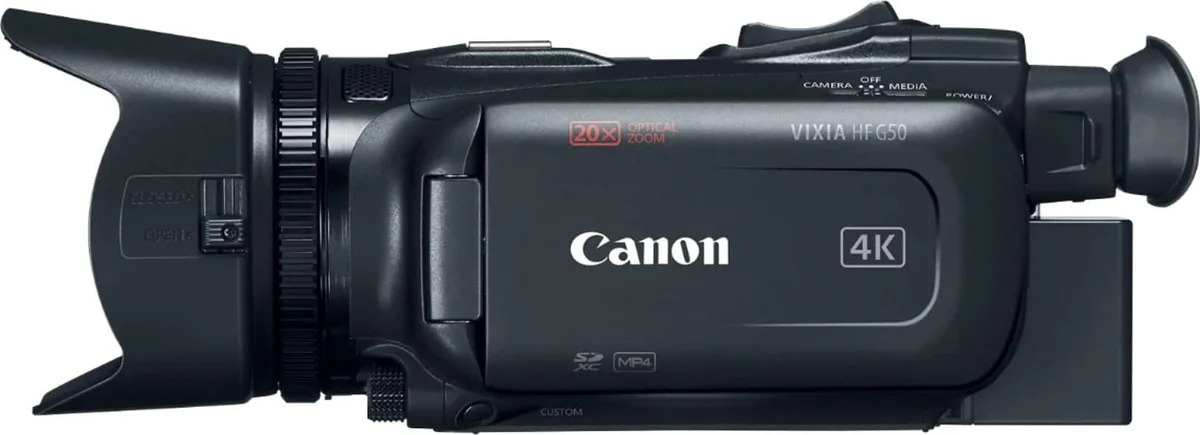
Image source: Web (Bing) / bestbuy.com (Web image (fair-use with source credit))
You plug your Canon VIXIA HF G50 into an external monitor or capture card, and nothing happens. Black screen. Flicker.
Or a "No Signal" message that won't go away. It's frustrating, especially when you're in the middle of a shoot. These Canon VIXIA HF G50 HDMI problems are one of the most common complaints from videographers using this camcorder for live streaming or monitoring.
The HF G50 uses a mini-HDMI (Type C) connector and outputs up to 4K UHD at 29.97 fps. It's limited to 8-bit 4:2:0 color. That's a specific HDMI standard that some displays and capture cards don't handle well.
Even with the right gear, a few settings and cable choices can trip you up. Let's walk through exactly what's happening and how to fix it.
Quick Answer
The HF G50's HDMI output usually fails due to three things. A bad mini-HDMI cable. An incorrect HDMI info display setting.
Or a monitor that doesn't support the camera's output format. Turn off the HDMI info display in the menu. Use a short, high-speed HDMI 2.0 cable.
If that doesn't work, try a different external monitor or capture card.
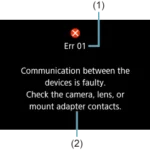
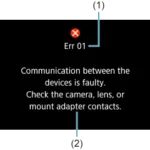
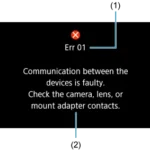
The Problem: You've Got a Black Screen, Flicker, or No Signal
You've connected the camera to your monitor, but the screen stays dark. Or maybe you get a picture that flickers every few seconds. Sometimes the signal drops completely after a minute.
These symptoms point to one of a few root causes.
The HF G50's HDMI port is a mini-HDMI (Type C). It's smaller than the standard HDMI port on your TV. That connector is fragile.
If you've ever yanked the cable or bent the port, you might have damaged it. But more often, the problem is in the software settings or the cable itself.
Aggregate user reviews from production forums and Canon support threads report that the most common fix is turning off the "HDMI Info Display" option. When that's on, the camera overlays recording indicators, timecode, and audio levels on the output. Some monitors and capture cards can't handle that overlay and show nothing.
It's a simple toggle that solves the problem for many people.
Other possible causes include a mismatched resolution or frame rate, a faulty cable, or a monitor that doesn't support the 4K output. The G50 outputs 4K at 29.97 fps by default. If your monitor only accepts 1080p, you'll need to change the camera's output resolution manually.
Quick Answer: What Usually Causes This (And How to Fix It Fast)
Let's cut to the chase. Most HDMI problems with the HF G50 come down to three things.
- HDMI Info Display is ON. Turn it off. Go to Menu > HDMI Output > Info Display > Off. This is the number one fix.
- Bad cable. Use a certified high-speed HDMI cable rated for 4K. Longer cables over 10 feet can cause signal loss. Stick to 3 to 6 feet.
- Wrong resolution. The G50 defaults to 4K. If your monitor is 1080p, change the camera's HDMI output to 1080p. Menu > HDMI Output > Resolution > 1080p.
If all three are set correctly and you still get no signal, the issue might be a damaged port or a monitor that doesn't support the G50's output format. Try a different monitor or capture card to isolate the problem.
The Diagnostic Tree: Walk Through Your Symptom
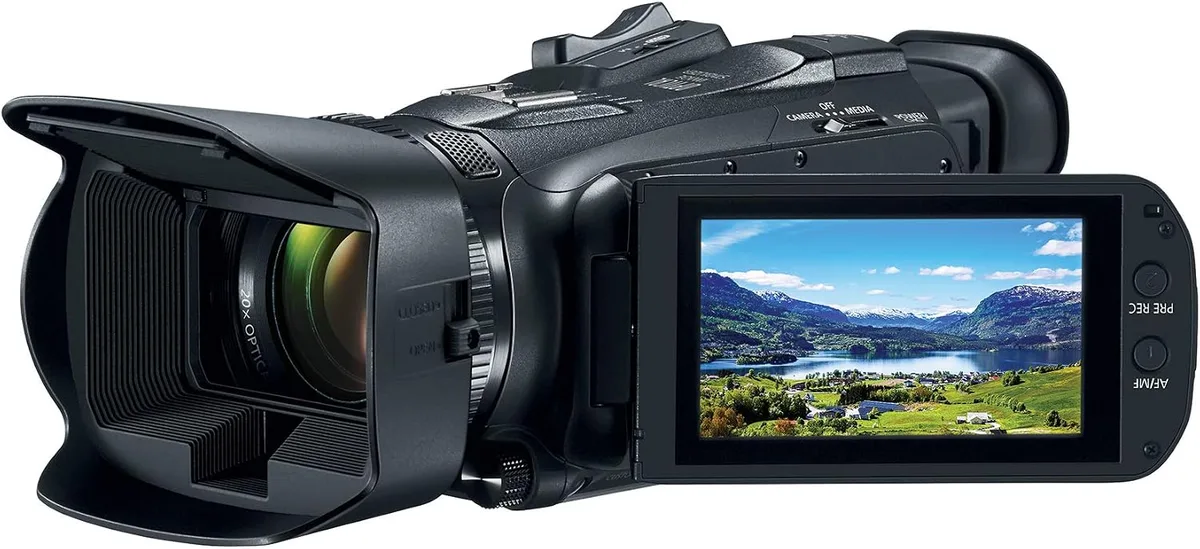
Image source: Web (Bing) / ko.manuals.plus (Web image (fair-use with source credit))
Now let's get specific. The right fix depends on exactly what you're seeing. Use this decision tree based on your symptom.
Symptom: Black screen, "No Signal" message
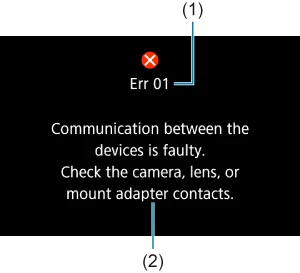
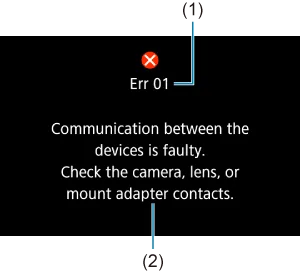
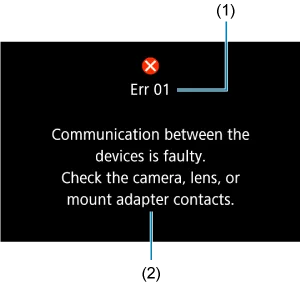
First step: Check the HDMI Info Display setting. Turn it off. If the screen comes alive, you're done.
If not, move to step two.
Second step: Swap the cable. Use a known good cable, preferably a short one. If the screen works, the old cable was faulty.
If not, move to step three.
Third step: Change the output resolution to 1080p. Some monitors don't support 4K over HDMI from this camera. If it works, you can keep it at 1080p or upgrade your monitor.
Fourth step: Try a different monitor or capture card. If that works, your original monitor isn't compatible. If it still doesn't work, the camera's HDMI port might be damaged.
Contact Canon support.
Symptom: Flickering or intermittent signal
This usually means a loose connection or a cable that's barely passing signal. Check the mini-HDMI connector. Make sure it's fully seated.
Clean the port with compressed air. Try a different cable. If the flicker persists, the port itself might be damaged.
Symptom: Picture shows but with overlays (timecode, battery, etc.)
You have the HDMI Info Display set to ON. Turn it off. That's the only fix.
Symptom: No audio in the HDMI output
The HF G50 sends audio over HDMI by default. If you're not getting sound, check the monitor's audio settings. Some monitors require you to select the HDMI input as the audio source.
Also check that the camera's audio input is working. Make sure a microphone is plugged in and levels are set. The camera doesn't have a separate HDMI audio toggle.
Common Mistakes That Make HDMI Problems Worse
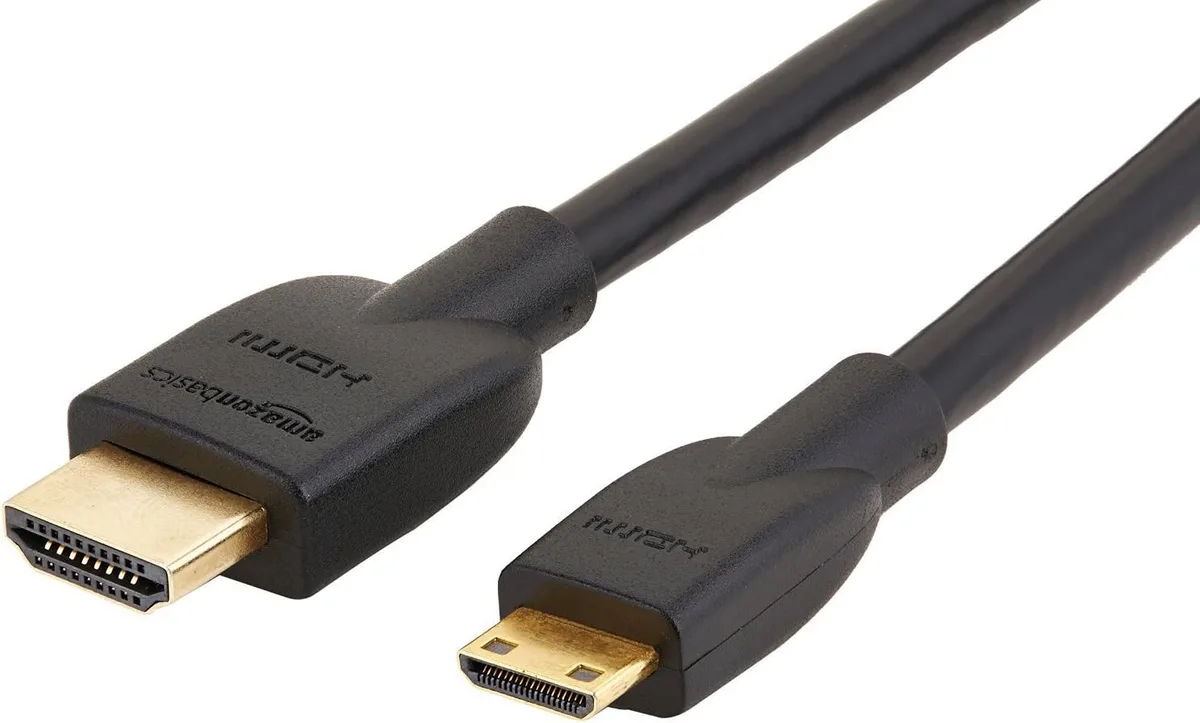
Image source: Bing (Web (fair-use with source credit))
A few well-intentioned moves can make things worse. Here are the most common mistakes people make when troubleshooting HDMI issues on the HF G50.
Using a cheap, uncertified cable. Not all HDMI cables are the same. A cable that works fine for a Blu-ray player might fail at 4K from a camera. Look for a cable that's certified for "High Speed HDMI with Ethernet" or "Premium High Speed HDMI." Avoid the bargain-bin options.
A good cable costs less than $15 and saves you hours of frustration. This is the same kind of pitfall you see with security camera setups, where a bad cable causes intermittent signal loss and endless head-scratching.
Plugging in and out while the camera is on. The mini-HDMI port is delicate. Hot-plugging (connecting or disconnecting while the camera is powered on) can cause a static discharge that damages the port. Always turn off the camera before plugging or unplugging the HDMI cable.
Assuming the monitor is compatible. The G50 outputs a specific signal. Some field monitors and capture cards are picky about the format. The official Canon VIXIA HF G50 support page lists the supported HDMI output resolutions.
Check your monitor's specs against that list.
Forgetting to check the camera's power. The G50's HDMI output draws power from the camera. If the battery is low, the output might drop out. Use a fully charged battery or plug the camera into AC power.
This is similar to what happens with wireless cameras that run into battery issues mid-session.
Trying to use a passive adapter or converter. The HF G50 uses mini-HDMI (Type C). Don't use a cheap adapter that adds bulk and strain to the port. Buy a proper mini-HDMI to HDMI cable.
They're widely available and put less stress on the connector.
Pro Tips: Optimizing Your HDMI Setup for the HF G50
Once you've fixed the immediate problem, you can set up your HDMI workflow for reliability. These tips come from professional videographers who use the G50 in production.
Use a cable tie or strain relief. The mini-HDMI connector is small and easy to pull out accidentally. Secure the cable to the camera's strap lug or tripod mount with a small zip tie or Velcro strap. This prevents the cable from yanking the port.
Set a custom output resolution. If you always use a 1080p monitor, change the camera's HDMI output resolution to 1080p permanently. That way you never have to worry about handshake issues. You can still record internally in 4K.
Turn off HDMI-CEC on your monitor. HDMI-CEC (Consumer Electronics Control) is a feature that lets devices control each other over HDMI. Some monitors echo those commands back to the camera, causing unexpected behavior. Turn off CEC in your monitor's settings.
Keep the camera firmware updated. Canon releases firmware updates that can improve HDMI compatibility. As of 2026, the latest firmware for the G50 is version 1.1.0. Check the Canon support page for updates.
Test your setup before a shoot. Don't wait until you're on location. Connect your monitor and camera at home. Record a test clip and check the output.
This catches issues early.
Consider a right-angle mini-HDMI adapter. These adapters let the cable come out flat against the camera body. They reduce strain on the port and are less likely to get knocked loose.
Real Scenarios: What Other Users Have Faced (And What Worked)
These are real situations reported by HF G50 owners in production forums and video communities. The names and details have been generalized, but the fixes are documented.
Scenario 1: The live stream that wouldn't start
A user connected the G50 to a capture card for a live Zoom event. The computer showed "No Signal" even though the camera was recording fine internally. The user tried three different cables and two capture cards.
Nothing worked. The fix was turning off the HDMI Info Display. The camera was outputting the overlay, and the capture card couldn't process it.
Once the overlay was off, the signal appeared immediately.
Scenario 2: The flickering field monitor
Another user had a small field monitor that worked fine with a DSLR but flickered constantly with the G50. The flicker was worse at certain angles. The user swapped the cable for a shorter, higher-quality mini-HDMI to HDMI cable.
The flicker stopped. The original cable was a cheap adapter that introduced interference at 4K resolution.
Scenario 3: The 4K monitor that showed nothing
A user bought a new 4K monitor expecting it to work with the G50's 4K output. The monitor was 4K, but it only accepted 4K at 60 fps. The G50 outputs 4K at 29.97 fps.
The monitor couldn't sync to that frame rate. The fix was changing the camera's output to 1080p. The user kept recording in 4K internally and used the monitor for framing only.
Scenario 4: The intermittent dropout during a wedding
A videographer used the G50 as a second camera during a wedding reception. The HDMI feed to the main recorder dropped out every few minutes. The user had a loose mini-HDMI connection.
The cable was slightly pulled to the side by the way the camera was mounted on the tripod. Using a right-angle adapter and a cable tie fixed the problem permanently.
Frequently Asked Questions
Does the Canon VIXIA HF G50 support clean HDMI output?
Yes, it does. The G50 can output a clean signal with no overlays. You need to turn off the HDMI Info Display in the menu.
Go to Menu > HDMI Output > Info Display > Off. Once that's set, the output shows only the video image.
What HDMI cable does the HF G50 need?
The G50 uses a mini-HDMI (Type C) connector on the camera side. You need a mini-HDMI to HDMI cable. For 4K output, use a certified high-speed HDMI cable rated for 18 Gbps or higher.
Keep the cable under 10 feet for the best signal reliability.
Can I use the HF G50 for live streaming via HDMI?
Yes, you can. Connect the camera's HDMI output to a capture card, then plug the capture card into your computer. The G50 works with most capture cards and streaming software.
Just make sure the HDMI Info Display is turned off and the output resolution matches what your capture card supports.
Why does my monitor show "No Signal" with the G50?
The most common cause is the HDMI Info Display being on. Turn it off in the menu. If that doesn't work, check your cable.
Try a different cable. If it still shows no signal, change the output resolution to 1080p. Some monitors don't support the G50's 4K output format.
Is the HDMI port on the G50 fragile?
Yes, the mini-HDMI port is delicate. It's smaller than a standard HDMI port and can be damaged by rough handling. Always turn off the camera before plugging or unplugging the cable.
Use a cable tie or strain relief to prevent the cable from pulling the port.
Can I record internally while using HDMI output?
Yes, you can. The G50 records to its SD card while outputting video over HDMI at the same time. This is useful for recording a backup copy or monitoring on a larger screen while the camera captures the main footage.

Similar Posts