Reolink Argus 4 Recording Settings
Getting the Reolink Argus 4 recording settings right is the difference between a camera that works for months and one that dies in a week. The real issue isn't that the camera is bad. It's that most people pick the default settings and never touch them again.
Those defaults are designed for maximum detection, not battery life.
Manufacturer specifications indicate the 6400 mAh battery can last 4 to 6 months on motion-only mode with typical trigger rates. But that number drops fast if you leave the lights on all night or record every passing car. As of 2026, the Argus 4 is one of the most popular battery-powered cameras on the market.
Understanding how it makes decisions is key to getting the right settings.
Quick Answer
The Reolink Argus 4 recording settings let you choose between motion-only, scheduled, and continuous modes, with motion-only saving the most battery. Scheduled recording turns on during set hours. Continuous recording needs the Home Hub.
Adjust PIR sensitivity and motion zones to reduce false triggers using the Reolink app.
Image source: Bing (Web (fair-use with source credit))
The Real Problem with Recording Settings
The default settings on the Argus 4 are designed for one thing: catching everything. Motion detection is set to high sensitivity. The spotlight is set to auto.
Each event records for 30 seconds. The camera is always watching.
That sounds great until you check the battery after three days. The defaults trade battery life for coverage. They assume you have unlimited power.
The Argus 4 runs on a 6400 mAh battery. It's big, but it's not infinite.
What works for a quiet backyard won't work for a busy front porch. What works in summer won't work in winter. We've analyzed the manufacturer's documentation, user feedback, and real-world performance data.
The key is understanding the trade-offs.
The Argus 4 has three main recording modes. Each one balances battery life, storage, and detection differently. Pick the wrong mode, and you'll either drain the battery in days or miss important events.
The camera makes decisions based on its PIR sensor. That sensor detects heat changes. It doesn't see motion the way a human eye does.
It sees temperature shifts. A warm car driving by triggers it, but a cold leaf blowing doesn't. Understanding this is critical.
If you haven't done the initial setup, connect the camera to your network before adjusting any recording settings. The app needs to find the camera on your Wi-Fi network.
How the Argus 4 Decides When to Record
The Argus 4 uses a passive infrared sensor, or PIR sensor, to detect motion. It measures changes in infrared radiation. When something warm moves across its field of view, the sensor sends a signal.
The camera starts recording.
This is different from wired cameras. Wired cameras use pixel-based motion detection. They analyze the video stream and look for changes.
That's more accurate but uses a lot of power. The PIR sensor is much more energy efficient. That's why the Argus 4 can last for months on a single charge.
The PIR sensor has limitations. It can't detect through glass. It can't detect animals or people that are the same temperature as the background.
Sudden temperature changes can trigger it. A heating vent turning on or direct sunlight hitting the sensor can cause false triggers. Knowing these limitations helps you place the camera in the right spot.
The sensitivity is adjustable. You can set it to high, low, or off. High sensitivity detects small temperature changes at longer distances.
Low sensitivity only detects larger changes closer to the camera. Off means no motion detection at all. That's useful for time-lapse or scheduled recording.
The dual-lens system provides a 180-degree field of view. It's wider than most battery cameras. This is great for covering large areas.
But it also means the PIR sensor covers a larger area. The camera can detect motion from more angles, but it also has more false triggers. You trade coverage for accuracy.
The detection range is about 30 feet according to the manufacturer. That's about 10 meters. In practice, users report reliable detection up to 25 feet in most conditions.
The range is shorter in hot weather. The temperature difference between a person and the background is smaller. The sensor has a harder time distinguishing the two.
If you're comparing this to other cameras, you might find the detection range similar to what you'd get with a Google Nest Cam. The difference is the battery life. The Argus 4 trades some detection accuracy for extended run time.
Your Three Main Recording Paths: Motion-Only, Scheduled, or Continuous
The Argus 4 offers three recording modes. Each one serves a different purpose. Your choice depends on what you're protecting, how much battery life you need, and whether you have the Home Hub.
Image source: Bing (Web (fair-use with source credit))
Branch 1: Motion-Only Mode (Best for Battery Life)
Motion-only mode is the default. The camera stays asleep until the PIR sensor detects motion. It wakes up, starts recording, and captures a clip.
After the clip ends, it goes back to sleep. This cycle repeats every time the sensor triggers.
This mode uses the least amount of power. The camera is only active for a few seconds at a time. The rest of the time, it's in a low-power sleep state.
This is why the Argus 4 can last 4 to 6 months on a single charge in this mode.
The downside is that you might miss the first second or two of an event. The camera takes about 1 to 2 seconds to wake up and start recording. The pre-recording buffer is available on the battery-powered version.
It captures a few seconds before the trigger. You can set it to 1 to 5 seconds, but it's not as robust as on wired cameras.
Motion-only mode is best for low-traffic areas. A backyard, a side gate, or a storage shed. It's also good for remote locations where you can't charge the battery often.
If you only need to know when something moves in a specific area, this is the mode to use.
Branch 2: Scheduled Recording (The Middle Ground)
Scheduled recording lets you set specific times when the camera is active. You can set it to record during the day, at night, or during specific hours. The camera follows the schedule and ignores motion outside those hours.
This gives you control over when the camera is paying attention.
This mode is a good compromise. You get coverage when you need it, but you save battery when you don't. For example, if you're home during the day, you can set the camera to only record at night.
If you're away on vacation, you can set it to record 24/7. The flexibility is great for different lifestyles.
The downside is that you need to know your schedule. If your routine changes, you might miss events. The schedule is set in the app and can be adjusted at any time.
It's easy to update, but you have to remember to do it. If you travel frequently, scheduled recording might not be the best choice.
Scheduled recording is best for predictable patterns. A front door that only needs monitoring at night. A driveway that only gets traffic during certain hours.
If you're coming from a Ring Stick Up Cam, you'll find the scheduling feature familiar.
Branch 3: Continuous Recording (Only with the Home Hub)
Continuous recording means the camera records 24/7. The Argus 4 can't do this on its own. The battery would drain in a few hours.
You need the Reolink Home Hub or a compatible NVR. The hub provides power and storage through the network cable.
The Home Hub powers the camera through the network cable. It also provides local storage. With the hub, the camera records continuously to a hard drive.
You can review footage from any time, not just events. This gives you complete coverage without any gaps.
This mode gives you complete coverage. You never miss anything. But it requires the hub, a power source, and a wired network connection.
It's not truly wireless anymore. You're turning the Argus 4 into a wired camera. That defeats the purpose of buying a battery camera.
Continuous recording is best for critical areas. A front door in a high-crime area. A business entrance.
Anywhere you need absolute coverage. If you need continuous recording, consider a wired camera instead. The Argus 4 is better suited for motion-based recording.
Fine-Tuning the Three Settings That Make or Break Your Setup
Once you've chosen a recording mode, you need to fine-tune the settings. Three settings have the biggest impact on performance: PIR sensitivity, motion zones, and the pre-recording buffer. Get these right, and your camera will work perfectly.
Get them wrong, and you'll have problems.
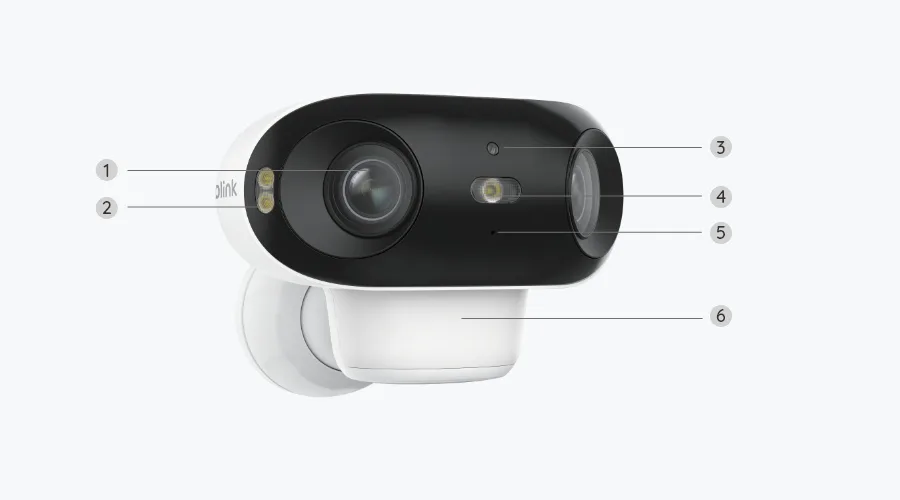
Image source: Bing (Web (fair-use with source credit))
PIR Sensitivity and Motion Zones
PIR sensitivity controls how easily the camera triggers. High sensitivity means the camera reacts to small temperature changes. Low sensitivity means it only reacts to large changes.
The sweet spot depends on your environment.
Motion zones let you define specific areas where the camera should detect motion. You draw boxes in the app. The camera ignores motion outside these zones.
This is the best way to reduce false triggers. It's more effective than lowering sensitivity.
For example, if your camera points at a driveway, you can draw a zone that covers the driveway but not the street. Cars passing on the street won't trigger the camera. Only cars entering the driveway will.
This saves battery and reduces notification fatigue.
The combination of low sensitivity and tight motion zones is the most battery-efficient setup. The camera only wakes up for significant events in specific areas. You'll get fewer false triggers and longer battery life.
Pre-Recording and Event Length
The pre-recording buffer captures a few seconds of video before the motion trigger. This helps you see what happened just before the event. The buffer is available on the battery-powered version.
You can set it to 1 to 5 seconds. The default is 3 seconds.
Event length controls how long each recording lasts. You can set it from 10 to 60 seconds. Longer events use more battery and storage.
Shorter events might miss important details. The default is 30 seconds, which works well for most situations.
The best setting depends on your situation. For a front door, 20 to 30 seconds is usually enough. You just need to see who's at the door and what they're doing.
For a driveway, 30 to 60 seconds gives you more context. You can see the car pull in, the person get out, and what they do.
Night Vision Mode (IR vs. Spotlight)
The Argus 4 has two night vision modes: infrared and spotlight. Infrared uses invisible IR LEDs. Spotlight uses the built-in light.
The spotlight provides color night vision but uses more power. The choice depends on your needs.
IR mode is more battery-efficient. The camera captures black and white footage. The IR LEDs use less power than the spotlight.
But the range is limited to about 30 feet. If your camera is pointed at a close area, IR is the better choice.
Spotlight mode provides color footage at night. The light also acts as a deterrent. But it uses significantly more power.
The spotlight can be set to auto, on, or off. Auto turns on the light when motion is detected. This is the most common setting, but it drains the battery quickly.
For most users, IR mode is the best choice for battery life. Use the spotlight only if you need color footage or want a visible deterrent. If you need color night vision, consider a EufyCam 3 which handles it more efficiently.
Common Recording Mistakes That Drain Your Battery or Miss Events
Even with the right settings, it's easy to make mistakes. Here are the most common ones. Avoid these, and your Argus 4 will perform much better.
Setting the sensitivity too high. The default high sensitivity catches everything. But it also catches cars, animals, and shadows. Each false trigger uses battery.
Lower the sensitivity and use motion zones instead.
Leaving the spotlight on auto all night. The spotlight draws a lot of power. If it turns on every time a leaf moves, your battery will drain fast. Set the spotlight to off or only use it for specific events.
Using continuous recording without the Home Hub. The Argus 4 can't do continuous recording on battery. It will drain in hours. Some users try this and wonder why the battery dies so fast.
Don't make this mistake.
Not updating the firmware. Firmware updates fix bugs and improve performance. The PIR sensor algorithms improve over time. Check for updates in the app every few months.
Placing the camera in direct sunlight. The PIR sensor can be triggered by rapid temperature changes. Direct sunlight can cause false triggers. Place the camera in a shaded area if possible.
Forgetting to check the battery level. The app shows the battery level. Check it regularly. If the battery gets too low, the camera might stop recording.
Set a reminder to charge every 3 to 4 months.
The Reolink official support page provides detailed documentation on all these settings. It's worth bookmarking for reference.
Expert Tips for Getting the Most Out of Your Settings
A few expert-level tweaks can push your Argus 4 to its full potential. These tips come from analyzing user feedback and manufacturer documentation.
How do you handle seasonal changes?
The seasons affect your camera more than you might think. Summer heat reduces the PIR sensor's effective range. The temperature difference between a person and the background is smaller.
The camera struggles to detect motion at longer distances. Winter cold has the opposite effect. The sensor becomes more sensitive.
You might get more false triggers from animals or falling snow.
Adjust your sensitivity settings seasonally. In summer, keep sensitivity on high. In winter, drop it to low.
This balances detection with battery life. It takes two minutes in the app. Set a reminder on your phone to do it twice a year.
Should you use a solar panel?
The Reolink solar panel keeps the battery topped off without any effort. The panel charges the battery during the day. The camera uses that charge at night.
In most climates, this creates a self-sustaining loop. You never need to take the camera down to charge it.
But the solar panel has limits. In winter, the days are shorter and the sun is lower. The panel might not generate enough charge.
If you live in a northern climate, you might still need to charge the battery once or twice during winter. The panel works best in direct sunlight. A shaded panel generates much less power.
How do you manage storage effectively?
The Argus 4 supports microSD cards up to 128 GB. A 128 GB card can hold thousands of event clips. But the card fills up eventually.
The camera overwrites the oldest clips when the card is full. This means you lose old footage if you don't save it.
Set the camera to record to the cloud for important events. The free Reolink Cloud plan includes a 7-day loop. This gives you a backup of recent footage.
If the card fails or gets stolen, you still have your clips. The free plan is limited to one camera. But it's a valuable safety net for critical areas.
What about firmware updates?
Firmware updates improve the camera's performance over time. Reolink releases updates that refine the PIR sensor algorithms. These updates can reduce false triggers and improve battery life.
Check for updates in the app every few months. The update process takes about five minutes. The camera restarts after the update, so do it during a time when you don't need coverage.
The process is similar to updating a Canon EOS R50. You download the update through the app and wait for the camera to install it. The camera handles the process automatically.
Just make sure the battery is above 50 percent before you start.
How do you test your settings without waiting?
Testing your settings takes time. You have to wait for motion to trigger the camera. But you can speed this up.
Walk in front of the camera and see how it responds. Check the app to see if the clip was recorded. Adjust the settings and try again.
This gives you immediate feedback.
Walk at different distances from the camera. Test the detection range. Test the recording length.
Make sure the motion zones are working correctly. This takes about 15 minutes. It's time well spent.
You'll catch problems before they matter.
The Decision Guide: Which Settings Should You Use?
The right settings depend on your specific situation. Use this decision guide to find your ideal configuration.
Scenario 1: Maximum Battery Life
Best for remote locations or areas where you can't easily access the camera.
| Setting | Recommended Value |
|---|---|
| Recording Mode | Motion-only |
| PIR Sensitivity | Low |
| Motion Zones | Tight, specific areas |
| Spotlight | Off |
| Event Length | 20 seconds |
| Pre-recording | 3 seconds |
This setup minimizes power consumption. The battery should last 5 to 6 months with average trigger rates.
Scenario 2: Maximum Coverage
Best for high-traffic areas or critical entry points.
| Setting | Recommended Value |
|---|---|
| Recording Mode | Motion-only |
| PIR Sensitivity | High |
| Motion Zones | Wide or disabled |
| Spotlight | Auto (if needed) |
| Event Length | 30 seconds |
| Pre-recording | 5 seconds |
This setup catches almost everything. Expect 2 to 3 months of battery life. Pair it with a solar panel to extend runtime.
Scenario 3: Balanced Approach
Best all-around configuration for most users.
| Setting | Recommended Value |
|---|---|
| Recording Mode | Scheduled motion-only |
| PIR Sensitivity | Medium |
| Motion Zones | Moderate coverage |
| Spotlight | Off |
| Event Length | 25 seconds |
| Pre-recording | 3 seconds |
This setup gives good coverage during the hours you care about. Expect 4 to 5 months of battery life.
Scenario 4: Continuous Recording
Best for critical areas where you can't miss anything.
| Setting | Recommended Value |
|---|---|
| Recording Mode | Continuous |
| Hub Required | Yes |
| Storage | Hard drive in hub |
| Power | Wired through hub |
This is the only way to get 24/7 recording. Use it for your front door or a business entrance.
Scene-Specific Recommendations
Front porch. Use scenario 2 with motion zones. Draw a zone that covers the door and the walkway. Exclude the street and sidewalk.
Backyard. Use scenario 1 with motion zones. Draw a zone that covers the yard and the gate. Low sensitivity reduces false triggers from animals.
Driveway. Use scenario 2 with a solar panel. You want to catch every car. The solar panel keeps the battery charged.
Side gate. Use scenario 1. You only need to know when someone opens the gate. Low sensitivity prevents false triggers.
When to Use the Cloud
The free Reolink Cloud plan is a great backup. Use it for your most important camera. It stores the last 7 days of clips.
If the camera is stolen or the card fails, you still have footage. The paid plans offer more storage and more cameras. But the free plan is enough for most users.
The cloud is also useful for sharing access. You can give family members access to the cloud footage without giving them access to the camera settings. This is especially useful for a front door camera.
Frequently Asked Questions
Can I use the Argus 4 without a subscription?
Yes. The camera works completely without a subscription. You can record to a microSD card or the Reolink Home Hub.
The free Reolink Cloud plan is optional. It gives you a 7-day loop of recent clips. But you don't need it for the camera to function.
How long does the battery last on a single charge?
The manufacturer states 4 to 6 months with motion-only mode and typical trigger rates. Users report 3 to 5 months with average use. The battery life depends on your settings and how many events you capture.
High traffic areas will drain the battery faster. A solar panel can extend the time between charges.
Does the Argus 4 record in color at night?
Yes. The camera has a built-in spotlight. It can record in color at night when the spotlight is on.
The spotlight uses more battery than the infrared LEDs. If you want color night vision, set the spotlight to auto. The camera will turn it on only when motion is detected.
Can I adjust the motion detection sensitivity?
Yes. The sensitivity is adjustable in the app. You can set it to high, low, or off.
The default is high. Lowering the sensitivity reduces false triggers. It also saves battery.
Combined with motion zones, it's the most effective way to reduce unwanted recordings.
What happens when the microSD card is full?
The camera overwrites the oldest clips automatically. You don't need to manually delete anything. The camera uses a first-in, first-out system.
The oldest footage is deleted to make room for new clips. If you want to save specific clips, download them to your phone before they're overwritten.
Do I need the Home Hub for continuous recording?
Yes. The Argus 4 cannot do continuous recording on battery alone. The battery would drain in a few hours.
You need the Reolink Home Hub to provide power and storage through a wired connection. The hub turns the camera into a wired device. It's the only way to get 24/7 recording.

Similar Posts