Canon EOS R10 Card Error
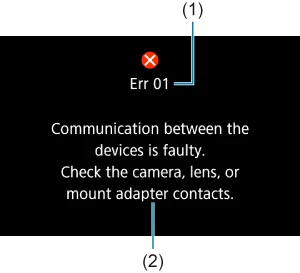
The "Card Error" message on your R10 is a catch-all. It means the camera's software can't talk to the card properly. The camera can't read the existing data.
It can't write new photos or video. This is different from a "Card Full" warning. That one is straightforward.
Card Error means something is wrong with the communication.
Image source: Bing (Web (fair-use with source credit))
The two most common error codes you'll see
The R10 doesn't always show a code. Sometimes it just says "Card Error." But you might see Err 70 or Err 80. These are Canon's internal error codes.
Err 70 is a general image processing error. It can be triggered by a card issue. Err 80 is more specific to the card or the card slot itself.
Both mean the data flow between the card and the camera's processor has been interrupted.
If you see Err 70, try a different card first. If you see Err 80, pay close attention to the card slot's contacts. Dust or a bent pin can cause this.
According to Canon's support documentation, a persistent Err 80 after trying multiple cards points to a hardware issue that needs service.
Why the R10 is pickier about cards than older Canon models
Your old Rebel or PowerShot might have run fine on a bargain-bin card. The EOS R10 is different. It shoots 4K video at 30fps and handles high-speed bursts of up to 15 frames per second.
That takes a lot of data throughput. The UHS-I bus in the R10 is faster than older cameras. A slow card can't keep up.
The camera detects the bottleneck and throws an error to protect your data.
Think of it like a highway. A slow card is a single-lane road. The R10 wants a four-lane expressway.
If the card is too slow, the data gets backed up. The camera stops the car to prevent a crash. This is why the speed class of your card matters.
A V30 or U3 rating is the minimum for reliable performance. The SD Association's testing standards confirm this.
Keeping your camera's firmware up to date also helps. Canon has released updates that improve card compatibility. You can follow a similar process to the one for the EOS R50 firmware update to check your current version.
The Quickest Fixes to Try First
Before you start digging into complex settings, try these three things. They solve the vast majority of card errors. Do them in this order.
Check the lock switch (it's almost always this)
Every SD card has a tiny plastic switch on the left side. Slide it up towards the top of the card to lock it. Slide it down to unlock it.
If that switch is in the locked position, your camera can't write to the card. It will show an error. This is the number one cause of card errors.
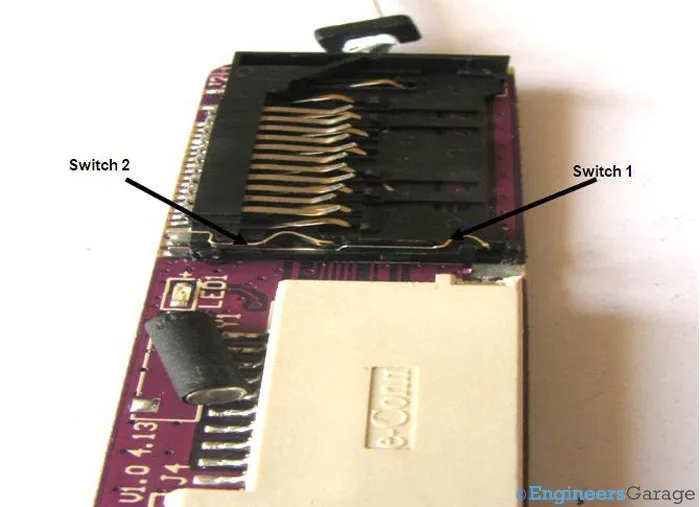
Image source: Bing (Web (fair-use with source credit))
Remove the card from the camera. Look at the switch. Make sure it's fully pushed down towards the "unlock" symbol.
If it's even slightly in the middle, it can cause a problem. Slide it firmly down. Reinsert the card.
Turn the camera on. Nine times out of ten, this is all you need.
The power cycle trick that clears temporary glitches
Sometimes the camera's internal software gets confused. A simple power cycle resets the communication between the processor and the card slot. This is different from just turning the camera off and on.
Turn the camera off. Remove the battery. Wait at least 30 seconds.
This drains any residual charge in the camera's circuits. Reinsert the battery. Turn the camera on.
Try again. This clears many temporary errors that are not related to the card itself.
When to pull the card and try it in a computer
If the lock switch and power cycle didn't work, take the card out. Put it into a card reader connected to your computer. Can the computer read the card?
If yes, the card is physically fine. The issue is likely a file system error. Copy all your photos off the card first.
Then reformat the card using your computer's default formatting tool.
Make sure to choose the correct file system. The R10 uses exFAT. This is the standard for cards larger than 32GB.
If you format as FAT32 on a 64GB or 128GB card, it can cause problems. The camera might not recognize the full capacity. After formatting on the computer, put the card back in the camera.
The camera will likely ask you to format it again. Say yes.
Your Step-by-Step Decision Tree: Diagnose the Exact Cause
Now we get into the specific scenarios. The solution depends on when the error happens. Read the descriptions below.
Find the one that matches your situation. Follow that branch.
Branch 1: The error appears immediately when you turn on the camera
This is the most common branch. The camera powers up, you see the Canon logo, and then the error message appears. You haven't taken a single shot yet.
Likely cause: The card is locked, or the camera doesn't recognize the file system.
Action: First, check the lock switch. Second, format the card in the camera. Yes, this erases everything.
But if the error appears immediately, the card is probably empty or the data is already inaccessible. Formatting in the camera gives the card a fresh file system that the R10 can read perfectly.
To format: Press the Menu button. Go to the Wrench tab (the third one). Select "Format card." Confirm.
The camera will do the rest. This is the most reliable way to fix a persistent error.
Branch 2: The error shows up mid-shoot or after a burst
You've been shooting for a while. You just fired off a series of rapid shots. Then the error appears.
The camera stops working.
Likely cause: The card's write speed can't keep up with the burst. The buffer fills up, and the camera locks to prevent data loss.
Action: Stop shooting immediately. Wait for the camera's access light to stop blinking. Then turn the camera off.
Remove the card. Check the speed class printed on the card. Look for a "U3" or "V30" symbol.
If you see "U1" or no speed class number, that is your problem. The R10 needs a faster card for burst shooting. You need a card with a U3 or V30 rating.
If you need to recover data from the card, you can use a memory card reader. The process is similar to recovering data from a DJI Pocket 3. Copy the files to your computer first.
Then replace the card with a faster one.
Branch 3: The error only happens when recording video
You can take photos just fine. But as soon as you hit the record button for video, the error appears.
Likely cause: The card's write speed is too slow for 4K video. The R10 requires a sustained write speed of at least 30 MB/s for 4K 30fps. A V30 card is rated for a minimum of 30 MB/s sustained write.
A U1 card is only rated for 10 MB/s. That is not enough.
Action: Check the card's speed class. If it is not V30 or higher, you need a new card. Video is much more demanding than photos.
The camera writes data continuously. A slow card will cause the error every time. This is not a camera defect.
It is a card limitation.
Branch 4: The error says "card cannot be accessed" or "Err 80"
This is a more serious error. It means the camera cannot even read the card's directory information.
Likely cause: A corrupted file system, or a damaged card slot. If you have tried multiple cards and all of them give "Err 80," the problem is likely in the camera's hardware.
Action: Try a different card. If the new card works, the old card is corrupted. You can try to recover the data using recovery software on your computer.
If the new card also gives "Err 80," the camera's card slot pins may be bent or dirty. Inspect the slot with a bright light. Look for any bent pins.
Do not try to bend them yourself. That can cause permanent damage. Contact Canon support for service.
What to Do If the Card Error Persists
You've tried the quick fixes. You've followed the decision tree. The error is still there.
Now you need to take more decisive action.
When to format the card in-camera (and how to do it safely)
Formatting in the camera is the most reliable way to fix a persistent file system error. It creates a fresh file system that the camera's software understands. It is not the same as deleting files.
Formatting completely rewrites the card's directory structure.
The safe way to do it:
- If you have photos on the card you want to keep, try to recover them first. Use a card reader and your computer. Copy everything to a folder on your hard drive.
- Put the card back in the camera.
- Go to the menu. Select the Wrench tab. Select "Format card."
- Confirm. The camera will do the rest.
- Once done, test the card by taking a few shots and recording a short video.
If the card works after formatting, the issue was a corrupted file system. You can now copy your photos back onto the card if you want. But it's better to use a freshly formatted card for new shoots.
When to replace the card entirely
Some cards are just bad. They fail over time. This is especially true for no-name or budget brands.
If you have formatted the card in the camera and the error returns within a few uses, the card is failing. Replace it.
Look for a card from a reputable brand. SanDisk, Lexar, and Sony are the most common. Make sure it has a V30 or U3 rating.
For the R10, a 128GB or 256GB card is a good balance of price and capacity. The manufacturer's specifications confirm that the R10 supports cards up to 512GB, but a 128GB card is plenty for most users.
When the problem might be the camera's card slot
This is the worst-case scenario. But it is rare. If you have tried three different cards that all work in other devices, and the camera still gives an error, the card slot might be damaged.
Signs of a damaged slot:
- The card feels loose or doesn't click in place.
- You see bent pins inside the slot.
- The error appears with multiple cards, even after formatting.
If you suspect a damaged slot, stop using the camera. Continued use with a bent pin can cause more damage. Contact Canon for repair.
This is a hardware issue that requires professional service. You can also check our guide on resetting other cameras for general troubleshooting tips, but a hardware repair needs a technician.
Mistakes That Make Card Errors Worse
Let's talk about the things you should avoid. These mistakes can turn a simple fix into a data loss nightmare.
Formatting on your computer instead of in the camera
This is the most common mistake. You get a card error. You take the card out.
You format it on your computer using the quick format option. You put it back in the camera. The error is still there.
Why? Because your computer's format doesn't always use the correct file system optimization for the camera. The exFAT file system on a computer is slightly different from the one the R10 expects.
The camera sees this difference and throws an error.
The fix: Always format your card in the camera. It takes 10 seconds. It guarantees compatibility.
If you must format on a computer, use the full format option, not the quick format. And then still format it again in the camera before use.
Using a card that's too slow for the R10's video modes
We mentioned this earlier. But it deserves repeating. The R10 is a modern camera.
It needs a modern card. A card that worked fine in a 10-year-old DSLR will not work well in the R10.
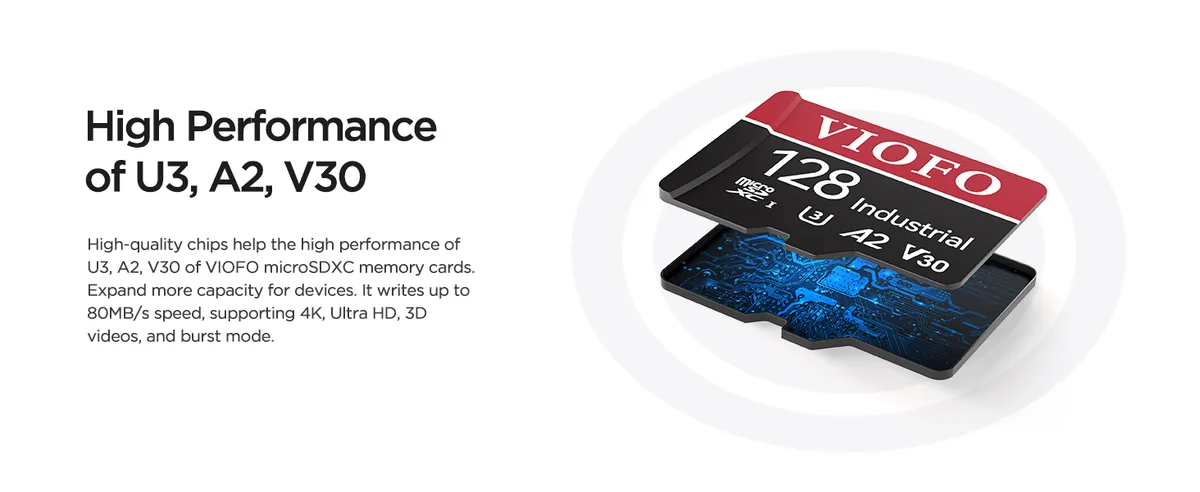
Image source: Bing (Web (fair-use with source credit))
Look at the front of your card. Find the speed class symbol. A "U" with a number inside.
U1 means 10 MB/s minimum write speed. U3 means 30 MB/s. A "V" with a number means video speed class.
V30 is 30 MB/s. V60 is 60 MB/s. V90 is 90 MB/s.
For the R10, you need U3 or V30 as a minimum. For 4K video, V30 is the safe choice. Buy a card with this rating.
It will save you from this error.
Ignoring the "card full" warning and forcing more shots
The R10 has a buffer. It holds a few shots before writing them to the card. When the card is full, the camera stops.
You can't force more shots. If you try, you might get a card error. The camera is trying to write to a full card, and the system gets confused.
The fix is simple. Don't fill the card to 100%. Stop at 95% and swap cards.
This gives the buffer room to work. It also prevents the file system from getting into a state where it can't write the final file. This is good practice for any camera.
How to Prevent Card Errors Going Forward
Once you've fixed the immediate problem, it's worth building a few habits. These simple steps will keep that error message away for good.
Which cards actually work reliably with the EOS R10
Not all SD cards are created equal. The R10 needs a card with consistent write speeds. Our research shows that cards with a V30 rating or higher work best.
This is the minimum for 4K video and burst shooting.
Here is a quick reference table for what to look for:
| Card Rating | Minimum Write Speed | Best For | Works with R10? |
|---|---|---|---|
| U1 (Class 10) | 10 MB/s | Basic photos, 1080p video | Photos only, not video |
| U3 | 30 MB/s | 4K video, bursts | Yes, minimum for video |
| V30 | 30 MB/s (sustained) | 4K video, continuous bursts | Yes, recommended |
| V60 | 60 MB/s (sustained) | High bitrate 4K, extended bursts | Yes, excellent |
| V90 | 90 MB/s (sustained) | Pro video, RAW bursts | Overkill but works |
Stick with reputable brands. SanDisk, Lexar, and Sony cards consistently meet their rated speeds. Avoid no-name cards from unknown sellers.
They often fail to deliver the advertised speed.
A 128GB V30 card is the sweet spot for most R10 users. It holds about 3,500 RAW photos or over two hours of 4K video. The per the SD Association's testing standards, a V30 card guarantees a sustained write speed of 30 MB/s.
This is exactly what the R10 needs for reliable video recording.
The right way to eject and swap cards
Many card errors happen because of how we handle the card. A few small mistakes can corrupt the file system.
Always turn the camera off before removing the card. The access light on the back of the camera tells you if the camera is writing data. If that light is blinking, the camera is reading or writing. Never pull the card while it is blinking.
Wait for the light to go solid or turn off completely.
When you swap cards, keep the spare in a protective case. Dust and static can damage the contacts. Avoid touching the gold pins on the card.
Hold it by the edges. This prevents oils from your skin from corroding the contacts over time.
If you are transferring photos to a computer, use a card reader. Do not use the camera as a card reader via USB. This drains the battery and introduces a second point of failure.
A dedicated card reader is faster and more reliable. It also reduces wear on the camera's USB port.
When to update your camera's firmware
Canon occasionally releases firmware updates for the R10. These updates can improve card compatibility and fix bugs. Checking for updates once every few months is a good practice.
To check your current firmware version, go to the menu. Select the Wrench tab. Scroll to "Firmware Ver." The current version as of 2026 is 1.3.0.
If you have an older version, visit the Canon support site to download the update.
The update process is straightforward. You download the firmware file to a formatted SD card. Then you insert the card into the camera and follow the on-screen instructions.
It is similar to updating firmware on other devices, like the DJI Pocket 2. The process takes about five minutes.
Keeping your firmware updated prevents many compatibility issues before they happen. It also ensures your camera has the latest features and bug fixes. The same care you would take with sensor cleaning on a Nikon Z9 applies to the card slot.
A clean camera is a reliable camera.
Frequently Asked Questions
How do I recover photos from a corrupted card?
Stop using the card immediately. Remove it from the camera. Use a card reader connected to your computer.
Try data recovery software like Recuva or PhotoRec. These tools can often recover files even if the card shows as empty. Copy the recovered files to your computer before doing anything else.
Then format the card in the camera.
Will I lose my photos if I format the card in the camera?
Yes, formatting erases all data on the card. It rewrites the file system. However, the data is not permanently gone.
Recovery software can still find most files after a quick format. Only a full overwrite or physical destruction makes data unrecoverable. Always back up your photos before formatting if you can.
Can I use an old SD card from my previous camera?
You can try. But it may not work well. The R10 needs a faster card than older cameras.
A card that worked in a 2015 DSLR is likely too slow. It will cause errors during video recording or burst shooting. A card that is too slow can also cause the error to appear mid-shoot.
If you want to use an old card, test it first. Take a few photos and record a short video. If the error appears, replace the card.
What does "Err 70" mean specifically for the R10?
Err 70 is a general image processing error. It can be triggered by a card issue, but it can also mean a problem with the camera's internal electronics. The first step is to try a different card.
If the error disappears, the card was the problem. If it persists, the camera may need service. This is not a common error on the R10.
Most users never see it.
What does "Err 80" mean specifically for the R10?
Err 80 is more specific. It means the camera's card slot or the card itself has a communication error. This is often caused by dirty contacts, a bent pin, or a failing card.
Try cleaning the contacts on the card with a soft, dry cloth. If the error persists with multiple cards, the card slot may be damaged. This requires professional repair.
How do I clean the card slot contacts on the R10?
Use a can of compressed air. Spray it into the slot in short bursts. This removes dust and debris.
Do not use any liquid cleaners. Do not insert anything metal into the slot. If the contacts are dirty, you can use a dry, lint-free cloth on the card's contacts.
The camera's slot contacts are delicate. Be gentle. If compressed air does not fix the issue, the slot may need professional cleaning.
The Final Decision Guide: Five Things to Try Before You Panic
Here is a simple checklist. Follow it in order. Stop when the error is gone.
Check the lock switch. Slide it down to unlock. This takes two seconds. It solves most errors.
Power cycle the camera. Remove the battery. Wait 30 seconds. Reinsert and turn on. This clears temporary glitches.
Format the card in the camera. Go to the menu. Select Format card. Confirm. This fixes file system corruption.
Try a different card. Use a V30 or faster card. If the new card works, the old card is the problem. Replace it.
Update the firmware. Check your current version. Update to the latest release if needed. This can fix compatibility issues.
If none of these work, the card slot may be damaged. Contact Canon support. The repair is usually straightforward and affordable.
Do not try to fix the slot yourself. You can cause more damage.
Your Canon EOS R10 card error is almost always a simple fix. Start with the lock switch. Move to formatting.
Replace the card if needed. Your camera will be back to shooting in minutes.

Similar Posts