EufyCam 3 Recording Settings
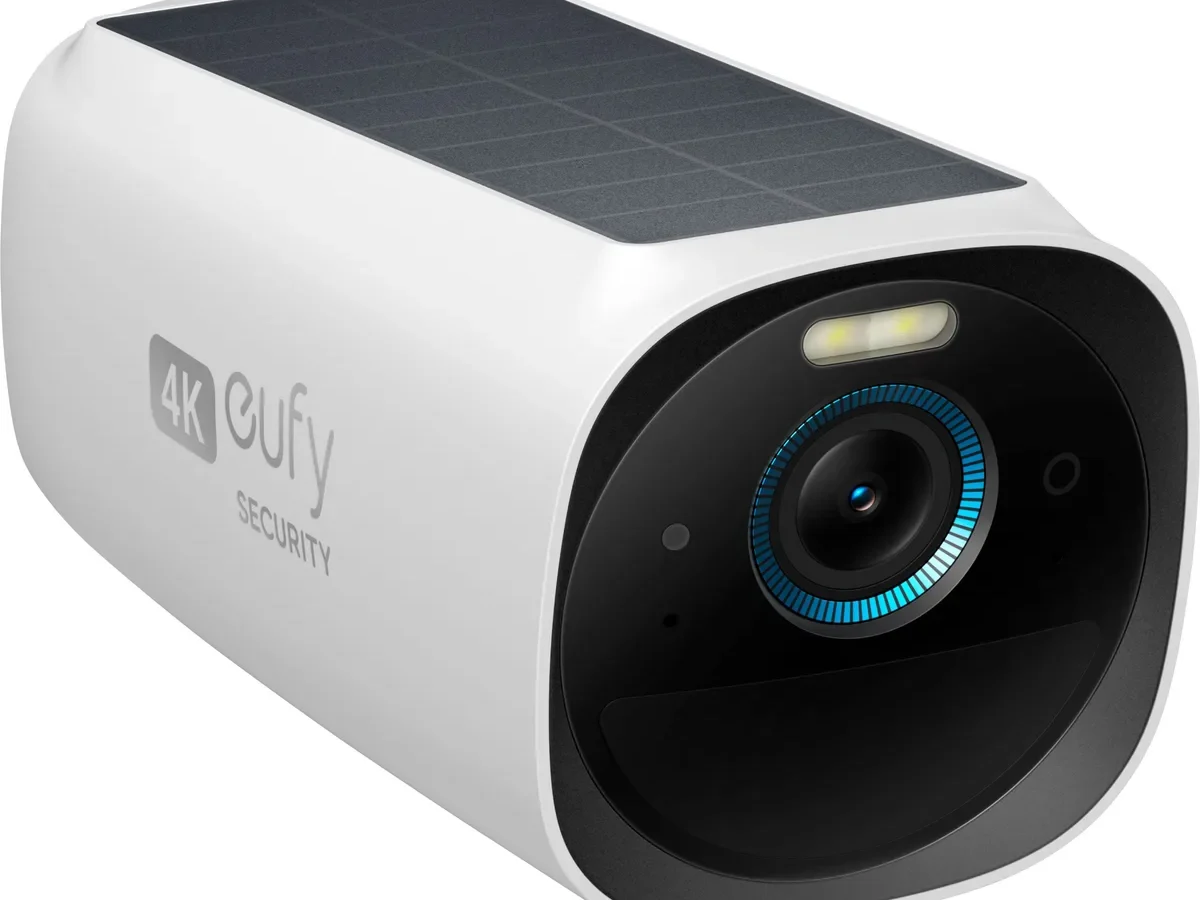
If you've just unboxed a EufyCam 3 and left the recording settings at their defaults, you're probably not getting the performance you paid for. The default EufyCam 3 recording settings prioritize a one-size-fits-all demo experience, not real-world coverage for your specific home. Most people end up with either a dead battery in two weeks or a HomeBase 3 that's full of useless clips of tree branches waving.
Manufacturer specifications indicate the default event length is 30 seconds with a 10-second retrigger time. That combination works fine for a quick walk-by, but it's terrible for a delivery driver who lingers, a dog that runs back and forth, or a car that parks for two minutes. As of 2026, the latest firmware gives you full control over every variable.
The trick is knowing which levers to pull for your specific situation.
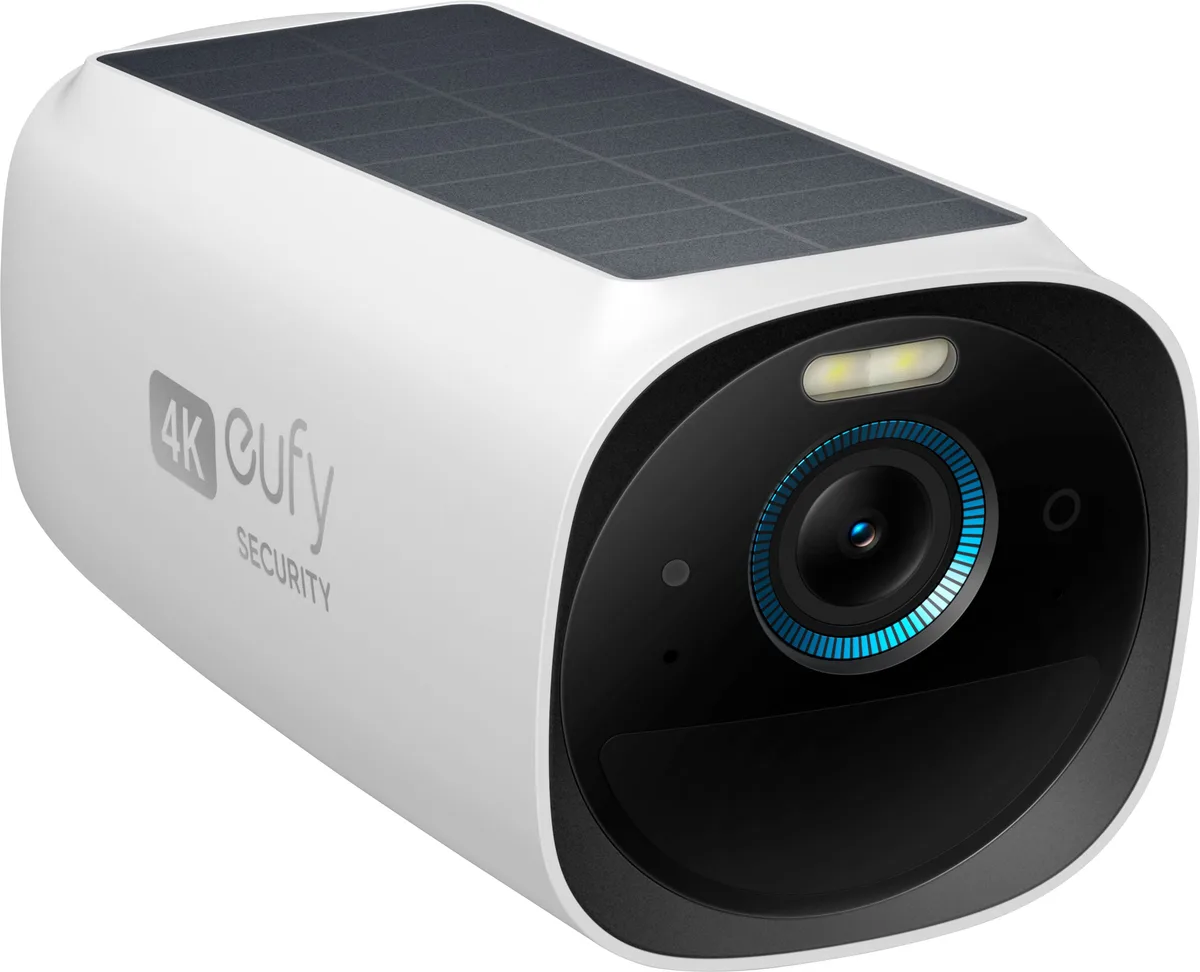
Image source: Bing (Web (fair-use with source credit))
Quick Answer
The best EufyCam 3 recording settings depend on your traffic level and battery priority. For most homes, start with 2K resolution, a 30-second event length, and a 15-second retrigger time. Set motion sensitivity to 5 and enable AI filters for human or vehicle only.
This gives solid video quality without killing your battery or filling storage. Then adjust based on your actual event count after three days.
Why Your EufyCam 3 Recording Settings Are Probably Wrong
The default settings come from a logical place. The manufacturer wants the camera to look great out of the box. That means 4K resolution, maximum sensitivity, and short retrigger times so you see every single motion.
It's a great demo. It's a terrible everyday setup.
Here is what actually happens with the defaults in a real home. You mount the camera overlooking your driveway. The first day, you get 47 clips.
A car passes. A leaf blows. Your neighbor's cat crosses the street.
The sun goes behind a cloud and the exposure adjusts, triggering another clip. By day seven, your HomeBase 3 storage is 40 percent full. By day 14, your battery is at 20 percent.
You are now charging the camera every two weeks. And you have to scroll through hundreds of useless clips to find the one moment you actually need.
The problem is not the camera. The problem is default settings that treat every home like a low-traffic showroom. Most homes fall into one of three traffic patterns.
Your driveway or front door sees continuous motion from cars, walkers, and delivery people. A side gate or backyard sees occasional motion from people and pets. A remote shed or cabin sees almost no motion unless something important happens.
Each of these needs a completely different configuration.
The fix is straightforward. You need to match three variables to your traffic level: resolution, event length, and retrigger time. Get those right and the rest falls into place.
If you are still working through the initial setup process, make sure your camera is paired and positioned correctly before you start tuning recording settings. A bad angle or weak Wi-Fi signal will make every other setting perform worse than it should.
The Three Recording Modes: Which One Actually Fits Your Life?
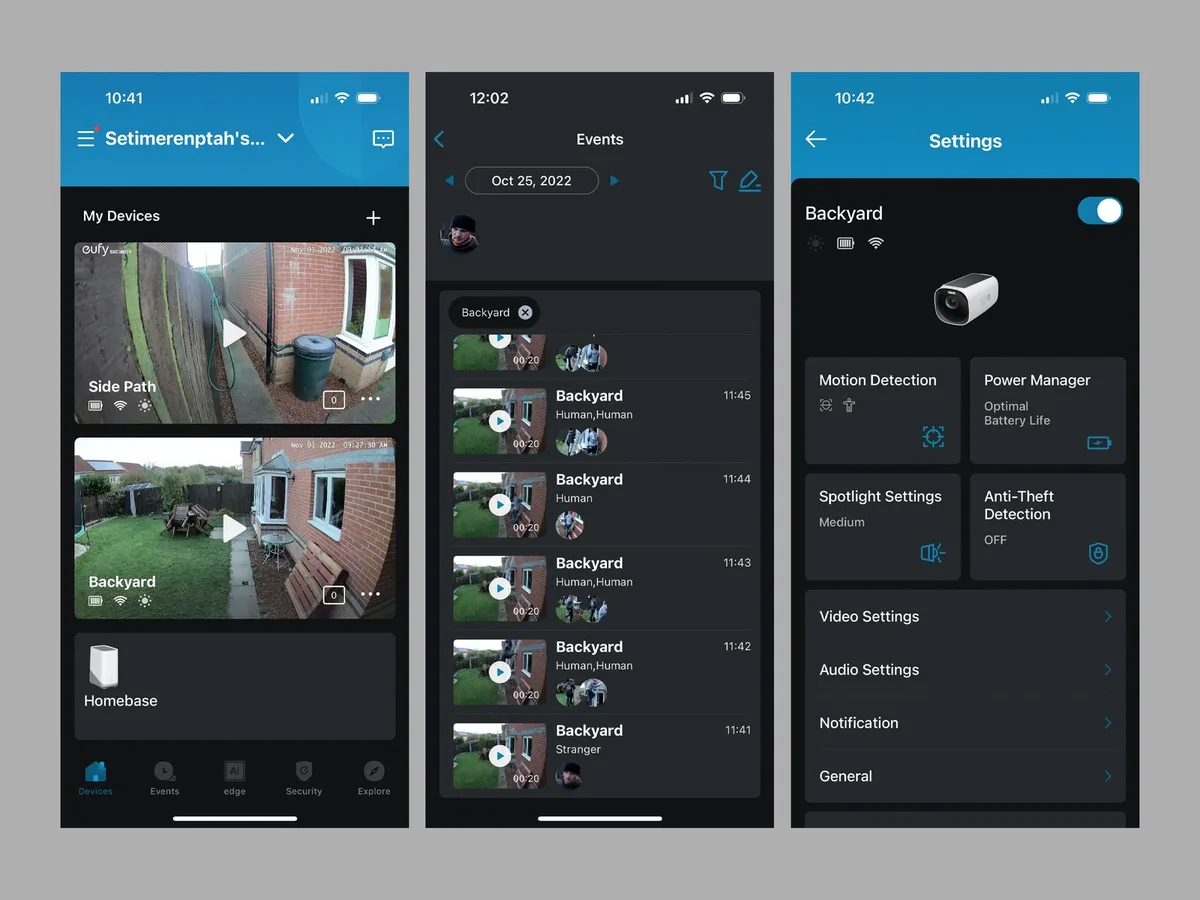
Image source: Bing (Web (fair-use with source credit))
The EufyCam 3 gives you three recording modes in the eufy Security app. They are Optimal Battery Life, Optimal Video Quality, and Custom. The naming is a little misleading.
Each mode is really a preset bundle of settings that leans toward one priority. Understanding what each mode actually does is the first step to making the right choice.
Optimal Battery Life mode drops the resolution to 1080p, sets the event length to 20 seconds, and increases the retrigger time to 30 seconds. The camera records fewer events and each event is shorter. The motion sensitivity is also lowered to a 3 or 4.
This mode is genuinely good for battery life. You can expect 150 to 200 days per charge in moderate traffic. The trade-off is you miss detail.
License plates are hard to read at 1080p from more than 20 feet away. Fast movements look blurry because the frame rate drops to 15 fps. If you need to identify a person's face from across the yard, this mode will not deliver.
Optimal Video Quality mode does the opposite. It locks the resolution to 4K, extends the event length to 60 seconds, and drops the retrigger time to 5 seconds. The motion sensitivity goes to 8 or 9.
Every single motion in the frame triggers a recording, and that recording is long enough to capture whatever happens next. The video is crisp and detailed. The battery life suffers dramatically.
You will get 30 to 60 days per charge in moderate traffic. In high traffic areas, you might be charging every two weeks. The storage fills up fast too.
One 4K clip at 60 seconds uses roughly 110 MB. A hundred clips a day is 11 GB. That is 70 percent of the internal storage gone in a week.
Custom mode is where you should live. It lets you set every variable independently. You can run 2K resolution with a 40-second event length and a 15-second retrigger time.
That is the sweet spot for most homes. The video is good enough to read a license plate from 15 feet. The battery lasts 90 to 120 days.
The storage holds several weeks of clips before you need to clear space. Custom mode is not complicated. It is just a few sliders.
But it takes five minutes of thought to set up correctly.
| Mode | Resolution | Event Length | Retrigger Time | Battery Life (moderate traffic) | Best For |
|---|---|---|---|---|---|
| Optimal Battery Life | 1080p | 20 seconds | 30 seconds | 150–200 days | Remote cabins, low-traffic areas |
| Optimal Video Quality | 4K | 60 seconds | 5 seconds | 30–60 days | High-traffic areas with frequent charging |
| Custom | 2K (recommended) | 30–40 seconds | 15 seconds | 90–120 days | Most homes |
The Decision Tree: Your Settings Depend on Your Situation
Stop guessing. Use this decision tree to find your starting point. Your answer determines the settings you should apply first.
Then you can fine-tune from there.
Question 1: What is your top priority?
If battery life is everything because you do not want to climb a ladder every month, start with the battery life branch. If video quality is non-negotiable because you need to identify faces and plates, start with the quality branch. If you want a balance of both, welcome to the middle branch.
Battery life branch
You want the camera to run for months without attention. Set resolution to 1080p. Set event length to 20 seconds.
Set retrigger time to 30 seconds. Set motion sensitivity to 4. Enable AI filters for human only.
Draw activity zones that exclude the street and sidewalk. This gives you the longest possible runtime. You will miss some events and details.
That is the trade-off. For a remote cabin or a side gate that sees almost no traffic, this is the right call.
Quality branch
You need the best possible footage. Set resolution to 4K. Set event length to 45 seconds.
Set retrigger time to 10 seconds. Set motion sensitivity to 7. Enable AI filters for human and vehicle.
Keep the spotlight on for color night vision. Accept that you will charge the camera every four to six weeks. Plan for it.
Mount the camera somewhere you can reach easily. If you are comparing this system to other battery-powered options, remember that the trade-off for 4K local storage is a shorter charge cycle. The flexibility is worth it, but only if you plan for the maintenance.
Balanced branch
This is the default for most homes. Set resolution to 2K. Set event length to 30 seconds.
Set retrigger time to 15 seconds. Set motion sensitivity to 5. Enable AI filters for human and vehicle.
Draw activity zones that cover only the area you care about. This gives you 90 to 120 days of battery life, good video quality, and manageable storage. After three days of use, check your event count.
If you are getting more than 30 events per day, increase the retrigger time to 20 seconds. If you are getting fewer than 10 events per day, drop the retrigger time to 10 seconds for more coverage.
Question 2: What is your traffic level?
This overrides everything else. Low traffic means fewer than 10 events per day. You can use longer event lengths and lower retrigger times.
Medium traffic means 10 to 30 events per day. Stick to the balanced branch. High traffic means more than 30 events per day.
You need to push the retrigger time higher and drop the resolution. A 4K camera on a busy street will generate 150 events a day and fill 16 GB of storage in under a week. That is not useful.
Drop to 1080p, set retrigger to 30 seconds, and use a very tight activity zone.
| Your Situation | Recommended Resolution | Event Length | Retrigger Time | Motion Sensitivity |
|---|---|---|---|---|
| Front door, low traffic | 2K | 30 seconds | 15 seconds | 5 |
| Front door, high traffic | 1080p | 25 seconds | 25 seconds | 4 |
| Driveway, moderate traffic | 2K | 40 seconds | 15 seconds | 5 |
| Backyard with pets | 2K | 45 seconds | 10 seconds | 6 |
| Side gate, low traffic | 1080p | 20 seconds | 30 seconds | 4 |
| Remote cabin | 1080p | 20 seconds | 30 seconds | 3 |
Setting by Setting: What Each Knob Does and How to Balance Them
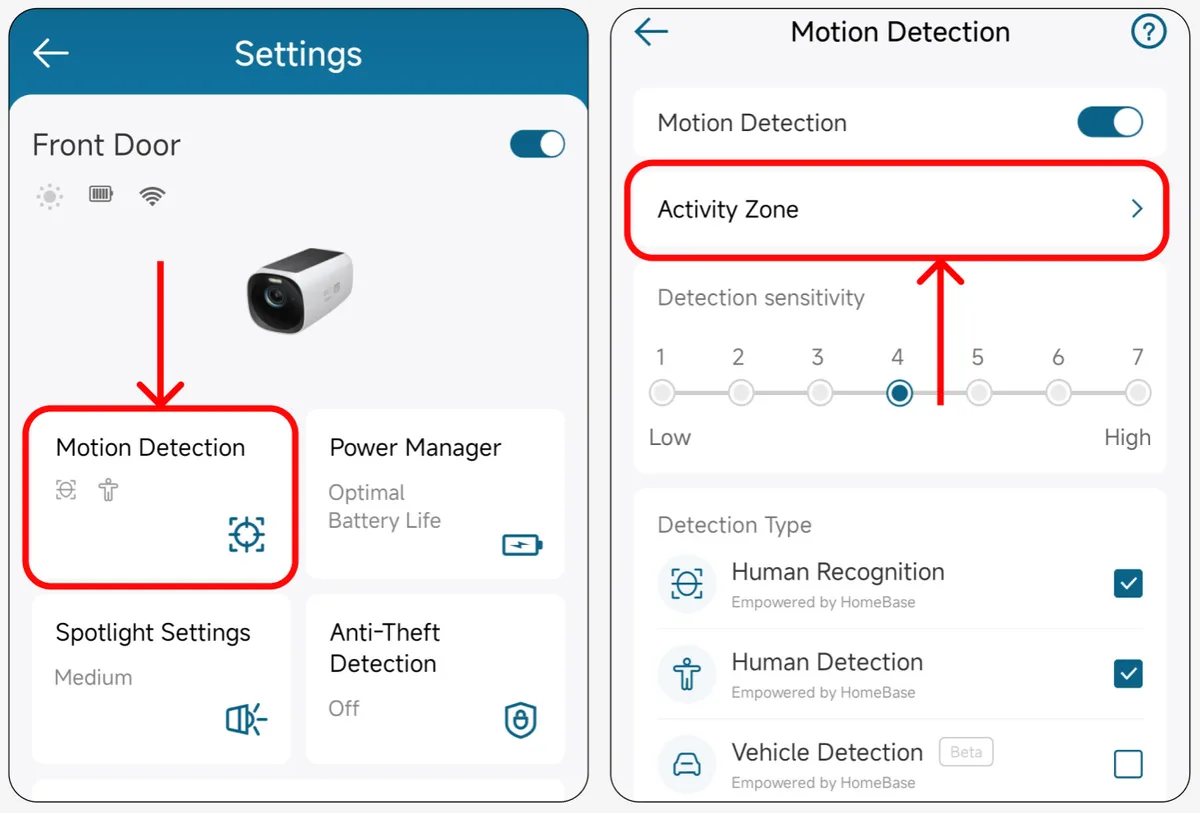
Image source: Bing (Web (fair-use with source credit))
Each setting in the eufy Security app has a specific job. Understanding what each one does and how it interacts with the others is the difference between a system that works and one that frustrates you.
Resolution
You have three options: 4K, 2K, and 1080p. 4K gives you the most detail. It also uses the most battery and storage. A single 4K clip at 30 seconds is about 55 MB.
The same clip at 2K is about 30 MB. At 1080p, it is about 15 MB. The battery drain is roughly proportional. 4K uses about 40 percent more power per event than 2K. 2K uses about 25 percent more power than 1080p.
The rule of thumb is simple. Use the lowest resolution that gives you the detail you need. If you need to read a license plate from 20 feet, use 4K.
If you need to see a person's face from 10 feet, 2K is enough. If you just need to know someone was there, 1080p works fine.
Event length
This controls how long each recording lasts after motion is detected. The range is 10 to 60 seconds. The default is 30 seconds.
The trade-off is obvious. Longer events capture more context but use more storage and battery. The problem is that 30 seconds is often too short.
A delivery driver walks up, drops a package, takes a photo, and walks away. That is 30 to 45 seconds. The clip cuts off before they leave.
You miss the vehicle they arrived in. If you are recording a driveway or front door, set event length to 40 seconds. If you are recording a backyard where pets run around, set it to 45 seconds.
If you are recording a low-traffic side gate, 20 seconds is fine.
Retrigger time
This is the most misunderstood setting. It controls how long the camera waits after an event ends before it can trigger a new recording. The range is 5 to 300 seconds.
The default is 10 seconds. A short retrigger time means the camera records more frequently. That sounds good.
The problem is that a short retrigger time creates a flood of clips. A person walks across the yard. The camera records 30 seconds.
The person stops. The camera waits 10 seconds. The person takes one step.
Another 30-second clip starts. You get five clips for one person crossing the yard. That is a waste of battery and storage.
Increase the retrigger time to 15 seconds for moderate traffic. Go to 20 or 25 seconds for high traffic. The camera will miss the brief pause between steps, but it will capture the whole motion in one continuous clip.
Motion sensitivity
This slider runs from 1 to 10. The default is 5. Lower numbers mean the camera ignores smaller motions.
Higher numbers mean it catches everything. The problem with high sensitivity is false triggers. A tree branch, a passing cloud, a car headlight, a spider web.
All of these can trigger a recording at sensitivity 7 or higher. Start at 5. If you are missing events you want to see, move up to 6.
If you are getting too many false triggers, move down to 4. The sweet spot for most homes is 4 to 6. If you are in a very windy area with lots of foliage, drop to 3.
Activity zones
This is your best tool for reducing false triggers. You draw a shape on the camera's view. The camera only records motion inside that shape.
Everything outside is ignored. If your camera overlooks the street, draw a zone that covers only your driveway and front walk. The passing cars on the street will never trigger a recording.
The same applies to a backyard camera. Exclude the neighbor's yard and the far fence line. Activity zones are free, easy to set up, and they save more battery than any other single setting.
Take the two minutes to draw them. If you are having trouble with the camera missing events, the issue is often a drawing that is too tight. Leave a small buffer around the area you care about.
AI filters
The EufyCam 3 can detect humans, pets, and vehicles. It does this on the HomeBase 3, not in the cloud. There is no subscription fee.
Enable the filters that match what you want to see. If you only care about people, turn off pet and vehicle detection. The camera will ignore dogs and cars.
If you want to know when a delivery arrives, enable human and vehicle. If you want to see every animal that crosses the yard, enable all three. The AI filters are good but not perfect.
They work best in good light and at moderate distances. At night or beyond 30 feet, they miss some detections. If you are missing important events, try turning off the filters temporarily to see if the camera is detecting the motion but the AI is filtering it out.
Real-World Use Cases and Common Mistakes to Avoid
The settings that work for a suburban driveway will fail completely for a rural backyard. The best way to get this right is to look at real scenarios and see what goes wrong most often.
Scenario 1: Front door on a busy street
Your camera faces the street. Cars pass every 30 seconds. Pedestrians walk the sidewalk.
The default settings will generate 200 clips a day. Your battery dies in 10 days. Your storage fills in three.
The fix is aggressive activity zones. Draw a zone that covers only your front walk and the first five feet of your driveway. Exclude the street entirely.
Set the resolution to 1080p. Set the retrigger time to 25 seconds. Enable AI filters for human only.
This cuts your event count from 200 to 15 per day. The battery lasts three months.
Scenario 2: Backyard with a dog
Your dog runs around the yard for hours. The default 30-second event length captures a short burst of running. Then the clip ends.
The dog keeps moving. The camera waits 10 seconds and triggers again. You get 40 clips of the same dog.
The fix is to increase the event length to 45 seconds and increase the retrigger time to 20 seconds. This captures the dog's full play session in one or two clips. Set motion sensitivity to 6.
Enable the pet AI filter so the camera ignores falling leaves and birds. Expect about 90 days of battery life with moderate play each day.
Scenario 3: Side gate with rare visitors
Your side gate sees a person maybe once a week. You want to capture every single visitor. The temptation is to use maximum sensitivity and short retrigger times.
That is a mistake. The wind will trigger 50 false clips a day. Instead, set sensitivity to 4.
Set event length to 30 seconds. Set retrigger time to 10 seconds. Enable human AI filter.
Draw a tight activity zone around the gate itself. The camera will sleep almost all day. When a person appears, it will wake and capture them.
Battery life will exceed six months.
Common mistakes to avoid
The most common mistake is ignoring retrigger time. People leave it at 10 seconds and wonder why they get 500 clips of a mail carrier walking back and forth. The second mistake is using 4K resolution everywhere. 4K is only useful when you need to read small details.
For most areas, 2K is plenty. The third mistake is skipping activity zones. This single setting does more for battery life and storage than any other.
The fourth mistake is forgetting to check the event count after three days. If you do not look at your clip list, you will not know if your settings are working. Make it a habit to review your events after the first 72 hours.
If you are still getting too many false triggers after adjusting these settings, check your camera's position. A tree branch that sways in the wind will trigger recordings even with activity zones. Trim the branch or move the camera.
Also check your Wi-Fi signal strength. A weak connection causes the camera to retry connections, which drains the battery faster than recording ever does. The same approach to tuning sensitivity and zones works for many battery-powered cameras.
Long-Term Tuning and Maintenance
Your settings are not permanent. They need to change with the seasons and with your usage patterns. The EufyCam 3 is a battery-powered device, and batteries behave differently in winter and summer.
Seasonal adjustments
In winter, battery capacity drops. Lithium-ion batteries lose 20 to 40 percent of their capacity below freezing. If your camera faces a cold outdoor area, expect shorter battery life from November to March.
The fix is to reduce resolution to 1080p and increase retrigger time to 25 seconds during the cold months. This compensates for the reduced battery capacity. In summer, you can increase resolution back to 2K or 4K if you need it.
If you use the optional solar panel, winter is still a problem. Shorter days and lower sun angles mean less charging. The solar panel produces about 70 percent less power in December than in June.
If you rely on solar, your camera will still need a manual charge once or twice during winter. Plan for it.
Storage management
The HomeBase 3 has 16 GB of internal storage. That holds about 4,000 to 5,000 30-second 2K clips. If you get 30 events per day, that is about 130 days of storage.
If you get 100 events per day, you fill up in 40 days. The solution is to expand storage. The HomeBase 3 has a slot for a 2.5-inch SATA SSD.
You can add up to 1 TB. A 1 TB SSD holds about 250,000 clips. That is years of recordings.
The upgrade takes about five minutes. You just open the bottom of the HomeBase 3, plug in the drive, and close it. The system formats it automatically.
Check your storage usage once a month. If you are below 20 percent free space, consider deleting old clips or adding the SSD. Clips are automatically deleted by age if storage fills up.
The oldest clips go first. But if you want to keep a specific clip, you can save it to the internal storage as a favorite. Favorites are never automatically deleted.
Firmware updates
Eufy releases firmware updates for the HomeBase 3 and the cameras every few months. These updates often include recording setting improvements, bug fixes, and AI detection changes. Check for updates in the eufy Security app under Settings, then HomeBase Settings, then Firmware Update.
Keeping your device's firmware current is similar to the process for other camera systems. A firmware update once resolved a common issue where the camera would miss the first second of motion. That fix alone improved event capture significantly.
Battery health
The EufyCam 3 uses a 13,600 mAh rechargeable battery. Over time, all rechargeable batteries lose capacity. After two to three years, you might notice the battery draining faster even with the same settings.
The battery is not user-replaceable without disassembling the camera. If your battery life drops significantly after three years, contact Eufy support. Some users report that a full discharge and recharge cycle helps restore some capacity.
To do this, let the camera run until the battery dies completely. Then charge it to 100 percent without interruption. Do this every six months for best results.
Quick Reference Guide: Your Ideal Settings by Situation
This guide gives you a starting point for the most common situations. Apply these settings, then check your event count after three days. Adjust from there.
| Situation | Resolution | Event Length | Retrigger Time | Sensitivity | AI Filters | Activity Zone | Estimated Battery Life |
|---|---|---|---|---|---|---|---|
| Front door, moderate traffic | 2K | 35 seconds | 15 seconds | 5 | Human, Vehicle | Tight on door and walkway | 90–120 days |
| Front door, high traffic | 1080p | 25 seconds | 25 seconds | 4 | Human only | Very tight on door only | 120–180 days |
| Driveway, moderate traffic | 2K | 40 seconds | 15 seconds | 5 | Human, Vehicle | Cover driveway only | 80–110 days |
| Driveway, high traffic | 1080p | 30 seconds | 20 seconds | 4 | Vehicle only | Cover driveway only | 100–150 days |
| Backyard with pets | 2K | 45 seconds | 15 seconds | 6 | Pet, Human | Cover yard, exclude fence lines | 70–100 days |
| Backyard, no pets, low traffic | 2K | 30 seconds | 20 seconds | 5 | Human only | Cover yard, exclude street | 120–180 days |
| Side gate, low traffic | 1080p | 20 seconds | 30 seconds | 4 | Human only | Tight on gate area | 200–300 days |
| Remote cabin, very low traffic | 1080p | 20 seconds | 30 seconds | 3 | Human only | Tight on entry points | 300–365 days |
| Front porch package area | 2K | 40 seconds | 15 seconds | 5 | Human only | Tight on porch and steps | 90–120 days |
How to use this guide
Find your situation in the left column. If your situation is not listed, pick the closest match. Apply all the settings in that row.
Then open your event list after three days. If you see events you missed, increase the event length by 5 seconds and decrease the retrigger time by 5 seconds. If you see too many false events, decrease sensitivity by 1 and increase retrigger time by 5 seconds.
This iterative approach works better than trying to dial in perfect settings all at once.
One more thing about resolution
If you absolutely need 4K for a specific area, use it only there. Keep all other cameras at 2K or 1080p. A single 4K camera generates as much data as three 2K cameras.
Use 4K only where you need to read license plates or identify faces at a distance. For everything else, 2K is the sweet spot between quality and efficiency.
Frequently Asked Questions
How do I stop my EufyCam 3 from recording every little thing?
The fastest fix is to draw activity zones and enable AI filters. Go to the eufy Security app, select your camera, and tap Activity Zones. Draw a shape that covers only the area you want to monitor.
Then enable AI filters for human, pet, or vehicle only. This cuts false triggers from trees, shadows, and passing cars by 80 percent or more.
Can I record continuously on EufyCam 3?
No, not when running on battery. Continuous 24/7 recording is only available if you power the camera with the optional wired power adapter. On battery, the camera only records when motion is detected.
This is a hardware limitation. The battery cannot support the constant power draw of continuous recording.
How long does the battery last with 4K recording?
In moderate traffic, expect 30 to 60 days per charge. In high traffic areas, you might get 15 to 30 days. The actual battery life depends on how many events per day your camera triggers.
Each 4K event uses about 40 percent more power than a 2K event. If you need long battery life, use 2K or 1080p resolution.
Can I expand the storage on my HomeBase 3?
Yes. The HomeBase 3 has an internal slot for a 2.5-inch SATA SSD. You can add up to 1 TB of storage.
The installation takes about five minutes. You do not need any tools. Just open the bottom cover, plug in the SSD, and close it.
The system formats the drive automatically. No additional setup is required.
Does the EufyCam 3 require a subscription for recording?
No. All recording is stored locally on the HomeBase 3. There is no monthly fee for recording, AI detection, or storage.
The AI filters for human, pet, and vehicle detection run on the HomeBase 3 hardware, not in the cloud. You can optionally subscribe to Eufy Cloud for backup, but it is not required for any core feature. More details are available on the official eufy website.

Similar Posts