DJI Osmo Action 4 Not Charging
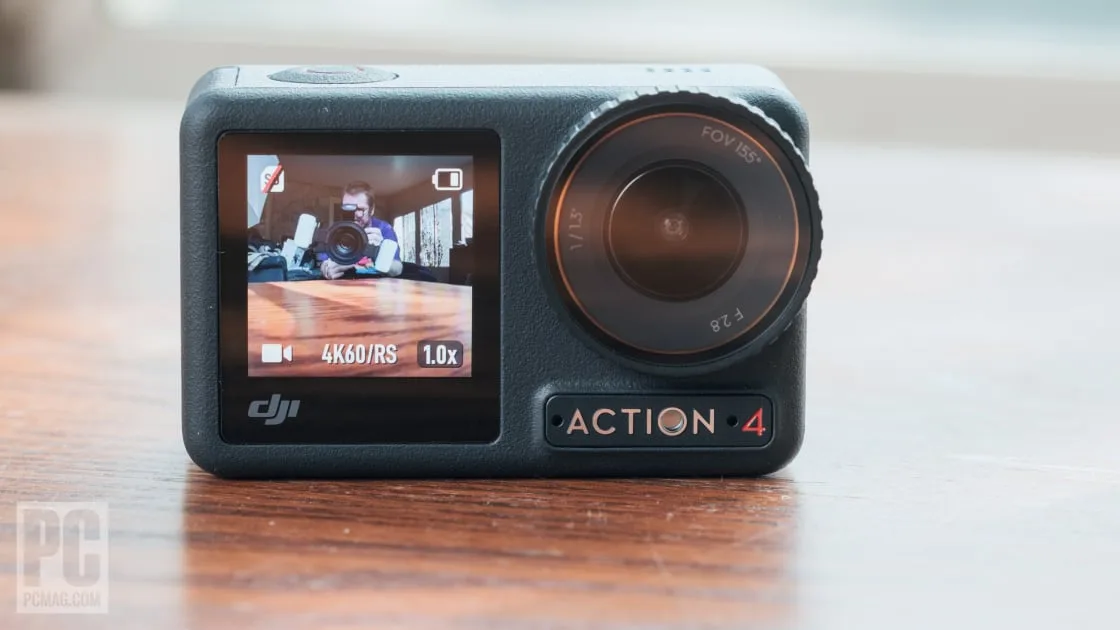
Your DJI Osmo Action 4 not charging can be a genuinely confusing moment. You plug in the camera, and nothing happens. No LED.
No response. It's easy to jump to the conclusion that something expensive is broken. The good news is that most charging problems have simple fixes.
Manufacturer specs tell us the Action 4 needs USB-C Power Delivery to charge properly. A full charge from empty takes about 1 hour and 50 minutes using a 30W PD adapter. That baseline helps you tell the difference between a slow charge and a dead camera.
Let's run through the diagnosis step by step.
Quick Answer
Your camera is likely not charging due to one of four causes. Check the cable and charger first. Then inspect the charging port.
Try a forced reboot. Let a completely drained battery sit on the charger for 20 minutes. If nothing works, warmer temperatures may help.
Image source: Bing (Web (fair-use with source credit))
Why Your DJI Osmo Action 4 Won't Charge
The Action 4 relies on a USB-C connection for all its power needs. That port also handles data transfer and accessories. So when charging fails, you might also lose the ability to connect the camera to your computer.
The most common cause is insufficient power delivery. Many USB-A chargers put out 5 watts or less. The Action 4 needs at least 10 watts to start charging at all.
It wants even more to charge quickly. A USB-A to USB-C cable also limits the power your camera can draw.
Another cause is simple wear and tear. The USB-C port collects pocket lint, dust, and debris. Over time, that buildup prevents the cable from making a solid connection.
The port looks fine to the naked eye, but microscopic gaps stop power flow.
Battery health matters too. Lithium-ion batteries lose capacity over time. The Action 4's 1770 mAh battery is replaceable.
If you've been using the same battery for over a year, it might not hold a charge as well. In some cases, the battery management circuit inside the battery itself can fail. Action cameras from other brands experience similar battery-related charging problems that follow the same diagnostic pattern.
Firmware glitches can also interfere with charging. Like any smart device, the Action 4 runs software that controls power management. A bug or a broken update can stop the charging circuit from responding.
Similar firmware-related issues on other action cameras cause the same symptoms.
Cold weather is the final common factor. The camera's charging circuit shuts down below 0 degrees Celsius. This is standard for lithium-ion batteries.
If you've been filming in winter, the camera itself might be too cold to charge.
A less common but important cause is a damaged charging port. The USB-C connector is physically robust, but it can still bend or break. If you've ever forced a cable in backward or dropped the camera with a cable plugged in, the internal pins could be damaged.
The Action 4 uses USB Power Delivery. This allows the camera and charger to negotiate the best voltage and current. Without PD support, the camera may not charge at all.
That's why the charger that came with your phone may not work. And why plugging into a car's USB port often fails.
Quick Checks You Should Do First
Before you do anything complicated, run through these four checks. Each takes less than two minutes. Together, they solve the vast majority of charging problems.
Swap the cable. Use a cable that you know works. Ideally, use the one that came with the Action 4. If the camera starts charging, your old cable was the problem.
USB-C cables degrade over time. The internal wires can break even if the cable looks perfect.
Test a different charger. Use a wall adapter rated for at least 30 watts. Make sure it supports USB-C Power Delivery. Your phone charger may work if it's a PD charger.
A cheap 5W adapter almost certainly won't. Avoid charging from a computer or a TV. Those ports often don't supply enough power.
Inspect the charging port. Look at the USB-C port on the Action 4 with a bright light. You're looking for lint, dust, or any foreign object. The port sits open on the side of the camera.
It collects pocket debris easily. If you see anything, clean it carefully. Use a plastic toothpick or a wooden cocktail stick.
Never use anything metal.
Force a restart. Hold down the power button and the record button at the same time. Keep holding for 8 seconds. The camera will shut down and restart.
This clears any temporary glitch in the system. This forced reboot works like a proper reset procedure on most modern action cameras. After the camera boots up, try plugging it in again.
Try a different battery. If you have a friend with the same camera, borrow their battery. If your camera charges with their battery, your original battery is the problem. This test also confirms that the camera's charging port is working.
The Full Diagnostic Decision Tree
If/then logic works best for charging problems. Start with the most common issue. Work outward to rarer causes.
If the camera shows no response when you plug it in:
- Check the cable first. Swap to a known working cable. If it charges, your cable was bad.
- If the cable is fine, test the charger. Use a 30W PD wall adapter. If it charges, your charger was underpowered.
- If you have the right charger and cable but still no response, look at the port. Inspect it carefully. Clean it if needed.
- If the port looks clean, do the forced reboot. Hold power and record for 8 seconds.
- If nothing works, leave the camera plugged in for 30 minutes. The battery may be in deep discharge recovery mode.
If the camera shows the charging LED but it blinks in an unusual pattern:
This means the battery is detected but can't charge properly. Try a different battery first. If the camera charges with a different battery, your original battery has failed.
If it blinks with every battery, the camera's charging circuit may be damaged. Battery diagnostic approaches for other action cameras follow the same logic.
If the camera charges but only to a low percentage and stops:
The battery may be at the end of its life. Lithium-ion batteries degrade with use. The Action 4's battery is rated for about 300 full charge cycles.
If you've been filming heavily, your battery may need replacement.
If the camera charges only when turned off but not when turned on:
This is normal behavior. The Action 4 can charge while recording, but it draws more power than the charging input. So the battery depletes faster than it charges.
If you're using a low-power charger, the camera may not show a net gain.
If the camera charges from a power bank but not from a wall outlet:
Your wall charger is the problem. It may not support PD. Power banks with USB-C often support PD natively.
Recovering a Completely Dead Battery
Lithium-ion batteries have a built-in protection circuit. When the battery voltage drops too low, this circuit disconnects the cell. This prevents permanent damage.
But it also makes the battery appear dead.
The Action 4's 1770 mAh battery behaves the same way. If you've drained it completely and then let it sit for weeks, the voltage drops below the protection threshold. When you plug the camera in, absolutely nothing happens.
No LED. No screen. No response.
This is not a failure. It's a safety feature. And it's reversible.
Here's how to recover a deeply discharged Action 4 battery:
Step 1: Plug the camera into a 30W PD charger using a good cable.
Step 2: Leave it alone. Do not press any buttons. Do not try to turn the camera on.
Step 3: Wait 20 to 30 minutes. The charger is sending a trickle charge to wake up the protection circuit.
Step 4: After 20 minutes, check the LED. If it's glowing red, charging has resumed.
If the LED is still off after 30 minutes, try a different combination of cable and charger. Some chargers can't output enough current to wake a deeply discharged battery. A higher power charger, like a 65W laptop charger, often works better.
This same deep discharge recovery method works for other action cameras dealing with charging failures.
If you still get nothing after trying different chargers, the battery may have degraded beyond recovery. This is more common with older batteries that have many charge cycles. At this point, a replacement battery is the most practical solution.
For official troubleshooting, DJI provides detailed guidance on their support page.
One important warning. Never try to jump start the battery by connecting it directly to wires or a hobby charger. The Action 4 battery uses a proprietary connector.
Trying to charge it this way can damage the battery and create a fire risk.
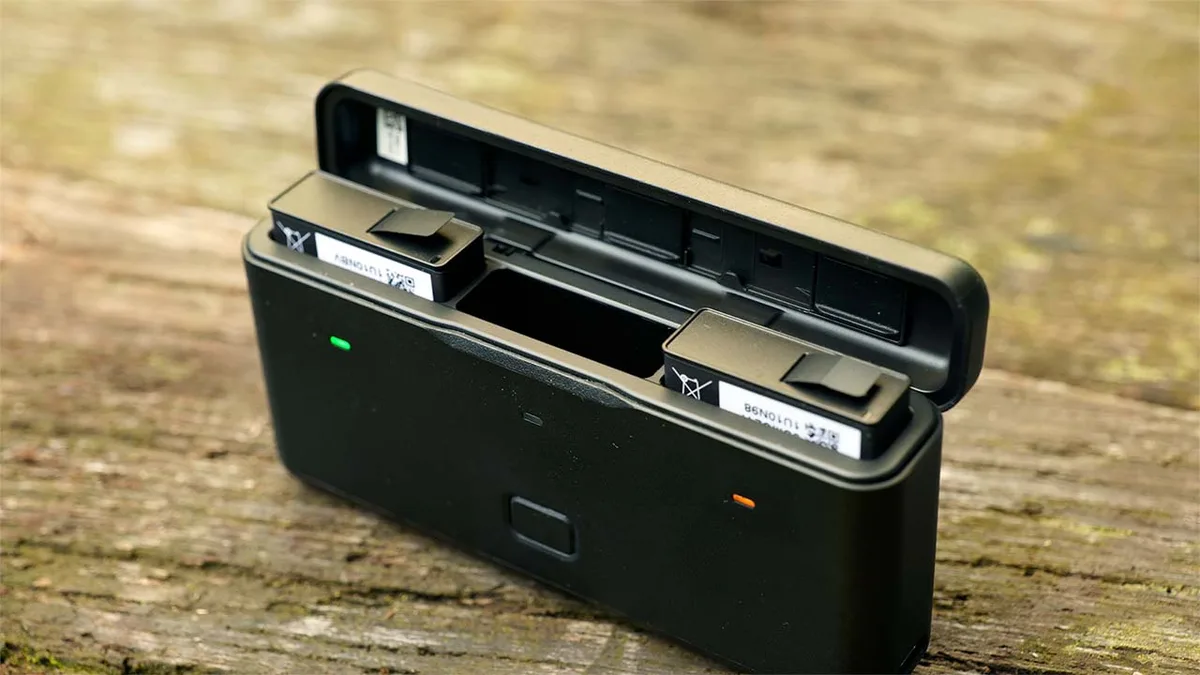
Image source: Bing (Web (fair-use with source credit))
Charging in Cold Weather: A Common Culprit
The Action 4 is built for adventure. That includes snowy mountains and icy trails. But lithium-ion batteries have strict temperature limits.
The official charging range is 0°C to 40°C.
When you bring a cold camera indoors and plug it in, the internal battery temperature is still below freezing. The battery management system checks the temperature and refuses to charge. This is not a fault.
It's by design.
Charging a cold battery can cause lithium plating. This permanently damages the cell. It can also cause internal shorts.
The camera's software prevents this by holding the charge until the battery warms up.
The solution is straightforward. Warm up the camera gradually. Place it in a room temperature environment for 30 to 60 minutes.
Let the camera and battery come up to temperature naturally.
Do not use a hair dryer, a heater, or a radiator. Rapid heating can cause condensation inside the camera. This moisture can damage the lens and the internal electronics.
Simple patience is safer.
Once the camera feels room temperature, plug it in. It should start charging normally. If it doesn't, the problem may be something else.
But in cold weather scenarios, this is the most likely cause.
Some users report that the Action 4 won't charge even at temperatures slightly above 0°C. This is normal. The temperature sensor reads the internal chassis temperature, not the ambient air.
When you bring the camera from -5°C outside into a 15°C house, the internal temperature is still below 0°C for several minutes. Give it time to warm through.
Firmware Glitches and Camera Freezes
Your Action 4 is a computer with a lens. Computers freeze. And when they freeze, they stop responding to power input.
A frozen camera looks just like a dead one. Plug it in and nothing happens. The screen stays black.
No LED lights up. The charging circuit simply isn't listening.
The forced reboot we covered earlier usually fixes this. But sometimes the camera needs a full factory reset. Here's how that works.
Open the DJI Mimo app on your phone. Connect to your camera. If you can't connect because the camera is frozen, use a computer instead.
Download the DJI Assistant 2 software for action cameras. Connect the Action 4 via USB-C. The software should detect the camera even if the screen is off.
From there, you can restore factory settings. This wipes your custom presets but keeps the firmware intact. After the reset, try charging again.
If the camera doesn't show up in the software, the USB-C port may be in data mode only. Some cables support charging but not data. Swap to the cable that came with the camera.
That cable supports both.
Another option is a firmware reinstall. The DJI Assistant 2 software can flash the firmware again. This overwrites any corrupted files.
It's the digital equivalent of a clean slate.
One warning. Before updating firmware, make sure your battery has at least 50% charge. A failed update on a low battery can brick the camera.
If your camera won't charge at all, connect it to the computer via USB-C. The computer can power the camera during the update process even if the battery is dead.
Hardware Damage: Port Issues and Battery Problems
If software fixes don't work, the problem is physical. Hardware damage is less common, but it happens.
The USB-C port is the most vulnerable point. It's exposed on the side of the camera. It collects dirt, lint, and moisture.
Over time, the metal contacts inside can corrode. Corrosion increases electrical resistance. High resistance means the power never reaches the battery.
Look at the port closely. Use a bright light and a magnifying glass if you have one. Check for bent pins, broken plastic, or white or green corrosion on the contacts.
If you see debris, clean it carefully. Use a wooden toothpick or a plastic dental pick. Gently scrape the inside of the port.
Be careful not to damage the small metal pins. Compressed air can blow out loose dust but won't remove packed lint.
Never use a metal tool inside the USB-C port. A paperclip or a needle can short the pins. That can permanently damage the camera.
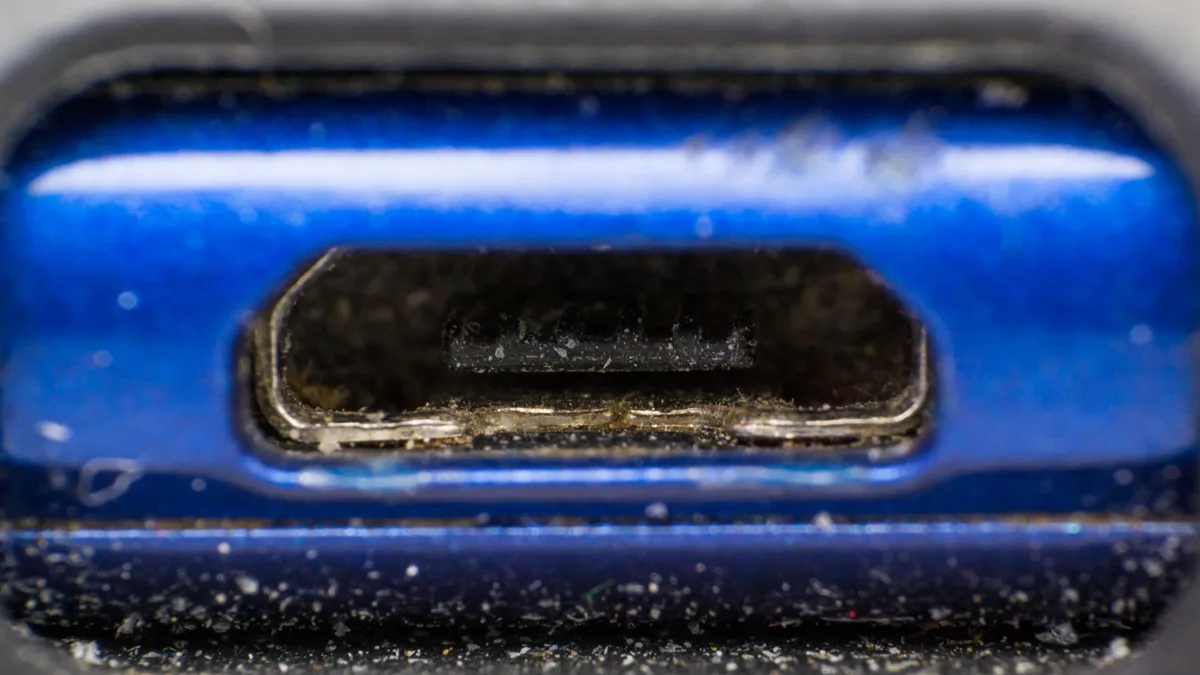
Image source: Web (Bing) / inkl.com (Web image (fair-use with source credit))
If the port looks clean but the camera still won't charge, check the battery itself. The Action 4 uses a 1770 mAh lithium-ion pack. The battery has its own circuit board.
That board can fail.
Symptoms of a failed battery include:
- Battery swells or bulges
- Battery gets hot in the camera even when idle
- Camera works fine on one battery but not another
- Battery shows signs of leaking or damage
A swollen battery is a fire risk. Stop using it immediately. Dispose of it properly at a battery recycling center.
Never throw lithium-ion batteries in the trash.
If the battery passes visual inspection, try charging it in a friend's Action 4. If the battery charges in another camera, your camera has a hardware problem. If it doesn't charge anywhere, the battery is the issue.
Replacement batteries cost around $50 to $65 from DJI. Third-party batteries are cheaper but may not work. Some third-party packs lack the correct communication protocol.
The camera may refuse to charge them entirely.
Common Mistakes That Make Charging Worse
Some charging problems are caused by well-meaning but incorrect actions. Here are the most common ones we see.
Using a phone charger without PD. Most phone chargers from two or three years ago are USB-A. They output a standard 5V at 1A or 2A. The Action 4 needs USB-C Power Delivery.
Plugging into a non-PD charger often results in no charge at all. The camera tries to negotiate a power contract, and the charger can't understand it.
Charging from a computer USB port. Laptop and desktop USB ports typically output 0.5A to 1.5A. That's not enough for the Action 4. The camera may show a charging LED but drain faster than it charges.
Or it may not charge at all. Use a wall adapter rated at 30W or higher.
Using a damaged or thin USB-C cable. USB-C cables look the same but vary wildly in quality. A cheap cable may have thin internal wires. Those wires can't carry enough current.
The cable gets warm, and the camera charges slowly or not at all. Stick with the cable that came with the camera or a reputable brand rated for 60W.
Charging in hot conditions. The Action 4 stops charging when the internal temperature exceeds 40°C. If you've been recording in direct sunlight, the camera may be too hot to charge. Move it to shade and let it cool for 10 minutes before plugging in.
Leaving the battery fully drained for months. Lithium-ion batteries don't like being stored at zero percent. The voltage drops below the protection threshold. The battery enters deep discharge and won't accept a charge.
Store your batteries at 40% to 60% if you're not using the camera for a while. Following battery life optimization tips for action cameras in general will help extend your battery's lifespan.
Using the dual charging hub incorrectly. The DJI dual charging hub charges batteries in sequence, not in parallel. It charges the fullest battery first. If you plug in two dead batteries, the hub may not charge either one.
Insert one battery at a time for more reliable charging with the hub.
Repeatedly plugging and unplugging the cable. When a camera doesn't respond, the natural instinct is to try again. And again. Each time you plug in, the camera tries to negotiate a power contract.
Rapid cycling can confuse the charging circuit. Plug it in, wait 30 seconds, and check. Then leave it for 20 minutes if needed.
When It's Time to Contact DJI Support
You've tried everything. Swapped cables. Tested chargers.
Cleaned the port. Reset the firmware. Tried the camera with another battery.
It still won't charge.
At this point, the camera likely has a hardware fault that requires professional repair. The charging circuit on the main board may have failed. A component may have come loose.
The USB-C port might need desoldering and replacement.
Contact DJI support directly. The official website has a support section with live chat and email options. For users in North America and Europe, there are also local repair centers.
What to have ready when you contact them:
- Your camera's serial number (located on the battery compartment or the original box)
- A description of everything you've tried
- The firmware version if you can access it
- Video or photos of any visible damage (port, battery, cable)
Warranty coverage is usually 12 months from purchase. If your camera is within that window, repairs may be free. If it's out of warranty, expect to pay $80 to $150 depending on the repair needed and your region.
DJI also offers an optional Care Refresh service. This is an extended warranty that covers accidental damage. If you have this coverage, even a broken charging port is covered.
You pay a small service fee and get a replacement or repaired camera.
Don't attempt DIY repair on the charging port yourself. The Action 4 is tightly sealed. Opening it requires special tools and risks damaging the water resistance.
The screws are small and easy to strip. The internal ribbon cables are fragile. Leave this to the professionals.
If you need a camera immediately, some users choose to buy a replacement battery first. This tests the camera with a known good pack. If the camera still doesn't charge with a fresh battery, the issue is inside the body.
At that point, a service request is the only path forward. Battery troubleshooting for other action cameras follows the same final step.
Frequently Asked Questions
Can I charge the DJI Osmo Action 4 with any USB-C cable?
No. The cable must support USB-C Power Delivery. Many cheap cables are charge-only and lack the data pins needed for PD negotiation.
Use the cable that came with the camera or one rated for at least 60W.
How long does it take to charge a dead Action 4 battery?
About 1 hour and 50 minutes with a 30W PD charger. With a lower power charger, it can take 3 hours or more. If the battery is deeply discharged, it may take 20 minutes just to wake up before normal charging begins.
Why does my Action 4 charge slowly from my power bank?
Your power bank may not support USB-C PD. Many power banks have USB-C input for charging the bank itself but only USB-A output for devices. Check the power bank's specifications.
Look for USB-C output with PD support for the fastest charging.
Will a firmware update fix charging problems?
Sometimes. A corrupted firmware can prevent the charging circuit from functioning. Reinstalling the firmware via DJI Assistant 2 on a computer can resolve software-related charging issues.
If the problem is physical, firmware won't help.
Can cold weather permanently damage my Action 4 battery?
Storing or charging a lithium-ion battery below 0°C can cause permanent capacity loss. The camera's charging circuit refuses to charge below that temperature for this reason. Operating the camera in cold weather is fine, but always warm the camera before charging.
Is it safe to use a third-party charger with the Action 4?
It's safe as long as the charger supports USB-C PD and is from a reputable brand. Low quality chargers may not regulate voltage properly. This can damage the camera's charging circuit over time.
Stick with known brands rated for at least 30W.

Similar Posts






























