DJI Pocket 2 How to Transfer Videos
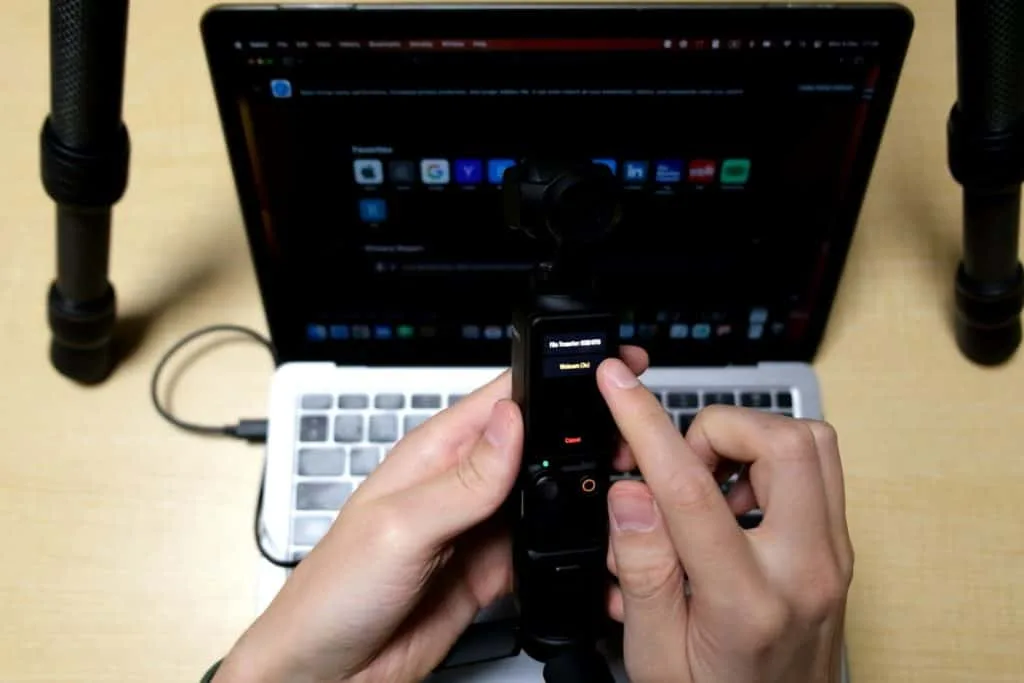
If you've ever sat there watching a progress bar crawl across your phone screen while a perfectly good 4K clip takes forever to move, you already know the pain. Figuring out the DJI Pocket 2 how to transfer videos process doesn't have to be that frustrating, but most people never stop to figure out which method actually fits their situation. They just plug, hope, and wait.
As of 2026, the Pocket 2 still ships with USB 2.0 data speeds on its wired connection, which caps out around 35 MB/s in real-world testing. That means a three-minute 4K 60fps clip, roughly one gigabyte, takes about 30 seconds over a fast card reader but closer to five full minutes over Wi-Fi. The right workflow saves you time, battery life, and a lot of muttered frustration.
Quick Answer
The fastest method is to remove the microSD card and use a dedicated card reader. The simplest method is a wired USB-C connection to your computer. The most convenient method for short clips on the go is the DJI Mimo app over Wi-Fi.
Choose based on what you have in your bag and how much time you have.
The Frustration of Transferring: Why It's Not Always Simple
The Pocket 2 is a brilliant little camera, but its video transfer process offers five different paths, none of them perfect for every situation.
Connect the camera to a Windows PC with the included USB-C cable and the Pocket 2 appears as a mass storage device. Plug it into an iPhone with the same cable and nothing happens. iOS doesn't support USB mass storage from cameras unless you use Apple's Lightning to SD Card Camera Reader or a similar MFi-certified adapter.
The Wi-Fi transfer in the DJI Mimo app works well for previewing and grabbing one-minute clips. Try to transfer ten minutes of 4K footage and you'll watch the camera battery drop from 70% to 30% while the app hangs on "Downloading" for what feels like an eternity.
If you've formatted your microSD card on a computer instead of in the camera, you might have run into problems where the Pocket 2 refuses to write new files or slows down unexpectedly. Windows and macOS sometimes apply a different allocation unit size. The camera expects exFAT formatted in-camera.
The real question isn't "how do I transfer videos?" It's "which method should I use right now, given what I have with me and what I want to do next?"
The Core Decision: What Affects Your Transfer Speed and Ease
Before you choose a method, weigh three variables. Your equipment. Your file size.
And your urgency.
Your equipment. Do you have a computer nearby? A modern smartphone? A card reader in your bag?
Each combination opens or closes certain options. A Windows laptop with an integrated SD card slot puts you on the fastest path. An iPhone with no Lightning card reader leaves Wi-Fi as your only wireless choice.
Your file size. A 15-second Instagram clip at 1080p is tiny. A 20-minute interview at 4K 60fps can be 6 to 8 GB. The method that works for the first clip will punish you on the second.
Wi-Fi speed on the Pocket 2 typically runs 8 to 15 MB/s. Wired USB-C gets you 25 to 35 MB/s. A U3-rated card reader can push 50 to 90 MB/s depending on your card.
| Method | Typical Speed | 1 GB Transfer Time | Battery Impact | Best For |
|---|---|---|---|---|
| Card reader (U3 card) | 50–90 MB/s | 15–20 seconds | None (camera off) | Large batches, quick turnarounds |
| USB-C wired to computer | 25–35 MB/s | 30–40 seconds | Camera powered, battery stable | Desktop editing, long clips |
| DJI Mimo app over Wi-Fi | 8–15 MB/s | 1–2 minutes | Camera battery drains ~10% per transfer | Short clips, phone-only workflow |
Your urgency. If you're handing the camera to someone else and need the card cleared, the card reader wins. If you're sitting at your desk and just want the footage on your timeline, the USB cable is fine. If you're on a train and need to post a clip right now, the app is your only real option.
Not all microSD cards are the same. The Pocket 2 officially supports cards up to 512 GB. 1 TB cards often work too if they're rated UHS-I U3 or V30. A slower class 10 card can bottleneck your transfer speeds even with a fast reader.
Method 1: Direct USB-C Wired Transfer – For Computer Users Who Want Speed
This is the most straightforward option for anyone with a laptop or desktop. Plug the camera in, turn it on, and your computer recognises it as a removable drive.
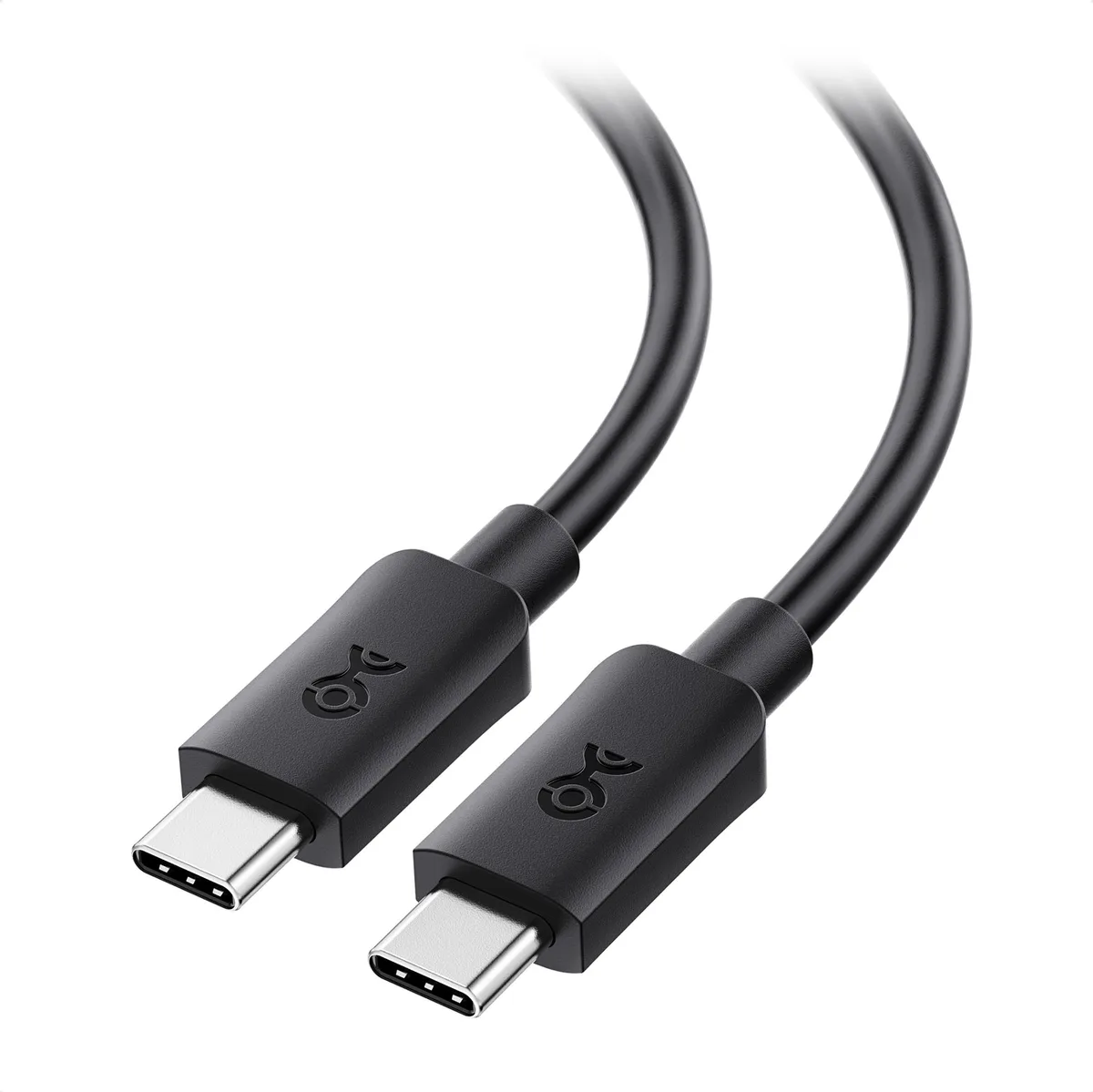
What you need. The included USB-C cable or any data-capable USB-C to USB-C or USB-C to USB-A cable. A computer with a working USB port. The Pocket 2 charged above 20% to stay on during the transfer.
The process in four steps. Connect the cable to the camera and your computer. Turn on the Pocket 2. Swipe down on the touchscreen and tap "File Transfer" if it doesn't switch automatically.
Open your file explorer (Windows) or Finder (macOS) and navigate to DCIM > 100MEDIA. Copy the files to your destination folder.
When this method shines. It's excellent for editing workflows. If you're dropping footage straight into Premiere, DaVinci, or Final Cut, wired transfer gives you a single connection to manage. No card swapping, no app fiddling.
It's also the only method that works cleanly across Windows and macOS without extra adapters.
Watch out for these gotchas. Some USB-C cables are charge-only. If your cable shipped with a power bank and has no data lines, the computer won't see the camera. Try a different cable if nothing happens. macOS sometimes opens Photos automatically when you plug in a camera, which can interrupt manual file copying.
Disable this in Photos > Preferences > General.
If the camera appears in File Explorer but the DCIM folder is empty, your card might be formatted incorrectly. A third-party card with the wrong allocation unit size can cause odd behaviour. Format the card in-camera to reset it.
For users who have dealt with similar camera connection quirks with other action cams, the same cable-testing logic applies. Try a known data cable before assuming the camera is broken.
Method 2: Wi-Fi Transfer via DJI Mimo – Best for Phone Previews and Short Clips
Sometimes you don't want to carry a laptop or a card reader. You're travelling light or you need to send a quick edit from the field. That's when the DJI Mimo app and the Pocket 2's built-in Wi-Fi earn their keep.
How the connection works. The Pocket 2 creates its own Wi-Fi network. Your phone connects directly to it, not to the internet. You can't browse social media while transferring, and if you walk out of range, the transfer drops.
Step by step for a phone transfer. Open the DJI Mimo app. Power on the Pocket 2. The app should prompt you to connect.
If it doesn't, go to the camera's settings menu, find the Wi-Fi option, and note the SSID and password printed on the side of the camera. Connect your phone to that network in your phone's Wi-Fi settings. Return to the Mimo app.
Tap the icon in the top-right corner to enter the album view. Browse your clips, tap the download icon, and select the resolution you want.
Why compressed previews matter. The preview option downloads a lower-resolution version that's small enough to share or edit on the go. The original stays on the card. You can grab the full file later from your computer or card reader.
This saves significant transfer time and phone storage.
Where Wi-Fi falls short. Long clips are the enemy here. If you regularly shoot long-form interviews, presentations, or continuous 4K footage, Wi-Fi will frustrate you. Speeds drop if you're more than a few feet away.
If someone walks between you and the camera, the signal fluctuates. The camera battery drains noticeably during extended transfers. Aggregate user feedback reports roughly 10 to 15% battery loss per 2 GB transfer.
A safer alternative for phone-only users. If you have an Android phone with USB-C and OTG support, skip Wi-Fi entirely. Use a USB-C OTG adapter and plug the camera in directly. The Pocket 2 appears as a mass storage device on most modern Android phones.
File transfer speed is comparable to the wired computer method, and it doesn't drain the camera battery because the phone supplies power.
For iPhone users, the only fast wired option is Apple's official Lightning to SD Card Camera Reader. It bypasses the app and the battery drain entirely. Remove the microSD card from the Pocket 2, insert it into the reader, and import through the Photos app or Files app.
Method 3: MicroSD Card Reader – The Simplest and Fastest Method (If You Have One)
This is the gold standard if speed and reliability are your priorities. No cable. No app.
No battery wasted. Pull the card out and read it like any other storage device.
Why it's faster. The Pocket 2 uses USB 2.0 for wired transfers. That's a hardware limitation. The camera's USB controller can't go faster even with a high-end cable.
A card reader bypasses the camera entirely. The card's native read speed is the only limit. Most U3-rated microSD cards read at 80 to 100 MB/s.
A USB 3.0 card reader can saturate that.
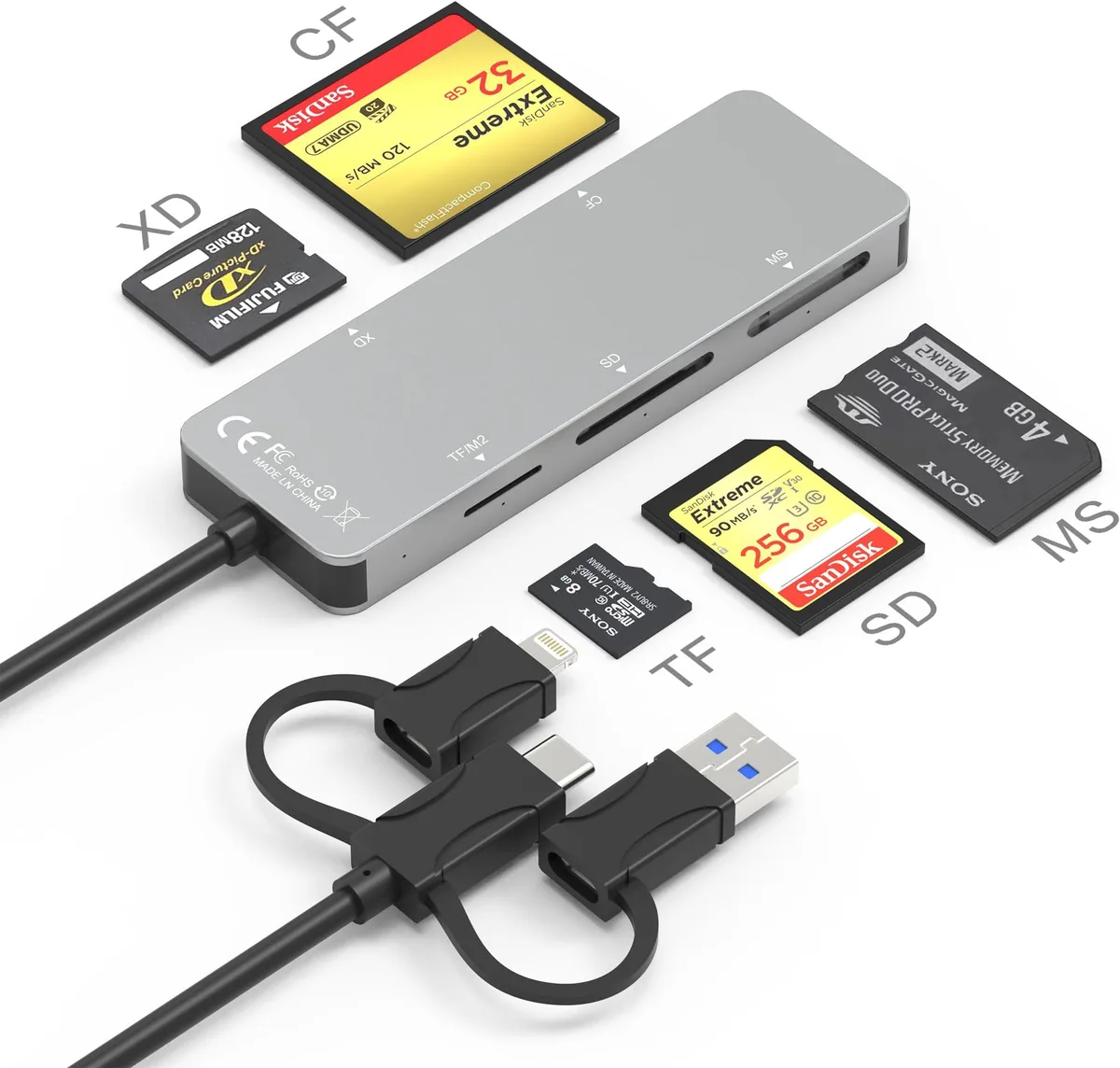
What you need. A microSD card reader. Some laptops have a full-size SD card slot, in which case you need a microSD to SD adapter. A compact USB-C or USB-A card reader costs around $10 to $20 and fits in any bag pocket.
The process. Power off the Pocket 2. Open the rubber flap on the left side of the camera handle. Push the microSD card in slightly to release it, then pull it out.
Insert the card into your reader. Connect the reader to your computer or phone. Copy files normally.
When finished, safely eject the reader, reinsert the card into the Pocket 2, and power on.
Important cautions. Always power off the camera before removing the card. Hot-swapping while the camera is recording or in standby can corrupt the file system. Never format the card on your computer.
Always format it inside the Pocket 2 under Settings > Trash Can icon > Format Storage. This ensures the allocation unit size matches what the camera expects. A mismatch can cause write errors or corrupt files.
For users who have run into problems with memory cards in other cameras and action cams, the same rule holds. Format everything in-device, not on your desktop.
When the card reader method isn't ideal. If you're somewhere without a computer, like a remote shoot, and you don't have a phone-compatible card reader, the card method won't help. If you frequently shoot and immediately hand the camera to someone else, swapping cards takes a few seconds of downtime. In those cases, a wired or wireless transfer keeps the camera in your hands.
For most home and studio workflows, the card reader is the clear winner. It's faster, simpler, and eliminates the most common source of transfer frustration. The camera's USB bottleneck disappears.
Common Mistakes That Corrupt Files or Waste Time
Most transfer problems are completely preventable.
Pulling the card while the camera is on. This is the number one cause of corrupted footage. The Pocket 2 may still be writing cache data even if the screen seems idle. Power off first.
Wait for the lens to retract and the screen to go dark. Then remove the card.
Using a charge-only USB cable. Many USB-C cables sold with power banks don't carry data. You plug in, the camera charges, but the computer sees nothing. Test your cable by attempting a file transfer with any USB drive.
If it fails, buy a data-rated cable.
Letting the camera battery die mid-transfer. The Pocket 2 shuts off abruptly below 5% battery. If you're transferring over USB or Wi-Fi, that shutdown can corrupt the current file and sometimes the file allocation table. Keep the camera above 20% for any transfer.
Formatting the card on a computer. Windows and macOS use different allocation unit sizes than the Pocket 2 expects. The camera may still read the card, but you risk write errors, slower performance, and files the camera refuses to delete. Format inside the camera.
Not ejecting safely. Whether you're using a card reader or a wired connection, pulling the drive without ejecting can corrupt the file system. On Windows, click "Safely Remove Hardware." On macOS, drag the drive to the Trash or use the eject button in Finder.
Forgetting to update firmware. DJI periodically releases firmware updates that improve transfer stability and fix bugs. An outdated Pocket 2 can drop Wi-Fi connections or fail to mount properly on newer operating systems. Check for updates in the DJI Mimo app.
Pro Tips for Faster, Safer Transfers Every Time
These aren't in the manual, but they make a real difference.
Use a USB 3.0 card reader. The Pocket 2's USB port is limited to USB 2.0 speeds. A card reader removes that bottleneck. Even a cheap $10 reader with a U3 card will beat the camera's wired speed by a factor of two or three.
Keep one in your camera bag.
Transfer in batches. If you shoot a full day of footage, don't try to move everything at once. The camera or card reader can overheat during extended transfers. Move clips in batches of five to eight gigabytes.
Let the hardware rest a minute between batches.
Delete files after confirming the transfer. After you've verified the files play correctly on your computer or phone, format the card in-camera. This clears the card and refreshes the file system.
Name your folders early. The Pocket 2 organizes files under DCIM > 100MEDIA by default. If you shoot across multiple days or projects, rename the folder on the card before transferring. This prevents accidental overwrites when the camera wraps to a new folder.
Use the preview download in the Mimo app. If you're transferring to a phone and only need a shareable version, don't download the original. The compressed option is faster, uses less phone storage, and you can grab the original later from your computer or card reader.
Keep your cable handy. The included USB-C cable is short and easy to lose. Store it in a dedicated pocket. If you use a longer third-party cable, verify it supports data transfer by testing it at home first.
Real-World Scenarios: Which Method Should You Use?
Let's walk through common situations. Each one points to a different answer.
Scenario 1: You're at your desk editing a short film. You have a Windows desktop with a card reader built in. The microSD card has 30 GB of 4K footage across two days. Remove the card, plug it into the reader, and batch-copy.
The whole process takes under five minutes. This is your fastest option.
Scenario 2: You're on a train and want to post a clip to social media. You have an iPhone and no card reader. Open the DJI Mimo app, connect to the camera's Wi-Fi, and download a compressed preview of the 30-second clip. It takes about 30 seconds.
Don't try to transfer your whole day's shoot this way.
Scenario 3: You're traveling with only an Android phone. Your Pixel or Galaxy supports USB OTG. Use a small USB-C OTG adapter. Connect the Pocket 2 with the included cable.
The camera appears as a mass storage device. Transfer speed matches a wired computer connection. No app needed.
Scenario 4: You're handing the camera to a friend for the next shot. The card is full and you need to clear it fast. Remove the card, copy to a laptop with a card reader, then reformat the card in-camera. Total downtime is about two minutes.
Scenario 5: You're on a shoot and forgot your card reader. You have a laptop with a USB-C port and the included cable. Connect the camera, turn it on, tap "File Transfer," and copy footage directly. It's slower than a card reader but faster than Wi-Fi for large files.
Keep the camera plugged into power if the battery is low.
Quick Decision Guide
| Your Situation | Best Method | Why | Avoid |
|---|---|---|---|
| You have a computer and a card reader | Card reader | Fastest speed, no battery drain, no app | Wi-Fi for large files |
| You have a computer but no card reader | USB-C wired | Reliable, decent speed, no extra gear | Wi-Fi for files over 2 GB |
| You have a modern Android phone and a USB-C OTG adapter | Wired via OTG | Fast, no app needed, phone powers the camera | Wi-Fi for large batches |
| You have an iPhone without a Lightning card reader | DJI Mimo app (Wi-Fi) | Only wireless option, good for short clips | Transferring long 4K footage |
| You have an iPhone and a Lightning to SD card reader | Card reader via Lightning | Fast, direct import to Photos app | Wi-Fi for any file |
| You need a quick shareable clip on the go | Mimo app compressed preview | Saves phone storage and transfer time | Downloading original file |
| You're clearing the card for the next shooter | Card reader + in-camera format | Fastest turnaround, no battery used | USB wired transfer |
Frequently Asked Questions
Why won't my computer recognize the DJI Pocket 2 when I plug it in?
Try a different USB cable first. Many cables are charge-only and don't carry data. If the cable is good, make sure the camera is turned on and you've selected "File Transfer" on the touchscreen.
On Windows, check Device Manager for a yellow warning icon. On macOS, check System Information under USB.
Can I transfer videos directly to an iPhone without the DJI Mimo app?
Not with the standard USB-C cable alone. iOS doesn't support USB mass storage from cameras. You need Apple's Lightning to SD Card Camera Reader or a similar MFi-certified adapter. Insert the microSD card from the Pocket 2 into the reader and import through the Photos app.
How long does it take to transfer 10 minutes of 4K video?
It depends on the method. Over Wi-Fi through the Mimo app, expect 4 to 6 minutes. Over a wired USB-C connection to a computer, about 1 to 2 minutes.
With a card reader and a U3 card, roughly 30 to 40 seconds.
Does the DJI Pocket 2 support transferring files over Bluetooth?
No. The Pocket 2 uses Wi-Fi for wireless transfers through the Mimo app. Bluetooth is only used for the wireless microphone module and remote control features.
It cannot transfer video files.
What should I do if the Mimo app keeps disconnecting during transfer?
Stay within 10 feet of the camera with a clear line of sight. Make sure the camera battery is above 30%. Close other apps running in the background on your phone.
If disconnects continue, restart both the camera and the phone, then try again.
Can I use a microSD to SD adapter in a laptop's SD card slot?
Yes. Most microSD cards ship with a full-size SD adapter. Insert the microSD card into the adapter, then slot it into your laptop's SD card reader.
This works exactly like a dedicated card reader. Make sure the adapter's write-protect switch is unlocked.
Is it safe to delete files from the card using the Mimo app?
Yes, but only after you've confirmed the files transferred correctly to your computer or phone. The app has a delete option in the album view. For a full clean slate, format the card inside the camera rather than deleting files individually.

Similar Posts
































