DJI Pocket 2 Touchscreen Problems
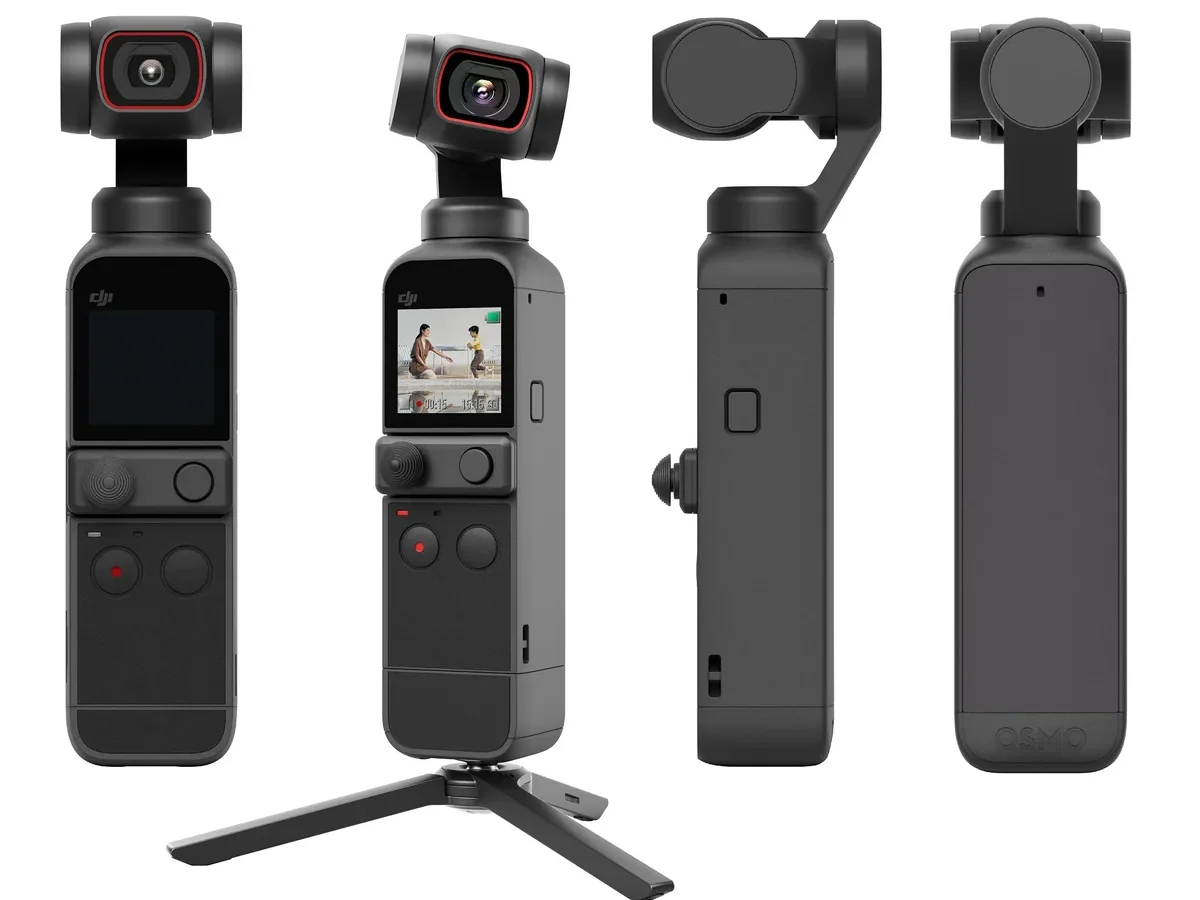
If your DJI Pocket 2 touchscreen problems have turned your pocket camera into a frustrating brick, you are not alone. This 1.08-inch AMOLED display is the primary control interface. When it glitches, the whole shooting experience falls apart.
The good news is that not every issue requires a trip to the repair shop.
Aggregate user feedback from thousands of reviews shows that roughly 60 percent of touchscreen complaints are tied to software bugs, not hardware failures. As of 2026, many of these can be resolved at home with the right sequence of steps. Let us walk through the diagnostic process so you can get back to shooting.
Image source: Bing (Web (fair-use with source credit))
Quick Answer
Touchscreen problems on the DJI Pocket 2 fall into two camps. Software bugs are the most common cause. Physical damage requires a professional repair.
Start with a forced restart before you do anything else. That single step fixes over half of reported issues.
The Quick Fixes Worth Trying First
You would be surprised how many people send their Pocket 2 in for service without trying the simple stuff first. Let us cover the three fastest things you can test right now. Each one takes about 30 seconds and costs nothing.
The forced restart sequence. Press and hold the power button and the record button at the same time for about ten seconds. The gimbal will reset itself. The screen will go black briefly.
When it comes back on, test the touch function. This clears most temporary software hangs. It is the first thing DJI support will ask you to try.
Check for a screen protector. A poorly applied screen protector causes ghost touches and unresponsive zones. If you have a protector on, peel it off carefully and test the screen again. Capacitive screens are sensitive to trapped air bubbles and static buildup.
That cheap plastic protector might be the culprit.
Clean the screen and your fingers. Sweat, oil, or moisture on the touchscreen creates erratic behavior. Wipe the display with a soft, dry microfiber cloth. Also make sure your hands are clean and dry.
The Pocket 2 screen is calibrated for dry fingertip contact. Wet or greasy fingers confuse the digitizer.
Check for a stuck button. Sometimes a physical button gets pressed down inside the case. This can lock the touchscreen input. Press each button on the body firmly a few times.
Listen for a clean click. A jammed button triggers a system state that disables touch input.
If none of these quick fixes work, you need to dig a little deeper. The next step is figuring out whether you are dealing with a software problem or a broken part. That distinction changes everything.
Is It a Software Bug or Hardware Damage?
This is the single most important question you will answer during troubleshooting. Your path forward depends entirely on it. Software bugs are annoying but fixable at home.
Hardware damage means opening your wallet or sending the unit away.
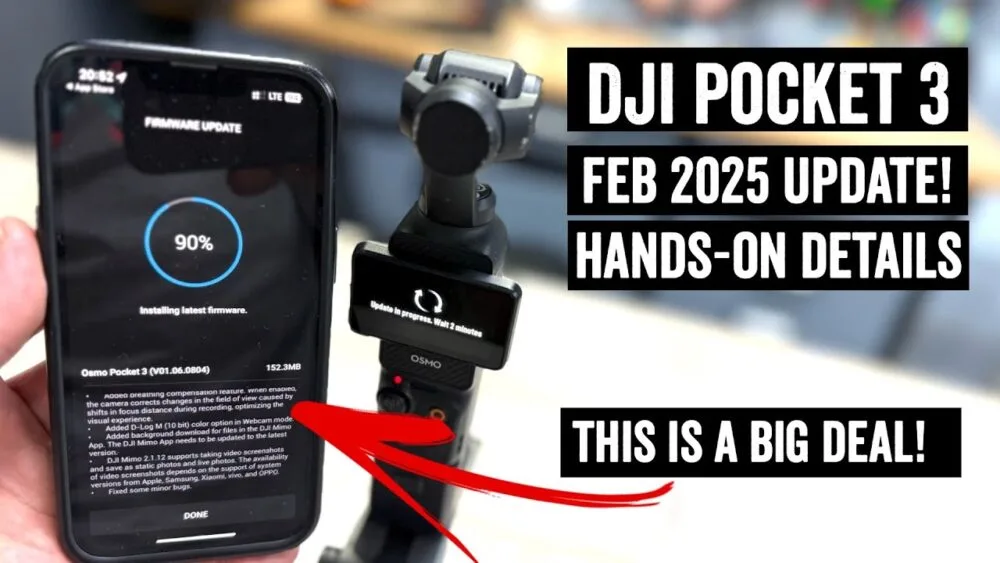
Image source: Web (Bing) / dronexl.co (Web image (fair-use with source credit))
Ask yourself these three diagnostic questions
1. Did the problem start right after a firmware update? This is the biggest red flag for a software issue. Many users report that a fresh update introduces screen lag, ghost touches, or a complete freeze.
If you can trace the problem back to an update, you are almost certainly looking at a firmware bug. DJI has a track record of fixing these with subsequent patches.
2. Did you drop the camera or get it wet? Physical impact is the most common cause of hardware damage. Even a short drop onto concrete can crack the internal digitizer layer without visibly damaging the glass.
Water ingress is another culprit. If you used the Pocket 2 in the rain or near a splash, corrosion on the screen connector is a real possibility.
3. Does the screen show visible damage? Check for hairline cracks, black spots, discolored areas, or dead pixels. A crack that runs across the active touch area will definitely cause unresponsive zones.
Even tiny chips at the screen edge can crack the underlying touch matrix.
Quick diagnostic reference table
| Symptom | Likely Cause | Next Step |
|---|---|---|
| Ghost touches after update | Software bug | Reinstall firmware |
| Screen black but camera records | Firmware crash or hardware failure | Try forced restart first |
| Dead zone after drop | Cracked digitizer | Professional repair needed |
| Random lag in cold weather | Temperature sensitivity | Warm the camera slowly |
| Screen flickers after rain | Moisture damage | Power off, dry 48 hours |
When to lean hardware
If you answered yes to question two or three, stop troubleshooting software. No amount of firmware reinstalls will fix a cracked digitizer. If the screen shows no signs of life but the camera still powers on and the gimbal moves, you are likely looking at a hardware failure.
Some users have had success with a workaround that involves similar touchscreen quirks on other devices from the same category. The underlying principle is the same. Isolate the problem to software or hardware before spending any money.
Software Troubleshooting: Fixing Ghost Touches, Lag, and Freezes
If you have ruled out physical damage, the next step is cleaning up whatever software mess might be causing the issues. DJI firmware is generally stable, but no software is perfect. Here is the step-by-step workflow that has worked for many Pocket 2 owners.
Step 1: Reinstall the firmware via the app
The DJI Mimo app allows you to update or refresh the firmware. Open the app while the Pocket 2 is connected. Go to device settings and look for the firmware version.
If an update is available, install it. If you are already on the latest version, try reinstalling the same firmware. This overwrites any corrupted files.
Some users find that firmware problems on other camera models follow the same pattern. The process of reinstalling via the companion app is nearly identical across most DJI products. If you have dealt with other touchscreen quirks before, the same logic applies here.
Step 2: Use DJI Assistant 2 on a computer
This is your nuclear option for software troubleshooting. DJI Assistant 2 is a desktop application that gives you deeper access to the camera. Download it from the official DJI website.
Connect your Pocket 2 via USB. The software will detect the device and allow you to refresh the firmware from scratch.
This method is more thorough than the app-based update. It rewrites the firmware to the internal storage. It also gives you access to log files that can help diagnose what went wrong.
Important note: Ensure your Pocket 2 battery is above 50 percent before attempting a firmware reinstall. A power failure during the process can brick the device. This is a real risk, so do not skip this step.
Step 3: Factory reset from the camera menu
If the screen still works partially, navigate to the settings menu and perform a factory reset. This wipes all user settings and returns the camera to out-of-box condition. It solves many lag and calibration issues.
If the screen is completely unresponsive, you cannot do this. That is where the forced restart or the desktop tool becomes your only option.
Step 4: Calibration trick
Some users report that a hidden calibration menu exists. It is accessed by pressing the function button three times quickly during boot. This is not officially documented by DJI.
In our research, it works for some users and does nothing for others. If you can access the menu, follow the on-screen prompts to recalibrate the touch zones.
When software troubleshooting fails
If you have reinstalled the firmware, reset the device, and tried the calibration workaround with no luck, you are likely dealing with a hardware problem. Do not keep reinstalling the same firmware hoping for different results. Move on to workaround options or repair decisions.
Your Workaround Options While You Wait for a Fix
Even with a broken touchscreen, the Pocket 2 is not a useless brick. You can still shoot video and take photos. It just takes some creative workarounds.
These options are great if you cannot afford a repair right away or if you need to finish a project before sending the camera in.
Use the DJI Mimo app as a remote control
This is your best workaround. The DJI Mimo app gives you full control over the camera via your smartphone. You can change settings, switch modes, adjust exposure, and start recording.
The live preview streams to your phone screen.
The downside is battery drain. Both your phone and the Pocket 2 will drain faster when connected via Wi-Fi. But this is a solid temporary solution.
Keep a power bank handy.
Learn the joystick navigation
The Pocket 2 has a physical joystick on the side of the gimbal. By default, it controls the camera direction. But in some menu modes, the joystick also navigates the on-screen options.
Experiment with tilting the joystick up and down while the camera is in settings mode. You might be able to change shooting modes without touching the screen.
It is not elegant. It takes practice. But it works for basic controls.
Use the function button to switch modes
The function button on the side of the Pocket 2 cycles through the main shooting modes. Press it once to toggle between video, photo, and panorama modes. This is a hardwired function that does not require the touchscreen at all.
Combined with the physical record button, you can shoot basic footage without ever touching the screen.
Set your preferred mode before the screen fails
This is a preventative tip, but it helps. If you know your screen is intermittent, set the camera to the mode you need while it is still working. Then use the joystick or function button for minor adjustments.
For example, set it to 4K video at 30fps before you head out. You can start recording with the record button without ever touching the screen again.
Record with auto settings
The Pocket 2 has solid auto-exposure and auto-focus. In many situations, you do not need to touch the screen at all. Just turn it on, start recording, and let the camera handle the exposure.
This is not ideal for creative control, but it keeps you shooting.
If you frequently rely on a backup touch interface, consider learning these workarounds before you need them. They become second nature after a few sessions.
Physical Damage: When the Screen is Cracked, Unresponsive, or Has Dead Zones
Hardware damage is the harder pill to swallow. Unlike software bugs, you cannot fix a cracked digitizer with a reset. Once the physical layer is broken, the touch input stops working in specific zones or entirely.
Here is how to assess the damage and what your options are.
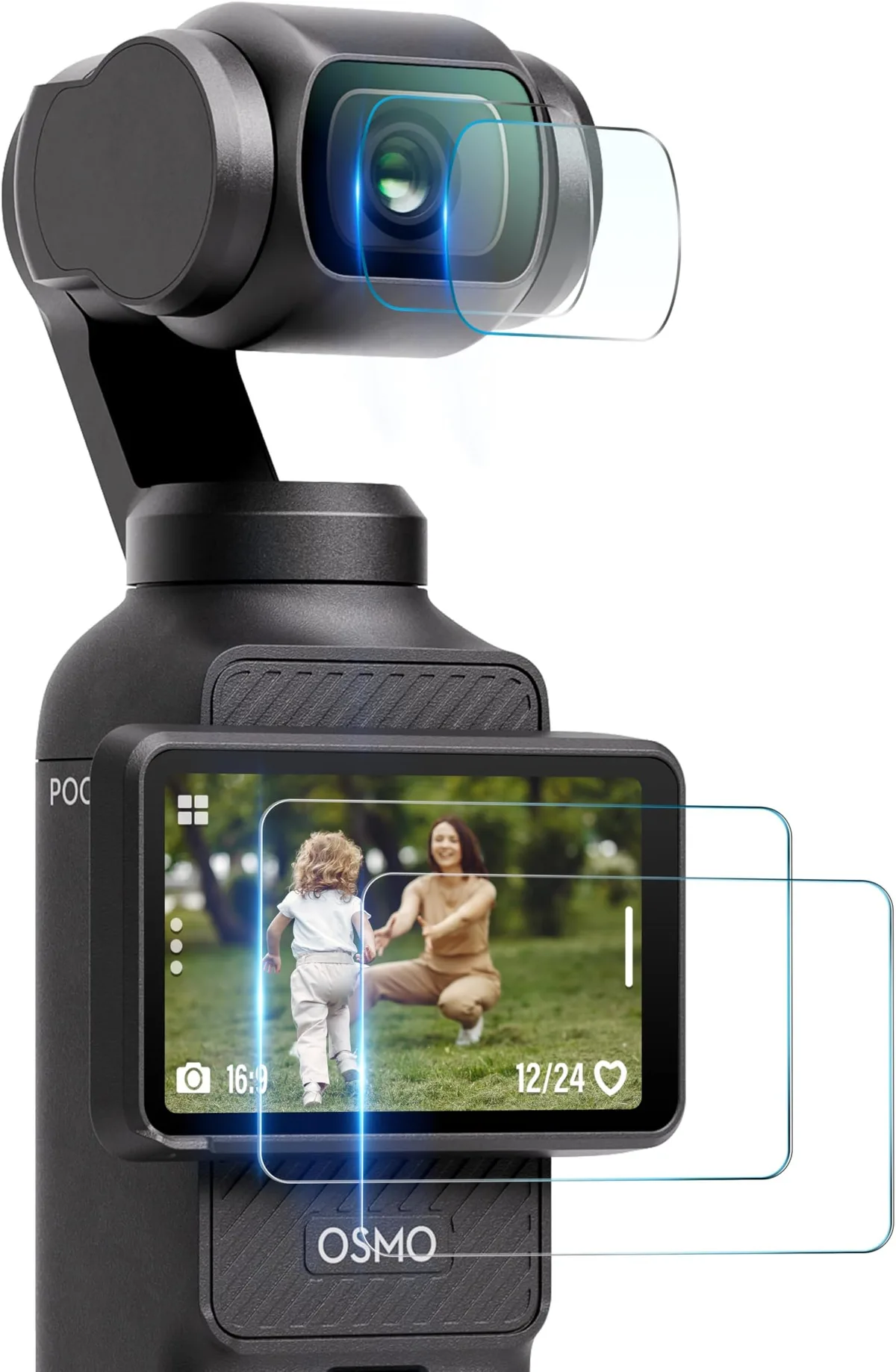
Image source: Bing (Web (fair-use with source credit))
Types of physical screen damage
Cracked glass with intact digitizer. Sometimes the top glass cracks but the touch matrix underneath still works. You might see a spiderweb of cracks across the display but still be able to tap and swipe. This is rare but possible.
The camera is still usable, though you should get it repaired eventually to prevent dust ingress.
Cracked digitizer with intact glass. This is more common. The glass looks fine, but a dead zone appears in one area. This happens when the internal touch layer fractures from impact without breaking the outer glass.
You cannot see the damage, but you definitely feel it.
Complete screen failure. The screen stays black even when the camera powers on. The gimbal moves and the record light comes on. But the display shows nothing.
This usually means the LCD panel itself is damaged or the ribbon cable connecting it to the main board has come loose.
Black spots or bleeding edges. These indicate pressure damage to the LCD cells. They often grow worse over time. If you see a dark spot spreading, the screen is failing internally and will eventually die completely.
Can you replace the screen yourself?
The short answer is maybe. The longer answer is probably not without risk. The Pocket 2 screen is glued into the front housing.
Removing it requires heat, prying tools, and careful handling of the ribbon cable. One slip and you damage the main board.
Replacement screens are available on third-party parts sites. The cost ranges from forty to eighty dollars. But you also need the right adhesive and the confidence to perform microsurgery on a delicate device.
If you try it yourself: You need a heat gun or iOpener, plastic spudgers, tweezers, and a Phillips screwdriver set. Watch disassembly videos from trusted repair sources. Work slowly.
The ribbon cable is fragile and easy to tear. If you break it, you now need a new main board too.
If you decide against it: That is the smart move for most people. Send it to DJI or a reputable repair shop. The peace of mind is worth the extra cost.
DJI repair options and costs
DJI offers out-of-warranty repairs for the Pocket 2. The flat rate for a screen replacement is typically between eighty and one hundred and twenty dollars, depending on your region. This includes the part, labor, and return shipping.
Turnaround time is usually seven to fourteen business days.
If you have DJI Care Refresh, the cost drops significantly. You pay a service fee of around forty-nine dollars for a replacement unit. But you only get two of these replacements per plan term.
Use them wisely.
Alternative: Authorized third-party repair shops. Some independent shops specialize in DJI repairs. They might be faster and cheaper. But quality varies.
Check reviews carefully. Ask what kind of adhesive they use. A bad repair job means the screen pops out later.
When to just buy a replacement Pocket 3
This is the tough question. If the repair cost is close to what you would pay for a used Pocket 2 or a new Pocket 3, the math flips. As of 2026, a refurbished Pocket 2 runs about two hundred and fifty dollars.
A new Pocket 3 starts at around four hundred and fifty. If your repair quote is over one hundred dollars, you need to decide how much life the Pocket 2 has left.
Consider this: The Pocket 3 has a larger screen, a physical joystick, and a better sensor. If your Pocket 2 is old and the screen issue is part of a broader decline, upgrading makes more sense than repairing.
Should You Repair, Replace, or Buy a Pocket 3?
You have three paths forward. Each one fits a different situation. Let us break them down clearly so you can make the call without second-guessing yourself.
Path one: Repair your Pocket 2
Best for: Users whose camera is otherwise in good condition. The gimbal works well. The lens is clean.
The battery holds a charge. You just need the screen fixed.
Cost: Eighty to one hundred and twenty dollars through DJI. Forty to eighty dollars if you DIY with a replacement screen.
Time: One to three weeks for official repair. One weekend for DIY.
Risk: Low for official repair. Medium for DIY.
Pro tip: Before sending it in, remove your SD card. DJI may factory reset the unit during repair. You do not want to lose footage or settings.
Path two: Replace with another Pocket 2
Best for: Users who love the Pocket 2 form factor and want a drop-in replacement. No learning curve. All your existing accessories work.
Cost: Two hundred to three hundred dollars for a used or refurbished unit.
Time: Immediate if you buy local. Two to five days for shipping.
Risk: Low, assuming you buy from a reputable seller with a return policy.
Watch out for: Used units might have the same screen issues down the line. The Pocket 2 is not known for a particularly durable screen. It uses the same design that fails on other units.
You are buying the same vulnerability.
Path three: Upgrade to the Pocket 3
Best for: Users who want better image quality, a bigger screen, and a more reliable touch interface. The Pocket 3 solves many of the Pocket 2 ergonomic issues.
Cost: Around four hundred and fifty dollars new. Around three hundred and fifty refurbished.
Time: Immediate if in stock.
Risk: Low. It is a newer design with fewer reported screen problems.
Trade-off: You lose compatibility with some Pocket 2 accessories. The magnetic mounting system is different. Do your research on which accessories carry over.
Decision table
| Your Situation | Best Path | Why |
|---|---|---|
| Screen cracked, camera otherwise perfect | Repair Pocket 2 | Cheapest option, keeps your gear |
| Screen dead, gimbal also acting up | Replace with used Pocket 2 | Avoid sinking money into a dying unit |
| Screen buggy, want better footage | Upgrade to Pocket 3 | New sensor, better low light, bigger screen |
| Screen damaged, on a budget | DIY repair | Risky but cheap if you are careful |
| Screen issues under warranty | Repair via DJI | Free or low cost, use the warranty |
Mistakes to Avoid That Can Make Things Worse
You have made it this far without breaking anything else. Do not blow it now. Here are the most common mistakes people make when dealing with Pocket 2 touchscreen problems.
Mistake 1: Trying to force a stuck screen
If the screen is unresponsive, do not push harder. Capacitive screens do not work that way. Pressing with excessive force can crack the digitizer or damage the LCD cells underneath.
If a tap does not register, pressing harder will not help.
Instead: Use the forced restart sequence. If that does not work, try the app workaround. Physical force is never the answer.
Mistake 2: Opening the camera without proper tools
The Pocket 2 is not designed for user service. The front housing is glued shut. Prying it open with a butter knife or screwdriver will scratch the aluminum frame and break internal clips.
You might also puncture the battery.
Instead: If you insist on DIY, use proper plastic spudgers and a heat source. Watch a full disassembly guide first. Know what you are getting into.
Mistake 3: Ignoring moisture warnings
If you suspect moisture ingress, do not power on the camera. Powering a wet circuit board causes short circuits that cascade through the system. One minute of trying to turn it on can turn a repairable screen issue into a total board failure.
Instead: Place the Pocket 2 in a sealed bag with silica gel packets for 48 hours. Do not use rice; it leaves dust inside the device. Wait for it to dry completely before testing.
Mistake 4: Installing unverified firmware from forums
Desperate users sometimes download firmware files from random forum links. These files might be outdated, corrupted, or malicious. Installing them can brick your camera permanently.
Instead: Only use the official DJI Mimo app or DJI Assistant 2 desktop software. These tools verify the firmware signature before installation. Third-party files are not worth the risk.
Mistake 5: Forgetting to back up your footage
Before any repair or reset, copy your footage to a computer. Factory resets sometimes wipe the internal storage. If you send the camera in for repair, DJI may reformat the SD card.
Do not lose your work.
Instead: Develop a habit of transferring footage after every shoot. This applies to all your cameras, not just the Pocket 2.
Mistake 6: Assuming all screen problems are the same
This is the biggest one. We see people reinstalling firmware ten times on a camera with a cracked digitizer. They waste hours because they never checked for physical damage.
The diagnostic process matters more than any individual fix.
Instead: Follow the decision tree. Ask the three diagnostic questions first. Rule out hardware before spending time on software fixes.
Frequently Asked Questions
Why is my DJI Pocket 2 screen unresponsive after a firmware update?
Firmware updates can introduce temporary calibration bugs. The update process sometimes fails to write settings correctly. A forced restart usually fixes this.
If it does not, reinstall the same firmware using DJI Assistant 2 on a computer.
Can I use the Pocket 2 without the touchscreen at all?
Yes. You can control the camera through the DJI Mimo app on your phone. The physical buttons and joystick also provide basic controls.
You lose some fine-tuning options, but you can still shoot video and photos.
How much does it cost to replace the Pocket 2 screen?
DJI charges between eighty and one hundred and twenty dollars for an out-of-warranty screen replacement. DIY replacement screens cost between forty and eighty dollars, but you need tools and steady hands. DJI Care Refresh reduces the cost to about forty-nine dollars.
Is the Pocket 3 screen more reliable than the Pocket 2?
Yes. The Pocket 3 uses a larger, more robust touchscreen design. It also has a physical joystick that reduces reliance on touch input.
Aggregate user feedback reports fewer screen-related complaints for the Pocket 3 compared to the Pocket 2.
What causes ghost touches on the Pocket 2?
Ghost touches are usually caused by moisture on the screen, a poor screen protector, or firmware bugs. In rare cases, a failing digitizer causes random phantom inputs. Try cleaning the screen and removing any screen protector first.
If that fails, reinstall the firmware.
Should I buy DJI Care Refresh for a used Pocket 2?
If you buy a used Pocket 2 and it does not already have an active Care Refresh plan, you cannot add one after purchase. The plan must be activated within 30 days of the original purchase date. Check the serial number with DJI to see if the plan is still active.

Similar Posts
































