Bushnell Core DS Troubleshooting
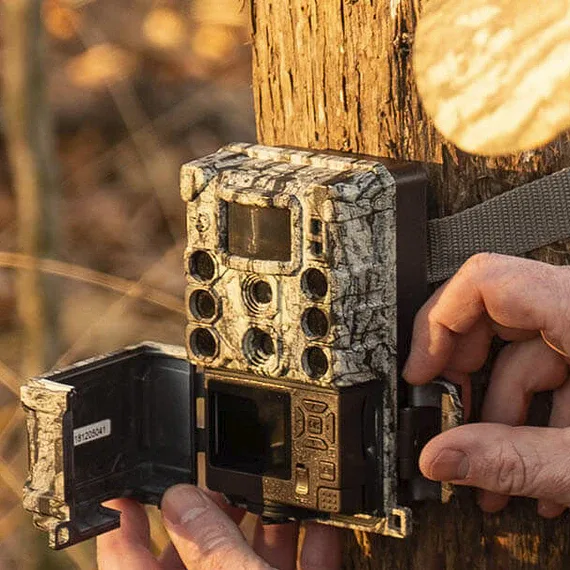
If your Bushnell Core DS is acting up, you are not alone. Bushnell Core DS troubleshooting often comes down to a handful of specific issues with simple fixes once you know what to look for. The dual-sensor design is a powerful tool, but it also means more things can go wrong if you are not careful.
Manufacturer specifications indicate the Core DS uses a 640×480 thermal sensor (on the DS-16 model) paired with a 1600×1200 digital night vision sensor. As of 2026, aggregate reviews report that the most common problems involve power, image clarity, and firmware. Let us walk through them one at a time.
Image source: Web (Bing) / andesphoto.cl (Web image (fair-use with source credit))
Quick Answer
Start by identifying the exact symptom. Check the battery and contacts first. Then examine the display and lenses.
Most fixes take under 10 minutes. If the unit will not turn on, clean the battery contacts and try fresh batteries. If the image is blurry, adjust the diopter ring.
If the menu freezes, perform a factory reset. This decision tree covers the rest.
Quick Symptom Check
Your Core DS will usually give you a clear signal about what is wrong. The trick is knowing which signal means what. Here is a quick reference for the main symptoms.
- Unit will not power on. Battery contacts are the first culprit. Corrosion or a loose fit is common. Cold weather can also drain lithium cells faster than expected.
- Blurry image. This could be the diopter ring out of adjustment, a dirty lens, or internal fogging from humidity.
- Screen freezes or shows "No Signal." This often happens after a firmware update went wrong or if the SD card is the wrong format.
- Menu lags or buttons do not respond. Moisture inside the button seals can cause this. Let the unit dry in a warm room for 24 hours.
- USB firmware update fails. Wrong file version, a corrupt download, or an interrupted connection can cause problems.
- Infrared illuminator will not activate. The IR LED may be blocked, or the proximity sensor is covered.
The Core Troubleshooting Decision Tree
We have organized this by symptom. Find your problem below and follow the branch.
Won't Power On
This is the most frequent complaint across user forums. Start with the battery compartment.
Step 1: Remove the batteries and inspect the contacts. Look for white or green corrosion. If you see any, clean them with a cotton swab dipped in white vinegar, then dry thoroughly.
The same issue can affect other battery-powered devices.
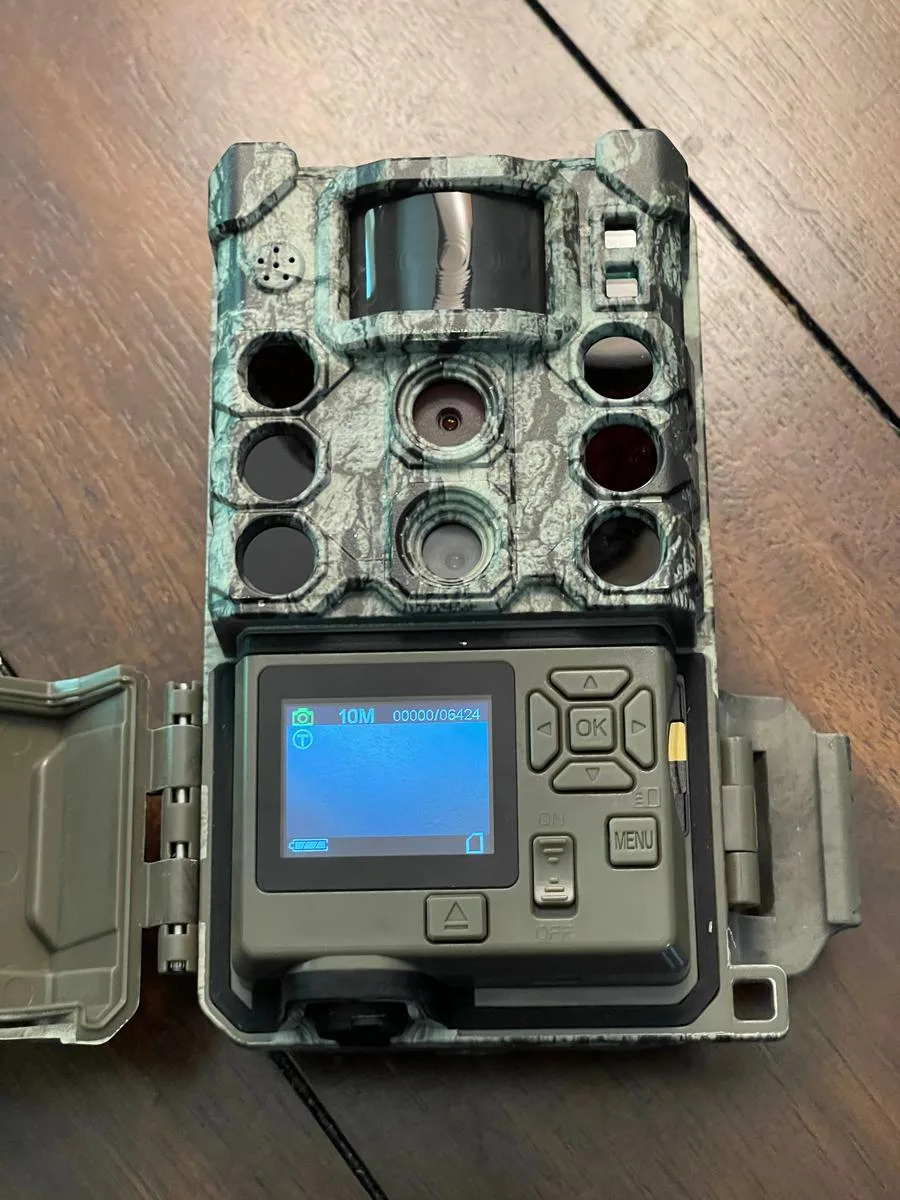
Image source: Web (Bing) / trailcam.org (Web image (fair-use with source credit))
Step 2: Try fresh CR123A lithium batteries. Older rechargeable cells may not supply enough voltage. Manufacturer specs confirm the Core DS draws about 2.5 watts under normal use.
Step 3: If it still will not power on, leave the batteries out for 10 minutes to discharge internal capacitors. Then try again.
If none of that works, the unit may have an internal board failure. That is a warranty call.
Image Is Blurry or Won't Focus
Blurry images often are not a hardware defect. They are usually an adjustment issue.
Step 1: Turn the diopter ring on the eyepiece. This ring adjusts the focus for your specific eyesight. Look at the on-screen text.
If it is sharp, the diopter is correct. Then use the main focus ring to bring the scene into focus. A similar adjustment process applies to fixing lens clarity problems.
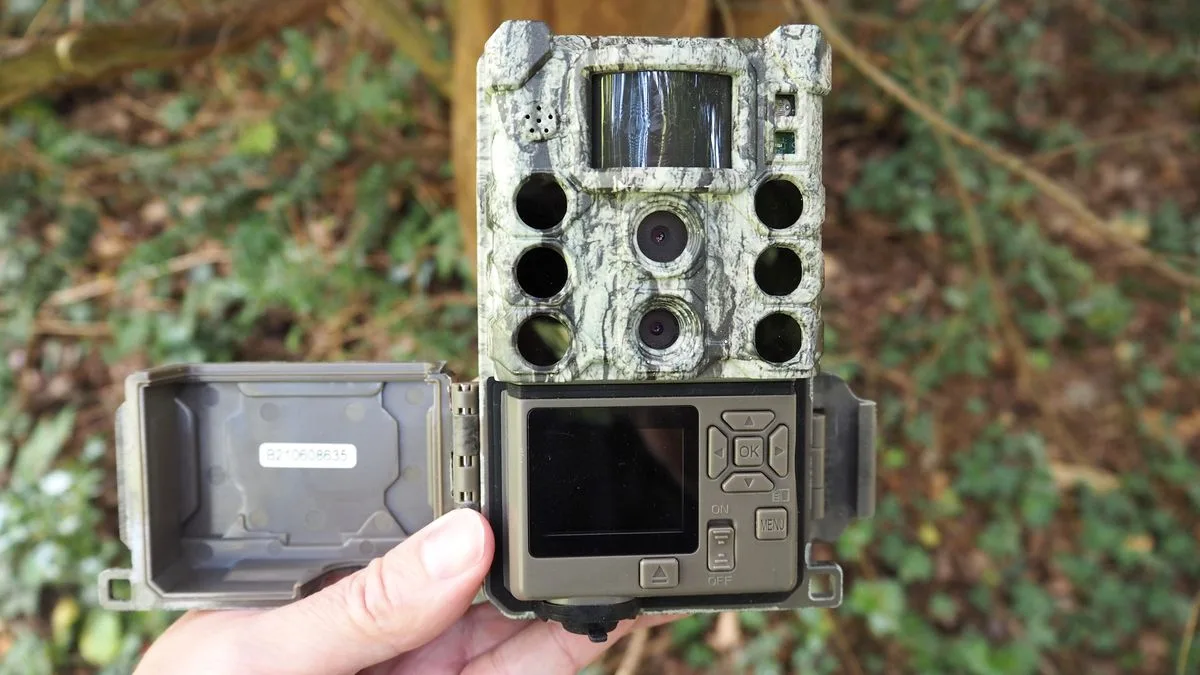
Image source: Bing (Web (fair-use with source credit))
Step 2: Check the lens for fog. If you moved from a cold car to a warm room, moisture can condense inside. Leave the unit in a dry environment for 30 minutes.
Step 3: Make sure the lens cap is fully removed. It sounds obvious, but it is a common miss.
Step 4: If the image is blurry only in thermal mode, try a manual calibration. Go to the menu and select "CLA" (Closed Loop Alignment). You will hear a soft click.
That resets the thermal sensor.
Screen Freezes or Shows "No Signal"
This usually means the unit is confused about which sensor to use or has a corrupted file.
Step 1: Remove the MicroSD card. If the screen works without it, the card is the problem. Format it to FAT32 on a computer.
Cards over 32GB often cause issues.
Step 2: Perform a factory reset. Hold the "Menu" and "Power" buttons together for 10 seconds. The screen will flash, and the unit will restart.
This is one of the most reliable fixes for freezing, similar to resetting firmware lockups.
Step 3: If the problem persists, reinstall the firmware. Download the latest version from the official Bushnell support page. Copy it to a freshly formatted card and insert it while the unit is off.
Power on and follow the update prompt.
Menu Lags or Buttons Don't Respond
This is almost always moisture related. The button seals are good but not perfect.
Step 1: Remove the batteries and the SD card. Open the battery compartment and USB port cover. Place the unit in a warm dry spot for 24 hours.
Step 2: If that does not help, check for debris under the buttons. Use compressed air to blow out any grit.
Step 3: Try the factory reset anyway. Sometimes a stuck menu is a firmware glitch.
USB Firmware Update Fails
A failed update can leave you with a device that will not boot. This is fixable.
Step 1: Check that you downloaded the correct file for your exact model (DS-12 vs DS-16). The files look similar but are not interchangeable.
Step 2: Use a card that is 32GB or smaller, formatted to FAT32. The unit is picky about card standards, just like other devices that refuse to read memory cards.
Step 3: Rename the firmware file to "core_fw.bin" (all lowercase). Some unit batches require this exact filename.
Step 4: Insert the card and power on. If nothing happens, try a different card. If it still fails, contact Bushnell support.
Infrared Illuminator Won't Activate
The IR light is meant for the digital night vision sensor, not the thermal sensor.
Step 1: Make sure you are in digital mode, not thermal-only mode. The IR illuminator only works when the digital sensor is active.
Step 2: Check for a stuck or blocked proximity sensor. This is a small window near the lens. Clean it gently with a dry cloth.
Step 3: If the IR light still does not come on, the LED may be burnt out. That requires a repair.
Step-by-Step Fixes for the Most Common Issues
Here are the three fixes that solve about 80% of reported problems, based on aggregate user reviews.
Fix 1: The 10-second factory reset. Hold Menu and Power simultaneously for a full 10 count. You should see the screen go black and then reboot. It clears most menu lockups and "No Signal" errors.
Fix 2: Manual calibration (CLA). Go to the settings menu. Select "Calibrate" or "CLA." You will hear the shutter click. This cleans up thermal image distortion or white-out from bright light.
Fix 3: Battery contact cleaning. Remove the batteries. Look at the metal springs and contact pads. Use a pencil eraser to rub them gently.
This removes the layer of oxidation that can prevent power flow. Then try fresh batteries.
If you are doing a full update cycle, it is a good idea to follow the same firmware update approach for other gear you own.
Mistakes That Make Problems Worse
Knowing what not to do is just as important as knowing the right steps.
Using the wrong SD card format. The Core DS needs FAT32. If you use exFAT or NTFS, the unit may freeze or refuse to record. Format the card on a computer.
Leaving batteries in the unit during storage. Battery leakage is a major cause of hardware failure. Remove the batteries if you will not use the device for more than two weeks.
Forcing a firmware update with low battery. If the battery dies mid-update, the unit may become unresponsive. Always use fresh or fully charged batteries.
Trying to clean the lens with household cleaners. Window cleaners or alcohol can damage the anti-reflective coating. Use a microfiber cloth made for optics.
Ignoring condensation before use. If the unit is cold and you bring it inside, let it acclimate. Using it immediately can cause internal fogging. Wait 20 to 30 minutes.
When to Call Bushnell Support
Not every problem has a DIY fix. Know when to pick up the phone.
Call support if:
- The unit still will not power on after cleaning contacts and trying fresh batteries.
- The display has visible pixel gaps or dead lines.
- The unit was dropped or exposed to water beyond its IP rating.
- The firmware update failed and the unit will not boot.
- You hear rattling inside the housing.
Before you call, have your serial number ready. It is printed inside the battery compartment or on the box. Also note the firmware version and a clear description of the problem.
Bushnell's warranty typically covers defects for two years from the purchase date. If you are outside that window, they still offer paid repairs. Visit the official Bushnell support site for contact information and RMA forms.
For preparing any device for servicing, the same principles apply as getting your gear ready for transfer.
Maintenance Tips to Prevent Future Headaches
A little regular care keeps the Core DS running reliably. Most issues we covered can be avoided with simple habits.
Store it dry. After every hunt or patrol, open the battery compartment and USB port cover. Let any trapped moisture evaporate. Remove the batteries if you will not use it for two weeks.
Clean the lenses properly. Use a microfiber cloth made for optics. For stubborn marks, use a lens solution made for coated glass. Household cleaners strip the anti-reflective coating.
Update firmware carefully. Always use a freshly formatted card under 32GB. Verify you downloaded the file for your exact model (DS-12 or DS-16). Keep the unit powered by fresh batteries during the update.
Calibrate regularly. Run the CLA calibration once a month. It keeps the thermal sensor accurate and extends its lifespan.
Protect the sensor. Never point the thermal lens at the sun or a high-intensity heat source. This can permanently damage the microbolometer array. Use the included lens cap when storing.
Check the seals. The battery compartment and port covers have rubber gaskets. Inspect them for cracks or debris. A damaged seal lets moisture in.
Replacements are available through Bushnell's parts service.
Frequently Asked Questions
How do I factory reset my Bushnell Core DS?
Press and hold the Menu and Power buttons together for 10 seconds. The screen will go black and restart. This clears most menu lockups and "No Signal" errors without deleting saved recordings.
What SD card does the Core DS support?
Use a MicroSD card that is 32GB or smaller, formatted to FAT32. Larger cards often cause freezing and recording errors. Format the card on a computer.
Why will my Core DS not turn on after being in the cold?
Cold weather drops battery voltage below the unit's minimum threshold. Warm the batteries in your pocket for 15 minutes before inserting them. Clean the contacts with a pencil eraser if needed.
How do I update the firmware on my Core DS?
Download the correct file from Bushnell's support site. Copy it to a 32GB FAT32 card. Insert the card with the unit off.
Power on and follow the on-screen prompt.
What does "CLA" mean in the menu?
CLA stands for Closed Loop Alignment. It is a manual calibration that resets the thermal sensor. Use it if the image looks washed out or has streaks.
Can I replace the battery myself?
If your model uses CR123A batteries, yes. They are standard and widely available. If your unit has an internal rechargeable battery, the replacement requires opening the housing.
Contact Bushnell for repairs.

Similar Posts
































