DSLR Camera Recording Problems Troubleshooting
So your DSLR keeps stopping mid-recording, and you're not sure why. You're not alone. This guide covers DSLR camera recording problems troubleshooting in a way that actually helps you fix it, one symptom at a time.
The two most common reasons your recording stops are a built-in firmware limit that stops at 29:59 and an internal thermal shutdown triggered around 40°C. We'll walk through which problem you have, then exactly what to do about it.
Quick Answer
Most DSLR recording problems come from three causes. The 30-minute firmware limit stops recording at exactly 29:59. Overheating shuts down the camera early with a temperature icon.
Slow or incompatible memory cards cause sudden stops at any time. Check which symptom matches yours, then apply the fix below.
Why Your DSLR Recording Keeps Failing: A Quick Decision Tree
The fastest way to fix this is to identify your exact symptom first. If you guess, you waste time changing settings that were never the issue.
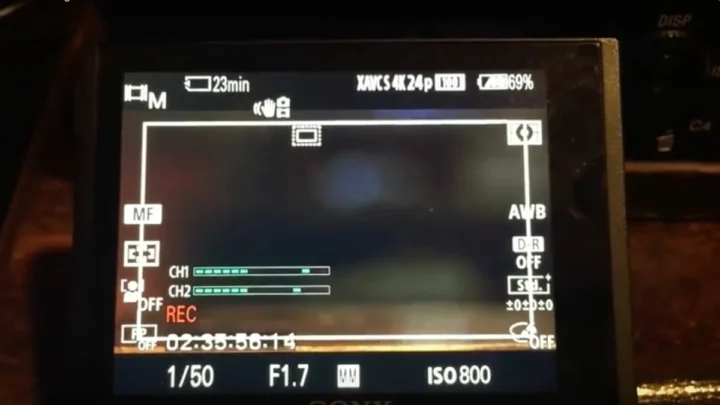
If the camera stops at exactly 29 minutes and 59 seconds: That's not a defect. It's a firmware limit built into most DSLRs to avoid European import tariffs that apply to camcorders. The fix is either a firmware update, an external recorder, or Magic Lantern custom firmware on compatible Canon bodies.
More on that in the next section.
If the camera stops earlier than 30 minutes and you see a thermometer icon or a temperature warning: The sensor is too hot. DSLRs pack a lot of processing into a small body with limited cooling. Ambient temperature above 30°C, direct sunlight, or prolonged 4K recording all push heat past the sensor's comfort zone.
There are concrete things you can do. Drop to 1080p, use a dummy battery, or pull the screen away from the body.
If the camera stops randomly with a "card error" or stops writing mid-clip: Your memory card is too slow, or it's fake. This is incredibly common with bargain cards bought online. A card that says "UHS-I" on the label but cannot sustain 30 MB/s write speed will fail during video.
We cover exactly which card speed you need in the card section.
If the recording is choppy or the audio drifts out of sync: Two separate problems. Choppy video is usually a card speed issue or a frame rate mismatch with your editing timeline. Audio drift is almost always a mismatch between the camera's internal clock and an external microphone or recorder.
Use this decision tree to pick your section. The answers are further down.
The 30-Minute Recording Limit: What It Is and How to Beat It
Here's the honest truth: your camera isn't broken. It's doing exactly what the manufacturer programmed it to do.
The 29-minute-59-second recording limit exists because of a tax loophole from the 2000s. European Union customs classified devices that record over 30 minutes as camcorders, which carried a higher import duty. Camera makers added the limit to every DSLR worldwide so they only had to build one hardware version.
As of 2026, most major manufacturers have not removed it on DSLR models. Some newer mirrorless bodies lifted the cap, but many DSLRs are still stuck.
You have three options.
Option one: update your camera firmware. Check your current firmware version in the menu, then visit the manufacturer's support page. Some models received a silent update that removed the limit. For instance, certain Canon EOS and Nikon D series bodies got a "no recording limit" firmware in later revisions.
This is free and carries no risk.
Option two: use an external recorder. An HDMI recorder like an Atomos Ninja or Blackmagic Video Assist bypasses the internal recording entirely. The camera sends clean HDMI video out, and the recorder captures it without any time limit. This adds cost and gear to your bag, but it also gets you higher bitrate and ProRes files.
Option three: install custom firmware. Magic Lantern is a free third-party firmware for select Canon DSLRs. It removes the recording limit, adds focus peaking, zebras, and other video tools Canon never included. The catch is it voids your warranty, and installing it incorrectly can brick your camera.
Only do this if you are comfortable with firmware modification.
Which one is right for you? If you shoot short clips, stick with option one. If you record interviews or events, option two is the safest.
If you shoot on a Canon DSLR and want professional features for free, option three works well.
If you ever shoot in challenging environments, such as underwater, making sure your gear is in good working order is just as important. The same principles apply for checking seals and preventing moisture damage. It helps to know how to test camera housings for leaks.
Overheating Shutdowns: How to Keep Your Camera Running
This one is frustrating because it happens mid-take. You are rolling, the subject is talking, and the screen goes black with a temperature icon. The camera needs to cool down before it will record again.
Heat builds up in two places during video recording. The image sensor runs at full power and generates heat constantly. The image processor crunches data to compress video, and that also creates heat.
In a compact DSLR body, there is not much space for airflow.
Manufacturer specifications indicate that most DSLRs have a thermal threshold around 40°C internal temperature. Once the sensor hits that, the camera shuts off recording to protect itself. You can push that limit back with a few practical adjustments.
Shoot at 1080p instead of 4K. 4K requires significantly more processing power. Dropping to 1080p reduces the processor load and lets the camera run longer before overheating. In our research, this alone can double recording time on some bodies.
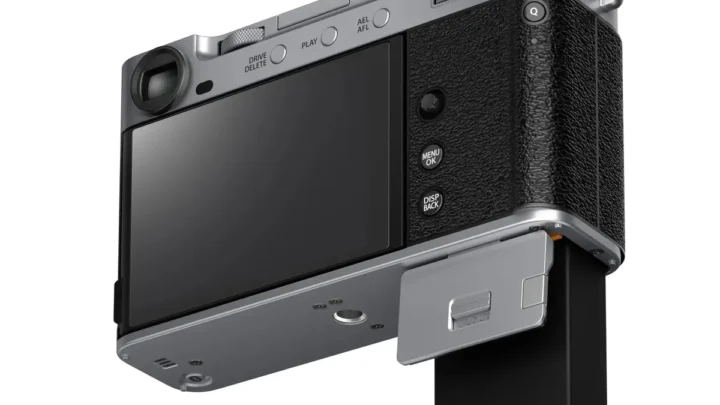
Keep the LCD screen flipped out from the body. This seems minor, but heat dissipates through the back of the camera. A flipped-out screen allows air to circulate behind the LCD panel. Closed against the body, it traps heat.
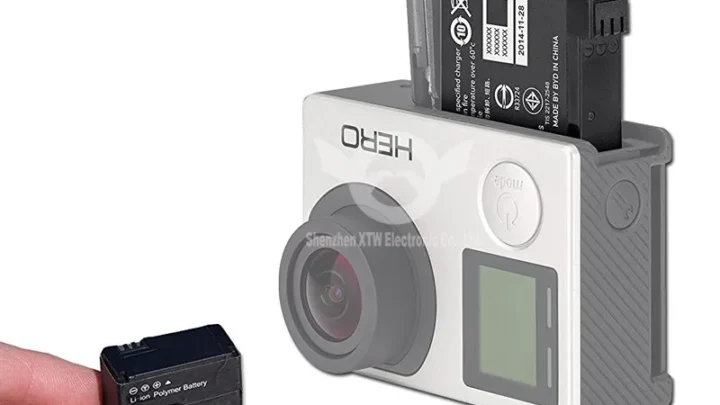
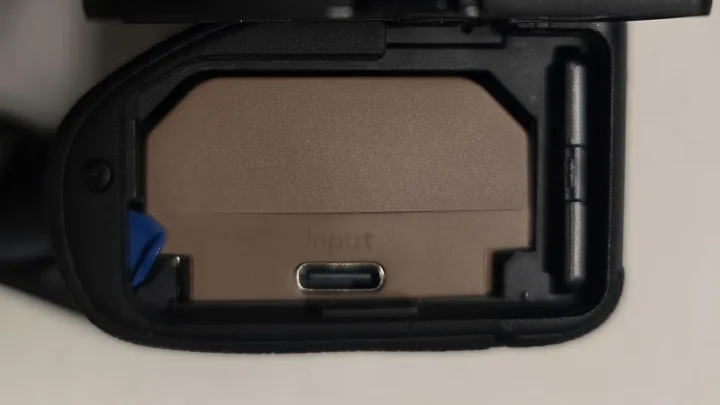
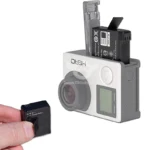
Use a dummy battery instead of the internal battery. Cameras manage heat differently on external power. A dummy battery connected to AC power removes the battery's own heat generation and keeps the camera running at lower internal temperatures. Aggregate reviews of dummy batteries confirm this helps.
Turn off Wi-Fi, Bluetooth, and any other wireless features. These radios generate heat and draw power. Disable them in the menu before recording.
Avoid direct sunlight and hot environments. If you are shooting outside in summer, use a shade or umbrella over the camera. In a studio, point a small fan at the camera body. This seems obvious, but many shooters forget how much ambient temperature matters.
If the camera still overheats after all that, the internal heat sink may need maintenance. Professional camera repair can replace thermal paste between the sensor and heat sink. That's a last resort, but it works.
Card Speed and Compatibility: Why "Card Error" Shows Up
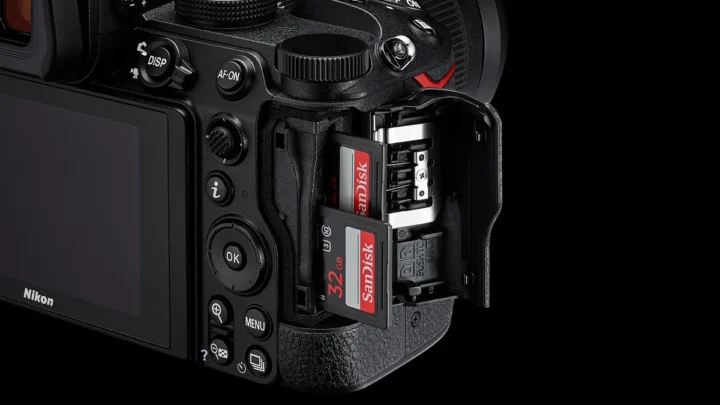
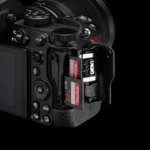
You press record, the camera runs for a few seconds, then stops with a "Card Error" or "Cannot Record" message. Or the video plays back with jumps and gaps. This is almost always a memory card speed problem.
Video recording requires sustained write speed, not just burst speed. A card that handles a burst of still photos fine may fail the moment the camera asks it to continuously write 4K video data.
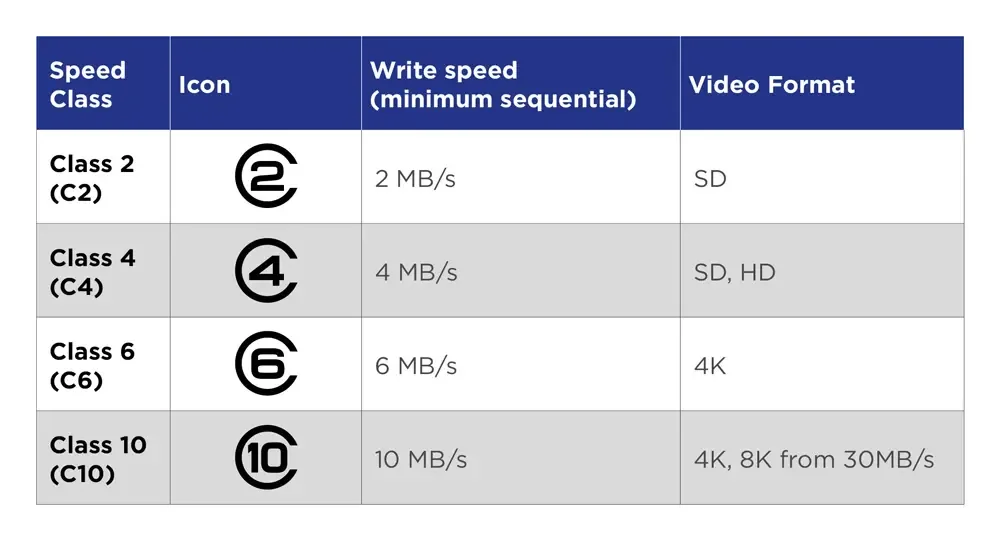
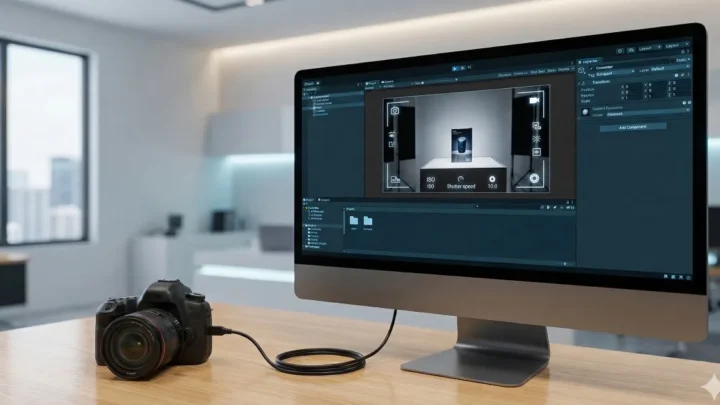
Image source: Bing (Web (fair-use with source credit))
The SD Association defines speed classes with a clear label. Here is what they mean for video:
| Speed Class | Minimum Sustained Write Speed | Best For |
|---|---|---|
| Class 10 | 10 MB/s | 1080p at standard bitrates |
| UHS Speed Class 1 (U1) | 10 MB/s | Same as Class 10, common on older cards |
| UHS Speed Class 3 (U3) | 30 MB/s | 4K at standard bitrates |
| Video Speed Class V30 | 30 MB/s | 4K at standard bitrates |
| Video Speed Class V60 | 60 MB/s | 4K high bitrate, 4:2:2 chroma |
| Video Speed Class V90 | 90 MB/s | 4K high bitrate, ProRes, RAW video |
For 1080p video, a Class 10 or U1 card is sufficient. For 4K video on a DSLR, you need at minimum a U3 or V30 card. If you shoot in high bitrate modes like ALL-I or 4:2:2 color sampling, you need V60 or V90.
The most common mistake is buying a card that says "UHS-I" but does not meet the sustained write speed. Counterfeit cards are widespread on online marketplaces. They report high speeds in testing but fail under continuous video load. Buy from a reputable seller and test the card in-camera before a real shoot.
Always format the card in the camera, not in your computer. In-camera formatting sets the correct file system structure and sector size for video. A card formatted on a computer may work for photos but cause errors during video recording.
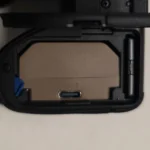
If you are using a card that meets these specs and still getting errors, the card slot itself could have dust or debris. Compressed air can clear it.
Audio Problems: No Sound, Low Volume, or Drifting Sync
Audio issues are the second most common complaint after recording stops. The good news is they are almost always fixable with a settings change.
No audio at all. On most DSLRs, the internal microphone only records in auto mode. If you switch to manual audio control and leave the gain at zero, there is nothing to record. Check your menu under "Audio Recording" and ensure the input level is set above zero.
Some cameras also disable the internal mic when you plug something into the external microphone jack, even if that something is not a microphone.
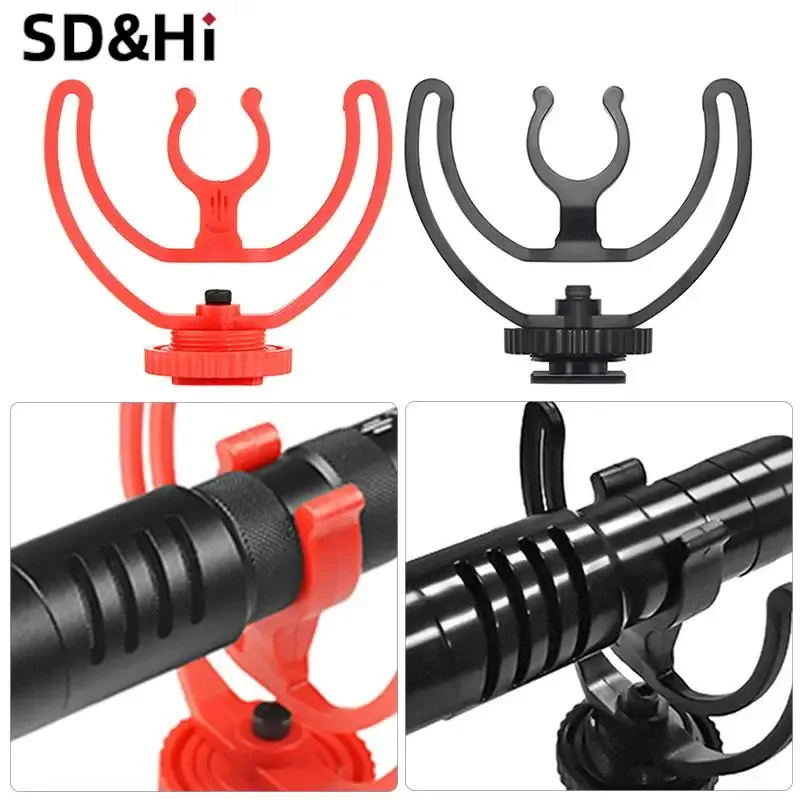
Image source: Web (Bing) / aliexpress.com (Web image (fair-use with source credit))
Low volume or muffled sound. The internal microphone on any DSLR is small and placed near the lens. It picks up camera noise from autofocus motors and lens stabilization. The fix is an external microphone.
A simple shotgun mic on the hot shoe is the most affordable upgrade you can make for video quality. Even a basic $50 microphone will dramatically improve audio clarity.
Drifting audio sync. This is subtler. You record a clip, and by the end of a five-minute take, the audio is half a second behind the video. This happens because the camera's internal clock and the audio recorder's clock run at slightly different speeds.
Over long recordings, the difference adds up.
The permanent fix for sync drift is a timecode sync box, but those are expensive. The practical fix is to record audio in-camera alongside your external recorder, then sync the external audio to the internal reference track in editing. You can also use a clapboard or simple clap at the start of each take for manual sync.
If you are shooting in demanding conditions like deep water, audio sync and general recording stability become even more critical. Learning correct setup techniques before submerging your gear can save a shoot.
Common Mistakes That Look Like Big Problems (But Aren't)
Some recording issues have trivial fixes. People panic, order new gear, or send their camera for repair when the answer is a single menu toggle.
Wrong picture profile makes footage look broken. You switch to a flat log profile like Canon C-Log or Sony S-Log to preserve dynamic range. Then you review the footage on your camera screen and it looks washed out and grey. That is normal.
Log profiles desaturate the image and reduce contrast on purpose. The color returns when you apply a LUT in your editing software. If you see normal footage on the camera but it looks flat on your computer, you forgot to apply the lookup table.
Zebra stripes are not a defect. Many new videographers see zebra patterns on the screen and think the display is broken. Zebras are an exposure tool. They show you which areas of the frame are overexposed.
You can adjust the zebra threshold in the menu or turn them off entirely.
Autofocus hunting during video. DSLR autofocus systems designed for still photography sometimes struggle with continuous video autofocus. The lens racks back and forth looking for focus. The fix is often as simple as switching to manual focus or using a lens with a quieter focus motor.
If your camera has Dual Pixel AF (Canon) or phase-detect AF points, enable that specific mode in the video menu.
The camera says "Lens not attached" when it is. This happens when the electrical contacts on the lens mount are dirty. A quick clean with a microfiber cloth or a lens contact cleaner solves it. The same issue can cause recording errors because the camera cannot communicate aperture information to the lens.
Battery drains fast during video. Video recording is power intensive. Your camera may only get 45 to 60 minutes of continuous recording on a fully charged battery. That is normal.
Use a higher capacity battery or an AC adapter with a dummy battery for longer sessions.
Frequently Asked Questions
Why does my DSLR stop recording at exactly 29 minutes and 59 seconds?
That is a firmware limit built into most DSLRs to avoid European import tariffs on camcorders. It is not a defect. You can bypass it with an external HDMI recorder or custom firmware like Magic Lantern on compatible Canon models.
How can I stop my camera from overheating during recording?
Shoot at 1080p instead of 4K. Flip the LCD screen away from the body. Turn off Wi-Fi and Bluetooth.
Use a dummy battery instead of the internal battery. Avoid direct sunlight. A small fan pointed at the camera also helps.
What memory card do I need for 4K video on a DSLR?
You need a card with at least UHS Speed Class 3 (U3) or Video Speed Class V30 rating. This guarantees a minimum sustained write speed of 30 MB/s. For high bitrate 4K or ProRes recording, use V60 or V90.
Why does my external microphone not work with my DSLR?
Check that the camera's audio input is set to external mic, not internal. Some cameras also require you to enable plug-in power for condenser microphones. If you use a TRS to TRRS adapter, it may not make proper contact.
Can I fix audio sync drift myself?
Yes. Record a reference track on the camera's internal microphone alongside your external recorder. Clap at the start of each take.
In editing, align the external audio to the internal track's clap. This corrects drift across long recordings.

Similar Posts











[…] to workaround. If you are seeing unusual error codes or behavior alongside the overheating, our common recording problems guide covers those edge […]