Mirrorless Camera Overheating While Recording Troubleshooting
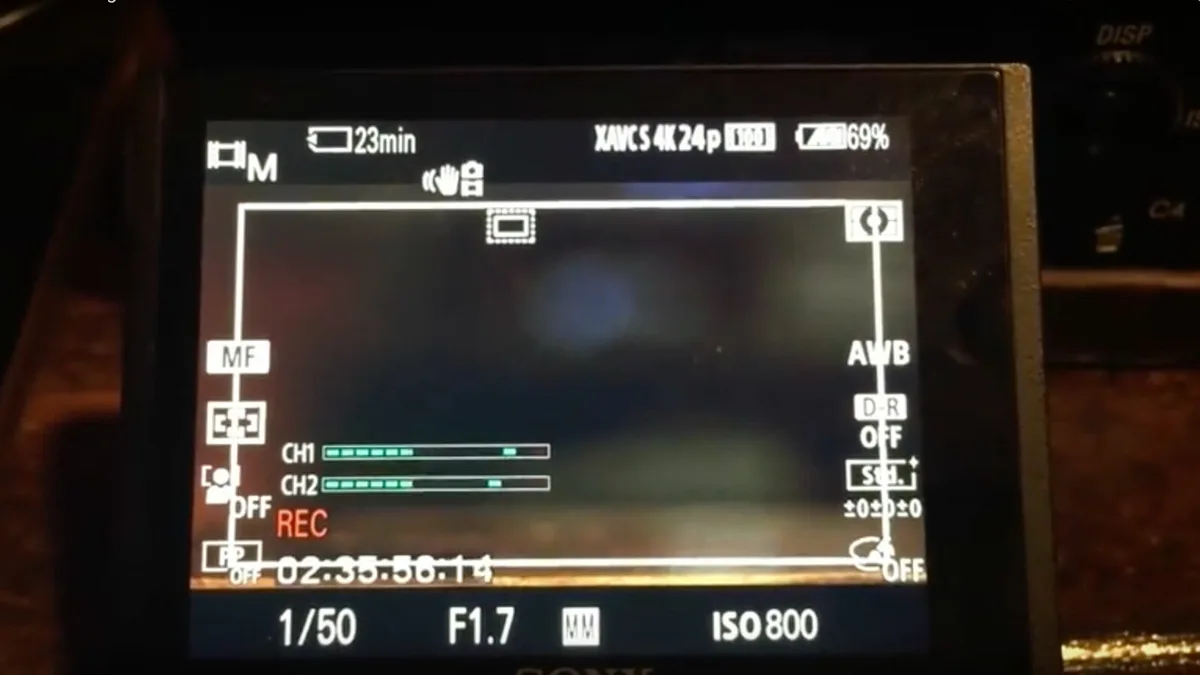
You are trying to get a clean 4K take and the camera shuts down. That is the moment mirrorless camera overheating while recording troubleshooting stops being an abstract worry and becomes an immediate problem. Your timeline slips, your client waits, and you wonder if the gear is broken.
Manufacturer specs confirm that most mirrorless bodies hit thermal limits between 20 and 40 minutes of continuous recording at high bitrates, depending on ambient conditions. As of 2026, firmware updates have improved these numbers for several models, but the physics of heat dissipation in a small magnesium body has not changed. The good news is that overheating is almost never random.
It follows predictable patterns that you can identify and fix.
Image source: Web (Bing) / cined.com (Web image (fair-use with source credit))
Quick Answer
Overheating happens when the sensor and processor generate more heat than the body can shed. Lower the bitrate to 100 Mbps or switch to IPB codec. Turn off IBIS if the camera is on a tripod.
Use the high temp setting if your model offers it. Open the battery door and tilt the LCD screen away from the body for passive cooling.
First, Does Your Camera Actually Have a Problem?
Every mirrorless camera has a heat tolerance built into its firmware. The camera is designed to shut down or display a warning when internal temperatures hit around 40°C to 42°C. That is not a defect.
That is the camera protecting itself.
If your camera consistently records 4K at 24p for 40 minutes before warning you, that is normal. If it shuts down in under 10 minutes on 1080p, that is a problem. Your first step is to calibrate your expectations against what the manufacturer actually promises.
The Sony A7S III can record 4K 60p for about 20 minutes before overheating in a 25°C room. The Canon R5 C, with its built-in fan, can run for over an hour.
Check the model-specific specs before you assume something is broken. If your camera is shutting down far earlier than aggregate user reviews suggest, then you have a real issue to diagnose. But if it is hitting the expected limit, you are just pushing the camera beyond its design envelope.
That shifts the focus from repair to workaround. If you are seeing unusual error codes or behavior alongside the overheating, our common recording problems guide covers those edge cases.
What's Your Shooting Situation?
Overheating is not a single problem. It is three variables interacting: resolution and frame rate, ambient temperature, and recording duration. Change any one of these and the outcome changes.
| Variable | Low Heat Load | High Heat Load |
|---|---|---|
| Resolution / Frame Rate | 1080p 24p, 4K 24p IPB | 4K 60p ALL-I, 8K raw |
| Ambient Temperature | 20°C (68°F) indoors | 35°C (95°F) direct sun |
| Recording Duration | Under 15 minutes | Over 30 minutes continuous |
If you are shooting in direct sunlight at 4K 60p, the camera will overheat. That is physics. You can lower the frame rate to 24p or switch to 1080p and the problem may vanish entirely.
That is not a fix for every scenario, but it tells you immediately whether the camera itself is working correctly.
If the camera overheats in a 20°C room at 1080p 24p in under 15 minutes, you have a hardware or firmware issue. If it only happens at 4K 60p outside in summer, the camera is behaving normally. Your shooting situation is the biggest factor in determining which fix to try first.
Understanding how your camera settings interact with heat generation can help narrow down the root cause.
The Cooling Levers You Can Actually Pull
You have several settings that directly affect heat generation. They are ranked here by how much they actually help.
Lower the bitrate. This is the single most effective lever. Shooting in IPB instead of ALL-I can cut heat generation by 15 to 20 percent. For most real world video, IPB quality is indistinguishable from ALL-I.
Switch to 100 Mbps or even 50 Mbps for interviews or talking head shots.
Turn off IBIS. In Body Image Stabilization keeps the sensor floating on magnets and springs. That produces heat even when the camera is locked on a tripod. If your camera is on a stable surface, turn it off.
Aggregate reviews suggest a 3 to 5 degree Celsius drop in sensor temperature.
Reduce preview brightness and turn off the viewfinder. The LCD and EVF generate heat when running. Drop the screen brightness to the lowest usable level. If you are recording externally, turn off the camera screen entirely.
Switch to a lower resolution temporarily. If you are trying to diagnose whether the overheating is location specific, drop to 1080p and record for the same duration. If the camera runs much cooler, you have confirmed the issue is heat from high resolution processing.
The Battery Door Trick and the High Temp Setting
This sounds like something a forum dweller made up, but it works. The battery compartment door traps heat. Opening it releases warm air that builds up around the battery and card slot.
Many cameras, especially Sony and Fuji models, run noticeably longer with the door unlatched.
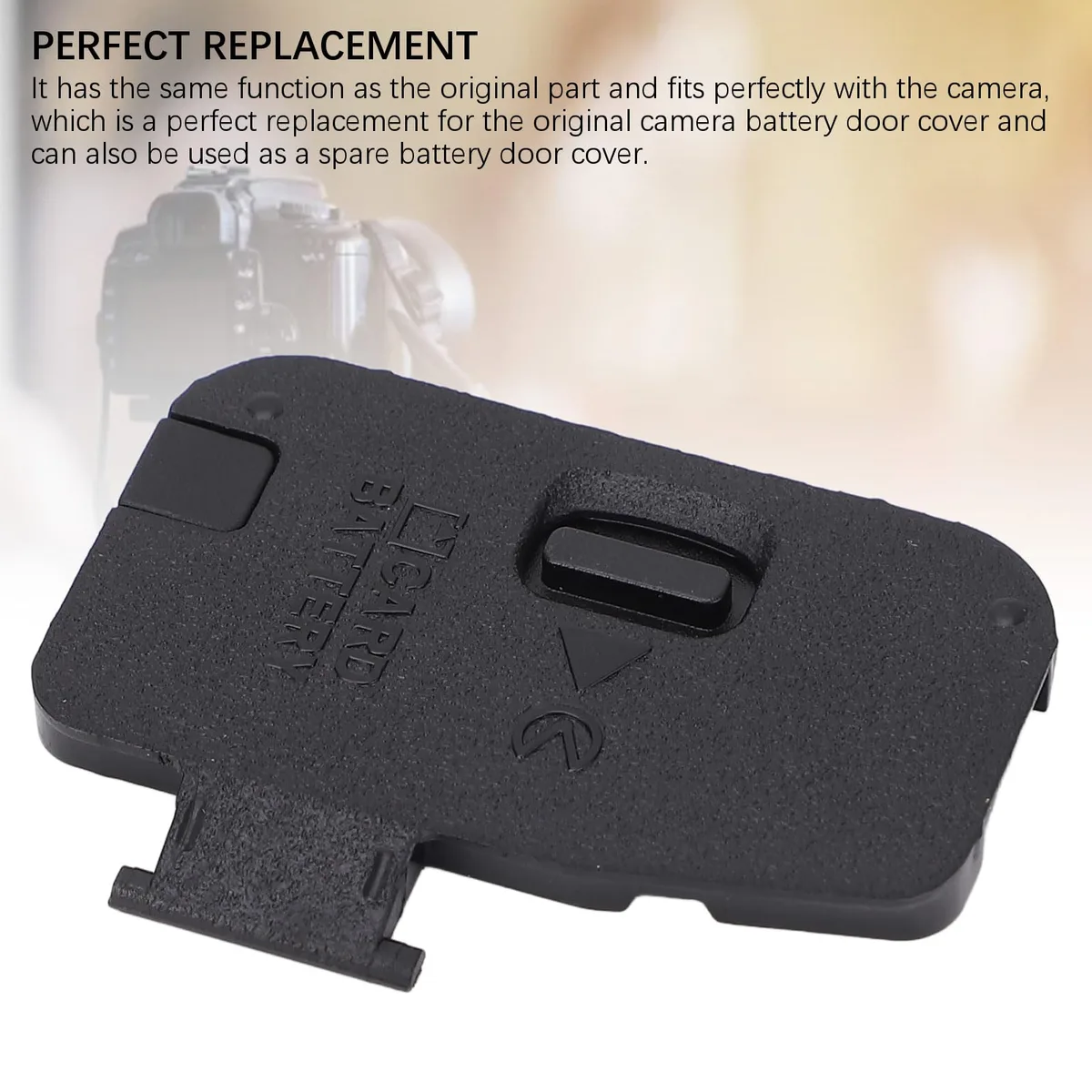
Image source: Web (Bing) / merryroses.com (Web image (fair-use with source credit))
Do not worry about the battery falling out. Most batteries are held firmly in place by the latch mechanism even when the door is open. If you are recording on a tripod, the risk is basically zero.
If you are doing handheld work, you can tape the door in the open position with gaffer tape. For more details on battery door issues specifically, that guide covers common latch and connection problems.
The high temp setting, sometimes called "Auto Power Off Temp" in the menu, allows the camera to run past its normal thermal threshold. Sony cameras have this option under the setup menu. Setting it to high lets the sensor reach a higher temperature before the camera shuts down.
This does not damage the camera. The firmware still protects the sensor from actual damage. It just allows a wider operating window.
Canon cameras have a similar option called "Overheating Control" or "Auto Power Off Temperature." Check your menu under the wrench or gear icons. If you set this to high and still overheat, the issue is not the threshold. It is the heat generation itself.
Common Mistakes That Make Overheating Worse
A lot of overheating is not the camera's fault. It is the user accidentally making the problem worse. Here are the most common errors.
Leaving the camera in a hot car. A camera left in a car on a summer day can reach 50°C to 60°C internal temperature. That heat does not dissipate instantly. If you pull the camera out and start recording, it will hit the thermal limit much faster because the starting temperature is already high.
Let the camera cool down in the shade for at least 15 minutes before shooting.
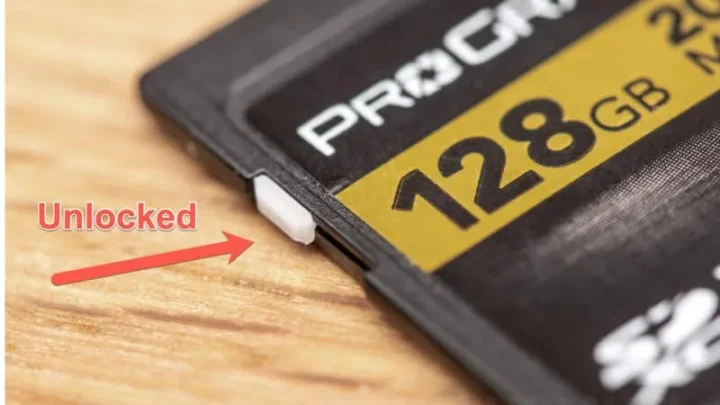
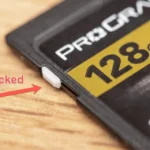
Using a slow memory card. A card that writes at 60 MB/s or slower has to work harder to keep up with high bitrate video. That generates heat inside the card and inside the slot. Use a V90 or at least V60 rated SD card for 4K recording.
For CFexpress, use a card rated for sustained write speeds of at least 600 MB/s. If you run into SD card formatting issues or unrecognized card errors, those can also cause retry loops that generate extra heat.
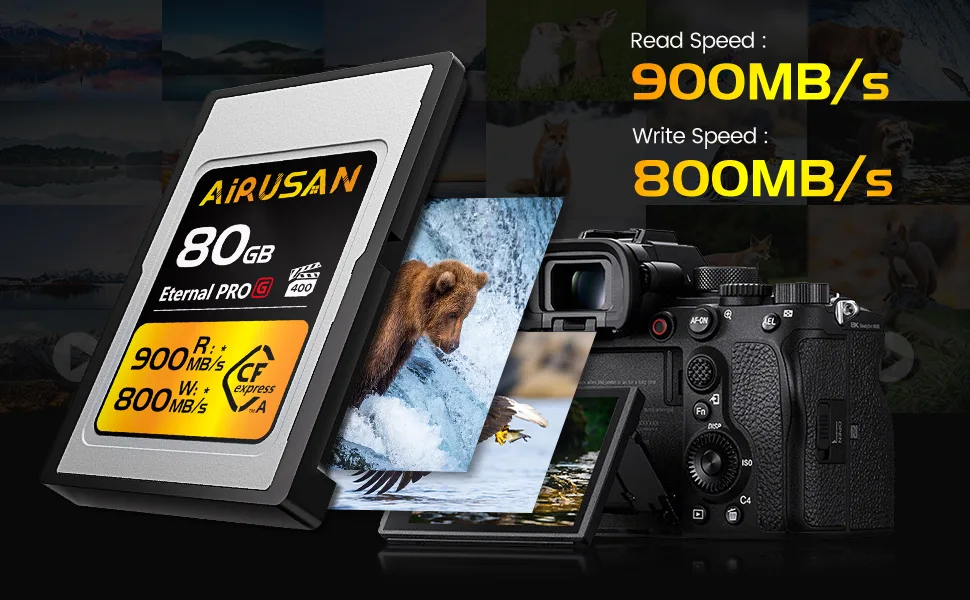
Image source: Web (Bing) / amazon.co.uk (Web image (fair-use with source credit))
Blocking the vents. Some mirrorless cameras have passive cooling vents on the bottom or sides. Setting the camera on a soft surface like a bed, couch, or even a carpeted table blocks airflow. Use a hard, flat surface or a tripod to allow heat to escape underneath.
This is a simple fix that many people overlook entirely.
Running internal and external recording simultaneously. Recording to the internal card and an external recorder at the same time doubles the write load on the processor. If you are using an external recorder, turn off internal recording unless you absolutely need the backup. The heat saved can be significant.
Quick Decision Guide – Which Fix to Try First
This guide assumes you have a working camera that overheats during recording. It does not apply if the camera shows error codes or refuses to turn on. For those situations, start with common firmware update troubleshooting or a factory reset first.
If your camera shuts down in under 10 minutes at any setting. Try a factory reset first. Corrupted settings profiles can cause the processor to run hot. If that does not help, check the latest firmware for your model.
Manufacturers like Sony and Canon often release thermal management improvements.
If your camera overheats at 4K 60p but not at 4K 24p. This is normal thermal behavior for most mirrorless bodies. The fix is to lower the bitrate or switch to IPB codec. If you need 60p, consider an external recorder.
Offloading the encoding to the recorder keeps the camera cooler.
If your camera overheats in direct sunlight but not indoors. The ambient temperature is the problem. Use a sun shade or umbrella over the camera. Open the battery door.
Point a small USB fan at the camera body. These passive cooling methods can add 10 to 15 minutes of recording time.
If your camera overheats randomly across all settings. Check the memory card. A slow or failing card forces the camera to retry writes, generating extra heat. Replace it with a V90 rated card.
Also check the battery. Third party batteries often have different thermal profiles and can cause inconsistent behavior.
If your camera overheats only during long takes over 30 minutes. This is the thermal limit of a fanless body. Use the high temp setting if available. Split your recording into 20 minute segments with a short pause between them.
The camera will cool down enough to start again.
If none of these steps work. The camera may have a hardware defect. Contact the manufacturer or a certified repair center. Prolonged overheating can eventually damage the sensor or processor, so do not keep pushing the camera if the basic fixes have not helped.
If you are also seeing memory card error messages, that points to the card slot as a possible heat source.
Frequently Asked Questions
Does overheating permanently damage my camera?
No, not in the short term. The thermal shutdown is designed to protect the sensor and processor. Repeated overheating over many months can degrade internal components, but a few shutdowns will not cause permanent damage.
Let the camera cool down before using it again.
Can I use an external fan to keep the camera cool?
Yes. A small USB fan pointed at the camera body helps a lot. It does not need to be a special camera accessory.
A desk fan or clip on fan works fine. Position it so air flows across the battery door and the bottom of the camera where heat builds up.
Should I use a dummy battery instead of the regular battery?
A dummy battery plugged into AC power reduces heat from the battery itself. It does not reduce heat from the sensor or processor. It helps in studio settings where you need long recording sessions.
For run and gun shooting, it adds another cable to manage.
Will a firmware update fix my overheating problem?
Sometimes yes. Several camera manufacturers have released firmware updates that improve thermal management. The updates adjust how the camera handles bitrate spikes and processor load.
Check your camera maker's support site for the latest firmware version and release notes.
Is it normal for my camera to feel warm during recording?
Yes. The sensor and processor generate heat during operation. A warm camera body is normal.
A hot camera body that is uncomfortable to touch for more than a few seconds is a sign that it is approaching the thermal limit. Monitor the temperature warning icon in the display.

Similar Posts

















[…] it annually for reliable performance. If you run into overheating while recording, our guide on thermal throttling issues common to compact cameras covers similar […]