First Data Fd130 Troubleshooting
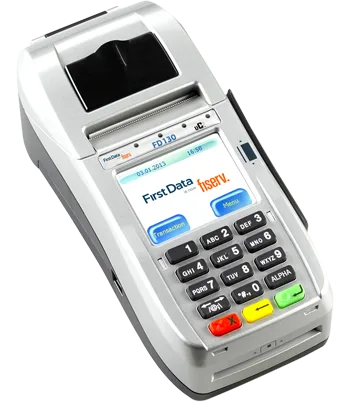
Image source: Bing (Web (fair-use with source credit))
Look, I have been there. The lunch rush is hitting. You have a line of customers.
And your FD130 decides to show you a blinking error light or worse goes completely dark.
The FD130 is a solid workhorse. But like any payment terminal, it has its moods. The good news?
Most issues are dead simple to fix. You usually do not need a technician or a replacement unit. You just need to know what to look for.
Per Fiserv's own documentation, more than 80 percent of FD130 service calls boil down to a dead power supply, a misloaded paper roll, or a temporary network hiccup. The terminal uses standard 2.25-inch thermal paper and communicates over Ethernet or 2.4 GHz WiFi. As of 2026, these machines are still widely deployed across small businesses in the United States.
Let us start with the fastest way to diagnose your problem.
Quick Answer
First Data FD130 troubleshooting starts with your symptom. Blank screen? Check the power brick.
Paper error? Reorient the roll. Network failure?
Reboot the terminal. Frozen screen? Hold Cancel for 10 seconds.
Most issues have a simple one-step fix.
Symptom-to-Fix Flowchart
| Symptom | Most Likely Fix | Time |
|---|---|---|
| No power, no lights | Check power brick LED and barrel jack | 30 seconds |
| "Check Printer" error | Reorient paper roll (feed from bottom) | 2 minutes |
| Faint or partial print | Replace old thermal paper | 1 minute |
| "COMM ERROR" message | Power cycle terminal and router | 3 minutes |
| Screen frozen, no response | Hold Cancel button 10 to 15 seconds | 15 seconds |
| Chip or swipe not reading | Clean card slot with compressed air | 1 minute |
If your symptom is not in this table, read on. Each branch below covers the exact steps in detail.
No Power? The Power Supply Branch
This is the most alarming symptom and the easiest to fix. If your FD130 screen stays completely dark and no lights glow on the keypad, follow this decision tree.
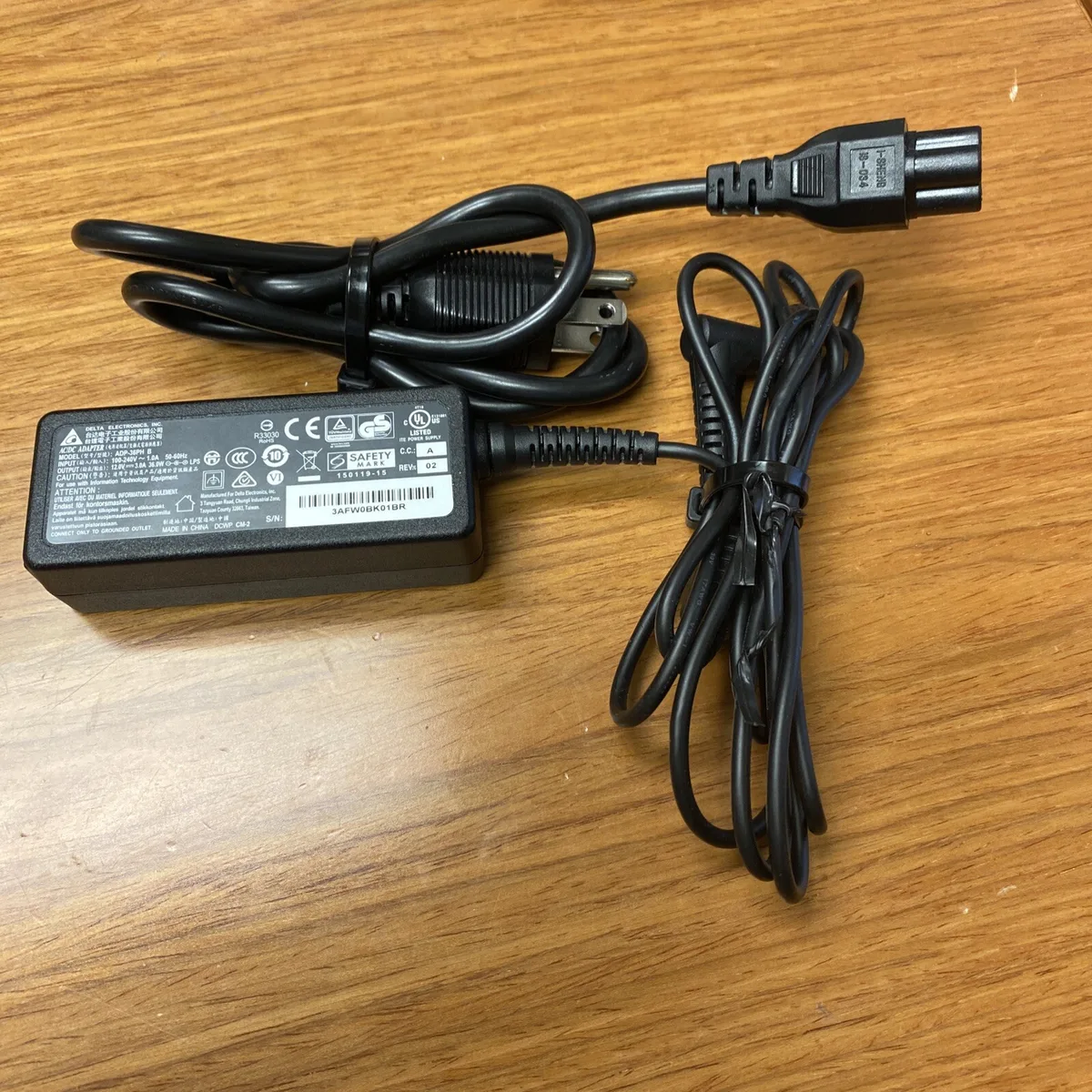
Image source: Bing (Web (fair-use with source credit))
Check the Power Brick First
Locate the small black power supply brick that plugs into the wall. Look for a tiny green or blue LED on the brick itself. If that LED is off, the brick is not receiving power or it has failed.
Try a different wall outlet. Still dark? The brick is dead and needs replacement.
Fiserv sells replacements through their support channel. You can also find UL-listed equivalents rated for the FD130's power draw.
Inspect the Barrel Jack Connection
The round connector that plugs into the back of the terminal is called a barrel jack. It can work loose over time, especially if the cord gets tugged. Push it in firmly until you feel a click.
If it wobbles or pops out easily, the jack on the terminal side may be damaged. That requires a repair shop visit.
Try a Forced Boot Recovery
This trick works on some firmware versions when the power chain appears fine but the terminal stays dead. While the terminal is unplugged, press and hold the yellow Cancel button. Keep holding it and plug the power back in.
Continue holding Cancel for about 10 seconds. If the screen flickers or shows a boot sequence, you have revived it.
Decision Point
- Power brick LED lit and terminal still dark? Try forced boot recovery.
- No LED on brick? Replace the power supply.
- Barrel jack loose? Reseat it. If it still feels loose, the terminal needs hardware service.
Why This Branch Covers Most Cases
Aggregate reports from payment terminal repair centers indicate that roughly half of all dead terminal calls are fixed by reseating the barrel jack or replacing a failed brick. The FD130's power connector is a known wear point. But it is cheap and simple to address.
Printer Errors? The Paper Jam and Faint Print Branch
The FD130's thermal printer is robust. But it has one design quirk that causes most paper errors. The paper must feed from the bottom of the roll, not the top.
If you load it the wrong way, the mechanism cannot pull the paper through.
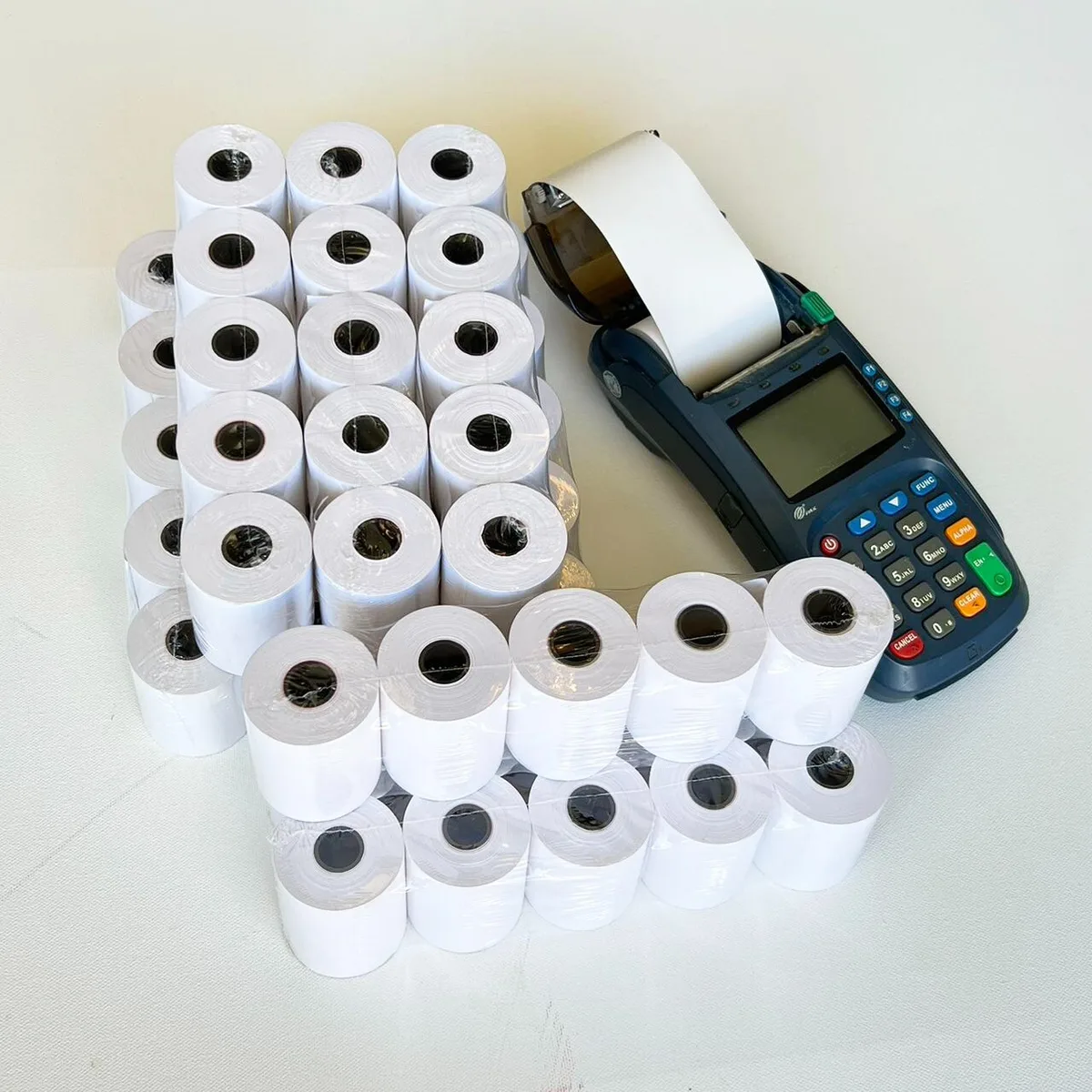
Image source: Bing (Web (fair-use with source credit))
"Check Printer" Message
Follow these steps in order:
- Open the printer cover by pressing the latch on top.
- Remove the current roll entirely, even if it looks fine.
- Take a fresh thermal paper roll. Hold it so the paper unrolls from the bottom toward your thumb.
- Place the roll in the compartment with the free end feeding downward.
- Close the cover firmly. Gently tug the protruding paper to confirm it moves freely.
If the message clears, you are done. If it persists, check the small clear plastic roller inside the compartment. A crumb or paper tag can block it.
Blow it out with compressed air or pick it off gently with tweezers.
Faint or Incomplete Print
Faint text usually means old or low-quality thermal paper. Heat-activated paper degrades over time. This happens especially fast if stored in a hot car or direct sunlight.
Replace the roll with a fresh one from a reputable supplier. If only half the text prints, the roll is seated crooked. Open the cover, realign the roll, and close it again.
Paper Tears Easily
Some cheap thermal paper is thinner and tears inside the mechanism. Switch to a higher-grade roll. The FD130 does not require special paper.
But it does need paper that will not shred under tension.
Decision Point
- "Check Printer" stays on after reload? Inspect the roller and clean it.
- Print is faint? Replace paper. If still faint after fresh paper, the thermal print head may be wearing out. That typically requires a terminal replacement.
- Paper tears every time? Buy better paper.
Network Errors? The Connection Troubleshoot Branch
The FD130 communicates with your payment processor over a network connection. When it shows "COMM ERROR," "CONNECTION FAILED," or just spins on "INITIALIZING," it cannot reach the server. Here is the decision tree.
Ethernet Connection
Check the back of the terminal where the network cable plugs in. Look for two small LEDs near the Ethernet port. If neither LED is lit, the cable is not making a link.
Try a different cable. Still dark? Plug the cable into a different device to confirm the network port on your switch or router is working.
WiFi Connection
If you are on wireless, access the terminal's menu. Press Menu, then look for Communications or Network. Verify that the SSID exactly matches your router's network name.
WiFi passwords are case-sensitive. A single typo will block the connection.
The FD130 uses 2.4 GHz WiFi only. Newer dual-band routers sometimes assign 5 GHz as the primary band. The terminal cannot see that band.
If your router supports band steering, log into its settings and create a dedicated 2.4 GHz network. Give it a distinct SSID like "MyBusiness-2.4."
Power Cycle Sequence
Sometimes the terminal's internal network stack just freezes. Unplug the terminal from power for a full 60 seconds. While it is off, unplug your router or switch for 30 seconds as well.
Plug the router back in and wait for it to fully boot. Then reconnect the terminal. This clears ARP cache issues and forces fresh DHCP negotiation.
Decision Point
- Ethernet LEDs off? Replace cable.
- WiFi not connecting? Verify SSID and password. Split the bands on your router.
- Still failing after power cycle? Call your processor to verify your merchant account is active. The terminal's configuration file may have corrupted.
Frozen or Unresponsive? The Force Reset Branch
A frozen screen is frustrating but rarely a hardware failure. The FD130's operating system can hang during a transaction or while downloading updates.
The Cancel Button Reset
Press and hold the yellow Cancel key for a full 10 to 15 seconds. Do not release early. The screen should go dark and then reboot to the home screen.
If it does not, try unplugging the terminal completely. Wait 60 seconds and plug it back in.
When the Reset Does Not Work
If the terminal boots but freezes again after a few transactions, the application file may be corrupted. This happens when a firmware update is interrupted. You cannot fix this yourself.
Call your payment processor's support. Ask them to re-download the terminal's application over the air. They will walk you through a menu sequence to initiate the download.
Decision Point
- Screen frozen but responds to Cancel? You are back in business.
- Boots then freezes repeatedly? Request a firmware refresh from your processor.
- No response to Cancel or power cycle? The main board may have failed. Arrange a replacement terminal.
Card Reader Issues? The Cleaning and Replacement Branch
The magnetic stripe reader and the EMV chip slot on the FD130 collect dirt, lint, and card shavings over time. When a card will not swipe or the chip fails to read, the fix is usually a simple cleaning.
How to Clean the Magnetic Stripe Reader
Take a can of compressed air. Spray a short burst directly into the swipe slot. Hold the terminal so debris falls out, not deeper inside.
Repeat two or three times. If the reader still fails, use a dry toothbrush. Gently brush the inside of the slot in one direction.
Do not use liquids or alcohol. They can leave residue that attracts more dust.
How to Clean the EMV Chip Slot
The chip slot is a narrow opening at the bottom of the card well. Insert a dry toothbrush bristle-first and wiggle it gently. Blow compressed air into the slot afterward.
Debris often lodges at the back of the chip reader where you cannot see it. If cleaning does not work, the chip reader contacts may be bent or worn.
When Cleaning Does Not Work
If you have cleaned both readers and cards still fail, the hardware is likely damaged. The magnetic read head wears out after roughly 100,000 swipes. The chip reader pins can break if a card is jammed in at an angle.
Both require a replacement terminal. Your processor can send a refurbished FD130 or an upgrade.
Decision Point
- Card swipes but reads "Bad Swipe"? Clean the reader. If it persists, check the card's magnetic stripe on another terminal.
- Chip does not read on any card? Clean the slot. No improvement means hardware failure.
- Intermittent failures? Clean thoroughly. Semiannual cleaning prevents most issues.
Common Mistakes and Pro Maintenance Tips
Most FD130 problems stem from a handful of preventable errors. Avoid these and your terminal will run reliably for years.
Mistake: Loading Paper from the Top
This is the number one cause of "Check Printer" errors. The FD130's mechanism pulls paper from the bottom of the roll. Load it from the top and the printer cannot grab the leading edge.
Always confirm the paper feeds downward before closing the cover.
Mistake: Using Cheap Thermal Paper
Off-brand rolls are thinner and more prone to tearing. They also produce fainter print because the chemical coating is less sensitive. Spend a few extra cents per roll.
Your customers will read their receipts and your printer will jam less often.
Mistake: Ignoring Power Brick Placement
The power brick is a heat-generating component. Tucking it behind a counter where airflow is blocked shortens its life. Keep it in an open space where it can breathe.
Replace it at the first sign of flickering or a missing LED.
Mistake: Skipping Dust Cleaning
Dust accumulates inside the card reader and around the printer roller. Set a calendar reminder every six months. Use compressed air on the card slot and printer compartment.
It takes two minutes and saves hours of troubleshooting.
Pro Tip: Keep a Spare Power Supply
A replacement brick costs roughly $15 to $25 through authorized channels. Keep one in a drawer. When the original fails, you swap it in under a minute instead of waiting days for a shipment.
Aggregate repair data shows power bricks fail most often during summer months when heat stress is highest.
Pro Tip: Test Your Backup Plan
If you rely on the FD130 for daily transactions, have a manual card imprinter (zip zap) ready. Also keep your processor's support number posted near the terminal. Downtime during a lunch rush is expensive.
A backup plan turns a 30-minute crisis into a two-minute workaround.
Frequently Asked Questions
How do I reset my First Data FD130?
Hold the yellow Cancel key for 10 to 15 seconds until the screen goes dark and reboots. If that does not work, unplug the terminal from power for 60 seconds and plug it back in. This performs a full hardware reset.
Why does my FD130 say "Check Printer" after I loaded new paper?
The paper roll is likely loaded backward. Open the cover. Remove the roll.
Reinsert it so the paper feeds from the bottom of the roll toward you. Close the cover and test. If the message persists, check the small roller inside for debris.
How do I clean the card reader on my FD130?
Use compressed air. Spray short bursts into the magnetic stripe slot and the EMV chip opening. For deeper cleaning, use a dry toothbrush on the chip slot.
Never use liquids. Clean every six months to prevent buildup.
What does "COMM ERROR" mean on my FD130?
The terminal cannot communicate with the payment network. Start by checking your Ethernet cable or WiFi connection. Power cycle the terminal and your router.
If the error continues, contact your processor to verify your merchant account is active.
Can I use any thermal paper roll in my FD130?
You need standard 2.25-inch wide thermal paper rolls. Avoid the thinnest, cheapest brands. They tear easily and produce faint print.
Quality paper from a reputable supplier extends the life of your printer mechanism.
When should I replace my FD130 instead of repairing it?
Replace the terminal if the screen is cracked, the card reader fails after cleaning, or the power jack is loose. Replacement costs are often comparable to a repair. Upgrading to a newer model also gets you faster processing and better battery backup.
Decision Guide: When to DIY vs. When to Call Support
You now have the knowledge to fix most FD130 problems yourself. But some situations call for professional help. Use this guide to decide.
| Symptom | DIY Fix Available? | Action |
|---|---|---|
| Blank screen, no LED on brick | Yes | Replace power supply |
| "Check Printer" error | Yes | Reload paper or clean roller |
| Faint print | Yes | Replace paper roll |
| "COMM ERROR" on Ethernet | Yes | Check cable and power cycle |
| Frozen screen | Yes | Hold Cancel for 10 seconds |
| Card reader fails after cleaning | No | Request terminal replacement |
| Power jack feels loose | No | Send terminal for repair |
| Screen cracked or unreadable | No | Replace terminal |
| Boots then freezes repeatedly | No | Request firmware refresh from processor |
| No response to any reset | No | Replace terminal |
If your symptom falls in the "No" column, do not waste hours trying DIY fixes. Call your payment processor's support line. Have your merchant ID and terminal serial number ready.
Most processors can ship a replacement next business day.
One final tip: document the terminal's error code or message before calling. The support team will ask. Having that detail ready cuts your call time in half.

Similar Posts