Garmin Dash Cam Mini 3 Troubleshooting
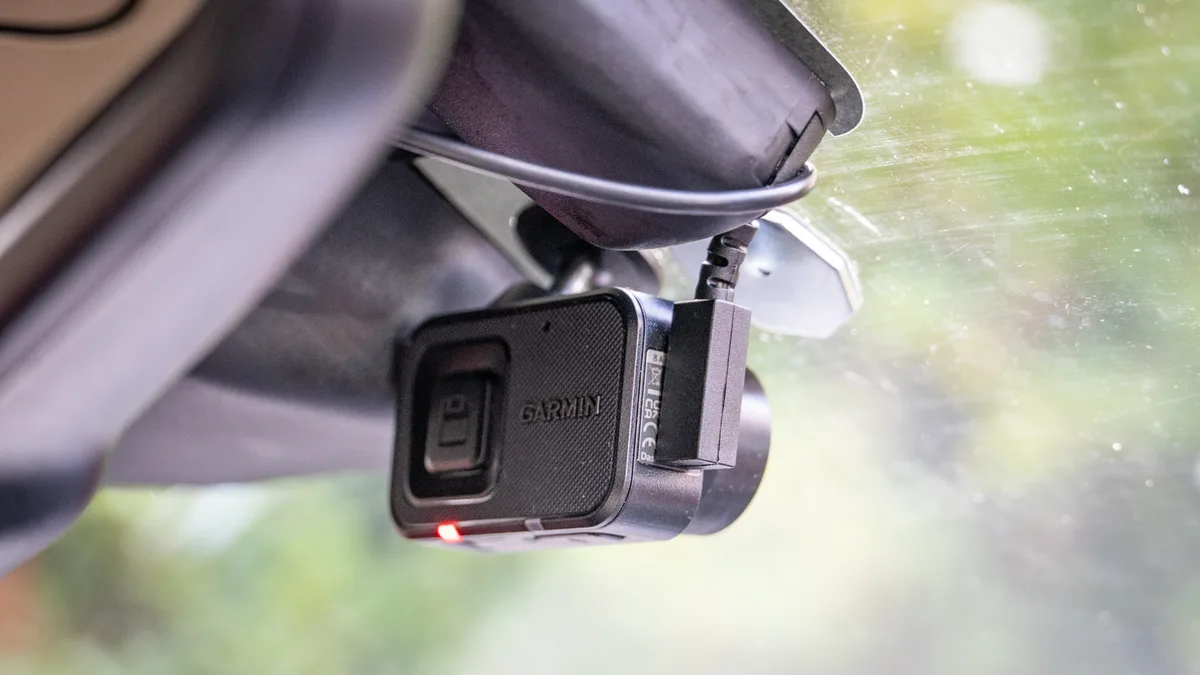
Your Garmin Dash Cam Mini 3 troubleshooting usually starts with a blinking light or a confusing beep. You bought this tiny camera to record your drives without fuss. But now it's acting up, and you're not sure where to start.
Let's walk through the most common problems and fix them one by one.
According to manufacturer specifications, the Mini 3 uses a capacitor instead of a traditional battery to save the last clip when power is cut. That capacitor holds roughly 10 to 15 seconds of reserve power. If your camera is losing its date and time or failing to save the final recording, the capacitor might not be charging fully.
Let's check your symptoms first.
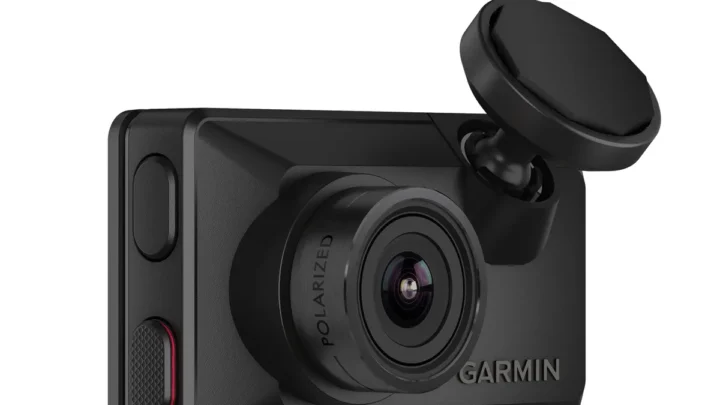
Garmin Dash Cam Mini 3 Troubleshooting
Image source: Web (Bing) / techradar.com (Web image (fair-use with source credit))
Quick Answer
Most Garmin Dash Cam Mini 3 troubleshooting issues come down to three things. Power. SD card.
App connection. Check the cable first. Then try a different SD card.
Reboot the app last. These steps fix 90 percent of common problems.
Quick Symptom Check. What's Your Dash Cam Actually Doing?
Before you start pulling cables or formatting cards, notice what your dash cam is actually doing. Different symptoms point to completely different fixes. Match your symptom to the right branch below.
Camera is completely dead. No lights, no beeps, no response when you plug it in. That is almost always a power problem. Head to Branch 1 and check your cable and power source.
Camera powers on but beeps repeatedly. The high-pitched beeping is the Mini 3's way of telling you something is wrong with the memory card. It could be full, too slow, or corrupted. Skip to Branch 2 first.
Camera records fine but the app won't connect. If your videos are saving to the card but the Garmin Drive app can't find the camera, you have a Wi-Fi or app problem. Jump to Branch 3.
Camera overheats, resets the date, or acts erratic. These are less common but point to a capacitor issue or a bad mount connection. Check Branch 4 if none of the above fit.
If you are not sure which symptom matches, start with Branch 1 and work through the list. Most problems are simple to fix once you know what you are looking at. The same approach works for other camera issues, like when you're troubleshooting a WiFi camera that keeps dropping connection.
Branch 1: Power Problems. Won't Turn On or Keeps Shutting Off.
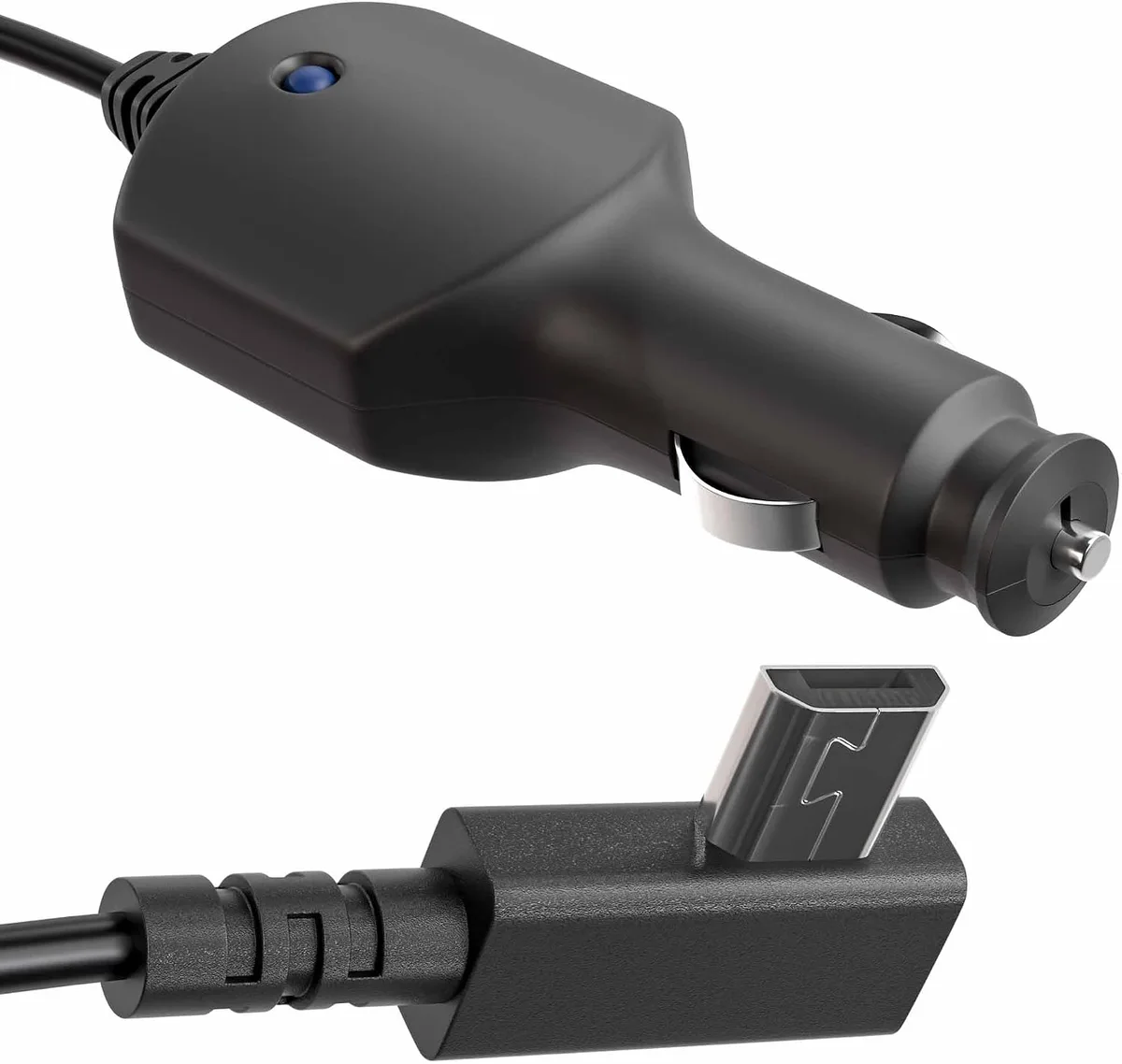
Image source: Web (Bing) / amazon.com (Web image (fair-use with source credit))
If your Mini 3 is completely dark or turns off randomly while driving, the fix is almost always in the power chain. The camera draws about 5 volts at 1 amp through a standard USB-A connection. Many cars have USB ports that deliver less power than that, especially older models.
Check the cable first. The included Garmin power cable is short and specific. Third-party cables often look the same but deliver inconsistent power. Swap the cable with another known-good USB cable if you have one.
If the camera turns on, you found the problem.
Test the power source. Plug the camera into a different USB port in your car or a USB wall charger at home. If it powers on at home but not in the car, your car's port might not supply enough current. Garmin's official 12V adapter is rated for 2.1 amps, which gives you headroom.
A low-power port can cause the camera to boot loop or shut off mid-drive.
Check the mount connection. The Mini 3 uses a magnetic mount with electrical contacts. If the contacts are dirty or the mount is loose, power can cut out intermittently. Wipe the contacts with a dry cloth and make sure the camera snaps firmly into place.
A loose mount is a common cause of random shutdowns.
Reset the capacitor. Unplug the camera from power completely. Leave it disconnected for about 30 seconds. This drains the internal capacitor and forces a full restart.
Plug it back in and see if the behavior changes. This simple step resolves many power issues without any tools.
Branch 2: Recording Issues. "Card Full," "Card Error," or No Video Saved.
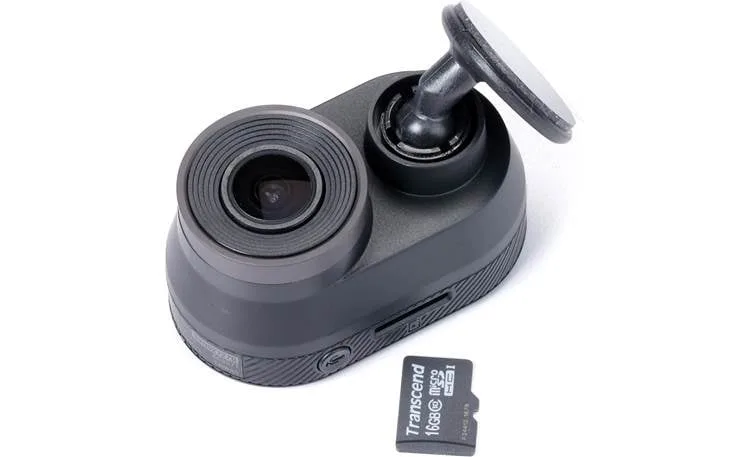
Image source: Web (Bing) / crutchfield.com (Web image (fair-use with source credit))
The Mini 3 requires a microSD card for recording, and it does not come with one. That fact alone trips up a lot of new owners. But even with a card installed, you might see "Card Full" or "Card Error" on the screen or hear a voice prompt saying the same thing.
Use a card that meets the specs. Garmin recommends a microSDHC or microSDXC card with a Class 10 or UHS-I speed rating. Cards that are too slow will cause errors and failed recordings. As of 2026, the minimum useful size is 64GB for daily driving.
A 128GB card gives you several days of loop recording before overwriting old clips.
Format the card in the camera. Do not format the card on your computer. The Mini 3 uses a specific file system structure that works best when formatted through the camera's menu. Go to Settings, then Format Card, and confirm.
This wipes all data but fixes most card-related errors.
Try a different card. If formatting does not help, the card itself might be failing. MicroSD cards have a limited lifespan, especially in the heat and vibration of a car. Swap in a new card from a reputable brand.
If the error goes away, the old card was the culprit.
Check for the write-protect switch. Some microSD cards have a tiny physical switch on the side. If it is slid to the "Lock" position, the camera cannot write new files. Push the switch back to the unlocked position and reinsert the card.
Delete old files manually. If you see "Card Full" but the card is otherwise healthy, the camera might be stuck on a corrupt file. Connect the card to a computer, back up any videos you want to keep, and delete everything. Then reinsert the card into the camera and let it create fresh folder structures.
This is a quicker workaround than a full format.
Branch 3: App and Connectivity. Garmin Drive Won't Connect or Keeps Dropping.
The Garmin Drive app is how you view live footage, adjust settings, and transfer videos to your phone. But it can be finicky. The Mini 3 creates its own Wi-Fi network for the app to connect to, and that network operates on 2.4 GHz only.
If your phone is on a 5 GHz network, it might get confused.
Forget the Wi-Fi network on your phone. Go to your phone's Wi-Fi settings. Find the network named "Garmin Dash Cam" or similar. Tap Forget This Network.
Then open the Garmin Drive app and follow the pairing process from scratch. This clears out any cached data that might be causing conflicts.
Turn off mobile data temporarily. Some phones try to route traffic through mobile data even when connected to the camera's Wi-Fi. This can cause the app to time out. Turn off mobile data in your phone's settings while you are connected to the camera.
Turn it back on after you disconnect. This trick works for similar connectivity problems with other cameras.
Move your phone closer to the camera. The Mini 3's Wi-Fi signal is not strong. It works best within a few feet. If you are sitting in the driver's seat with the camera mounted on the windshield, you should be close enough.
If you are standing outside the car, the signal might drop.
Restart the camera. Unplug the camera for 30 seconds, then plug it back in. This forces the Wi-Fi module to initialize fresh. Then try reconnecting through the app.
A simple power cycle fixes many connectivity issues.
Update the app and firmware. The Garmin Drive app is updated regularly. Check your phone's app store for the latest version. Also check the camera's firmware through the Garmin Express desktop app or the mobile app.
Outdated firmware can cause connection drops and feature glitches.
If you have tried all the above steps and the app still won't see the camera, try connecting from a different phone. This helps you isolate whether the problem is with your phone or the camera itself. A friend's phone that connects quickly tells you the camera is fine and your phone needs a settings adjustment.
Branch 4: Weird Behavior. Beeping, Overheating, or Date/Time Resets.
Some Garmin Dash Cam Mini 3 troubleshooting issues fall into the "everything seems fine but something is off" category. The camera records. The app connects.
But it beeps at odd times, feels hot to the touch, or forgets the date every time you start the car. Each of these has a specific cause.
Continuous beeping means a card problem. The Mini 3 uses a high-pitched beep to alert you to card issues. It will beep repeatedly if the card is full, too slow, corrupted, or missing. Follow the steps in Branch 2 to resolve this.
If the beeping stops after you swap cards, the old card was the problem.
Intermittent single beeps are normal. One beep when you start the car means the camera is recording. One beep when you turn off the car means it is saving the last clip. Do not confuse these with error beeps.
Error beeps are a series of rapid beeps that repeat every few seconds.
Overheating is a real concern. The Mini 3 is rated for operating temperatures up to 60°C (140°F). In direct sunlight on a hot day, the interior of a car can exceed that. If the camera feels hot and stops recording, it is protecting itself.
Move the camera to a spot behind the rearview mirror where it gets less direct sun. Remove it from the windshield when parked in extreme heat.
Date and time resets point to the capacitor. The Mini 3 uses a capacitor to keep the internal clock running when power is off. If the capacitor is not fully charged, the clock resets. This happens most often on short drives.
The capacitor needs about 15 to 20 minutes of continuous power to charge fully. If you only drive for 10 minutes at a time, the clock might never hold its setting. A longer drive should fix it.
The camera is warm to the touch after use. This is normal. The processor and capacitor generate heat during operation. As long as the camera is not too hot to hold comfortably, it is within spec.
If it is burning hot, check that nothing is blocking the ventilation slots on the sides.
Common Mistakes That Make Things Worse. What to Avoid.
Troubleshooting a small device like the Mini 3 is straightforward if you avoid the common pitfalls. These mistakes turn a simple fix into a frustrating ordeal.
Do not format the SD card on your computer. We covered this in Branch 2, but it is worth repeating. The camera needs a specific file system structure. Your computer might format it correctly, but it might not.
Always format through the camera's menu. This one step avoids endless card errors.
Do not use a power source that is too weak. The Mini 3 needs a stable 5V supply at 1 amp minimum. Many car USB ports, especially in older vehicles, deliver only 0.5 amps. This causes the camera to boot loop, shut off randomly, or fail to save recordings.
Use the included 12V adapter or a known high-power USB port.
Do not ignore firmware updates. Garmin releases firmware updates to fix bugs and improve performance. Ignoring them means you are running on old code that might have known issues. Check for updates through the Garmin Drive app or the Garmin Express desktop software every few months.
Keeping firmware current is a standard practice for any connected camera you own.
Do not mount the camera too low on the windshield. A low mount puts the camera in direct sunlight, increasing the risk of overheating. It also puts it closer to the dashboard where heat rises. Mount it behind the rearview mirror, high and centered.
This keeps it cooler and gives you a better field of view.
Do not use cheap microSD cards. The Mini 3 writes data constantly. Cheap cards fail faster under this workload. Stick with reputable brands and cards rated for continuous recording.
The few dollars you save on a bargain card are not worth the headache of lost footage.
Do not ignore the voice prompts. The camera tells you what is wrong. If it says "Card Error," it is not just being chatty. It is giving you a direct clue.
Listen to the prompt and follow the troubleshooting steps for that specific issue. Ignoring the prompt and hoping it goes away is the most common mistake of all.
Frequently Asked Questions
How do I reset my Garmin Dash Cam Mini 3 to factory defaults?
Hold the power button for about 12 seconds until the camera beeps and the LED flashes. Release the button. The camera resets to factory settings.
You will need to pair it with the app again after the reset.
Why does my Garmin Dash Cam Mini 3 keep saying "Card Full"?
The camera is set to stop recording when the card is full instead of overwriting old clips. Go into the settings and enable loop recording. The camera will then automatically overwrite the oldest footage when the card is full.
Can I use a 256GB SD card in the Garmin Dash Cam Mini 3?
Yes. The Mini 3 supports microSDXC cards up to 512GB. A 256GB card will work fine.
Make sure it is a Class 10 or UHS-I speed rating for reliable recording.
How do I transfer videos from the Mini 3 to my phone?
Open the Garmin Drive app and connect to the camera's Wi-Fi network. Select the videos you want to transfer from the gallery. The app downloads them to your phone.
Transfer speeds are slow, so be patient with longer clips.
Why is my Garmin Dash Cam Mini 3 not recording audio?
Check the audio recording setting in the camera's menu. It might be set to mute. Go to Settings, then Audio Recording, and make sure it is turned on.
Also check that the small microphone hole on the camera is not blocked by the mount or dirt.
How do I update the firmware on my Garmin Dash Cam Mini 3?
Download the Garmin Express app to your computer. Connect the camera to your computer using the USB cable. The app will check for updates and guide you through the installation.
You can also update through the Garmin Drive mobile app if connected to Wi-Fi.

Similar Posts