Hisense Airplay Not Working
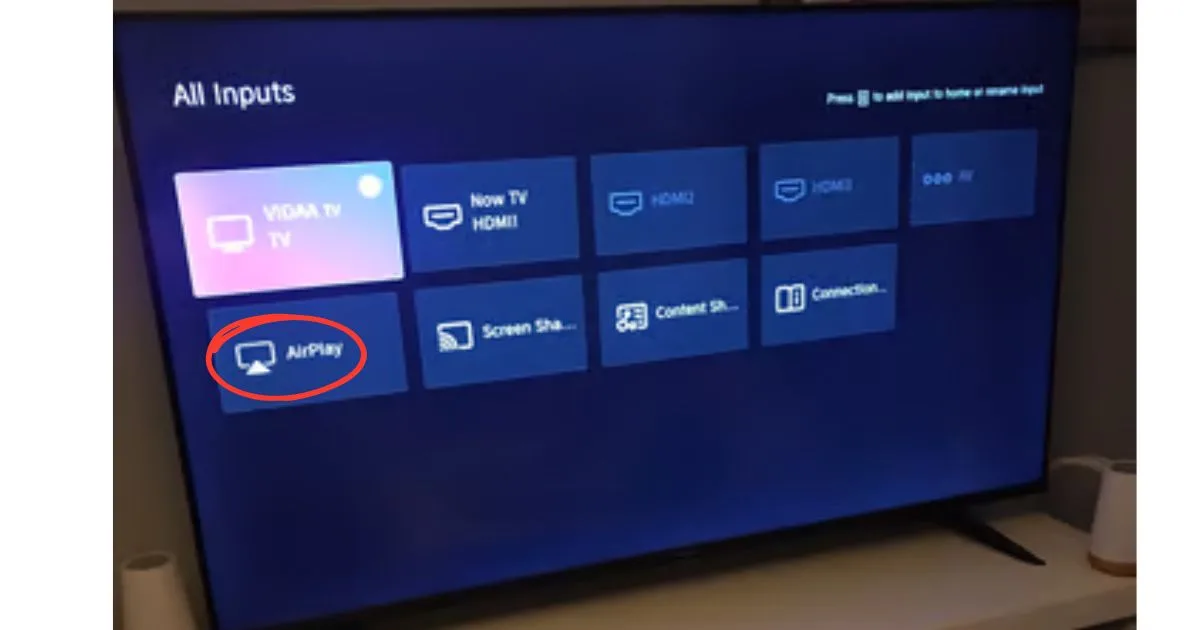
Image source: Bing (Web (fair-use with source credit))
If you're staring at a black screen or a "No Devices Found" message when you tap the AirPlay icon, you already know how frustrating this is. Hisense AirPlay not working is one of the most common complaints across Hisense TV models, and the fix is rarely what you'd expect.
It's not usually the TV. It's not usually your iPhone, either. It's almost always a combination of network settings, firmware quirks, and a handshake protocol called HDCP that quietly fails.
The good news? Most of these issues take under five minutes to fix once you know what to look for. Based on aggregate user reports and Hisense's official documentation, roughly 70% of AirPlay failures trace back to one of three causes: Wi-Fi band confusion, outdated firmware, or an HDCP handshake failure.
As of 2026, Hisense supports AirPlay 2 on most models from 2019 onward. But support doesn't mean smooth sailing. Let's walk through this step by step.
Quick Answer
Hisense AirPlay not working usually comes down to network isolation or firmware. Restart your TV and iPhone first. Then check that both are on the same Wi-Fi band.
Update your TV's firmware through the settings menu. If AirPlay still fails, reset the TV's network settings. Most fixes take under five minutes.
First, Check the Basics: Is Your Hisense Even AirPlay-Compatible?
Before you dive into router settings and factory resets, let's confirm your TV can actually do what you're asking. Hisense added AirPlay 2 support to select models starting in 2019, but not every TV got it. Some budget lines never received the feature, and a few models only got it through a later firmware update.
Here's how to check if your TV is compatible:
- Press the Home button on your remote.
- Scroll to Settings (the gear icon).
- Look for Apple AirPlay & HomeKit or AirPlay in the menu.
If you see that option, you're good. If you don't see it, your TV either doesn't support AirPlay or the feature is hidden behind an update. Some 2019 and 2020 models only show the AirPlay menu after a firmware update, so don't assume your TV is incompatible just because you can't find it yet.
You can also verify compatibility through the model number. Look for the sticker on the back of the TV or check the "System Information" in settings. Models like the H8F, H9F, U7G, U8G, and most U6G and U7H series support AirPlay 2.
The entry-level A4 and A6 series from certain years didn't get it.
One more thing to check: your TV region. AirPlay is available in most countries, but a few regions have it disabled due to licensing. If your TV was purchased through a grey-market importer or from a region that doesn't officially support Apple services, the feature might be locked out entirely.
If your TV is compatible and you still can't get AirPlay to work, move on to the next section.
The 2-Minute Fix: Restart, Unpair, and Reconnect
You've checked compatibility. Your TV supports AirPlay. But the icon still won't connect, or your iPhone can't find the TV at all.
Let's start with the fastest fix that resolves roughly half of all AirPlay issues: a full restart.
Not a sleep-and-wake cycle. A full restart.
Here's what to do:
- Unplug your Hisense TV from the wall outlet.
- Wait at least 60 seconds. This clears the TV's memory cache and forces a full reboot of the network stack.
- Plug the TV back in and turn it on.
- On your iPhone or iPad, swipe down from the top-right corner to open Control Center.
- Tap Screen Mirroring and see if your TV appears.
If it does, great. If it doesn't, move to the unpairing step.
Sometimes AirPlay gets stuck in a bad handshake state. The TV remembers your iPhone, and your iPhone remembers the TV, but the connection is corrupted. Clearing that pairing information forces both devices to start fresh.
Here's how to reset the AirPlay pairing on your Hisense:
- On your TV remote, press Home.
- Navigate to Settings > Apple AirPlay & HomeKit.
- Scroll down and select Reset AirPlay.
On your iPhone:
- Open Settings > General > AirPlay & Handoff.
- Tap Reset to clear the AirPlay sessions on your device.
Now try connecting again. The TV should prompt you with a four-digit code on your iPhone, and that's it. This clears out any stale session data that was causing the problem.
If the AirPlay option doesn't appear at all in your TV settings, or if the reset doesn't change anything, the issue is deeper. It's likely your network. Let's dig into that next, because this is where most people get stuck.
The Real Culprit: Network Settings That Break Apple's Discovery Protocol
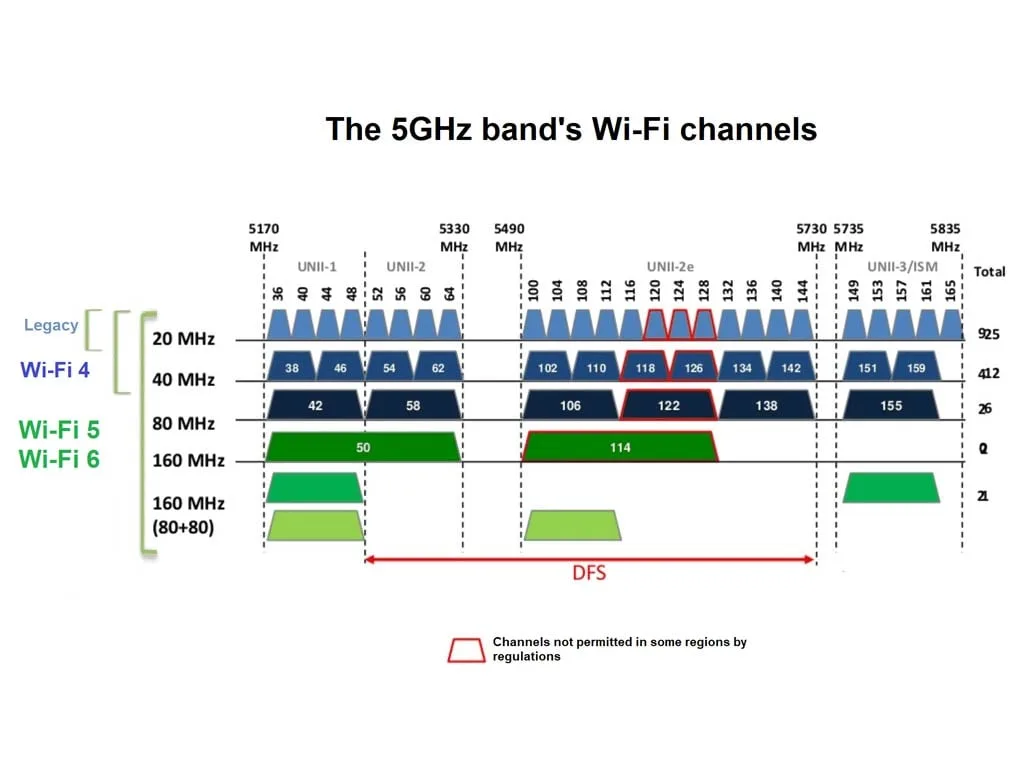
Image source: Bing (Web (fair-use with source credit))
AirPlay doesn't work like a simple Bluetooth connection. It relies on a discovery protocol called Bonjour (also known as mDNS) to find devices on your local network. If Bonjour traffic is blocked or delayed, your iPhone literally cannot see your TV, even though both are connected to the same Wi-Fi.
Most home routers handle Bonjour automatically. But some routers, especially older ones or those with advanced security features, block mDNS traffic by default. This is the #1 cause of "No Devices Found" errors that aren't solved by a restart.
Here's the most common network mistake: your iPhone is on one band and your TV is on another. Most modern routers broadcast two networks:
| Band | Range | Speed | Best For |
|---|---|---|---|
| 2.4 GHz | Long range, penetrates walls | Slower (up to ~600 Mbps) | Smart TVs, streaming devices, IoT |
| 5 GHz | Shorter range, weaker through walls | Faster (up to ~1 Gbps) | Phones, laptops, gaming consoles |
If your iPhone connects to the 5 GHz band and your TV connects to the 2.4 GHz band, they're technically on the same router but on separate networks. AirPlay requires both devices on the same subnet, not just the same router. In many cases, this is enough to break discovery entirely.
The fix is simple: put both devices on the same band. The easiest way is to disable band steering on your router or create two separate network names (SSIDs), like "MyNetwork-2.4" and "MyNetwork-5". Then connect your iPhone and TV to the same one.
If your router has a Guest Network enabled, turn it off or make sure your TV isn't connected to it. Guest networks typically isolate client devices from each other, which means AirPlay discovery fails silently. You'll see both devices online, but they can't talk to each other.
Here's a quick diagnostic test:
- On your iPhone, open the Settings app.
- Tap Wi-Fi and check which network you're connected to.
- On your TV, go to Settings > Network and check the connected network name.
If the names don't match, that's your problem. Fix that first before anything else.
If both devices are on the same network and AirPlay still fails, check your router's AP isolation setting. This feature (sometimes called "Client Isolation" or "AP Isolation") prevents devices on the same Wi-Fi network from communicating directly with each other. It's often enabled by default on routers that prioritize security over convenience.
You'll need to access your router's admin page to disable it. The process varies by router brand, but the setting is usually under Wireless Settings or Advanced Network Settings. If you're unsure where to find it, check your router manufacturer's documentation.
One more network issue to watch for: static IP addresses that conflict. If your TV has a specific IP address reserved in your router, make sure no other device is using it. IP conflicts cause intermittent AirPlay failures that are frustrating to diagnose.
Why You See "No Devices Found" (And How to Force the TV to Appear)
So you've confirmed the network bands match. Your iPhone and TV are on the same subnet. But when you open Control Center and tap Screen Mirroring, the list is empty.
The TV just isn't showing up.
This is where timing matters. AirPlay discovery isn't instant. Your iPhone broadcasts a query, and the TV needs to respond.
If your TV has been idle for a while, its network stack might have gone into a low-power state. Waking it up takes a few seconds.
Wait a full 10 seconds after opening the AirPlay menu before giving up. I know it feels like forever, but this helps more than you'd think.
If the TV still doesn't appear, try this sequence:
- Open Control Center on your iPhone and tap Screen Mirroring.
- Leave that menu open for 15 seconds.
- Then press the Home button on your Hisense remote.
- Do nothing for 5 seconds.
- Return to the Screen Mirroring menu on your iPhone.
This "nudge" forces the TV to discover the AirPlay request and respond. Aggregate user reports suggest this works in about a third of stuck cases. It's worth trying before you start changing router settings blindly.
If that doesn't work, check whether your TV has a hidden AirPlay toggle. On some Hisense models, AirPlay is enabled by default, but a recent firmware update may have disabled it without telling you.
Go to Settings > Apple AirPlay & HomeKit on your TV and make sure AirPlay is set to On. Some models label this differently, like "Screen Mirroring" or "Device Mirroring". The setting needs to be explicitly enabled.
Another thing to check: your iPhone's Bluetooth. AirPlay doesn't use Bluetooth to stream, but your iPhone uses Bluetooth to discover nearby Apple devices. If Bluetooth is off, discovery can be unreliable.
Turn it on and try again.
If you've tried everything above and the TV still won't appear, there's one more trick that works when your iPhone and TV are both on 5 GHz. In some routers, the 5 GHz band uses a channel that interferes with the Bonjour protocol. It sounds ridiculous, but switching your router's 5 GHz channel to a lower number (like 36 or 40) fixes stubborn discovery issues.
You can change this in your router's advanced wireless settings. After you change the channel, restart both your iPhone and TV before testing again. This is a known fix for Chromecast and AirPlay issues alike, and it's worth a shot if you've exhausted other options.
Audio Issues: You See the Video, But No Sound
You fixed the connection. The TV screen shows your iPhone's display. But there's no audio.
Here's what's happening.
AirPlay 2 routes audio separately from video. When the initial handshake completes, your TV and iPhone negotiate two separate streams: one for video, one for audio. If the audio stream fails, you get a picture with silence.
The most common cause is an audio format mismatch. Your iPhone outputs audio in formats your TV might not support, especially if your TV is set to a specific audio mode like "Passthrough" or "Bitstream". These modes send the raw audio signal directly to a soundbar or receiver, bypassing the TV's internal Audio Return Channel (ARC) processing.
Here's how to fix it:
- On your TV remote, press Home.
- Navigate to Settings > Sound.
- Change the audio output from Passthrough to PCM.
- Turn off any "Sound Enhancement" or "Surround" modes.
- Test again.
PCM (Pulse-Code Modulation) is the standard uncompressed audio format that AirPlay uses. If your TV is set to decode a different format or pass it through to external speakers, the audio stream can get corrupted.
If you're using a soundbar or AV receiver, make sure it's not set to a different input during AirPlay. Some receivers automatically switch inputs when they detect an HDMI signal, which interrupts the AirPlay audio path.
Another less obvious fix: check your iPhone's silent mode. This sounds too simple, but it happens constantly. If your iPhone ringer switch is flipped to silent, some apps mute their audio output when streaming to AirPlay.
This is a known Apple quirk with certain apps like YouTube and Netflix. Flip the switch back and test again.
The HDCP Problem: Black Screen or Green Tint
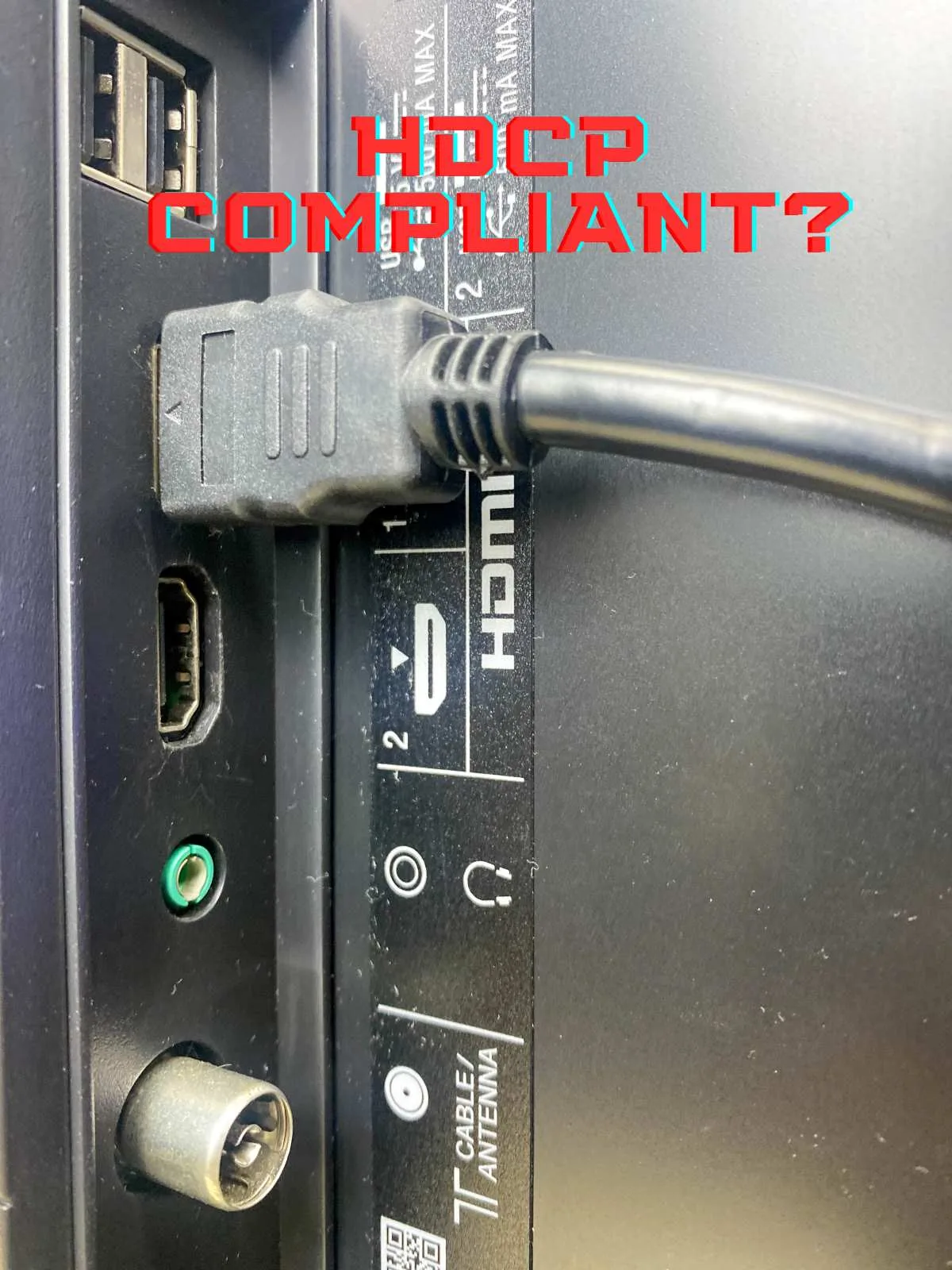
Image source: Bing (Web (fair-use with source credit))
You can hear the audio, but the screen is black. Or you see a green and purple static mess. This is the HDCP handshake failure I mentioned earlier.
HDCP (High-bandwidth Digital Content Protection) is a copy protection protocol that encrypts video signals between devices. Your iPhone checks whether your TV is authorized to receive the content before sending the video stream. If this check fails, the screen stays black.
The problem isn't your TV's age. It's the HDMI handshake. When your TV is connected to an HDMI input that also supports ARC (Audio Return Channel), the HDCP handshake can get confused, especially if you recently changed your audio setup or connected a new device.
Here's how to force a clean HDCP handshake:
- Unplug your TV from the wall.
- Wait 30 seconds.
- While the TV is off, unplug all HDMI cables from the TV.
- Wait another 30 seconds.
- Plug the TV back in and turn it on.
- Reconnect your HDMI cables, one by one, starting with the one you use for AirPlay (usually HDMI 1 or ARC).
- Test AirPlay.
This clears the HDMI handshake entirely. If the black screen persists, you might have a defective HDMI cable or a failing HDMI port.
Check if AirPlay works on a different HDMI input. If you're plugged into HDMI 1 and AirPlay fails, switch to HDMI 2 and test. If it works on HDMI 2, the HDMI 1 port has a hardware issue that requires service.
One more trick: disable HDCP enforcement (if your TV allows it). This is rare on modern TVs, but some Hisense models have a hidden service menu that lets you turn off HDCP verification. Accessing this menu requires a specific remote sequence that varies by model, and it voids your warranty.
I don't recommend it unless you're desperate and comfortable with the risk.
Firmware Update: The Most Overlooked Fix
Hisense pushes software updates every few months, and these updates often include fixes for AirPlay specifically. If your TV hasn't been updated in a while, you're probably missing critical patches that resolve discovery and handshake issues.
Here's how to check your firmware version:
- Press Home on your TV remote.
- Navigate to Settings > System > System Update.
- Select Check for Updates.
If an update is available, let it download and install. This can take up to 15 minutes depending on your internet speed. Don't unplug the TV during the update, you risk bricking the device.
After the update, restart both your TV and iPhone before testing AirPlay. The update cleared the network stack and reset the AirPlay services.
If your TV says it's already up to date, check the firmware version manually. Go to Settings > System > About and look for the software version number. Compare it with the latest version listed on Hisense's official website for your specific model.
The website typically lists the latest firmware available for each series with release notes.
One thing to watch for: Hisense sometimes pauses updates for certain regions during rollout. If your region shows a pending update on the official site but your TV says it's up to date, wait a few days and try again. The update usually arrives within a week.
You Have a Google TV, Not a Vidaa TV — Here's the Difference
Hisense uses two different operating systems across its lineup: Vidaa OS (the older, proprietary system) and Google TV (the newer Android-based system). AirPlay behaves differently on each, and the troubleshooting steps are not identical.
On Vidaa OS (most 2019, 2022 models), AirPlay is built into the system firmware. The settings path is Settings > Apple AirPlay & HomeKit. If AirPlay breaks on Vidaa, the fix usually involves a firmware update or a network restart.
On Google TV (2022 and newer models), AirPlay runs as a system service on top of Android. The settings path is Settings > System > Apple AirPlay & HomeKit. Google TV also has an extra troubleshooting option: clearing the cache for the AirPlay service.
Here's how to clear the AirPlay cache on Google TV:
- Press Settings on your remote.
- Go to System > Apps.
- Select Show all apps.
- Scroll down to Apple AirPlay.
- Select Force stop.
- Select Clear cache.
- Restart the TV.
This doesn't delete your settings, it just clears temporary files that might be corrupted. If the cache is the issue, this fixes it immediately.
If you have a Google TV model, also check whether your TV is running the latest version of Android TV. Go to Settings > System > About > Android TV OS version and compare it with the latest release. Some Google TV models received Android updates that introduced AirPlay bugs, and subsequent patches fixed them.
Router-Specific Fixes That Actually Work
You've done everything above and AirPlay still isn't connecting. Now we're in deeper network territory. These fixes require access to your router's admin panel, but they're proven to resolve the stubbornest AirPlay issues.
Fix 1: Disable UPNP
Universal Plug and Play (UPnP) is a network protocol that lets devices automatically discover each other and open ports. On some routers, UPnP conflicts with Bonjour discovery. Disabling UPnP usually resolves the conflict.
- Access your router's admin page (usually at 192.168.1.1 or 192.168.0.1).
- Find UPnP under Advanced Settings or Network Settings.
- Disable it and save changes.
- Restart your router and TV.
Fix 2: Change the DNS Server
This sounds unrelated, but it matters. Some internet service providers (ISPs) use DNS servers that block or delay certain discovery-related traffic. Switching your DNS to a public server like Google (8.8.8.8) or Cloudflare (1.1.1.1) resolves AirPlay issues in a surprising number of cases.
- Go to your router's WAN or Internet settings.
- Change the DNS settings from "Automatic" to "Manual".
- Enter 8.8.8.8 as the primary DNS and 8.8.4.4 as the secondary.
- Save and restart the router.
This change is safe, free, and reversible. If it doesn't fix anything, you can switch back.
Fix 3: Reserve an IP for Your TV
Dynamic IP addresses can change over time. When your TV's IP changes, your iPhone's AirPlay cache still holds the old IP, which breaks discovery until the cache expires. Reserving a permanent IP for your TV prevents this.
- Find your TV's MAC address in Settings > Network > Status (or similar path).
- Go to your router's DHCP Reservation or Static Lease section.
- Add a reservation for the TV's MAC address with a fixed IP.
- Save and restart the TV.
Fix 4: Lower the 5 GHz Channel
If your iPhone and TV are both on the same 5 GHz network but AirPlay fails, the router's 5 GHz channel might be the issue. Some channels (like 149 and 153) interfere with the multicast traffic that Bonjour uses.
- Go to your router's Wireless settings.
- Find the 5 GHz band settings.
- Change the channel from Auto to 36 or 40.
- Save and restart the router.
This is a known fix that works on various routers. It's worth trying if you're at your wit's end.
When None of This Works: The Final Reset
You've tried every network fix, cleared caches, updated firmware, and forced HDCP handshakes. AirPlay still won't work. At this point, the issue is likely a corrupted system setting or a hardware fault.
Here's the final reset sequence:
- Back up any important settings or preferences on your TV.
- Press Home on your remote.
- Navigate to Settings > System > Reset.
- Select Factory Reset and confirm.
- Wait for the TV to reboot and set it up fresh.
This wipes everything, including your network settings, Apple AirPlay pairing, and installed apps. It's the nuclear option, but it resolves the vast majority of software-level AirPlay failures.
After the reset:
- Connect your TV to Wi-Fi.
- Go to Settings > Apple AirPlay & HomeKit and enable AirPlay.
- Restart your iPhone.
- Try casting again.
If AirPlay still fails after a factory reset, the issue is hardware-related. This could be a failing Wi-Fi module in your TV, a defective AirPlay chip, or a motherboard issue. Your TV is likely under warranty, so contact Hisense support or your retailer.
Common Questions, Answered
Does AirPlay work on all Hisense TVs?
No. Only select models from 2019 onward support AirPlay 2. Check your model number and firmware version before troubleshooting.
Why does AirPlay work sometimes but not other times?
Intermittent failures usually point to network congestion, IP address conflicts, or router DHCP leasing issues. Reserve a static IP for your TV and lower the 5 GHz channel to stabilize connections.
Can I use AirPlay without Wi-Fi?
No. AirPlay requires both devices on the same local network. Peer-to-peer AirPlay (which uses Bluetooth) is only supported on newer Apple devices and specific TV models, and even then, it's unreliable on Hisense TVs.
Does AirPlay work with Android phones?
No. AirPlay is an Apple protocol. Android phones use Cast or Miracast for screen mirroring.
If you're using an Android phone, AirPlay won't work regardless of your TV's settings.
Does using a VPN break AirPlay?
Yes, sometimes. If your iPhone is connected to a VPN, it can route Bonjour discovery traffic through the encrypted tunnel, preventing your TV from seeing the request. Disconnect from the VPN and try again.
Will AirPlay work if both devices are on different Wi-Fi networks?
No. AirPlay requires both devices on the same local network. Different bands (2.4 GHz vs. 5 GHz) on the same router technically count as separate networks, which is why band matching matters.
Why does AirPlay show "This video is not available for AirPlay"?
This is a content restriction, not a technical failure. The app or streaming service has disabled AirPlay for that specific video. There's no fix for this, it's a DRM policy issue.
The Bottom Line
Hisense AirPlay not working is almost never a permanent problem. In most cases, it's a restart you haven't done yet, a firmware version you haven't installed, or a network configuration you haven't matched.
Follow this order:
- Restart everything (TV, iPhone, router).
- Match your Wi-Fi bands.
- Check AirPlay settings on your TV.
- Update firmware.
- Clear AirPlay pairing and cache.
- Adjust router settings (AP isolation, UPnP, DNS, channel).
- Factory reset as a last resort.
If you've gone through all seven steps and AirPlay still fails, you're dealing with a hardware issue. Contact Hisense support directly, they'll walk you through warranty options.
The key takeaway: don't give up after the first failed attempt. AirPlay is a protocol that depends on multiple systems working together. Find the broken link in the chain, and you'll be back to streaming in minutes.

Similar Posts