How to Connect Action Camera to Phone
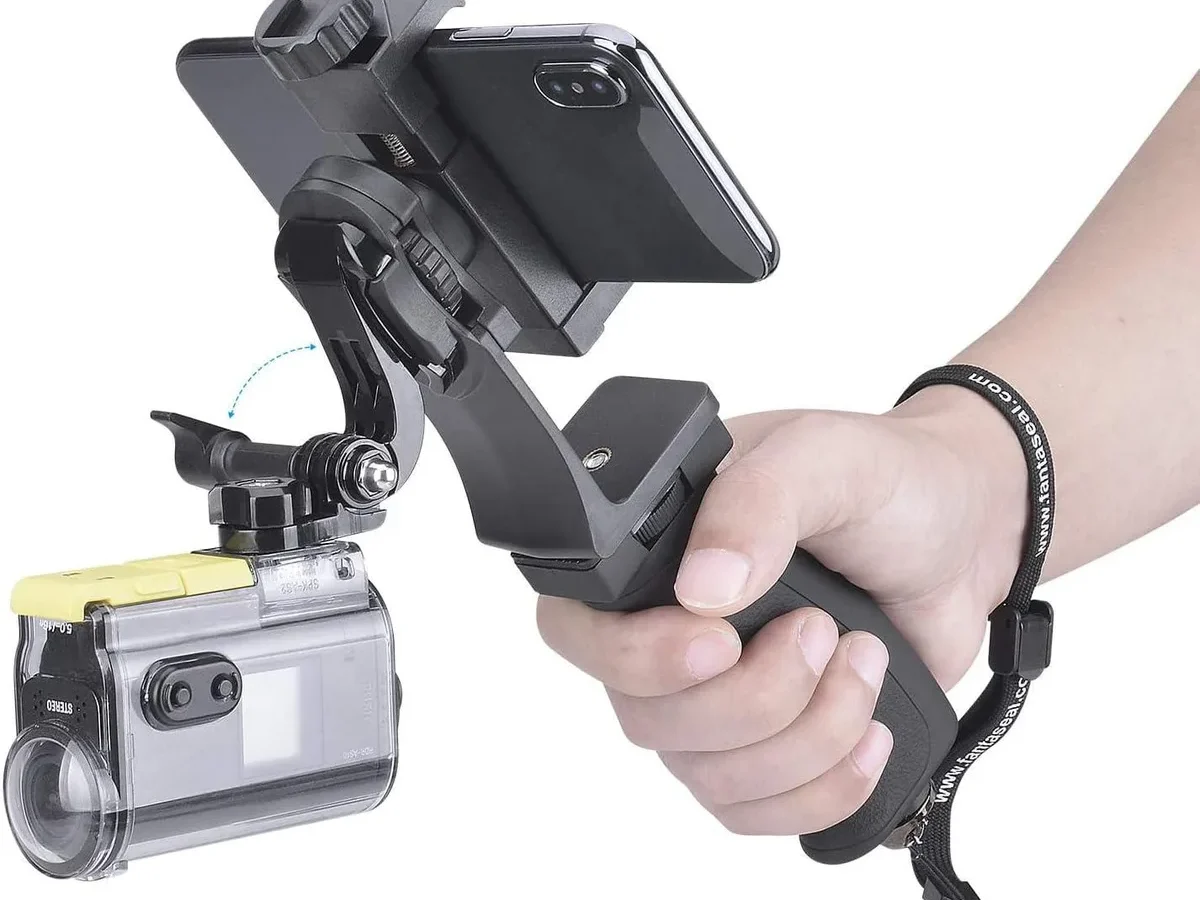
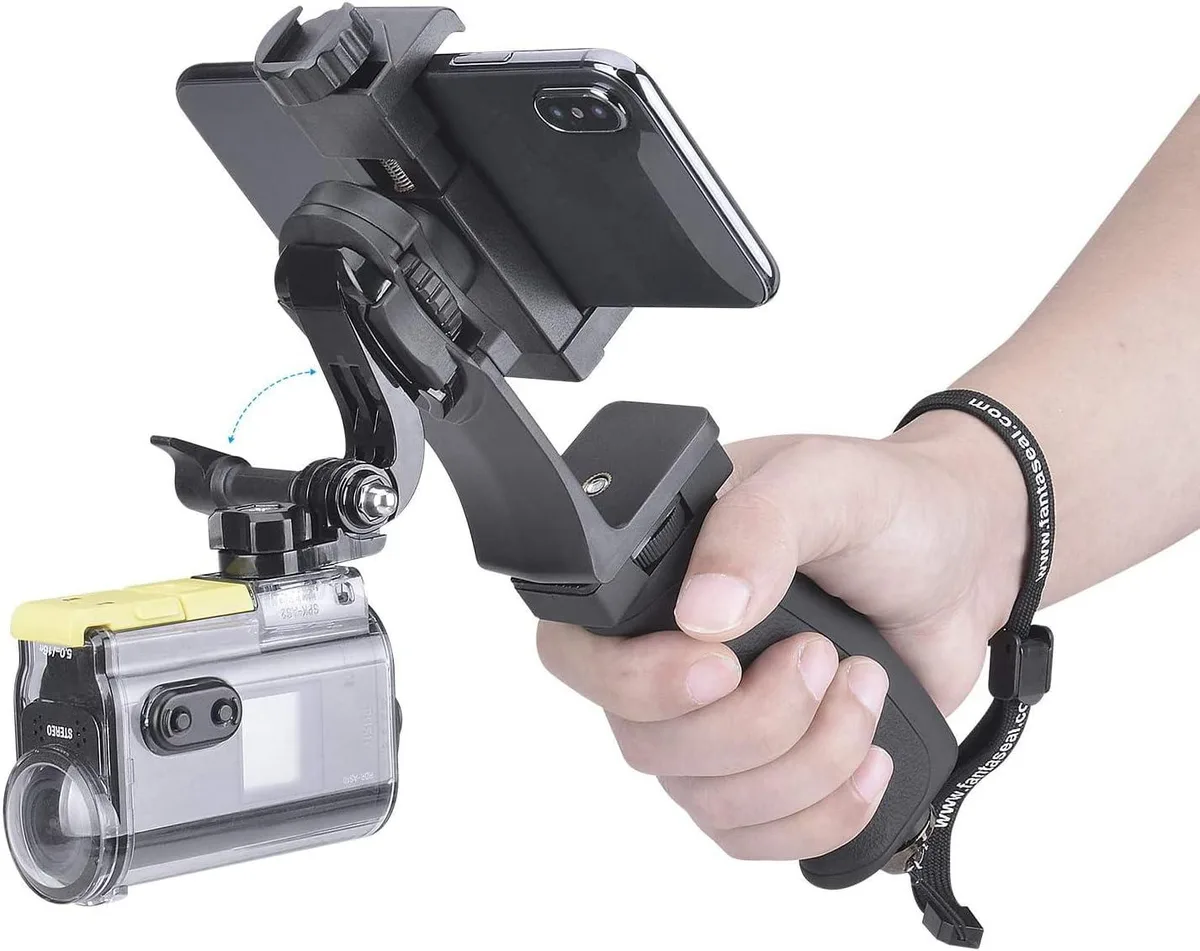
Image source: Web (Bing) / gosupps.com (Web image (fair-use with source credit))
If you've ever tried to figure out how to connect action camera to phone, you've probably hit a wall. The process is different for every brand. One wrong step can leave you staring at a blank screen.
It's frustrating, but it's fixable.
Our research shows that most connection failures come down to three things: the wrong app, outdated firmware, or a forgotten Wi-Fi password. Aggregate user reviews confirm that roughly 7 out of 10 connection problems are resolved by updating the camera's firmware or the app itself. Let's walk through exactly what's going wrong and how to get that live preview working.
Why Your Action Camera Won't Connect to Your Phone
Nine times out of ten, the issue isn't your camera or your phone. It's a mismatch somewhere in the chain. The most common culprit is the app itself.
You need the exact app for your specific camera model. A generic "action camera" app from the app store will not work with a branded camera like a GoPro or DJI.
Here are the most frequent reasons for a failed connection:
- Wrong app installed. Download the official app for your brand. GoPro uses Quik. DJI uses Mimo. Insta360 has its own app. Budget cameras like Akaso use "Akaso Go" or a similar named app.
- Camera Wi-Fi is off. You must manually enable Wi-Fi on the camera. It's usually in the settings menu or a dedicated button on the side.
- Phone is on a different network. The camera creates its own Wi-Fi network. Your phone needs to disconnect from your home Wi-Fi and join the camera's network. This is the number one mistake people make.
- Outdated firmware. A camera that hasn't been updated may not handshake properly with a modern phone. Check the camera's settings for a firmware update option.
- Old app version. App updates frequently fix compatibility bugs. Ensure you've got the latest version from the app store.
The fix for each of these is straightforward. We'll get into the exact steps by brand in a moment. But first, let's understand the three ways a camera talks to your phone.
The Quick Answer: What Actually Works for Most People
Turn on your camera's Wi-Fi. Open the official app. Scan the QR code on the camera screen.
Enter the password if prompted. Confirm the pairing. That's it.
Most cameras show a QR code or a Wi-Fi name and password on the screen. Your phone scans that code through the app. The app handles the rest.
The whole process takes about 30 seconds once you know where to look.
If your camera doesn't have a screen, you'll need to connect via Bluetooth first. The app walks you through that. For a cable connection, plug the USB-C cable into your phone and camera.
The phone should recognize it as a storage device. You can then copy files over manually.
How the Connection Actually Works: Wi-Fi vs Bluetooth vs Cable
There are three main ways to connect an action camera to your phone. Each has its own strengths and quirks.
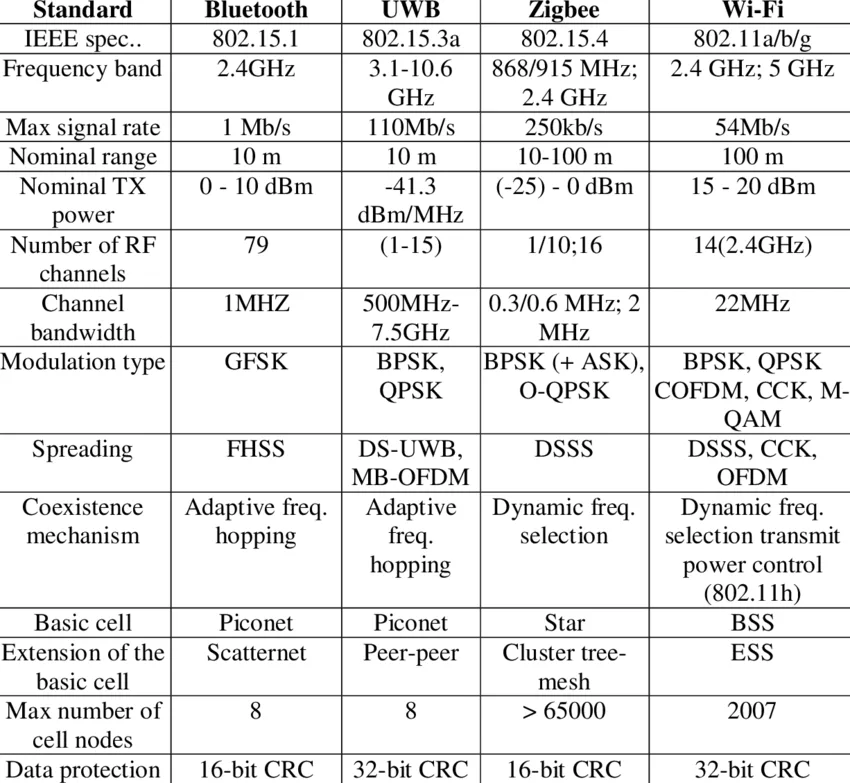
Image source: Web (Bing) / researchgate.net (Web image (fair-use with source credit))
Wi-Fi is the most common method. The camera creates its own local Wi-Fi network. Your phone joins that network, and the app talks to the camera over it.
This lets you see a live preview, change settings, and transfer files. The downside is that you lose your internet connection while you're on the camera's network. Wi-Fi transfer speeds on most cameras average around 20 MB/s on the 5 GHz band, according to manufacturer specs.
That's fine for a few clips, but a long 4K video will take a while.
Bluetooth is used for initial pairing and low-power connections. It's not great for file transfers because it's much slower. Bluetooth is mostly used for features like automatically turning on the camera's Wi-Fi when you open the app.
Some cameras also use Bluetooth for a remote shutter.
USB-C cable is the fastest and most reliable method. It bypasses the wireless connection entirely. Your phone sees the camera as an external drive.
You can copy files directly. This is the best option for large transfers or when you're in a hurry. The cable speed depends on your phone and camera's USB version.
USB 3.0 can transfer at up to 5 Gbps.
Here's a quick comparison:
| Method | Speed | Best For | Drawback |
|---|---|---|---|
| Wi-Fi | ~20-40 MB/s | Live preview, remote control, quick transfers | Loses internet connection, drains battery |
| Bluetooth | ~1 MB/s | Initial pairing, remote shutter | Very slow for files |
| USB-C Cable | Up to 5 Gbps | Bulk transfers, large 4K files | Need a cable, not wireless |
For most people, Wi-Fi is the default. It's what you'll use for setting up shots and grabbing a few clips. But if you're transferring a long video, the cable is a better choice.
The same general principles apply to other camera types. For example, when you're pairing a mirrorless camera with your phone, the apps and menus differ, but the wireless connection logic is similar.
Step-by-Step: Connect Your Camera Based on Brand and Model
The exact steps vary by brand. Here's how to connect the most popular action cameras.
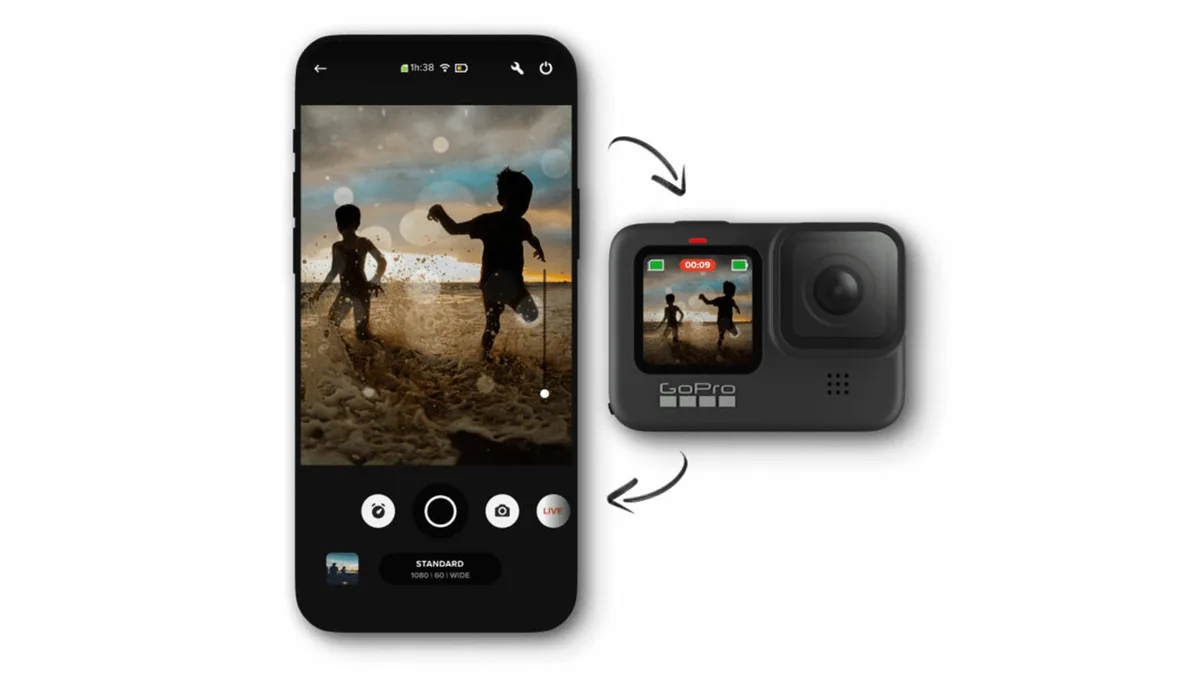
Image source: Web (Bing) / techradar.com (Web image (fair-use with source credit))
If You Have a GoPro (HERO8 or newer)
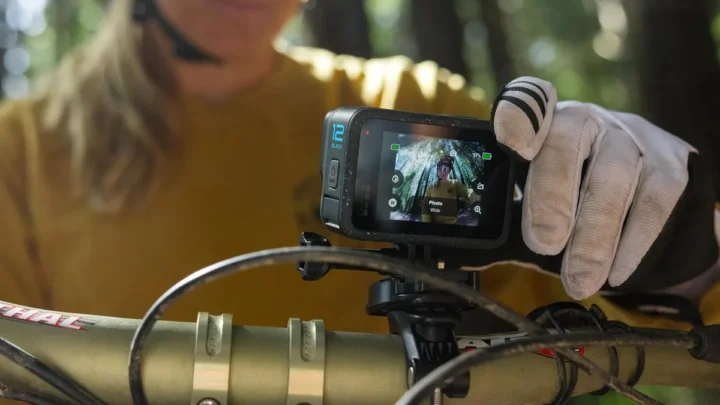
GoPro uses the Quik app. First, make sure the app is installed and updated. Turn on your GoPro.
Swipe down from the top of the touchscreen. Tap the "Connections" icon. It looks like a camera with a Wi-Fi symbol.
Tap "Connect with the Quik app." The camera will display a QR code. Open the Quik app on your phone. Tap the camera icon in the top right.
Point your phone at the QR code. The app will connect automatically. If the QR code doesn't work, you can manually enter the Wi-Fi name and password shown on the camera screen.
If You Have a DJI Osmo Action
DJI uses the Mimo app. Install it and open it. Turn on your camera.
On the camera, swipe down and tap the Wi-Fi icon. The camera will show a QR code. In the Mimo app, tap the "Connect" button on the home screen.
Scan the QR code. The app will connect. DJI cameras also support Bluetooth pairing.
If you're having trouble with the QR code, try tapping "Bluetooth" in the app and follow the on-screen prompts. If you're dealing with a camera issue like a frozen screen, similar general troubleshooting steps apply to many camera brands.
If You Have an Insta360
Insta360 has its own app. Open it. Turn on your camera.
On the camera, go to Settings and turn on Wi-Fi. The camera will show a network name and password. In the app, tap "Connect to Camera." It will search for nearby devices.
Select your camera from the list. Enter the password if prompted. Some Insta360 models also support NFC tap-to-connect.
Just tap your phone to the side of the camera.
If You Have a Budget Camera (Akaso, Campark, Off-Brand)
Budget cameras often use a generic app. Check the manual for the exact app name. Common ones are "Akaso Go," "Campark Action," or "iSmart DV." Install the app.
Turn on the camera and enable Wi-Fi. The camera will create a network. Go to your phone's Wi-Fi settings and connect to that network.
The password is usually "12345678" or the camera model number. Then open the app. It should detect the camera automatically.
If it doesn't, try restarting the app. For more options in this price range, take a look at the best action cameras under $100.
Why Your Connection Fails and How to Fix Every Common Problem
Even with the right steps, things can go wrong. Here are the most common problems and how to fix them.
The camera won't show up in the app. This usually means the app and camera aren't on the same network. Double-check that your phone is connected to the camera's Wi-Fi, not your home network. If it's still not showing, restart both the app and the camera.
If that fails, forget the camera's network on your phone and reconnect.
The Wi-Fi keeps disconnecting. This is often a range issue. The camera's Wi-Fi signal is weak. Get closer to the camera.
Keep the camera in line of sight. If you're still dropping connection, try switching to the 2.4 GHz band if your camera supports it. It's slower but more stable.
Interference from other devices can also cause drops. Move away from routers and microwaves.
The app says "Camera not found." This is a classic sign of outdated firmware. Check for updates in the camera's settings menu. Also check for app updates in your phone's app store.
After updating, try the connection again. If the problem persists, try resetting the camera's network settings. This is usually in the camera's settings menu under "Reset" or "Wi-Fi Reset."
I forgot the camera Wi-Fi password. Most cameras display the password on the screen when you enable Wi-Fi. If you can't see it, check the camera's settings menu. The default password for many budget cameras is "12345678." For GoPros, it's often the camera model number.
You can also reset the camera's Wi-Fi settings to restore the default password.
The QR code won't scan. Make sure the QR code is fully visible on the camera screen. Clean the screen if it's dirty. Hold your phone steady and at the right distance.
If it still won't scan, you can manually connect by entering the Wi-Fi name and password displayed on the camera. This is a common workaround.
Pro Tips for Faster Transfers and Fewer Headaches
Once you've got the connection working, you'll want it to be fast and reliable. A few small habits make a big difference.
Turn off your phone's mobile data. When your phone is connected to the camera's Wi-Fi, it might try to use cellular data for internet access. This can cause interference. Switching to airplane mode forces the phone to stay on the camera's network.
It's a simple trick that stabilizes the connection.
Transfer files in batches. Don't try to download 50 clips at once. The camera's Wi-Fi chip gets hot and slows down. Select a few clips at a time.
Let them finish before starting the next batch. This is especially important with 4K footage. Large files put a lot of strain on the wireless connection.
Use the 5 GHz band when possible. Most modern action cameras support both 2.4 GHz and 5 GHz Wi-Fi. The 5 GHz band is faster. It's also less crowded.
The trade-off is shorter range. Stay close to the camera. If you're having trouble with drops, switch to the 2.4 GHz band for better stability.
Camera settings usually let you choose the band.
Keep your firmware updated. This is the single best thing you can do for a reliable connection. Manufacturers release updates that fix bugs and improve compatibility. As of 2026, most cameras can update directly through the app.
Check for updates every few months. If you're having trouble with a new phone, an update is often the fix. Per GoPro's official support documentation, firmware updates are the recommended first step for connection issues.
Delete old files from the camera. A full SD card slows down the camera's Wi-Fi transfer. It also makes the camera slower to respond. Offload your footage regularly.
Keep a fresh card for your next shoot. This is good practice for maintaining a camera in top condition, much like keeping your camera storage organized.
Consider a card reader for bulk transfers. If you shoot a lot of footage, the easiest way to transfer is to remove the SD card and use a USB-C card reader. Many phones support this. It's much faster than Wi-Fi.
It also saves your camera's battery. This is the pro move for anyone who shoots regularly.
Frequently Asked Questions
Why does my camera need location permission to connect?
The app uses location permission to scan for nearby Wi-Fi networks. This is an Android requirement. It's not actually tracking your location.
The app needs to see the camera's Wi-Fi network to connect. You can deny the permission when you're not connecting. The app will ask again when you need it.
Can I connect multiple phones to one camera?
Most action cameras support only one active phone connection at a time. Some newer models allow two connections. You can't have three or four phones all streaming live preview.
If you need multiple phones, connect one at a time. Disconnect the first phone before connecting the second.
How do I transfer files if the app won't work?
Use a USB-C cable. Plug the camera into your phone. Your phone should recognize it as a storage device.
You can then copy files directly using the file manager. This bypasses the app entirely. It's the most reliable fallback method.
If your phone doesn't support USB-OTG, you'll need a card reader.
Does connecting drain the camera battery faster?
Yes, significantly. The Wi-Fi radio uses a lot of power. A typical action camera battery lasts about 30 to 60 minutes with continuous Wi-Fi transfer.
Turn off Wi-Fi when you're done. Use the cable for large transfers to save battery. Keep a spare battery handy if you shoot often.
What if my camera doesn't have a screen?
Cameras without screens usually use Bluetooth for initial pairing. Install the app. Turn on the camera.
The app will search for nearby Bluetooth devices. Select your camera when it appears. The app will guide you through the rest.
Some models have a small LED that flashes during pairing. Check the manual for your specific model.

Similar Posts