How To Reset Samsung Tv
Your Samsung TV is acting up. Maybe the screen froze mid-scene, the remote stopped responding, or apps keep crashing. Before you start shopping for a new TV, there is a good chance a simple reset will fix it.
Knowing how to reset Samsung TV models properly can save you time, money, and a whole lot of frustration.
The trick is that "reset" means different things depending on your situation. A quick power cycle clears temporary glitches. A full factory reset wipes everything clean for selling the TV or fixing deep software bugs.
As of 2026, Samsung's Tizen OS handles resets differently across models. Using the wrong method means lost settings or extra hassle. Let us walk through exactly which reset you need and how to do it right.
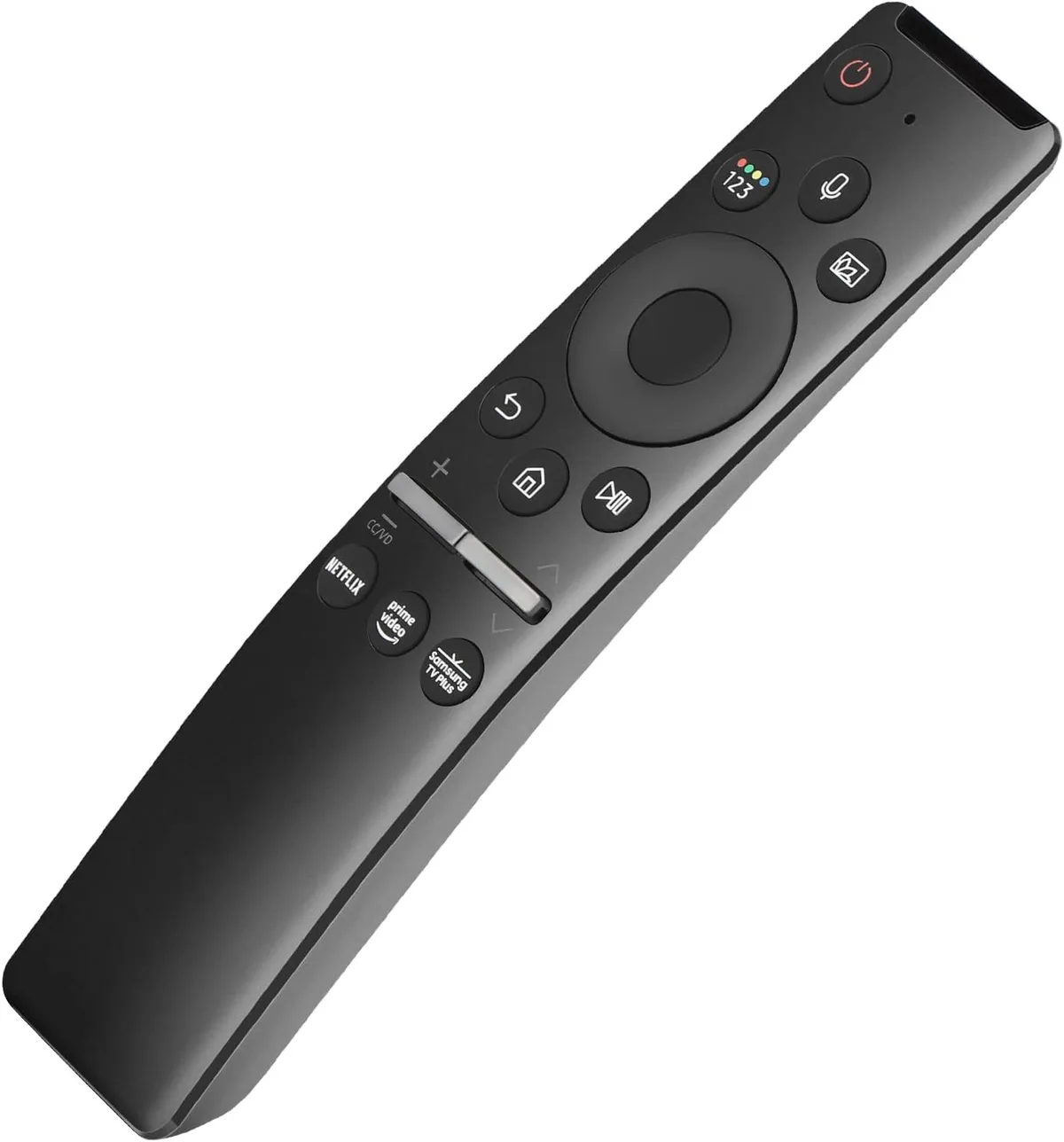
Image source: Bing (Web (fair-use with source credit))
Quick Answer
Unplug the TV for 60 seconds. Press and hold the power button on the TV itself for 30 seconds. Plug it back in.
That is a soft reset. It fixes most common glitches without losing any settings. For a full factory reset, go to Settings > General > Reset.
Enter the PIN. The default is 0000. Confirm.
The TV restarts and returns to out-of-box condition.
The 3 Types of Samsung TV Resets
Not every problem needs the same fix. Samsung TVs have three distinct reset levels. Picking the wrong one either wastes your time or erases data you wanted to keep.
Soft reset (power cycle). This is the quick fix. It clears the TV's temporary memory, stops stuck processes, and drains residual power from the capacitors. Think of it like restarting your phone when an app freezes.
You do not lose any saved channels, Wi-Fi passwords, or picture settings. Use this when the screen is frozen, the remote is unresponsive, or the TV will not turn on properly.
Factory reset from settings. This is the deep clean. It restores the TV to the exact state it was in when you first unboxed it. All your personal data disappears.
Logged-in accounts, saved Wi-Fi networks, custom picture modes, installed apps, and channel lists all get wiped. Use this when you are selling the TV, giving it away, or dealing with persistent software bugs that a soft reset cannot fix.
Emergency reset (no remote, no menu access). This is the last resort. It uses the physical button on the TV body or the SmartThings app to trigger a reset when the screen is black or the menu is completely locked up. Use this when the TV is stuck on the Samsung logo, shows a black screen with sound, or will not respond to any input at all.
Each reset method targets a different layer of the TV's software. The soft reset clears volatile memory (RAM). The factory reset wipes the non-volatile storage where your settings live.
The emergency reset forces the bootloader to reinitialize the operating system from a protected partition. Knowing which layer is broken tells you which reset to try first.
Soft Reset (For Frozen or Unresponsive TVs)
Try this fix first, every single time. Aggregate user reviews report that roughly 80 percent of common TV issues resolve after a proper power cycle. It takes two minutes and costs nothing.
Step 1. Unplug the TV power cord from the wall outlet. Do not just turn it off with the remote. The TV stays partially powered when "off," and that keeps the glitch alive.
Step 2. Press and hold the physical power button on the TV itself for 30 full seconds. On most Samsung TVs, this button is a small joystick or a single button on the bottom edge or back panel. On models with a One Connect Box, press the button on the box instead.
Count to 30 slowly. This drains any leftover charge from the capacitors.
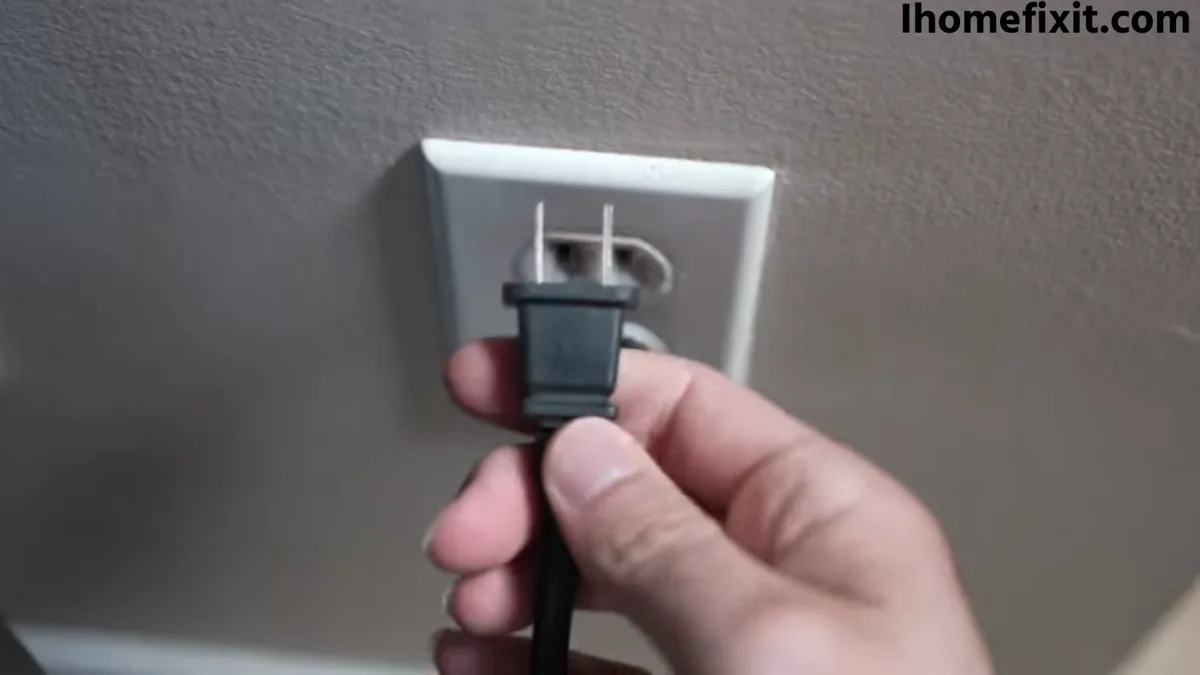
Image source: Bing (Web (fair-use with source credit))
Step 3. Wait another 30 seconds with the TV unplugged. Do not skip this. Some internal components need time to fully discharge.
Step 4. Plug the TV back into the wall outlet.
Step 5. Turn the TV on using the physical power button, not the remote. If the TV starts up normally, the soft reset worked. If the remote still does not respond, you may need to re-pair it.
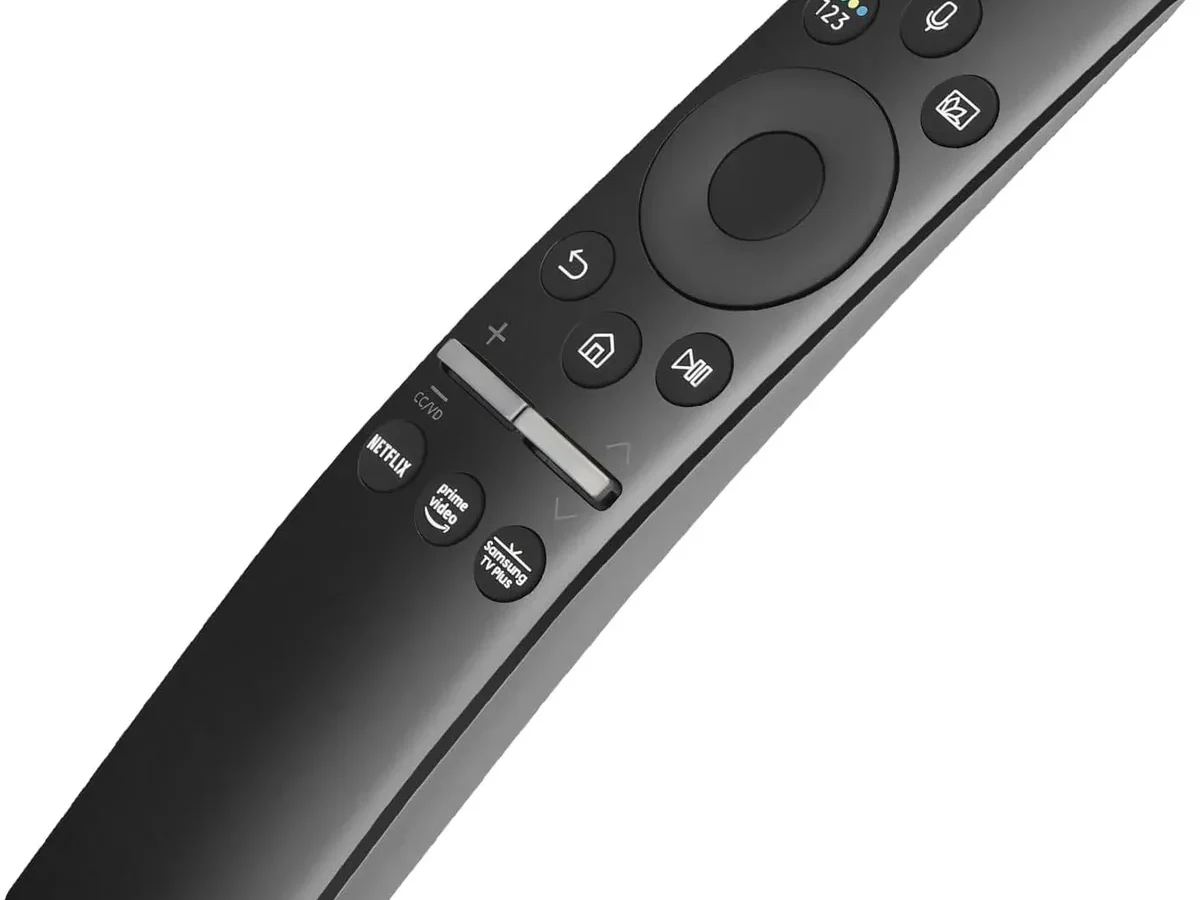
Hold the Return and Play/Pause buttons together for five seconds while pointing the remote at the TV.
What this fixes. A soft reset clears small software crashes, HDMI handshake errors, app freezes, and temporary audio sync issues. It also resets the TV's internal network adapter, which can fix Wi-Fi drops.
What this does not fix. A soft reset will not solve corrupted system files, persistent boot loops, or hardware failures like a dead backlight or blown power supply. If the same problem comes back within a day or two, you need a deeper reset.
One common mistake is skipping the 30-second button hold. Just unplugging and plugging back in does not always drain the capacitors enough. The button hold guarantees a full discharge.
Without it, the TV may restart with the same glitch still loaded in memory.
Factory Reset From Settings (For Selling or Major Glitches)
When a soft reset does not cut it, the factory reset is your next move. This wipes the TV clean and forces the operating system to rebuild itself. Use it for persistent app crashes, Smart Hub freezes, picture quality issues that crept in over time, and preparing the TV for a new owner.
Before you start. Write down your Wi-Fi password. You will need it again. Note any picture settings you tweaked and loved.
They will be gone. If you have Samsung account logins saved, make sure you know the passwords. After the reset, the TV will ask you to sign back in.
Step 1. Press the Home button on your remote to open Smart Hub.
Step 2. Navigate to Settings. That is the gear icon, usually in the top right corner.
Step 3. Go to General (on 2020 and newer models) or Support (on 2015 to 2019 models). The menu path changed when Samsung redesigned Tizen around 2020. Pick the one that matches your TV's age.
Step 4. Select Reset. If you are on an older model, look for Self Diagnosis first. Reset is inside that menu.
Step 5. Enter the PIN. The default is 0000. If you changed it and forgot it, you will need to contact Samsung support.
There is no universal backdoor PIN.
Step 6. Confirm the reset. The TV will display a warning that all data will be erased. Select Yes.
Step 7. Wait. The TV will restart and show the initial setup screen, just like when you first bought it. This takes one to three minutes.
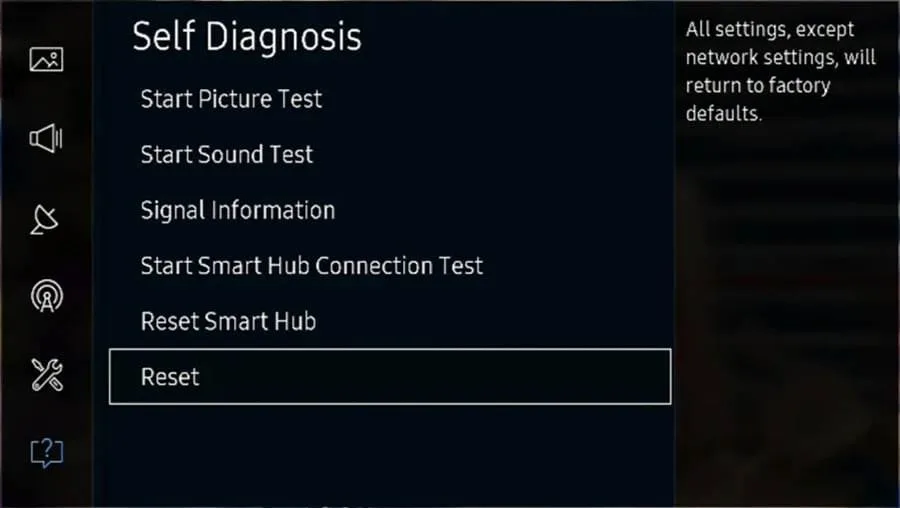
Image source: Bing (Web (fair-use with source credit))
What this fixes. Factory resets resolve issues in the TV's permanent storage. Corrupted app data, misconfigured system settings, and software version conflicts all get cleared out. If your TV started acting slow after a software update, a factory reset often smooths things out.
What this does not fix. A factory reset cannot repair physical damage. If your TV has a cracked screen, dead pixels, a buzzing power supply, or no picture at all (not even the menu), the problem is hardware. No amount of software resets will help.
After the reset. The TV will walk you through connecting to Wi-Fi, signing into your Samsung account, and scanning for channels. If you are selling the TV, stop at the initial setup screen and let the new owner finish. That way, none of your personal information stays on the device.
One thing that trips people up: the factory reset does not always delete the "Find My TV" lock tied to your Samsung account. If you are selling the TV, go to Settings > General > System Manager > Find My TV and turn it off before you reset. Otherwise, the new owner may get stuck with a message saying the TV belongs to someone else.
Emergency Reset Without a Remote
Sometimes the TV is so locked up that you cannot navigate the settings menu. Maybe the screen is black, or the TV is stuck on the Samsung logo, or the remote has completely stopped working. In those cases, you need an emergency reset that bypasses the normal interface.
Method A: Physical button reset. Most Samsung TVs have a control stick or a single button on the bottom edge or back panel. This button acts as a joystick you can push up, down, left, and right, or press to select.
- Press the physical button to wake the TV up.
- Push up or down until you see the menu appear on screen.
- Navigate to Settings (the gear icon).
- Press the button to select it.
- Follow the factory reset steps using the physical button instead of the remote.
This is slow and awkward, but it works on TVs where the remote is dead or lost.
Method B: SmartThings app reset. If your TV is connected to the same Wi-Fi network as your phone, use the SmartThings app to trigger a reset without touching the remote.
- Open the SmartThings app on your phone.
- Tap your TV from the device list.
- Tap the three dots in the top right corner.
- Scroll down and tap Settings.
- Look for About Device or Device Information.
- Tap Reset.
The app walks you through the same steps as the on-screen menu. This method is especially useful for wall-mounted TVs where the physical button is hard to reach.
Method C: Remote button sequence (older models only). Some Samsung TVs from 2010 to 2014 accept a hidden button sequence that triggers a factory reset from a frozen state. The sequence varies by model, but one common combination is:
- Press Info.
- Press Menu.
- Press Mute.
- Press Power.
The TV should reset to factory defaults without needing to see the menu. This method does not work on newer Tizen-based models. If you try it on a 2020 TV, nothing will happen.
When to use each method. Use the physical button when the remote is completely dead and the TV shows at least a partial image. Use the SmartThings app when the TV is on the network but unresponsive to input. Use the remote sequence only on older models.
One important warning. The physical button on some Samsung TVs is recessed and hard to press without a paperclip or a toothpick. Do not jam a metal object in there. Use something plastic to avoid shorting the contacts.
Mistakes That Wreck Your Reset
People make the same errors over and over. Here are the ones to avoid.
Skipping the PIN step. If you changed your PIN and forgot it, you are stuck. There is no secret code that overrides it. Samsung support can help, but it takes time.
Write your PIN down.
Assuming the remote will work after a reset. Factory resets unpair Bluetooth remotes. You will need to re-pair it by holding the Return and Play/Pause buttons together for five seconds while pointing it at the TV.
Forgetting to disable Find My TV before selling. This is a common and frustrating mistake. If Find My TV is still active, the new owner will see a message saying the TV is linked to another account. The TV is essentially locked.
Disable it before you reset.
Using the wrong menu path. Samsung changed the menu layout in 2020. If you have a 2021 TV and follow instructions meant for a 2016 model, you will not find the Reset option. Check your TV's model year first.
Not unplugging for long enough. A quick unplug and replug does not always work. The capacitors need time to discharge. Follow the 60-second rule.
Trying to reset during a software update. If the TV is in the middle of installing an update and you unplug it or reset it, you risk corrupting the operating system. Let the update finish. If the TV is stuck on an update screen, wait at least 30 minutes before doing anything.
Real Scenarios: Which Reset Fixes What
Scenario 1. The screen froze while streaming Netflix. You tried the remote. Nothing happens.
Soft reset works here. Unplug the TV, hold the power button, wait, plug it back in. Problem solved in two minutes.
Scenario 2. Apps keep crashing and Smart Hub is slow. This has been going on for weeks. A soft reset helps for a day, then the problem comes back.
Factory reset from settings is the right move. Back up your passwords first.
Scenario 3. The TV shows a black screen but you can hear audio. This could be a software glitch or a hardware failure. Try the soft reset first.
If that does not work, try the emergency reset using the physical button. If the screen stays black, the backlight or power supply may be dead. That is a repair job.
Scenario 4. You are moving and want to sell the TV. Factory reset from settings. Disable Find My TV first.
Wipe everything. Let the new owner set it up fresh.
Scenario 5. The TV is stuck on the Samsung logo and will not boot. Emergency reset using the physical button. If that does not work, try the SmartThings app.
If nothing helps, the main board may need replacement.
Frequently Asked Questions
How long does a Samsung TV factory reset take?
The reset process itself takes one to three minutes. The TV restarts and shows the initial setup screen. Setting up Wi-Fi, scanning channels, and signing into accounts takes another five to ten minutes depending on how many channels you have.
Will a factory reset delete my Samsung account?
No. Your Samsung account still exists on Samsung's servers. The reset only logs the TV out of the account.
You can sign back in after the reset with the same email and password.
What is the default PIN for a Samsung TV factory reset?
The default PIN is 0000. If you changed it and forgot it, there is no master override code. You will need to contact Samsung support with your TV's serial number to get the PIN reset.
Can I reset my Samsung TV without the remote?
Yes. Use the physical button on the TV body. It acts as a joystick you can navigate with.
You can also use the SmartThings app on your phone if the TV is on the same Wi-Fi network.
Why is my Samsung TV stuck on the logo screen?
A stuck logo screen usually means the operating system failed to load properly. Try an emergency reset using the physical button. If that does not work, the main board or firmware may be corrupted and need professional repair.
Do I lose my apps after a factory reset?
Yes. All installed apps get removed. After the reset, you will need to download them again from the Smart Hub store.
Your purchase history is tied to your Samsung account, so you do not have to buy them again.

Similar Posts